
Temporary User Skills
Temporary User Skills
Temporary User Skills
Program #: 531
Module: Utilities
Overview
Use Temporary User Skills (program #531) to
View temporary and regular user, action profile, and terminal skill sets for all users currently logged into SBN
Assign temporary skill sets to users for a selected period of time
Assign temporary skill sets to action profiles for a selected period of time
View the alarm autofeed status of all users who currently have Dispatch (program #537) open
An operator's skill set determines which alarms the operator sees in the Alarm Queue when the Use Skills check box is selected, and which alarms the operator can handle in Dispatch (program #537) when the Use Skills check box is selected. Users define the skills necessary to handle an alarm for an installation in the Basics tab of program #559, for a panel type in program #1742, and for a zone type in program #1733.
An operator's skill set is determined by the skills defined for his/her user ID in program #1501 (or in the Users tab of program #1811), and the skills defined for his/her action profile in program #1502. If the same skill position has a different value in the user's action profile, SBN uses the skill defined for the user ID in program #1501. If a skill position is blank in the user skill set defined for the user ID, SBN uses the skill defined for the user's action profile in that skill position.
If a temporary skill set is defined for the user's action profile in program #531, SBN uses that skill set rather than the regular user skills or regular action profile skills. If a temporary user skill set is defined, SBN uses that skill set rather than the temporary action profile skills, regular user skills, or regular action profile skills. If a skill position is blank in a temporary skill set, SBN uses the skill from the regular skill set in that skill position (unless the blank check box is selected for that position in the temporary skill set, which sets the position to blank).
The hierarchy of skill sets that SBN uses for an operator is:
1) Temporary user skills - defined in program #531
2) Temporary action profile skills - defined in program #531
3) Regular user skills - defined in program #1501, the Users tab of program #1811, or in program #531
4) Regular action profile skills - defined in program #1502
Note: When a user selects a temporary action profile skill set in the Temp User Skills window, the user's regular action profile skills are temporarily eliminated and replaced with the temporary profile skills for the assigned period of time.
The SBN status bar at the bottom of the SBN window displays the currently active skill set for the user when option ba491 is defined. Option ba491 defines the interval in seconds that SBN refreshes the status bar User Skills display. If the value of this option is 0 (zero), SBN does not display user skills in the status bar. The status bar displays skills in red text if a temporary skill set is in place; it displays skills in black text if no temporary skill set is defined.
The following graphic shows the SBN status bar with the User Skills display in red text.

Note: The Action Profile name assigned to the user appears in the status bar after the set of currently defined skills. Spaces in the set of defined skills now appear as underscores.
This document covers the following topics:
Navigating to Temporary User Skills
Changing the Mode of Temporary User Skills
Refreshing the Temporary User Skills Window
Changing the Details of a Skill Set
Deleting a Temporary Skill Set
Navigating to Temporary User Skills
Use the following steps to navigate to Temporary User Skills:
1. From the main SBN toolbar, select Menu.
2. From the drop-down menu, select Go To.
3. In the Go To Program dialog box, type in "531" and press enter.
w The Temporary User Skills program opens.
Changing the Mode of Temporary User Skills
In Temporary User Skills, you may view and enter skill sets within four separate modes:
Skill of Current Users (default)
Temp User Skill
Temp Profile Skill
Autofeed Users
When you initially open Temporary User Skills, the program window opens in Skill of Current Users mode. Choose the Mode button to toggle between each mode. You can see the current mode displayed in the Mode field at the top of the window.
Note: In all modes of Temporary User Skills, spaces in skill profiles appear as underscores. In all modes of Temporary User Skills, when a temporary skill set expires, it no longer appears in the window.
Skill of Current Users Mode
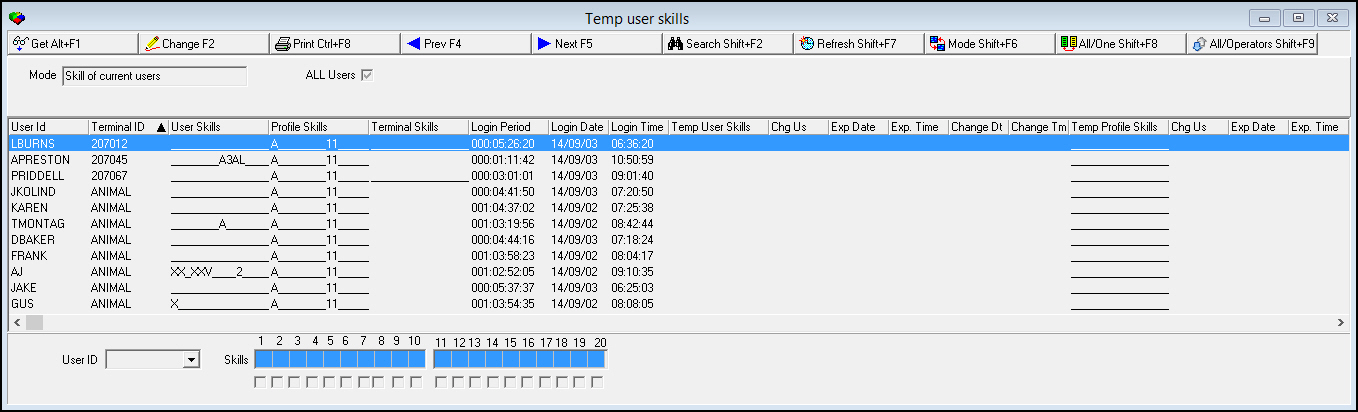
In Skill of Current Users mode, you see a list of all users currently logged into SBN along with each user's regular user skill set, regular action profile skill set, terminal skill set, temporary user skill set, and temporary action profile skill set. In Skill of Current Users mode, you can change each user's regular skill set.
The following graphic shows Temporary User Skills in Skill of Current Users mode.
Field/Column Descriptions
The following table describes the fields and columns used in Skill of Current Users mode of Temporary User Skills.
Field/Column |
Description |
Mode |
Displays the current mode of Temporary User Skills. |
User Skill List Grid |
|
User ID |
ID of each user currently logged into SBN. |
Terminal ID |
Terminal that each user is currently logged into. |
User Skills |
Currently defined regular skill set for each user. (You may define regular user skill sets in Skill of Current Users mode of this program, program #1501, or in the Users tab of program #1811.) |
Profile Skills |
Currently defined regular skill set for each user's action profile. (Define regular action profile skill sets in program #1502.) |
Terminal Skills |
Currently defined skill set for each user's terminal. (Define terminal skill sets in program #1861.) |
Login Period |
Indicates how long each user has been logged into the current SBN session in ddd:hh:mm:ss format. |
Login Date |
Date when each user logged into the current SBN session. |
Login Time |
Time when each user logged into the current SBN session. |
Temp User Skills |
Currently defined temporary skill set for each user. (Define temporary user skill sets in Temp User Skill mode of this program.) |
Change User |
User ID that last made changes to the temporary user skill set. |
Expiration Date |
Date when the currently defined temporary user skill set expires. |
Expiration Time |
Time when the currently defined temporary user skill set expires. |
Change Date |
Date when a user last changed the temporary user skill set. |
Change Time |
Time when a user last changed the temporary user skill set. |
Temp Profile Skills |
Currently defined temporary skill set for each user's action profile. (Define temporary action profile skill sets in Temp Profile Skill mode of this program.) |
Change User |
User ID that last made changes to the temporary action profile skill set. |
Expiration Date |
Date when the currently defined temporary action profile skill set expires. |
Expiration Time |
Time when the currently defined temporary action profile skill set expires. |
Change Date |
Date when a user last changed the temporary action profile skill set. |
Change Time |
Time when a user last changed the temporary action profile skill set. |
Action Profile |
Action profile currently assigned to each user. (Assign action profiles to users in program #1501 or in the Users tab of program #1811.) |
Skills |
User's currently defined skill set, including any temporary skills. |
Name |
User's first and last name. |
Regular User Skills |
|
User ID |
This read-only field displays the user ID of the currently selected user. |
Skills |
Twenty fields to define a regular skill set for the selected user. (These menus originate from program #1862.) |
Temp User Skill Mode
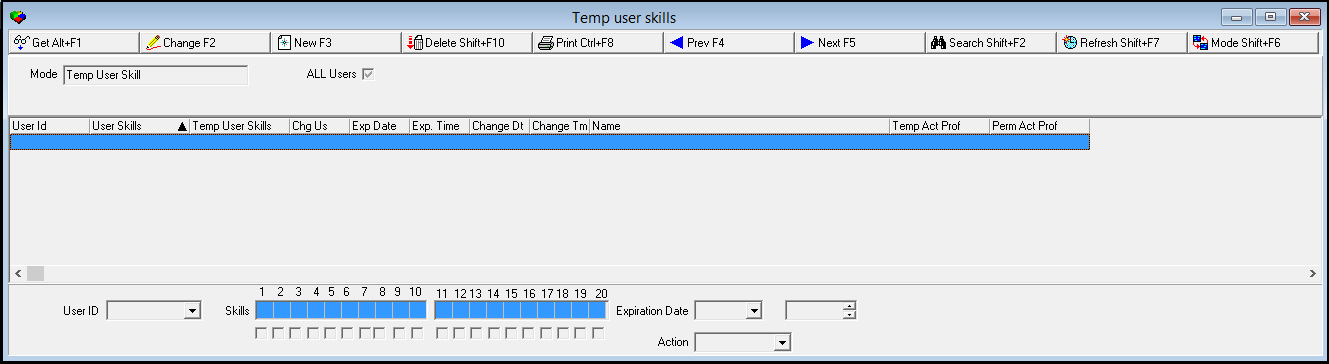
In Temp User Skill mode, you see a list of users with temporary user skill sets defined along with each user's regular user skill set. If no users currently have temporary user skill sets defined, the User Skill List grid in the upper pane is blank. In Temp User Skill mode, you can create, change, and delete temporary user skill sets.
Note: If you choose the Toggle button that appears in New and Change modes, SBN toggles between selecting and clearing all the Skills check boxes.
The following graphic shows Temporary User Skills in Temp User Skill mode.
Field/Column Descriptions
The following table describes the fields and columns used in Temp User Skill mode of Temporary User Skills.
Field/Column |
Description |
Mode |
Displays the current mode of Temporary User Skills. |
User Skill List Grid |
|
User ID |
ID of each user with a temporary user skill set defined. |
User Skills |
Currently defined regular skill set for each user. (You may define regular user skill sets in Skill of Current Users mode of this program, program #1501, or in the Users tab of program #1811.) |
Temp User Skills |
Currently defined temporary skill set for each user. (Define temporary user skill sets in Temp User Skill mode of this program.) |
Change User |
User ID that last made changes to the temporary user skill set. |
Expiration Date |
Date when the currently defined temporary user skill set expires. |
Expiration Time |
Time when the currently defined temporary user skill set expires. |
Change Date |
Date when a user last changed the temporary user skill set. |
Change Time |
Time when a user last changed the temporary user skill set. |
Name |
User's first and last name. |
Temporary Action Profile |
Displays the temporary action profile assigned to the user. |
Permanent Action Profile |
Displays the base action profile assigned to the user. |
Temporary User Skills |
|
User ID |
Select a user ID to which the temporary skill set applies. (This field is read-only unless you choose the New button.) |
Skills |
Twenty fields to define a temporary skill set for the selected user. (These menus originate from program #1862.) |
Blank
Skills |
Twenty check boxes to indicate when a position in the skill set should be blank. When a check box is selected, that skill position is set to blank, even if the user's regular skill set has a skill selected in that position. |
Expiration Date |
Select the date when the temporary skill set expires. Option mo228 defines the maximum length of time from the present, in minutes, that a user can set the Expiration Date and Time for a temporary skill set. When a user attempts to save a temporary skill set with an Expiration Date and Time further from the current time than the value of option mo228, SBN displays an Invalid Date error message. |
Expiration
Time |
Select the time when the temporary skill set expires. Option mo228 defines the maximum length of time from the present, in minutes, that a user can set the Expiration Date and Time for a temporary skill set. When a user attempts to save a temporary skill set with an Expiration Date and Time further from the current time than the value of option mo228, SBN displays an Invalid Date error message. |
Action |
Use this field to assign a temporary action profile to a user ID. Note: When a user selects a temporary action profile skill set in the Temp User Skills window, the user's regular action profile skills are temporarily eliminated and replaced with the temporary profile skills for the assigned period of time. |
Temp Profile Skill Mode
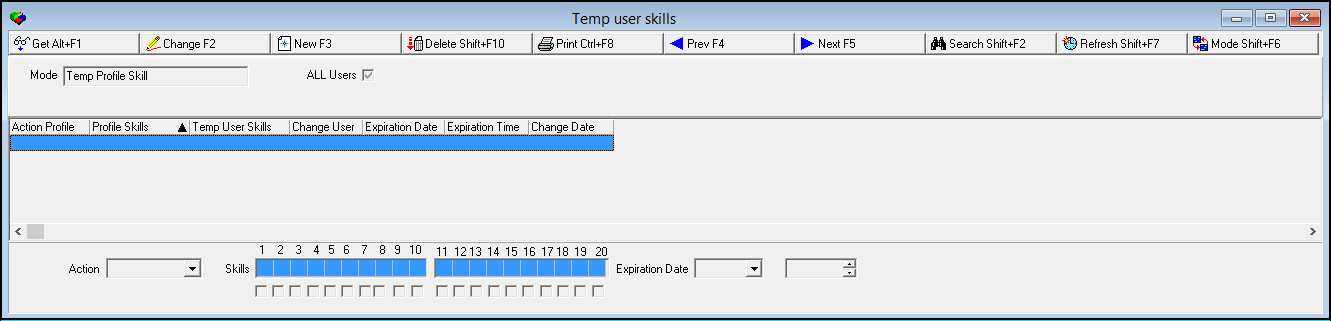
In Temp Profile Skill mode, you see a list of action profiles with temporary action profile skill sets defined along with each action profile's regular skill set. If no action profiles currently have temporary skill sets defined, the Action Profile Skill List grid in the upper pane is blank. In Temp Profile Skill mode, you can create, change, and delete temporary action profile skill sets.
Note: If you choose the Toggle button that appears in New and Change modes, SBN toggles between selecting and clearing all the Skills check boxes.
The following graphic shows Temporary User Skills in Temp Profile Skill mode.
Field/Column Descriptions
The following table describes the fields and columns used in Temp Profile Skill mode of Temporary User Skills.
Field/Column |
Description |
Mode |
Displays the current mode of Temporary User Skills. |
Action Profile Skill List Grid |
|
Action Profile |
Name of each action profile with a temporary skill set defined. |
Profile Skills |
Currently defined regular skill set for each action profile. (Define regular action profile skill sets in program #1502.) |
Temp Profile Skills |
Currently defined temporary skill set for each action profile. (Define temporary action profile skill sets in Temp Profile Skill mode of this program.) |
Change User |
User ID that last made changes to the temporary action profile skill set. |
Expiration Date |
Date when the currently defined temporary action profile skill set expires. |
Expiration Time |
Time when the currently defined temporary action profile skill set expires. |
Change Date |
Date when a user last changed the temporary action profile skill set. |
Temporary Action Profile Skills |
|
Action |
Select an action profile to which the temporary skill set applies. (This field is read-only unless you choose the New button.) |
Skills |
Twenty fields to define a temporary skill set for the selected action profile. (These menus originate from program #1862.) |
Blank
Skills |
Twenty check boxes to indicate when a position in the skill set should be blank. When a check box is selected, that skill position is set to blank, even if the action profile's regular skill set has a skill selected in that position. |
Expiration Date |
Select the date when the temporary skill set expires. Option mo228 defines the maximum length of time from the present, in minutes, that a user can set the Expiration Date and Time for a temporary skill set. When a user attempts to save a temporary skill set with an Expiration Date and Time further from the current time than the value of option mo228, SBN displays an Invalid Date error message. |
Expiration
Time |
Select the time when the temporary skill set expires. Option mo228 defines the maximum length of time from the present, in minutes, that a user can set the Expiration Date and Time for a temporary skill set. When a user attempts to save a temporary skill set with an Expiration Date and Time further from the current time than the value of option mo228, SBN displays an Invalid Date error message. |
Autofeed Users Mode
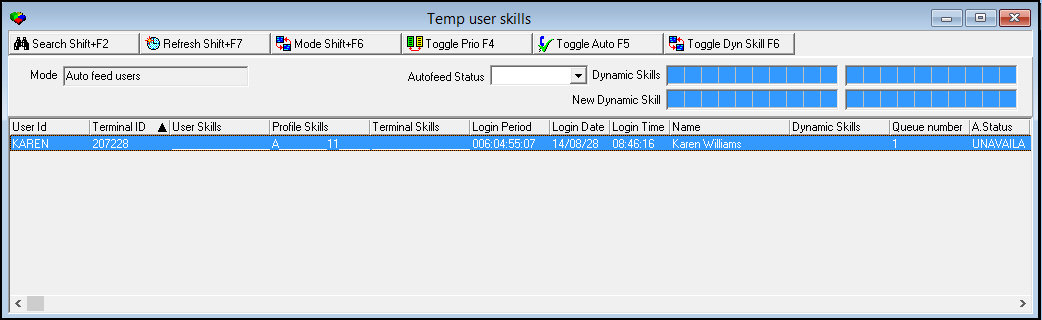
Autofeed Users mode displays the alarm autofeed status of all users who currently have Dispatch (program #537) open.
You may change the alarm autofeed status of a selected user by selecting a status in the Autofeed Status field of this window and choosing the Toggle Auto button. Use the Toggle Prio button to toggle between setting the priority or chronological sort for alarm autofeed in Dispatch for the selected terminal.
Note: Use option mo242 to define how often, in seconds, SBN applies changes to alarm priority sorting and autofeed status from program #531 to Dispatch.
The following graphic shows Temporary User Skills in Autofeed Users mode.
Field/Column Descriptions
The following table describes the fields and columns used in Autofeed Users mode of Temporary User Skills.
Field/Column |
Description |
Mode |
Displays the current mode of Temporary User Skills. |
Autofeed Status |
You may select an alarm autofeed status to change the selected terminal to when you choose the Toggle Auto button. SBN will apply the status to the selected terminal in Dispatch (program #537) after the number of seconds defined by option mo242. |
Dynamic Skills |
You may select up to 20 dynamic skill levels by which to filter the users displayed in the grid. When you choose Search or when the window automatically refreshes, only those users with matching skill levels selected in the Session Skills fields of the Alarm Queue tab in program #559 appear in the grid. |
Autofeed Users Grid |
|
User ID |
ID of each user that currently has Dispatch (program #537) open. |
Terminal ID |
Terminal that each user is currently logged into. |
User Skills |
Currently defined regular skill set for each user. (You may define regular user skill sets in Skill of Current Users mode of this program, program #1501, or in the Users tab of program #1811.) |
Profile Skills |
Currently defined regular skill set for each user's action profile. (Define regular action profile skill sets in program #1502.) |
Terminal Skills |
Currently defined skill set for each user's terminal. (Define terminal skill sets in program #1861.) |
Login Period |
Indicates how long each user has been logged into the current SBN session in ddd:hh:mm:ss format. |
Login Date |
Date when each user logged into the current SBN session. |
Login Time |
Time when each user logged into the current SBN session. |
Name |
Name of each user. |
Dynamic Skills |
Dynamic skill level of each user. Select a dynamic skill level for a monitoring session in the Session Skills fields of the Alarm Queue tab in program #559. |
Queue Number |
Alarm queue number each user is currently viewing in the Alarm Queue tab of program #559. |
Autofeed Status |
Each user's current alarm autofeed status. Select an autofeed status for a monitoring session in Dispatch (program #537) or in this program using the Toggle Auto button. |
Session Number |
Unique SBN session number for each user. |
Priority Sort |
An X in this column indicates that the user has the Priority check box selected in Dispatch (program #537). When this column is blank, it indicates that the user has the Chronological check box selected in Dispatch. |
Server Process ID |
Sybase login ID number. |
New Status |
Autofeed status selected in this program that SBN will apply to the selected terminal in Dispatch (program #537) after the number of seconds defined by option mo242. This column is blank when you refresh the window after SBN has applied the status to the terminal. |
New Priority Sort |
This column displays an X when you choose the Toggle Prio button to select the Priority check box if it is not currently selected, or to select the Chronological check box if it is not currently selected in Dispatch (program #537). SBN will apply the change to the selected terminal in Dispatch after the number of seconds defined by option mo242. This column is blank when you refresh the window after SBN has applied the change to the terminal. |
Refreshing the Temporary User Skills Window
You may refresh the Temporary User Skills window to see recent changes that have been made to regular and temporary skill sets.
You can refresh the display by choosing the Search button to instantly refresh, or by choosing the Refresh Interval button and selecting the number of seconds for SBN to automatically refresh the display.
Viewing Skill Set Details
You can view the details of a skill set in the fields in the lower pane.
Use the following steps to view the details of a skill set:
1. In Temporary User Skills, select the skill set for which you want to view details from the upper pane.
2. Double-click your selection or choose Get.
w The fields in the lower pane display the details of the selected skill set.
Adding a Temporary Skill Set
In Temp User Skill and Temp Profile Skill modes, you can create temporary skill sets for users and action profiles.
Use the following steps to add a new temporary skill set:
1. In Temp User Skill or Temp Profile Skill mode, choose New.
w The fields in the lower pane open for changes.
2. Complete all fields as necessary. The Expiration Date and Time fields are required.
Note: Option mo228 defines the maximum length of time from the present, in minutes, that a user can set the Expiration Date and Time for a temporary skill set. When a user attempts to save a temporary skill set with an Expiration Date and Time further from the current time than the value of option mo228, SBN displays an Invalid Date error message.
3. Choose Save.
w SBN adds the temporary skill set to the list of defined temporary skill sets in the upper pane.
Changing the Details of a Skill Set
Use the following steps to change the details of a skill set:
1. In Temporary User Skills, select the skill set you want to change from the upper pane.
2. Choose Change.
w The fields that can be changed open for changes in the lower pane.
3. Enter changes, as needed.
4. Choose Save.
Note: Option mo228 defines the maximum length of time from the present, in minutes, that a user can set the Expiration Date and Time for a temporary skill set. When a user attempts to save a temporary skill set with an Expiration Date and Time further from the current time than the value of option mo228, SBN displays an Invalid Date error message.
Note: Changes to a user's skill set in Temporary User Skills are now recorded in the General Change Log (program #1749).
Deleting a Temporary Skill Set
In Temp User Skill and Temp Profile Skill modes, you can delete temporary skill sets for users and action profiles.
Use the following steps to delete a temporary skill set:
1. In Temp User Skill or Temp Profile Skill mode, select the temporary skill set you want to delete.
2. Choose Delete.
w A Confirmation dialog box appears: "Delete XX. Are you sure?"
3. Choose Yes.
w SBN deletes the selected temporary skill set.
Button Functions
The following table displays the buttons, describes the shortcut keys, actions and functionality.
Button |
Name |
Shortcut Key |
Action |
Description |
Skill of Current Users Mode |
||||
|
Get Record |
alt+f1 |
531/ 1 |
View details of selected regular user skill set. |
|
Change Record |
f2 |
531/ 2 |
Change details of selected regular user skill set. |
|
Print Selected Records |
ctrl+f8 |
531/ 6 |
Print selected records. |
|
Previous Record |
f4 |
531/ 1 |
Go to previous record. |
|
Next Record |
f5 |
531/ 1 |
Go to next record. |
|
Search |
SHIFT+F2 |
531/ 1 |
Refresh window to display recent changes to regular and temporary skill sets. |
|
Refresh Interval |
SHIFT+F7 |
531/ 8 |
Define how often, in seconds, the display automatically refreshes. |
|
Mode |
SHIFT+F6 |
531/ 7 |
Toggle between each of the four modes to view and enter skill sets. |
|
All/One |
SHIFT+F8 |
531/ 9 |
Toggle between One (the default), which shows only the most recently logged-in active session, and All, which shows all active sessions for users. |
|
All/Operators |
SHIFT+F9 |
531/10 |
Toggle between all current users and users who are operators. To define a user as an operator, set up a profile in program #1745 with the Operator check box selected, and assign the profile to the user in the Users tab of program #1811. |
Temp User Skill Mode |
||||
|
Get Record |
ALT+f1 |
531/11 |
View details of selected temporary user skill set. |
|
Change Record |
F2 |
531/12 |
Change details of selected temporary user skill set. |
|
New Record |
F3 |
531/13 |
Create temporary user skill set. |
|
Delete Record |
SHIFT+F10 |
531/14 |
Delete selected temporary user skill set. |
|
Print Selected Records |
CTRL+F8 |
531/16 |
Print selected records. |
|
Previous Record |
F4 |
531/11 |
Go to previous record. |
|
Next Record |
F5 |
531/11 |
Go to next record. |
|
Search |
SHIFT+F2 |
531/11 |
Refresh window to display recent changes to user skill sets. |
|
Refresh Interval |
SHIFT+F7 |
531/ 8 |
Define how often, in seconds, the display automatically refreshes. |
|
Mode |
SHIFT+F6 |
531/ 7 |
Toggle between each of the four modes to view and enter skill sets. |
|
Toggle Check Boxes |
N/A |
531/ 5 |
Toggle between selecting and clearing all of the Skills check boxes. (This button appears in New and Change modes.) |
Temp Profile Skill Mode |
||||
|
Get Record |
ALT+f1 |
531/21 |
View details of selected temporary action profile skill set. |
|
Change Record |
F2 |
531/22 |
Change details of selected temporary action profile skill set. |
|
New Record |
F3 |
531/23 |
Create temporary action profile skill set. |
|
Delete Record |
SHIFT+F10 |
531/24 |
Delete selected temporary action profile skill set. |
|
Print Selected Records |
CTRL+F8 |
531/26 |
Print selected records. |
|
Previous Record |
F4 |
531/21 |
Go to previous record. |
|
Next Record |
F5 |
531/21 |
Go to next record. |
|
Search |
SHIFT+F2 |
531/21 |
Refresh window to display recent changes to action profile skill sets. |
|
Refresh Interval |
SHIFT+F7 |
531/ 8 |
Define how often, in seconds, the display automatically refreshes. |
|
Mode |
SHIFT+F6 |
531/ 7 |
Toggle between each of the four modes to view and enter skill sets. |
|
Toggle Check Boxes |
N/A |
531/ 5 |
Toggle between selecting and clearing all the Skills check boxes. (This button appears in New and Change modes.) |
Autofeed Users Mode |
||||
|
Search |
SHIFT+F2 |
531/21 |
Refresh window to display recent changes and to search for users with the dynamic skill levels selected in the Dynamic Skills fields. |
|
Refresh Interval |
SHIFT+F7 |
531/ 8 |
Define how often, in seconds, the display automatically refreshes. |
|
Mode |
SHIFT+F6 |
531/ 7 |
Toggle between each of the four modes to view and enter skill sets. |
|
Toggle Prio |
F4 |
531/31 |
Toggle between setting the Priority or Chronological sort for alarm autofeed in Dispatch (program #537) for the selected terminal. |
|
Toggle Auto |
F5 |
531/32 |
Change the alarm autofeed status of the selected terminal to the status selected in the Autofeed Status field. |















Modifications and Updates to Temporary User Skills
The following table lists modifications and updates to the Temporary User Skills document.
Mod Number |
Date |
Description |
07.79.22649, 07.79.22619 |
07/10/13 |
Added the Temporary Action Profile and Permanent Action Profile columns to the Temp User Skill mode of Temporary User Skills. |
08.79.09281, 07.79.27741 08.79.09273, 07.79.22722 |
10/04/13 |
Added the All/Operators button to toggle between all current users and users who are operators. |
07.79.23029, 08.79.09454 |
11/08/13 |
Added Autofeed Users mode. |
n/a |
09/03/14 |
Images updated. |
F1 Help
| Delphi Forms | ubusacmsprofform |
| Program Numbers | 1745 |