
Discontinued Status Report
Discontinued Status Report
Discontinued Status Report
Module: Accounting
Overview
Use the Discontinued Status Report to view details of contracts that had information saved in the Cancel Contract window during a specified period, grouped by branch or tracking status.
Note: If a contract is currently active, but had information saved in the Cancel Contract window during the specified period, it appears in this report.
To access this report, choose Discontinued Status Report (report #2059) from the main menu of SBN.
The Discontinued Status Report
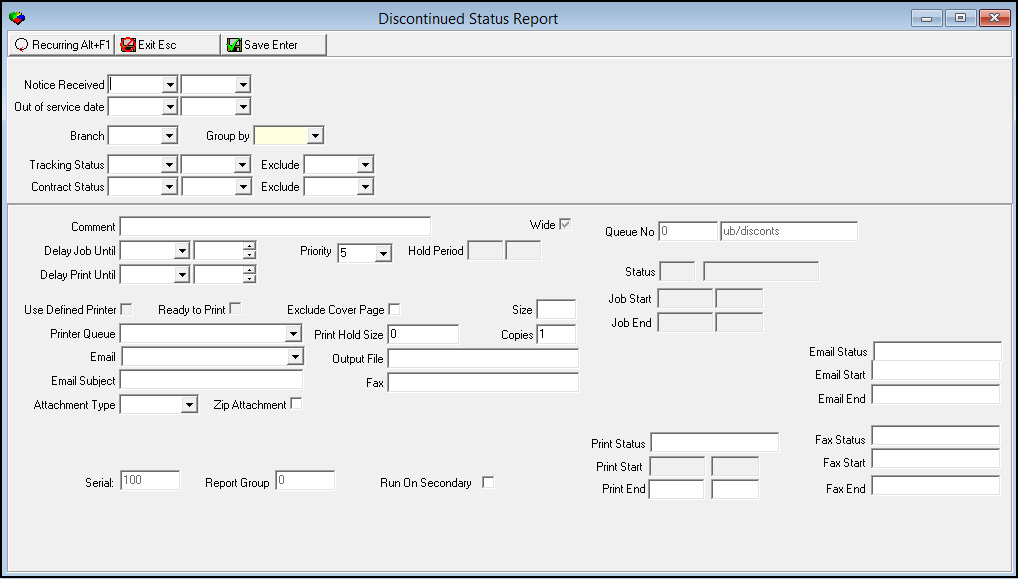
This window contains two panes: use the upper pane to define the contents of the report; use the lower pane to define the job output - how, when, and where you want the report printed.
Note: See Report Parameters Pane for information on the fields in the lower pane, which are the same in every report.
Field Descriptions
The following table describes the fields used in the upper pane of this report.
Field |
Description |
Notice Received |
|
Date
- From |
You may select a range of dates to limit the report to contracts that had a Notice Received attached in the Cancel Contract window during the range. Select the beginning date of the range. O If you leave this field blank, the report includes all contracts. O You may select either a range of Notice Received dates or a range of Out of Service dates. |
Date
- To |
You may select a range of dates to limit the report to contracts that had a Notice Received attached in the Cancel Contract window during the range. Select the ending date of the range. O If you leave this field blank, the report includes all contracts. O You may select either a range of Notice Received dates or a range of Out of Service dates. |
Out of Service Date Range |
|
Date
- From |
You may select a range of dates to limit the report to contracts that had an Out of Service date attached in the Cancel Contract window during the range. Select the beginning date of the range. O You may select either a range of Notice Received dates or a range of Out of Service dates. |
Date
- To |
You may select a range of dates to limit the report to contracts that had an Out of Service date attached in the Cancel Contract window during the range. Select the beginning date of the range. O You may select either a range of Notice Received dates or a range of Out of Service dates. |
Branch |
You may select a specific branch to limit the report to contracts associated with that branch. (This menu originates from program #1530.) |
Group by |
You must select a grouping parameter for this report: l Name l Tracking Status l Zip |
(Cancel) Tracking Status Range |
|
Status
- From |
You may select a range of cancel tracking statuses to limit the report to contracts with that status. Select the beginning cancel tracking status of the range. (This menu originates from program #1580.) |
Status
- To |
You may select a range of cancel tracking statuses to limit the report to contracts with that status. Select the ending cancel tracking status of the range. (This menu originates from program #1580.) |
Exclude |
You may select a cancel tracking status to exclude from the report. (This menu originates from program #1580.) |
Contract Status |
|
Status
- From |
You may select a range of contract statuses to limit the report to contracts with that status. Select the beginning contract status of the range. (This menu originates from program #1532.) |
Status
- To |
You may select a range of contract statuses to limit the report to contracts with that status. Select the ending contract status of the range. (This menu originates from program #1532.) |
Exclude |
You may select a contract status to exclude from the report. (This menu originates from program #1532.) |
Running and Viewing a Report
For information on running and viewing a report, see Common Functions in SBN.
Report Example
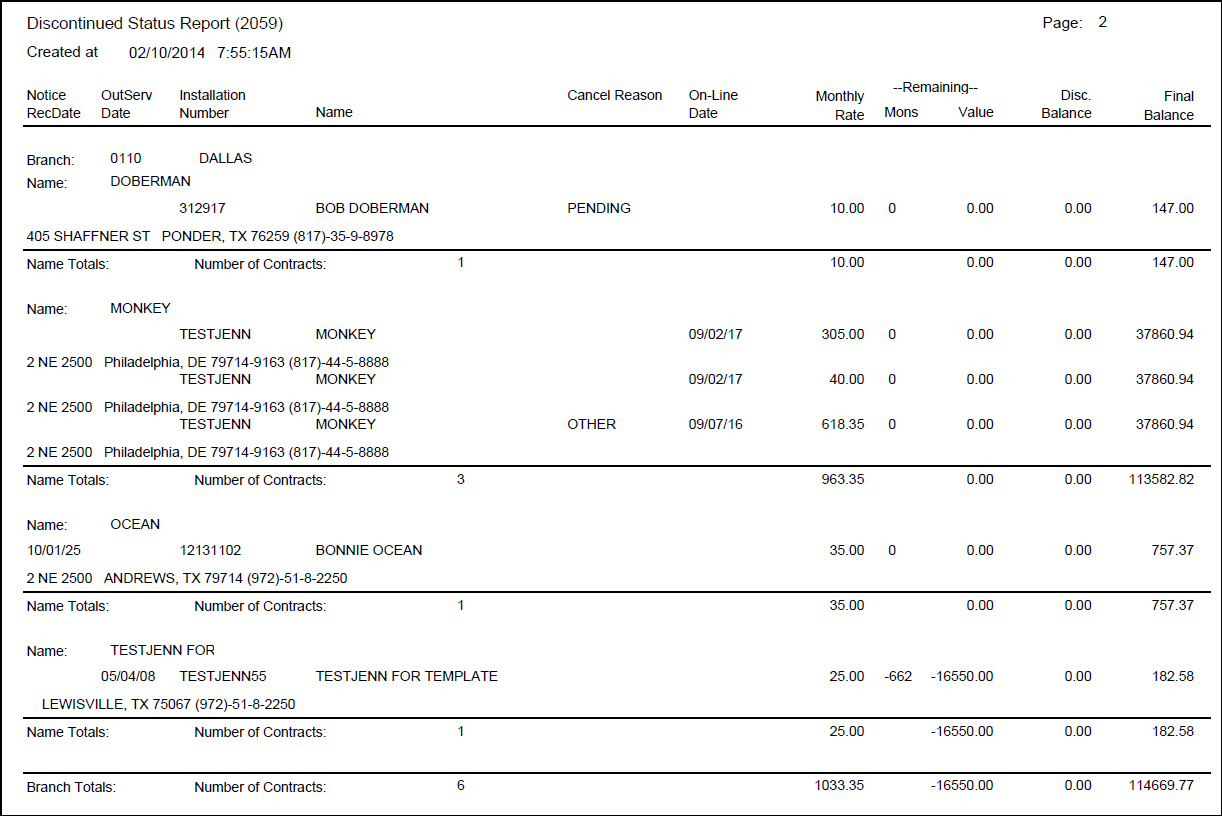
The following graphic shows an example of the output of the Discontinued Status Report.
Column Descriptions
The following table describes the columns used in the output of the report.
Column |
Description |
Notice RecDate |
Date on which the Notice Received was attached to the contract in the Cancel Contract window. |
OutServ Date |
Date on which the Out of Service was attached to the contract in the Cancel Contract window. |
Cancel Reason |
Displays the text description of the Reason Code attached to the contract in the Cancel Contract window. |
On-Line Date |
Displays the on-line date from Data Entry. |
Monthly Rate |
Total of cycle fees for the contract per month. |
Remaining Mons |
Number of months remaining on the contract; based on (month and year from the contract expiration date in Contract Master) - (month and year from the out of service date from the Cancel Contract window) + 1. |
Remaining Value |
Total remaining value of the contract; based on (monthly rate) * (remaining months). |
Disc Balance |
Total unpaid balance on the billing account. |
Final Balance |
Final billing amount; based on (Disc Balance) + (Remaining value). |
Branch |
Branch ID and name. |
Status |
Cancel tracking status and description. O This report groups all cancelled contracts that do not have a cancel tracking status under a blank status. |
(No label) |
For the installation, displays l Address l Name l City l State l Zip l Phone number l Up to 60 characters of the comment field from the Cancel Contract window |
(Dynamic Label) |
Displays the number of contracts and totals of the value fields based on the grouping parameter you selected. |
Branch Totals |
Displays the number of contracts and totals of the value fields for the branch. |
Grand Total |
Displays the number of contracts and totals of the value fields for the all branches in the report. |
Button Functions
The following table displays the buttons, describes the shortcut keys, actions, and functionality.
Button |
Name |
Shortcut Key |
Action |
Description |
|
Open fields for recurring/template reports |
alt+f1 |
Open fields for recurring/template reports. |
|
|
Exit without saving |
esc |
Exit without saving changes to selected record. |
|
|
Save Existing Record |
enter |
Save changes to selected record. |



Modifications and Updates to Discontinued Status Report
The following table lists modifications and updates to the Discontinued Status Report document.
Mod Number |
Date |
Description |
n/a |
8/04/14 |
Images updated. |