
Contract Master
Contract Master
Contract Master
Module: Accounting
Overview
Use Contract Master (program #548) to enter and manage contract, billing, and payment information for each installation, contract, or billing account. When you enter this program from Data Entry (program #559), SBN displays the first active contract for the selected installation.
This document covers the following topics:
Customizing the Order of Program Tabs in Contract Master
The Contract Information Panes
Working with the Cancel Contract Window
Using the Quick-Pay Dialog Box
Changing the View of Contract Information
Changing Mailing Address Information
Jumping Between Billing and Monitoring SBN Sessions
Exporting Contract Master Data into Document Templates
Navigating to Contract Master
You can access Contract Master from the SBN main menu or by selecting the Contract Master side tab from Data Entry Master (program #559) or Marketing (program #562).
Use the following steps to navigate to Contract Master from the main menu:
1. From the main SBN toolbar, select Menu.
2. From the drop-down menu, select Go To.
3. In the Go To Program dialog box, type in "548" and press Enter.
w Contract Master opens.
The Contract Master Window
The main window of Contract Master contains three areas:
Tree view - shows all billing accounts, contracts, and installations linked. View can be controlled using the By Account and By Installation buttons.
Billing Information (tab on left)
Contract Information (tab on right)
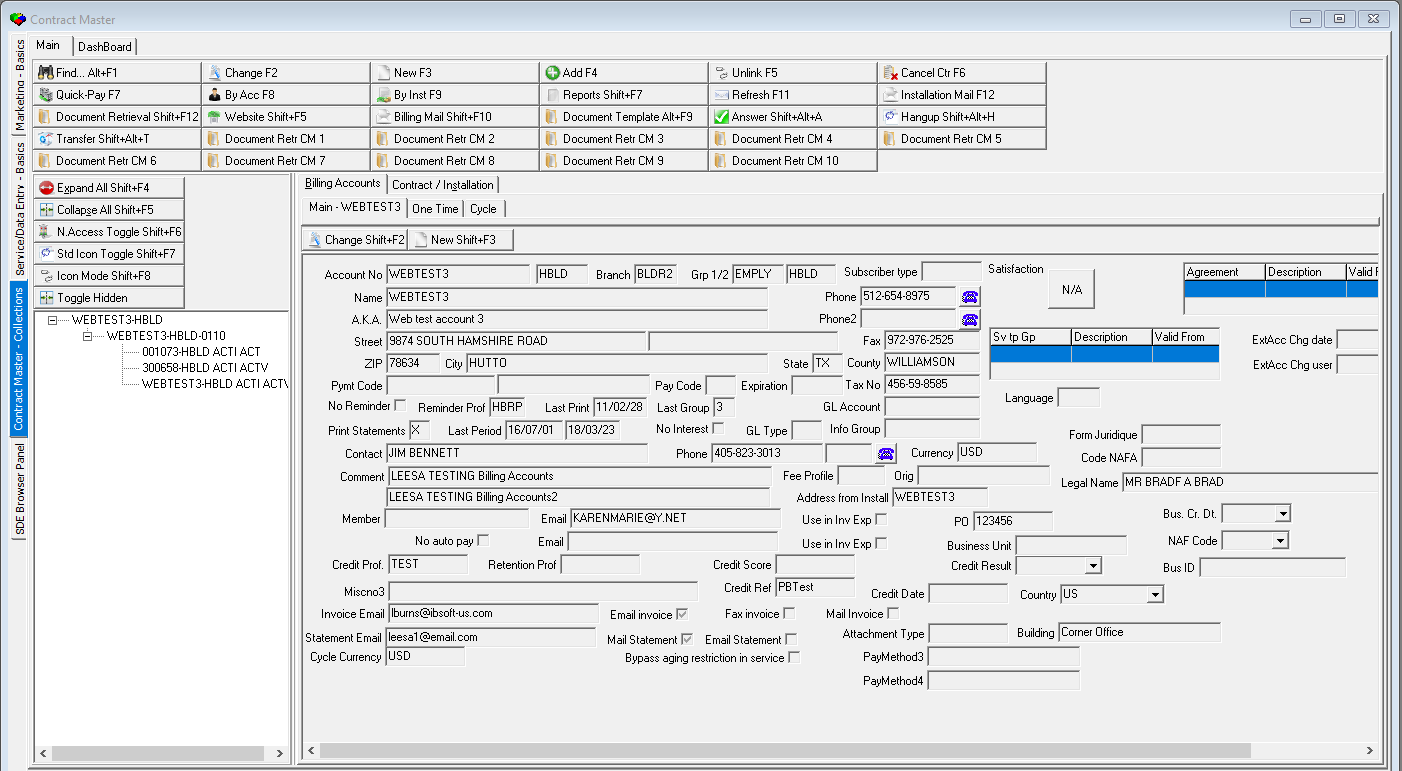
Note: Use option sbncolor to change the background color of the main Contract Master window. (The default color is clgray. See the Options S document for a complete list of available colors.)
Using the Tree View
The tree view in Contract Master allows you to view contracts, installations, and billing accounts in a expandable list panel. The tree also allows you to tie icons to specific dealers, branches, subscriber types, or groups.
Note: The contract branch number appears in the Contract node after the contract number and dealer ID in the Tree View.
The following options affect the tree view icons and initial display:
Option treedefc - sets the initial icon display as the following: 0 - no icons, 1-dealer, 2-branches, 3-group1, 4-group2, 5-subscriber type.
Option treedefs - sets the initial standard icon display.
Option treesize - sets the default size for the linked icons.
Option treedefn - determines how to display data that is outside the users branch/dealer profile. If this option is on, information that cannot be accessed appears in italics.
Option ba369 - determines initial view, Contracts by Installation or Contracts by Account.
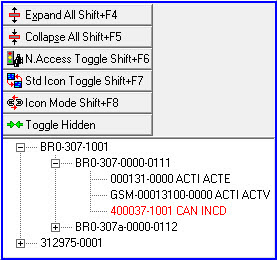
The following graphic shows the tree with the Standard Icons displayed.
Expanding and Collapsing the Tree View
Use the Expand All and Collapse All buttons to change the tree view.
Note: SBN prevents users from accessing nodes in the tree view of Contract Master while either Marketing (Program #562) or Data Entry (Program #559) is in Change mode.
Changing the Tree View Display Icons
SBN provides a default icon associated with the contract, billing account, and installation. To toggle these standard icons on and off, use the Std Icon Toggle button.
To link specific icons to one of the view options available see the following documents for setup: Dealer Profiles, Branch Profiles, Financial Groups, or Subscriber Types.
To toggle between the available icons in these programs use the Icon Mode button to toggle the images.
The N. Access Toggle button toggles between viewable and non-viewable contracts/accounts based on the user's branch/dealer access profile. If a user does not have access to a contract or account, the information appears in italics, but cannot be displayed.
The Toggle Hidden button allows the user to toggle between all and/or hidden contracts. The button also allows the user to hide contracts in the tree. This button is used along with the check box in Program #1532 Contract Status, “Hide in contract view� if selected for the particular Contract Status, then you are able to hide contracts with the selected status.
Using the Tree View to Access Account, Contract, and Installation Details
Click an account, contract, or installation in the tree view to display its details in the Billing Accounts or Contract/Installation window on the right side of the screen.
Use the following steps to access account, contract, or installation details from the tree view:
1. In Contract Master, choose Expand All in the tree view or click a node in the tree to expand its related contracts and/or installations.
2. Click a contract number or an icon in the tree node to access the details of the account, contract or installation.
w The tab containing the details populates in the right pane.
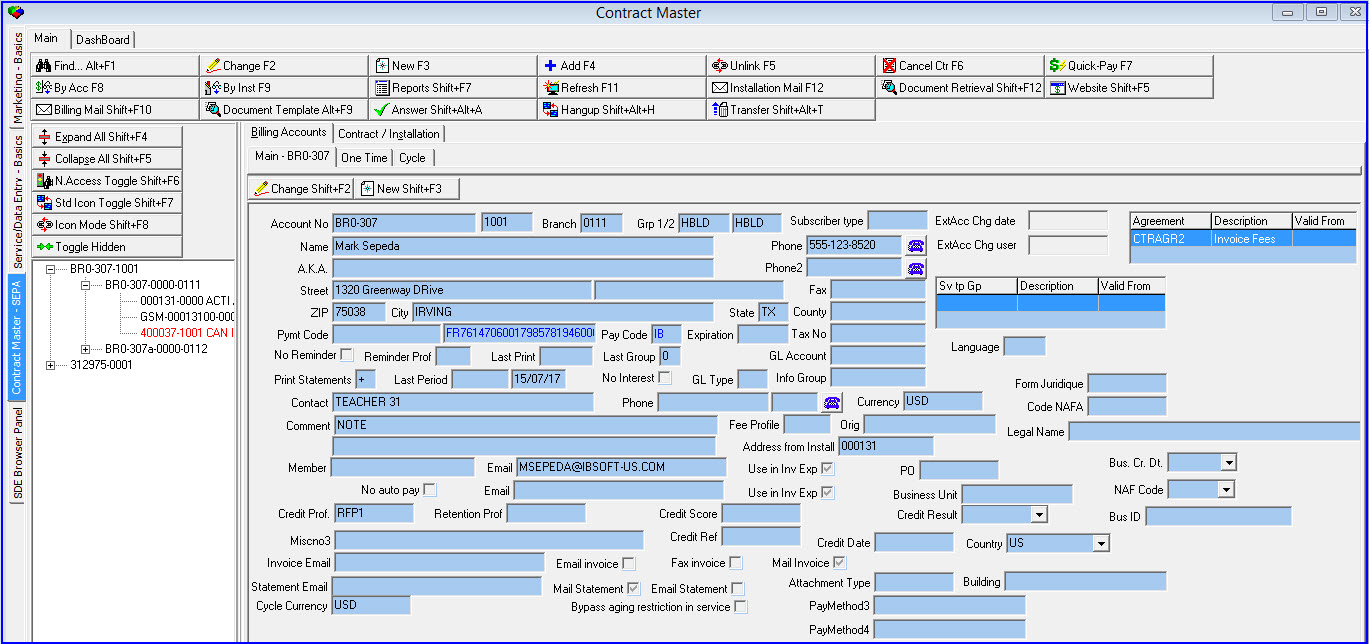
Note: Clicking on a contract in the tree view accesses the Contract/Installation tab, but only the upper pane with contract details is populated. To populate the lower Installation pane, click the installation number or icon in the tree view.
Customizing the Order of Program Tabs in Contract Master
You can customize the order of the program tabs that appear below the Contract Master window. There are three ways to customize the order of these tabs:
Dragging and dropping the program tabs into a different order. (You must enable action 193/49 in your user action profile in program #1502 to use this method.)
Setting up the Prg 548 Tabs field for your user action profile in program #1502
Defining the value of dynamic option cmtab in program #1887
SBN determines the order of the tabs in Contract Master primarily based on the entry in the Prg 548 Tabs field for your user action profile in program #1502. If this field is blank, SBN uses the value of option cmtab to determine the order of the tabs. If the option value is blank as well, SBN orders the tabs in their default sequence. The default order of Contract Master program tabs is: 1 Work Orders, 2 Collections, 3 Account Adjustments, 4 Account Change Log, 5 Contract Search, 6 Installation Data, 7 Miscellaneous Fields, 8 Invoice Status, 9 Payment Status, 10 Contract Change Log, 11 Contracts on Account, 12 Cycle Fee Change Log, 13 Cycle Fees, 14 Contract Texts, 15 Payment Methods, 16 Linked Billing Accounts, 17 Reminder Log, 18 Financed Work Orders.
Searching for Contracts
SBN provides access to the Search dialog box from the following programs:
Marketing
Customer Service
Data Entry
Monitoring
Contract Master
To access the Search dialog box from any of these programs, choose Search.
Important: You cannot be in New or Change mode when you perform a search.
Hot keys are enabled in Contract Master. ALT+F1 accesses the Search dialog box. CTRL+T toggles between the Contract Master main window and the tabs in the bottom pane.
If you perform a search by Contract or Installation number in Contract Master, the Contract/Installation tab is displayed. If you perform a search by any other type, the Billing Accounts tab is displayed.
Note: For information on searching in SBN, see Searches.
The Billing Accounts Pane
The Billing Accounts pane contains three tabs that show specific information about the selected customer account.
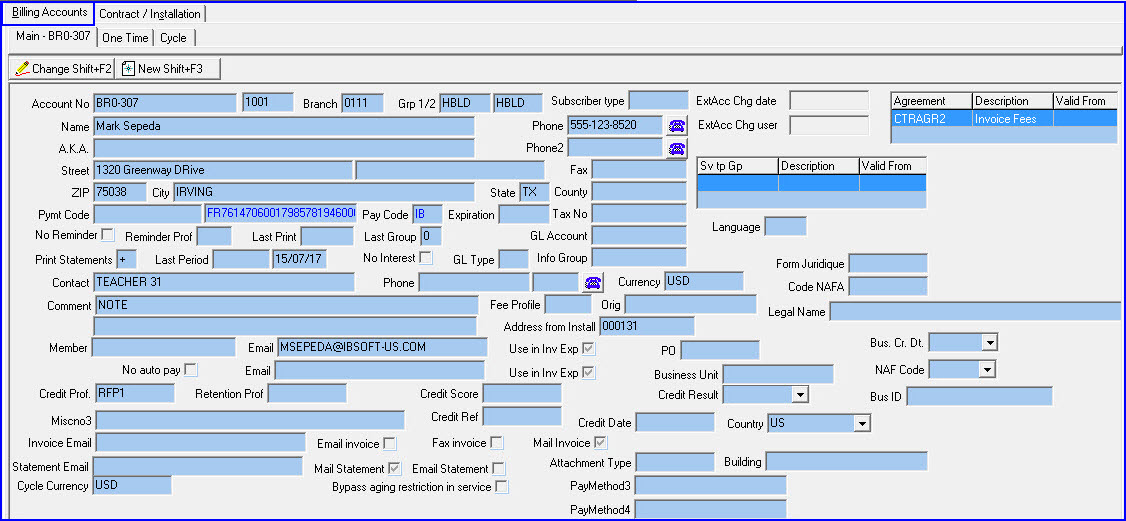
The Main Tab
Use the Main tab to view general customer information on the account holder for this account. Enter information when you change contract information or when you add a new contract.
Note: If option bl127 is on, the address fields in this tab default with the owner address entered in Marketing (program #562). If no owner address exists, the fields default with the installation address.
The One Time Tab
Use the One Time tab to view records for customers who want you to bill all one-time fees to a separate account. Enter information when you change contract information or when you add a new contract. When you choose the One Time tab, the Contract Information pane changes to list any contracts attached to the One Time account, if it is different from the Main account.
The Cycle Tab
Use the Cycle tab to view records for customers that want you to bill all cycle fees to a separate account. Enter information when you change contract information or when you add a new contract. When you choose the Cycle tab, the Contract Information pane changes to list any contracts attached to the Cycle account, if it is different from the Main account.
Field Descriptions - Billing Account Pane
The following table describes the fields used in the Billing Account information pane.
Field |
Description |
Account No |
Billing account number for the selected account. |
Dealer |
ID of the dealer associated with the selected account. Note: The account may be associated with only one dealer. Note: When option bl030 is on, the field defaults with the dealer ID for the installation (entered in Data Entry) in both New and Change mode. Note: The drop-down displays are restricted to Branch Dealer Profiles assigned to the user. Note: The invoice pulls the dealer from the account and not the contract, because some dealers do not have an active account associated to them. |
Branch |
Billing account branch number assigned to this installation. |
Grp 1/2 |
Financial group information for the selected record. This information can be used as selection parameters for invoicing and reports. (This menu originates from program #1868.) Note: This menu displays only
Note: If option bl227 is On, any changes to the entry in Grp 2 will be matched in the Grp 2 field in the Contract/Installation tab. |
Subscriber Type |
Subscriber type associated with the billing account. (This menu originates from program #1534.) Note: When customizing the Contract Master layout, you can scrape this field from the Billing Account pane and the Billing Account Change window. |
Agreements Grid |
|
Agreement |
Service agreements associated with the billing account. (These menus originate from program #1643.) |
Description |
Text descriptions of the service agreements. |
Valid From |
Dates when the service agreements become valid. |
Valid To |
Dates when the service agreements are no longer valid. |
Version |
Number of times the service agreements have been changed. |
Not Current |
An X in this column indicates the service agreement is not current. |
Name |
Full name of the contact person on this account. Note: Last name field accepts up to 60 characters. |
A.K.A. |
Additional customer name information. |
Street |
Combined street number, street name, and apartment or suite number for this account. Note: Street name field accepts up to 60 characters. |
ZIP |
Zip code for the city where this address is located. Note: When option temp162 is on and you change the ZIP code in the Billing Accounts pane, SBN does not change the Dealer ID. When option temp162 is off, SBN updates the Dealer ID field when you change the ZIP code. |
City |
City in which this address is located. This field holds up to 50 characters. |
State |
State in which this address is located. This field holds up to 60 characters. |
County |
County in which this address is located, based on the ZIP. |
Phone |
Phone number for the contact person on this account. Note: Choose Phone to activate the auto dialer. |
Phone 2 |
Second phone number for the contact person on this account. Note: Choose Phone to activate the auto dialer. |
Fax |
Fax number for the contact person on this account. If you select the Fax Invoice box, invoices are faxed to this number. Note: If you check the Fax invoice checkbox, this field is required. |
Service Type Grid |
|
Service Type Group |
Service type groups associated with the billing account. |
Description |
Text descriptions of the service type groups. |
Valid From |
Dates when the service type groups become valid. |
Valid To |
Dates when the service type groups are no longer valid. |
Pymt Code |
Customer’s bank routing and bank transit numbers, or the customer's credit card number. Note: If you select a payment method in the Pay Code field that has the Hide CC Number check box selected in program #1528, SBN hides the number you enter in the first Pymt Code field. If you select a payment method that has the Hide PM Code check box selected in program #1528, SBN hides the number you enter in the second Pymt Code field. You may also choose to hide the numbers in the Pymt Code fields in Required Fields (program #1843) regardless of the payment method you select. When option bl212 is on and your local hard drive contains the necessary DLL and certificate files, SBN creates tokens for credit card numbers entered in this field. (Contact IBS for these files and installation instructions.) |
Pay Code |
Code that identifies the payment method. (This menu originates from program #1528.) If you select a payment method that requires validation, you must enter valid numbers in the Pymt Code fields. Note: If you select a payment method that has the Hide CC Number check box selected in program #1528, SBN hides the number you enter in the first Pymt Code field. If you select a payment method that has the Hide PM Code check box selected in program #1528, SBN hides the number you enter in the second Pymt Code field. You may also choose to hide the numbers in the Pymt Code fields in Required Fields (program #1843) regardless of the payment method you select. |
Expiration |
Date the credit card expires. |
Tax No |
Customer’s tax ID number or tax exempt number. Note: Use option taxno_v to define the type of tax number that you can enter in this field. If the tax number entered in this field is invalid according to the value of option taxno_v, SBN displays an error message. |
No Reminder |
Enter a check mark in this box to exclude this account from the reminder calculation process. (This optional field originates from program #1803.) |
Reminder Prof |
Code for this customer’s reminder profile ID, if they are to receive reminder notices. Note: If the account is associated with a dealer ID, this menu displays only those reminder profiles associated with the same dealer ID and those reminder profiles not associated with any dealer ID. |
Last Print |
Last date on which reminders were generated and printed for this account. |
Last Group |
ID for the last group reminder text generated for this account. |
GL Account |
Custom feature for specific companies. Note: If GL Accounts are associated with dealer IDs in Chart of Accounts (program #1835), this menu displays only GL accounts associated with the same dealer ID as is associated with the billing account. |
Print Statements |
To print statements for this billing account, enter
|
Last Period |
Start and end date for the last statement period printed for this account. |
No Interest |
Enter a check mark in this box to prevent SBN from calculating interest for this billing account during the reminder calculation process. |
GL Type |
GL Subscriber Type. (This menu originates from program #1578.) Note: SBN restricts this menu to those GL subscriber types associated with the same dealer ID that is associated with the account or contract and those types not associated with any dealer. |
Info Group |
Statement generated to an address other than the one defined for this billing account. (This menu originates from program #1800. SBN restricts this menu to those statement information groups associated with the same dealer ID that is associated with the billing account and those groups not associated with any dealer.) |
Form Juridique |
Customer-specific field; no functionality in SBN. (This menu originates from program #1881, index 21.) |
Contact |
Name of the contact person for this account. |
Phone |
Additional phone number of the contact person for this account. Note: Choose Phone to activate the auto dialer. |
Phone Type |
Type of phone of the contact person. |
Currency |
Type of currency SBN uses for this billing account. (This menu originates from program #1635.) Note: The value of option currdef determines the default currency in this field when you create a new billing account. |
Code NAFA |
Customer-specific field; no functionality in SBN. (This menu originates from program #1881, index 22.) |
Comment |
Comments about this billing account. |
Fee Profile |
Identifies the invoice fee profile associated with this account. (This menu originates from program #1619.) Note: Select an invoice fee profile if you charge this account a fee for providing a paper invoice. |
Origin |
Origin of the dealer associated with the account. (Information in this field originates from program #1537.) |
Legal Name |
Legal name of the billing account holder. (In New and Change modes, there are four separate fields for Title, First Name, Middle Initial, and Last Name.) |
Comment 2 |
Additional comments about this billing account. |
Address from Install |
Account from which name and address information for this contract defaulted. If the field is blank, a user must manually enter the name and address information for this contract. If all fields in the pane are greyed out and do not allow editing, blank out the field to allow editing. |
Member |
Special customer identifier used as part of a marketing effort. SBN converts text in this field to uppercase. |
Email (1) |
Primary email address of the account holder. |
No Auto Pay |
Defaults payments applied by account to require manual application of payments. |
Use in Inv Exp (1) |
Enter a check mark in this box to include the associated email address in Export 11 (Word export). |
Email (2) |
Secondary email address of the account holder. |
Use in Inv Exp (2) |
Enter a check mark in this box to include the associated email address in Export 11 (Word export). |
Credit Profile |
Credit profile associated with the billing account. (This menu originates from program #1623.) |
Retention Profile |
Retention profile associated with the billing account. (This menu originates from program #1624.) |
Miscno3 |
Displays billing contact for this account if different than the customer on file. Static option ba396 must be on for this field to display. |
Credit Score |
Enter the account holder's credit score. This field accepts up to four digits. Note: If you choose Jump to Contract Master to reach Contract Master from Data Entry (program #559), SBN fills this field with the data from the Credit Score field in that screen. |
Credit Result |
Select the account holder's credit result. (This menu originates from program #1590/66.) Note: If you choose Jump to Contract Master to reach Contract Master from Data Entry (program #559), SBN fills this field with the data from the Credit Result field in that screen. |
Credit Ref |
Enter the account holder's credit reference. Note: If you choose Jump to Contract Master to reach Contract Master from Data Entry (program #559), SBN fills this field with the data from the Credit Reference field in that screen. |
Credit Date |
Displays the date the account holder's credit score was received. SBN updates this field when a user changes the Credit Score or Credit Result. Note: If you choose Jump to Contract Master to reach Contract Master from Data Entry (program #559), SBN fills this field with the data from the Credit Date field in that screen. |
Invoice/Statement Delivery |
|
Statement Email |
Email address where statements are sent, if you select the Email Statement check box. (This menu originates from program #1898.) |
Email invoice |
If this check box is selected, invoices are emailed to the address in the Invoice Email field. Note: When option bl203 is on, you may select any combination of the Email Invoice, Fax Invoice, and Mail Invoice check boxes. When option bl203 is off, SBN allows you to select only one of these check boxes for invoice delivery. |
Fax invoice |
If this check box is selected, invoices are faxed to the number in the Fax field. Note: When option bl203 is on, you may select any combination of the Email Invoice, Fax Invoice, and Mail Invoice check boxes. When option bl203 is off, SBN allows you to select only one of these check boxes for invoice delivery. |
Mail invoice |
If this check box is selected, invoices are printed and mailed to the billing address. Note: You may enter an X for the default value of this check box in Required Fields (program #1843) so that SBN automatically indicates that new accounts will have invoices mailed. When option bl203 is on, you may select any combination of the Email Invoice, Fax Invoice, and Mail Invoice check boxes. When option bl203 is off, SBN allows you to select only one of these check boxes for invoice delivery. |
Invoice Email |
Email address where invoices are sent, if you select the Email Invoice check box. (This menu originates from program #1898.) Note: If you check the Invoice Email checkbox, this field is required. |
Mail Statement |
If this check box is selected, statements are printed and mailed to the billing address. |
Email Statement |
If this check box is selected, statements are emailed to the address in the Statement Email field. |
Attachment Type |
File type in which this customer receives invoices. |
Cycle Currency |
Type of currency SBN uses for cycle fees on this billing account. (This menu originates from program #1635.) Note: The value of option currdef2 determines the default currency in this field when you create a new billing account. The Account Change Log tab refers to this field as Secondary Currency. |
Bypass Aging Restriction in Service |
Select this check box to indicate that SBN allows service on this account even if it has a balance that exceeds the maximum amount set for each aging level in program #1802. |
Country |
Country in which this address is located. Note: When you create or change an account address, this field defaults to the country value defined for your user ID in program #1811. |
Building |
Name of the building for the account address. Note: QAS address validation uses this field for UK addresses. |
PO |
Purchase order reference number for the billing account. (Customer-defined field; no functionality in SBN.) |
PayMethod3 |
Customer-defined field that has no functionality in SBN. Note: For Company 171 only, the value in the Text field of program #1800 for the selected Info Group in the Info Group field of program #548 is used to calculate the value in the PayMethod3 field of Contract Master using a company-specific algorithm. For Company 171, the value of option ba506 is used to calculate the value in the PayMethod3 field when the Info Group field of Contract Master is blank, or when the selected Info Group has alphabetical characters or nothing entered in the Text field of program #1800. |
PayMethod4 |
Customer-defined field that has no functionality in SBN. |
Bus ID |
Business identification number. Customer-defined field that has no functionality in SBN. |
NAF Code |
Type of business. This drop-down menu is populated from program #1660. Customer-defined field that has no functionality in SBN. |
Bus. Cr. Dt. |
Business creation date. Customer-defined field that has no functionality in SBN. |
Note: When jumping from Data Entry to Contract Master for the first time, and thus in New mode, the Billing Account New screen will open automatically. Several fields will copy information from the Deal ID, Group 1, and Group 2 fields in Contract Master.
Credit Profile Field
In the Credit Prof field of the Billing Account tab, when the user selects a value other than blank the value indicates the account is on stop. What ever value is selected other than blank will display in the account tree at the end of the account number as shown in the following graphic.
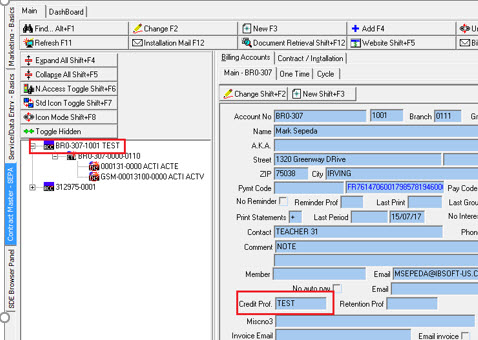
Note: Option temp192 must be turned on for this feature to display in the tree.
Using Common Functions in the Billing Account Pane
See the reference document Common Functions in SBN for more information.
To use QAS address validation in the Billing Account pane, see QAS Pro Address Validation.
Note: You may add a billing account to the selected contract. The Billing Account New window opens with the contract name and address defaulted. In Account No — type an account number for the additional billing account, or choose Auto Generate Acc. If you choose Auto Generate Acc, SBN enters the next available account number. You must select a check box for invoice delivery (Email Invoice, Fax Invoice, or Mail Invoice) and fill in the corresponding field with delivery information.
Note: After you save changed information on a billing account, SBN returns you to the main window of the Contract Master.
The Contract Information Panes
The following graphic shows the Contract Information panes of the Contract Master. The top pane displays contract details for the selected contract. The bottom pane displays details for the installation selected.
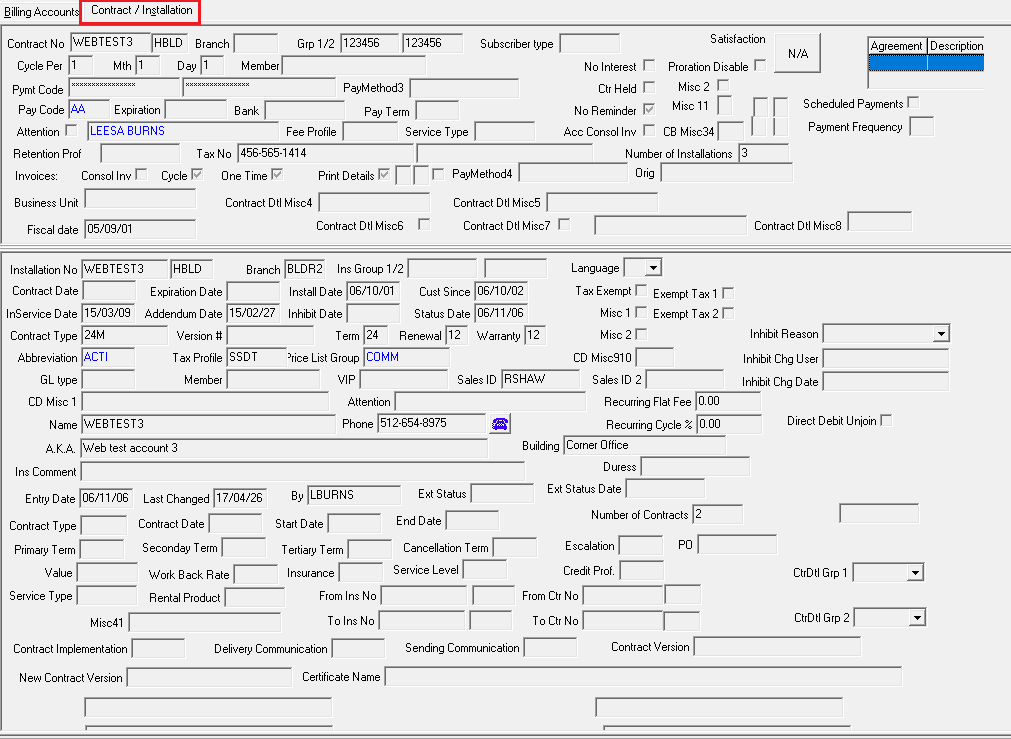
Field Descriptions — Contract Information
The following table describes the fields in the upper pane of the Contract/Installation tab.
Field |
Description |
Contract Number |
Contract number for the selected contract. |
Dealer
ID |
ID of the dealer associated with the selected contract. |
Branch |
The branch attached to the selected contract. |
Grp 1/2 |
Financial group information for the selected contract. This information can be used as selection parameters for invoicing, reports and exports. (This menu originates from program #1868.) Note: This menu displays only
Note: If option bl227 is On, the entry in Grp 2 will match the comparable entry in the Grp 2 field in the Billing Accounts tab. |
Subscriber Type |
Subscriber type attached to the contract. (This menu originates from program #1534.) Note: In Change mode, the Price List Group drop-down menu is limited based on subscriber type defined in program #1771. |
Cycle Per |
Frequency, in months, that this account is billed. Zero (0) is not a valid entry for this field. |
Mth |
The anniversary month for cycle fees on this contract. Note: When you use the anniversary month in conjunction with the cycle period and cycle day, you can keep the customer on a standard billing cycle. This reduces the number of invoices that you must process and send. |
Day |
The day of the month that billing occurs for this contract. Zero (0) is not a valid entry for this field. |
Member |
Special customer identifier used as part of a marketing effort. SBN converts text in this field to uppercase. |
No Interest |
If this box displays a check mark, SBN does not calculate interest for this billing account during the reminder calculation process. |
Proration Disable |
Select this check box to disable proration on invoices for the contract. |
Pymt Code (two fields) (No label) |
Customer’s bank routing and bank transit numbers, or the customer's credit card number. Note: When you save changes, this text appears blue. Note: If you type a pay code in the Pay Code field that requires validation, you must enter valid numbers in these fields. Note: If you select a payment method in the Pay Code field that has the Hide CC Number check box selected in program #1528, SBN hides the numbers you enter in the Pymt Code fields. You may also choose to hide the numbers in the Pymt Code fields in Required Fields (program #1843) regardless of the payment method you select. Note: When option bl212 is on and your local hard drive contains the necessary DLL and certificate files, SBN creates tokens for credit card numbers entered in this field. (Contact IBS for these files and installation instructions.) |
Pay Method 3 |
Customer-defined field; no functionality in SBN. |
Ctr Held |
If this box displays a check mark, the contract for this account is held at the office. |
Misc 2 |
Optional check box for your company’s internal use. |
Pay Code |
You may type the two-digit code that identifies the payment method to use. (Payment Codes originate from program #1528.) Note: If the payment method you type requires validation, you must enter valid numbers in the Pymt Code fields. Note: When you save changes, this text appears blue. Note: If you use standard billing, leave this field blank and select a specific payment method only when you need an alternative. Note: If you select a payment method that has the Hide CC Number check box selected in program #1528, SBN hides the numbers you enter in the Pymt Code fields. You may also choose to hide the numbers in the Pymt Code fields in Required Fields (program #1843) regardless of the payment method you select. Note: When option bl176 is on, SBN does not allow you to enter pay code S in this field. If a contract already has pay code S, the Pymt Code and Expiration fields are protected. You must delete or change the pay code from type S in order to edit the other payment fields. |
Expiration |
Date the credit card expires. |
Bank |
The bank ID number to use when you directly debit the customer’s bank account or to use for lock box payments. |
Pay Term |
Code that indicates the standard payment terms for this contract. |
No Reminder |
If this box displays a check mark, SBN does not process a reminder for this account. |
Misc 11 |
Customer-defined flag for custom export; no functionality in SBN. |
Attention |
If this box displays a check mark, SBN excludes the contact displayed in the Attention (Contact) field from the invoice export. Note: Use the
exclude flag check box
|
Contact |
Name of person that should receive correspondence regarding this contract. |
Fee Profile |
Identifies the Invoice Fee Profile associated with this contract. (This menu originates from program #1619.) |
Service Type |
Displays the service type selected for this contract. |
Acc Consol Inv |
Select this check box to include this contract in a consolidated (single) invoice of cycle fees for the billing account to which this contract is attached. Note: When option bl161 is on, SBN checks the tax profiles defined for the contracts you consolidate. The tax profiles must match to consolidate contracts attached to the billing account. |
CB Misc 34 |
User-defined flag for custom export; no functionality in SBN. |
Retention Prof |
Retention profile associated with the contract. (This menu originates from program #1624.) |
Tax No |
Custom feature for specific companies. |
Tax No 2 (No label) |
Custom feature for specific companies. |
Number of Installations |
Displays the number of installations with Active contract statuses linked to the selected contract. |
Agreements Grid |
|
Agreement |
Service agreements associated with the contract. (These menus originate from program #1643.) |
Description |
Text descriptions of the service agreements. |
Valid From |
Dates when the service agreements become valid. |
Valid To |
Dates when the service agreements are no longer valid. |
Version |
Number of times the service agreements have been changed. |
Not Current |
An X in this column indicates the service agreement is not current. |
Invoices |
|
Consol Inv |
Select this check box to consolidate one-time fees from all closed work orders into a single invoice during the invoice calculation process. Note: When option bl161 is on, SBN checks the tax profiles defined for the invoices you consolidate. To consolidate, all contracts associated with a single installation must have the same tax profile defined. |
Cycle |
If this box displays a check mark, customers receive invoices for cycle fees. |
One Time |
If this box displays a check mark, customers receive invoices for one-time fees. |
Print Details |
If this box displays a check mark, invoice amounts include tax. If this box is blank, applicable tax appears on a separate line in the invoice. |
Print Details #2 (No label) |
If this box is blank, invoices include only contract information.
|
Print Details #3 (No label) |
If this box is blank, invoices do not include components installed.
|
Print Details #4 (No label) |
If this box displays a check mark, invoice exports include EURO conversion fields. |
Pay Method 4 |
Customer-defined field; no functionality in SBN. |
Origin |
Origin of the dealer associated with the contract. (Information in this field originates from program #1537.) |
Business Unit |
Business unit associated with the contract. (This menu originates from program #1600.) Note: When option ba480 is on, SBN only allows users to access contracts and installations associated with the business unit types included in the user's selected business unit access profile in program #1811. When option ba480 is off, the business unit access restriction is not active. |
Contract Dtl Misc4 |
Company-defined field; no functionality in SBN. This field accepts up to 50 characters. |
Contract Dtl Misc5 |
Company-defined field; no functionality in SBN. This field accepts up to 50 characters. |
Fiscal Date |
This read-only field is populated from Fiscal Control (program #568). |
Contract Dtl Misc6 |
If this is checked, the Contract DTL Misc8 field will be populated and the Communication Log Number will appear. |
Contract Dtl Misc7 |
Company-defined checkbox. |
Contract Dtl Misc8 |
If the Contract Dtl Misc6 checkbox is selected, this field will be populated with the latest user timestamp in the Communication Log. |
Communication Log Number (No label) |
This link only appears if you have changed the entry by selecting the Contract DTL Misc6 checkbox. It is a link to the associated Communication Log. |
 in any of the following
windows to exclude the contact from the invoice export.
in any of the following
windows to exclude the contact from the invoice export.Field Descriptions — Installation Information
The following table describes the fields in the lower pane of the Contract/Installation tab.
Field |
Description |
Installation Number |
Number of the selected installation. |
Dealer ID (No label) |
ID of the dealer associated with the selected installation. |
Branch |
The branch attached to the selected installation. |
Grp 1/2 |
Financial group information for the selected contract. This information can be used as selection parameters for invoicing, reports and exports. (These menus originate from program #1868. If a group was selected in the Ins Group 1 or 2 fields in Data Entry, program #559, that selected group will appear in the appropriate field here.) Note: These menus display only
|
Language |
Code for printing in languages other than English. Currently limited to French and reports 2005 and 2033. |
Contract Date |
Date the contract began. |
Expiration Date |
Date the contract expires. This field may default from program #1712. |
Install Date |
Date equipment was or is scheduled to be installed. |
Customer Since |
Date this customer was first recorded online. |
Tax Exempt |
A check mark in this box indicates the selected installation is exempt from tax. |
Exempt Tax 1 |
Company-defined check box; no functionality in SBN. |
In Service Date |
Date this contract was first recorded online. |
Addendum Date |
Date additional equipment was installed. |
Inhibit Date |
Date the selected installation may be subject to global rate changes. |
Status Date |
Date the status of the contract changed for the selected installation. |
Misc 1 |
Company-defined check box; no functionality in SBN. |
Exempt Tax 2 |
Company-defined check box; no functionality in SBN. |
Contract Type |
Type of contract. |
Version Number |
Contract version associated with the selected contract type. |
Term |
Length of contract, in months, for the selected installation. |
Renewal |
How often, in months, the contract should be renewed. |
Warranty |
Length of the warranty period, in months, for the selected installation. Field length increased to handle warranty periods longer than 250 months. |
Misc 2 |
Customer-defined check box; no functionality in SBN. |
Inhibit Reason |
Code and description why the installation has a date to inhibit its contract from automatically escalating. |
Abbreviation |
Current status of the contract of the selected installation. |
Tax Profile |
Code for the tax profile for the contract for the selected installation. |
Price List Group |
Defaults to the price list group selected in the initial work order for the selected installation. |
CD Misc 910 |
Optional field for your company’s internal use. |
Inhibit Changed User |
The last user to change the Inhibit Date. This matches the Change Log for Inhibit Date. |
GL Type |
Type of general ledger account to which revenue from the selected installation can be sent. |
Member |
Customer identifier used in marketing. |
VIP |
Defaults to the VIP text entered in Data Entry for the selected installation. |
Sales ID |
ID of the salesperson associated with the selected installation. |
Sales ID 2 |
ID of a second salesperson associated with the selected installation, if applicable. |
Inhibit Changed Date |
The last time the Inhibit Date was changed. This matches the Change Log for Inhibit Date. |
CD Misc 1 |
Optional field for your company’s internal use. |
Attention |
Name of the person who should receive correspondence about this account. |
Recurring Flat Fee |
Amount of recurring flat fee used to calculate a monthly commission. |
Name |
Full name of the contact person for the selected installation. |
Phone |
Primary phone for the contact for the selected installation. |
AKA |
"Also Known As" or the alias associated with the person on the installation, or the installation itself. |
Building |
Name of the building on the installation. |
Recurring Cycle % |
Percentage of the recurring cycle fee used to calculate the monthly commission. |
Ins Comment |
Defaults to the first line of installation text from the Contract Texts tab. |
Duress |
Customer-defined field; no functionality in SBN. |
Entry Date |
Date this installation was entered into the Contract Master. |
Last Changed |
Date on which information for this installation last changed. |
By |
ID of the user who last changed the information for this installation. |
Ext Status |
Customer-defined field; no functionality in SBN. |
Ext Status Date |
Customer-defined field; no functionality in SBN. |
Number of Contracts |
Number of contracts attached to the selected account. |
Rental Contract Note: Most rental contract fields are read-only. SBN populates these fields when a user invoices the initial work order for the rental contract in Invoice Manager (program #1557). A user may enter information in most of these fields only on the initial work order for a rental contract. See the Work Order Account Information field descriptions in Work Orders. |
|
Contract Type |
Type of rental contract. |
Contract Date |
Date the contract was signed. |
Start Date |
Date the contract became effective. SBN bases financial calculations on this date. |
End Date |
Date the contract is no longer effective. An entry in this field indicates this is a fixed-term contract, and SBN does not permit a secondary or tertiary term. |
Primary Term |
Number of months in the initial contract period. |
Secondary Term |
Number of months in the secondary contract period. If this field is blank or contains a 0 (zero), the contract immediately rolls into a tertiary period. |
Tertiary Term |
Number of months in the tertiary contract period. |
Cancellation Term |
Number of months prior notice required from the customer to cancel the contract at the end of a future term (primary, secondary, or tertiary) without a penalty. |
Escalation |
Fixed percentage at which the cycle fee rate increases annually. You can edit this field in New or Change mode for any contract type. (This menu originates from program #1636.) Note: This escalation rate applies to cycle fees on all contract types, not just rental contracts. |
PO |
Purchase order reference number for the installation. (Customer-defined field; no functionality in SBN.) |
Value |
Initial contract value (the total cost of the initial contract work order). |
Work Back Rate |
Percentage SBN uses to calculate rental payments in conjunction with the initial contract value. |
Insurance |
Percentage of each monthly rental payment designated for insurance of the rented equipment. |
Service Level |
Level of service offered for this contract. |
Credit Prof |
Customer's credit rating, which SBN uses to calculate the cost of financing the contract. |
Service Type |
Type of service included in this contract. You can edit this field in New or Change mode for any contract type other than Rental. This field is protected on a rental contract. |
Rental Product |
Equipment included in this rental contract. |
Misc41 |
Company-specific read-only field; populates from Misc41 field in Data Entry (program #559). |
From Ins No |
You may transfer installation information on a rental contract from one installation number to another. Enter the installation number from which you want to transfer installation information. |
From
Ins No - Dealer |
Dealer ID associated with the installation from which you want to transfer installation information. |
From Ctr No |
You may transfer rental contract information from one contract number to another. Enter the contract number from which you want to transfer rental contract information. |
From
Ctr No - Dealer |
Dealer ID associated with the contract from which you want to transfer the rental contract information. |
To Ins No |
You may transfer installation information on a rental contract from one installation number to another. Enter the installation number to which you want to transfer installation information. |
To
Ins No - Dealer |
Dealer ID associated with the installation to which you want to transfer installation information. |
To Ctr No |
You may transfer rental contract information from one contract number to another. Enter the contract number to which you want to transfer rental contract information. |
To
Ctr No - Dealer |
Dealer ID associated with the contract to which you want to transfer the rental contract information. |
CD Misc 2 |
Company-defined field; no functionality in SBN. This field accepts up to 50 characters. |
CD Misc 3 |
Company-defined field; no functionality in SBN. This field accepts up to 50 characters. |
C D Misc 9 |
Company-defined field; no functionality in SBN. This field accepts up to 50 characters. |
CD Misc 10 |
Company-defined field; no functionality in SBN. This field accepts up to 50 characters. |
Adding a New Contract
Use the New Contract window to enter detailed information about the new contract.
The following options define defaults for fields in the New Contract window:
When option bl030 is on, you choose Jump to Contract Master from Data Entry (program #559), and then you create a new contract, two things occur: 1) the installation number from the record in Data Entry defaults into the Account No field in the New Contract window, and 2) the dealer ID from the installation record in Data Entry defaults into the Dealer ID field in the Billing Account pane of Contract Master. This dealer ID also defaults when a user changes an existing contract after choosing Jump to Contract Master from Data Entry.
Note: When using the Copy function, the source Work Order must have a dealer matching the dealer profile. This function only works if the restriction is for one and only one dealer. If the user maintains no restriction, the copy function works as usual.
If a profile duplication is attempted, the following screen displays:
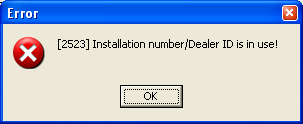
When option bl129 is on, you choose Jump to Contract Master from Data Entry, and then you create a new contract, the installation number from the installation record in Data Entry defaults into the Contract No field of the new contract.
You may use option ba471 to define a prefix that SBN adds to billing account numbers when you create new contracts in Contract Master. You may define different prefixes for different dealers.
You may use option ba226 to change the number of months added to the Expiration Date. The current default is 36 months past the Monitoring Start Date entered in Data Entry (program #559).
If your action profile permits you to view contracts from Securitas Partners and the following conditions are met, SBN creates a second contract in the background:
Option ba278 is on.
In Data Entry Master and Basics, you create an installation record and select the Br Misc Flg 1 check box.
You choose from Jump to Contract Master Data Entry.
In the Contract New dialog box, a user selects a contract default that is defined in the sublevel of Contract Defaults (program #1803) with an entry in the second Contract Type field.
A user saves the new contract.
The New Contract Window
The following graphic shows the New Contract window.
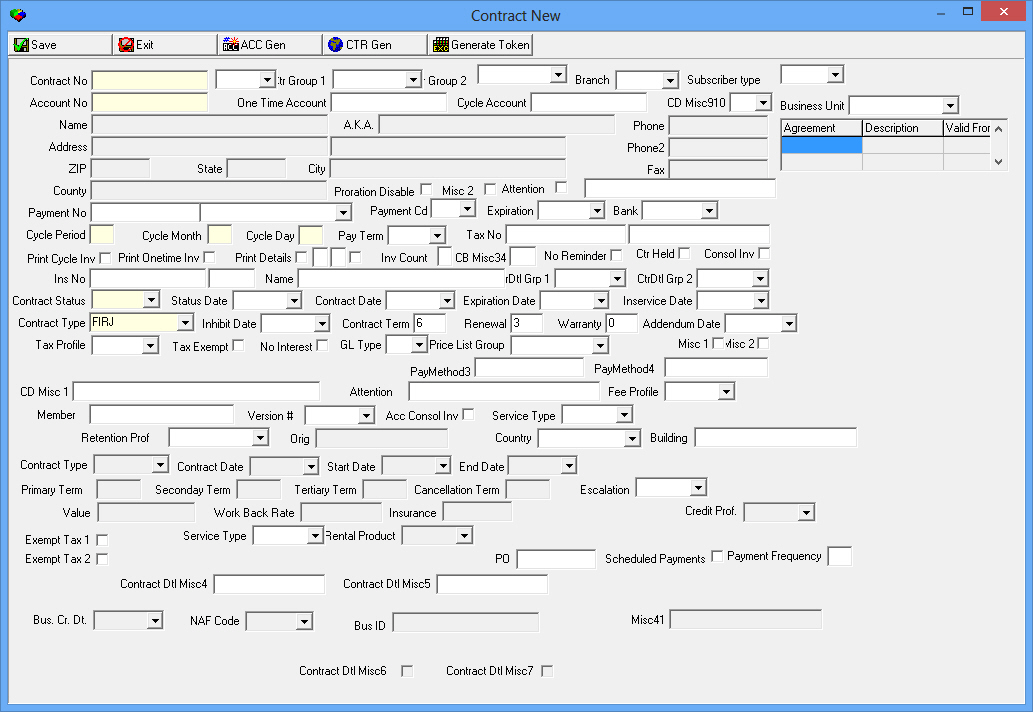
Field Descriptions — New Contract
The following table describes the fields used in the New Contract window.
Field |
Description |
Contract No |
Contract number for the selected contract. Note: If option bl030 is on and a user chooses Jump to Contract Master from Data Entry and then creates a new contract, the installation number from the installation record in Data Entry defaults into this field. Note: If option bl129 is on and a user chooses Jump to Contract Master from Data Entry and then creates a new contract, the installation number from the installation record in Data Entry defaults into this field. |
Dealer
ID |
ID of the dealer associated with the selected contract. |
Ctr Group 1 |
Financial group information for the selected contract. This information can be used as selection parameters for invoicing, reports and exports. (This menu originates from program #1868.) Note: This menu displays only
|
Ctr Group 2 |
Financial group information for the selected contract. This information can be used as selection parameters for invoicing, reports and exports. (This menu originates from program #1868.) Note: This menu displays only
|
Branch |
The branch attached to the selected contract. |
Account No |
Account number to which this contract is attached. Note: If option bl030 is on and a user chooses Jump to Contract Master from Data Entry and then creates a new contract, the installation number from the installation record in Data Entry defaults into this field. |
One Time Account |
If one-time and cycle fees go to different billing accounts, type the billing account for one-time fees. |
Cycle Account |
If one-time and cycle fees go to different billing accounts, type the billing account for cycle fees. |
CD Misc910 |
If your company interfaces with Taxware, select the appropriate code. |
Business Unit |
Business unit associated with the contract. (This menu originates from program #1600.) Note: When option ba480 is on, SBN only allows users to access contracts and installations associated with the business unit types included in the user's selected business unit access profile in program #1811. When option ba480 is off, the business unit access restriction is not active. |
Name |
Type either the first name, middle initial, and last name of the customer or type the company name for this contract. |
AKA |
You may type an alternate name for this customer. |
Phone |
Primary phone number for this customer. |
Address |
Street address for this customer. |
Address
2 |
Additional street address information for this customer. |
Phone 2 |
Secondary phone number for this customer. |
ZIP |
Zip code for this customer. |
State |
State for this customer. This field holds up to 60 characters. |
City |
City for this customer. |
Fax |
Fax number for this customer. |
County |
County for this customer. |
Misc 1 |
Customer-defined field; no functionality in SBN. |
Misc 2 |
Customer-defined field; no functionality in SBN. |
Attention |
Enter a check mark in this box to exclude the following contact from the invoice export. |
Contact (No label) |
Contact for this customer. |
Payment
No |
Routing number for the customer’s bank. Note: If you select a payment method in the Payment Code field that has the Hide CC Number check box selected in program #1528, SBN hides the numbers you enter in the Payment No fields. You may also choose to hide the numbers in the Payment No fields in Required Fields (program #1843) regardless of the payment method you select. |
Bank
Number |
Customer’s bank account or credit card number. Note: If you select a payment method in the Payment Code field that has the Hide CC Number check box selected in program #1528, SBN hides the numbers you enter in the Payment No fields. You may also choose to hide the numbers in the Payment No fields in Required Fields (program #1843) regardless of the payment method you select. |
Payment Cd |
Code that identifies the payment method. (This menu originates from program #1528.) If you select a payment method that requires validation, you must enter valid numbers in the Pymt Code fields. Note: If you select a payment method that has the Hide CC Number check box selected in program #1528, SBN hides the numbers you enter in the Payment No fields. You may also choose to hide the numbers in the Payment No fields in Required Fields (program #1843) regardless of the payment method you select. |
Expiration |
Date the credit card expires. |
Bank |
The bank ID number to use when you directly debit the customer’s bank account or to use for lock box payments |
Cycle Period |
How often, in months, this contract is billed. Note: Zero (0) is not a valid entry for this field. |
Cycle Month |
The anniversary month for cycle fees for this contract. Note: When you use the anniversary month in conjunction with the cycle period and cycle day, you can keep the customer on a standard billing cycle. This reduces the number of invoices that you must process and send. |
Cycle Day |
The day of the month on which you bill this contract. Note: Zero (0) is not a valid entry for this field. |
Pay Term |
Code that identifies the standard payment terms for this contract. |
Tax No |
Customer-defined field; no functionality in SBN. |
(No label) |
Customer-defined field; no functionality in SBN |
Print Cycle Inv |
Enter a check mark in this box for the customer to receive a printed invoice for cycle fees. |
Print One-Time Inv |
Enter a check mark in this box for the customer to receive a printed invoice for one-time fees. |
Print Details |
If this box displays a check mark, invoice amounts include tax. If this box is blank, applicable tax appears on a separate line. |
Print
Details #2 |
If this field is blank, invoices include only contract information.
|
Print
Details #3 |
If this field is blank, invoices do not include components installed.
|
Print
Details #4 |
If this box displays a check mark, invoice exports include EURO conversion fields. |
(No label) |
Customer-defined field; no functionality in SBN. |
(No label) |
Customer-defined field; no functionality in SBN. |
No Reminder |
Enter a check mark in this box to prevent SBN from processing reminders for this contract. |
Ctr Held |
Enter a check mark in this box if this contract is held at the office. |
Consol Inv |
Select this check box to include this contract in a consolidated invoice for all one-time fees from closed work orders associated with the account to which this contract is attached. Note: When option bl161 is on, SBN checks the tax profiles defined for the invoices you consolidate. To consolidate, all contracts associated with a single installation must have the same tax profile defined. |
Ins No |
Installation number to which this contract is attached. |
Dealer |
ID of the dealer associated with the installation to which this contract is attached. |
Name |
Name of the contact for the installation to which this contract is attached. |
CtrDtl Grp 1 |
Financial group for the installation contract. You may use this group as a selection parameter for invoicing and reports. (This menu originates from program #1868.) |
CtrDtl Grp 2 |
Financial group for the installation contract. You may use this group as a selection parameter for invoicing and reports. (This menu originates from program #1868.) |
Contract Status |
Current status of the contract. (This menu originates from program #1532.) |
Status Date |
When you select a contract status, SBN enters the current date. In new contracts, the date listed is the same date as in the Current Date field in Data Entry (program #559). |
Contract Date |
Date the contract began. In new contracts, the date listed is the same date as in the Monitoring Start Date field in Data Entry (program #559). |
Expiration Date |
Date the contract expires. In new contracts, if option bl226 is enabled, the date listed is the same date as in the Monitoring Start Date field in Data Entry (program #559) plus 36 months. |
Inservice Date |
Date the contract was first recorded as online. |
Inhibit Date |
Date to which any contract escalation should be inhibited. If this menu is used, the Inhibit Reason field MUST be completed before the change to the contract may be saved. |
Contract Type |
Type of contract. (This menu originates from program #1531.) Note: If the contract is associated with a dealer, this menu displays
Note: If the contract is not associated with a dealer, this menu displays only those contract types not associated with a dealer. |
Contract Term |
Length of contract, in months. |
Renewal |
How often, in months, to renew the contract. |
Warranty |
Length of the warranty period, in months. |
Addendum Date |
Date additional equipment was installed. |
Inhibit Reason |
The reason why contract escalation was inhibited. This field MUST be completed if the Inhibit Date field has any data in it, and if using the Inhibit Toggle window in the Cycle Fees tab. |
Tax Profile |
Tax profile for the contract. (This menu displays tax profiles from program #1514 assigned to the contract's dealer ID.) Note: If option bl015 is on, this menu displays the tax profile assigned to the contract's zip code in program #1718. |
Tax Exempt |
Enter a check mark in this box to indicate that the contract is exempt from tax. |
No Interest |
Enter a check mark in this box to prevent the reminder calculation from including interest for this contract. |
GL Type |
Type of general ledger account to which you can send revenue from this contract. (This menu originates from program #1578.) Note: SBN limits the menu of GL types to those associated with the same dealer as is associated with the account or contract. |
Price List Group |
This field defaults to the initial price list group selected in the initial work order for the contract. You may override the default. (This menu originates from program #1771.) Note: The code that identifies the price list group may appear with colored text. You can define the RGB color of this text in program #1771. Note: In Change mode, this menu displays only those price list groups: • Associated with the selected dealer ID • Not associated with any dealer ID Note: The Price List Group drop-down menu is limited based on subscriber type defined in program #1771. |
Misc 1 |
Customer-defined field; no functionality in SBN. |
Misc 2 |
Customer-defined field; no functionality in SBN. |
Inhibit Chg User |
The last user to change the Inhibit Date or Inhibit Reason fields. |
PayMethod3 |
Customer-defined field; no functionality in SBN. |
PayMethod4 |
Customer-defined field; no functionality in SBN. |
Inhibit Chg Date |
The last date on which the Inhibit Date or Inhibit Reasons fields were changed. |
CD Misc 1 |
Customer-defined field; no functionality in SBN. |
Attention |
Name of the person who should receive correspondence about this contract. |
Fee Profile |
Identifies the invoice fee profile associated with this account. (This menu originates from program #1619.) Note: Select an invoice fee profile if you charge this account a fee for providing a paper invoice. |
Member |
Special customer identifier used as part of a marketing effort. Note: SBN converts text in this field to uppercase. |
Version # |
Identifies the contract version associated with the selected contract type. (This menu originates from program #1531.) |
Acc Consol Inv |
Select this check box to include this contract in a consolidated (single) invoice of cycle fees for the billing account to which this contract is attached. Note: When option bl161 is on, SBN checks the tax profiles defined for the contracts you are consolidating. The tax profiles must match to consolidate contracts attached to the billing account. |
Service Type |
You may select a service type for this contract. (This menu originates from program #1892.) |
Retention Prof |
Retention profile associated with the contract. (This menu originates from program #1624.) |
Origin |
Dealer origin. This field automatically populates when you assign a dealer to the contract. (Information in this field originates from program #1537.) |
Country |
Country where this customer resides. |
Building |
Name of the building for customer address. Note: QAS address validation uses this field for UK addresses. |
Rental Contract Note: Rental contract fields are read-only. SBN populates these fields when a user invoices the initial work order for the rental contract in Invoice Manager (program #1557). A user may enter information in these fields only on the initial work order for a rental contract. See the Work Order Account Information field descriptions in Work Orders. |
|
Contract Type |
Type of rental contract. |
Contract Date |
Date the contract was signed. |
Start Date |
Date the contract became effective. SBN bases financial calculations on this date. |
End Date |
Date the contract is no longer effective. An entry in this field indicates this is a fixed-term contract, and SBN does not permit a secondary or tertiary term. |
Primary Term |
Number of months in the initial contract period. |
Secondary Term |
Number of months in the secondary contract period. |
Tertiary Term |
Number of months in the tertiary contract period. |
Cancellation Term |
Number of months prior notice required from the customer to cancel the contract at the end of a future term (primary, secondary, or tertiary) without a penalty. |
Escalation |
Fixed percentage at which the rental rate increases annually. You can edit this field in New or Change mode for any contract type. |
Value |
Initial contract value; (the total cost of the initial contract work order). |
Work Back Rate |
Percentage SBN uses to calculate the rental payments in conjunction with the initial contract value. |
Insurance |
Percentage of each monthly rental payment designated for insurance of the rented equipment. |
Credit Prof |
Customer's credit rating, which SBN uses to calculate the cost of financing the contract. |
Service Type |
Type of service included in this rental contract. You can edit this field in New or Change mode for any contract type other than Rental. This field is protected on a rental contract. |
Rental Product |
Equipment included in this rental contract. |
Exempt Tax 1 |
Company-defined check box; no functionality in SBN. |
Exempt Tax 2 |
Company-defined check box; no functionality in SBN. |
Contract Dtl Misc4 |
Company-defined field; no functionality in SBN. This field accepts up to 50 characters. |
Contract Dtl Misc5 |
Company-defined field; no functionality in SBN. This field accepts up to 50 characters. |
Bus. Cr. Dt. |
Business creation date. Customer-defined field that has no functionality in SBN. |
NAF Code |
Type of business. This drop-down menu is populated from program #1660. Customer-defined field that has no functionality in SBN. |
Bus ID |
Business identification number. Customer-defined field that has no functionality in SBN. |
Misc41 |
Company-specific read-only field; populates from Misc41 field in Data Entry (program #559). |
Contract Dtl Misc6 |
If this checkbox is selected, SBN will create a new Communication Log for this entry. |
Contract Dtl Misc7 |
Company-defined field that has no functionality in SBN. |
Use the following steps to add a new contract:
1. Choose New Record.
w A dialog box for entering the new Installation Number, Dealer ID and Contract Defaults opens.
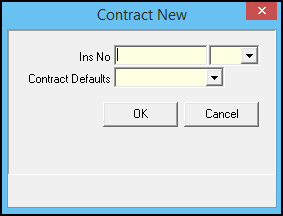
Note: When tabbing out of Ins No field Dealer ID is auto-filled if one and only one dealer exists for listed installation. Drop down list of contract defaults is limited by installation dealer in screen in Contract Types (program #1531).
2. Complete the fields.
3. Choose OK.
Note: SBN may display a message that says that the installation number that you selected is already linked to another contract. If this is correct, choose YES.
w The New Contract window appears.
4. Complete the fields.
Note: If your company chooses to automatically generate account numbers, delete information in the Account No field and then choose Auto Generate ACC.
Note: If your company chooses to automatically generate contract numbers, delete information in the Contract No field and then choose Auto Generate Contract No.
Note: If your company uses bank account tokens rather than banking account or credit card numbers, use the Generate Token button to create a unique token for the customer's bank account information. If the Pay Code you enter for the contract is token based (depending on the payment type entered for the Pay Code in program #1528), SBN inserts the token in the second Payment Number field. (This token is matched with actual bank account information during data transmission with the financial institution.)
5. To use QAS address validation, see QAS Pro Address Validation.
6. Choose Save.
w SBN returns you to the Contract Master window with only the previously entered information present.
Creating a Rental Contract
You may create a rental contract when a customer leases Monitoring equipment for a period of time while your company retains ownership of the equipment.
To set up a rental contract, first create the contract in Contract Master, then create an initial work order in the Work Orders tab to define equipment installation and service specifications, as well as financing details that SBN uses to calculate rental payments. When you invoice the work order in Invoice Manager (program #1557), SBN adds the financing details from the work order to the read-only Rental Contract fields in Contract Master.
Use the following steps to add a rental contract:
1. Choose New Record.
w A dialog box for entering the new Installation Number, Dealer ID and Contract Defaults opens.
Note: When tabbing out of the Ins No field, the Dealer ID is auto-filled if only one dealer exists for the listed installation. The drop-down menu of contract defaults is limited by the installation dealer in Contract Types (program #1531).
2. Complete the fields. In the Contract Defaults field, select the contract type RENTAL.
3. Choose OK.
Note: SBN may display a message that says that the installation number that you selected is already linked to another contract. If this is correct, choose YES.
w The New Contract window appears.
4. Complete the fields.
Note: If your company chooses to automatically generate account numbers, delete information in the Account No field and then choose Auto Generate ACC.
Note: If your company chooses to automatically generate contract numbers, delete information in the Contract No field and then choose Auto Generate Contract No.
5. To use QAS address validation, see QAS Pro Address Validation.
6. Choose Save.
w SBN returns you to the Contract Master window.
Changing Contract Information
Use the Contract Change window to change general contract information about the selected account. After you save the changed information, SBN returns you to the Contract Master window.
Note: If a rate change for cycle fees is pending when you choose Change Record, SBN displays one of the following messages:
q If your user profile includes action 548/182, SBN displays the following warning.
q If your user profile does not include action 548/182, SBN displays the following message and prevents you from changing contract details. Choose OK to close the message.
Note: For more information about changing an entry, see Common Functions in SBN.
When you are in Change mode:
Fields that default from the billing account window appear in blue.
You may only type existing account numbers of accounts associated with the dealer ID included in your user profile.
If you change the account number but the contract has uninvoiced work orders, SBN asks you to confirm the change.
Any change made to the Inhibit Date field must include a selection from the Inhibit Reason field before the change can be saved.
Price List Group displays only those price list groups
q Associated with the selected dealer ID
q Not associated with any dealer ID
The following graphic shows the Contract Change window.
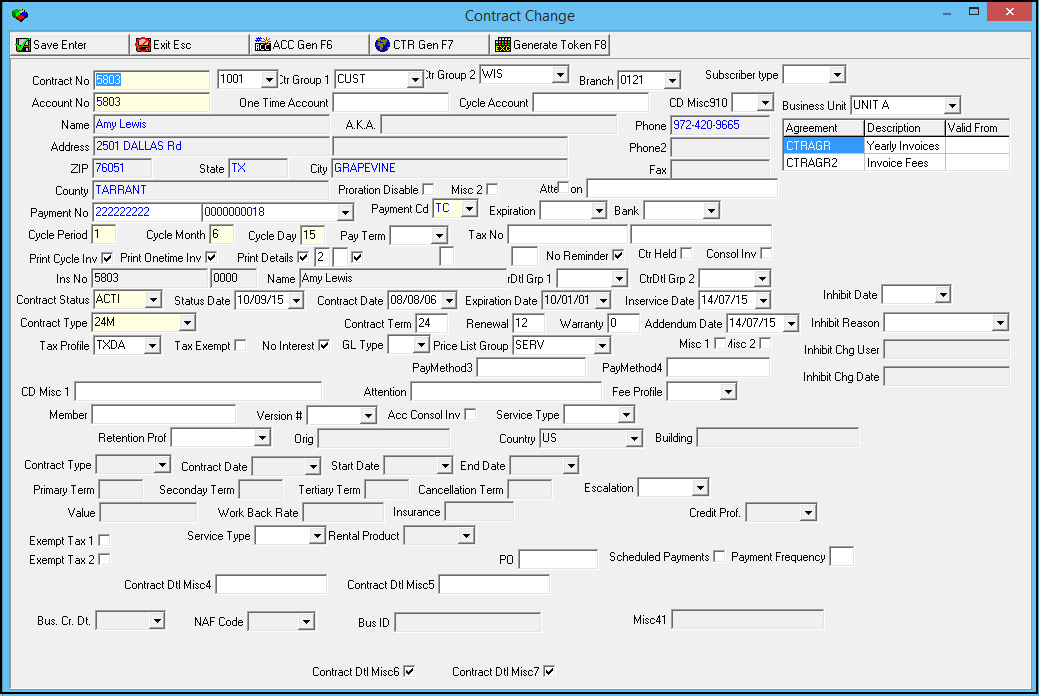
Note: For descriptions of the fields in this window, see Field Descriptions — New Contract.
Linking an Installation
Use the Link an Installation dialog box to link an existing installation to the selected contract.
Use the following steps to link an installation:
1. Choose Link an Installation.
w The Link an Installation dialog box appears.
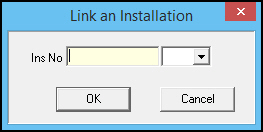
2. In Ins No — type an existing installation number.
3. Complete the Dealer ID field, as needed.
4. Choose OK to continue.
Note: SBN may display a message that says that the installation number that you selected is already linked to another contract. If this is correct, choose YES.
w The Link an Installation window appears with information from this installation already entered.
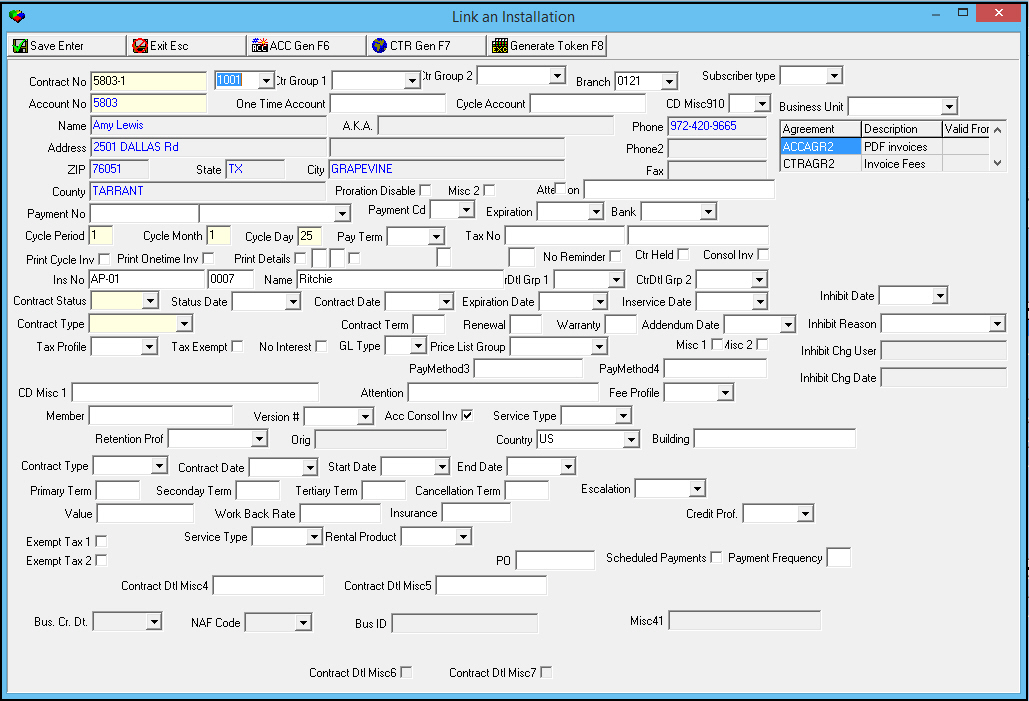
Note: Text that appears in blue defaults from the Billing Account pane. You cannot edit that information in this window.
5. Complete the fields.
6. Choose Save.
w The newly linked installation information appears in the Contract Master.
Unlinking an Installation
You can unlink a non-invoiced installation from a contract. However, you cannot unlink an installation if:
Billing has already been processed
The installation number has been referenced on a work order
Only one installation is attached to the selected contract
Use the following steps to unlink an installation:
1. In the Contract Information or Installation Information panes of Contract Master, select the installation that you want to unlink from this contract by double-clicking it.
2. Choose Unlink an Installation.
w The Unlink Contract dialog box appears.
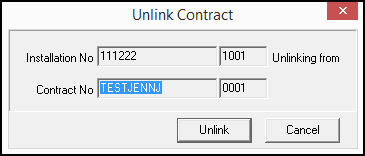
3. Choose Unlink.
w SBN unlinks the installation from the contract.
Working with the Cancel Contract Window
Use the Cancel Contract window to terminate a contract. You must individually cancel each contract attached to an installation. From the Cancel Contract window, you can enter information about why you are cancelling the selected contract.
If the current contract status displays an X in the No Invoice column, SBN suspends all cycle fees for this contract and records the change in the Cycle Fee Change Log.
SBN records changes made in the Cancel Contract window in the Contract Change Log. SBN does not record new information in the Contract Change Log, only changed information. (See Contract Change Log for more details.)
You can view and change the following aspects of Cancel Contract:
Setting Cancel Contract Options
You can manipulate the Cancel Contract functionality through the use of the following options.
Option bl047 - When on and when user cancels a contract and assigns a contract status with the Cancel flag selected in program #1532, SBN deletes all cycle fees.
Option bl082 - When off and a user cancels the contract, SBN compares the Out-of-Service and Cancel dates and sets the cycle fee Valid-to date to expire based on the latest date. You can then determine how you want to bill the cycle fees for the remaining term on the contract, either continuing on the cycle, or creating a single invoice that contains all remaining cycle fees (Invoice to Term flag).
Note: If your action profile includes action 548/158 you must enter a Cancel Date and an account balance of zero before you can cancel an account. If your action profile does not include this action and you attempt to change the contract status from active, SBN displays a warning message.
Option bl105 - When on, SBN bases the Contract Status Date on the Cancel Date.
Option bl106 - Use to define the number of days in the past the Cancel Date may be from the current date.
Option bl113 - When on, balance invoicing ignores invoices with a paid amount.
Option bl192 - When on, you may preschedule service requests in the Cancel Contract window. The Work Type and Work Count on the service request originate from the service request template you select in the Cancel Contract window.
Option bl197 - Use to define the number of days in the past the Out of Service Date may be from the current date.
Note: If your action profile includes action 548/159, you may cancel a contract even if the Out of Service Date exceeds the number of days defined by option bl197.
Option canctrpw - Enter a value of "CANCEL" for this option to be enabled. When enabled, when a user goes to cancel a contract, a 'Cancel Work Order' password screen will appear asking a user for a password.
Note: Password is case sensitive.
Note: Confirm Cancel button will be greyed out unless option canctrpw is enabled.
The Cancel Contract Window
Use the Cancel Contract window to enter specific information about when and why to cancel the contract. From this window, you can access the New Install or New Customer windows to enter marketing information about the new customer at this address or about the new address of the customer.
Note: Action 548/152 controls access to the Cancel Contract window.
The following graphic shows the Cancel Contract window with information displayed.
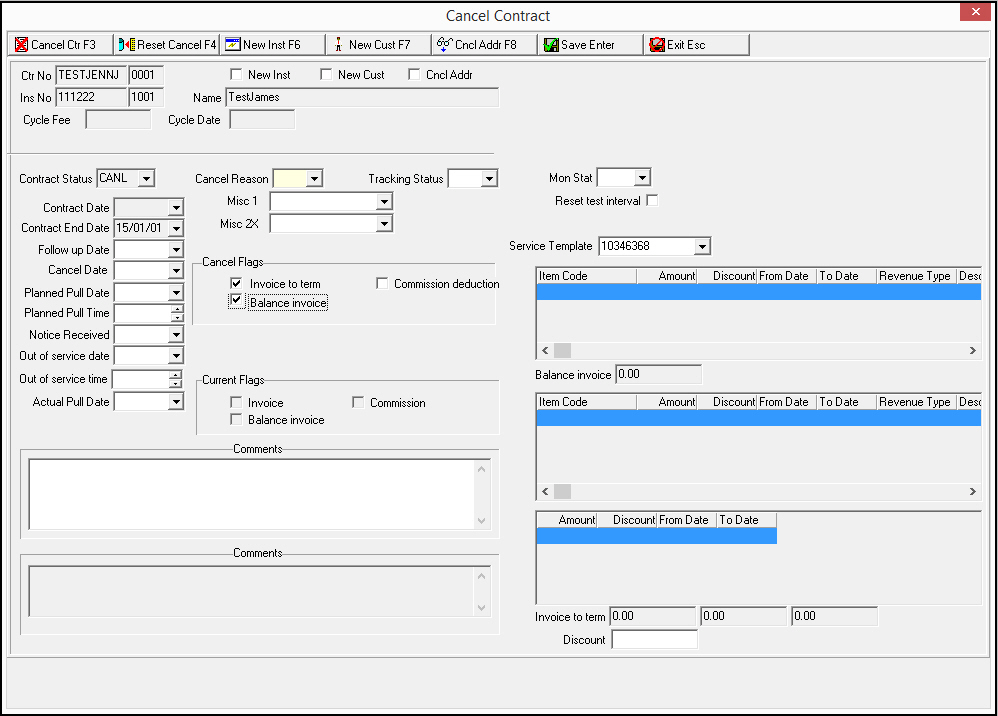
Field Descriptions — Cancel Contract
The following table describes the fields used in the Cancel Contract window.
Field |
Description |
Ctr No |
Contract number. |
Dealer ID (No label) |
ID of the dealer attached to the contract number. |
New Inst |
If this box displays a check mark, a user entered and saved this information in the New Installation window. |
New Cust |
If this box displays a check mark, a user entered and saved this information in the New Customer window. |
Ins No |
Installation number of the customer. |
Dealer ID (No label) |
ID of the dealer attached to the installation number. |
Name |
Customer name. |
Cycle Fee |
The total of active cycle fees for the selected contract. |
Cycle Date |
Latest invoice date for all cycle fees for the selected contract. |
Contract Status |
Menu of contract status. (This menu originates from program #1532.) Note: Selecting a status with a No Inv flag prevents the billing of any new cycle fees but allows one-time fee billing to continue. Selecting a status with a Cancel flag prevents all billing for cycle and one-time fees and reverses any invoicing of deferred billing and invoices any unbilled finance installments as a lump sum. |
Cancel Reason |
Menu of reasons for cancelling the contract. This can be made to be a required field. (This menu originates from program #1582.) |
Tracking Status |
Menu of tracking status codes. (This menu originates from program #1580.) |
Mon Stat |
Select a monitoring status for the installation associated with the contract that SBN changes on the Out of Service Date. This can be made to be a required field. If you enter a future date in the Out of Service Date field, when you choose Save SBN enters the monitoring status you select into the New Mon Stat field of Data Entry (program #559) for the installation, and the Out of Service Date into the New Mon Stat Date field of Data Entry. This field is protected until you choose the Cancel Contract or Reset Cancel button in the Cancel Contract window. (This menu originates from program #1540.) |
Contract Date |
Displays the start date of the contract. |
Misc 1 |
Company-defined field. (This menu originates from program #1894/03.) |
Reset Test Interval |
Select this check box to reset the test intervals of all CIDs for the installation associated with the contract to 000:00:00:00 on the Out of Service Date. If the Out of Service Date is in the future, when you choose Save SBN enters the 0 Test Interval into the New Test Interval column of the CID grid in Data Entry (program #559) for the installation, and the Out of Service Date into the New Mon Stat Date column of the CID grid. This can be made to be a required field. This check box is protected until you choose the Cancel Contract button in the Cancel Contract window. |
Contract End Date |
The ending date of the contract. This can be made to be a required field. Note: If option bl039 is on, you cannot edit this field. The date fills based on information from Contract Master. SBN calculates the following: [In-service date * Term + Renewal Term]. |
Misc 2 |
Company-defined field. (This menu originates from program #1894/04.) |
Follow Up Date |
Follow-up date. When you select a date in this field, SBN creates a communication log entry that displays any comments typed. |
Service Template |
Select a service request template to use if you want SBN to create a service request when you cancel the contract. (This menu displays service requests flagged as Templates in the Service Log from installations with the same dealer as the selected installation.) |
Cancel Date |
Date a user made the cancel contract entry. Note: Option bl106 defines the number of days in the past the cancel date may be from the current date. |
Planned Pull Date |
Date you plan to pull the equipment from the installation. |
Notice Received |
Date you received the notice of discontinuance. |
Out of Service Date |
Select the date that the contract status changed. SBN uses this date to calculate the contract’s unexpired balance and to reverse any deferred cycle, installment, and pre-billing invoicing. This date updates the Status date in the Contract Master. Note: To save an Out of Service date you must select a Contract Status with the Cancel flag. Note: When option bl105 is on, SBN bases this date on the Cancel Date. |
Out of Service Time |
Select the time that the contract status changed. Note: To save an Out of Service time you must select a Contract Status with the Cancel flag. |
Actual Pull Date |
Date the equipment was pulled from the installation. |
Cancel Contract Flags |
|
Invoice To Term |
Flag only appears after you select the Cancel button. Enter a check mark in this box to create a final bill for the contract. SBN then takes the following actions: • The Invoice To Term grid appears. • Creates a work order using the item, work order description, work order type, and price list group defined by the options wodiit, wodide, wodiitd, wodipg, and woditp. • SBN calculates this work order as a one-time fee to cover scheduled cycle billings from the out of service date through the contract end date. |
Commission Deduction |
Flag only appears after you select the Cancel button. Enter a check mark in this box to deduct commission from the sales and/or installers. SBN then reverses the net of all adjustments against the salesperson/installer’s commission and shows it in a commission log entry. Note: Option comcan defines the maximum age of a contract, in days, for commission deductions to be held when a contract is canceled. When this option contains a value greater than zero, SBN compares the number of days elapsed from the contract Inservice Date to the contract End Date. If the result is greater than the default value, no commission deduction occurs. When the result is less than the default value or the option is set to zero (0), the deduction occurs when the flag is set and the user chooses Cancel. |
Balance Invoice |
Flag only appears after you select the Cancel button. When you enter a check mark in this box, SBN takes the following actions: • The Balance Invoice grid appears. • Creates a credit work order for cycle fees billed from the out of service date to the current cycle date. • Reverses any deferred pre-billings that exist for the contract. • Invoices all unbilled installments of financing payments as a lump sum using the original installment revenue type. Note: If option bl113 is on, Balance Invoicing ignores invoices with a paid amount. |
Balance Invoice Grid Note: This grid only appears after you select the Cancel button and then select the Balance Invoice check box. |
|
Item Code |
Item code entered for each cycle fee on the contract. |
Amount |
Amount owed to the customer for the contract period he/she has paid. |
Discount |
Discount amount applied to the amount owed to the customer. |
From Date |
Out of Service Date for the contract. |
To Date |
Date up to which the customer has paid for monitoring service. |
Revenue Type |
Revenue Type defined for each item in program #1535. |
Description |
Text description of the item. |
Balance Invoice |
Total amount owed to the customer for the contract period he/she has paid that will appear on the work order. |
Reset Cancel Flag |
|
Clear All Cancel Flags |
Flag only appears after you select the Reset Cancel button. This flag may default to a check mark, which reverses the flags set when the contract was cancelled. |
Current Flags |
|
Invoice |
If this box displays a check mark, a user has set the Invoice to Term flag. Note: This is a read-only box. |
Commission |
If this box displays a check mark, a user has set the Commission Deduction flag. Note: This is a read-only box. |
Invoice To Term Grid Note: This grid only appears after you select the Cancel button and then select the Invoice to Term check box. |
|
Item Code |
Item(s) defined by options wodiit and wodiitd (if there is a discount defined for the contract type in program #1531) that SBN puts on work orders created in the Cancel Contract window. |
Amount |
Amount remaining on the contract that the customer owes. Any discounts for the contract type are listed in this column as well. Note: Set up discounts for each contract type in program #1531. |
Discount |
Discount amount applied by the operator in the Discount field below the Discount grid. |
From Date |
Out of Service Date for the contract. |
To Date |
Contract End Date entered when the contract was created. |
Revenue Type |
Revenue Type defined for each item in program #1535. |
Description |
Text description of the item. |
Discount Grid Note: This grid only appears after you select the Cancel button and then select the Invoice to Term check box. |
|
Amount |
Amount remaining on the contract that the customer owes. Any discounts for the contract type are listed in this column as well. Note: Set up discounts for each contract type in program #1531. |
Discount |
Discount amount applied by the operator in the Discount field below the Discount grid. |
From Date |
Out of Service Date for the contract. |
To Date |
Contract End Date entered when the contract was created. |
Invoice to Term (Total Amount) |
Total amount remaining on the contract with any discounts for the contract type entered in program #1531 subtracted. |
Discount Amount |
Discount amount applied by the operator in the Discount field below the Discount grid. |
Invoice to Term Amount After Discount |
Amount the customer owes after discount is applied. |
Discount |
Discount percentage applied to the remaining contract fee amount. |
Comments |
Type any text relevant to the contract cancellation. These comments appear in the Communication Log. Note: If option bl094 is off, SBN saves comments that you type in the Cancel Contract window into the Comment History window below and in the Communication Log. Note: If option bl094 is on, SBN deletes saved comments when you type new comments, and no comments are stored in the Communication Log. SBN does not track the changes and deletes them internally each time you add new comments. |
Comment (Read-only) |
Previously saved comments for the contract cancellation. Note: If option bl094 is off, SBN saves comments that you type in the Cancel Contract window into the Comment History window below and in the Communication Log. Note: If option bl094 is on, SBN deletes saved comments when you type new comments, and no comments are stored in the Communication Log. SBN does not track the changes and deletes them internally each time you add new comments. |
Canceling a Contract
Use the following steps to cancel a contract:
1. From the Contract Master, open the contract you want to cancel.
2. Choose Cancel Ctr.
w The Cancel Contract dialog box appears.
3. Complete the following fields:
l In Contract Status — select a non-active status for the contract.
l In Out of Service Date — select the date to stop service for the contract.
4. Choose Cancel Ctr.
w The Cancel Flags appear in the dialog box.
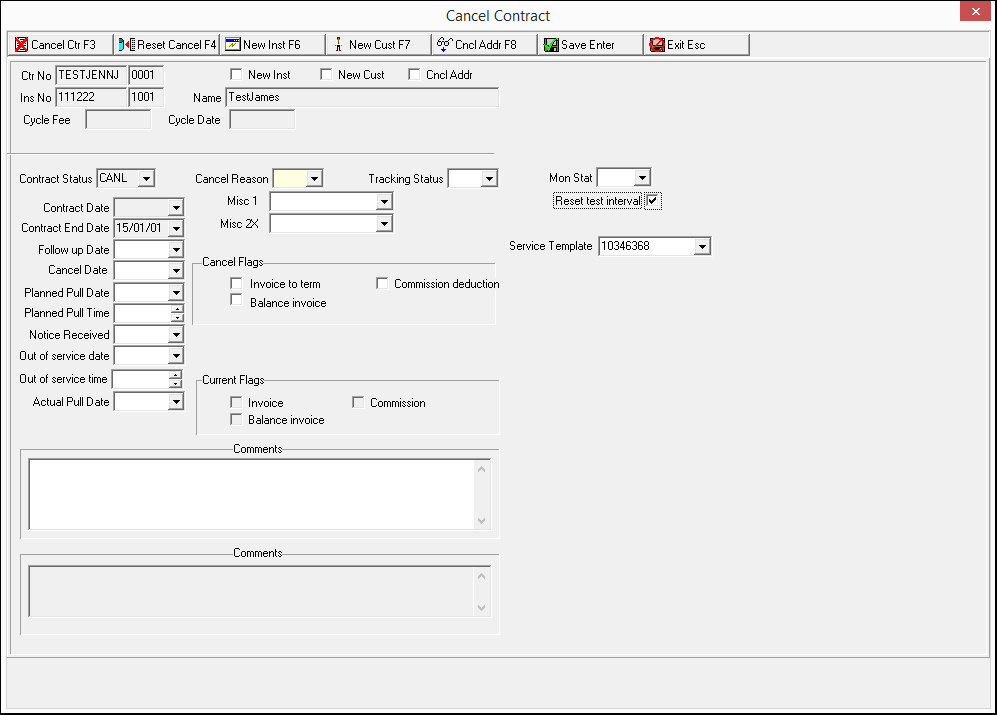
5. Complete additional fields, as necessary.
6. Choose an additional button to complete your task or choose Save.
Note: For more information on the additional buttons, see
q Using the New Installation Dialog Box
q Using the New Customer Dialog Box
q Using the Cancel Address Dialog Box
w If you leave both Invoice to Term and Balance Invoice blank, SBN asks if you are sure.
7. If you are sure, choose Yes. If not, type an X in either Invoice to Term or Balance Invoice.
8. Repeat this process for all contracts you wish to terminate for the selected installation.
Note: If you enter a future date in the Out of Service Date field, when you choose Save SBN enters the monitoring status you select into the New Mon Stat field of Data Entry (program #559) for the installation, and the Out of Service Date into the New Mon Stat Date field of Data Entry. If you select the Reset Test Interval check box and enter a future date in the Out of Service Date field, SBN enters 000:00:00:00 into the New Test Interval column of the CID grid in Data Entry for the installation.
Note: SBN allows users to create service requests in the Service Log tab of program #559 on contracts that are scheduled to be cancelled in the future. SBN displays a warning message if users attempt to create service requests on contracts that are currently in Cancelled status.
Canceling a Contract (Password Enabled)
Use the following steps to cancel a contract when Password is Enabled:
1. From the Contract Master, open the contract you want to cancel.
2. Choose Cancel Ctr.
w The Cancel Contract dialog box appears.
3. Complete the following fields:
l In Contract Status — select a non-active status for the contract.
l In Out of Service Date — select the date to stop service for the contract.
4. Choose Cancel Ctr.
w The Cancel Flags appear in the dialog box.
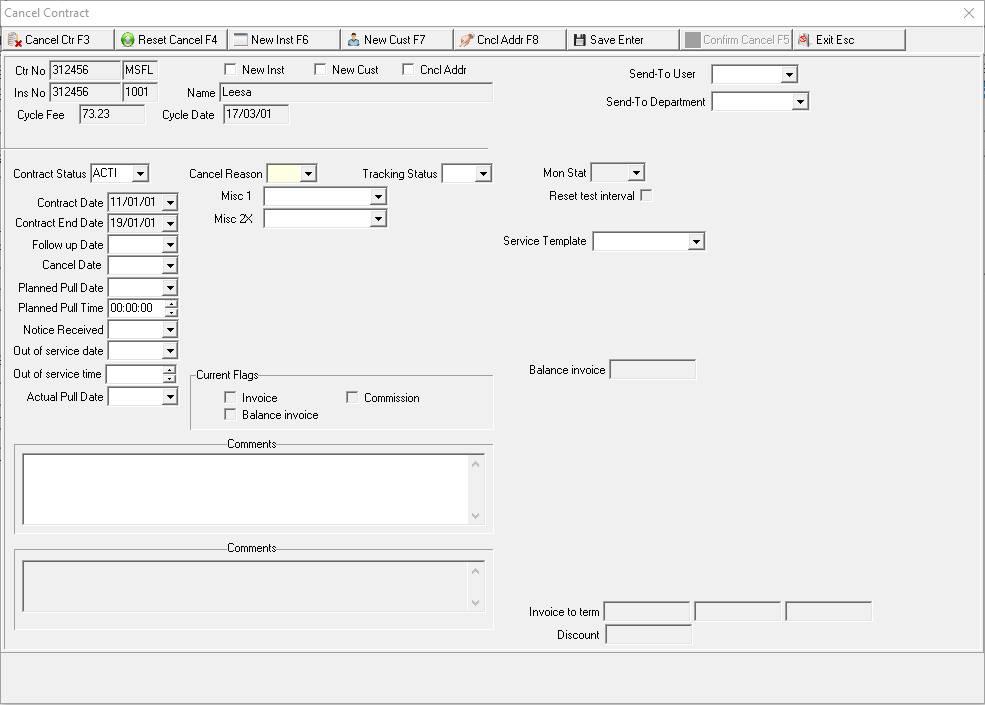
5. Fill in the Cancel Reason. Complete additional fields, as necessary.
6. Choose an additional button to complete your task or choose Save.
w The Confirm Cancel button becomes visible upon Save.
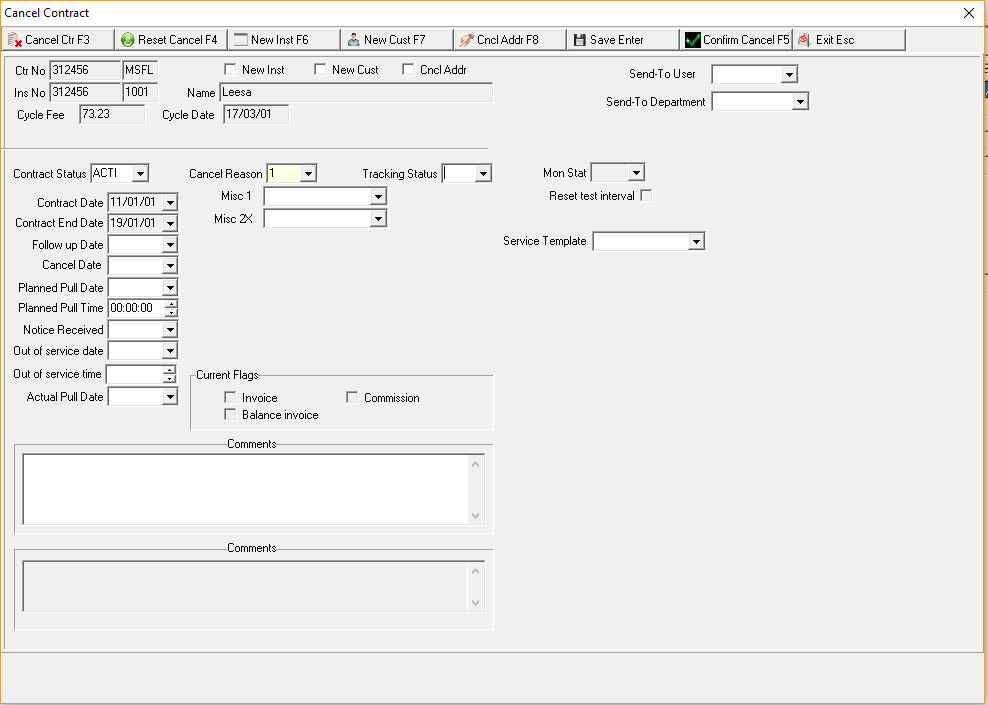
w If you leave both Invoice to Term and Balance Invoice blank, SBN asks if you are sure.
7. If you are sure, choose Yes. If not, type an X in either Invoice to Term or Balance Invoice.
8. Click Confirm Cancel when you are ready to cancel the contract.
Note: Saving alone will not apply the changes until you Confirm Cancel with a valid password as well.
w Cancel Work Order screen asking for Password appears.
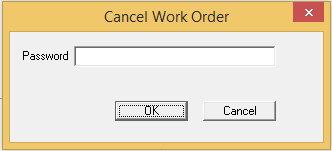
9. User types in a valid password and Clicks "OK."
Note: If a user gives an invalid password, an error message of "Illegal Password" will appear. If a user doesn't put in a password and clicks "OK" or "Cancel," a different error message, "Password not entered, contract not cancelled" will appear.
9. Repeat this process for all contracts you wish to terminate for the selected installation.
Note: If you enter a future date in the Out of Service Date field, when you choose Save SBN enters the monitoring status you select into the New Mon Stat field of Data Entry (program #559) for the installation, and the Out of Service Date into the New Mon Stat Date field of Data Entry. If you select the Reset Test Interval check box and enter a future date in the Out of Service Date field, SBN enters 000:00:00:00 into the New Test Interval column of the CID grid in Data Entry for the installation.
Note: SBN allows users to create service requests in the Service Log tab of program #559 on contracts that are scheduled to be cancelled in the future. SBN displays a warning message if users attempt to create service requests on contracts that are currently in Cancelled status.
Resetting a Canceled Contract
Action 548/153 controls access to the Reset Cancel button.
Use the following steps to reactivate a previously cancelled contract:
1. From the Contract Master, open the contract you want to reset.
2. Choose Cancel Ctr.
w The Cancel Contract dialog box appears.
3. Complete the following fields:
l In Contract Status — select an active status for the contract.
l In Out of Service Date — clear the date on which service stopped for the contract.
4. Choose Reset Cancel.
w The Reset Cancel Flags appear in the dialog box.
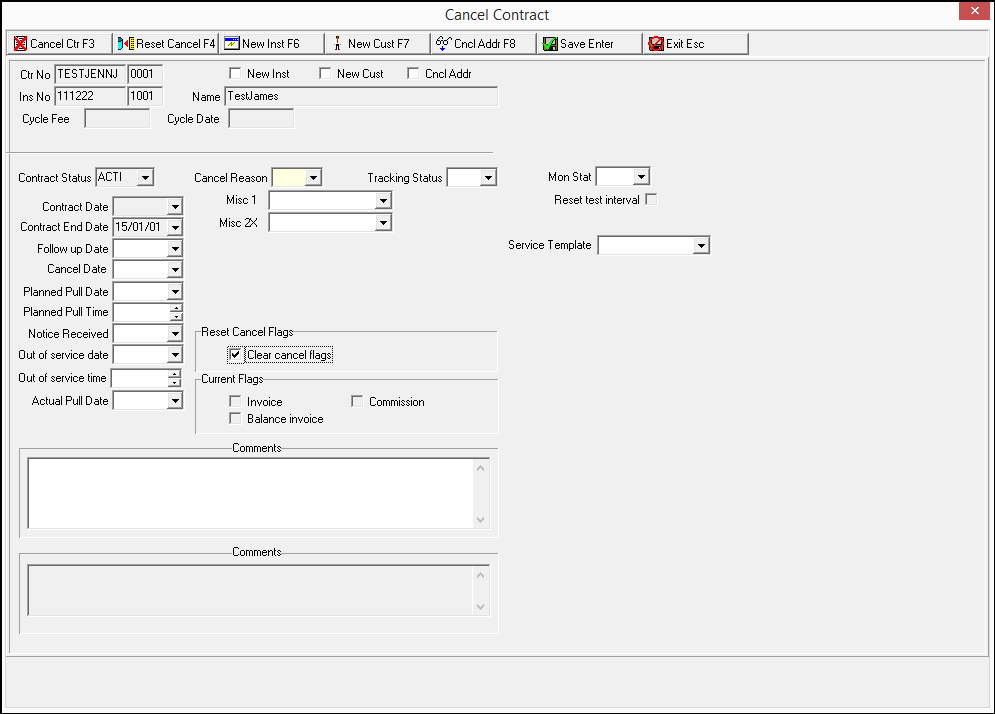
5. Enter a check mark in the Clear cancel flags box.
6. Complete additional fields, as necessary.
7. Choose Save.
w SBN reactivates the contract.
Note: If you enter a future date in the Out of Service Date field, when you choose Save SBN enters the monitoring status you select into the New Mon Stat field of Data Entry (program #559) for the installation, and the Out of Service Date into the New Mon Stat Date field of Data Entry.
Using the New Installation Dialog Box
Use New Installation in the Cancel Customer dialog box to enter information relating to the new installation for the current customer on the cancelled contract.
Note: Action 548/154 controls access to the New Installation button.
The following graphic shows the New Installation dialog box.
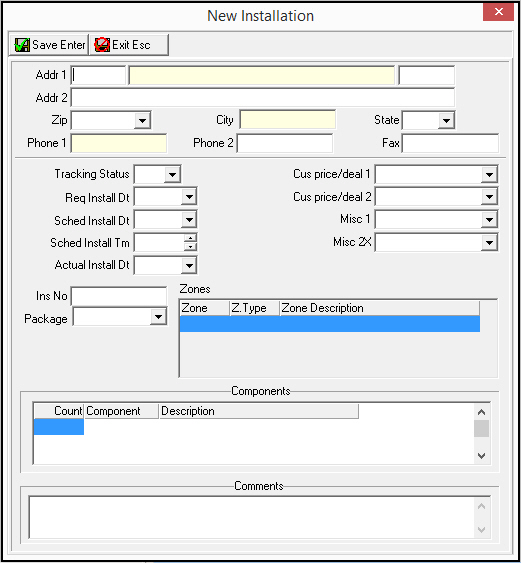
Field Descriptions — New Installation
The following table describes the fields used in the New Installation dialog box.
Field |
Description |
Addr 1 |
First line of the address, which displays the number, street, and apartment or suite number for the new installation. |
Addr 2 |
Second line of the address. |
Zip |
Zip code of the new installation. |
City |
City of the new installation. |
State |
State of the new installation. |
Phone 1 |
Phone number of the customer at the new installation. |
Phone 2 |
Second phone number. |
Fax |
Fax number of the customer. |
Tracking Status |
Menu of tracking status codes. (This menu originates from program #1580.) |
Cus/price deal 1 |
Menu of company-defined codes. (This menu originates from program #1894/01.) |
Req Intall Dt |
Date customer requests that you install new system. |
Cus/price deal 2 |
Menu of company-defined codes. (This menu originates from program #1894/02.) |
Sched Install Dt |
Date scheduled for you install new system for the selected customer. |
Misc 1 |
Company-defined field. (This menu originates from program #1894/03.) |
Sched Install Tm |
Time scheduled for you to install new system for the selected customer. |
Misc 2 |
Company-defined field. (This menu originates from program #1894/04.) |
Actual Install Dt |
Actual date you install new system for the selected customer. |
Components |
This list displays the quantities and item codes of additional items that were not part of the package that you installed at the new installation. |
Ins No |
Installation number. |
Package |
Code for the package installed. (This menu originates from program #1777.) |
Zones |
This table lists the Zone number, Zone Type, and Zone Description of the zones of the cancelled contract. |
Components |
This list displays the quantities and item codes of additional items that were not part of the package that was installed at the canceled installation. |
Comments |
Comments relating to the new installation. |
Using the New Customer Dialog Box
Use New Customer in the Cancel Customer dialog box to enter information relating to a new customer at the address of the cancelled contract. The following information from the cancelled contract defaults into the dialog box:
Address fields
Installation number
Zones
Components
Note: Action 548/155 controls access to the New Customer button.
The following graphic shows the New Customer dialog box.
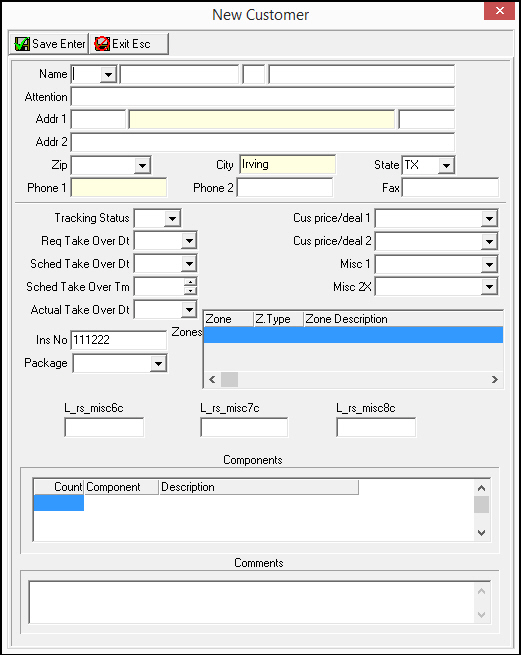
Field Descriptions — New Customer
The following table describes fields used in the New Customer dialog box.
Field |
Description |
Name |
Customer name. |
Attention |
Text line for typing attention information for mailing address. |
Addr 1 |
First line of the address, which displays the number, street, and apartment or suite number. Note: The information in this field defaults from the cancelled contract. |
Addr 2 |
Second line of the address. Note: The information in this field defaults from the cancelled contract. |
Zip |
Zip code of the installation. Note: The information in this field defaults from the cancelled contract. |
City |
City of the installation. Note: The information in this field defaults from the cancelled contract. |
State |
State of the installation. Note: The information in this field defaults from the cancelled contract. |
Phone |
New customer’s phone number. |
Phone2 |
Additional phone number. |
Fax |
Customer’s fax number. |
Tracking Status |
Menu of tracking status codes. (This menu originates from program #1580.) |
Cus/price deal 1 |
Menu of company-defined codes. (This menu originates from program #1894/01.) |
Req Take Over Dt |
Date customer requests to take over installation. |
Cus/price deal 2 |
Menu of company-defined codes. (This menu originates from program #1894/02.) |
Sched Take Over Dt |
Date customer scheduled to take over installation. |
Misc 1 |
Company-defined field. (This menu originates from program #1894/03.) |
Sched Take Over Tm |
Time customer scheduled to take over installation. |
Misc 2 |
Company-defined field. (This menu originates from program #1894/04.) |
Actual Take Over Dt |
Actual date customer takes over the installation. |
Ins No |
Installation number. Note: The information in this field defaults from the cancelled contract. |
Package |
Package code for the package installed. (This menu originates from program #1777.) |
Zones |
This grid lists the following zone information from the cancelled contract:
Note: The information in this field defaults from the cancelled contract. |
L_rs_misc6 |
Company-defined text field. |
L_rs_misc7 |
Company-defined text field. |
L_rs_misc8 |
Company-defined text field. |
Components |
This grid lists the quantities and item codes of additional items not part of the package that was installed at the canceled installation. Note: The information in this field defaults from the cancelled contract. |
Comments |
Comments relating to the new customer. |
Using the Cancel Address Dialog Box
Use Cancel Address in the Cancel Contract dialog box to enter a new address for a cancelled customer who will receive future correspondence (final bill, etc.). The address and selected installation information contained on the current contract default into this dialog box. Action 548/156 controls access to the Cancel Address button.
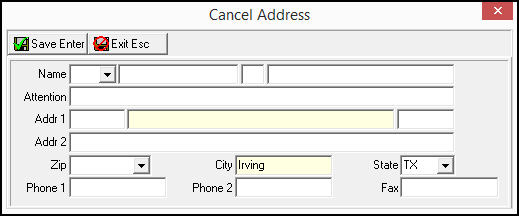
Field Descriptions — Cancel Address
The following table describes the fields used in the Cancel Address dialog box.
Field |
Description |
Name (Title, First, MI, Last) |
Fields for the full name of the cancelled customer. |
Attention |
Specific department or person who receives correspondence for this installation. |
Addr 1 |
Number, Street, and Street designation (Blvd, Way, Dr.). |
Addr 2 |
Space for additional address information. |
Zip |
Zip code for the new address. |
City |
City for the new address. |
State |
State for the new address. |
Phone 1 |
New phone number. |
Phone 2 |
Additional phone number. |
Fax |
Fax number. |
Using the Quick-Pay Dialog Box
Use Quick-Pay to:
Pay an invoice in full amount
Partially pay an invoice
Pay a work order that has not been invoiced
Partially pay a work order that has not been invoiced
Record the day of the payment, the expiration date, and the bank account holder or credit card holder's name
Quick-Pay allows you to enter credit cards that are not linked to the contract or bank account. It validates customer information such as credit cards and bank accounts.
From Quick-Pay, you can add, delete, and change transactions. However, you cannot post a payment from Quick-Pay to the Payment Status tab. You must post payments from Open Batches (program #1577).
Note: Option bl157 must be on for you to use the alternative Quick-Pay functionality. If this option is off, you can post transactions from Quick-Pay.
The following graphic displays Quick-Pay as the window opens.
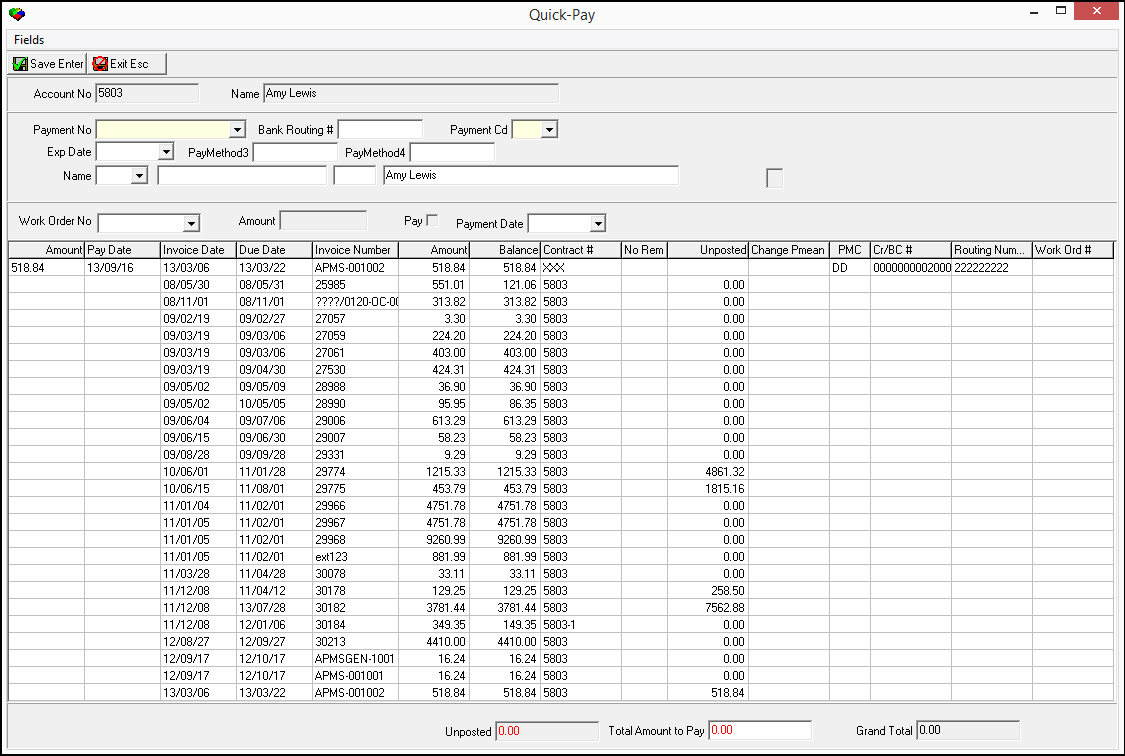
Field/Column Descriptions - Quick-Pay
The following table describes the fields and columns in the Quick-Pay dialog box.
Field |
Description |
Upper Pane |
|
Account No |
Account number. |
Name |
Name for the selected account. |
Payment No |
Pick-list for payment information saved for this account. Selecting an item in the pick-list automatically fills the appropriate fields. Note: When option bl212 is on and your local hard drive contains the necessary DLL and certificate files, SBN creates tokens for credit card numbers entered in this field. (Contact IBS for these files and installation instructions.) |
Bank Routing # |
Routing number of the bank on the account. |
Payment Cd |
Payment code that designates which type of credit card/direct debit you are using. |
Exp Date |
Expiration date listed on credit card. |
PayMethod3 |
Customer-defined field. This field allows you to enter credit card or bank account numbers that are not already linked to the selected account. |
PayMethod4 |
Customer-defined field. This field allows you to enter credit card or bank account numbers that are not already linked to the selected account. |
Name |
Title or prefix of card/bank account holder. |
Name (No Label) |
First name of card/bank account holder. |
Name (No Label) |
Middle initial of card/bank account holder. |
Name (No Label) |
Last name of card/bank account holder. |
Work Order No |
Work Order number to be paid. Note: You can pay work orders that have not been invoiced. |
Amount |
Total amount |
Pay |
Select this check box if you want to pay the total amount in full. |
Payment Date |
Date on which the payment is scheduled. Note: The payment date entered must fall on a Monday - Friday. SBN displays a message if you enter a payment date that falls on a weekend or holiday. |
Unposted |
Total amount for transactions that have not been posted. |
Total Amount to Pay |
Total amount unpaid for the selected account. |
Grand Total |
Grand total. |
Lowers Pane - Results Grid |
|
Amount |
When you double-click this field, it automatically fills with total amount left to pay on invoice. You can change this field to partially pay an invoice. |
Pay Date |
Date on which the payment is scheduled. |
Invoice Date |
Date on which the invoice was created. |
Due Date |
Date on which final payment is due. |
Invoice Number |
Display of invoice number to which a payment can apply. Payments can apply to more than one invoice. |
Amount |
Total amount left to pay on invoice. |
Balance |
Total balance remaining if you choose to partially pay an invoice. |
Contract # |
Contract number for the selected account. |
No Reminder |
If this column displays an 'X,' this account does not receive reminder notices. |
Unposted |
Total amount for transactions that have not been posted. |
Change Pmean |
Change payment means. You can link another credit card or bank account to the selected account. |
Payment Code |
Payment code that designates which type of credit card/direct debit you are using. |
Credit/Bank Card # |
Displays the credit card or bank account number used for the selected account. |
Routing Number |
Routing number of the bank on the account. |
Work Ord# |
Work Order number to be paid. Note: You can pay work orders that have not been invoiced. |
Making a Quick-Pay Payment
Use the following steps to make a quick-pay payment:
1. In Contract Master, choose Quick-Pay.
w The Quick-Pay dialog box appears and shows all unposted quick-pay invoices from the selected account.
2. Complete the fields, as needed.
Note: From the grid of invoices, you must select at least one invoice to which this payment applies; you may select more than one.
3. Type an amount to pay in the Total Amount to Pay field. When you select an invoice, this field may fill with a default, but you can override the default with a larger amount.
4. Choose Save.
w SBN asks if you want to post this amount.
5. Choose OK.
w The payment runs through the posting process.
6. Choose Close.
Note: Quick-Pay only allows changes to transactions that are not posted on the current batch of the day.
SBN creates Quick-Pay batches in program #1577 according to currency type. All Quick-Pay payments for one day with US currency go to one batch, payments with Canadian currency go to another batch, and so on. (Payment currency is determined by the type selected for the account in the Currency field of the Billing Accounts tab of Contract Master.)
Error Messages
SBN displays an error message for the following reasons:
Payment date is not between Monday - Friday
Payment date is equal to the current date
Credit Card Number is not valid
Bank Account Number is not valid
Helpful Hint: Quick-pay Transactions
Transactions cannot be completed on the same day you enter them. For example, if it is 20 August and you want to enter a transaction with 20 August as the date, SBN refuses the transaction.
The transaction can take place on 21 August and can be accepted, modified, or deleted, but it cannot be posted.
Changing the View of Contract Information
By using the available buttons, you can change the view of the tree. You can view:
Each contract on account in order by account number
All contracts on an installation in order by installation number
Viewing Contracts by Account
Use the following steps to view contracts by account:
1. Choose By Acc.
w The Contract Information pane changes to the Contracts by Account view.
2. To change the view back to Contracts by Installation, choose By Inst.
Viewing Contracts by Installation
Use the following steps to view contracts by installation:
1. Choose By Inst.
2. To change the view back to Contracts by Account, choose By Acc.
Running a Report
You may run four reports from Contract Master:
Communication Log Report (program #1904)
Invoice / Statement Copy (program #2099)
Current Customer Status Report (program #2104)
Payment Status Report (program #2121)
Use the following steps to run a report from Contract Master:
1. In Contract Master, choose Run Reports.
w The Report Selection menu appears.
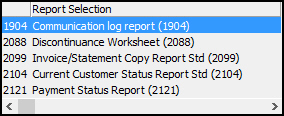
2. Choose the report you want to run from the menu.
w The selected report appears.
3. Complete and run the report according to report instructions.
Refreshing the Window
Choose SQL Refresh to update the Contract Master and all Contract Master tabs with new or changed information.
Changing Mailing Address Information
From the main window of Contract Master, you can get details about and change mailing addresses for the selected installation and billing account. For mailing address information to appear in Contract Master, you must choose the Jump to Data Entry button when setting up the marketing information attached to this contract. These additional addresses have no functionality in SBN.
To use QAS address validation in the Mailing Address dialog box, see QAS Pro Address Validation.
Use the following steps to change installation mailing address information:
1. Choose Installation Mail.
w The Mailing Address dialog box appears.
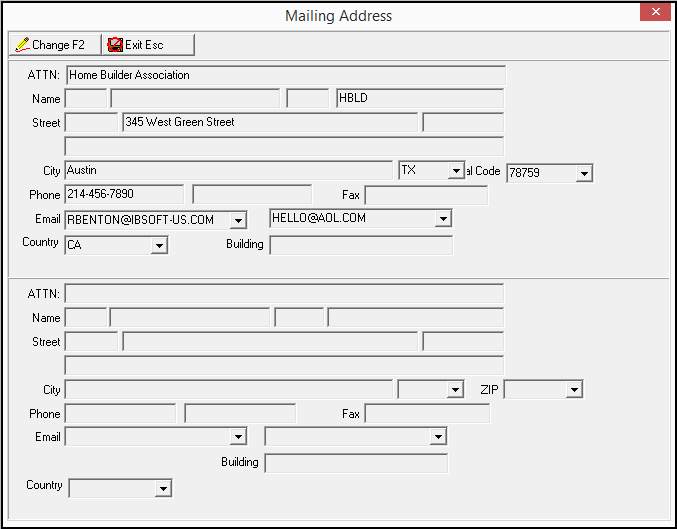
2. Choose Change Record.
w Fields opens for changes.
3. Complete the fields.
4. Choose Save.
Note: If you jumped to Contract Master from Data Entry in order to create a new contract, the Installation Address, Email Address 1 and Email Address 2 fields will be populated from the entries in Data Entry.
Use the following steps to change billing account mailing address information:
1. Choose Billing Mail.
w The Billing Mailing Address dialog box appears.
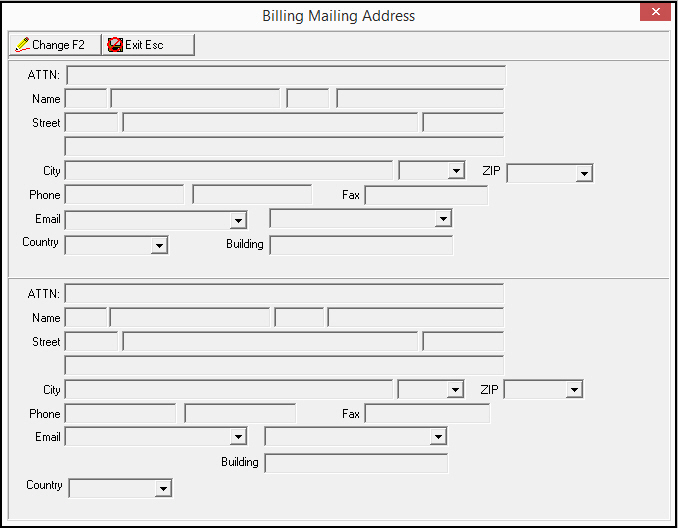
2. Choose Change Record.
w Fields opens for changes.
3. Complete the fields.
4. Choose Save.
Document Retrieval
Use Document Retrieval to pass search parameters to a third-party software application to find documents related to the installation. Configure the application and database location specifications in Client Options.
Jumping Between SBN Billing and Monitoring Sessions
If you run separate SBN sessions for billing and monitoring, you can jump from your billing server to your monitoring server using the Bill/Mon Jump button in Contract Master. The Bill/Mon Jump button only appears when you start SBN as a billing or monitoring session and option ba385 is on.
Use the following steps to access the Bill/Mon Jump buttons. Always take the steps in the order they are shown.
1. You must have a Billing Server and a Monitoring Server. Each server must have options bm_bserv and bm_mserv defined.
Option bm_bserv must have the alias name of the billing server.
Option bm_mserv must have the alias name of the monitoring server.
2. Each server must have option ba385 on.
All sprocs using this option must be recompiled with the option on.
3. Each server must have GUI message 9347 compiled into the system.
4. Each server must have IBS messages 3085 and 3086 compiled into the system.
5. Each server must have actions 559/629 (Bill/Mon Jump button in Data Entry Master) and 548/316 (Bill/Mon Jump button in Contract Master) compiled into the system.
6. You must use SBN version 67 (build 0084 or later), version 69, or a later version.
7. The action profile for your user ID must have the Bill/Mon Jump button actions (559/629 and 548/316) checked.
8. You must have the correct startup parameter assigned to your SBN shortcut:
If you run the Monitoring SBN, your shortcut must say "sbn.exe-billmonmon."
If you run the Billing SBN, your shortcut must say "sbn.exe-billmonbill."
Note: You only need the startup parameter assigned to the initial SBN you start from your desktop (or wherever your shortcut resides).
Exporting Contract Master Data into Document Templates
You may export data from Contract Master into a document template by choosing Document Template.
To use this feature, first store the MS Word document or MS Excel spreadsheet templates to use in the file path defined by option ba469 with the names of the Contract Master fields from which you want to export data within the templates. Then go to Document Templates (program #1645) and create an entry for each document template, indicating from which Contract Master fields to export data into the template. Select the In Use check box in program #1645 for each template record that you want to appear in the Document Templates drop-down menu in Contract Master.
Use the following steps to export data into document templates:
1. Open the billing account record from which you want to export details and choose Document Template.
w A drop-down menu appears with the available document templates.
2. Select the document template you want to use.
w If the template is associated with a Service Ticket status in Document Templates (program #1645), selecting that template will open a prompt reading "This template will create a Service Ticket. Do you wish to continue?" If you choose "Yes," the opening of the template generates a new Service Ticket. If you choose "No," the prompt will close and the template will not open.
wThe Word document or Excel spreadsheet opens and SBN replaces the field names in the document with the data from the fields in Contract Master.
w SBN creates an entry in the Communication Log (program #1888) with the following text: 'Document exported --> [document name].[file type], Contract: [contract number], Account: [account number]'.
3. Save the updated document.
4. To access the Document Templates available to Contract Master programs:
Select the Document Template button at the top of the window or Alt+F9.
The dropdown menu will display the available documents.
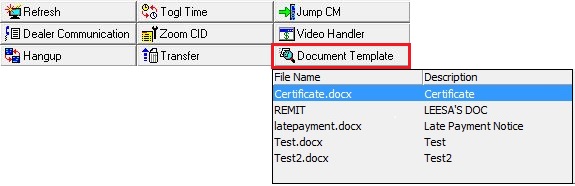
Button Functions
The following table displays the buttons, describes the shortcut keys, actions, and functionality.
Button |
Name |
Shortcut Key |
Action |
Description |
|
Find Customer |
alt+f1 |
548/ 1 |
Search for customer contracts. |
|
Change Record |
f2 |
548/ 2 |
Change details of selected record. |
|
New record |
f3 |
548/ 3 |
Create new record. |
|
Link an Installation |
f4 |
548/ 4 |
Link an existing installation to the selected contract. |
|
Unlink an installation |
f5 |
548/ 5 |
Unlink a non-invoiced installation from a contract. |
|
Cancel Ctr |
f6 |
548/ 7 |
Cancel a contract. |
|
Confirm Cancel |
F5 |
548/324 |
Confirms User wants to Cancel Contract and brings up Password Screen. (Greyed Out if option canctrpw is not enabled. |
|
Quick-Pay Screen |
f7 |
548/12 |
Make a quick-pay payment. |
|
By Acc |
f8 |
548/ 8 |
View contracts by account. |
|
By Inst |
f9 |
548/ 9 |
View contracts by installation. |
|
Run Reports |
shift+f7 |
548/10 |
Run a report from Contract Master. |
|
SQL Refresh |
f11 |
548/11 |
Update the Contract Master with new or changed information. |
|
Installation Mail |
f12 |
548/14 |
Opens the Mailing Address dialog box to enter two additional mailing addresses for the installation. |
|
Document Retrieval 1-10 |
shift+f12 |
548/17, 548/328-335 |
Pass search parameters to a third-party software application to find documents related to the installation. |
|
Bill/Mon Jump |
f10 |
548/316 |
Jump from current SBN monitoring session to a separate SBN session on the billing server defined by option bm_bserv, or jump from the current SBN billing session to a separate SBN session on the monitoring server defined by option bm_mserv. Note: In order for the Bill/Mon Jump buttons to appear in Contract Master or Data Entry Master (program #559), SBN must be started as a billing or monitoring session and option ba385 must be on. |
|
Website |
shift+f5 |
548/18 |
Access the website defined by option contweb. |
|
Billing Mail |
shift+f10 |
548/19 |
Opens the Billing Mailing Address dialog box to enter two additional mailing addresses for the billing account. |
|
Document Template |
ALT+F9 |
548/318 |
Opens a menu of MS Word document or MS Excel spreadsheet templates. You may select a template into which SBN imports data from the selected billing account. |
|
Expand All |
shift+f4 |
Expand all nodes in the tree view. |
|
|
Collapse All |
shift+f5 |
Collapse all nodes in the tree view. |
|
|
N. Access Toggle |
shift+f6 |
Toggles between viewable and non-viewable contracts/accounts based on the user's branch/dealer access profile. |
|
|
Std Icon Toggle |
shift+f7 |
Toggle standard icons on and off. |
|
|
Icon Mode |
shift+f8 |
Toggle between available icons. |
|
|
Generate Token |
F8 |
548/319 548/320 |
Create a unique token for the customer's bank account information that SBN inserts in the second Payment Number field. (This token is matched with actual bank account information during data transmission with the financial institution.) Note: Action 548/319 controls the button in the Contract Change window. 548/320 controls the button in the Account Change window. |
|
Exit without saving |
ESC |
Exit without saving changes. |
|
|
Save New Record |
ENTER |
Save existing changes to record. |

























Modifications and Updates to Contract Master
The following table lists modifications and updates to the Contract Master document.
Mod Number |
Date |
Description |
07.79.22575, 07.79.22569, 07.78.22540 |
06/27/2013 |
Enhancement of the PayMethod3 field in the Billing Accounts window for Company 171 only. |
07.79.22921, 08.79.09392, 07.79.22915, 08.79.09383 |
09/11/2013 |
Updated option temp162. When the option is on, the Dealer ID remains unchanged when you edit the ZIP field of the Billing Accounts pane. |
08.79.09375, 07.79.22905, 08.79.09371, 07.79.22897 |
09/26/2013 |
Added Misc41 field to Installation pane. |
08.80.09516 |
03/19/2014 |
Added notice that checking Email invoice or Fax invoice checkboxes requires completing information in Invoice Email and Fax fields. |
08.79.09484, 07.79.23097, 08.79.09477, 07.79.23082 |
03/20/2014 |
Noted that Contract End Date, Monitor Status, Reset Test Interval, and Cancel Reason fields may now be made to be required. |
08.80.09563, 07.80.23233, 07.80.23226, 08.80.09558 |
04/01/2014 |
Added Contract Dtl Misc6 and Contract Dtl Misc7 checkboxes and Contract Dtl Misc8 field to Installation pane. Also added new Bus. Cr. Dt and NAF Code dropdown menus, Bus ID and Misc41 text fields, and Contract Dtl Misc6 and Contract Dtl Misc7 checkboxes to New Contract and Change Contract windows. |
08.80.09621, 08.80.09616, 07.80.23303 |
06/02/2014 |
Added Fiscal Date field to the Billing/Accounts tab. |
07.81.23436, 08.81.09693, 07.81.23434, 08.81.09691 |
06/25/2014 |
Included default information included in Contract Master and Billing Account New ported from Data Entry. |
n/a |
08/02/2014 |
Images updated. |
07.81.23622, 08.81.09808 |
09/11/2014 |
Note added on information from Data Entry populating the Ins Group fields. |
07.81.23572, 08.81.09781, 08.81.09759, 07.81.23544 |
09/16/2014 |
Added new procedures on using Document Templates. |
07.81.23604, 08.82.09775, 07.81.23567 |
09/18/2014 |
Inhibit Date, Inhibit Reason, Inhibit Changed User, and Inhibit Changed Date fields added. |
07.81.23696 |
10/23/2014 |
Added notes about option bl227 in the Grp 1/2 sections of the Billing Accounts and Contract/Installation tabs. |
n/a |
03/03/2014 |
Added note that blanking the Address From Install field will allow editing of the Billing Accounts pane. |
07.87.25329, 07.87.25325 |
05/04/2017 |
Added a column to show work order number that pertains to each of the cycle lines. |
07.89.25886, 08.89.11400, 07.89.25900, 08.89.11416 |
06/20/2018 |
Added new Password Screen directions for canceling a contract when new option canctrpw is enabled. Updated images. |
08.88.11326, 07.89.25867, 07.89.25869, 08.89.11381, 08.89.11387, 07.89.25874 |
01/08/2019 |
Payeezy has been integrated to work within SBN Contract Master (#548) and API Manager. |
08.91.11745, 08.91.11742 |
09/16/2019 |
AKA and Building fields added within Contract/Installation tab. These fields originate from the installation in Data Entry Master and Basics (#559). |
07.91.26269, 08.91.11755, 08.91.11763, 07.91.26276 |
10/03/2019 |
8 new Document Retrieval buttons added in Contract Master window. Image updated. |