
Vendor Masters
Vendor Masters
Vendor Masters
Program #: 1758
Module: System Administration
Overview
Use Vendor Masters (program #1758) to maintain vendor records for use in other areas of SBN. You must perform a search for vendor records before the program displays any vendors in the left pane of the window.
The Vendor Masters Window
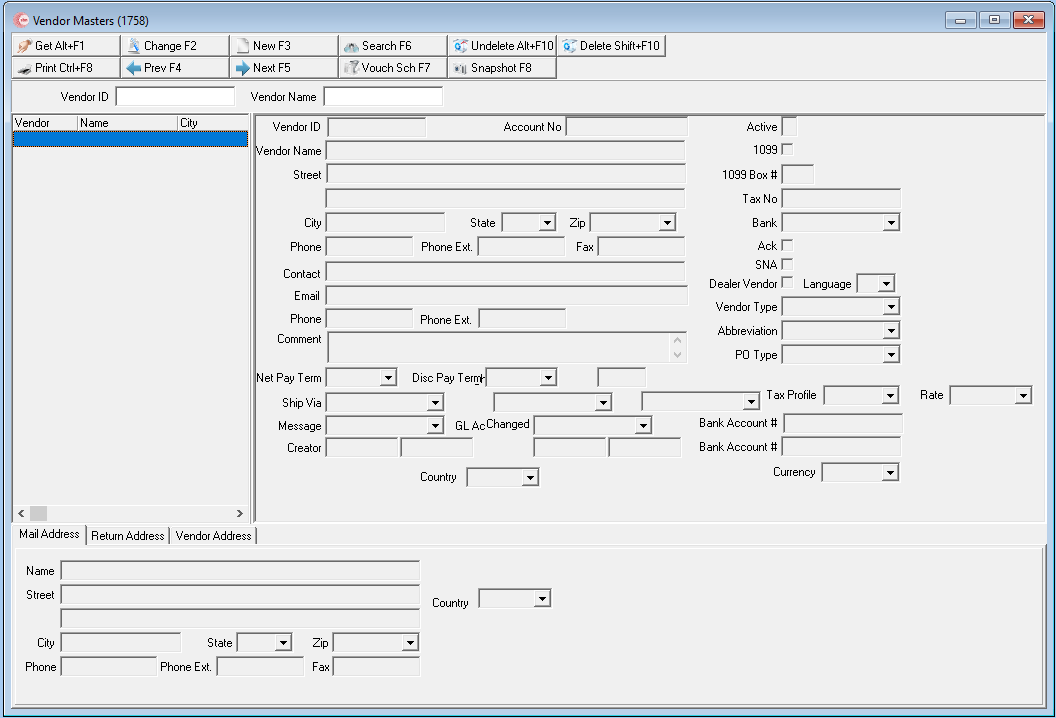
Vendor Masters contains three panes:
The Search pane (upper) contains fields for selecting search parameters
The List pane (lower left) displays search results
The Details pane (lower right) displays details of vendor records
The following graphic shows Vendor Masters as the program opens.
Field/Column Descriptions
The following table describes the fields and columns used in Vendor Masters.
Field/Column |
Description |
Vendor ID |
Unique ID assigned to each vendor. This field allows 10 alphanumeric characters. |
Vendor Name |
Name of the vendor. |
Account Number |
Account number assigned to your company by the vendor. |
Active |
If this box displays an X, the vendor is active. If this box is blank, the vendor is inactive. |
1099 |
If this box displays a check mark, the vendor receives a 1099. |
Street |
Street address at which you place orders for the vendor. |
1099 Box # |
The box number for the vendor’s 1099. |
Street
2 |
Additional line for the street address of the vendor. |
Tax No |
Tax ID for the vendor to use for 1099 reporting. |
City |
City of the ordering address. |
State |
State of the ordering address. (This field holds a maximum of 60 characters.) |
Zip |
Zip code of the ordering address. |
Bank |
Bank to use to make payments to this vendor. (This menu originates from program #1736.) |
Phone |
Phone number for placing orders with the vendor. |
Phone Ext |
Extension for the phone number. |
Fax |
Fax number for placing orders with the vendor. |
Ack |
If this box displays a check mark, the vendor must acknowledge all orders. O SBN uses box as a default when creating new purchase orders for this vendor. |
Email address of the vendor. |
|
SNA |
If this box displays a check mark, the vendor is an SNA vendor. (Company 150 only). |
Contact |
Ordering contact name. |
Phone |
Additional phone number. |
Phone Ext |
Extension for the additional phone number. |
Dealer Vendor |
If this box displays a check mark, the vendor is a Dealer vendor. |
Language |
Select the language of the vendor. |
Comment |
Text comment for the vendor. |
Vendor Type |
Type assigned to the vendor. (This menu originates from program #1764/7.) |
Abbreviation |
Status assigned to the vendor. (This menu originates from program #1764/6.) |
Net Pay Term |
Standard vendor pay terms. (This menu originates from program #1529.) |
Disc Pay Term |
Pay terms if the vendor gives a discount. (This menu originates from program #1529.) |
Disc |
Percentage of the discount to take if you pay invoices within the discount pay terms. |
PO Type |
Default purchase order type associated with this vendor. (This menu originates from program #1764/2.) O This default appears on new purchase orders created for this vendor. |
Ship Via |
Default freight carrier associated with this vendor. (This menu originates from program #1764/1.) O This default appears on new purchase orders created for this vendor. |
Freight |
Default freight terms associated with this vendor. This default appears on new purchase orders created for this vendor. (This menu originates from program #1764/6.) |
FOB |
Default FOB point associated with this vendor. (This menu originates from program #1764/4.) O This default appears on new purchase orders created for this vendor. |
Tax Profile |
Select a tax profile from the drop-down menu to assign to the selected vendor. (This menu originates from program #1514). |
Rate |
The rate associated with a specific vendor. |
Message |
Default report message associated with this vendor. This menu originates from program #1766.) O This default appears on new purchase orders created for this vendor. |
GL Account No |
Default general ledger account number associated with this vendor. (This field contains a menu if option bl058 is off. This menu originates from program #1835. Entries are limited to account numbers flagged as used by PUR or AP.) O This default appears on new purchase orders created for this vendor. |
Bank Account # |
Primary bank account number of the vendor to use for direct payment. |
Creator |
ID of the user who entered this as a new vendor. |
Date |
Date this vendor record was entered. |
Changed |
ID of the user who last changed this vendor record. |
Date |
Date this vendor record was last changed. |
Bank Account # |
Secondary bank account number of the vendor to use for direct payment. |
Country |
Country of the address at which you place orders for the selected vendor. (This menu originates from program #1865.) |
Currency |
Currency type of the selected vendor. (This menu originates from program #1635.) |
Mail Address |
Payment address for the vendor. |
Return Address |
Extra address for the vendor. |
Vendor Address |
Extra address for the vendor. |
Searching for Vendor Records
To display information in Vendor Masters, you must first perform a search for vendor records.
Use the following steps to search for vendor records:
1. In Vendor Masters, select your search parameters.
Note: You can select a vendor ID, vendor name, or use wildcard characters to search for partial IDs or names. For more information on using wildcards, see Using Wildcard Characters in the reference document, Searches.
Note: You can search for all vendors by leaving the search parameters blank.
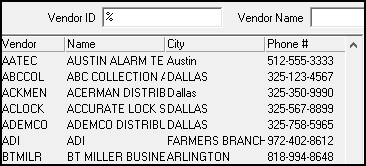
2. Choose Search.
‰ SBN displays all vendor records that match the search parameters.
Using Common Functions
See the reference document Common Functions in SBN for more information.
Searching for Vouchers Paid to a Vendor
Use the following steps to search for vouchers paid to a vendor:
1. In Vendor Masters, perform a search for the vendor for whom you want to view vouchers.
2. From the search results, select the vendor.
3. Double-click your selection or choose Get Record.
4. Choose Voucher Search.
‰ The Voucher Search dialog box opens.
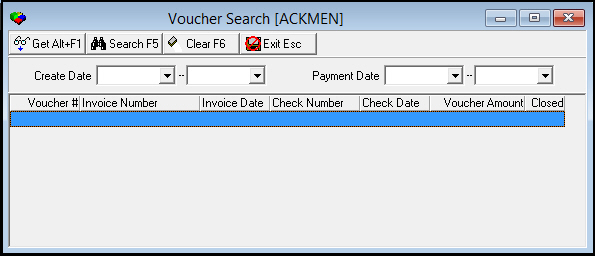
5. Select your search parameters.
Note: You can search by a range of creation dates or payment dates. If you leave the search parameters blank, SBN displays all vouchers for the specific vendor.
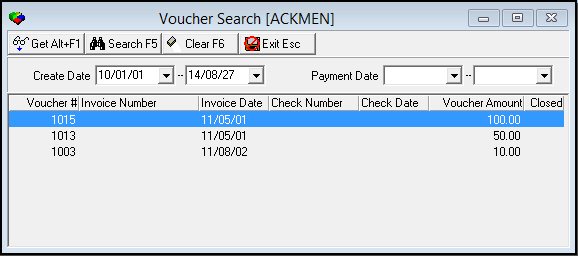
6. Choose Search.
‰ SBN displays the vouchers that match your search parameters.
7. To perform another search for the same vendor, choose Clear Search Screen.
‰ SBN clears the search parameters.
8. Repeat steps 5-6.
Viewing Details of a Voucher
After you perform a search for vouchers for a selected vendor, you can view the details of that voucher.
Use the following steps to view details of a voucher:
1. From the search results in Voucher Search, select the voucher for which you want to view details.
2. Double-click your selection or choose Get Record.
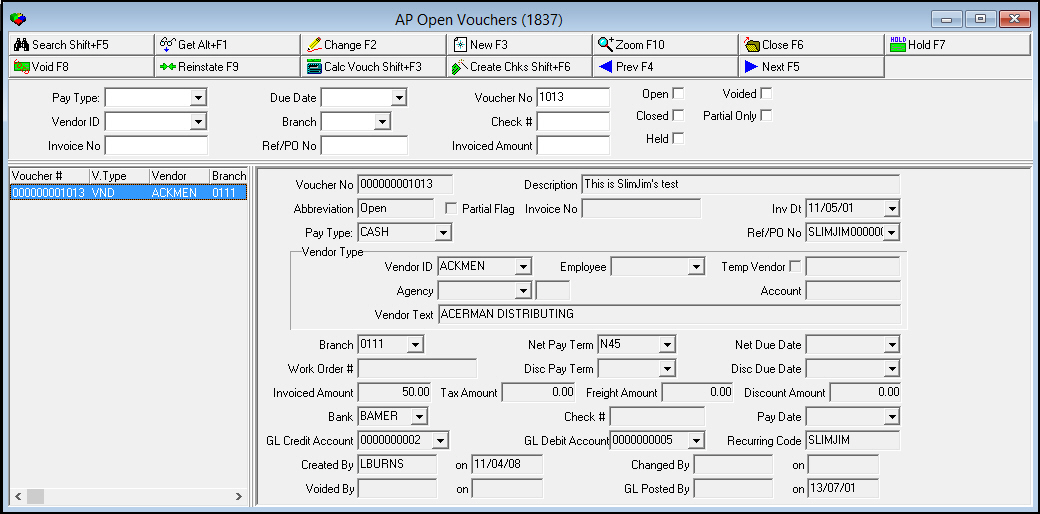
‰ SBN opens AP Open Vouchers (program #1837) and displays the details of the selected voucher. For more information on working in AP Open Vouchers, see AP Open Vouchers.
Vendor Snapshot
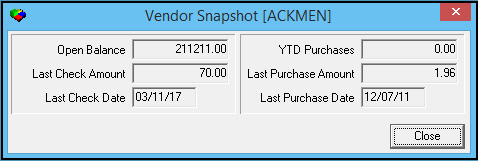
Use the Vendor Snapshot to view balance and purchase information for a selected vendor.
Use the following steps to view the Vendor Snapshot:
1. In Vendor Masters, perform a search for the vendor for whom you want to view the vendor snapshot.
2. From the search results, select the vendor.
3. Choose Vendor Snapshot.
‰ The Vendor Snapshot dialog box appears.
Button Functions
The following table displays the buttons, describes the shortcut keys, actions, and functionality.
Button |
Name |
Shortcut Key |
Action |
Description |
|
Get |
ALT+F1 |
1758/ 1 |
Get record. |
|
Change |
F2 |
1758/ 2 |
Change selected record. |
|
New |
F3 |
1758/ 3 |
Create new record. |
|
Delete |
SHIFT+F10 |
1758/ 4 |
Delete selected record. |
|
Undelete |
ALT+F10 |
1758/ 5 |
Restore deleted record. |
|
CTRL+F8 |
1758/ 6 |
Print selected records. |
|
|
Search |
F5 |
1758/ 7 |
Search for existing vendors. |
|
Modify Search |
F6 |
1758/ 8 |
Clear search screen. |
|
Voucher Search |
F7 |
1758/ 10 |
Search for vouchers paid to a vendor. |
|
Vendor Snapshot |
F8 |
1758/ 999 |
View balance and purchase information for a selected vendor. |
|
Previous |
F4 |
1758/ 999 |
Select last record. |
|
Next |
F5 |
1758/ 999 |
Select next record. |












Modifications and Updates to Vendor Masters
The following table lists modifications and updates to the Vendor Masters document.
Mod Number |
Date |
Description |
n/a |
08/27/14 |
Images updated. |
07.93.26727, 08.93.12030, 08.93.12030, 08.93.12031 |
12/06/21 |
Rate field added. Images updated. |
F1 Help
| Delphi Forms | apopenvouchersform, babanksform, blchartofaccountsform, ubreportmessagesform, ubvendorsform, ubvendorsnapshotform, ubvouchschform |
| Program Numbers | 1736, 1758, 1766, 1835, 1837 |