
Monitoring Status
Module: System Administration
Overview
Use Monitoring Status (program #1540) to define monitoring statuses for SBN. The menu of defined Monitoring Statuses appears in:
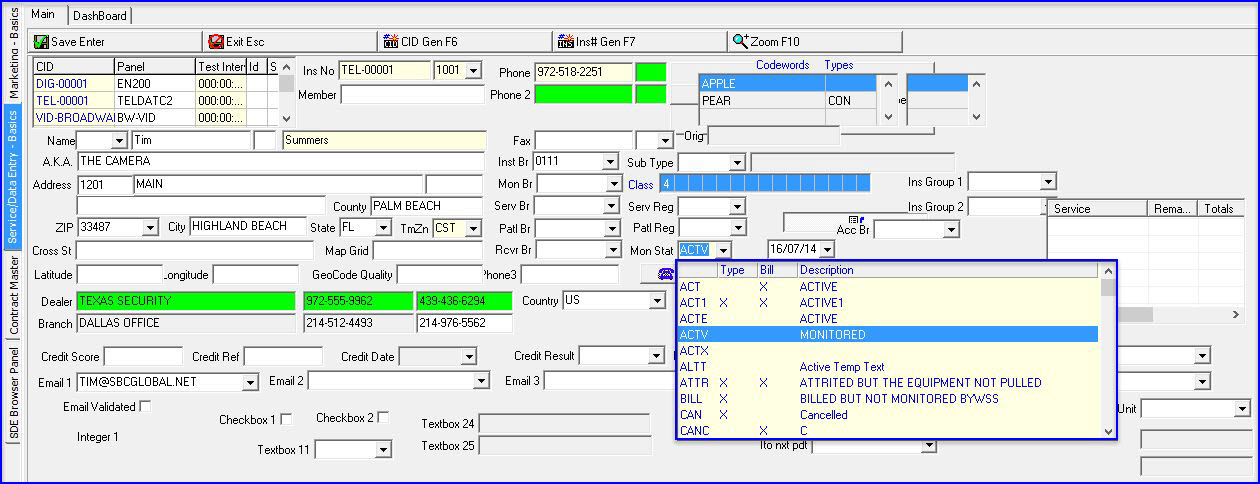
Data Entry/Customer Service (program #559)
Dispatch
Billable Installations without Active Cycle Fee (report #1154)
Non-Billable Installations with Active Cycle Fee (report #1164)
You may also use Monitoring Status to define a pop-up message that will appear in Dispatch when an operator acknowledges a signal from an installation with the selected monitoring status. You may define the pop-up message with a specific action/index so that an operator whose user profile includes that action will not see the pop-up message. You may also define the message in multiple languages.
Note: Dispatch does not include a function to re-display the message once an operator closes it.
To access this program, choose Monitoring Status (program #1540) from the main menu of SBN.
The Monitoring Status Window
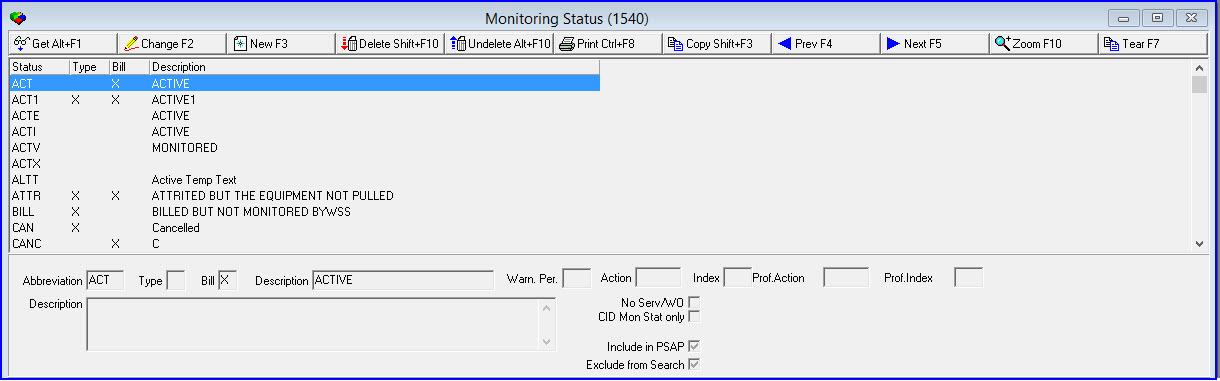
The following graphic displays Monitoring Status as the program opens. The upper pane displays all previously defined monitoring statuses.
Field/Column Descriptions
The following table describes the fields and columns used in the main window of Monitoring Status.
Field/Column |
Description |
Status |
Abbreviation that identifies the monitoring status. |
Type |
Defines how SBN handles signals for the selected monitoring status: l L = log only l X = throw away l blank = monitored |
Bill |
Defines the type of billing allowed for the selected monitoring status: l X = no billing l + = billing of one-time charges only l - = billing of cycle fees only l blank = all billing allowed |
Description |
Text description of the monitoring status. |
Warn Per |
Type the number of days to use as a trigger for SBN to display a pop-up message in Dispatch. SBN displays the pop-up message if the monitoring status associated with a signal has been changed within this number of days. |
Action |
You may define the pop-up message with an action or with an action/index combination. If the user profile of the monitoring operator includes this action, SBN will not display the pop-up message.
|
Index |
If you define the pop-up message with an action that has a sub-action, type it in this field.
|
Prof. Action |
Action status for Monitor Status. |
Prof. Index |
Index number for Monitor Staus. |
Description |
Type the message that will pop-up in Dispatch based on the Warning Period, Action, Index, and Monitoring Status. |
No Serv / WO |
This check box prevents the creation of service requests or work orders for customers with this monitoring status. |
CID Mon Stat Only |
Select this check box to make a monitoring status appear only in the drop-down menu of the Monitoring Status field in the CID grid of program #559. If a monitoring status has this check box selected, it does not appear in the drop-down menu of the installation Monitoring Status field in the main window of program #559. Note: All monitoring statuses appear in the Monitoring Status menu in the program #559 CID grid, including those with this check box selected. All monitoring statuses except those with this check box selected appear in the installation Monitoring Status field in the main window of program #559. |
Include in PSAP |
Select this check box to make the selected monitoring status appear in the drop-down menu of the Monitoring Status field in the PSAP Interface Queue (program #1659). The PSAP Interface Queue does not display an installation in search results unless the installation has a monitoring status that has this check box selected, (and has a latitude and longitude defined or a street address and zip code defined in program #559). If you select this box any installation that has this particular monitoring status, will be inserted into the ASAP queue for address verification when applicable. If the checkbox is selected when the Police Agencies (Program #1546) is updated with the ASAP in the Addr Tp field, then the selected installations will be sent to the ASAP queue for verification. Once it is validated will be an entry in the alarmlog to state the address is good or bad. Installations submitted this way appear in the ASAP Address Verification Queue (program #1675). Everything an installation must have before it is submitted, and what to check when it does not appear, is on the ASAP Setup and ASAP Troubleshooting pages. On the Dispatch tab, added color coding when a message is received from the ASAP agency – specifically Event EDISPATCH (230) and Event Extension MSGIN. When the message is received it will turn the incident back to red. This allows the operator to see that a MSGIN has been received and that action needs to be taken. |
Exclude from Search |
Select this check box to exclude this monitoring status from an Advanced Search in the Customer Data program (program #559) when Action 559/54 is off. |
Managing Monitoring Status
When there are different users (Customer Service, Installer or a dealer) working into the same instance of SBN (database) managing the same installations it is necessary to differentiate the roles and responsibilities between them. The functionality required for this to happen is to include the user profile in the monitoring status, so that a user can only select the monitoring status that is linked to the user profile. The user profile can get and change the installations even though the monitoring status is not on his profile. The user can change a class field without making any change on the monitoring status.
In Action Program 1502 the Monitor Statuses for Program 1540 have been added, these monitor statuses are reflected in the Prof. Action and Prof. Index boxes in Program 1540.
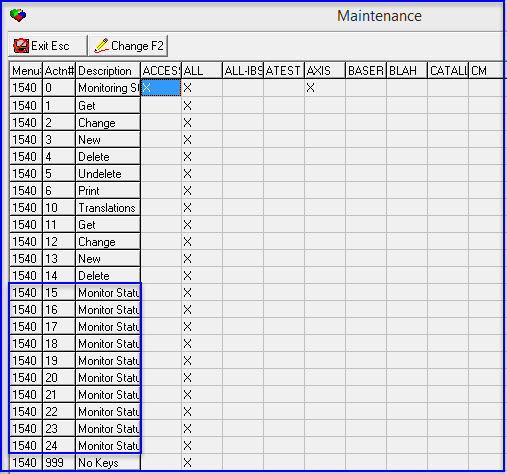
In Program 1540 when a user selects a Monitor Status, the Action and Index for that status will display in the Prof. Action and Prof. Index boxes.

In Program 559 the user can do an Advance Search according to the Monitoring Status. Select the Monitor Status from the drop down box.
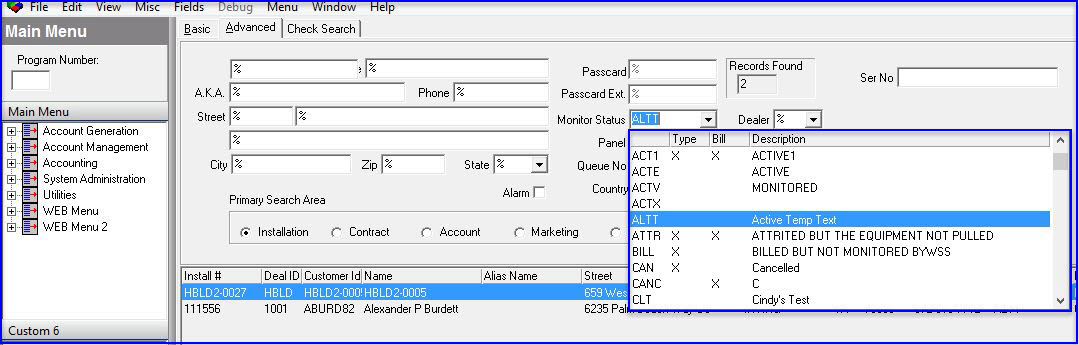
In Program 559 the user can select a Monitoring Status from the drop down box.
Using Common Functions
See the reference document Common Functions in SBN for more information.
You may define a pop-up message to associate with a monitoring status. SBN displays this message in Dispatch when an operator acknowledges a signal that arrived from an installation with the selected monitoring status.
You can use this message, for example, to inform the operator that the selected installation became active within the past 30 days.
Use the following steps to define the pop-up message:
1. In Monitoring Status, select the monitoring status to which you want to attach a pop-up message.
2. Choose Change Record.
‰ Fields open in the lower pane of the window.
3. Complete the following fields:
l In Warn Per. - type the number of days that you want to use as the trigger for SBN to display the pop-up message in Dispatch. If the monitoring status has changed within this number of days, SBN will display the pop-up message in Dispatch when a monitoring operator acknowledges a signal from an installation with the selected status.
l In Action - you may enter an action or an action/index combination that, when included in the monitoring operator’s user profile, prevents SBN from displaying the pop-up message. If leave this field blank, SBN displays the pop-up message to all monitoring operators when they acknowledge signals from installations with the selected status.
l In Index - if the index that corresponds with the action, if needed. You may leave this field blank.
l In Description - type the message that you want SBN to display in the pop-up message.
4. Choose Save Existing Record [ENTER].
5. Zoom into the sublevel to add the message in various languages, if needed.
Zooming into the Sublevel
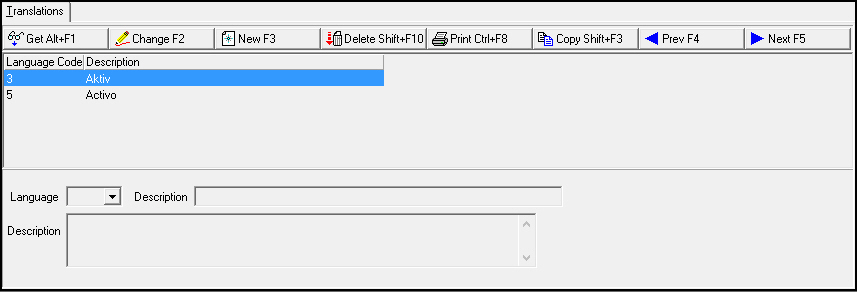
Monitoring Status contains a sublevel in which you may attach multiple translations to a monitoring status. The monitoring status then appears in SBN in the user’s language.
Note: Actions 1540/10-14 control access to the Translations tab and functions.
The Translations Tab
The Translations tab appears below the main window and displays
Previously defined translations for the selected monitoring status
Translations of a pop-up message - defined in the main level of the selected monitoring status
Field/Column Descriptions
The following table describes the fields and columns used in the Translations tab.
Field/Column |
Description |
Language Code |
Code that identifies the language of the associated translation. O Contact IBS before using language codes 11-17. |
Description |
Text description, in the associated language, of the selected monitoring status. |
Description |
The pop-up message - defined in second Description field of the main level - in the associated language. |
Button Functions
The following table displays the buttons, describes the shortcut keys, actions, and functionality.
Button |
Name |
Shortcut Key |
Action |
Description |
|
Get |
ALT+F1 |
1540/ 1 |
Get record. |
|
Change |
F2 |
1540/ 2 |
Change selected record. |
|
New |
F3 |
1540/ 3 |
Create new record. |
|
Delete |
SHIFT+F10 |
1540/ 4 |
Delete selected record. |
|
Undelete |
ALT+F10 |
1540/ 5 |
Restore deleted record. |
|
CTRL+F8 |
1540/ 6 |
Print selected records. |
|
|
Zoom |
F10 |
1540/ 999 |
Zoom in/out of sublevel. |
|
Copy |
SHIFT+F3 |
1540/ 999 |
Copy current record. |
|
Tear |
F7 |
1540/ 999 |
Lists details of selected field. |
|
Previous |
F4 |
1540/ 999 |
Select last record. |
|
Next |
F5 |
1540/ 999 |
Select next record. |











Modifications and Updates to Monitoring Status
The following table lists modifications and updates to the Monitoring Status document.
Mod Number |
Date |
Description |
n/a |
8/20/14 |
Images updated. |
|
|
|
|
|
|
F1 Help
| Delphi Forms | ractinsform |
| Program Numbers | 1154 |