
Frontend
Frontend
Frontend
Module: Utilities
Overview
The Frontend uses a SQL interface to send signals from the Concentrator to the Host and Backup Host. The Frontend protects the Concentrator from the network/server, since the Frontend process is usually installed on a separate server from the Concentrator. The Frontend fails if the network fails, but the Concentrator continues to run.
Requirements
Install the Frontend process on a Windows server, often the same server that runs the Primary and Secondary databases. If the databases are running from a UNIX server, a separate Windows OS machine is needed to run the Frontend.
Warning: Never install the Frontend process on the same server that runs the Concentrator.
Operational Overview
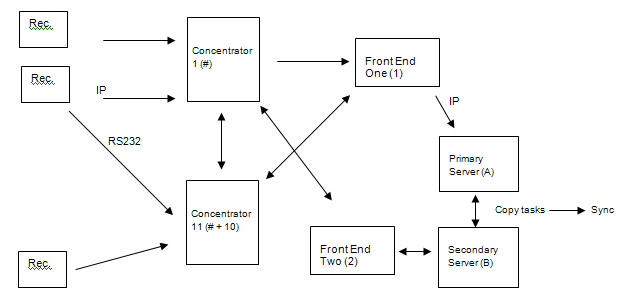
The Frontend receives signals from the Concentrator via a serial connection or TCP/IP and passes the signals into the Immediate Queue where ALGEN processes them and inserts them into the Alarm Queue and the Alarm Log. If there are two Concentrators sending signals, the Frontend recognizes when the same signal comes from both Concentrators and regards it as one signal.
The following chart shows the Frontend's role in the flow of alarm signals into SBN.
Installing Frontend Hardware
You must connect the Frontend to the Host and to one or two Concentrators.
Configuring the Frontend Hardware
You may configure the Frontend hardware for either a TCP/IP connection (preferred) or a serial connection.
Configuring the Frontend Hardware for a serial connection
To configure the Frontend hardware for a serial connection, attach the Frontend to the Concentrator with
l A NULL MODEM cable if you are using a serial connection with a 9-25 pin adapter
Note: Configure the pin outs of the NULL MODEM cable according to the following chart:
|
Pin |
to |
Pin |
|
1 |
to |
1 |
|
2 |
to |
3 |
|
3 |
to |
2 |
|
4 |
to |
5 |
|
5 |
to |
4 |
|
6 |
to |
20 |
|
8 |
to |
20 |
|
7 |
to |
7 |
|
20 |
to |
6 |
|
20 |
to |
8 |
Note: The Frontend uses standard serial ports (usually two 9-pin serial ports or one 9-pin port and one 25-pin port) instead of a Serial Interface Board.
l A standard network cable
Installing Frontend Software
You must install and configure Sybase DB Library before you run the Frontend software.
To install the Frontend software, double-click on the Setup icon to run the Install Shield. The Install Shield installs SBN_FrontEnd in the Start Menu, under Programs.
Note: Put all the executable, configuration, and log files for one Frontend in a separate directory from files for other Frontends and programs. In order to keep the Frontend running smoothly, check disk space on the Frontend machine daily and delete the Frontend log files from previous days.
Note: Do not set a Frontend to start automatically when the computer starts unless you use Windows XP. If you do not use XP, setting the Frontend to auto-start may cause two copies of the same Frontend to run, causing received duplicate signals to not be recognized as duplicates. This gives the false impression that the Frontend is receiving twice as many signals as are actually being sent to it.
Configuring the Frontend Software for a TCP/IP Connection (Preferred)
Use the following steps to configure the Frontend software:
1. Create the Frontend shortcut on your desktop.
2. Open the Frontend.
3. Select Properties.
4. In the Target field, modify the following parameters to match your environment:
�C:\Program Files \IBS\FE1\SBN_FrontEnd.exe� IPS4212 -dump -debug -notime -h ARNOLD -eZREC0100
l IPS — the IP socket of either your Primary or Secondary host connection defined in the Concentrator
l -dump — prints debug information to the screen
l -debug — prints debug information to the screen
l -notime — prints debug information to the screen
l -h — name of the Primary or Secondary host
l -e — the Error account
l -r — if defined, FE uses this value between reconnect attempts
Note: If not defined, the following error occurs: CT LIB: ct_cmd_drop(): user api layer: external error: The connection has been marked dead. Error: 16843058 Severity: 1
l -c — identifies the separation between concentrator / ID, if other than 10. For example:
q 01 and 11 communicate — no -c parameter needed
q 01 and 02 communicate — use -c 1 as parameter
Communication Tests
SBN checks for communication in several ways between the Frontend, receiver, line card, and customer:
-
Passive timer from Frontend to host
Note: If host receives no signal, it generates a No Activity signal.
-
Passive time for each receiver
Note: If no signal is received, generates a No Activity signal.
-
Passive time for each line card. The timer varies by line card
Note: If no signal is received, generates a No Activity signal.
-
Passive timer from installation to host. Defined for each CID
Note: If no signal is received, generates a Missing Test signal.
-
Active timer from the Concentrator to the line card
Note: When 75% of the specified time has elapsed, calls the number for the line card. Panel is Unknown and will generate a Bad Data signal and reset the timer. This feature will require an extra line and modem and may not be passable depending on the logical line setup.
If the Frontend goes down, switch to the secondary Frontend or use another computer. If you lose all IP, have another computer ready to go with the same IP address but not powered up.
Frontend Log
The Frontend can locally log every communication within a 24-hour period. The log will stamp both the time the Frontend receives a signal and the time that the Frontend transfers the signal to an Immediate Queue. The log will create a new file each day.
Modifications and Updates to Front End
The following table lists modifications and updates to the Front End document.
|
Mod Number |
Date |
Description |