
Keys
Keys
Keys
Module: System Administration
Overview
Use Keys (program #1519) to define communication keys codes. Generally, use communication keys codes for searches. Menus of communication keys codes appear in the Communication/Collection Log search window and in the New Entry window of the Communication Log as Key 1, Key 2, Key 3, and Key 4.
Key codes may be used to make additional fields appear in the Communication Log (program #1888) when particular codes are selected. Users define whether or not conditional fields appear and if they are required when a code is selected.
To access this program, select Keys (program #1519) from the main menu of SBN.
The Keys Window
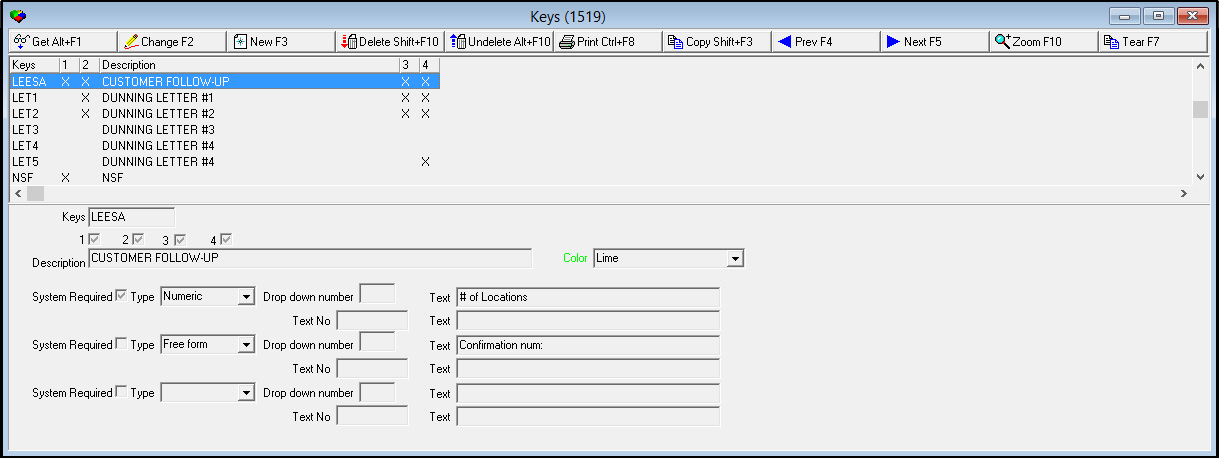
The following graphic shows Keys as the program opens. The upper pane displays previously defined communication keys codes.
Field/Column Descriptions
The following table describes the fields and columns used in Communication Keys Codes.
|
Field/Column |
Description |
|
Keys |
Abbreviation that identifies the communication keys code. |
|
1 |
If this column displays an X the selected communication keys code appears in the Communication Log menu labeled Key 1. Conditional fields will only appear if this box is checked. |
|
2 |
If this column displays an X the selected communication keys code appears in the Log menu labeled Key 2. |
|
3 |
If this column displays an X the selected communication keys code appears in the Log menu labeled Key 3. |
|
4 |
If this column displays an X the selected communication keys code appears in the Log menu labeled Key 4. |
|
Description |
Text description of the selected communication keys code. |
|
Conditional Fields |
|
|
Conditional Field 1 |
|
|
System Required |
A check in this box indicates an entry in the conditional field is required. |
|
Type |
Indicates type of information required in conditional field. (This menu is defined by IBS.) |
|
Drop down number |
ID number of the drop-down list to appear in conditional field (if conditional field type is designated drop-down). Drop-down lists are defined in program #1627. |
|
Text (1) |
Free text label for conditional field. |
|
Text No |
GUI message number assigned as label text for conditional field. (GUI messages are found in program #1606.) |
|
Text (2) |
Text assigned to GUI message label for conditional field. (Entering a GUI Text Number will automatically populate this field. Entering text in Text 1 will automatically delete info from this field.) |
|
Conditional Field 2 |
|
|
System Required |
A check in this box indicates an entry in the conditional field is required. |
|
Type |
Indicates type of information required in conditional field. (This menu is defined by IBS.) |
|
Drop down number |
ID number of the drop-down list to appear in conditional field (if conditional field type is designated drop-down). Drop-down lists are defined in program #1627. |
|
Text (1) |
Free text label for conditional field. |
|
Text No |
GUI message number assigned as label text for conditional field. (GUI messages are found in program #1606.) |
|
Text (2) |
Text assigned to GUI message label for conditional field. (Entering a GUI Text Number will automatically populate this field. Entering text in Text 1 will automatically delete info from this field.) |
|
Conditional Field 3 |
|
|
System Required |
A check in this box indicates an entry in the conditional field is required. |
|
Type |
Indicates type of information required in conditional field. (This menu is defined by IBS.) |
|
Drop down number |
ID number of the drop-down list to appear in conditional field (if conditional field type is designated drop-down). Drop-down lists are defined in program #1627. |
|
Text (1) |
Free text label for conditional field. |
|
Text No |
GUI message number assigned as label text for conditional field. (GUI messages are found in program #1606.) |
|
Text (2) |
Text assigned to GUI message label for conditional field. (Entering a GUI Text Number will automatically populate this field. Entering text in Text 1 will automatically delete info from this field.) |
Using Common Functions
See the reference document Common Functions in SBN for more information.
Creating Conditional Fields
Use the following steps to create fields that will appear in the Communication Log (program #1888) when a particular Key code is selected.
1. Select a Key code from the grid.
2. Choose Change Record.
w Fields open for changes.
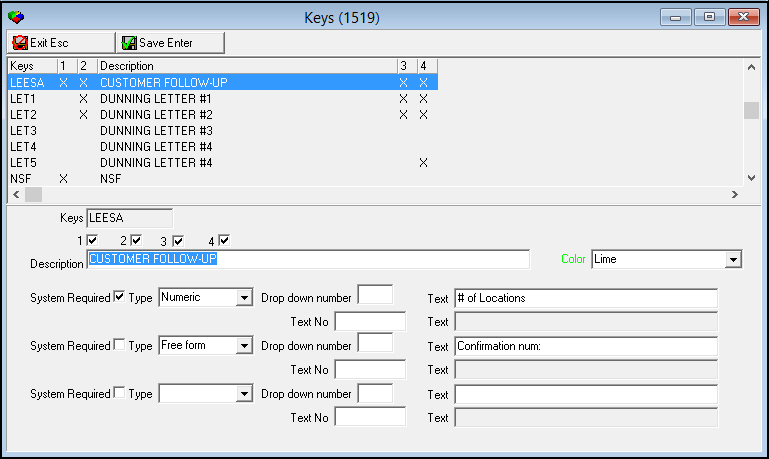
Note: You may create one to three conditional fields.
3. Select the Key 1 check box you want the conditional fields to appear when this code is selected.
4. Select the System Required check box if you want SBN to require an entry in the conditional fields.
5. Select a Type of data for the fields.
Note: If the Type selected is Drop-down, be sure to enter a drop-down list ID number in the Drop Down Number field. (Drop-down lists are defined in program #1627. There are 99 drop-down lists to choose from.)
6. Enter text in the first Text field for the conditional field labels, or enter a GUI message number in the Text No field for the conditional field labels. (GUI messages are found in program #1606.)
7. Choose Save.
Conditional Field Types
IBS defines the available data types that you can select for conditional Communication Log fields. The available data types are:
Date - Select or enter a date in the conditional field of the Communication Log.
Time - Select or enter a time in the conditional field of the Communication Log.
Money - Enter a currency amount in the conditional field of the Communication Log.
Free-form - Enter free-form text in the conditional field of the Communication Log.
Drop-down - A drop-down menu appears when you select the conditional field in the Communication Log. Enter a drop-down list ID number in the Drop Down Number field. (Define drop-down lists in program #1627.)
Numeric - Enter a number in the conditional field of the Communication Log.
Pay Mean Number - Enter a credit card number in the conditional field of the Communication Log. SBN validates credit card numbers in the conditional field.
Pay Mean Type - Select a pay method code in the conditional field of the Communication Log. The conditional field menu originates from program #1528.
Zooming into the Sublevel of Keys
Keys contains four sublevel tabs:
-
-
The Details tab - in which you attach Key 2 codes to Key 1 codes, and Key 4 codes to Key 3 codes. By attaching Key codes to other Key codes, you can narrow the search parameters in the Communication/Collection Log search window.
-
Note: When option ba270 is on, the selections available to Key 2 are based on the selection made in Key 1.
-
The Translations tab - in which you attach translations to keys. Menus of keys appear in the user’s language.
-
The Sources tab -- in which you attach Communication Log generating sources to Key codes.
-
The Codes tab -- in which you attach Communication Codes to Key codes.
The Details Tab
The following graphic shows the Details tab as the tab opens. The tab displays previously attached Key codes and descriptions.
Field/Column Descriptions
The following table describes the fields and columns used in the Keys Details tab.
|
Field/Column |
Description |
|
Next Key |
Identifies the Key 2 message attached to the selected Key. (This menu originates from program #1519.) |
|
Description |
Text description of the selected Key 2 message. |
The drop-down menu in the Details tab "Key" field can be used to define relationships between Key 1 and Key 2, or Key 3 and Key 4. For example, selection of a particular item in the Key 1 field prompts specific menu items to appear in the Key 2 menu. Similarly, selection of a particular item in the Key 3 field prompts specific menu items to appear in the Key 4 menu.
The Translations Tab
The following graphic shows the Translations tab as the tab opens. The tab displays previously defined translations for the selected key.
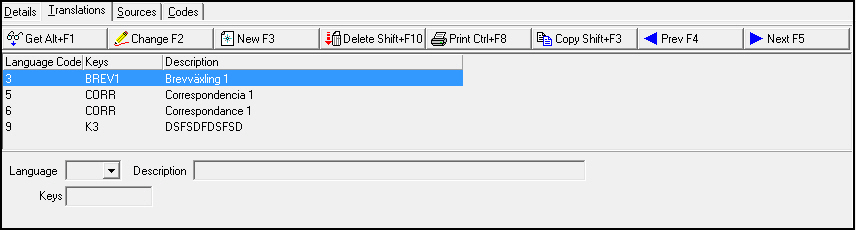
Note: Actions 1519/20-24 control access to the Translations tab.
Field/Column Descriptions
The following table describes the fields and columns used in the Translations tab.
|
Field/Column |
Description |
|
Language Code |
Code that identifies the language of the translation. O Contact IBS before using language codes 11-17. |
|
Description |
Text description, in the associated language, of the selected communication key. |
|
Keys |
Displays the code that appears in the Key 1, Key 2, Key 3, or Key 4 menu. |
The Sources Tab
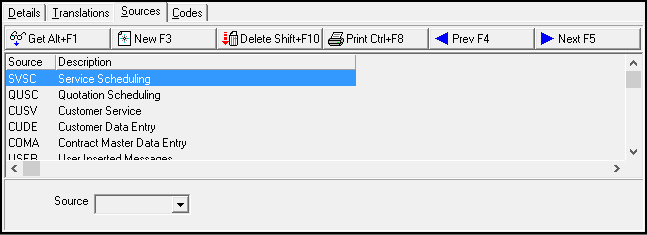
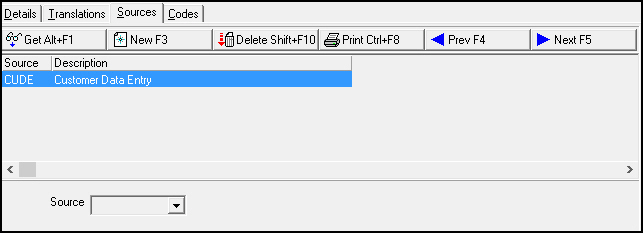
The Sources tab is used to attach a generating source of a Communication Log entry to a specific Key code.
The following graphic shows the Sources tab as the tab opens. The tab displays previously defined sources for the selected key.
Field/Column Descriptions
The following table describes the fields and columns used in the Sources tab.
|
Field/Column |
Description |
|
Source |
Code that identifies the generating source that makes this item appear in the corresponding Key drop-down menu. (This menu originates from program #1518.) |
|
Description |
Text description of the generating source. |
The Codes Tab
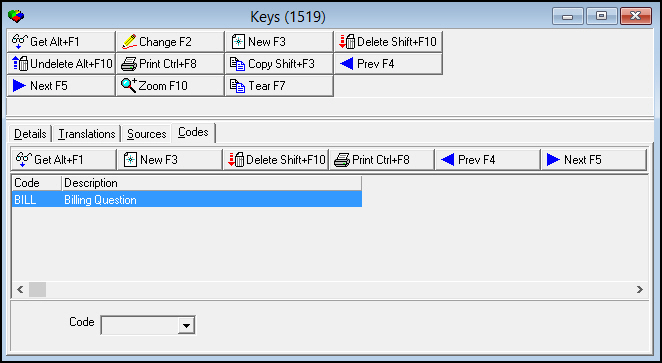
The Codes tab is used to attach a Communication Code of a Communication Log entry to a specific Key code.
The following graphic shows the Codes tab as the tab opens. The tab displays previously defined codes for the selected key.
Field/Column Descriptions
The following table describes the fields and columns used in the Codes tab.
|
Field/Column |
Description |
|
Code |
Code that identifies the communication code that makes this item appear in the corresponding Key drop-down menu. (This menu originates from program #1517.) |
|
Description |
Text description of the communication code. |
Related Programs
The following table lists programs related to Communication Keys.
|
Program |
Number |
Document Link |
Description |
|
Communication Log |
1888 |
Log communication between customer and company. |
|
|
Codes |
1517 |
Create Communication Codes used in the Communication Log to describe the type of communication for an entry. |
|
|
Sources |
1518 |
Create Communication Source codes used in the Communication Log to show in what program an entry originated. |
|
|
Misc Communication Fields |
1627 |
Create Miscellaneous Fields used in the Communication Log to describe the substatus, satisfaction level, or priority of an entry. |
|
|
Media |
1520 |
Create Media Codes used in the Communication Log to describe the type of communication media for an entry. |
|
|
Resolution Codes |
1877 |
Create Resolution Codes used in the Communication Log to describe the resolution for an entry. |
|
|
Status Codes |
1721 |
Create Status Codes used in the Communication Log to describe the status of an entry. |
|
|
Communication Log Queue |
535 |
Research closed Communication Log entries. |
Button Functions
The following table displays the buttons, describes the shortcut keys, actions, and functionality.
|
Button |
Name |
Shortcut Key |
Action |
Description |
|
|
Get |
ALT+F1 |
1519/ 1 |
Get record. |
|
|
Change |
F2 |
1519/ 2 |
Change selected record. |
|
|
New |
F3 |
1519/ 3 |
Create new record. |
|
|
Delete |
SHIFT+F10 |
1519/ 4 |
Delete selected record. |
|
|
Undelete |
ALT+F10 |
1519/ 5 |
Restore deleted record. |
|
|
|
CTRL+F8 |
1519/ 6 |
Print selected records. |
|
|
Previous |
F4 |
1519/ 1 |
Select last record. |
|
|
Next |
F5 |
1519/ 1 |
Select next record. |








Modifications and Updates to Keys
The following table lists modifications and updates to the Keys document.
|
Mod Number |
Date |
Description |
|
n/a |
02/22/08 |
Document enhanced with Communication Log |
|
08.03.05865 |
06/26/08 |
Number of available drop-down lists increased from 10 to 50 |
|
08.03.06111 |
08/14/08 |
Number of available drop-down lists increased from 50 to 99 |
|
07.78.22240, 08.78.09011 |
03/24/13 |
Added conditional field types Pay Mean Number and Pay Mean Type |
|
n/a |
08/19/14 |
Images updated. |