
ASAP Address Verification Queue
Program #: 1675
Overview
If you are unfamiliar with ASAP start here
Use the ASAP Address Verification Queue (program #1675) to view a list of installation addresses that have been inserted into the ASAP Address Verification Queue and:
- Are ready to be sent to an agency
- Need to be verified by an agency
- Have already been verified
- Failed verification
Adding an Agency to the Verification Queue
ASAP provides a nine-digit code for each agency. Store this code in the agency's Address 3 field, then change the agency's Address Type to ASAP (uppercase) and save. SBN asks whether you want to submit all addresses serviced by this agency for validation. Choose Yes.
Choosing Yes records one submission request for the agency. It does not write the individual installation entries. The Dispatch Service picks the request up on its next pass and expands it into one entry per eligible installation, so the queue stays empty for a short time after the save. Entries then arrive in throttled batches sized by the agency's Addr ID (1) (addresses per interval) and Addr ID (2) (interval in minutes) fields, so a large agency fills the queue gradually.
New entries arrive in Ready to Process status. Program #1675 opens with the Failed check box selected, so select Ready to Process and choose Search to see them.
Note: The confirmation prompt appears only when the Address Type changes to ASAP during the save, with the nine-digit code already stored in the Address 3 field, and only for an agency that has not been submitted before. If it never appeared, clear the Address Type field, save the agency, set the Address Type back to ASAP, and save again.
Each agency is submitted once. From that point on, installations are added to the queue individually as their monitoring status changes or as the agency is added to their action plan.
Everything that must be configured before an installation is submitted — options, the agency record, action plans, monitoring statuses, and zone types — is on the ASAP Setup page.
When Addresses Do Not Appear in the Queue
Check the status filter first. Program #1675 opens with Failed selected, and newly submitted addresses are in Ready to Process, so they do not appear until you select that check box and choose Search.
If addresses are still missing, or are not moving out of a status, work through ASAP Troubleshooting. It covers what each status means and where to look for each symptom.
Resetting an Entry
Choose Reset on the toolbar to send the selected entry through address verification again. The entry returns to Ready to Process and the Dispatch Service picks it up on its next pass. Use this when an address was corrected after it failed, or when an entry has stopped progressing.
The agency's submission request is also listed here, under Failed, whenever the agency was submitted but no addresses qualified. It shows the agency with an empty Installation Number. Selecting it and choosing Reset submits the whole agency again: SBN clears the addresses already queued for that agency and rebuilds the list from the installations that qualify now. SBN asks you to confirm before doing so. Correct the monitoring statuses, action plans, and agency settings described on the ASAP Setup page first — resetting on its own does not change which installations qualify.
Navigating to the ASAP Address Verification Queue
Use the following steps to access the ASAP Address Verification Queue program:
- From the main SBN toolbar, select Menu.
- From the drop-down menu, select Go To.
- In the Go To Program dialog box, type in "1675" and press ENTER.
- The ASAP Address Verification Queue window opens.
ASAP/eDispatch Options
Option asap must be on to use the ASAP Address Verification Queue and eDispatch in Dispatch (program #537). A set of related options controls the event extensions SBN records in the Alarm Log for ASAP activity. All of them are listed with their purpose on the ASAP Setup page and described in full in the SBN Options documentation.
The ASAP Address Verification Queue Window
When selected, the check boxes in the top right corner of the ASAP Address Verification Queue window display a list of installations according to the status of each installation's address verification:
- Failed - The installation address has been presented to the appropriate ASAP Agency for verification and was rejected.
- Verifying - The installation address has been presented to the appropriate ASAP Agency for verification and is awaiting response.
- Verified - The installation address has been presented to the appropriate ASAP Agency and has been verified.
- Ready to Process - The installation address has not yet been presented to the appropriate ASAP Agency for verification. (Confirm that the Dispatch Service is running in the SBN Service Manager to send addresses to agencies for verification.)
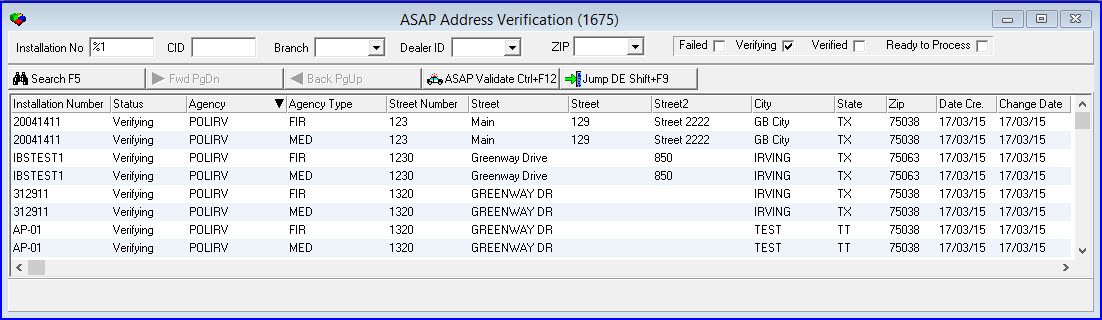 The ASAP Address Verification Queue
Field/Column Descriptions
The following table describes the fields and columns in the ASAP Address Verification Queue window.
Field/Column | Description |
Search Parameters Pane | |
Installation No | Installation number you want to search for. This field accepts wildcard characters. |
CID | Customer ID you want to search for. This field accepts wildcard characters. |
Branch | Branch ID you wan to search for. This field accepts wildcard characters. (This menu originates from program #1530.) |
Dealer ID | Dealer ID you want to search for. This field accepts wildcard characters. (This menu originates from program #1537.) |
ZIP | Zip code you want to search for. This field accepts wildcard characters. (This menu originates from program #1718.) |
Status Check Boxes | |
Failed | Select this check box to display a list of installations that have been presented to the appropriate ASAP Agency for address verification and were rejected. The ASAP Validate button can only be used when this check box is selected. |
Verifying | Select this check box to display a list of installations that have been presented to the appropriate ASAP Agency for address verification and are awaiting response. |
Verified | Select this check box to display a list of installations that have been presented to the appropriate ASAP Agency for address verification and were verified. |
Ready to Process | Select this check box to display a list of installations that have not yet been presented to the appropriate ASAP Agency for address verification. Note: Confirm that the Dispatch Service is running in the SBN Service Manager to send addresses to agencies for verification. |
Search Results Pane | |
Installation Number | Installation number of each record that matches the search parameters. |
Status | Address verification status of each installation that matches the search parameters. |
Agency | Agency associated with each installation. |
Agency Type | Type of agency associated with each installation. |
Street Number | Street number of each installation address. |
Street (Name) | Street name of each installation address. |
Street (Apt.) | Apartment or suite number of each installation address. |
Street2 | Additional street information for each installation address. |
City | City of each installation address. |
State | State or province of each installation address. |
Zip | Zip code of each installation address. |
Date Created | Date that each installation was put into the ASAP Address Verification Queue by the Dispatch Service in the SBN Service Manager. |
Change Date | Date that each address was changed and resubmitted to the ASAP Agency for address verification using the ASAP Validate button in program #1675. |
Records Found | Number of records that match the search parameters. |
Searching for Installations
When the ASAP Address Verification Queue program opens, the Failed check box is selected by default so that a list of installations that have failed address verification displays.
To display installations in other address verification statuses, select one of the other status check boxes. You may then narrow the displayed list by entering data in the search parameter fields and choosing Search.
Use the following steps to search for installations:
- Select your search parameters at the top of the ASAP Address Verification Queue window.
- Choose Search.
- The search results appear in the lower pane of the window.
Inserting Installations into the ASAP Address Verification Queue
Installations reach the queue in two ways. Onboarding an agency submits every eligible installation that agency serves at once. After that, an installation is added individually when its monitoring status changes, or when an ASAP-capable agency is added to its action plan as the police, fire, or medical agency.
An installation is submitted only when the agency is on its action plan, its monitoring status has the Include in PSAP check box selected in Monitoring Status (program #1540), and it has an address on file. Installations that do not meet all three are skipped. The full list of requirements is on the ASAP Setup page.
Along with submitting addresses for verification, the Dispatch Service sends alarms on zone types with an entry in the eDispatch field of program #1733 to a PSAP to be handled outside of SBN, when an operator chooses to send an alarm to a PSAP in the Agency Details window of Dispatch (program #537).
Updating Addresses for Verification
In the ASAP Address Verification Queue program, you may update installation addresses and resubmit them to the ASAP Agency for verification using the ASAP Validate button. This button can only be used for installations in Failed status, so the Failed check box must be selected in program #1675 to use this button.
Use the following steps to update installation addresses:
- Select an installation in the search results pane with an address that you want to update.
- Choose ASAP Validate.
- The ASAP Address Verification Detail window opens with the fields at the bottom of the screen open for changes.
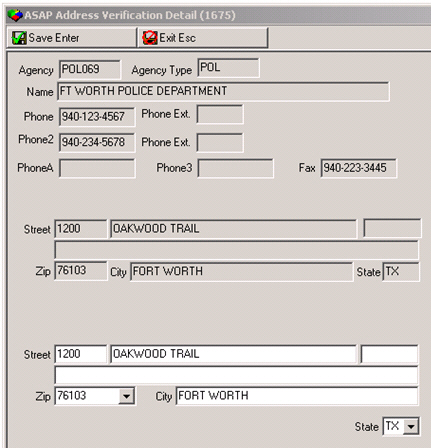
4. Make any necessary changes to the installation address in the fields at the bottom of the window.
5. Choose Save.
SBN resubmits the installation record to the appropriate ASAP Agency for address verification.
Jumping to Data Entry
In the search results pane, select an installation and choose Jump To Data Entry to open Data Entry (program #559) with the selected installation displayed.
Button Functions
The following table displays the buttons, describes the shortcut keys, actions and functionality.
Button | Name | Shortcut Key | Action | Description |
| Search | f5 | 1675/ 1 | Search for installation records that have been inserted into the ASAP Address Verification Queue. |
| Forward | PgDn | 1675/ 2 | Scroll forward one page. |
| Back | PGUP | 1675/ 3 | Scroll backward one page. |
| ASAP Validate | CTRL+f12 | 1675/ 5 | Update installation addresses in Failed status and resubmit them to the ASAP Agency for verification. |
| Jump to Data Entry | shift+f9 | 1675/ 7 | Access the selected installation record in Data Entry (program #559). |




