
Genesys Cloud Dialer
The Genesys Cloud Dialer lets an SBN agent place outbound phone calls through their Genesys Cloud account. When the agent clicks a dialer icon next to any phone number in SBN, the call is launched on behalf of a Genesys queue: Genesys rings the agent's own phone first, then bridges the call to the customer. The queue determines the caller ID sent to the customer and feeds the contact-center metrics, exactly as a call dialed inside the Genesys client would.
What you need
The dialer is a bridge between SBN and an existing Genesys Cloud organization. It does not create or manage Genesys accounts, phones, or queues — those live in Genesys and are administered there. Before the dialer can place a call, all of the following must be true.
Requirement | Who sets it up | Notes |
|---|---|---|
A Genesys Cloud organization | Customer | The agents' accounts, queues, and phones already exist in Genesys. |
An OAuth client (Authorization Code + PKCE grant) | Customer's Genesys admin | The client's Client ID is given to Innovative to configure SBN. No password or secret is stored in SBN — each agent signs in with their own Genesys credentials. |
OAuth client scopes | Customer's Genesys admin | The client must grant |
A phone/station for each agent in Genesys | Customer's Genesys admin | WebRTC softphone (most common), Managed SIP, Unmanaged SIP, or Remote Phone. See Phone types. |
SBN configured to use the Genesys dialer | Innovative / SBN admin | One-time per workstation — see Turning the dialer on in SBN. |
Phone types
The agent must have an active station in Genesys for a call to connect. SBN does not manage stations — the agent's station is their responsibility through the Genesys web client.
Phone type | Needs the Genesys web client open? | Notes |
|---|---|---|
WebRTC | Yes — must stay open during the shift | Browser-based softphone. The most common setup, and the one with the most prerequisites (see below). |
Managed SIP | No | Physical desk phone, auto-provisioned by Genesys. |
Unmanaged SIP | No | Any SIP phone, manually configured in Genesys. |
Remote Phone | No | Genesys calls an external number (e.g. a cell or landline) to bridge the agent in. |
WebRTC one-time setup (per agent)
If the agent uses a WebRTC softphone, three things must be set once in the Genesys web client, or calls launched from SBN will never connect:
- Select the phone. Sign in to the Genesys web client, open the profile/phone dropdown, and select the WebRTC phone. If it does not auto-populate, pick it from the list.
- Allow externally-placed calls. In the WebRTC phone settings, enable "Placing calls with another app?". This is what lets the browser accept a call that SBN started through the API. Without it, the call sits in "Contacting" for about 60 seconds and then fails.
- Grant microphone permission. The browser must have microphone access granted for the Genesys Cloud site.
These settings live in the Genesys web client, not in SBN — Genesys owns that interface, and the exact menu names and wording can change. For current, step-by-step instructions on selecting a phone and configuring WebRTC settings, consult the Genesys Cloud web client documentation. The three items above are the specifics that, in practice, an SBN-initiated call needs in order to connect: the "Placing calls with another app?" setting is the one most often missed — without it, the call is created on the Genesys side but the browser never accepts it, so it sits in "Contacting" for about 60 seconds and then drops.
Selecting the dialer on in SBN
This is a one-time setup per workstation. In SBN:
- Open View → Options → Communications.
- Check Enable Dialer.
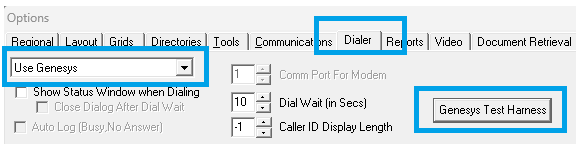
- Click the Dialer tab.
- In the dialer-type dropdown, select Use Genesys.
- Click Apply, then OK.
The Region and Client ID for the Genesys organization are configured here as well; these are supplied by the customer's Genesys admin and set up by Innovative. The Dialer tab also has a Test Harness button that opens the Genesys Cloud Dialer window — useful for signing in, picking a queue, and placing a test call without going through a live SBN screen.
Note: If the dialer works during a session but reverts to "Use Windows Dialer" after SBN is fully closed and reopened, the workstation could not save the setting to the machine registry (a permissions/UAC restriction). Running SBN as administrator once, or having Innovative switch the workstation to per-user storage, resolves it. The setting is not lost by logging off and back on within the same running SBN — only by a full restart.
Signing in and picking a queue (each shift)
Authentication uses each agent's own Genesys credentials — SBN never stores a Genesys password. When the dialer is set to Use Genesys and there is no valid saved token, SBN starts the sign-in flow automatically right after the agent logs in, so the agent authenticates at the start of the shift instead of on the first dial while dispatching. If a valid token is already saved — for example from another SBN window on the same workstation — no sign-in is needed. The sign-in flow runs:
- SBN opens the system default web browser to the Genesys sign-in page.
- The agent enters their Genesys credentials.
- After a successful sign-in, the browser is redirected to a temporary local address on the workstation, which hands the authorization back to SBN.
- SBN exchanges that for a bearer token. The token is good for 24 hours and is saved locally so other SBN windows on the same workstation can reuse it.
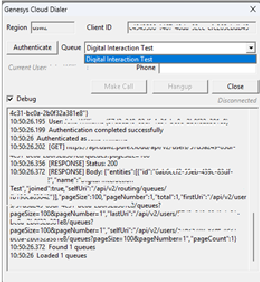
- The agent is shown the list of queues they are allowed to use and selects the one to dial on behalf of for the shift.
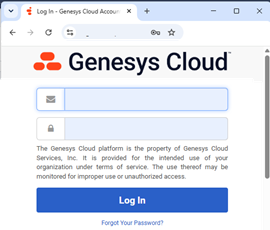
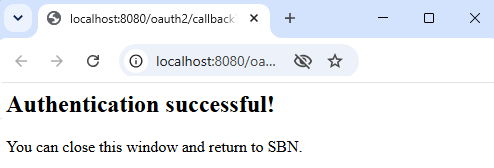
The selected queue sets the caller ID the customer sees and the contact-center metrics the call is counted under. The choice stays in effect for the session.
To change queue, log out of SBN and log back in, then pick the different queue. (An agent who normally dials on one queue but covers another department for a shift would do this at the start of that shift.)
Multiple SBN windows: agents often run two SBN instances. The sign-in and queue selection are shared through the saved session on the workstation, so once the agent has signed in and picked a queue in one window, the other window uses the same token and queue — no second sign-in.
Placing a call
Once the agent is signed in and a queue is selected, dialing is invisible:
- The agent clicks a dialer icon next to any phone number in SBN.
- SBN writes an automatic entry to the alarm log immediately — this records that the agent clicked to dial, time-stamped, before the call even connects. (The agent's own stamp follows as usual.)
- SBN formats the number to international E.164 form and asks Genesys to place the call on the selected queue.
- Genesys rings the agent's phone first; when the agent answers, Genesys dials the customer and bridges the two. The agent is always on the call — there is no fire-and-forget option.
In normal operation no dialer window appears — the call simply goes out, and the agent's ringing phone plus the alarm-log stamp are the confirmation. The Genesys Cloud Dialer window only opens when it is needed:
- the agent still needs to sign in or pick a queue for the shift, or
- a call did not go through, in which case the window opens showing the reason so the agent can fix it and retry.
The Genesys Cloud Dialer window (Test Harness)
Reachable any time from Options → Communications → Dialer → Test Harness, this window is also what pops up automatically when sign-in or a failed call needs attention. It contains:
Control | Purpose |
|---|---|
Region / Client ID | The Genesys organization settings (normally pre-filled from Options). |
Authenticate | Starts the browser sign-in flow described above. |
Queue dropdown | Selects the queue to dial on behalf of. |
Phone field + Make Call | Places a test call to a number you type in. |
Status | Shows call progress: Disconnected → Dialing → Ringing → Connected. |
Hangup | Ends the current call. |
Close | Closes the window. |
Debug | Adds detailed log lines to the activity log for troubleshooting. |
Activity log | A timestamped running log of each step (sign-in, queue, dial, call result). |
Troubleshooting
Symptom | Cause | Fix |
|---|---|---|
Call fails with "User does not have an associated station" | The agent has no active phone/station in Genesys. | Sign in to the Genesys web client and activate/select the phone, then try again. |
Call sits in "Contacting" for ~60 seconds, then fails with a connection timeout | The WebRTC phone is not allowed to accept externally-placed calls, or the OAuth client is missing scopes. | Enable "Placing calls with another app?" in the agent's WebRTC phone settings; confirm the OAuth client grants |
The REST call succeeds (a conversation is created) but the agent's phone never rings | The | Add the |
Dialer reverts to "Use Windows Dialer" after a full SBN restart | The workstation could not save the dialer setting to the machine registry (permissions/UAC). | Run SBN as administrator once, or have Innovative switch the workstation to per-user storage. |
The dialer window pops up on every single dial | Older build behavior. | Update to the current build — the window now opens only when sign-in, queue selection, or a failed call needs attention. |
How the pieces fit together
- SBN decides when to dial (the agent clicking an icon) and logs the call.
- Genesys Cloud owns how the call is placed — the agent's phone, the queue, the caller ID, and the contact-center reporting.
- The OAuth client is the trust link: SBN uses it so each agent can sign in with their own Genesys credentials; SBN never holds a Genesys password.
- The queue is the agent's identity for the shift — caller ID and metrics follow it.
SBN is the trigger and the record-keeper; Genesys is the phone system.