
Response Time Statistic Options Report
Response Time Statistic Options Report
Response Time Statistic Options Report
Report #: 2007
Module: Account Management
Overview
The Response Time Statistic Options report displays response time statistics from the Alarm Log with up to five user-selected options.
To access this report, select Response Time Statistic Options (report #2007) from the main menu of SBN.
The Response Time Statistic Options Report
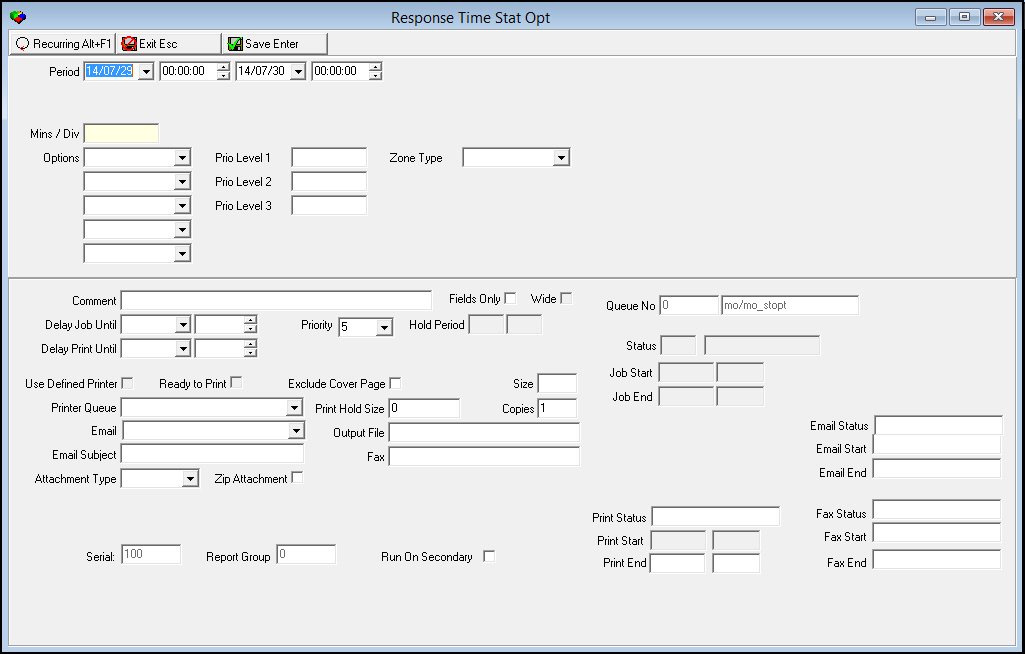
This window contains two panes: use the upper pane to define the content of the report; use the lower pane to define the job output - how, when, and where you want to print the report.
Note: See Report Parameters Pane for information on the fields in the lower pane, which are the same in every report.
Field Descriptions
The following table describes the fields used in the upper pane of the report.
Field |
Description |
Period |
|
Date
- From |
You may select a range of dates to limit the report to alarm log entries that occurred during that range. Select the beginning date of the range. O This field defaults to the current date. |
Time
- From |
You may select a range of time to limit the report to alarm log entries that occurred during that range. Select the beginning time of the range. O This field defaults to 00:00 (Midnight). |
Date
- To |
You may select a range of dates to limit the report to alarm log entries that occurred during that range. Select the ending date of the range. O This field defaults to tomorrow’s date. |
Time
- To |
You may select a range of time to limit the report to alarm log entries that occurred during that range. Select the ending time of the range. O This field defaults to 00:00 (Midnight). |
Min / Div |
You may type the time division, in minutes, for the report. For example l To report statistics for each hour, type l To report statistics for an entire day, type O An entry between 1 and 9999999 is required in this field. |
Options |
You may select up to five options for the report. The report output displays five columns of data to correspond with the selected options. |
Prio Level 1 |
You may type the highest priority to include in Priority Level 1. For example, to include all signals with priorities of 1 - 17, type in this field. |
Prio Level 2 |
You may type the highest priority to include in Priority Level 2. For example, to include all signals with priorities 18 - 40, type in this field. O This field starts at the next priority above the one typed in Prio Level 1. |
Prio Level 3 |
You may type the highest priority to include in Priority Level 3. For example, to include all signals with priorities 41 - 99, type in this field. O This field starts at the next priority above the one typed in Prio Level 2. |
Zone Type |
You may select a zone type to limit the report to alarm log entries that contain that zone type. (This menu originates from program #1733.) |
Options Descriptions
The following table describes the options available in the five Options menus.
Option |
Description |
ACK1 Count |
Acknowledge Count with Priority 1. The report displays the count of acknowledgements for alarms with a Priority Level 1 that occurred within the specified period. |
ACK1 Time |
Acknowledge Time with Priority 1. The report displays the average response time, in seconds, of acknowledgements for alarms with a Priority Level 1 that occurred during the specified period. O SBN calculates the average from (response time totals - alarm time totals) / signal count for the time period and time division. |
ACK2 Count |
Acknowledge Count with Priority 2. The report displays the count of acknowledgements for alarms with a Priority Level 2 that occurred within the specified period. |
ACK2 Time |
Acknowledge Time with Priority 2. The report displays the average response time, in seconds, of acknowledgements for alarms with a Priority Level 2 that occurred during the specified period. O SBN calculates the average from (response time totals - alarm time totals) / signal count for the time period and time division. |
ACK3 Count |
Acknowledge Count with Priority 3. The report displays the count of acknowledgements for alarms with a Priority Level 3 that occurred within the specified period. |
ACK3 Time |
Acknowledge Time with Priority 3. The report displays the average response time, in seconds, of acknowledgements for alarms with a Priority Level 3 that occurred during the specified period. O SBN calculates the average from (response time totals - alarm time totals) / signal count for the time period and time division. |
ACK4 Count |
Acknowledge Count with > Priority 3. The report displays the count of acknowledgements for alarms with a Priority level greater than 3 that occurred during the specified period. |
ACK4 Time |
Acknowledge Time with > Priority 3. The report displays the average response time, in seconds, of acknowledgements for alarms with a priority level greater than 3 that occurred during the specified period. O SBN calculates the average from (response time totals - alarm time totals) / signal count for the time period and time division. |
Count |
Alarm Count. The report displays the count of all events that occurred during the specified period, regardless of priority level or acknowledgement. |
PRI1 |
Priority Level 1 Count. The report displays a count of all events with a Priority Level 1 that occurred during the specified period, regardless of acknowledgement. |
PRI2 |
Priority Level 2 Count. The report displays a count of all events with a Priority Level 2 that occurred during the specified period, regardless of acknowledgement. |
PRI3 |
Priority Level 3 Count. The report displays a count of all events with a Priority Level 3 that occurred during the specified period, regardless of acknowledgement. |
PRI4 |
Priority Level > 3 Count. The report displays a count of all events with a priority level greater than 3 that occurred during the specified period, regardless of acknowledgement. |
Running and Viewing a Report
For information on running and viewing a report, see Common Functions in SBN.
Report Example
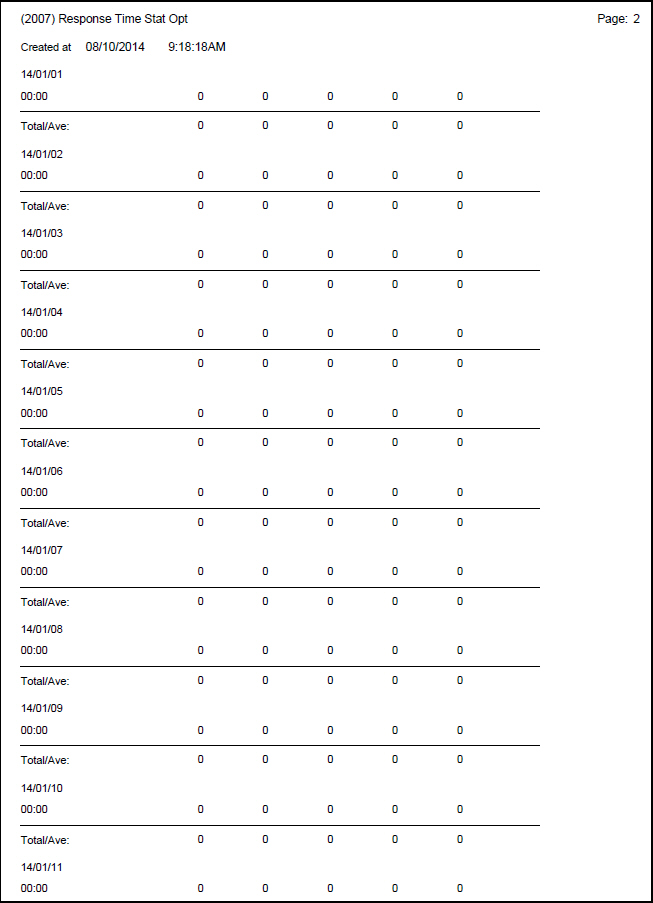
The following graphic shows an example of the output of Response Time Statistic Options.
Column Descriptions
The following table describes the columns used in the output of the report.
Column |
Description |
(No label) |
Date (within the specified period) on which events occurred. |
(No label) |
Time division. Daily statistics default to 00:00. |
(No label) |
Option 1. Displays results by time division. O If fewer than 5 options have been selected, the corresponding column displays zeroes in the time division row. |
(No label) |
Option 2. Displays results by time division. O If fewer than 5 options have been selected, the corresponding column displays zeroes in the time division row. |
(No label) |
Option 3. Displays results by time division. O If fewer than 5 options have been selected, the corresponding column displays zeroes in the time division row. |
(No label) |
Option 4. Displays results by time division. O If fewer than 5 options have been selected, the corresponding column displays zeroes in the time division row. |
(No label) |
Option 5. Displays results by time division. O If fewer than 5 options have been selected, the corresponding column displays zeroes in the time division row. |
Total / Avg |
Displays totals / averages for each division. |
Button Functions
The following table displays the buttons, describes the shortcut keys, actions, and functionality.
Button |
Name |
Shortcut Key |
Action |
Description |
|
Recurring |
Alt+F1 |
2007 |
Open fields for recurring/template reports. |
|
Exit |
Esc |
2007 |
Exit without saving. |
|
Save |
Enter |
2007 |
Save existing record. |



Modifications and Updates to Response Time Statistic Options Report
The following table lists modifications and updates to the Response Time Statistic Options Report document.
Mod Number |
Date |
Description |
n/a |
7/29/14 |
Images updated. |
F1 Help
| Delphi Forms | rmolospform |
| Program Numbers | 2007 |