
Report Queue
Module: System Administration
Overview
This chapter provides information on setting up and printing reports in SBN. In order for SBN to print reports correctly you must
Install Report Services
Set a print directory in each terminal
Set up report parameters in four system administration programs:
q Report Default Parameters (program #1561)
q Report Priorities (program #1509)
q Printer Profile Updates (program #1559)
q Report Messages (program #1766)
Define the report parameters in the individual report (see Report Parameters Pane)
Use the Report Queue
Report Queue
Report Queue (program #1558) lists all reports that have been generated on your server. Use the Report Queue to define recurring reports and report templates.
To access this program, select Report Queue (program #1558) from the main menu of SBN.
The Report Queue Window
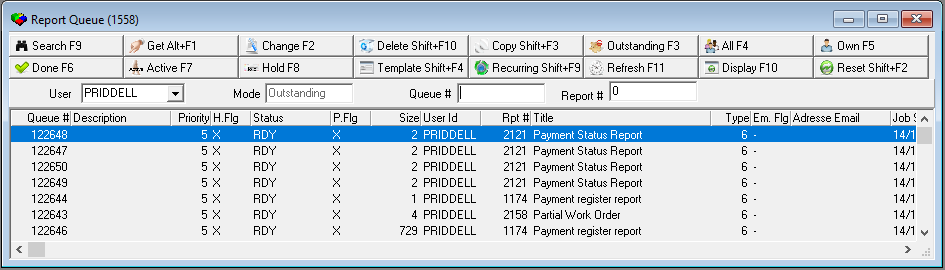
The following graphic shows Report Queue as the program opens. If the Report Queue contains reports that you have created, they appear in the columns as the program opens. Otherwise, the columns remain blank until you perform a search.
When the Report Queue opens:
The User field defaults to your user ID
The Mode field defaults to Outstanding.
Field/Column Descriptions
The following table describes the fields and columns used in Report Queue.
Field/Column |
Description |
User |
User ID of the person who ran the report. |
Mode |
The mode of the queue you are viewing: l Outstanding l Done l Active l Template l Recurring |
Queue # |
The queue number assigned by SBN. |
Report
# |
You may enter a report number to search for. This field defaults to 0, which returns all report numbers. |
Description |
The comment typed when the report was run. |
Priority |
The priority of the report. This defaults from the Report Default Parameters (program #1561). You can override the default when you run the report. |
Hold Flag |
This column displays an X if the report meets any of the following conditions: l The size of the generated report is greater than the hold size defined for the report in q the Report Default Parameters (program #1561) Note: You can override the default when you run the report. q The parameters of the specific report l The hold size of the report is defined as 0. O If this column displays an X, SBN l Does not print the report l Does not migrate the report to the Done Queue l Does not e-mail or fax the report |
Status |
The current status of the report: l RDY — ready l SUB — submitted but not yet processed l ACT — actively processing l WAI — not yet submitted and waiting for the correct time l DON — complete |
Print Flag |
If this column displays an X, the report prints when the Hold is removed. If this column does not contain an X, the report is not set up to print. |
Size |
Number of pages contained in the report output. O If this size is larger than the defined Hold Size, the report does not print until released. O SBN only e-mails or faxes reports l Defined with a hold size > 0 l With a print size that is less than or equal to the hold size |
User ID |
User ID of the person who ran the report. |
Report # |
Report number of report in SBN. |
Title |
The name of the report in SBN. |
Type |
Indicates if the report is GUI, JAM or both. l 4 — JAM version l 5 — JAM and GUI versions l 6 — GUI version |
Email Flag |
Identifies the e-mail status of the report: l - — No e-mail l + — SBN changes to this status when the print thread for the report runs and the report is ready for export and e-mail l X — The report has been exported and inserted into the E-mail Queue |
Email Address |
E-mail address the report was sent to. You may choose an e-mail address when you run a report. |
Job Start |
Date when the report job started. Note: If SBN has not yet printed the report job, this column is blank. |
Job End |
Date when the report job ended. Note: If SBN has not yet printed the report job, this column is blank. |
Export Mode Flag |
This column displays an X if the report was run in Export mode. In Export mode, SBN generates the report as a text file in the report directory. |
Searching for Reports
You may choose any of the display buttons to view all reports that match that mode. You may also search for reports by specific user, queue number, or report number and then narrow the search results for a user by choosing a display button.
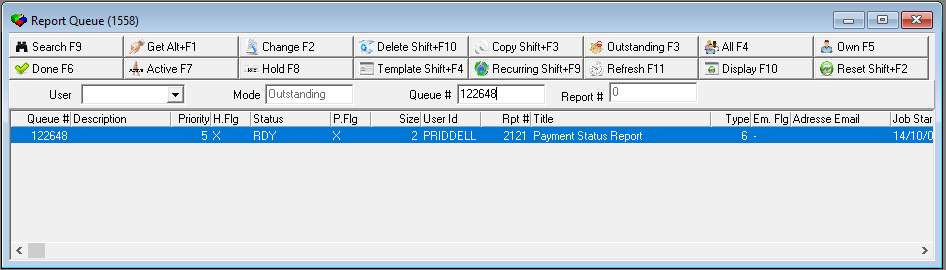
Use the following steps to search for a specific report:
1. In the Queue field, type the specific queue number of the report you want to find.
2. Choose Search.
‰ The columns display that specific report.
Use the following steps to search for reports for a specific user:
1. In Report Queue User field, select the user ID for whom you want to find reports.
2. Choose Search.
‰ The columns display all reports created by that user.
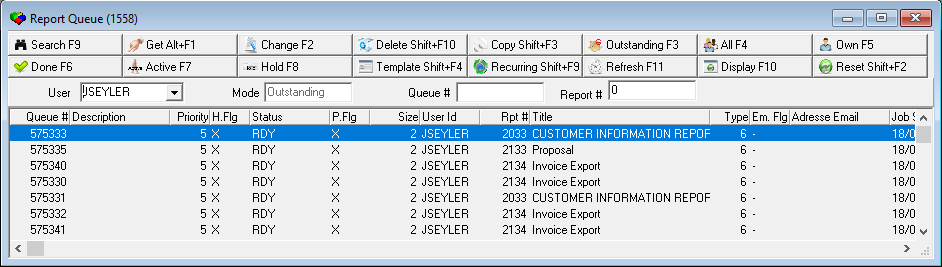
3. You may narrow the search results by choosing one of the display buttons.
Viewing Reports
You can view completed reports that have been held in the report queue before printing. To view reports from the Report Queue, you must configure the correct Report Output directory in Client Options.
Note: If your user profile contains dealer restrictions, you can only view reports associated with the first dealer ID included in your user profile.
Use the following steps to view reports:
1. In Report Queue, select the queue line you want to display.
2. Double-click your selection or choose Get Record.
‰ The report parameter window appears.
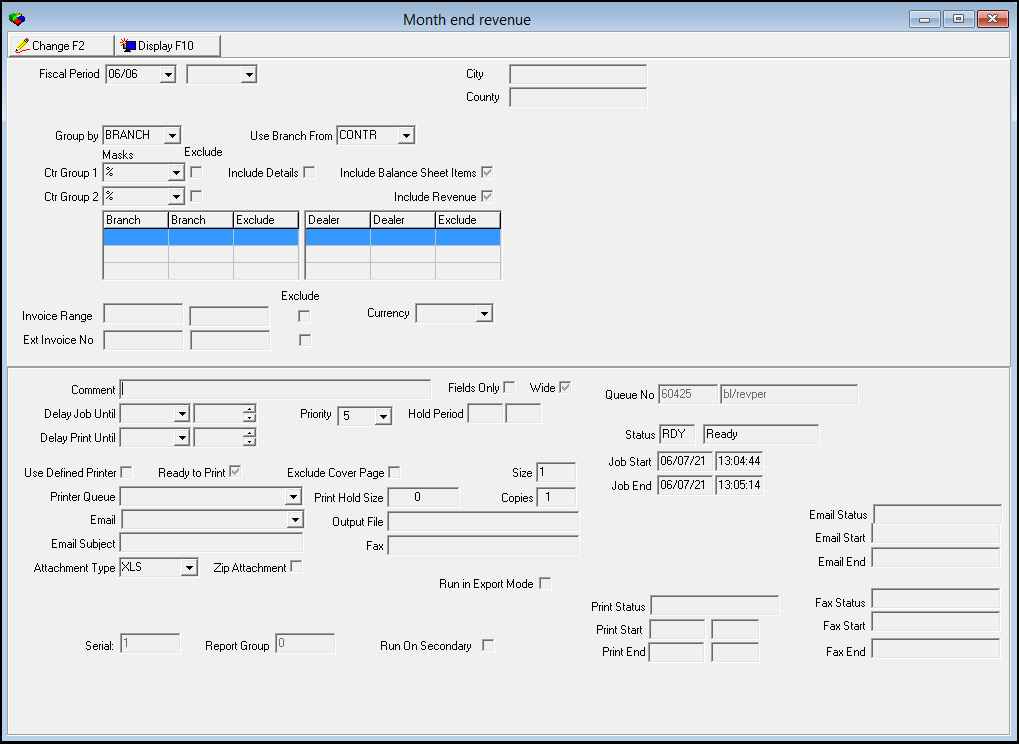
3. Choose Display.
‰ The Print Preview displays.
Changing an Existing Report
Action 1558/18 controls access to the change function in the Report Queue. If your user profile includes this action, you may change any report. If your user profile does not contain this action, you may change only your own reports.
Use the following steps to change an existing report:
1. In Report Queue, select the queue line you want to change.
2. Double-click your selection or choose Get Record.
‰ The report parameter window appears.
3. Choose Change Record.
‰ The fields in the lower pane of the report parameters open for changes.
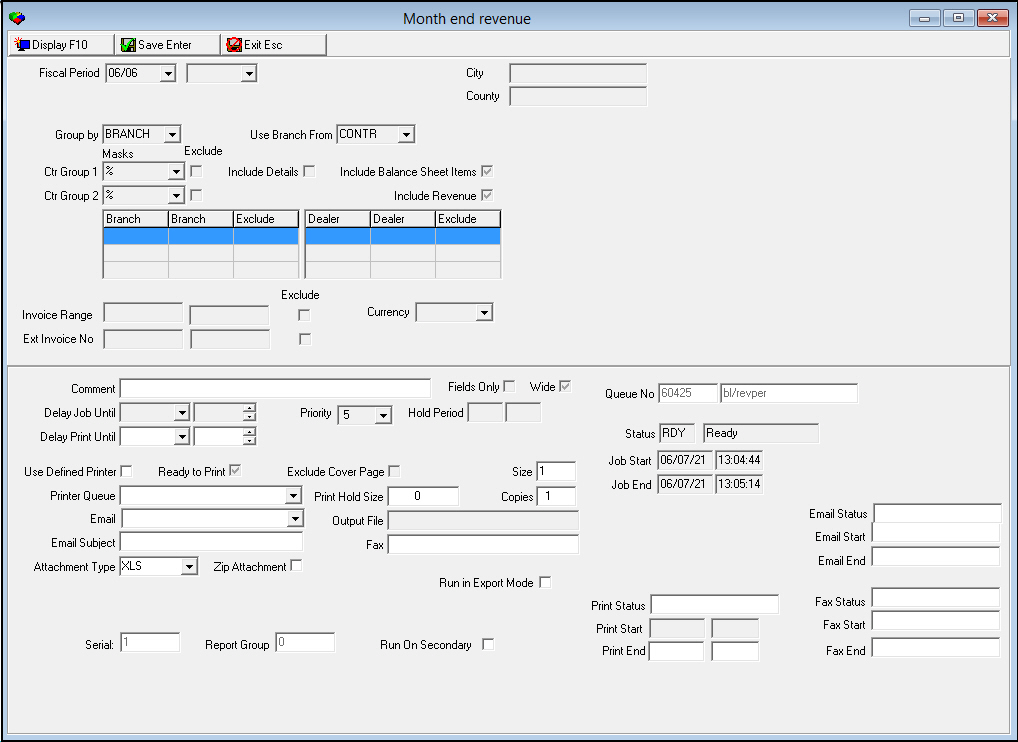
4. Enter changes, as needed.
5. Choose Save.
‰ If you created the report or if the report was created by another user and your user profile contains action 1558/18, SBN saves your changes.
or...
‰ If the report was created by another user and your user profile does not contain action 1558/18, SBN displays the following message: 'Sorry, you are not authorized to execute this command.'
Note: The Output File field can now override the destination path stored by the report scheduler, allowing individual reports to be generated in different folders. If the Output File field is not specified, the report uses the destination path from SBN Options.
Creating Recurring Reports
You can create recurring reports — reports that SBN can automatically process at a future date and time on a recurring basis.
Use the following steps to create a recurring report:
1. From the SBN main menu, access the report you want to run on a recurring basis.
2. Choose Recurring.
‰ Additional fields for defining the recurring report open in both the upper and lower panes of the report parameters.
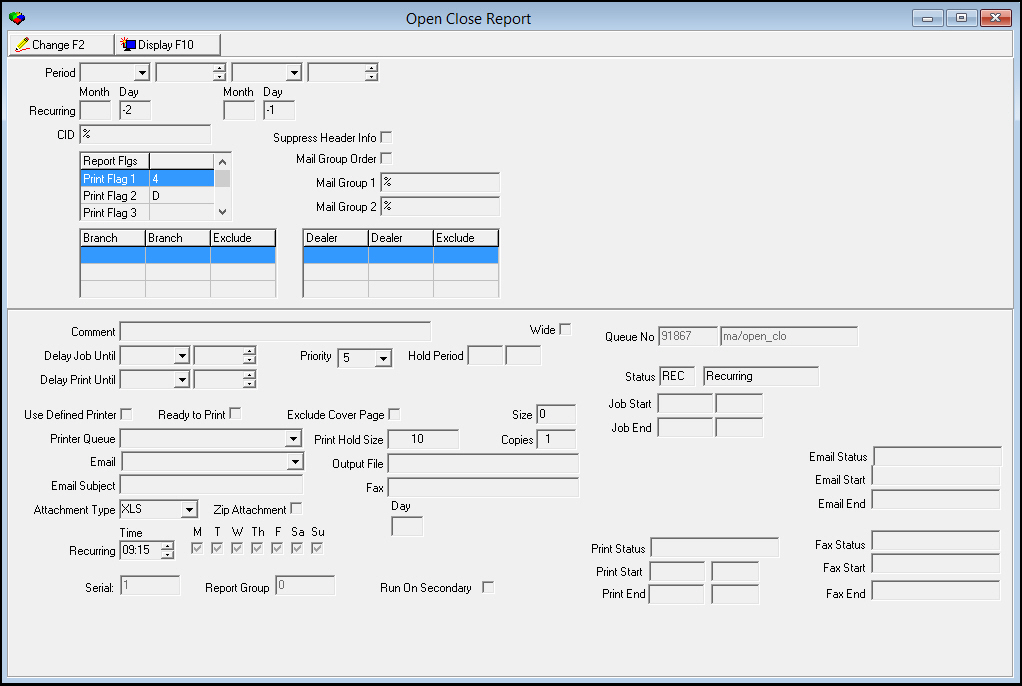
3. Select the parameters for the report.
4. Enter recurring information in the following fields:
l In Month/Day Beginning — select the beginning month or day range to run information on the report. Use the following definitions to define ranges for the reports:
q -1 — the current month or the current day.
q -2 — the previous month or the previous day.
q - — the number of months or days to add to today.
q — use the parameters defined.
q 1001, 1002, 1003, etc. — a fixed day in the calendar. For example, 1003 would equal the 3rd of the month.
l In Month/Day End — select the ending month or day range to run information on the report.
l In Recurring Time — select the time of day to run recurring report.
l In Day (MTWThFSaSu) — select the day of the week to run report. You may select multiple days to run the report more than once a week.
l In Day — select the day of the month to run the report. For example, if you type 12, the recurring report runs on the 12th of each month.
5. Choose Save.
‰ The recurring report appears in the Recurring mode list of the Report Queue and runs at the appointed time and day.
Creating Templates
Use the following steps to create templates to define reports with set parameters that can be run at any time:
1. Access the report you want to use as a template.
2. Choose Recurring.
‰ The report parameters window opens with the additional fields for recurring reports.
3. Select the parameters for the report.
4. In the upper pane of the report parameters, enter recurring information in
Period / Time ranges, if available
Month / Day ranges
5. Leave the Recurring fields in the lower pane blank.
6. Choose Save.
‰ SBN saves the report in the Template mode list of the Report Queue (program #1558) and it is available to run at any time.
Running Template Reports
You can change a template before you run it.
Use the following steps to change a template report:
1. In Report Queue, choose Template mode.
‰ The list displays all available template reports.
2. Select the template report you want to change before you run.
3. Choose Change Record.
‰ Fields open for changes.
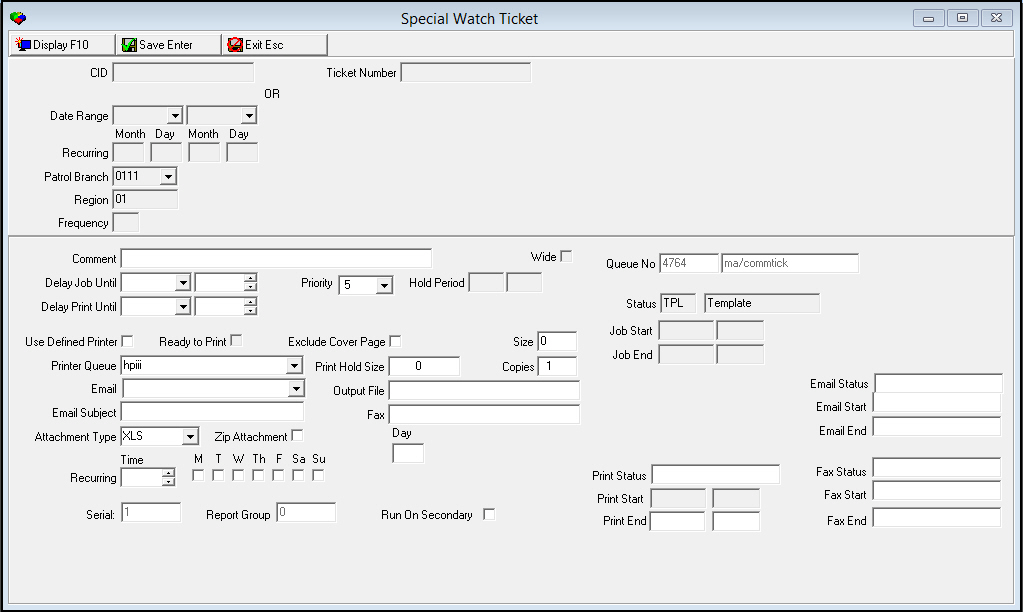
q The following graphic shows a report in which the recurring fields in the upper pane of the report parameters contain dates but no time settings.
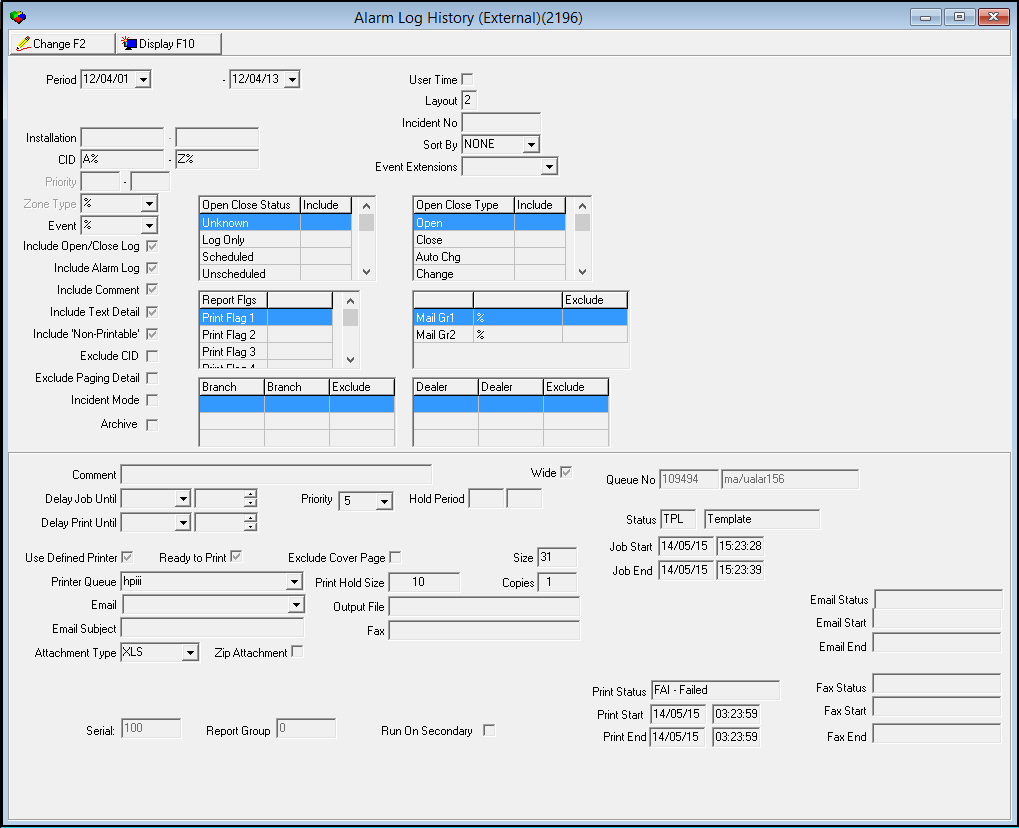
q The following graphic shows a report in which the recurring fields in the upper pane of the report parameters contain both dates and time settings. You may change the time settings before you run the template report.
4. Enter changes as needed.
5. Choose Save.
Use the following steps to run a template report:
1. In Report Queue, choose Template mode.
‰ The list displays all available template reports.
2. Select the template report you want to run.
3. Choose Copy Current Record.
‰ SBN submits the report to the report queue.
4. Choose Own or Outstanding to view the current reports in the queue.
Button Functions
The following table displays the buttons, describes the shortcut keys, actions, and functionality.
Button |
Name |
Shortcut Key |
Action |
Description |
|
Get |
ALT+F1 |
1558/ 1 |
Get record. |
|
Change |
F2 |
1558/ 2 |
Change selected record. |
|
Outstanding |
F3 |
1558/ 3 |
Display all outstanding reports for the selected user. |
|
All |
F4 |
1558/ 4 |
Display all outstanding reports for all users. |
|
Own |
F5 |
1558/ 5 |
Display all outstanding reports for your User ID. |
|
Done |
F6 |
1558/ 6 |
Display all completed reports for the selected user |
|
Active |
F7 |
1558/ 7 |
Display all active reports for the selected user. |
|
Release/Hold |
F8 |
1558/ 8 |
Release the report or place it on hold. |
|
Search |
F9 |
1558/ 9 |
Search for reports based upon the selected user ID. |
|
Copy Template/Recurring |
SHIFT+F3 |
1558/ 10 |
Copy current record. |
|
Template |
SHIFT+F4 |
1558/ 11 |
Run a template report. |
|
Recurring |
SHIFT+F9 |
1558/ 12 |
Display all the defined recurring reports for the selected user. |
|
Delete |
SHIFT+F10 |
1558/ 13 |
Delete selected record. |
|
Refresh |
F11 |
1558/ 14 |
Set timer value for refresh interval. |
|
Display |
F3 |
1558/ 19 |
Display selected report output. |
|
Reset |
SHIFT+F2 |
1558/ 20 |
Resets all FAILED reports to READY for reprocessing. |
|
Exit |
ESC |
1558/ 999 |
Exit without saving. |
|
Save |
ENTER |
1558/ 999 |
Save changes. |

















Email Notification and Ready-for-Print Status
Reports placed on Hold for page size trigger an email notification to the originator and/or recipient, so the queue no longer needs manual monitoring. A 'Ready for print' status separates reports ready to print from those still waiting to run.
Modifications and Updates to Report Queue
The following table lists modifications and updates to the Report Queue document.
Mod Number |
Date |
Description |
n/a |
08/25/14 |
Images updated. |
08.89.11371, 07.89.25857 |
06/12/18 |
Images updated. New Reset button added. |
|
|
|
F1 Help
| Delphi Forms | bareportprioritiesform |
| Program Numbers | 1509 |