
Invoice Export Report
Invoice Export Report
Invoice Export Report
Module: Accounting
Overview
Use the Invoice Export Report to generate PDFs of invoices created in Invoice Manager (program #1557) to be sent to customers.
Choose the Batch Report button in program #1557 to automatically generate this report for the invoice batch selected in program #1557. Choose the Invoice Report button in the Invoice Status tab of program #548 to automatically generate this report for the invoice selected in the Invoice Status tab.
To access this report, choose Invoice Export Report (report #2134) from the main menu of SBN.
The Invoice Export Report
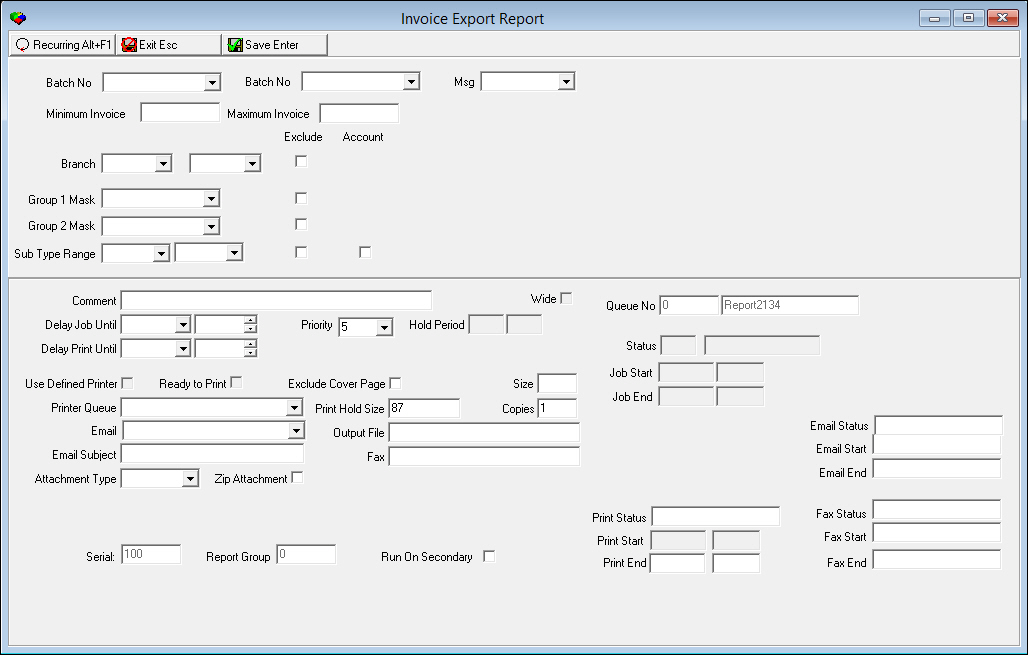
This window contains two panes: use the upper pane to define the contents of the report; use the lower pane to define the job output - how, when, and where you want the report printed.
Note: See Report Parameters Pane for information on the fields in the lower pane, which are the same in every report.
Field Descriptions
The following table describes the fields used in the upper pane of this report.
Field |
Description |
Batch Range |
|
Batch No (From) |
You may select a range of invoice batches to limit the report to invoices contained in the range of batches. Select the beginning batch of the range. (This menu originates from program #1557.) |
Batch No (To) |
You may select a range of invoice batches to limit the report to invoices contained in the range of batches. Select the ending batch of the range. (This menu originates from program #1557.) |
Msg |
You may select message text to appear on the report. (This menu originates from program #1766 and includes only those messages that have the INV check box selected in program #1766.) |
Invoice Range |
|
Minimum Invoice |
You may enter a range of invoice numbers to limit the report to invoices within the range. Enter the beginning invoice number of the range. |
Maximum Invoice |
You may enter a range of invoice numbers to limit the report to invoices within the range. Enter the ending invoice number of the range. |
Branch Range |
|
Branch
- From |
You may select a range of branches to limit the report to invoices associated with branches within the range. Select the beginning branch of the range. (This menu originates from program #1530.) Note: Branch restrictions apply. |
Branch
- To |
You may select a range of branches to limit the report to invoices associated with branches within the range. Select the ending branch of the range. (This menu originates from program #1530.) Note: Branch restrictions apply. |
Exclude |
You may exclude a range of branches from the report by entering the range and then selecting this check box. |
Group 1 Mask |
Mask to include in the report only invoices on contracts matching the selected mask in Group 1. (This menu originates from program #1868.) |
Exclude |
Select this check box to exclude invoices on contracts matching the selected mask in Group 1 from the report. |
Group 2 Mask |
Mask to include in the report only invoices on contracts matching the selected mask in Group 2. (This menu originates from program #1868.) |
Exclude |
Select this check box to exclude invoices on contracts matching the selected mask in Group 2 from the report. |
Sub Type Range |
|
Sub Type - From (No label) |
You may select a range of subscriber types to limit the report to invoices on contracts associated with subscriber types within the range. Select the beginning subscriber type of the range. (This menu originates from program #1534.) |
Sub
Type - To |
You may select a range of subscriber types to limit the report to invoices on contracts associated with subscriber types within the range. Select the ending subscriber type of the range. (This menu originates from program #1534.) |
Exclude |
You may exclude a range of subscriber types from the report by selecting the range and then selecting this check box. |
Account |
Select this check box to limit the report to invoices on billing accounts associated with subscriber types within the selected range. |
Running and Viewing a Report
For information on running and viewing a report, see Common Functions in SBN.
Report Example
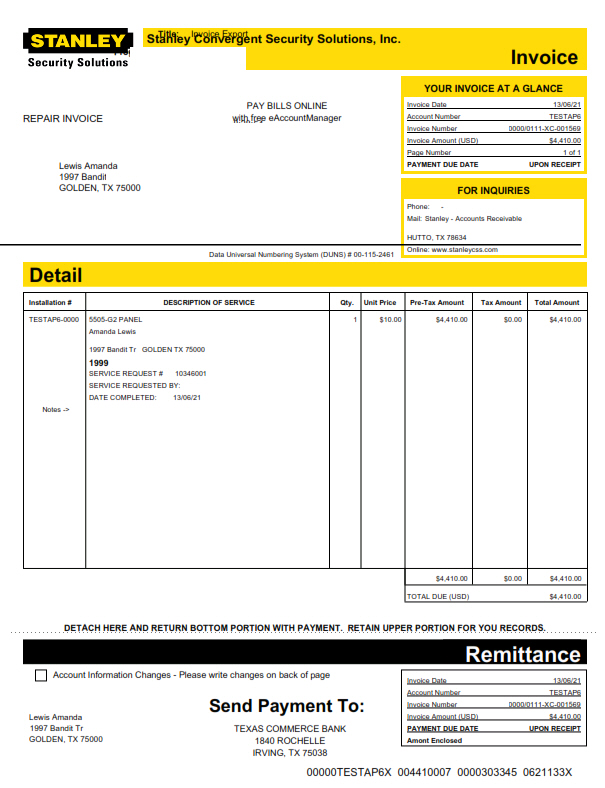
The following graphic shows an example of the output of the Invoice Export Report with details.
Field/Column Descriptions
The following table describes the fields and columns used in the output of the report.
Column |
Description |
Your Invoice at a Glance |
|
Invoice Date |
Date the invoice was generated. |
Account Number |
Customer's billing account number. |
Invoice Number |
External invoice number of the invoice. |
Invoice Amount |
Total amount of the invoice. |
Page Number |
Page number of the invoice displayed along with the total number of pages in the invoice. (For example, the first page of a two-page invoice displays 1 of 2 in this field.) |
Payment Due Date |
Date on which the invoice payment is due. |
For Inquiries Note: Contact IBS to specify the data to display in these fields for your company. |
|
Phone |
Phone number customers can contact for inquiries. |
Mailing address where customers can send inquiries. |
|
Online |
Website for customer inquiries. |
Detail |
|
Installation # |
Customer installation number. |
Description of Service |
|
Invoice Items (No label) |
Each invoice item is displayed on a separate row. |
Name |
Customer's name. |
Address |
Customer's address. |
Purchase
Order # |
PO (purchase order) number entered on the work order from which the invoice was generated. |
Service Request # |
Service request referenced on the work order from which the invoice was generated. |
Service Requested By |
Name of the person who requested service. |
Date Completed |
Date on which service was completed. |
Qty |
Quantity of each invoice item. |
Unit Price |
Unit price of each invoice item. |
Pre-Tax Amount |
Pre-tax amount of each invoice item. |
Tax Amount |
Tax amount applied to each invoice item. |
Total Amount |
Total amount of each invoice item, including tax. |
Total Due |
Total amount due for the invoice. |
Button Functions
The following table displays the buttons, describes the shortcut keys, actions, and functionality.
Button |
Name |
Shortcut Key |
Action |
Description |
|
Open fields for recurring/template reports |
alt+f1 |
Open fields for recurring/template reports. |
|
|
Exit without saving |
esc |
Exit without saving changes to selected record. |
|
|
Save Existing Record |
enter |
Save changes to selected record. |



Modifications and Updates to Invoice Export Report
The following table lists modifications and updates to the Invoice Export Report document.
Mod Number |
Date |
Description |
07.78.22531, 08.79.09193, 07.79.22600, 07.79.22618, 07.79.22638 |
11/06/13 |
Document created |
n/a |
09/08/14 |
Images updated. |