
Pending Service
Pending Service
Pending Service
Module: Account Management
Overview
Use the Pending Service tab to enter non-urgent service issues for an installation. Option sv054 determines how SBN handles the pending service entries. When this option is on, SBN adds all items from the Pending Service tab to the next created service ticket. When sv054 is off, SBN creates separate service tickets for the pending entries the next time a user enters a new service ticket for the same CID on the selected installation.
This document covers the following topics:
Navigating to Pending Service
Use the following steps to navigate to the Pending Service tab:
1. From the main SBN toolbar, select Menu.
2. From the drop-down menu, select Go To.
3. In the Go To Program dialog box, type in "559" and press Enter.
w Data Entry Master and Basics opens.
4. Choose the Pending Service tab in the lower pane of Data Entry.
The Pending Service Tab
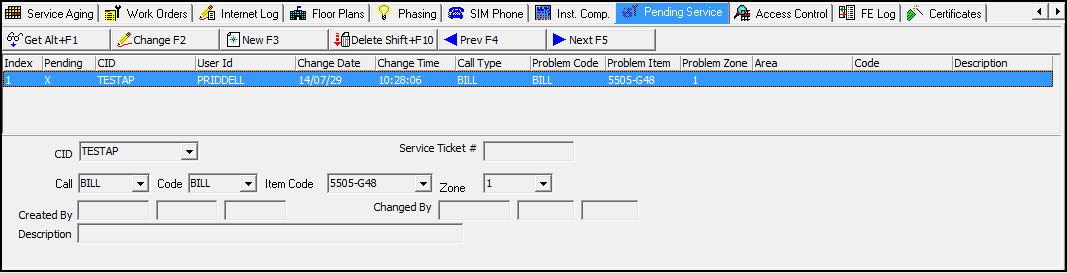
The following graphic shows the Pending Service tab with requests displayed.
Column Descriptions
The following table describes the columns used in the upper pane of the Pending Service tab.
|
Column |
Description |
|
Index |
The order in which users created the pending entries. |
|
Pending |
If this column displays an X, the entry is pending and has not been associated with a service ticket. If this column is blank, SBN has associated the entry with a service ticket, and you can no longer change it. |
|
CID |
CID of the selected installation to which the entry applies. If this entry applies to all CIDs on the installation, this column displays a %. |
|
UserID |
ID of the user who created or changed the entry. |
|
Change Date |
Date on which the user created or changed the entry. |
|
Change Time |
Time at which the user created or changed the entry. |
|
Call Type |
Reason the customer called about this installation. |
|
Problem Code |
Code to define the problem covered in this service entry. |
|
Problem Item |
Item code for the item that is problematic. |
|
Problem Zone |
Zone that is problematic. |
|
Area |
Designated area within a zone that is problematic. |
|
Code |
Zone code that is problematic. |
|
Description |
Detailed description of the service needed. |
Field Descriptions
The following table describes the fields used in the lower pane of the Pending Service tab.
|
Column |
Description |
|
CID |
Select the CID to which the problem applies. If the problem applies to all CIDs associated with the installation, select the % from the drop-down menu. |
|
Service Ticket # |
When you create a service ticket for this CID, SBN creates a separate service ticket (based on option sv054) that includes the pending entries from this tab and enters the number of that service ticket in this field. Once SBN associates a pending entry with a service ticket, you may no longer change that pending entry. |
|
Call |
Select the code that defines the reason the customer called. (This menu originates from program #1524.) |
|
Code |
Select the code that defines the nature of the problem. (This menu originates from program #1522.) |
|
Item Code |
Select the code of the item that is problematic. (This menu originates from program #1535.) |
|
Zone |
Select the zone in which the problem occurred. |
|
Created By |
ID of the user who created the pending entry. |
|
Date Created |
Date on which the user created the pending entry. |
|
Time (No label) |
Time at which the user created the pending entry. |
|
Changed By |
ID of the user who changed the pending entry. |
|
Date Changed |
Date on which the user changed the pending entry. |
|
Time (No label) |
Time at which the user changed the pending entry. |
|
Description |
Enter a description of the service needed. |
Viewing a Pending Entry
You can view the details of a pending service entry in the fields in the bottom pane.
Use the following steps to view the details of an entry:
1. Select the entry for which you want to view details.
2. Double-click your selection or choose Get.
w SBN displays the details of the selected pending entry in the fields.
Creating a New Pending Entry
You can create a new non-urgent service request.
Use the following steps to add a new entry:
1. Choose New.
w Some of the fields in the lower pane open.
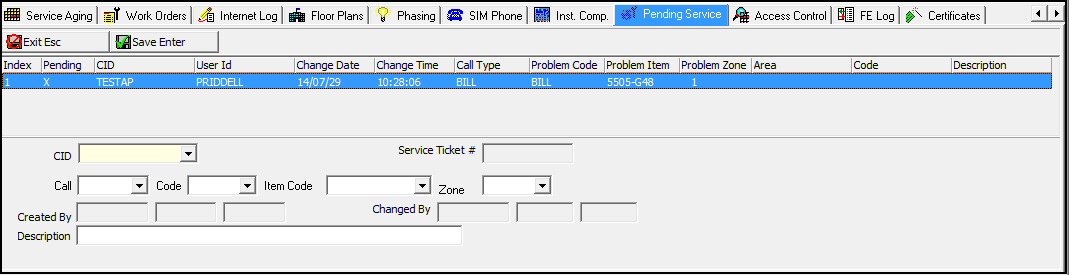
2. Complete the CID field. Complete the remaining fields, as needed.
3. Choose Save.
w SBN adds the entry to the list of pending entries.
Changing a Pending Entry
You can change a pending service entry if the customer calls in with different details for the problem. However, once SBN associates a pending entry with a service ticket, you may no longer change that entry. If you attempt to change an entry associated with a service ticket, SBN displays a message: "Activity no longer pending."
Use the following steps to change the details of an entry:
1. Select the entry you want to change.
2. Choose Change.
w Some fields open for changes.
3. Enter changes, as needed.
4. Choose Save.
Deleting a Pending Entry
If a customer calls to cancel the non-urgent service entry before it is associated with a service ticket, you can delete the pending entry.
Use the following steps to delete an entry:
1. Select the entry you want to delete.
2. Choose Delete.
w A Confirmation dialog box appears: "Are you sure?"
3. Choose Yes.
w SBN deletes the selected entry from the Pending Service tab.
Related Programs
The following table lists programs related to the Pending Service tab.
|
Program |
Number |
Document Link |
Description |
|
Data Entry Master and Basics |
559 |
Program from which you can access the Pending Service tab. Access customer installation records associated with entries. |
|
|
Service Call Types |
1524 |
Define types of service calls for the Call drop-down menu. |
|
|
Service Problem Codes |
1522 |
Define types of service problems for the Code drop-down menu. |
|
|
Items |
1535 |
Define items for the Item Code drop-down menu. |
|
|
Service Log Tab |
N/A |
Maintain all service tickets for an installation. SBN creates service tickets for pending service entries, based on option sv054. |
Button Functions
The following table displays the buttons, describes the shortcut keys, actions, and functionality.
|
Button |
Name |
Shortcut Key |
Action |
Description |
|
|
Get Record |
Alt+F1 |
559/491 |
View details of pending entry. |
|
|
Change Record |
F2 |
559/492 |
Change selected service entry. |
|
|
New record |
F3 |
559/493 |
Create new pending service entry. |
|
|
Delete Record |
shift+F10 |
559/494 |
Delete selected entry. |
|
|
Previous Record |
F4 |
559 |
View previous record. |
|
|
Next Record |
F5 |
559 |
View next record. |
|
|
Exit |
Esc |
559 |
Exit without saving. |
|
|
Save |
Enter |
559 |
Save existing record. |








Modifications and Updates to Pending Service
The following table lists modifications and updates to the Pending Service document.
|
Mod Number |
Date |
Description |
|
n/a |
05/06/09 |
document rewritten |
|
n/a |
7/29/14 |
Images updated. |