
Reminder Calculation
Reminder Calculation
Reminder Calculation
Program #: 1570
Module: Accounting
Overview
Use Reminder Calculation (program #1570) to process which customers should receive reminder notices for past due invoices. The calculation only includes customers flagged for reminders. Once you have calculated the reminders, you can export the reminder notices for printing.
Options
Several options control how SBN calculates reminders.
Option ba278 — controls activation of Financial Separation; use with Partner Invoicing.
Option bl052 — controls whether SBN calculates reminder charges at the account level or at account and contract levels.
Option bl128 — controls whether SBN assigns the highest reminder profile to all open invoices for an account when one invoice for that account receives the highest reminder profile.
Option crbyacg — controls whether SBN creates one reminder for an account or reminders for each reminder group in the account
Option crchgrev — defines the revenue type for reminder charges.
Option crgrp — controls the number of shifts allowed for reminder groups.
Option crpdue — controls whether SBN includes all invoices or only past due invoices in the reminder calculation.
Option schpayag — controls how SBN handles late scheduled payments.
Option temp162 — controls visibility of all outstanding reminders for each account.
The Reminder Calculation Window
The following graphic shows the Reminder Calculation window as the program opens.
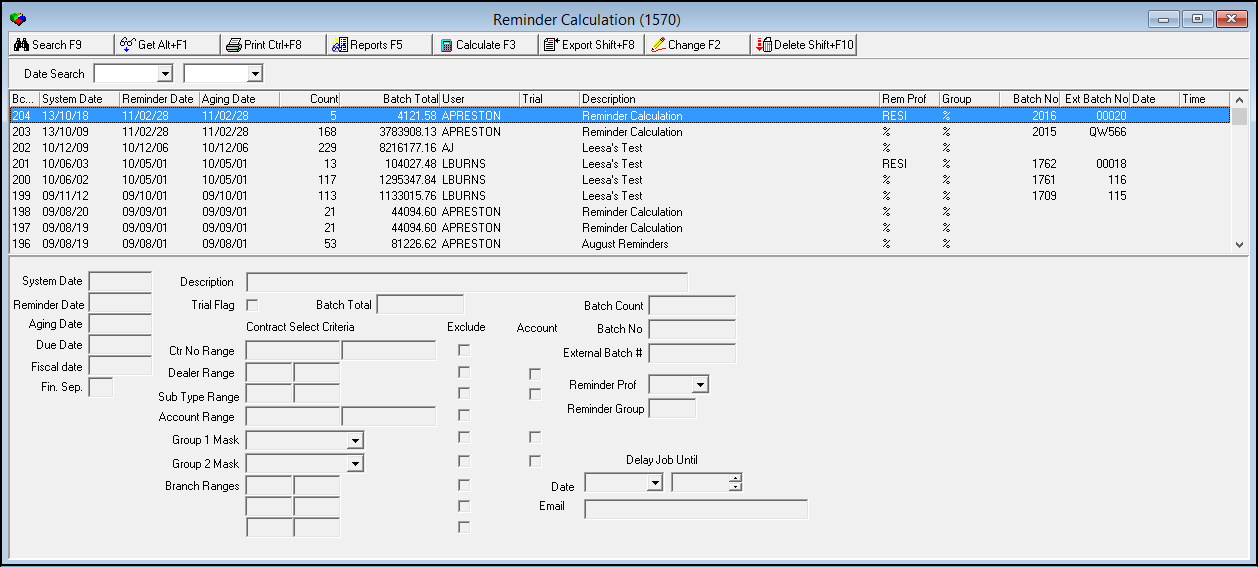
Field/Column Descriptions — Reminder Batches
The following table describes the fields and columns used in the search parameters and search results panes of the Reminder Calculation window.
Field/Column |
Description |
Date Range Search Parameters |
|
Date Search — From |
You may select a range of dates in which reminder batches were created to narrow the display. Select the beginning date of the range. |
Date Search — To (No label) |
You may select a range of dates in which reminder batches were created to narrow the display. Select the ending date of the range. |
Columns |
|
Batch No |
Indexed placement of the selected reminder batch. |
System Date |
Date the reminder batch was created. |
Reminder Date |
Date printed on the reminders. |
Aging Date |
The past due date used to calculate the selected reminder batch. |
Count |
Number of reminders in the selected reminder batch. |
Batch Total |
Total dollar amount of all reminders included in the selected reminder batch. |
User |
ID of the user who created the selected reminder batch. |
Trial |
If this column displays an X, the reminder batch was a trial batch. |
Description |
Text description of the reminder batch. |
Reminder Prof |
Reminder profile used to run the batch. O If this column displays %, SBN included all reminder profiles in the batch. O If option bl128 is on, when one invoice for an account receives the highest reminder profile, all open invoices for that account also receive the highest reminder profile. O If the batch includes an account consolidated invoice, SBN sets the reminder profile for the account consolidated invoice to the highest reminder profile in the contracts included in the account consolidated invoice. |
Reminder Group |
Displays the highest reminder
group level in the reminder batch. |
Batch No |
Number SBN assigns to the batch. |
External Batch Number |
External batch number for the reminder batch. |
Date |
Date on which a user scheduled the delayed batch to run. This column is blank if the batch has already run. |
Time |
Time at which a user scheduled the delayed batch to run. This column is blank if the batch has already run. |
Field Descriptions — Batch Details
The following table describes the fields and columns used in the Batch Details pane of the Reminder Calculation window.
Field/Column |
Description |
System Date |
Read-only field. Date the reminder batch was created. |
Description |
Type a description of the reminder batch. |
Reminder Date |
Select the date to print on the reminder. |
Trial Flag |
Enter a check mark in this field to run the batch as a trial to verify the count and amount before running the actual reminder batch. Note: You cannot enter a delayed batch with the Trial Flag. If you choose Calculate with a date and/or time in the Delay Job fields and the Trial Flag is set, SBN displays an error message: "Invalid combination of options." |
Batch Total |
Read-only field. Total dollar amount of all reminders included in the selected batch. |
Batch Count |
Read-only field. Number of reminders generated in the batch. |
Aging Date |
Select the past due date to use to calculate reminders. |
Batch No |
Read-only field. Number SBN assigns to the batch. |
External Batch # |
Added field to display the external invoice batch number from invoice_batches. |
Due Date |
Select the date to print on the reminder batch as the due date. |
Fiscal Date |
Read-only field. Fiscal date that was in effect when the reminder batch was created. |
Fin Sep |
This field is active when option ba278 is on. Financial Separation; use with Securitas Partner Invoicing. You may enter a flag in this field to limit reminders based on the Fin Sep flag in Branch Profiles (program #1530) for the associated branch: l X — Use only accounts associated with branches flagged to use Financial Separation l blank — Use only accounts not associated with branches flagged to use Financial Separation l % — Use all accounts regardless of the Financial Separation flag for their associated branches O Action 1570/17 controls a user’s ability to enter the % in this field. When a user’s profile does not include this action: q That user cannot enter % in this field q If the user tries to enter %, SBN displays an error message |
Reminder Prof |
Select the reminder profile for which you want to run the batch. (This menu originates from program #1562.) O If you leave this field blank l SBN includes all reminder profiles in the batch l In Get mode, SBN displays % in this field O If option bl128 is on, when one invoice for an account receives the highest reminder profile, all open invoices for that account also receive the highest reminder profile. O If the batch includes an account consolidated invoice, SBN sets the reminder profile for the account consolidated invoice to the highest reminder profile in the contracts included in the account consolidated invoice. |
Reminder Group |
Select the reminder group for which you want to run the reminder batch. In Get mode, this field displays the highest reminder group level run in the batch. O If you leave this field blank l SBN includes all reminder groups in the batch l In Get mode, SBN displays % in this field O If option crbyacg is on, SBN calculates reminders by subgroups within accounts and creates one reminder per subgroup. If option crbyacg is off, SBN calculates reminders by account and creates one reminder per account. O If option crgrp is on, SBN shifts reminder groups based on past due date. |
Contract Select Criteria |
|
Ctr No Range |
|
Contract No — From |
You may type a range of contract numbers to include in the reminder batch. Type the beginning contract number. O Do not type Contract/Dealer ranges and Account/Dealer ranges in the same reminder batch. |
Contract
No — To |
You may type a range of contract numbers to include in the reminder batch. Type the ending contract number. O Do not type Contract/Dealer ranges and Account/Dealer ranges in the same reminder batch. |
Exclude |
You may exclude a range of contract numbers from the reminder batch by typing the range and then entering a check mark in this field. |
Dealer Range (1) |
|
Dealer Range — From |
You may type a range of dealer IDs (associated with the contract) to include in the reminder batch. Type the beginning dealer ID. O If option ba325 is on, these fields become required and the menus are limited to dealers included in the user’s profile. O Do not type Contract/Dealer ranges and Account/Dealer ranges in the same reminder batch. |
Dealer
Range — To |
You may type a range of dealer IDs (associated with the contract) to include in the reminder batch. Type the ending dealer ID. O If option ba325 is on, these fields become required and the menus are limited to dealers included in the user’s profile. O Do not type Contract/Dealer ranges and Account/Dealer ranges in the same reminder batch. |
Exclude |
You may exclude a range of dealer IDs (associated with the contract) from the reminder batch by typing the range of dealer IDs and then entering a check mark in this field. |
Sub Type Range (1) |
|
Sub type - From |
You may type a range of subscriber types (associated with the contract) to include in the reminder batch. Type the beginning subscriber type. Do not type Contract/Dealer ranges and Account/Dealer ranges in the same reminder batch. |
Sub type - To |
You may type a range of subscriber types (associated with the contract) to include in the reminder batch. Type the ending subscriber type. Do not type Contract/Dealer ranges and Account/Dealer ranges in the same reminder batch. |
Exclude |
You may exclude a range of subscriber types (associated with the contract) from the reminder batch by typing the range of subscriber types and then entering a check mark in this field. |
Account No Range |
|
Account No — From |
If you use Account Consolidated Invoicing, you may type a range of account numbers to include in the reminder batch. Type the beginning account number of the range. O Do not type Contract/Dealer ranges and Account/Dealer ranges in the same Reminder Batch. |
Account No —
To |
If you use Account Consolidated Invoicing, you may type a range of account numbers to include in the reminder batch. Type the ending account number of the range. O Do not type Contract/Dealer ranges and Account/Dealer ranges in the same reminder batch. |
Exclude |
If you use Account Consolidated Invoicing, you may exclude a range of account numbers from a reminder batch by typing the range and then entering a check mark in this field. |
Dealer Range (2) |
|
Dealer Range — From |
If you use Account Consolidated Invoicing, you may type a range of dealer IDs (associated with the account) to include in the reminder batch. Type the beginning dealer ID. O Do not type Contract/Dealer ranges and Account/Dealer ranges in the same reminder batch. |
Dealer Range —
To |
If you use Account Consolidated Invoicing, you may type a range of dealer IDs (associated with the account) to include in the reminder batch. Type the ending dealer ID. O Do not type Contract/Dealer ranges and Account/Dealer ranges in the same reminder batch. |
Exclude |
If you use Account Consolidated Invoicing, you may exclude a range of dealer IDs (associated with the account) from the reminder batch by typing the range of dealer IDs and then entering a check mark in this field. |
Sub Type Range (2) |
|
Sub type - From |
If you use Account Consolidated Invoicing, you may type a range of subscriber types (associated with the account) to include in the reminder batch. Type the beginning subscriber type. Note: Do not type Contract/Dealer ranges and Account/Dealer ranges in the same reminder batch. |
Sub type - To |
If you use Account Consolidated Invoicing, you may type a range of subscriber types (associated with the account) to include in the reminder batch. Type the ending subscriber type. Note: Do not type Contract/Dealer ranges and Account/Dealer ranges in the same reminder batch. |
Exclude |
If you use Account Consolidated Invoicing, you may exclude a range of subscriber types (associated with the account) from the reminder batch by typing the range of subscriber types and then entering a check mark in this field. |
Group Masks |
|
Group 1 Mask |
Mask to include in the reminder batch only contracts matching selected mask in Group 1. (This menu originates from program #1868.) |
Exclude |
Check to exclude contracts matching the selected mask in Group 1 from the reminder batch. |
Account |
Check to limit the reminder batch to contracts with Group 1 Mask at the account level. |
Group 2 Mask |
Mask to include in the reminder batch only contracts matching selected mask in Group 2. (This menu originates from program #1868.) |
Exclude |
Check to exclude contracts matching the selected mask in Group 2 from the reminder batch. |
Account |
Check to limit the reminder batch to contracts with Group 2 Mask at the account level. |
Branch Ranges |
|
Branch — From |
You may enter up to three ranges of contract branches to include or exclude from the reminder batch. Type the beginning contract branch of the range. |
Branch — To |
You may enter up to three ranges of contract branches to include or exclude from the reminder batch. Type the ending contract branch of the range. |
Exclude |
You may exclude a range of contract branches from the reminder batch by typing the range and then entering a check mark in the corresponding exclude box. |
Branch — From (No label) |
You may enter up to three ranges of contract branches to include or exclude from the reminder batch. Type the beginning contract branch of the range. |
Branch — To (No label) |
You may enter up to three ranges of contract branches to include or exclude from the reminder batch. Type the ending contract branch of the range. |
Exclude |
You may exclude a range of contract branches from the reminder batch by typing the range and then entering a check mark in the corresponding exclude box. |
Branch — From |
You may enter up to three ranges of contract branches to include or exclude from the reminder batch. Type the beginning contract branch of the range. |
Branch — To |
You may enter up to three ranges of contract branches to include or exclude from the reminder batch. Type the ending contract branch of the range. |
Exclude |
You may exclude a range of contract branches from the reminder batch by typing the range and then entering a check mark in the corresponding exclude box. |
Delay Job Until Note: You cannot enter a delayed batch with the Trial Flag. If you choose Calculate with a date and/or time in the Delay Job fields and the Trial Flag is set, SBN displays an error message: "Invalid combination of options." |
|
Date |
Date on which to print the reminder batch. |
Time (No label) |
Time at which to print the reminder batch. |
You may type an email address to which SBN sends a notice when the reminder batch runs. The email includes
|
|
Searching for Batches
You may search for batches of reminder calculations by a range of creation dates.
Use the following steps to search for batches:
1. In Reminder Calculation, select a range of creation dates in the search parameters.
2. Choose Search.
‰ SBN displays the batches of reminder calculations that match your search parameters.
Using Common Functions
See the reference document Common Functions in SBN for more information.
Note: Once you have calculated a batch of reminders, you may change only the description of the batch.
Calculating Reminders
You can calculate reminders for specific dates, contracts, and dealers.
Use the following steps to calculate reminders:
1. In Reminder Calculation, choose Calculate Invoices.
‰ The Calculate Reminders dialog box appears.
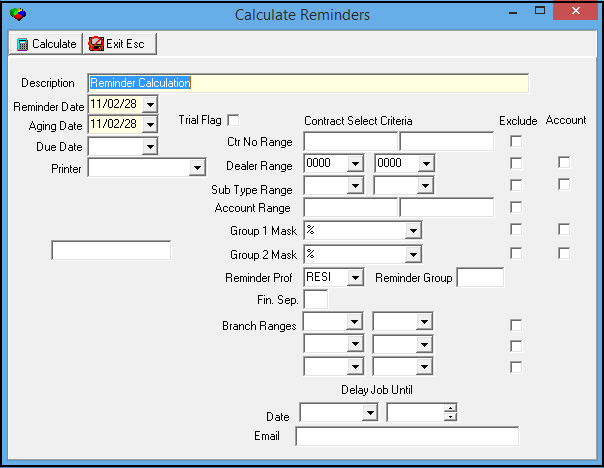
2. Complete the fields. See Field/Column Descriptions — Reminder Batches for more information about these fields.
3. Choose Calculate Reminders.
‰ If the Trial Flag box is empty, SBN may ask if you are sure.
4. If this message appears, choose Yes to continue the calculation or No to return to the Calculate Reminders dialog box. If no message appears, the process continues.
‰ SBN displays the calculation process.
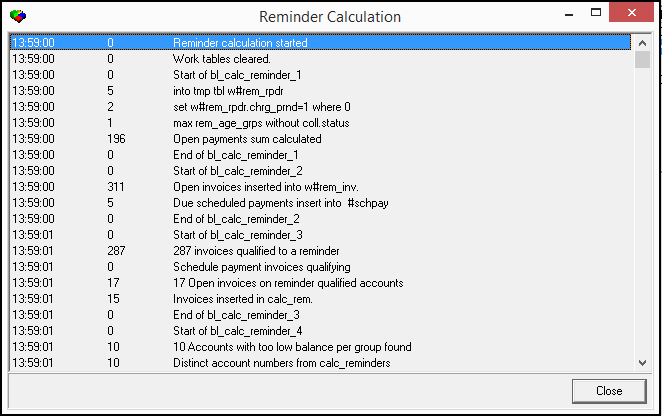
Note: SBN will not calculate a delayed batch until the date and time the user specified it to run. If you try to calculate a delayed batch, SBN displays an error message: "Reminder batches must be executed in the right order."
5. Choose Close.
Creating a Delayed Batch
You may create a reminder batch that runs at a specified later date and time.
Use the following steps to create a delayed batch:
1. Highlight any numbered batch. (Do not select a batch that displays xxxxxx in the Batch No. column.)
2. Choose Calculate Reminders.
‰ The fields in the lower pane of the window open for calculation information.
3. Complete the fields as needed, changing information where necessary.
Note: You cannot enter a delayed batch with the Trial Flag. If you choose Calculate Reminders with a date and/or time in the Delay Job fields and the Trial Flag is set, SBN displays an error message: "Invalid combination of options."
4. In Delay Job Until, select the date and time that you want to run the reminder batch.
5. Choose Calculate Reminders again.
‰ SBN displays a message that it has inserted a delayed reminder calculation.
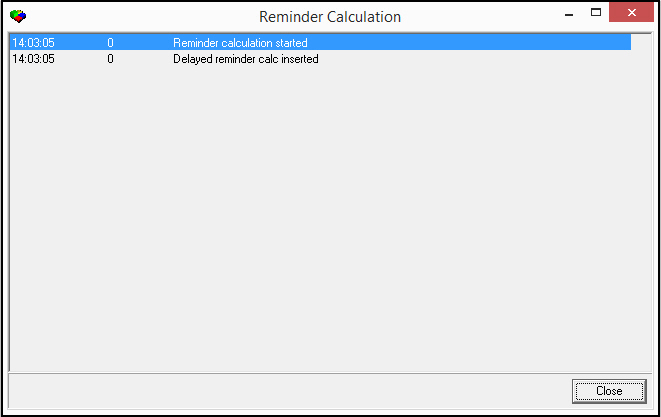
‰ SBN saves the delayed batch with xxxxxx in the Batch No. column.

‰ At the specified date and time, SBN runs the delayed batch.
Exporting Reminders
From the Reminder Calculation window, you can export a reminder batch.
Options for All Exports
The following options affect all exports of reminder batches:
l Option ba212 — when on, you can select a standard message to include with each record in the export.
l Option crbyacg — when on, the export lists an amount to pay for each reminder group; when off the export lists amount to pay by account only.
Options for Export 14 (Word Format)
The following options only affect Export 14 (Word format):
Option ba325 — when on, the Dealer field becomes required.
Option bl084 — when on SBN inserts the s#inv in the OCR line instead of s#acc. The OCR line does not appear on page 1 of the export if the account summary is greater than 1 page. When off, SBN inserts the s#acc in the OCR line instead of s#inv.
Option bl126 — when on the Invoice Details include Work Order Type.
Option bl131 — when on, the invoice includes
q The OCR number of each invoice number (according to Swedish OCR algorithm)
q The AKA (name2) from the billing address, if available.
Option bl141 — when on, SBN prints the invoice with a separate line for each of seven fields.
Note: IBS recommends that all companies — except for company 102 — turn this option off.
Exporting Reminder Batches
The following steps apply to all exports of reminder batches. The appearance of your export window may differ according to the template specified by your company.
Use the following steps to export reminder batches:
1. Choose Export.
‰ The Export window opens.
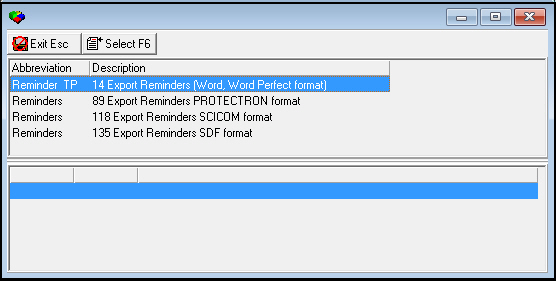
2. If the export window lists more than one export, select the export you want to use.
3. Choose Select Export.
‰ The Export Details dialog box appears.
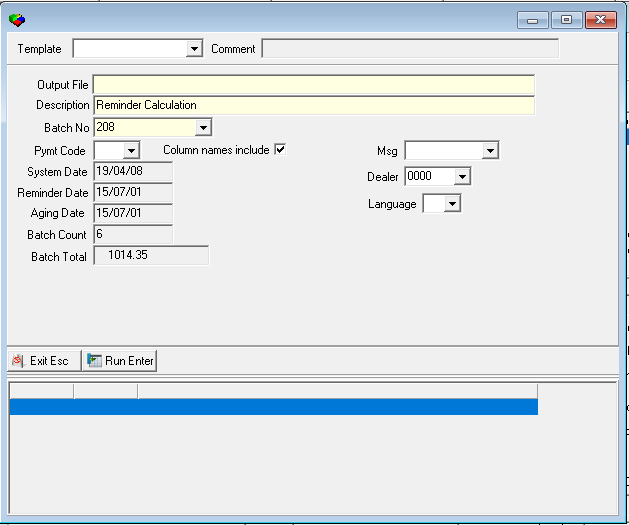
4. Complete the fields, as needed.
5. Choose Run Export.
Note: You cannot export a delayed batch, since SBN has not yet generated reminders. If you attempt to export a delayed batch, SBN displays a message: "Detail records missing."
Field Descriptions — Export 14 (Word Format)
The following table describes the fields used in Export 14 (Word format).
Field |
Description |
Output File |
You must type a name for the Output File that SBN creates when you run this program. |
Description |
Type a description of the reminder batch. |
Batch Number |
You must select at least one batch number to include in the export. O This field only appears in Export 14. |
Pymnt Code |
You may select a Payment Method Code to limit the export to reminders from the selected batch for accounts/contracts that use that code. (This menu originates from program #1528.) O If you leave this field blank: l SBN exports the reminders of accounts/contracts in the batch with no defined pay code l SBN exports the reminders of accounts/contracts in the batch with a pay code that does not require validation O If you type % in this field, SBN exports all reminders in the batch regardless of pay code. |
Column names include |
Enter a check mark in this field to include column headers on the exported reminders. |
System Date |
Displays the date the reminder batch was created. |
Reminder Date |
Displays the date to print on the reminder. |
Aging Date |
Displays the past due date used to calculate reminders. |
Batch Count |
Displays the number of reminders included in the batch. |
Batch Total |
Displays the total dollar amount of all reminders included in the batch. |
Msg |
If option ba212 is on, you may select a message to include on the exported reminders. (This menu originates from program #1766.) |
Dealer |
You may select a dealer ID to export reminders for only that dealer. (This menu originates from program #1537.) |
Language |
Select a language to export in. (Language originates from program #548) |
Export 14 Details
The details below apply only to Export 14 (Word format):
Export 14 (Word format) validates batch number.
Batch No — This field appears only in Export 14 (Word format). If you have calculated multiple reminder batches before exporting, select which reminder batch to export.
The Invoice Details of Export 14 (Word format) include
q Member
q Account Phone Number
q Account Contact Name
q Account Contact Phone Number
q Total Balance of Account
q Account Payment Code
Printing Reports
Use the following steps to print reports directly from Reminder Calculation:
1. In Reminder Calculation, choose Run Reports.
2. Select the report you want to print:
l Accounts to Receive Reminders Report (report #1170)
l Invoices Sent to Debt Collection Report (report #1190)
‰ The selected report window opens.
3. Complete the selected report parameters.
Note: External invoice numbers are created for invoices generated by the Reminder Calculation program.
Function Button Descriptions
The following table displays the buttons, describes the shortcut keys, actions, and functionality.
Button |
Name |
Shortcut Key |
Action |
Description |
|
Search |
f9 |
1570/ 3 |
Search for batches. |
|
Get Record |
alt+f1 |
1570/ 1 |
View details of selected batch. |
|
Print selected records |
ctrl+f8 |
1570/ 4 |
Print selected records. |
|
Run Reports |
f5 |
1570/ 6 |
Print reports directly from Reminder Calculation. |
|
Calculate Invoices |
f3 |
1570/ 2 |
Calculate reminders. |
|
Export |
shift+f8 |
1570/ 5 |
Export reminder batches. |
|
Change Record |
f2 |
Change details of selected batch. |
|
|
Delete Record |
shift+f10 |
1570/ 7 |
Delete the selected reminder batch. You may only delete delayed batches. |
|
Exit without saving |
esc |
Exit without saving changes to selected record. |
|
|
Save Existing Record |
enter |
Save changes to selected record. |









Modifications and Updates to Reminder Calculation
The following table lists modifications and updates to the Reminder Calculation document.
Mod Number |
Date |
Description |
n/a |
08/06/14 |
Images updated. |
07.90.26172, 08.90.11677, 07.90.26177 |
04/10/19 |
Added Language dropdown field to Export 14. Images updated. |