
Payment Status Report
Payment Status Report
Payment Status Report
Report #: 2121
Module: Accounting
Overview
Use the Payment Status report to print data from the Payment Status window in Contract Master.
To access this report, select Payment Status Report (report #2121) from the main menu of SBN.
The Payment Status Report
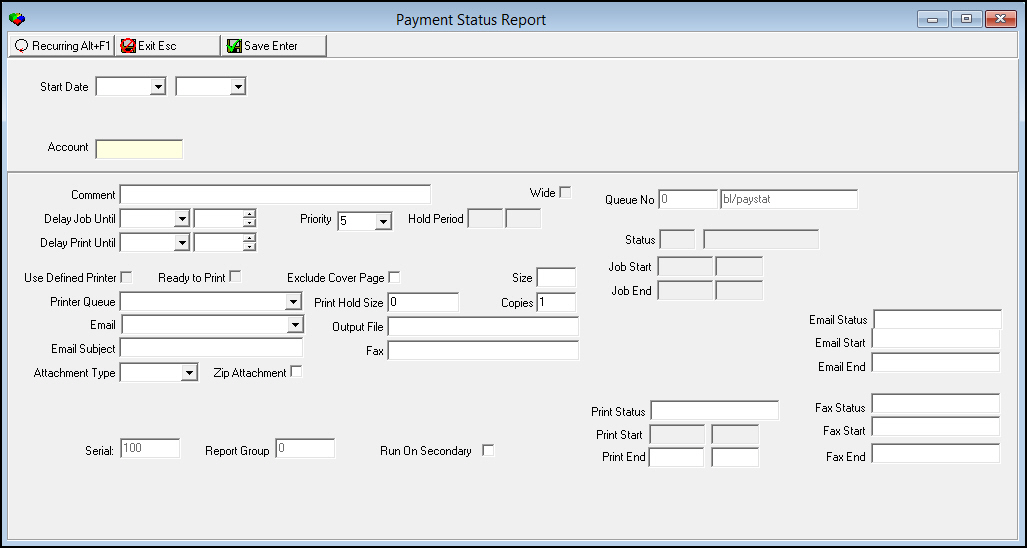
This window contains two panes: use the upper pane to define the contents of the report; use the lower pane to define the job output - how, when, and where you want to print the report.
Note: See Report Parameters Pane for information on the fields in the lower pane, which are the same in every report.
Field Descriptions
The following table describes the fields used in the upper pane of this report.
Note: You can use wildcard characters in selected fields. For more information on using wildcards, see Searches.
Field |
Wildcards Allowed |
Description |
Date Range |
||
Start Date |
No |
You may select a range of dates to limit the report to transactions within the range. Select the beginning date of the range. |
End
Date |
No |
You may select a range of dates to limit the report to transactions within the range. Select the ending date of the range. |
Account |
Yes |
You must either type a customer’s billing account number to limit the report to that customer’s records or use the % wildcard to include all billing account numbers. |
Running and Viewing a Report
Use the following steps to run and view a report:
1. In Payment Status, define the parameters in the upper and lower panes of the report.
2. Choose Save to save the report to the Report Queue.
3. In Report Queue (program #1558), choose Own to display the report list.
4. In the report list, locate the Invoice Print Report.
5. When SBN displays 'DON' or 'RDY' in the Status column, the report is ready.
6. Double-click on the Payment Status Report.
w The Payment Status window opens.
7. Choose Display Report.
w The Print Preview window opens.
Report Example
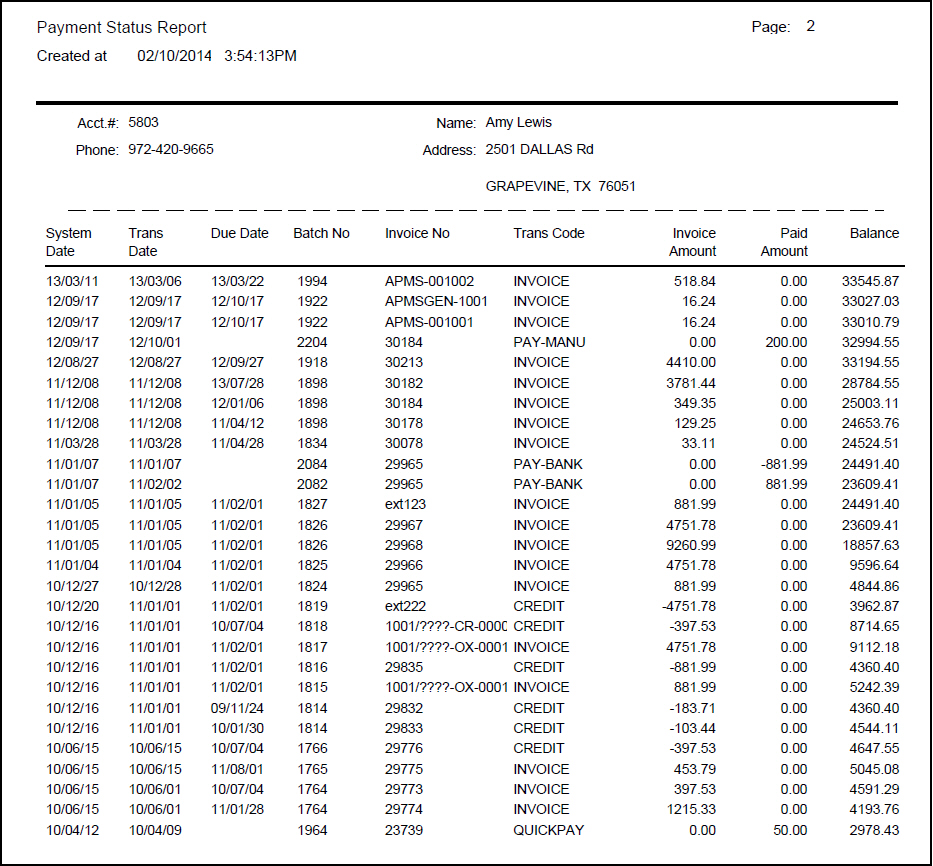
The following graphic shows an example of the Payment Status Report output.
Column Descriptions
The following table describes the columns used in the output of the report.
Column |
Description |
Acct. # |
Account number included on the report. |
Name |
Name on the billing account. |
Phone |
Phone number on the billing account. |
Address |
Address on the billing account. |
System Date |
Date the transaction was posted in SBN. |
Trans Date |
Date the transaction was entered in SBN. |
Due Date |
Due date of the invoice. |
Batch No. |
Payment batch number. |
Invoice No. |
Invoice number from the account. Note: If your company uses extended invoice numbers, then the report displays the extended invoice number in this column. |
Transaction Code |
Keyword for the transaction. (SBN-defined). |
Invoice Amount |
Total amount billed on the invoice. |
Paid Amount |
Total amount of the payment. |
Balance |
Total balance on the billing account. |
Button Functions
The following table displays the buttons, describes the shortcut keys, actions, and functionality.
Button |
Name |
Shortcut Key |
Action |
Description |
|
Open fields for recurring/template reports |
alt+f1 |
Open fields for recurring/template reports. |
|
|
Exit without saving |
esc |
Exit without saving changes to selected record. |
|
|
Save Existing Record |
enter |
Save changes to selected record. |



Modifications and Updates to Payment Status Report
The following table lists modifications and updates to the Payment Status Report document.
Mod Number |
Date |
Description |
n/a |
8/06/14 |
Images updated. |