
Open Close Status
Open Close Status
Open/Close Status
Module: Account Management
Overview
Use Open/Close Status to view the status of zones that are attached to a passcard. SBN includes in the search only those installations with passcards that are downloadable.
This document covers the following topics:
Navigating to Open/Close Status
Getting Installation Information
Navigating to Open/Close Status
Use the following steps to navigate to Open/Close Status:
1. From the main SBN toolbar, select Menu.
2. From the drop-down menu, select Go To.
3. In the Go To Program dialog box, type in "559" and press Enter.
w Data Entry Master and Basics opens.
4. Choose the O/C Status tab in the lower pane of Data Entry.
The Open/Close Status Tab
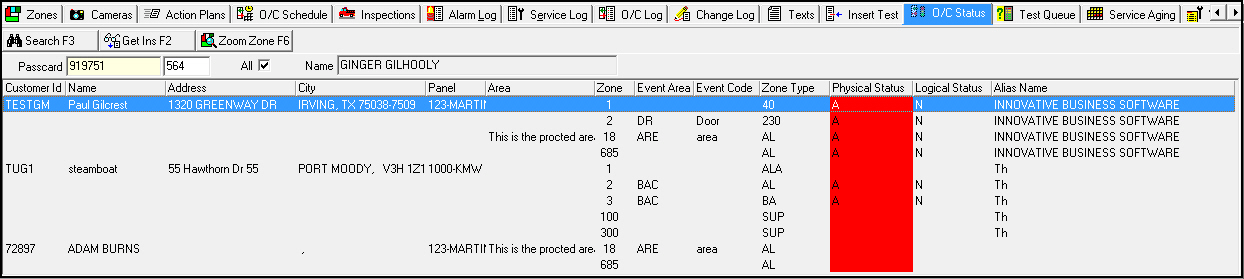
The following graphic shows the Open/Close Status tab with installation information displayed. The upper pane contains search parameters for specific passcard numbers that are attached to zones. The lower pane displays search results.
Field Descriptions
The following table describes the fields used in the search parameters pane.
|
Field |
Description |
|
Passcard |
Passcard number required to complete search. Note: If you typed the passcard number and extension in the Basic Search dialog box, the passcard number defaults into this field. |
|
Extension |
Passcard extension, if available. Note: If you typed the passcard number and extension in the Basic Search dialog box, the extension defaults into this field. |
|
All |
Select this check box to include all the zones that are attached to the installation with the passcards number specified. If you do not select this check box, SBN produces results for zones that are currently in the Alarm Queue, Test Queue, or in an Open status. |
|
Name |
Name of passcard holder. This field is read-only. |
Column Descriptions
The following table describes the columns used in the search results pane.
|
Column |
Description |
|
Customer ID |
CID number for the installation that the passcard holder is attached to. |
|
Name |
Name on the installation. |
|
Address |
Address on the installation. |
|
City |
City, state, and zip code of the installation. |
|
Panel |
Panel type associated with the CID for this zone. |
|
Area |
Protected area of the zone. (This originates from the Zones tab.) |
|
Event Area |
Area within the zone. (This originates from the Zones tab.) |
|
Event Code |
Code within the zone. (This originates from the Zones tab.) |
|
Zone Type |
Type of zone. (This originates from the Zones tab.) |
|
Physical Status |
Current status of the zone. If the zone is not in the normal status, a red highlighted bar appears in this column. The entries possible for Physical Status are: l A — Alarm l R — Restore l T — Trouble l O — Open l C — Close Note: Change the status for a zone in the Zones tab. |
|
Logical Status |
Status as interpreted by SBN. The entries possible for Logical Status are: l A — Alarm Queue l R — Restored l N — Normal l T — Test Queue |
|
Alias Name |
Displays the Alias, or AKA name, on the installation. |
Searching by Passcard Number
To get data into the Open/Close Status tab, you must search by passcard number. If you do not select the All check box, the search only produces results for zones in the Alarm Queue and Test Queue, or zones with an Open status.
Use the following steps to search by passcard number:
1. Type a passcard and an extension number in the Passcard fields.
2. To include all the zones for the installation, select the All check box.
3. Choose Search.
w SBN displays the results that match your search parameters in the lower pane of the tab.
Getting Installation Information
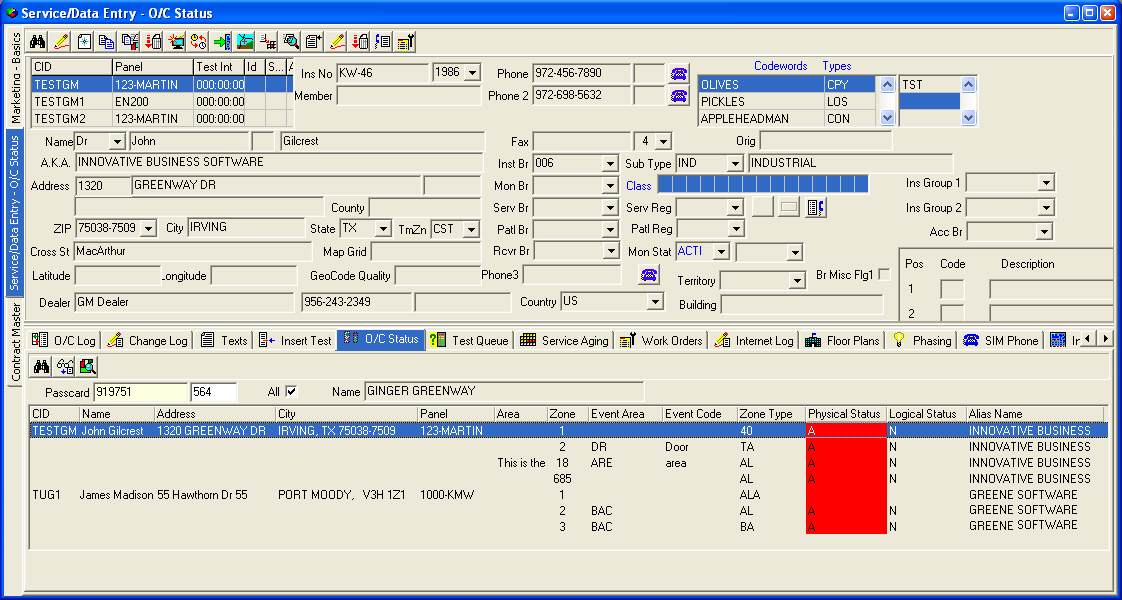
Use Get Installation from List to display installation information in Data Entry Master (program #559).
Use the following steps to retrieve installation information:
1. Select the line that you want to view.
2. Choose Get Installation from List.
w The installation information for the zone appears in Data Entry Master.
Viewing Zone Information
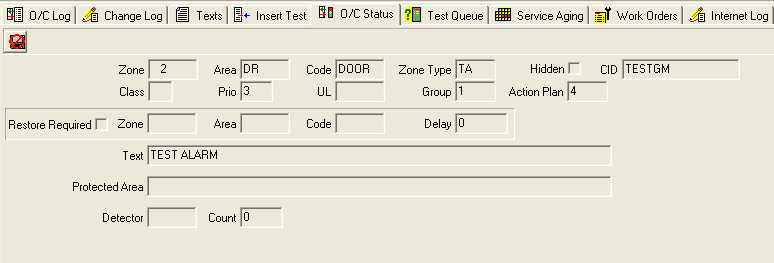
Use Get One Zone to view a read-only window with specific zone information for the zone selected.
Use the following steps to view zone information:
1. Select the line of the zone you want to view.
2. Double-click your selection or choose Get One Zone.
w The Zone Detail window appears.
3. Choose Exit.
Related Programs
The following table lists programs related to the Open/Close Status tab.
|
Program |
Number |
Document Link |
Description |
|
Open/Close Schedule |
N/A |
Set up open/close schedules that allow SBN to track open/close statuses for zones at the installation's premises. |
|
|
Data Entry Master and Basics |
559 |
The program from which you can access the Open/Close Status tab. View installation information for selected zones. |
|
|
Open/Close Log |
N/A |
Records open/close signals for installations. |
|
|
Alarm Queue |
N/A |
Receives open/close signals so that SBN can determine the Physical Status of the zone. |
|
|
Test Queue |
N/A |
When zones are in the Test Queue, it affects the Logical Status of the zone. |
|
|
Zones Tab |
N/A |
Define zones for the installation and define them as open/close zones to be tracked in the Open/Close Status tab. |
Button Functions
The following table displays the buttons, describes the shortcut keys, actions, and functionality.
|
Button |
Name |
Shortcut Key |
Action |
Description |
|
|
Search |
F3 |
559/161 |
Display search results. |
|
|
Get Installation from List |
F2 |
559/163 |
Display installation information. |
|
|
Get one Zone |
F6 |
559/162 |
View information for the zone selected. |
|
|
Exit |
Esc |
559 |
Exit without saving. |
|
|
Save |
Enter |
559 |
Save existing record. |




Modifications and Updates to O/C Status
The following table lists modifications and updates to the O/C Status document.
|
Mod Number |
Date |
Description |
|
n/a |
08/05/09 |
document rewritten |
|
n/a |
10/17/14 |
Images updated. |