
AP Open Vouchers
AP Open Vouchers
AP Open Vouchers
Program #: 1837
Module: Accounting
Overview
Use AP Open Vouchers (program #1837) to search for all open (unpaid) vouchers for
Invoices received on purchase order items
Payments to
q Agencies
q Employees
q Customers
q Standard or temporary vendors
Once checks have been processed for open vouchers, the voucher no longer appears in the Open Vouchers program, but shows up in AP Closed Vouchers (program #1839) program.
The AP Open Vouchers Window
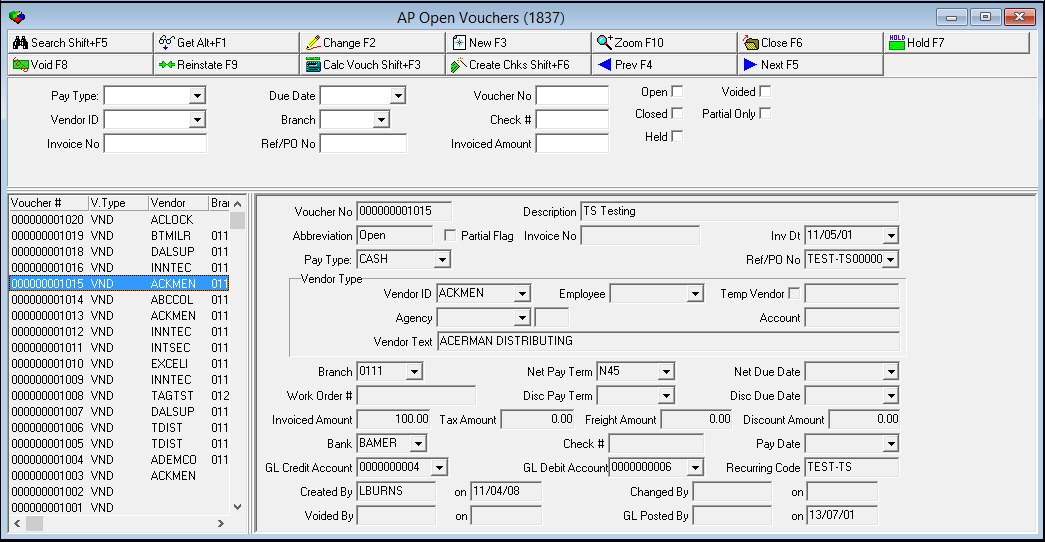
The AP Open Vouchers window contains three panes:
The upper pane contains search parameters
The left pane (the Vouchers List) displays vouchers that match your search parameters
The right pane (the Vouchers Details pane) displays details of selected vouchers
The following graphic shows the entire AP Open Vouchers window with information displayed.
Field Descriptions - Search Parameters
The following table describes the search parameters.
Field |
Description |
Pay Type |
Select a specific pay type to include in the search. (This menu originates from program #1831.) |
Due Date |
Calendar used for selecting the specific due date to include in the search. |
Voucher Number |
Specific voucher number to include in the search. |
Open |
Enter a check mark in this box to include open vouchers in the search. |
Voided |
Enter a check mark in this box to include voided vouchers in the search. |
Vendor ID |
Specific vendor ID to include in the search. |
Branch |
Specific branch to include in the search. (This menu originates from program #1530.) |
Check Number |
Specific manual check number to include in the search. |
Closed |
Enter a check mark in this box to include closed vouchers in the search. |
Partial Only |
Enter a check mark in this box to include vouchers that have been partially paid in the search. |
Invoice Number |
Specific invoice number to include in the search. |
Ref/PO Number |
Specific reference or PO number to include in the search. |
Invoiced Amount |
Specific amount invoiced by the vendor to include in the search. |
Held |
Enter a check mark in this box to include vouchers in held status in the search. |
Column Descriptions - Vouchers List
The following table describes the columns used in the Vouchers List.
Column |
Description |
Voucher Number |
SBN-assigned voucher number. |
Vendor Type |
Type of the vendor attached to the voucher. |
Vendor |
Vendor ID of the vendor attached to the voucher. |
Branch |
Branch responsible for the expense. |
Due Date |
Due date of the voucher. |
Invoice Amount |
Amount due for the voucher. |
Open |
If this column displays an x, the voucher is outside the allowed variance and is not ready to be paid. |
Closed |
If this column displays an x, the voucher is ready to be paid. |
Held |
If this column displays an x, the payment for the voucher is being withheld. |
Voided |
If this column displays an x, the current status of the voucher is void. |
Partial |
If this column displays an x, the voucher covers a partially received purchase order. |
Field Descriptions - Voucher Details
The following table describes the fields used in the Voucher Details pane.
Field |
Description |
Voucher No |
SBN-assigned voucher number. |
Description |
Text description of the voucher. |
Status |
Current system assigned status of the voucher. See Voucher Status Types. |
Partial Flag |
If this box displays a check mark, the voucher only covers a portion of the original purchase order. |
Invoice No |
Vendor invoice number. |
Inv Dt |
Date of the invoice. |
Pay Type |
Payment type for the voucher. (This menu originates from program #1831.) |
Ref/PO No |
Valid reference or purchase order numbers. Note: When selected, most fields fill with information from the purchase order or work order. |
Vendor ID |
Available vendor IDs. (This menu originates from program #1758.) |
Employee |
Employee IDs, if the payee is an employee. (This menu originates from program #1811.) |
Temp Vendor |
If this box displays a check mark, the vendor is not defined in the Vendor Master (program #1758). Note: When you enter a check mark, a window appears in which you enter vendor details. |
Agency |
Menu of all available agencies: l Fire l Medical l Patrol l Police This menu originates from four different agency programs: l Fire (program #1547) l Medical (program #1552) l Patrol (program #1717) l Police (program #1546) |
Agency Type |
This read-only field displays the agency type associated with the chosen agency. |
Account |
Customers’ account number when the customer is the payee. Note: You can search for a customer by choosing Search. |
Vendor Text |
Name or vendor description attached to the vendor ID. |
Branch |
Branch responsible for the expense. (This menu originates from program #1530.) |
Net Pay Term |
Pay terms of the invoice. Defaults to the pay term listed in the vendor master. (This menu originates from program #1529.) |
Net Due Date |
Net due date calculated based on the invoice date and the Net Pay Term. You can override this date if necessary. |
Work Order # |
Work order number attached to the purchase order, if necessary. |
Disc Pay Term |
Discount pay term from the vendor master. You can override this pay term if necessary. (This menu originates from program #1529.) |
Disc Due Date |
Calculates the discount due date based on the invoice date and the Disc Pay Term. You can override this date if necessary. |
Invoiced Amount |
Defaults to the amount totals based on the quantity received on the reference purchase order number. You can override this amount. Note: To enter credits, this field accepts negative numbers. |
Tax Amount |
Amount of tax on the invoice. |
Freight Amount |
Amount of freight billed on the invoice. |
Discount Amount |
SBN-calculated amount of discount available if paid by the Discount Due Date. Note: This field is only available for editing if option bl075 is on. |
Bank |
Bank account the payment check should be drawn from. (This menu originates from program #1736.) |
Check # |
Check number issued for payment. Note: You can only edit the check number when you enter a manual check. |
Pay Date |
Date check issued. Note: You can only edit the Pay Date when you enter a manual check. |
GL Credit Account |
Defaults to the Type 1account defined in program #1897. |
GL Debit Account |
Defaults to the GL Account selected in the purchase order or from the vendor master. (This menu originates from program #1835.) Note: You can override this number, if necessary. |
Recurring Code |
Type of recurring voucher taken from the voucher set up in AP Recurring Vouchers (program #1838). |
Created By |
ID of the user who created the voucher. |
On |
Date the voucher was created. |
Changed By |
ID of the user who changed the voucher. |
On |
Date the voucher was changed. |
Voided By |
ID of the user who voided the voucher. |
On |
Date the voucher was voided. |
GL Posted By |
ID of the user who ran the final GL export for the period. |
On |
Date the final GL export for the period was run. |
SBN-Defined Variables
The AP Open Vouchers screen uses two SBN-defined variables:
Vendor type
Voucher Status type
The following sections describe each variable.
Vendor Types
The AP Open Vouchers program uses five SBN-defined Vendor Types. These types appear in the Voucher List (the left pane) based on the information entered in the Vendor Details pane when you created a new voucher.
The following table describes the different vendor types.
Type |
Description |
ACC |
SBN assigns this vendor type when you enter a customer account number in the Account field in the Vendor Details pane. |
AGN |
SBN assigns this vendor type when you select an Agency ID from the Agency field in the Vendor Details pane. Agency IDs originate from four different programs: l Police (program #1546) l Fire (program #1547) l Medical (program #1552) l Patrol (program #1717) |
EMP |
SBN assigns this vendor type when you select an employee ID from the Employee field in the Vendor Details pane. (This menu originates from program #1811.) Note: Used for making referral and other payments to employees. |
TMP |
SBN assigns this vendor type when you enter a check mark in the Temp Vendor box in the Vendor Details pane and complete information on the temporary vendor. |
VND |
SBN assigns this vendor type when you select a vendor in the Vendor ID field in the Vendor Details pane. (This menu originates from by program #1758.) |
Voucher Status Types
The AP Open Vouchers program uses five SBN-defined voucher status types. The following table describes the different voucher status types.
Status |
Definition |
Open |
SBN automatically assigns this status to all vouchers created with the Create Recurring function. The due date on these vouchers remains blank until the user brings up the record and selects the pay term (even if a pay term already exists). SBN also assigns this status to vouchers that exceed the variance allowed by option vouchvar. SBN displays a warning that the voucher cannot be closed when this status is being applied. |
Closed |
This status indicates that the voucher is ready to be picked up by the create check function. This status automatically appears on vouchers when the invoice amount is within the variance allowed by the option vouchvar. |
Hold |
This status indicates that the payment is being held. You can manually assign this status by choosing Hold. |
Partial |
This status indicates that either l A partial payment has been made for this purchase order/reference number l The amount eligible for payment is a partial amount of the entire purchase order |
Void |
This status indicates that a voucher has been voided and you cannot process it. You can remove the void from the voucher by choosing Reinstate. |
Searching for Open Vouchers
In order to display a list of vouchers, you must first perform a search for specific open vouchers.
Use the following steps to search for open vouchers:
1. In AP Open Vouchers, select your search parameters.
Note: For more information on the search parameters, see Field Descriptions - Search Parameters.
Note: If you select no parameters, SBN searches for all open vouchers.
2. Choose Search.
w The Vouchers List displays the open vouchers that match your search parameters.
Searching for a Specific Account Number
Use the following steps to search for a specific account number to type in the Vendor Details pane:
1. In AP Open Vouchers, choose
New. 
2. Choose Search For Account.
w The Advanced Search tab opens. For more information on advanced searches, see Searches.
Common Functions in SBN
See the reference document Common Functions in SBN for more information.
Creating a Temporary Vendor
When you create a new voucher, you can set up a temporary or one-time vendor. When you save the details for the temporary vendor, SBN assigns a temporary vendor number.
Use the following steps to create a temporary vendor:
1. In AP Open Vouchers, choose New.
w The Voucher Details pane opens in New mode.
2. Enter a check mark in the Temp Vendor check box.
w The Temporary Vendor dialog box opens.
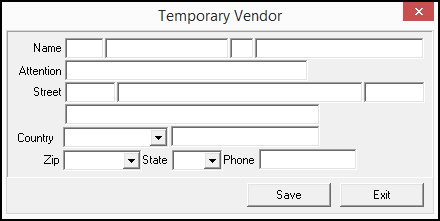
3. Enter the vendor information.
4. Choose Save.
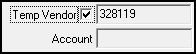
w The Temporary Vendor number appears to the right of the check box.
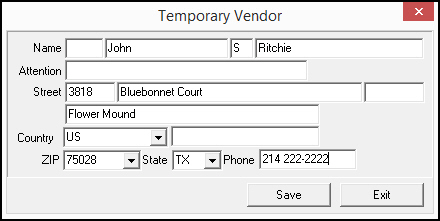
5. To view temporary vendor details after you create the vendor, choose Temporary Vendor.
w The Temporary Vendor dialog box opens with the information displayed.
Viewing Details of a Purchase Order
You can jump to the purchase order attached to a voucher by choosing Get Purchase Order.
Entering a Manual Check
When you create or change a voucher, you can enter a manual check payment.
Use the following steps to enter a manual check:
1. In AP Open Vouchers, choose New Record or Change Record.
2. Choose Man Check.
w The Check # and Pay Date fields open for entering the check information.

3. Type the check number and select the check pay date.
4. Choose Save Existing Record.
Viewing Duplicate Vouchers
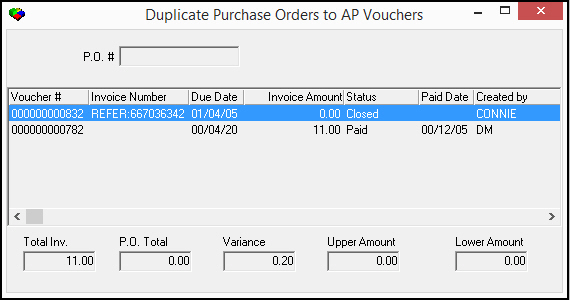
Use the New or Change mode to view duplicate vouchers with the same purchase order number. This screen displays information of other or previous vouchers that shared the same purchase order number.
Use the following steps to view duplicate vouchers:
1. In AP Open Vouchers, choose New Record or Change Record.
2. In the Voucher Details pane, select a purchase order.
3. Choose Duplicate Voucher.
w The Duplicate Purchse Orders to AP Vouchers dialog box opens.
4. Click the X in the upper right-hand corner to close the window.
Field/Column Descriptions
The following table describes the fields and columns used in the Duplicate Voucher dialog box.
Field/Column |
Description |
P.O. # |
Purchase Order number that the vouchers have in common. |
Voucher # |
SBN-assigned voucher number. |
Invoice Number |
Vendor invoice number. |
Due Date |
Invoice due date. |
Invoice Amount |
Total amount on vendor invoice. |
Status |
Voucher status. |
Paid Date |
Date the voucher was paid. |
Created By |
User name of person who created the voucher. |
Total Inv. |
Displays the total invoice amount for the duplicate vouchers listed. Note: This total does not include the current selected voucher. |
P.O. Total |
Total amount for the selected purchase order. |
Variance |
Allowable purchase order variance percentage, as defined by option vouchvar. |
Upper Amount |
Maximum allowable total payment for the combined invoices. Note: If the total exceeds this number, you can not close the voucher. |
Lower Amount |
Minimum allowable payment for the combined invoices. Note: If the total is less than this number, you can not close the voucher. |
Zooming into the Sublevel
The sublevel of the AP Open Vouchers screen contains two tabs:
GL Accounts
Change Log
Use these two tabs to view additional details for the selected voucher and to add GL Account information.
For more information on zooming into the sublevel, see Common Functions in SBN.
The GL Account Tab
For each voucher, you can add GL Account numbers in the sublevel to distribute costs to different GL account numbers.
Use the following steps to add GL Account Numbers:
1. In AP Open Vouchers, select your search parameters.
2. Choose Search.
3. From the search results, select the voucher to which you want to add GL Account numbers.
4. Choose Zoom in/out of Sublevel.
w The sublevel tabs open below the main window.
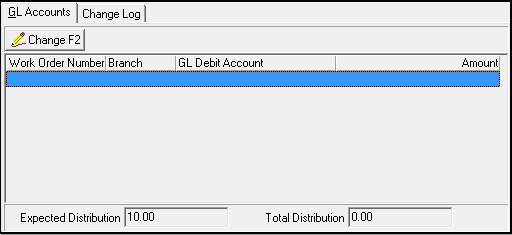
5. Choose Change Record.
w The GL Accounts tab opens.
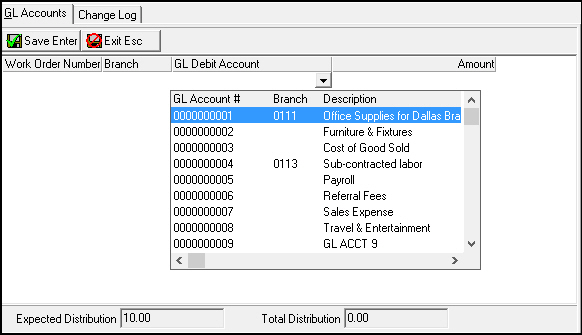
6. Select the information related to this voucher:
l Work Order
l Branch
l GL Debit Account
l The amount of the voucher to assign to this account
7. Distribute all amounts so that the Total Distribution matches the Expected Distribution.
8. Choose Save.
The Change Log Tab
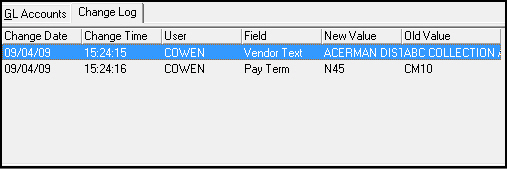
The Change Log tab displays all information that has been changed for the selected voucher.
The following graphic shows the Change Log tab with information displayed.
Closing a Voucher
After you enter information for a particular voucher and it is ready to pay, you must close the voucher.
Use the following steps to close a voucher:
1. In AP Open Vouchers, select your search parameters.
2. Choose Search.
3. From the search results, select the voucher you want to close.
4. Choose Close.
w If SBN allows you to close the voucher, the Close flag appears in the Voucher List.
w If the voucher contains a greater variance than allowed, SBN warns that the variance has been exceeded.
Note: If SBN does not allow you to close a voucher, change amounts or other information in order to meet the close requirements.
Holding a Voucher
When you place a voucher on hold, it cannot be paid.
Use the following steps to hold a voucher:
1. In AP Open Vouchers, select your search parameters.
2. Choose Search.
3. From the search results, select the voucher you want to hold.
4. Choose Hold.
w SBN places a hold on the selected voucher.
Use the following steps to remove a hold from a voucher:
1. In AP Open Vouchers, select your search parameters.
2. Choose Search.
3. From the search results, select the voucher from which you want to remove a hold.
4. Choose Close.
w SBN removes the hold from the selected voucher.
Voiding a Voucher
You can void a voucher so that it cannot be closed and paid.
Use the following steps to void a voucher:
1. In AP Open Vouchers, select your search parameters.
2. Choose Search.
3. From the search results, select the voucher you want to void.
4. Choose Void.
w The void flag now appears in the Voucher List, and the User ID and date now appear in the Voucher Details.
Reinstating a Voucher
You can reinstate a voided voucher so that it can be closed and paid.
Use the following steps to reinstate a voucher:
1. In AP Open Vouchers, select your search parameters.
2. Choose Search.
3. From the search results, select the voucher you want to reinstate.
4. Choose Reinstate.
w If SBN allows you to close the voucher, SBN places the voucher in Closed status.
w If the voucher is out of variance:
SBN displays a warning message.
SBN reinstates the voucher and places the voucher in Open status.
SBN removes the following information from the voucher: Void Flag, Void User ID, Date.
Calculating Vouchers
Use the Calculate Voucher function to run Recurring Vouchers for a specific date. This function creates new vouchers for the recurring vouchers contained in AP Recurring Vouchers (program #1838). To calculate vouchers, choose Calculate Voucher.
Creating Checks for Vouchers
Use AP Open Vouchers to calculate and create check batches for closed vouchers. Once you have created checks, you can view them in the AP Check Register (program #1836) and the AP Check Batch Manager (program #1857).
Use the following steps to calculate checks:
1. In AP Open Vouchers, choose Create Chks.
w The Create Checks dialog box opens.
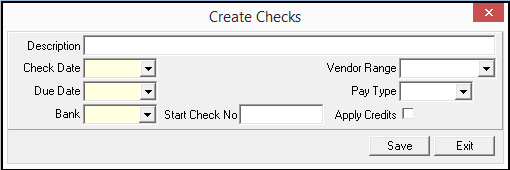
2. Complete the following fields:
l In Description - type text description for the check batch.
l In Check Date - select the date to print on the checks.
l In Vendor Range - to create checks for one vender, select a specific vendor.
l In Due Date - select the maximum voucher due date to include in the check batch.
l In Pay Type - to create checks for one pay type, select a specific pay type.
l In Bank - select the bank from which the created checks are drawn.
l In Start Check No - type the next available open check number on which the batch starts.
l In Apply Credits - enter a check mark if SBN should apply credits before calculating the final amount of the check.
3. Choose Save.
w The Create Checks window opens and shows the check run process.
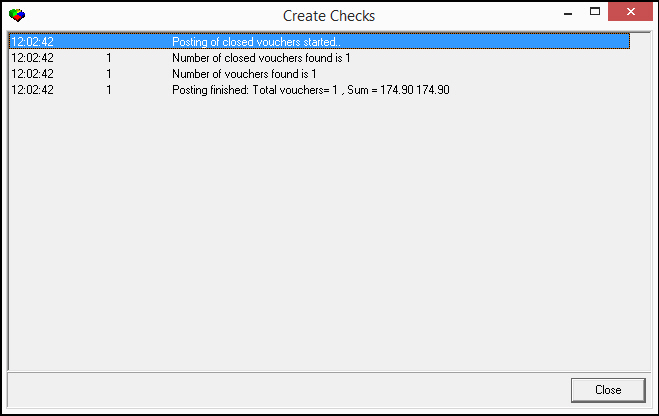
4. Choose Close.
w The checks now appear in the AP Check Register (program #1836).
Button Functions
The following table displays the buttons, describes the shortcut keys, actions, and functionality.
Button |
Name |
Shortcut Key |
Action |
Description |
|
Search |
shift+f5 |
1837/ 7 |
Search for open vouchers. |
|
Get Record |
alt+f1 |
1837/ 1 |
View details of selected record. |
|
Change Record |
f2 |
1837/ 2 |
Change selected record. |
|
New record |
f3 |
1837/ 3 |
Create new voucher. |
|
Zoom in/out of sublevel |
f10 |
1837/16 |
Access GL Accounts tab and Change Log tab. |
|
Close |
f6 |
1837/ 8 |
Close selected voucher. |
|
Hold |
f7 |
1837/ 9 |
Place selected voucher on hold. |
|
Void Check |
f8 |
1837/10 |
Void selected voucher. |
|
Reinstate |
f9 |
1837/11 |
Reinstate voided voucher. |
|
Calculate Voucher |
shift+f3 |
1837/12 |
Run recurring vouchers. |
|
Create Chks |
shift+f6 |
1837/14 |
Calculate and create check batches for closed vouchers. |
|
Previous Record |
f4 |
||
|
Next Record |
f5 |
||
|
Get Purchase Order |
f2 |
Jump to the purchase order attached to a voucher. |
|
|
Temporary Vendor |
f3 |
1837/15 |
Create temporary vendor. |
|
Man Check |
f6 |
Enter a manual check payment. |
|
|
Duplicate Voucher |
f8 |
View duplicate vouchers with the same purchase order number. |
|
|
Exit without saving |
ESC |
Exit without saving changes. |
|
|
Save New Record |
ENTER |
Save existing changes to record. |


















Modifications and Updates to AP Open Vouchers
The following table lists modifications and updates to the AP Open Vouchers document.
Mod Number |
Date |
Description |
n/a |
7/31/14 |
Images updated. |