
Price List Groups
Module: System Administration
Overview
Use Price List Groups (program #1771) to define price groups available in Contract Master and in Work Orders. The price list group determines the list price for all items attached to a work order.
To access this program, select Price List Groups (program #1771) from the main menu of SBN.
The Price List Groups Window
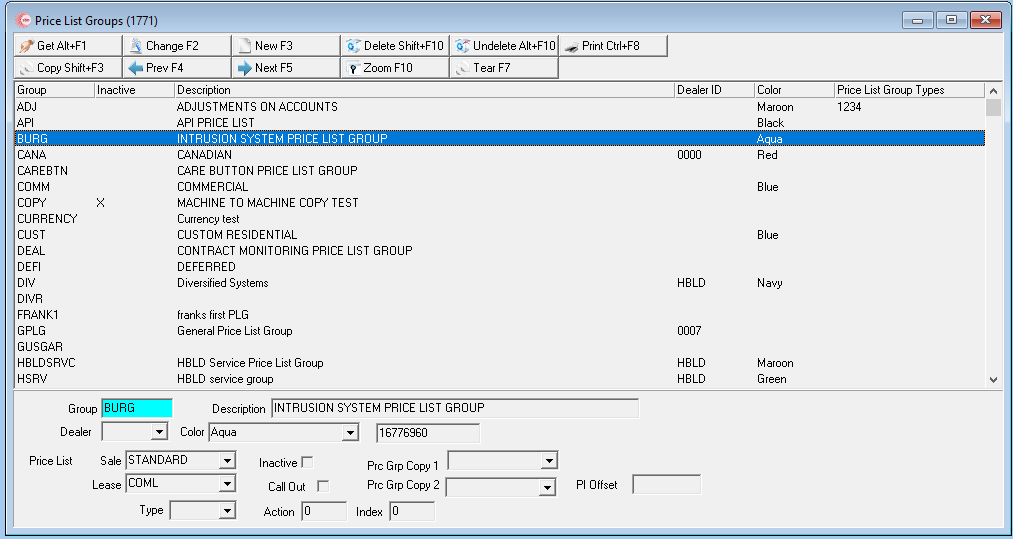
The following graphic shows Price List Groups as the program opens. The upper pane displays previously defined price list groups.
Field/Column Descriptions
The following table describes the fields and columns used in Price List Groups.
Field/Column |
Description |
Group |
Code that identifies the selected price list group. |
Description |
Text description of the selected price list group. |
Dealer ID |
ID of the dealer to associate with the selected price list group. Note: When you associate a dealer ID with a price list group, SBN restricts menus of price lists to: l Those associated with the same dealer ID as the price list group l Those price lists not associated with a dealer ID |
Color |
You may select a color for the price list group. Note: In this program, the background of the price list group appears in the selected color. In other programs, the text of the price list group appears in the selected color. |
RGB
Number |
When you select a color, this field defaults with the associated RGB number of that color. |
Subscriber Type |
Subscriber type to associate with the price list group. (This menu originates from program #1534.) When defined the price list group is limited by installation subtype. |
Price List |
|
Sale |
Price list defined for sales items for the selected price list group. (This menu originates from program #1533). |
Prc Grp |
If your company uses Partner Invoicing, you may select the price list that Partner Invoicing uses for sales items. Note: The price list assigned to the selected subscriber type appears in this field. If there is not a price list assigned to the subscriber type, this field is blank. |
Lease |
Price list defined for lease items for the selected price list group. (This menu originates from program #1533). |
Prc Grp |
If your company uses Partner Invoicing, you may select the price list that Partner Invoicing uses for lease items. Note: The price list assigned to the selected subscriber type appears in this field. If there is not a price list assigned to the subscriber type, this field is blank. |
Inactive |
Enter a check mark in this field to exclude the selected price list group from menus of Price List Groups. |
Call Out |
Enter a check mark in this field to l Include the selected price list group in the Call Out Log Quality Control window l Use the selected price list group for the Patrol Ticket work order |
PI Offset |
Partner Invoicing feature. This indicates the number of days that a work order transaction date should be offset on the customer's work order. |
Action |
Restrict or allow users to access a specific price list by assigning an action. |
Index |
The index action being used. |
Zooming into the Sublevel
The Price List Groups window contains a sublevel that has two tabs for additional information for each group:
The GL Type tab
The Subscriber Tab
To access the sublevel tabs, choose Zoom in the Price List Groups toolbar.
The GL Type Tab
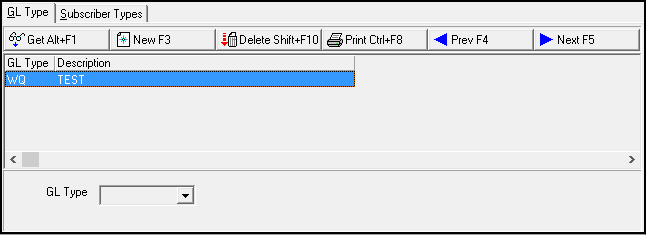
The GL Type tab allows you to attach a global ledger to the selected price list group. The following graphic shows the GL Type tab with information displayed.
The Subscriber Types Tab
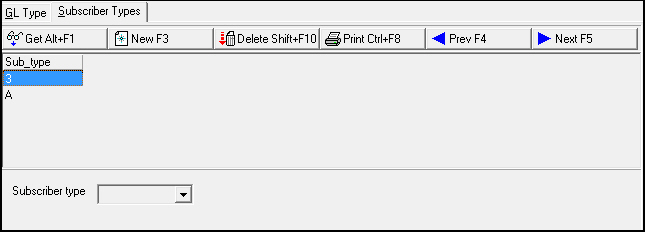
The Subscriber Types tab allows you to define a subscriber type for the selected price list group. If you define a subscriber type for a price list group, the group is only available for contracts and work orders in Contract Master (program #548) that have matching subscriber types. If you do not define a subscriber type, the price list group is available for any contract or work order in Contract Master (program #548).
The following graphic shows the Subscriber Types tab with information displayed.
Use the following steps to define the subscriber type:
1. Select the price list group from the main Price List Groups window to which you want to attach a subscriber type.
2. Choose Zoom.
w The Price List Groups sublevel appears.
3. Select the Subscriber Types tab.
4. Choose New.
w The Subscriber Type field opens for changes.
5. Select a subscriber type from the drop-down menu.
6. Choose Save.
Note: You may define up to 10 subscriber types for a price list group.
Using Common Functions
See the reference document Common Functions in SBN for more information.
Button Functions
The following table displays the buttons, describes the shortcut keys, actions, and functionality.
Button |
Name |
Shortcut Key |
Action |
Description |
|
Get |
ALT+F1 |
1771/ 1 |
Get record. |
|
Change |
F2 |
1771/ 2 |
Change selected record. |
|
New |
F3 |
1771/ 3 |
Create new record. |
|
Delete |
SHIFT+F10 |
1771/ 4 |
Delete selected record. |
|
Undelete |
ALT+F10 |
1771/ 5 |
Restore deleted record. |
|
CTRL+F8 |
1771/ 6 |
Print selected records. |
|
|
Copy |
SHIFT+F3 |
1771/ 999 |
Copy selected agency. |
|
Zoom |
F10 |
1771/ 999 |
Zoom in/out of sublevel. |
|
Tear |
F7 |
1771/ 999 |
Lists details of selected field. |
|
Previous |
F4 |
1771/ 999 |
Select last record. |
|
Next |
F5 |
1771/ 999 |
Select next record. |











Group Type Field Width
The price-list group type field accepts its full width in program 1690.
Modifications and Updates to Price List Groups
The following table lists modifications and updates to the Price List Groups document.
Mod Number |
Date |
Description |
n/a |
08/22/14 |
Images updated. |
07.92.26654, 08.92.11988, 07.93.26668, 08.93.11990 |
09/21/21 |
New Action and Index fields added. Images updated. |