
Report Default Parameters
Report Default Parameters
Report Default Parameters
Program #: 1561
Module: System Administration
Overview
This chapter provides information on setting up and printing reports in SBN. In order for SBN to print reports correctly you must
-
Install Report Services
-
Set a print directory in each terminal
-
Set up report parameters in four system administration programs:
q Report Default Parameters (program #1561)
q Report Priorities (program #1509)
q Printer Profile Updates (program #1559)
q Report Messages (program #1766)
-
Define the report parameters in the individual report (see Report Parameters Pane)
-
Use the Report Queue
Report Default Parameters
Use Report Default Parameters (program #1561) to create and change printer properties by report type. When you create a new report, SBN implements default parameters. This program allows the system administrator to make changes to these defaults.
To access this program, select Report Default Parameters Setup (program #1561) from the main menu of SBN.
The Report Default Parameters Window
The following graphic shows Report Default Parameters as the program opens.
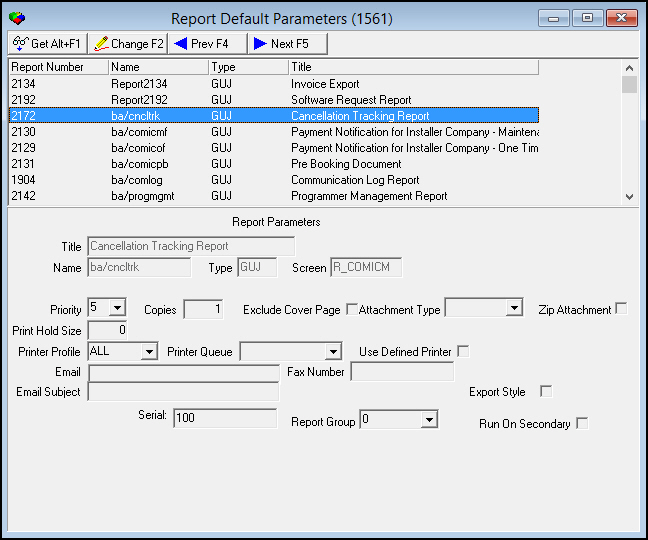
Field/Column Descriptions
The following table describes the fields and columns in Report Default Parameters.
|
Field/Column |
Description |
|
Title |
Displays the title of the report. This is a read-only field. |
|
Name |
Displays the internal name of the report. This is a read-only field. |
|
Type |
Displays the system type of report: l JRW = JAM Only l GUJ = GUI and JAM l GUI = GUI only This is a read-only field. |
|
Screen |
Displays the internal name of the screen from which the report is run. This is a read-only field. |
|
Priority |
You may select the default priority of the report. The priority controls when SBN can run the report. (This menu originates from program #1509.) |
|
Copies |
You may select a default number of copies to print. |
|
Exclude Cover Page |
Enter a check mark in this field to set the default of the report to exclude a cover page from the printed report. O Only printed reports may contain a cover page. |
|
Attachment Type |
Select the default format to which SBN converts the report when it exports the email: l HTML l JPEG l PDF l RTF l JPG l TXT l WMF l XHTML l XLS O If you leave this field blank, the report scheduler uses the PDF format as the default. |
|
Zip Attachment |
Enter a check mark in this box to set the default of the report to zip the report attachment. |
|
Print Hold Size |
Type the maximum number of pages to print automatically. If the number of report pages exceeds the hold size, SBN l Holds the report in the Report Queue l Does not print the report l Does not migrate the report to the Done Queue O SBN holds a report with a hold size of 0 in the Report Queue and does not print the report. O SBN only emails or faxes reports l Defined with a hold size > 0 l With a print size that is less than or equal to the hold size |
|
Printer Profile |
Select the default printer profile to attach to the report. (This menu originates from program #1559.) |
|
Printer Queue |
Select the default printer queue that SBN uses to run the report. (This menu originates from program #1559.) O The menu displays only those printers flagged as In Use in program #1559 for the selected printer profile. |
|
Use Defined Printer |
Enter a check mark in this box to use the default printer defined in the Reports tab of the Options window. Note: If you have no report defined in the Reports tab, this field appears grayed out. You must then select the printer to use from Printer Queue. Note: When this box displays a check mark, SBN uses the defined printer regardless of the printer selected from the Printer Queue menu. |
|
|
You may select an email address to use as the default to which SBN emails the report. O If the report equals 0 pages, excluding cover page, the email states: �No Data Received.� O SBN only emails or faxes reports l Defined with a hold size > 0 l With a print size that is less than or equal to the hold size |
|
Fax Number |
You may type a fax number to use as the default to which SBN faxes the report. O If the report equals 0 pages, excluding cover page, the fax states: �No Data Received.� O SBN only emails or faxes reports l Defined with a hold size > 0 l With a print size that is less than or equal to the hold size |
|
Email Subject |
You may type a subject that defaults into the subject line of the report. |
|
Serial |
Type a number that indicates which SBN report service runs the report. (1, 2, 3, and so on.) You may set up a high output report to run on one instance of the report service and let other reports run on another report service. |
|
Export Style |
This read-only check box indicates that the selected report contains a Run In Export Mode check box that a user may select. In Export mode, SBN generates the report as a text file in the report directory. Note: Only IBS can make changes to this check box. |
|
Report Group |
Select a report group for the report that determines the number of reports that can be run simultaneously. This field defaults to Group 0. (This menu originates from program #1587.) |
|
Run on Secondary |
Select this check box to make the selected report run on the secondary report server. |
Using Common Functions
See the reference document Common Functions in SBN for more information.
Changing the Default Parameters of a Report
Use the following steps to change the default parameters of a report:
1. In Report Default Parameters, select the report for which you want to change the default parameters.
2. Double-click your selection or choose Get Record.
‰ The fields in the lower pane of the window fill with the default parameters of the selected report.
3. Choose Change Record.
‰ The fields in the lower pane of the window fill with the default parameters of the selected report but open for changes.
4. Enter changes, as needed.
Note: If you select a different printer profile, before you can change additional fields you must
-
Choose Save.
-
Choose Change Record again.
-
Finish entering changes.
5. Choose Save.
Button Functions
The following table displays the buttons, describes the shortcut keys, actions, and functionality.
|
Button |
Name |
Shortcut Key |
Action |
Description |
|
|
Get |
ALT+F1 |
1561/ 1 |
Get record. |
|
|
Change |
F2 |
1561/ 2 |
Change selected record. |
|
|
Previous |
F4 |
1561/ 999 |
Select last record. |
|
|
Next |
F5 |
1561/ 999 |
Select next record. |




Modifications and Updates to Report Default Parameters
The following table lists modifications and updates to the Report Default Parameters document.
|
Mod Number |
Date |
Description |
|
n/a |
8/20/14 |
Images updated. |