
Run Away System
Run Away System
Run Away System
Module: System Administration
Overview
Use Run Away System (program #566) to search for installations with X or more signals within a specific period.
To access this program, select Run Away System (program #566) from the main menu of SBN.
The Run Away System Window
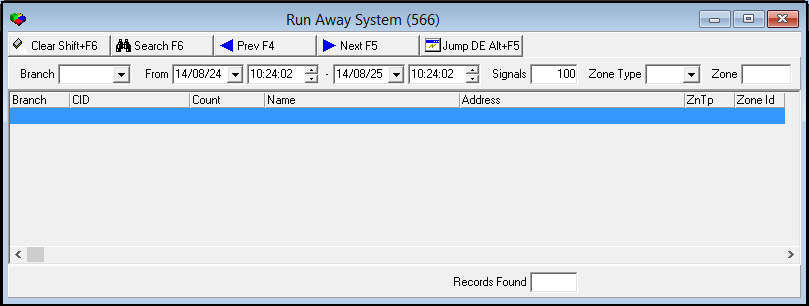
The following graphic displays Run Away System as the program opens.
Field/Column Descriptions
The following table describes the fields and columns used in Run Away System.
|
Field/Column |
Description |
|
Branch |
You can search for signals associated with a specific branch. (This menu originates from program #1530.) O If you use a % wildcard or leave this field blank, SBN reports signals from all branches. |
|
Period Range |
|
|
Date - From |
Select a beginning date for which you want to search for signals. O SBN defaults the search to the previous 24 hours. O Searching for periods beyond the default 24 hours processes slowly and could negatively impact SBN. |
|
Time - To |
Select a beginning time for which you want to search for signals. O SBN defaults the search to the previous 24 hours. |
|
Date - To |
Select an ending date for which you want to search for signals. O SBN defaults the search to the previous 24 hours. O Searching for periods beyond the default 24 hours processes slowly and could negatively impact SBN. |
|
Time - To |
Select an ending time for which you want to search for signals. O SBN defaults the search to the previous 24 hours. |
|
Signals |
Type the fewest number of signals for SBN to display. O If you leave this field blank, SBN enters a count of 1. |
|
Zone Type |
You may either select a zone type to narrow your search for runaway signals or use the % wildcard to include all zone types. (This menu originates from program #1733.) O If you leave this field blank, SBN enters the % wildcard and includes all zone types in the search. |
|
Zone ID |
You may type a zone ID or a partial zone ID with the % wildcard to narrow your search for runaway signals. |
|
Branch |
Identifies the branch associated with the signal. |
|
CID |
ID of the installation associated with the signal. |
|
Count |
The number of signals received for this installation during the search period. |
|
Name |
Name of the installation associated with the signal. |
|
Address |
Address of the installation associated with the signal. |
|
Zone Type |
Identifies the zone type associated with the signal. |
|
Zone ID |
Identifies the zone ID associated with the signal. |
|
Records Found |
Total number of signals that match the search parameters. |
Searching for Run Away System Signals
Use the following steps to search for run away system signals:
1. In Run Away System, select your search parameters.
2. Choose Search.
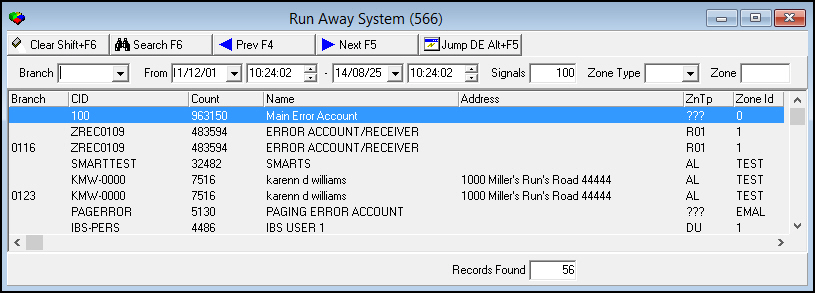
‰ SBN displays all signals that match the search parameters.
3. To perform another search, choose Clear Search Screen.
4. Repeat steps 1-2.
Navigating through the Search Results
Use the following steps to navigate through the search results:
-
Choose Next Record to move forward through the search results.
-
Choose Previous Record to move backward through the search results.
Jumping to Customer Service/Alarm Log
Use the following steps to jump to Customer Service/Alarm Log from Run Away Systems:
1. From the search results in Run Away System, select the signal for which you want to view the alarm log.
2. Choose Open Data Entry/Customer Service.
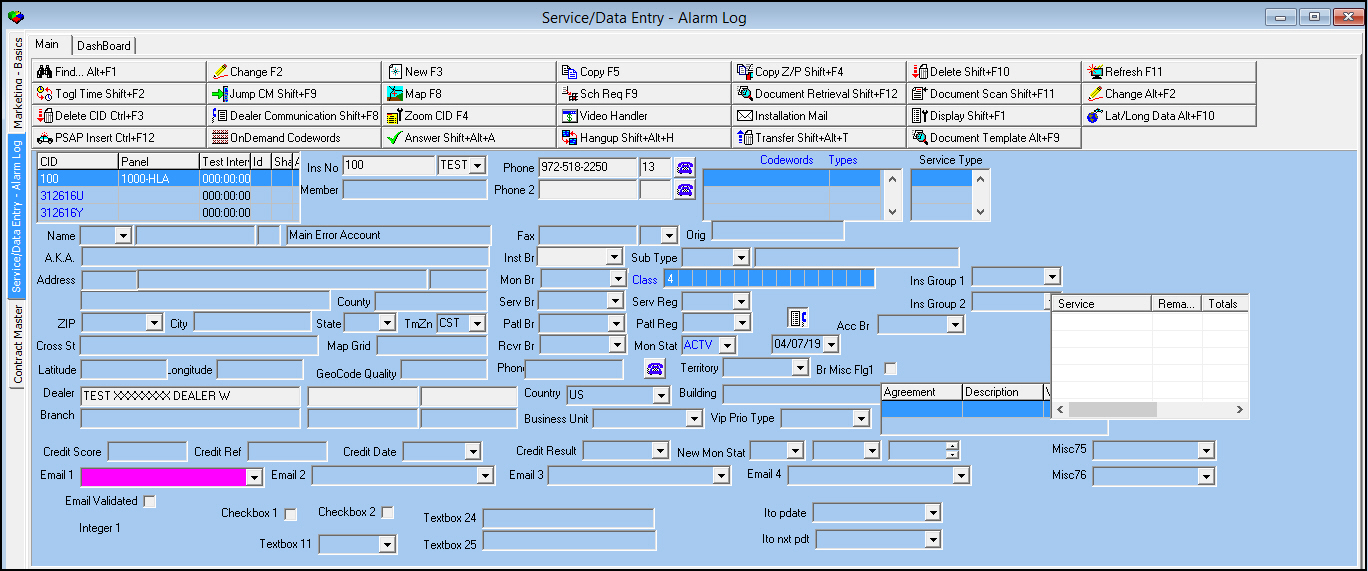
‰ SBN opens the Data Entry/Alarm Log tab for the selected CID.
Modifications and Updates to Run Away System
The following table lists modifications and updates to the Run Away System document.
|
Mod Number |
Date |
Description |
|
n/a |
8/25/14 |
Images updated. |