
Signal Injection Translation
Signal Injection Translation
Signal Injection Translation
Module: System Administration
Overview
This document describes, in detail, how Signal Injection interprets complex data payloads into an SBN Signal. This feature is available as early as release 92.
Signal Injection is appropriate when a third-party system (i.e., motion camera, fall pendant) sends data in a format that does not conform to traditional receiver protocols. Signal Injection is not a replacement of the SBN Concentrator; It is a means to consume signals in formats such as JSON, XML, or within a URL Query String.
Signal Injection encompasses two main processes.
Using APIEngine’s Signal Injection routes to convert a complex payload into a basic key/value pair. The key/value pair is saved in the standard Immediate Queue table(s).
Using SBN’s Signal Injection Translation (program 1685) to build a translation schema for the above key/value pair. Algen uses this schema when processing the above Immediate Queue record.
Getting Started
Verify APIEngine release 08.92.1.1 or greater is running and directed to the same data server as SBN. The easiest way is to open APIEngine in a browser and check the following:
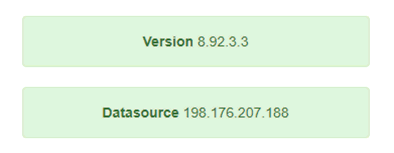
Verify APIEngine is accessible from SBN. Check option api_eng to ensure this is pointed to the same URL as item #1.
In release 92 you will know APIEngine is successful when using the Test form in 1685. The Test form is explained later in this document.
APIEngine Signal Injection Translations
Two routes in APIEngine administer Signal Injection.
Neither route requires authentication.
Both accept verbs GET, POST, PUT.
Both accept JSON, XML, or query string. Query string is only used if the request body is blank.
Use the Content-Type header to specify if body is JSON or XML.
For the purposes of Signal Injection Translation a key/value pair follows the following format: <key>value
Values of null, undefined, or none are converted to blank.
Array elements are skipped entirely.
Data element keys are converted to lowercase. This reduces data-entry case issues and helps to ensure translation matching. Data element values are left in their original case.
/v1/signal/parse
Used to translate a payload into key/value pairs. Parsed data is returned to the caller for inspection. Since this does not inject into the immediate queue of the Translation tables, and by extension a receiver name, is not used.
/v1/signal/inject/{receiver?}
Used to inject a payload’s key/value pairs into SBN’s immediate queue for processing by Algen. Parsed data is returned to the caller for inspection.
{receiver?} at the end of the route is optional, but strongly encouraged, and serves as the receiver name. The receiver name is later used to find the relevant translation records (discussed in detail in the next section). If no receiver is included then the inbound IP address is used as the receiver name.
For example, route /v1/signal/inject/MY_CAMERA uses MY_CAMERA as the receiver.
Note: APIEngine logs the IP address of all requests. If you are having issues matching the receiver then look at the APIEngine logs to determine the inbound IP address.
Signal Injection Translation (1685)
Most, if not all, of your work and testing can be done through SBN’s program 1685.
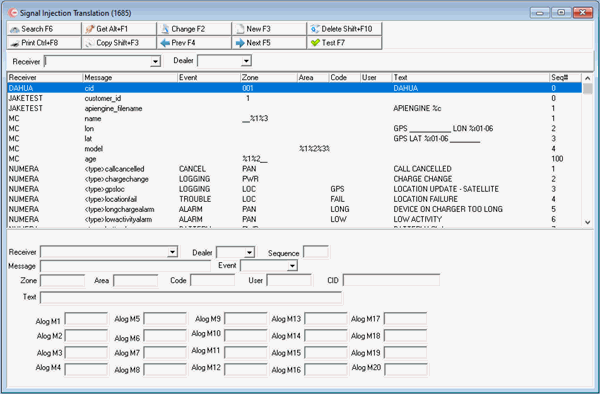
The following graphic shows the Signal Injection Translation. The window contains three panes:
The upper pane contains fields to use to select search parameters.
The middle pane displays a grid of defined translation lines.
The lower pane contains fields for viewing, changing, or creating signal injection translations.
Field/Column Descriptions
The following table describes the fields and columns used in Signal Injection Translation.
Field/Column |
Description |
Receiver |
Search by receiver type. |
Dealer |
Search by dealer type. |
Receiver |
Identifies the receiver type. |
Dealer |
Select dealer from dropdown for dealer-specific alarm translations. |
Message |
Mask that is compared with the message sent from the a signal injection payload. Example: <type>batterylow where <type> is the key and batterylow is the value |
Event |
Event type to report for this translation.
|
Zone |
May be one or any combination of four values:
Hexadecimal representation of the underscored values (%h) Example 1: %3%4 indicates that the zone numbers appear in the third and fourth positions of the message string. Example 2: 001 is a fixed value. Example 3: 0%1%2 indicates a leading zero on the values in position 1 and 2 of the message string. Example 4: %d converts a hexadecimal C into a zone 12 (decimal). |
Area |
May be one or a combination of two values:
|
Code |
May be one or a combination of two values:
|
User |
May be one or a combination of two values:
|
CID |
Translates alarms to specific CID or prefixes associated with CID's. |
Text |
May be one or a combination of three values:
|
Alog M1 - Alog M20 |
Customer-defined subsection displayed in Alarm Log tab in Data Entry (program #559). Extracts and displays alarm log messages customized by the monitoring company. |
Using Common Functions
See the reference document Common Functions in SBN for more information.
Searching for Signal Injection Translations
In most cases you will want to focus your attention on a set of rows for a particular Receiver and Dealer.
You may search for defined signal translations by:
Receiver
Dealer
Use the following steps to search for an alarm translation:
1. In the upper pane of Signal Injection Translations, select your search parameters.
2. Choose Search.
‰ In the middle pane of the window, SBN displays the results that match your search parameters.
Adding Signal Injection Translations
Use one of the following methods to add signal injection translations:
Add a completely new translation.
Copy an existing translation as a template for a new alarm translation.
Creating a New Record
When you choose New Record complete the following fields:
In Receiver - choose a receiver from the menu. You may type a receiver type not in the menu.
In Message - type a mask that defines how Alarm Translations interprets the Concentrator message following the protocol definition.
In Event - select an event type from the menu to report for this translation.
In Zone - type a position number(s) to identify where the zone number appears in the message string, preceded by a percent sign (%).
In Area - type a position number(s) to identify where the zone area appears in the message string, preceded by a percent sign (%).
In Code - type a position number(s) to identify where the zone code appears in the message string, preceded by a percent sign (%).
In User - type a position number(s) to identify where the user number appears in the message string, preceded by a percent sign (%).
In Text - type a position number(s) to identify where the text appears in the message string, preceded by a percent sign (%).
Copying a Current Record
When you choose Copy Current Record, any fields already filled out from the selected record will have the same information populated in its fields. Change the fields as you see fit and select “Save�
HELPFUL HINT: COPYING A CURRENT RECORD
It is often useful to use the Copy Current Record button when you have multiple Translations that only change slightly to save time on data entry, and help ensure less errors occur from mistyping. A <key>value is a good example. In the below image, you can see there are several translations defined as <signaltype>value where the value changes each time. Other fields that may change include the Event, Zone, or Text.
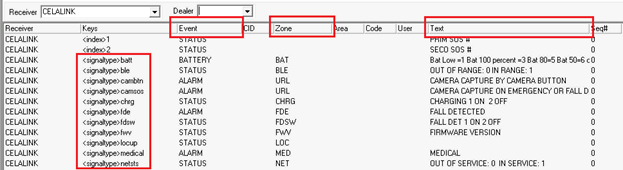
Note: Users can not define two of the same Key types in the Message field. SBN will present an error “Already Exists!�
Defining Receiver
In our example we assumed a direct match to receiver MY_CAMERA. It is legal, to use wildcards in your definitions to capture a wider selection of inbound signals.
1685 Receiver |
Match |
MY_CAMERA% |
Matches all signals that start with MY_CAMERA. |
%MY_CAMERA% |
Matches all signals that contain MY_CAMERA anywhere in the receiver string. |
10.100% |
Matches all signals that start with 10.100. Good when you know a range of signals will come across controlled IP addresses. |
Determining the EVENT
It takes many rows to build an alarm translation for one inbound payload: with each row containing directions for a single data element. In addition, not every row may be used for any given payload. This leads to determining an EVENT by using one or multiple rows.
Signal Injection Translation uses a three-tiered process to determine the inbound payload EVENT. These are listed in order of precedence.
Direct Match
Look at the original payload to determine if there is a data element with a specific value that identifies your payload as, for example, an ALARM or LOGGING.
{
“customer_id�:�12345�,
“call_type�:�Alarm�
}
In this payload we may be able to determine that if key “call_type� equals “alarm� then we want to send the payload as event ALARM. Create an entry with this tag in the Message field and set Event to ALARM.

{
“customer_id�:�12345�,
“call_type�:�Video�
}
In this payload we might determine that the event is log only. Create an entry with this tag in the Message field to set Event to LOGGING.

It is valid to have both of the above entries exist at the same time for the same receiver because we are looking for a specific value in a specific string.

First Defined
If there is no Direct Match then Signal Injection Translation will use the first Event defined amongst all of the matched records. This comparison is always top-down per the inbound payload.
ALARM By Default
If there is no Direct Match or First Defined then the signal is generated as an ALARM.
Signal Injection Translation Testing
Press the TEST button in program #1685 to open the Signal Injection Translation Test form.
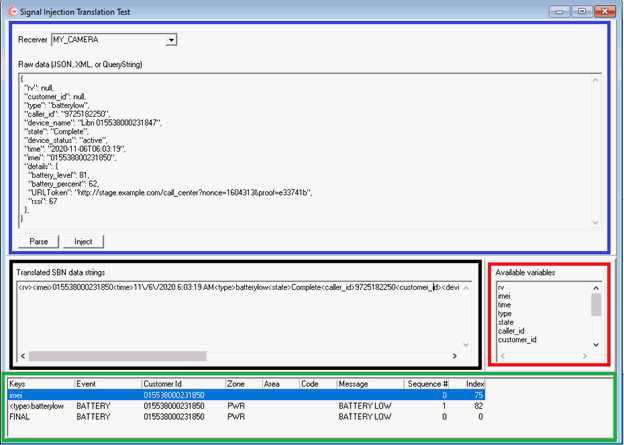
Blue Section
Use this section to setup a payload. First, select a receiver. Next, specify a payload. SBN does not allow you to type a double-quote so it is best to paste the raw JSON, XML, or QueryString directly into the field.
Press Parse to translate the payload into key/value pairs.
Press Inject to first parse, and then inject into the immediate queue.
Black Section
The translated key/value pair data.
Red Section
Lists all keys found within the translated key/value pair. Use these values for translation records in program 1685.
Green Section
Provides the final translation.
Translation Example 1
In this example only the red data elements are used in the translation.
{
"rv": null,
"customer_id": null,
"zone": "003",
"caller_id": "9725182250",
"device_name": "Libri 015538000231847",
"state": "Complete",
"device_status": "active",
"time": "2020-11-06T06:03:19",
"imei": "015538000231850",
"details": {
"battery_level": 81,
"battery_percent": 62,
"URLToken": "http://stage.example.com/call_center?nonce=1604313&proof=e33741b",
"rssi": 67
},
}
Assume the above payload was processed through APIEngine using route /v1/signal/inject/MY_CAMERA. Refer to the APIEngine section of this document on how to specify a receiver name for inbound payloads.
Here is an example of a simple translation, composed of three rows, for receiver MY_CAMERA.

1. When the payload contains key ‘imei’ then use Event ALARM and the entire value is used for the CID.
2. When the payload contains key ‘zone’ the entire value is used for the zone.
3. When the payload contains key ‘urltoken’ the entire value is used in the Alarm Log comment.
Translation Example 2
In this example only the red data elements are used in the translation.
{
"rv": null,
"customer_id": null,
"type": "batterylow",
"caller_id": "9725182250",
"device_name": "Libri 015538000231847",
"state": "Complete",
"device_status": "active",
"time": "2020-11-06T06:03:19",
"imei": "015538000231850",
"details": {
"battery_level": 81,
"battery_percent": 62,
"URLToken": "http://stage.example.com/call_center?nonce=1604313&proof=e33741b",
"rssi": 67
},
}
Assume the above payload was processed through APIEngine using route /v1/signal/inject/MY_CAMERA. Refer to the APIEngine section of this document on how to specify a receiver name for inbound payloads.
Here is an example of a simple translation, composed of three rows, for receiver MY_CAMERA.

1. When the payload contains key ‘imei’ then the entire value is used for the CID.
2. When the payload contains key/value pair of type/batterylow the Event is BATTERY and the zone is PWR.
3. When the payload contains key/value pair of type/normal the Event is BATTERY and the zone is PAN, and the Code is FALL.
If BOTH 2 and 3 are true then the Sequence field dictates that #2 is used.
If NEITHER 2 or 3 are true then the signal will be ALARM with no specified Zone.
Button Functions
The following table displays the buttons, describes the shortcut keys, actions, and functionality.
Button |
Name |
Shortcut Key |
Action |
Description |
|
Search |
F6 |
1685/ 7 |
Search. |
|
Get |
ALT+F1 |
1685/ 1 |
Get record. |
|
Change |
F2 |
1685/ 2 |
Change selected record. |
|
New |
F3 |
1685/ 3 |
Create new record. |
|
Delete |
SHIFT+F10 |
1685/ 4 |
Delete selected record. |
|
Copy |
SHIFT+F3 |
1685/ 8 |
Copy current record. |
|
CTRL+F8 |
1685/ 6 |
Print selected records. |
|
|
Previous |
F4 |
1685/ 999 |
Select last record. |
|
Next |
F5 |
1685/ 999 |
Select next record. |

Modifications and Updates to Signal Injection Translation
The following table lists modifications and updates to the Signal Injection Translation document.
Mod Number |
Date |
Description |
07.92.26470, 08.92.11899, 07.92.26495, 08.92.11900 |
11/18/20 |
Document created. Images updated. |
F1 Help
| Delphi Forms | maalarmtrangenform |
| Program Numbers | 1685 |