
Texts
Module: Account Management
Overview
Use the Texts tab to enter or edit temporary comments and to view action plan text entered in the Action Plans tab for this installation. The comments you enter in the Texts tab appear in Dispatch (program #537) when an operator handles an alarm for this installation.
After you select an action plan number in the Plan field, SBN displays the text that corresponds with the selected action plan. If applicable, SBN displays the last temporary comment for this installation in the lower pane of the Texts tab.
This document covers the following topics:
Navigating to Texts
Use the following steps to navigate to the Texts tab:
1. From the main SBN toolbar, select Menu.
2. From the drop-down menu, select Go To.
3. In the Go To Program dialog box, type in "559" and press Enter.
w Data Entry Master and Basics opens.
4. Choose the Texts tab in the lower pane of Data Entry.
The Texts Tab
The following graphic shows the Texts tab with action plan text and temporary comments displayed.
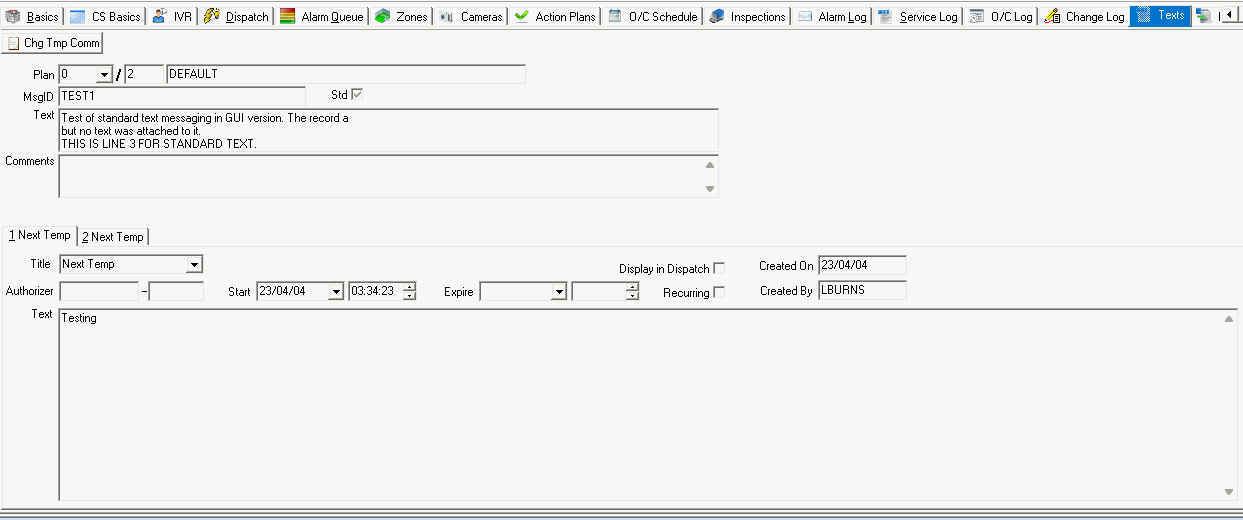
Note: When option ma051 is “On�, and a valid URL is entered in the temp field for an installation, the associated URL(s) will launch automatically when taking an alarm for the selected installation. Additionally, if an installation does not have an alarm, the user can double-click within the Temp field and the URL within the field will be brought up in their default browser.
Field Descriptions
The following table describes the fields in the Texts tab.
Field |
Description |
Plan |
Select an action plan number from the drop-down menu. (This menu originates from the Action Plans tab for the installation.) |
/ |
Total number of action plans available for this installation. |
Plan
Description |
Description of the selected action plan entered in the Action Plans tab. |
Message ID |
Standard Message ID attached to the selected action plan. |
Standard |
If this box displays a check mark, the message is standard. If this box is blank, the message is non-standard. |
Text |
Action plan text followed by text from the standard message attached to the action plan, if applicable. |
Comments |
Free-form text entered in the Directions field of the Data Entry Basics tab. |
Authorizer |
Passcard number for the authorizing contact in the Action Plans tab. |
Start |
Date the comments take effect. |
Expire |
Date the comments expire. |
Temp |
Temporary comment for this customer. Note: The Temp text boxes hold a maximum of 4000 characters and is not limited to 4 rows. Users can enter anew line by pressing CTRL-ENTER. |
Create |
SBN enters the date on which the user created the comments. |
User |
SBN enters the user who typed the temporary comments. |
Display in Dispatch |
Selecting this checkbox when you want Temporary comments to appear in Dispatch (program #537) if operators handle alarms while the comment is in effect. |
Recurring |
Selecting this checkbox changes how the Start and Expire timestamps are used to determine when text is appropriate to show in the Dispatch screen. For the URL's to launch, a start/end date and time must also be set, the recurring checkbox must be selected. The alarm must come in between those set ranges. |
Viewing Action Plan Text
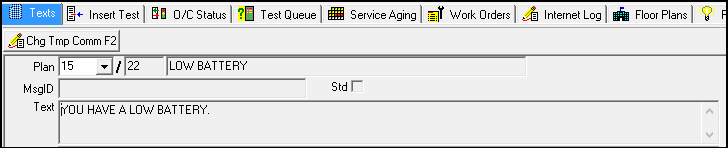
When you are in an installation, you can view action plan text in the Texts tab. You cannot edit action plan text in this tab; you must edit action plan text in the Action Plans tab.
From the Plan drop-down menu, select the action plan for which you want to view text.
w SBN displays the action plan text and message ID text in the Text field.
Entering Temporary Comments
Use Change Temp Comment to add or change a temporary comment for the installation. Each installation can have only one temporary comment at a time. If you change the temporary comment before it expires, SBN replaces the original temporary comment with the new temporary comment. When option ba108 is on, SBN creates an entry in the Alarm Log each time you make changes to temporary comments. When this option is off, SBN does not log changes to temporary comments.
Use the following steps to enter temporary comments:
1. Choose Change Temp Comment.
w The temporary comment fields open for changes.
2. Complete the fields, as needed.
3. Choose Save.
w SBN saves the comments and enters information into the Create and User fields.
Note: When option ba508 is on, SBN does not allow you to save temporary text that expires after the value set in the Temp Texts Expire field of Actions (program #1502) for your action profile; SBN displays an error message. When option ba508 is off, SBN allows you to set temporary text to expire after any length of time. The maximum time allowed for temporary text is calculated from the current time, not from the Start Date/Time in the Texts tab when option ba508 is on.
Temporary Text in the Dispatch Tab
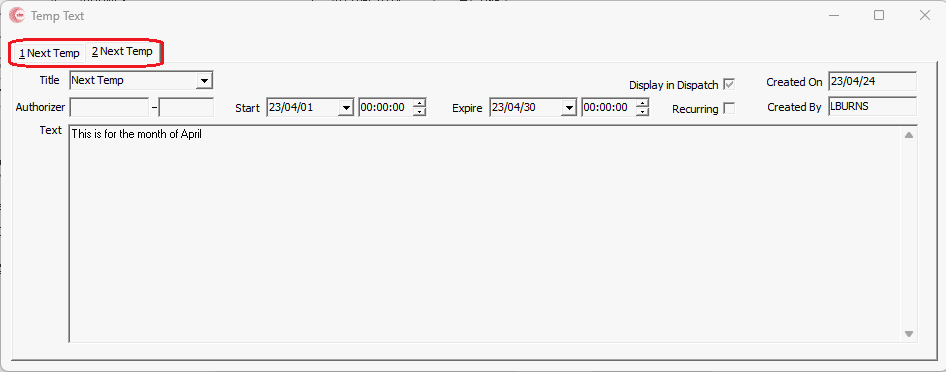
SBN displays all temp text in the Temporary Text dialog box in Dispatch (program #537). . Refer to the Dispatch document to learn how to view and handle Temporary Text while handling an alarm.
Temporary Text in the Data Entry Master and Basics Window
When action 559/473 is turned off and you search for an installation in the Data Entry Master window (program #559) that has temporary text entered in the Texts tab, the Temporary Text window appears.
When action 559/473 is turned on, the Temporary Text window does not appear when you search for an installation in program #559, regardless of whether the installation has temporary text entered.
Related Programs
The following table lists programs related to the Texts tab.
Program |
Number |
Document Link |
Description |
Data Entry Master and Basics |
559 |
Program from which you can access the Texts tab. View customer installation records. Enter information in the Directions field to populate the Comments field. |
|
Action Plans Tab |
N/A |
Create action plans for the installation. Enter action plan text and select message ID text. |
|
Alarm Log |
N/A |
Records changes made to temporary comments. |
|
Dispatch |
537 |
Displays temporary text that is in effect when an operator handles an alarm from this installation. |
Button Functions
The following table displays the buttons, describes the shortcut keys, actions, and functionality.
Button |
Name |
Shortcut Key |
Action |
Description |
|
Change Temp Comment |
F2 |
559/181 |
Add or change a temporary comment for the selected installation. |
|
Exit |
Esc |
559 |
Exit without saving. |
|
Save |
Enter |
559 |
Save existing record. |



API Temporary Comments and Text Layout
Temp comments can be saved through the API with no end date, matching the SBN client, and temp/notes text handling was reworked for the new text layout.
Modifications and Updates to Texts
The following table lists modifications and updates to the Texts document.
Mod Number |
Date |
Description |
n/a |
06/24/09 |
document rewritten |
08.78.09066, 07.78.22323 |
03/01/13 |
Added action 559/473. |
08.79.09272, 07.79.22716, 07.79.22701, 08.79.09253, 08.79.09304 |
06/25/13 |
Added option ba508. |
n/a |
07/29/14 |
Images updated. |
08.91.11780, 08.91.11781, 07.91.26320, 07.91.26327 |
01/10/20 |
Note created under the Text image for new option ma051 describing the behavior of the option. New image showing recurring checkbox. |
08.93.12292, 08.93.12274, 07.93.27077 |
01/11/23 |
Temp Text re-design Now supports up to ten texts with title tab. |