
Statements
Statements
Statements
Program #: 1508
Module: Accounting
Overview
Use Statements (program #1508) to define parameters for statements and to generate statements.
Navigating to Statements
Use the following steps to access Statements:
1. From the main SBN toolbar, select Menu.
2. From the drop-down menu, select Go To.
3. In the Go To Program dialog box, type in "1508" and press ENTER.
w The Statements window opens.
Statements Options
You can manipulate the Invoice Print Report functionality through the use of the following options. For detailed information on an option and its default setting, see SBN Options.
Option bl034 - Use to define the minimum open balance, in cents, included in statement calculations for the contract. SBN bases the calculation on [amo - paid - wof_amo]. When on, option bl033 must be off.
Option bl130 - When on, SBN ignores the minimum open balance defined by option bl034 when calculating interim statements.
Option bl162 - When on, SBN includes all accounts with credit balances (+) in the Statements Export whether or not the accounts have recent activity.
The Statements Window
The following graphic shows the Statements window as the program opens.
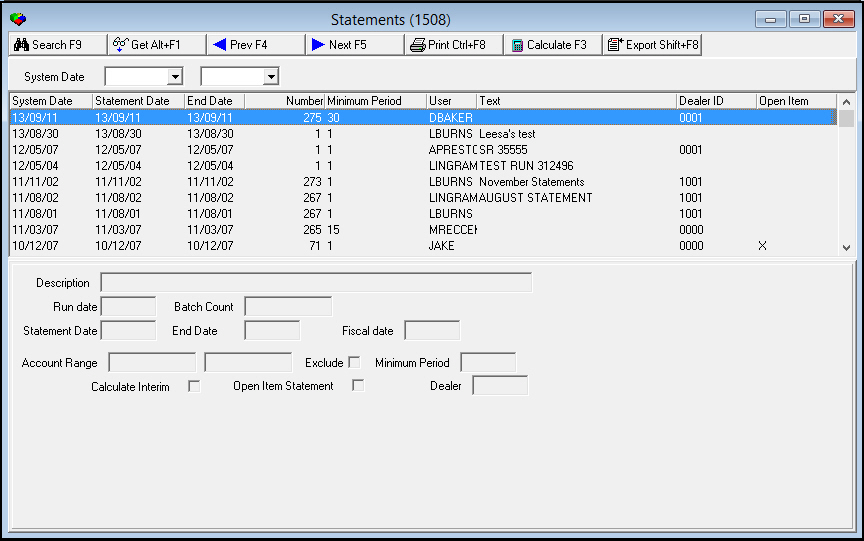
Field/Column Descriptions - Searches and Search Results
The following table describes the fields and columns used in the search and search results panes of Statements.
Field/Column |
Description |
System Date |
|
Date Search - From |
You may select a range of dates in which statement batches were created to narrow the display. Select the beginning date of the range. |
Date
Search - To |
You may select a range of dates in which statement batches were created to narrow the display. Select the ending date of the range. |
Columns |
|
System Date |
Date on which the statement batch was generated. |
Statement Date |
Date printed on the statements. |
End Date |
Last transaction date included in the statements. |
Number |
Total number of statements calculated in the batch. |
Min Per |
Minimum number of days between the first and last transaction dates of the statements. |
User |
ID of the user who ran the statement calculation. |
Text |
Text description of the statement batch. |
Dealer ID |
Dealer ID associated with all accounts included in the statement batch. |
Open Item |
An X in this column indicates the batch was a batch of open item statements. |
Field Descriptions - Details
The following table describes the fields used in the Details pane of Statements.
Field |
Description |
Description |
Text description of the selected statement batch. |
Run Date |
Date on which the selected statement batch was generated. |
Batch Count |
Total number of statements included in the selected statement batch. |
Statement Date |
Date printed on the statements. |
End Date |
Last transaction date included in the statements. |
Fiscal Date |
Fiscal date covered by the selected statement batch. |
Account Range |
|
Account Number - From (No label) |
Beginning number of a range of account numbers included in the selected statement batch. |
Account
Number - To |
Ending number of a range of account numbers included in the selected statement batch. |
Exclude |
If this box displays a check mark, SBN excluded the range of account numbers from the selected statement batch. |
Min Per |
Minimum number of days between the first and last transaction dates of the statements. |
Calculate Interim |
If this box displays a check mark, the statement batch was an interim batch. |
Open Item Statement |
Select this check box to calculate a batch of open item statements. An open item statement lists all open financial items for an account including invoices that are not paid in full, unapplied credits, etc. Note: Accounts in an open item statement batch have a balance greater or less than zero, or have had transaction activity within the statement period. |
Dealer |
Enter a dealer ID to limit a batch to only those accounts associated with the selected dealer. (This menu originates from program #1537.) |
Using Common Functions
See the reference document Common Functions in SBN for more information.
Calculating Statements
Option bl034 defines the minimum open balance (in cents) included in statement calculations for the contract. For example, to define a minimum open balance of $10.00 define this option as 1000.
Note: If option bl034 is on, option bl033 must be off.
When you calculate statements, Statements provides several fields for selecting specific parameters for generating statements.
Use the following steps to calculate statements:
1. In Statements, choose Calculate.
‰ Fields in the lower pane of the window fill with statement information, but open for entering calculation parameters.
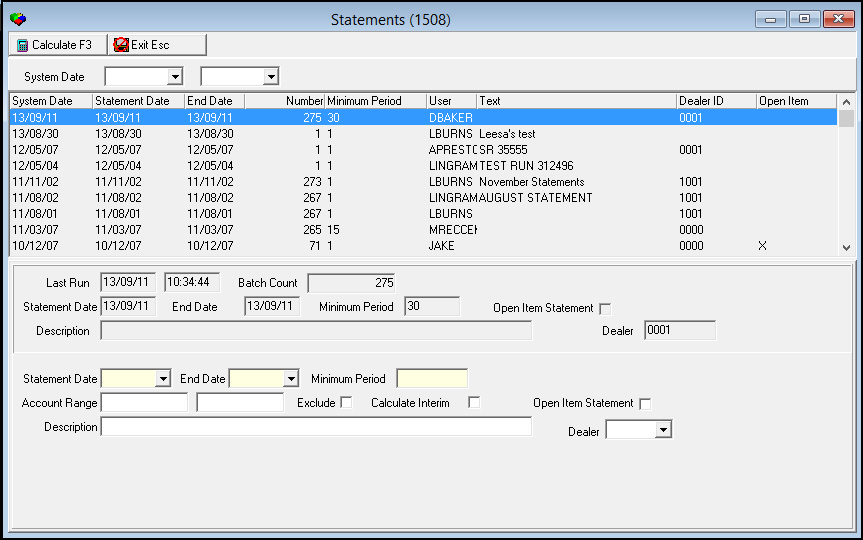
2. Enter the following information, as needed:
l In Statement Date -- select date to print on the statements. (When you select the Open Item Statement check box, SBN prevents you from editing this field.)
l In End Date - select the last transaction date to include in the statement calculation. This date updates the last statement date in the Contract Master program and affects all contracts on the account when you create the batch. (When you select the Open Item Statement check box, SBN prevents you from editing this field.)
l In Minimum Period - type the number of days since the last statement was created for the contract. (When you select the Open Item Statement check box, SBN prevents you from editing this field.)
l In Account Range - type a range of account numbers to include in the statement batch.
l In Exclude - enter a check mark if you want to exclude the selected account range from the statement batch.
l In Calculate Interim - enter a check mark if you want to run an interim statement. (When you select the Open Item Statement check box, SBN prevents you from editing this check box.)
Note: Statements do not print for those accounts that are flagged as interim unless you select the Interim flag, or select the Print Statements flag on the billing account.
Note: If option bl130 is on, SBN ignores the minimum open balance defined by option bl034 when it calculates interim statements.
l In Open Item Statement - enter a check mark if you want to run open item statements. (An open item statement lists all open financial items for an account including invoices that are not paid in full, unapplied credits, etc.)
l In Description - type a text description for this batch of statements.
l In Dealer - select a dealer ID if you want to limit the batch to include only accounts associated with the selected dealer.
3. Choose Calculate.
‰ The lower pane of the window displays the calculation process.
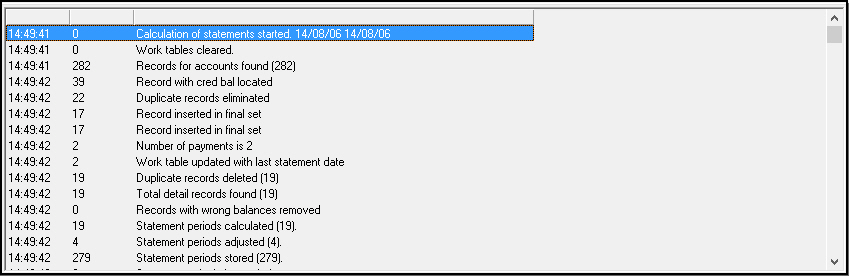
4. Choose Exit.
Exporting Statements
Once you have calculated statements, you can export them to print. When you export a batch of open item statements, SBN produces statements for every billing account within your specified batch parameters that has an X in the Print Statements field of the Contract Master (program #548) Billing Accounts tab, and has a balance greater or less than zero, or had transaction activity within the statement period.
Note: When option bl162 is on, SBN includes all accounts with credit balances (+) in the Statements Export whether or not the accounts have recent activity.
Use the following steps to export statements:
1. In Statements, choose Export.
2. If you have more than one statement export, select the correct export from the list. If you only have one export, SBN automatically opens the Statement Export dialog box.
‰ The Statement Export dialog box opens.
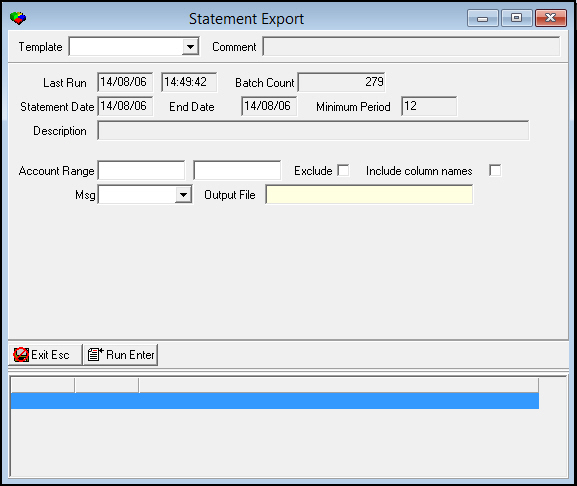
Note: The upper pane of the Statement Export dialog box displays information from the last run statement calculation. The fields can vary depending on company requirements. This graphic shows a generic example of the Statement Export dialog box.
3. Complete the fields, as needed.
4. In Output File - type the name of the file.
5. Select Run Export.
Function Button Descriptions
The following table displays the buttons, describes the shortcut keys, actions, and functionality.
Button |
Name |
Shortcut Key |
Action |
Description |
|
Search |
f9 |
1508/ 3 |
Search records. |
|
Get Record |
alt+f1 |
1508/ 1 |
View details of selected record. |
|
Previous Record |
f4 |
Go to previous record. |
|
|
Next Record |
f5 |
Go to next record. |
|
|
Print selected records |
ctrl+f8 |
1508/ 6 |
Print selected records. |
|
Calculate Invoices |
f3 |
1508/ 2 |
Calculate statements. |
|
Export |
shift+f8 |
1508/ 5 |
Export statements. |
|
Exit without saving |
esc |
Exit without saving changes to selected record. |
|
|
Save Existing Record |
enter |
Save changes to selected record. |









Modifications and Updates to Statements
The following table lists modifications and updates to the Statements document.
Mod Number |
Date |
Description |
n/a |
8/06/14 |
Images updated. |