
Outbound Database
Outbound Database
Outbound Database
Program #: 1715
Module: System Administration
Overview
Use Outbound Database (program #1715) to determine the status of accounts in the outbound database of Collections.
In Outbound Database
You can view a list of
q All accounts in the outbound database
q Specific accounts that fit specific parameters
You may search for the number of accounts in the database for each
q Program
q Source
q Branch
q Status
You can change the �ownership� of a set of accounts.
Setting search parameters in Outbound Database affects the output of the Get Next Record button in Marketing (program #562).
To access this program, select Outbound Database (program #1715) from the main menu of SBN.
The Outbound Database Window
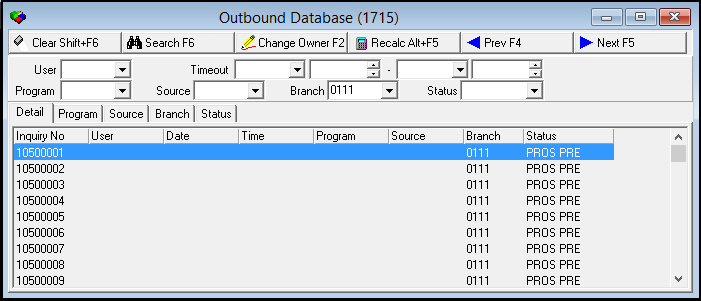
The following graphic shows Outbound Database as the program opens. Select search parameters in the fields in the upper pane of the window. The tabs in the lower pane of the window display results that match your search parameters.
Field/Column Descriptions
The following table describes the fields and columns used in the main window of Outbound Database.
Field/Column |
Description |
User |
Select a User ID to search for accounts in the outbound database associated with that user. (This menu originates from program #1811.) O If you leave this field blank, SBN returns accounts for all user IDs. |
Timeout Range |
|
Date - From (No label) |
Select a beginning date of a range of dates to search for accounts in the outbound database that have timed out during that range. |
Time - From (No label) |
Select a beginning time of a range of times to search for accounts in the outbound database that have timed out during that range |
Date
- To |
Select an ending date of a range of dates to search for accounts in the outbound database that have timed out during that range |
Time
- To |
Select an ending time of a range of times to search for accounts in the outbound database that have timed out during that range |
Program |
Select a specific program code to search for accounts in the outbound database associated with that program. (This menu originates from program #1701.) O If you leave this field blank, SBN returns accounts for all programs. |
Source |
Select a specific source code to search for accounts in the outbound database associated with that source. (This menu originates from program #1710.) O If you leave this field blank, SBN returns accounts for all sources. |
Branch |
Select a specific branch ID to search for accounts in the outbound database associated with that branch. (This menu originates from program #1530.) O If you leave this field blank, SBN returns accounts for all branches. |
Status |
Select a specific status ID to search for accounts in the outbound database associated with that status. (This menu originates from program #1856.) O If you leave this field blank, SBN returns accounts for all statuses. |
Searching for Accounts in Outbound Database
Use the following steps to search for accounts in Outbound Database:
1. In Outbound Database, select your search parameters in the fields in the upper pane of the window.
2. Choose Search.
The tabs in the lower pane of the window fill with the details of the search.
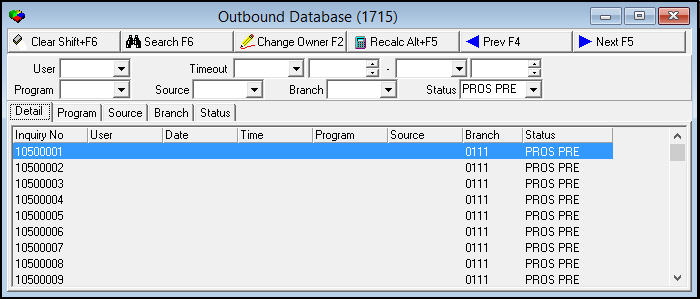
3. To conduct another search, choose Clear Search Screens.
SBN clears the search parameters and results.
4. Repeat Steps 1-2.
Using the Programs Tab in Outbound Database
In the Programs tab in Outbound Database, you can view accounts in the outbound database sorted by the sales program with which those accounts are associated.
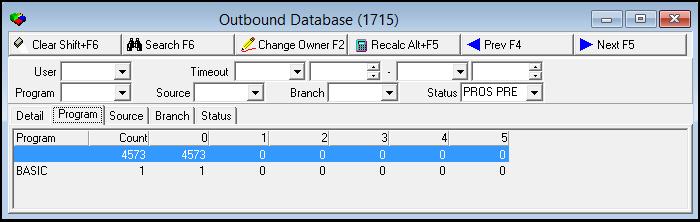
The following graphic shows the Programs tab of Outbound Database after a search has been conducted for all accounts.
Field/Column Descriptions
The following table describes the fields and columns used in the Programs tab of Outbound Database.
Field/Column |
Description |
Program |
Identifies the sales program with which accounts are associated. |
Count |
Total number of accounts associated with the selected sales program. |
0 |
Number of accounts associated with the selected sales program that have not been called. |
1 |
Number of accounts associated with the selected sales program that have been called once. |
2 |
Number of accounts associated with the selected sales program that have been called twice. |
3 |
Number of accounts associated with the selected sales program that have been called three times. |
4 |
Number of accounts associated with the selected sales program that have been called four times. |
5 |
Number of accounts associated with the selected sales program that have been called five times. |
Using the Source Tab in Outbound Database
In the Source tab in Outbound Database, you can view accounts in the outbound database sorted by the referral source with which those accounts are associated.
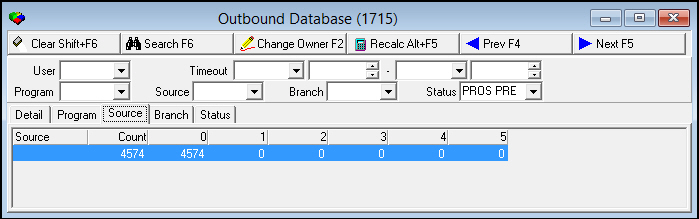
The following graphic shows the Source tab of Outbound Database after a search has been conducted for all accounts.
Field/Column Descriptions
The following table describes the fields and columns used in the Source tab of Outbound Database.
Field/Column |
Description |
Source |
Identifies the referral source with which accounts are associated. |
Count |
Total number of accounts associated with the selected referral source. |
0 |
Number of accounts associated with the selected referral source that have not been called. |
1 |
Number of accounts associated with the selected referral source that have been called once. |
2 |
Number of accounts associated with the selected referral source that have been called twice. |
3 |
Number of accounts associated with the selected referral source that have been called three times. |
4 |
Number of accounts associated with the selected referral source that have been called four times. |
5 |
Number of accounts associated with the selected referral source that have been called five times. |
Using the Branch Tab in Outbound Database
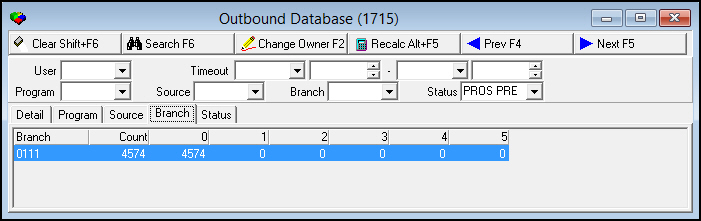
In the Branch tab in Outbound Database, you can view accounts in the outbound database sorted by the sales branch with which those accounts are associated.
The following graphic shows the Branch tab of Outbound Database after a search has been conducted for all accounts.
Field/Column Descriptions
The following table describes the fields and columns used in the Branch tab of Outbound Database.
Field/Column |
Description |
Branch |
Identifies the sales branch with which accounts are associated. |
Count |
Total number of accounts associated with the selected sales branch. |
0 |
Number of accounts associated with the selected sales branch that have not been called. |
1 |
Number of accounts associated with the selected sales branch that have been called once. |
2 |
Number of accounts associated with the selected sales branch that have been called twice. |
3 |
Number of accounts associated with the selected sales branch that have been called three times. |
4 |
Number of accounts associated with the selected sales branch that have been called four times. |
5 |
Number of accounts associated with the selected sales branch that have been called five times. |
Using the Status Tab in Outbound Database
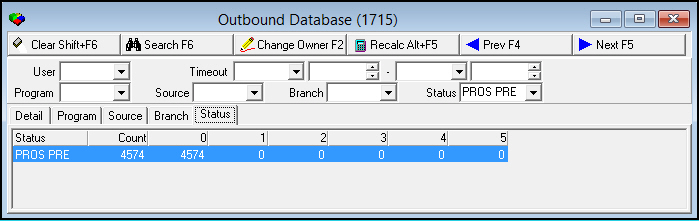
In the Status tab in Outbound Database, you can view accounts in the outbound database sorted by the status with which those accounts are associated.
The following graphic shows the Status tab of Outbound Database after a search has been conducted for all accounts.
Field/Column Descriptions
The following table describes the fields and columns used in the Status tab of Outbound Database.
Field/Column |
Description |
Status |
Identifies the status with which accounts are associated. |
Count |
Total number of accounts associated with the selected status. |
0 |
Number of accounts associated with the selected status that have not been called. |
1 |
Number of accounts associated with the selected status that have been called once. |
2 |
Number of accounts associated with the selected status that have been called twice. |
3 |
Number of accounts associated with the selected status that have been called three times. |
4 |
Number of accounts associated with the selected status that have been called four times. |
5 |
Number of accounts associated with the selected status that have been called five times. |
Changing Ownership of Accounts in Outbound Database
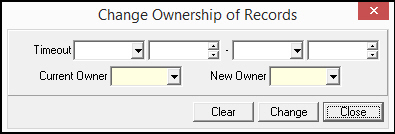
You may want to change the ownership of a set of accounts. You may want to change the ownership of accounts assigned to a user who is out for the day to an available user. Or, you may want to move referral accounts from one user to another.
The following graphic displays the Change Ownership of Records dialog box.
Field Descriptions
The following table describes the fields used in the Change Ownership of Records dialog box.
Field |
Description |
Timeout Range |
|
Date
- From |
Select a beginning date for a range of dates for the change of ownership |
Time
- From |
Select a beginning time for a range of time for the change of ownership. |
Date
- To |
Select an ending date for a range of dates for the change of ownership. |
Time
- To |
Select an ending time for a range of time for the change of ownership. |
Current Owner |
Select the user ID of the current owner of the accounts. (This menu originates from program #1811.) |
New Owner |
Select the user ID of the new owner of the accounts. (This menu originates from program #1811.) |
Use the following steps to change the ownership of accounts in Outbound Database:
1. In Outbound Database, search for accounts by selecting time-out dates and times.
Note: You can only change ownership of accounts based on the Time-out.
2. Choose Search.
The tabs in the lower pane of the window fill with the details of the search.
3. Choose Change Ownership.
The Change Ownership of Records dialog box opens.
4. Select the
l Time-out period dates and times
l Current owner
l New owner
5. Choose Change.
6. To change ownership of another set of accounts, choose Clear.
SBN clears the fields in the Change Ownership of Records dialog box.
7. Repeat Steps 2-3.
Recalculating Accounts in Outbound Database
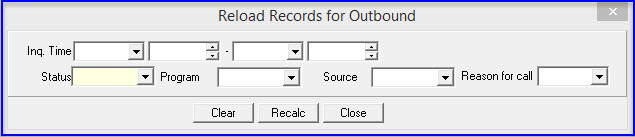
Use Reload and Recalculate Accounts to add imported accounts into the outbound database.
The following graphic shows the Reload Records for Outbound dialog box.
Field Descriptions
The following table describes the fields used in the Reload Records for Outbound dialog box.
Field |
Description |
Inquiry Time Range |
|
Date
- From |
Select a beginning date for a range of dates for the accounts you want to reload. O If you leave this field blank, SBN returns all accounts. |
Time
- From |
Select a beginning time for a range of time for the accounts you want to reload. O If you leave this field blank, SBN returns all accounts. |
Date
- To |
Select an ending date for a range of dates for the accounts you want to reload. O If you leave this field blank, SBN returns all accounts. |
Time
- To |
Select an ending time for a range of time for the accounts you want to reload. O If you leave this field blank, SBN returns all accounts. |
Status |
Select a specific status ID for the accounts you want to reload. (This menu originates from program #1856.) O If you leave this field blank, SBN returns accounts for all statuses. |
Program |
Select a specific program code for the accounts you want to reload. (This menu originates from program #1701.) O If you leave this field blank, SBN returns accounts for all programs. |
Source |
Select a specific source code for the accounts you want to reload. (This menu originates from program #1710.) O If you leave this field blank, SBN returns accounts for all sources. |
Reason for call |
Select a specific reason code for the accounts you want to reload. (This menu originates from program #1704.) O If you leave this field blank, SBN returns accounts for all reasons for calls. |
Use the following steps to reload and recalculate accounts in Outbound Database:
1. In Outbound Database, choose Recalculate.
The Change Ownership of Records dialog box opens.
Searches tasks based upon the entered parameters.
2. Select the
l Inq Period Dates and Times
l Status, Program, Source, or Reason for call. (These can be select individually or in combination.)
The dropdown list for each field program will match the following programs:
Ø Status – Program #1856
Ø Program – Program #1701
Ø Source – Program #1710
Ø Reason for call – Program #1704/36
l Select the programs from the dropdown list to recalculate
3. Choose Recalc.
4. To reload and recalculate another set of accounts, choose Clear.
SBN clears the fields in the Reload Records for Outbound dialog box.
5. Repeat Steps 2-3.
Button Functions
The following table displays the buttons, describes the shortcut keys, actions, and functionality.
Button |
Name |
Shortcut Key |
Action |
Description |
|
Get |
ALT+F1 |
1715/ 1 |
Get record. |
|
Clear |
SHIFT+F6 |
1715/ 2 |
Clear entered parameters. |
|
Change |
F2 |
1715/ 999 |
Change owner of selection. |
|
Search |
F6 |
1715/ 3 |
Search for existing Inquiries. |
|
Recalculate |
ALT+F5 |
1715/ 999 |
Recalculate records. |
|
Previous |
F4 |
1715/ 999 |
Select last record. |
|
Next |
F5 |
1715/ 999 |
Select next record. |







Modifications and Updates to Outbound Database
The following table lists modifications and updates to the Outbound Database document.
Mod Number |
Date |
Description |
n/a |
8/20/14 |
Images updated. |
n/a |
11/25/14 |
Added note about Get Next feature in Marketing and Marketing Basics. |
08.85.10605, 07.85.24791, 08.85.10598, 07.85.24776, 07.85.24765, 08.85.10584 |
05/24/16 |
Recalculate Program #1701, #1710, and #1704/36 in Outbound Database. |
F1 Help
| Delphi Forms | taoutinfoform, tmabbrform |
| Program Numbers | 1715, 1856 |