
Balance Listing
Balance Listing
Balance Listing
Module: Accounting
Overview
Use the Balance Listing report to view general ledger account information reported by branch. The report lists open balance and write off amounts by branch, and includes account name and number if you select the Include Details box in the report parameters. Users may only run the report for branches that are included the their branch access profile.
Note: You may run this report in Export mode by selecting the Run in Export Mode check box in the lower pane. In Export mode, SBN generates the report as a text file in the report directory.
To access this report, select Balance Listing (report #1180) from the main menu of SBN.
The Balance Listing Report
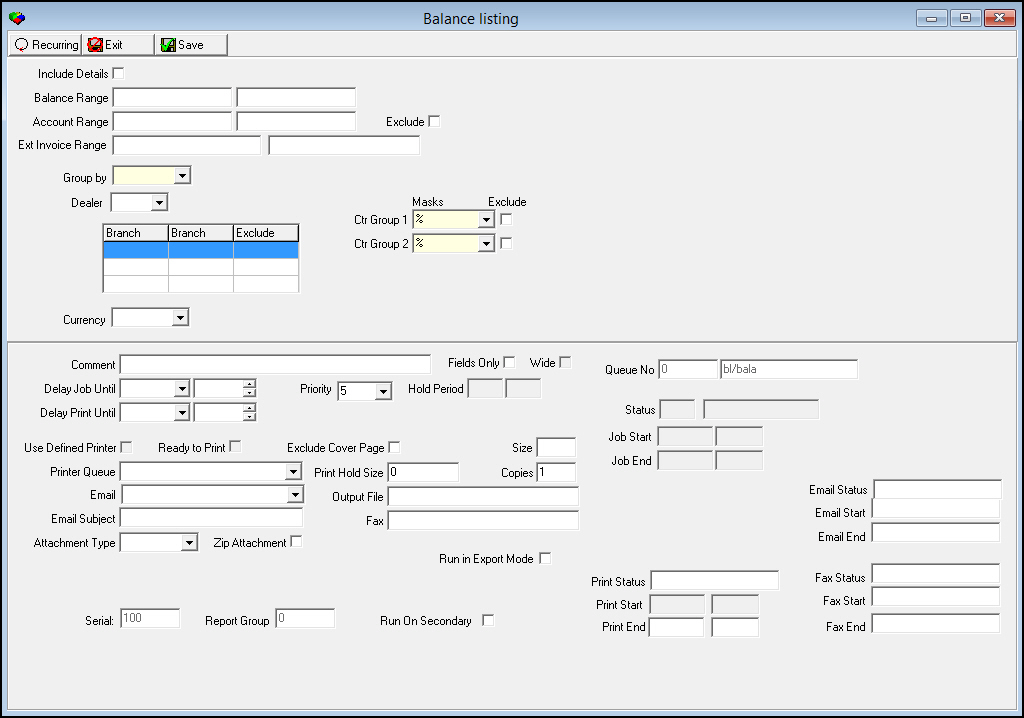
This window contains two panes: use the upper pane to define the content of the report; use the lower pane to define the job output - how, when, and where you want to print the report.
Note: See Report Parameters Pane for information on the fields in the lower pane, which are the same in every report.
Field Descriptions
The following table describes the fields used in the upper pane of this report.
You can use wildcard characters in selected fields. For more information on using wildcards, see Searches.
Field |
Wildcards Allowed |
Description |
Include Details |
No |
Enter a check mark in this box to include details in the report. |
Balance Range |
||
Minimum |
No |
You may type a range of account balances to limit the report to records with account balances within that range. Type the minimum account balance of that range. O If you leave this field blank, the report includes all accounts with negative or positive balances. |
Maximum |
No |
You may type a range of account balances to limit the report to records with account balances within that range. Type the maximum account balance of that range. O If you leave this field blank, the report includes all accounts with negative or positive balances. |
Account Range |
||
Account - From |
Yes |
You may type a range of accounts to limit the report to accounts within that range. Type the beginning account number of the range. |
Account - To (No label) |
Yes |
You may type a range of accounts to limit the report to accounts within that range. Type the ending account number of the range. |
Exclude |
No |
You may exclude a range of accounts from the report by entering the range and then entering a check mark in this box. |
Ext Invoice Range |
||
Minimum |
No |
You may type a range of invoices to limit the report to invoices within that range. Type the beginning invoice number of the range. |
Maximum |
No |
You may type a range of invoices to limit the report to invoices within that range. Type the ending invoice number of the range. |
Group By |
No |
You must select a grouping parameter for the report: l Branch l None |
Dealer |
No |
You may select a dealer ID to restrict the report to accounts associated with that dealer. (This menu originates from program #1537.) O If your company uses Dealer restrictions, the menu displays only those dealer IDs included in your user profile. O If you leave this field blank, the report includes accounts for all dealers. |
Branch Ranges |
||
Branch |
No |
You may select up to three ranges of branches to limit the report to branches within the ranges. Select the beginning branch number of a range. (These menus originate from program #1530.) |
Branch |
No |
You may select up to three ranges of branches to limit the report to branches within the ranges. Select the ending branch number of a range. (These menus originate from program #1530.) |
Exclude |
No |
You may exclude ranges of branches from the report by selecting the ranges and then entering a check mark in the corresponding Exclude box. |
Masks |
||
Ctr Group 1 |
Yes |
You must either select the first financial group to limit the report to records that match the group or use the % wildcard to include all Ctr Group 1 groups. (This menu originates from program #1868.) |
Exclude |
No |
You may exclude a financial group from the report by selecting the group and then entering a check mark in this box. |
Ctr Group 2 |
Yes |
You must either select the second financial group to limit the report to records that match the group or use the % wildcard to include all Ctr Group 2 groups. (This menu originates from program #1868.) |
Exclude |
No |
You may exclude a financial group from the report by selecting the group and then entering a check mark in this box. |
Currency |
No |
You may select a currency type to limit the report to records with that currency. |
Running and Viewing a Report
For information on running and viewing a report, see Common Functions in SBN.
Column Descriptions
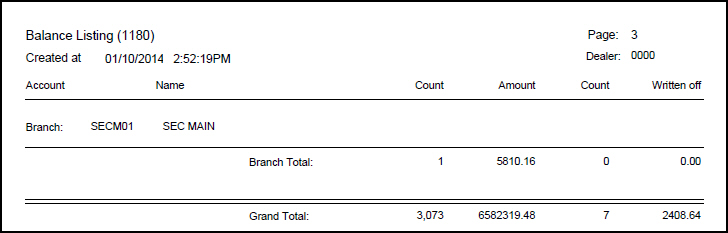
The following table describes the columns used in the output of the report.
Column |
Description |
Dealer |
If you selected a Dealer, report displays ID of the dealer associated with the displayed accounts. |
Branch |
Branch ID and name. |
Account |
If you selected Include Details, report displays account number. |
Name |
If you selected Include Details, report displays account name. |
Amount |
If you selected Include Details, report displays open balance for the account. |
Write Off |
If you selected Include Details, report displays any amount previously written off for this account. |
Branch Total |
Displays the number of accounts with an open balance, the open balance amount, the number of accounts with write offs, and the amount of the write off for this branch. |
Button Functions
The following table displays the buttons, describes the shortcut keys, actions, and functionality.
Button |
Name |
Shortcut Key |
Action |
Description |
|
Open fields for recurring/template reports |
alt+f1 |
Open fields for recurring/template reports. |
|
|
Exit without saving |
esc |
Exit without saving changes to selected record. |
|
|
Save Existing Record |
enter |
Save changes to selected record. |



Modifications and Updates to Balance Listing
The following table lists modifications and updates to the Balance Listing document.
Mod Number |
Date |
Description |
07.80.23348, 07.80.23318, 08.80.09623 |
06/05/2014 |
Added two Ext Invoice Range fields. |
n/a |
09/05/2014 |
Updated images. |