
Payment Status
Payment Status
Payment Status
Module: Accounting
Overview
Use the Payment Status tab to view payment transactions that have been created and paid. You can view details of any transaction by choosing Zoom.
To access this program, select Contract Master (program #548) from the main menu of SBN, and then choose the Payment Status tab.
The Payment Status Tab
The following graphic shows the Payment Status tab after work orders have been created and payments have been made. The columns show the payment history for this account.
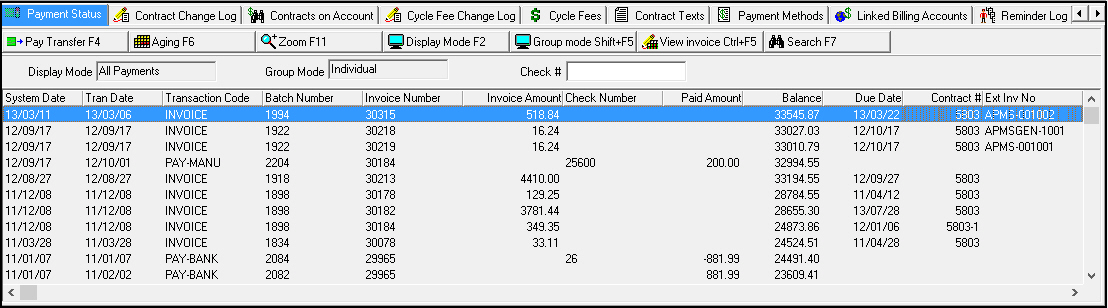
Note: SBN displays a maximum of 1,000 payments for an account.
Field/Column Descriptions
The following table describes the fields and columns used in this tab.
Field/Column |
Description |
Display Mode |
Shows which display mode you are currently viewing. |
Group Mode |
Shows which Group Mode you are currently viewing. O You may only view a Group Mode when you are in All Payments display mode. O Action 548/48 controls access to this field. O Use this field only when option ba361 is defined and one of the following options are on: l ba358 l ba359 l ba360 |
Check # |
You may enter a check number to search for payments associated with that check. (This field does not accept wildcards.) |
System Date |
Date the transaction was posted. The most recent transaction is first in the list. |
Transaction Date |
Date the transaction was entered. |
Transaction Code |
Keyword for the type of transaction. |
Batch Number |
Payment or invoice batch number from which this transaction was generated. |
Invoice Number |
Invoice number from which this transaction was generated. |
Invoice Amount |
Original invoice amount for this transaction. |
Check Number |
Check number of a posted payment. |
Paid Amount |
Amount paid on this transaction. |
Balance |
Running account balance. |
Due Date |
Due date of the invoice. |
Contract # |
Contract number attached to the invoice. |
Ext Inv No |
Customer-defined external invoice number. |
Fiscal Date |
The fiscal date of the selected payment. |
Account # |
Account number where the payment was applied. |
Balance |
Remaining unapplied balance for the selected payment. |
Unallocated |
Indicates the entire or partial amount of the payment remains unapplied. |
External Batch No |
Displays the external batch number total for a payment. |
Currency |
Primary currency type of the account. |
Line Item Currency |
Currency type of the transaction in this line item. |
Line Item Currency Amount |
Amount of the transaction in the selected currency of the line item. |
Original Currency Amount |
Amount of the transaction in the primary currency of the account. |
Error Code |
Reject code that identifies the reason the selected payment was returned from the financial institution. (Reject codes are defined in program #1726.) |
Error Message |
Text description of the reject code for the selected payment. |
Changing the Display Mode
The Payment Status tab contains two display modes:
All Payments
Inst Payments
You may choose Display Mode to toggle the view between the two display modes.
Changing the Group Mode
To use the Group Mode feature, turn on one of the following options and define option ba361:
ba358
ba359
ba360
In the All Payments display mode, choose Group Mode to toggle the view between the individual and grouped payments.
Note: Action 548/48 controls access to this button and the corresponding Group Mode field.
Transferring Payments Between Accounts
In the Payment Status tab you can quickly transfer a payment that has been made against one account and apply it to an invoice on another account. You can only transfer positive payment amounts.
Note: The first invoice grid in the Payment Transfer window lists invoices to which the payment was applied first, followed by invoices where any remaining amount was applied as a generic payment.
Use the following steps to transfer a payment:
1. In the Payment Status tab, select the payment that you want to transfer.
2. Choose Pay Transfer.
w The Payment Transfer dialog box appears.
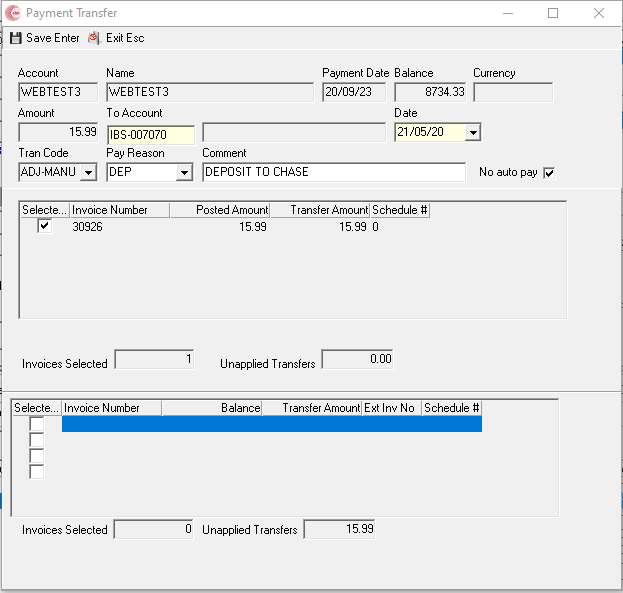
3. In the top section of the dialog box you must complete the following fields:
l In To Account —— type the account to which you want to transfer a payment.
l In Date —— select the date on which you want the transfer to occur.
l In Tran Code —— select a transaction code.
4. In the first invoice grid, enter a check mark in the box to the left of the invoice from which you want to transfer a payment.
Note: You may select more than one invoice in the first invoice grid.
5. In the second invoice grid, enter a check mark in the box to the left of the invoice to which you want to transfer a payment.
Note: You may select more than one invoice in the second invoice grid.
6. Choose Save.
w SBN confirms the payment transfer.
Applying Manual Payments
When unapplied payments exist on an account, the Payment Transfer window allows you to manually apply these payments to specific invoices.
Use the following steps to apply a payment:
1. In the Payment Status tab, select the line of the Unallocated payment that you want to apply.
2. Choose Pay Transfer.
w The Unapplied Transfers dialog box appears.
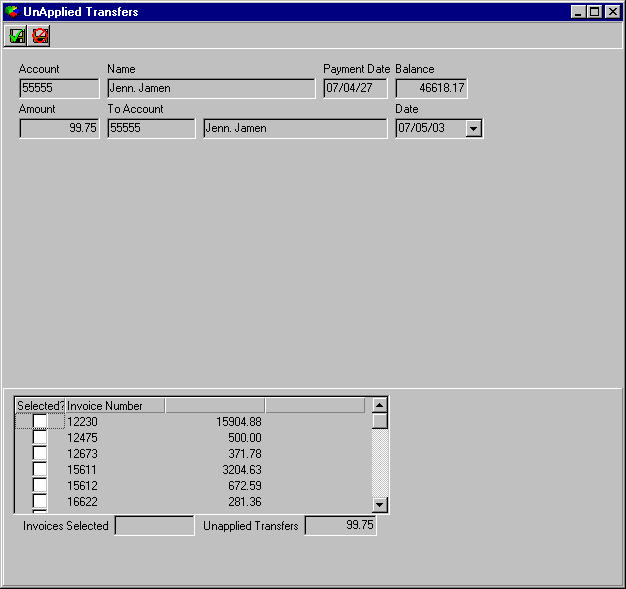
3. Select the invoices to manually pay. The Invoices Selected field displays the total amounts for the selected invoices.
4. Choose Save.
w SBN confirms the applied payment.
Making Payments or Adding Credits to an Invoice
With the View Invoice button, you can make payments, add credits to, or view an invoice. Options callURL and holdid must be on for you to link to a credit card/ACH processor outside of SBN.
Use the following steps to make payments, add credits to, and view an invoice:
1. Select the invoice you want to credit.
2. Choose View Invoice.
w A window to an external credit card/ACH processor will display.
3. Follow the instructions on the processor to continue with the selected invoice.
Note: If option holdid is on, the client or company ID will transfer to the external payment processor.
Viewing Aging on an Account or Contract
From the Aging window you can view information about the aging history of an account or contract. You can view any aging events by
Account
Contract
Use the following steps to view aging history:
1. In the Payment Status tab, choose Aging.
w The Aging Contract/Account dialog box appears.
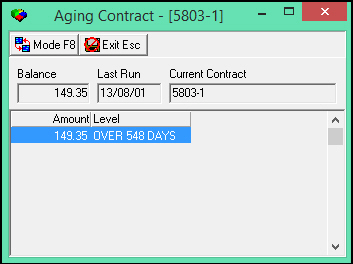
2. To change the view of the Aging Contract dialog box, choose Toggle.
3. When finished viewing the dialog box, choose Exit.
Viewing Details of an Invoice or Payment
You can view, but not change, details about an invoice or payment in the Payment Status tab. There are two ways to view details:
By details of an invoice
By details of a payment made to this account
Viewing Details of an Invoice
You may view the items billed on a selected invoice. The window contains fields for viewing Invoice Details information for each batch.
Use the following steps to view details on an invoice:
1. In the Payment Status tab, select the invoice for which you want to view details.
2. Choose Zoom in/out of Sublevel.
w Invoice Details window appears.
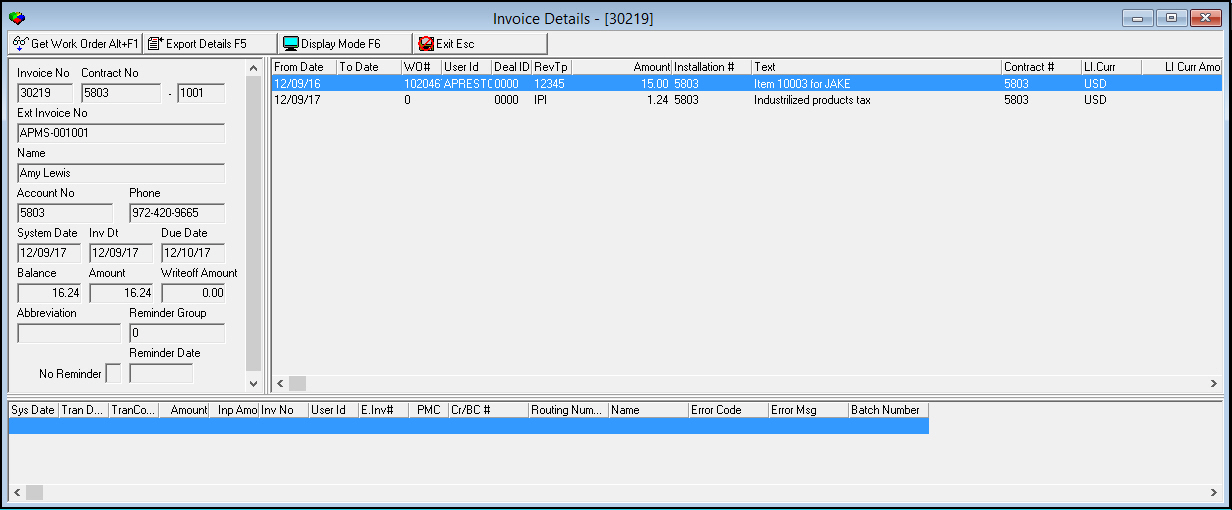
3. Choose Exit to close the window.
Viewing Details of a Payment (Transaction)
You may view details of a selected payment.
Note: If you choose Zoom on an Invoice or Credit, the Invoice Details window opens. The Transaction Details dialog box only opens when you choose Zoom on a payment.
The following graphic displays the Transaction Details dialog box.
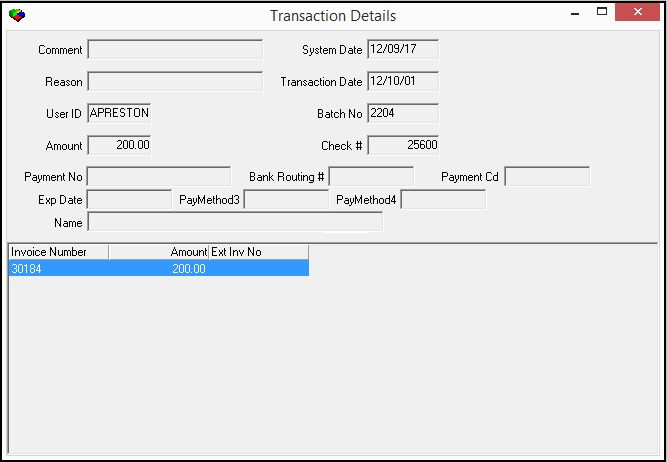
Use the following steps to view details of a payment:
1. In the Payment Status tab, select the payment you want to view.
2. Choose Zoom.
w The Transaction Details dialog box appears.
3. Choose Close to close the dialog box.
Button Functions
The following table displays the buttons, describes the shortcut keys, actions, and functionality.
Button |
Name |
Shortcut Key |
Action |
Description |
|
Pay Transfer |
f4 |
548/41 |
Transfer a payment made against an account to another account. |
|
Aging |
f6 |
548/42 |
View aging history of an account or contract. |
|
Zoom in/out of sublevel |
f11 |
548/44 |
View details of a transaction. |
|
Display Mode |
f2 |
548/47 |
Toggle view between All Payment mode and Installation mode. |
|
Group Mode |
shift+f5 |
548/48 |
While in All Payment mode, toggle view between individual and grouped payments. |
|
View Invoice |
CTRL+f5 |
Access an external credit card/ACH processor. Note: Options callURL and holdid allow you to link to a credit card/ACH processor outside of SBN. |
|
|
Search |
F7 |
548/57 |
Search for payments associated with a specific check number. |
|
Exit without saving |
esc |
Exit without saving changes to selected record. |
|
|
Save Existing Record |
enter |
Save changes to selected record. |









Modifications and Updates to Payment Status
The following table lists modifications and updates to the Payment Status document.
Mod Number |
Date |
Description |
n/a |
08/06/14 |
Images updated. |
07.92.26561, 08.92.11934 |
05/20/21 |
New "No auto pay" flag added to the Payment Transfer screen of the Payment Status tab in Contract Master (#548). Images updated. |