
Communication Log
Communication Log
Communication Log
Module: Utilities
Overview
The Communication Log (program #1888) represents a consolidated location in SBN that holds correspondence between the user and the customers. This program records, controls and organizes both resolved and unresolved issues. For example, the number of customers who did not understand the documented resolutions are easy to spot. Customers who were satisfied or dissatisfied are also noted for convenient tracking and organization.
This program serves as a resting place for information formerly stored in Communication Log Queue (program #535). This program still exists for both cross-departmental searches and locations of sent bills.
Within the Communication Log, you can enter, view and search communications within five separate modes (respective to permission levels).
Note: To view entries in the Communication Log for other branches or branches outside your branch profile, use Communication Log Queue (program #535).
The program displays entries in the Communication Log by mode:
Installation (Default)
User
Department (Group)
Account
Contract
Installation Mode displays by default each time the Communication Log is opened.
Note: The Installation, Account, and Contract modes display customer information only.
The Communication Log displays entries in distinct states. Each issue is either open and assigned or closed and unassigned. No issue is ever listed as unassigned and sent to a user. For example, if a customer calls in with an issue and the issue is ultimately resolved, the log is marked as closed.
There can be only one owner for each issue. The issue can be redirected to the appropriate department (ex: Billing or Programming) or user and that user is then solely responsible for the respective log item. The addressed issue then returns to the Communication Log according to the Customer Data (program #559) hierarchy.
Using the Communication Log promotes more accurate communication between programmers and clients. It eliminates e-mail threads in which you might inadvertently omit a key recipient. Communication relays into a single forum for all appropriate parties to access, contributing to and updating all states of respective issues.
Note: If you run SBN on separate servers for Billing and Monitoring, use options ba405 and ba405p to set up a proxy for the Communication Log.
Note: When Option blcllog is on, SBN creates communication log entries for actions performed on the Collections tab. Option blclreso defines the resolution code assigned to the communication log entry. When you choose the Collections tab action button and enter an action that matches the options assigned value, the resolution code is automatically filled in. Option blclcomm defines the communication code assigned to the log entry. Option blclkey1 defines the key 1 value assigned to the communication log entry. When option blcllog is on, SBN creates a communication log entry from the Collections tab of Program #548.
Note: When Option ba538 (default source code for Collections communication log), Option ba539 (default communication code for Collections communication log) and Option ba540 (Collection communication log resolution code on close when acct balance = 0) are set, the communication log entry will be closed when the account balance is zero.
Navigating to the Communication Log
You may access the Communication Log by using any of the following methods:
From the SBN Main Menu menu bar:
1. Select Misc.
2. Select Comm Log.
-or-
1. Select Menu.
2. Select Locate Item.
3. Enter 1888.
4. Select Communication Log (1888).
From anywhere in SBN,
1. Select [CTRL+W].
Note: If you access the Communication Log from the Main Menu, the log only displays entries in the User ID mode.
Note: From Actions (Program # 1502), the user may be prompted to view unread messages from a Yes/No dialog. If the user clicks Yes, the Communication Log automatically launches instead of the user's specified default program.
Jumping to Originating Programs
Use Jump to Data Entry to jump to Data Entry (program #559), Marketing (program #562), or Contract Master (program #548) if the user created the log entry from one of these programs. You can access this button in both User Mode and Department Mode.
Note: You may only jump to an originating program when a Communication Log entry has a Communication Source code assigned that has an X in the System column of program #1518.
Use the following steps to jump to originating programs:
1. In Communication Log, highlight the entry for which you want to jump to the original program.
2. Choose Jump to Data Entry.
w SBN opens the main window of the originating program and displays the details of the account, installation, or contract associated with the Communication Log entry.
Note: When you select an entry with Generating Source MON (Monitoring) and choose Jump to Data Entry, the Alarm Log tab of Data Entry (program #559) opens.
Note: A work order type was added to the Invoice Status tab of Contract Master (program #558) for the purpose of crediting an invoice. The auto-generated entry in Communication Log will show this work order type in the ComCode field of the Communication Log.
Viewing the Communication Log
The Communication Log uses two display layouts:
Details
Summary
Note: You may change the layout by choosing Toggle Comm Log Layout.
Within each layout, you may view five display modes:
Account number
Contract number
Installation number
The above modes display all Communication Log entries for a particular account, contract, or installation, including closed entries.
User ID
Department
The above modes display all open Communication Log entries assigned to the user or to the user's department. These modes facilitate workflow by not displaying closed entries.
Note: You may change the mode by choosing Toggle Comm Log Mode or by choosing the function button of a particular mode. If your user ID has several departments assigned in the Users tab of program #1811, you will see entries for all those departments when you view the Communication Log in Department mode.
Note: All times for each entry correspond to the user's time zone.
Note: In (Program #1887) option "womonths" the user can change the value to a negative number to represent the number of months allowed to go back to view a work order, when loading the pick list. Example -2 (2 months) and -6 (6 months).
Viewing the Detail Layout
The following sections show the Communication Log in detail layout with information displayed.
The detail layout displays Communication Log entries with Overdue Flag, Not Yet Read Flag, Create Date, and Created By information first to facilitate workflow. The user can easily determine the priority of entries to be handled.
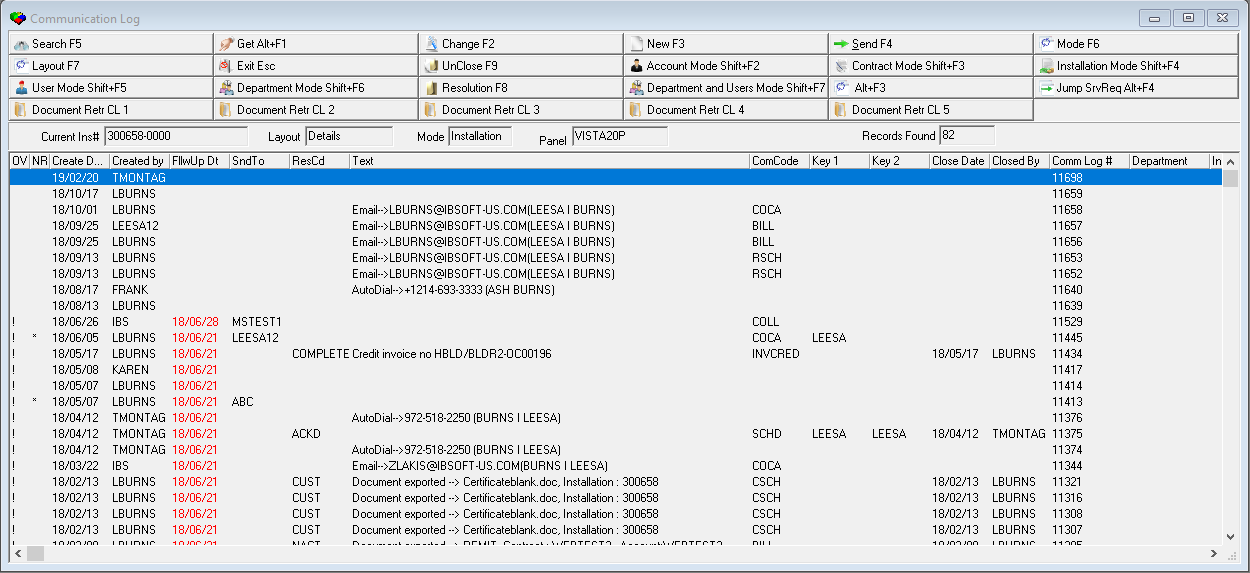
Field Descriptions — Detail Layout
The following table describes the read-only fields in the upper pane of the Communication Log.
Field |
Description |
Dynamic
Label |
Depending on mode, this field label and contents will vary: l Installation mode: l Account mode: l Contract mode: l User mode: l Department mode: |
Layout |
Layout type: l Detail l Summary O For more information, see Searching Log Entries. |
Mode |
Displays the current mode of the Communication Log: l Installation l Account l Contract l User l Department |
Panel |
Displays panel associated with the CID. |
Records Found |
Displays the number of records found when you perform a search. |
Column Descriptions — Detail Layout
The following table describes the columns used in the User Detail Layout.
Column |
Description |
Overdue Flag |
If this column displays an !, the follow-up date passed without the entry in the Communication Log being resolved. |
Not yet read Flag |
If this column displays an *, the user has not yet read the entry in the Communication Log. |
Create Date |
Date on which the entry in the Communication Log was created. |
Created by |
ID of the user who created the entry in the Communication Log. |
Follow-Up Date |
Deadline for following up on the entry in the Communication Log. The follow-up date of a past due entry displays in red. |
Send-To-User |
ID of the user to whom the entry in the Communication Log was sent. |
Resolution Code |
Code that indicates how a closed entry was resolved. (This column is empty in User and Department Modes, which display only open entries.) Option blclreso defines the resolution code assigned to the communication log entry. |
Text |
Text that was entered in Communication Text when the entry in the Communication Log was created or changed. Note: SBN produces entries in the Communication Log for each transaction on an account when a user posts a payment batch with a transaction code that has a Generating Source defined in program #1586. The transaction amount appears in the Text field for these entries in Account Mode. |
Communication Code |
Code that identifies the type of entry in the Communication Log. (This menu originates from program #1517.) Option blclcomm defines the communication code assigned to the log entry. When creating a "New" communication log, user will not see the system communication code. These are available only in "Change" mode. If you access Invoice Status (program #548) and choose either the No Reminder button or the Credit invoice button, in the Communication Log you will see an entry for these two events with the Communication Code of either 'NOREM' or 'INVCRED', respectively. |
Key 1 and Key 2 |
Company-defined variables for defining reports and searches. (This menu originates from program #1519.) Option blclkey1 defines the key 1 value assigned to communication log entry. |
Close Date |
Date the entry was resolved and closed. (This column is empty in User and Department Modes, which display only open entries.) |
Closed By |
ID of the User who resolved and closed the entry. (This column is empty in User and Department Modes, which display only open entries.) |
Comm Log # |
Communication Log ID number assigned to the entry. |
Department |
Department to which the entry in the Communication Log was sent. |
Installation # / Installation Name |
Installation number and installation name associated with the entry in the Communication Log. |
Source |
Code tells from what program the entry in the Communication Log originated. These codes can be system defined according to the module and program the user was in. |
Duration |
Length of time in days, hours, minutes, and seconds since entry was created. |
Priority |
Priority level assigned to the entry. |
Status |
Current status of the entry. |
Commlog Misc 1 |
Displays data entered in the Satisfaction field. |
Commlog Misc 2 |
Displays data entered in the first conditional field when a particular item from the Key 1 pick list is entered. |
Commlog Misc 3 |
Displays data entered in the second conditional field when a particular item from the Key 1 pick list is entered. |
Installation Branch |
Installation branch associated with the entry in the Communication Log. |
Work Order Number |
Work order number associated with the entry in the Communication Log. |
Request Number |
Service request number associated with the entry in the Communication Log. |
Key 3 |
Displays the selection in the Key 3 field of each Communication Log entry. These are company-defined variables for defining reports and searches. (This menu originates from program #1519.) |
Key 4 |
Displays the selection in the Key 4 field of each Communication Log entry. These are company-defined variables for defining reports and searches. (This menu originates from program #1519.) |
Satisfaction |
Displays the Satisfaction rating 1-5. |
Sub Status |
Substatus of the entry in the Communication Log. (This menu originates from the Details sub-tab of program #1721.) |
Change User |
The user who made changes. |
Last Change Date |
The last date in which changes were made. |
Inquiry Name |
Name of person who created the inquiry. |
Viewing the Summary Layout
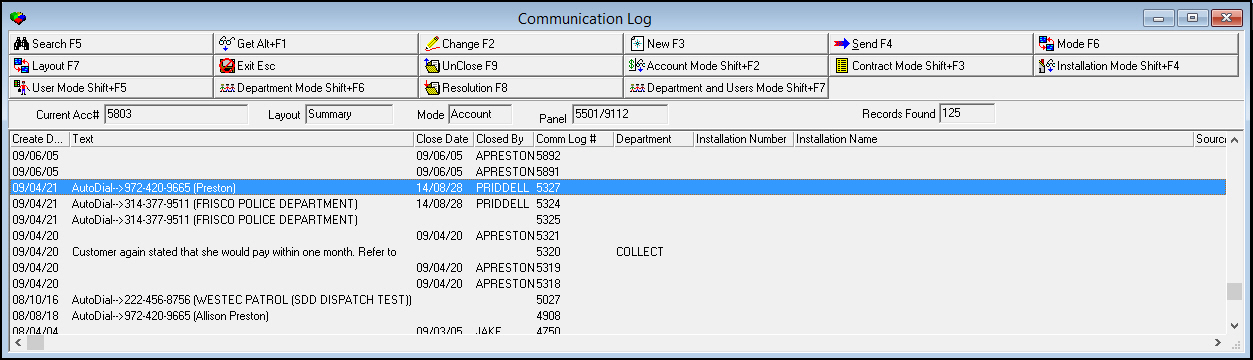
The following graphic shows the Communication Log in summary layout with information displayed.
The summary layout displays Communication Log entries with Create Date, Text, and Close Date information first to facilitate skimming a list of recent entries to find a specific entry. The user can quickly scan entries to see an overview of communication text and which entries have been closed (while in Account, Contract, or Installation mode).
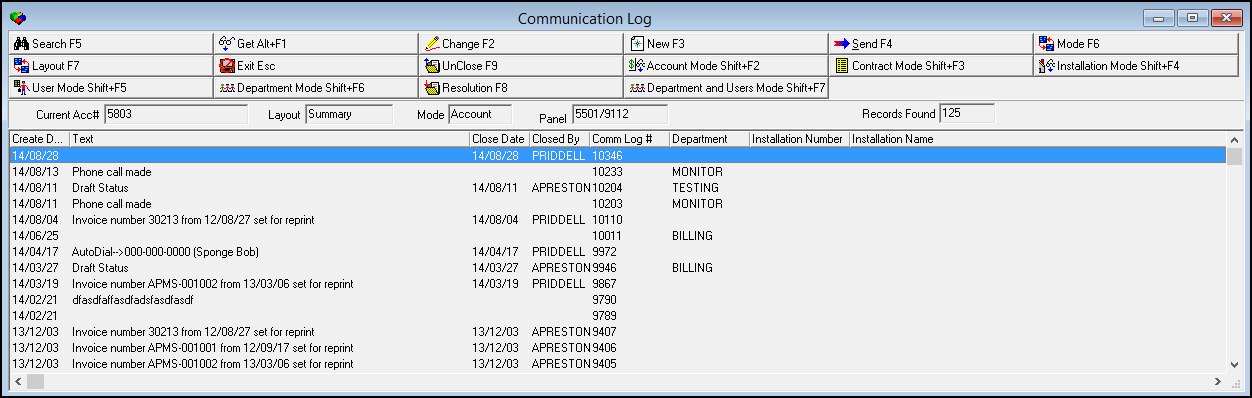
For information on the fields and columns in this window, see Field Descriptions — Detail Layout and Column Descriptions — Detail Layout.
Helpful Hint: Sorting Communication Log Entries
Entries to the Communication Log can be sorted by any column according to the user’s preference to establish priorities. The Priority field is an obvious choice to sort entries, but Create Date, Duration, Follow Up Date, or Status may also be helpful in setting up workflow to assist you in the order calls were received or by the urgency of the need for follow up.
Use the following steps to sort Communication Log entries:
1. Double click the heading of the column containing the information by which you want to sort the entries.
2. Entries appear in order of the information in the column you selected. (If the information in the column is text, the entries will sort alphabetically, A to Z. If the information is numerical, the entries will sort in ascending order, 0 to 10. If the information consists of dates, the entries will sort from most recent to oldest.)
3. To put the entries in reverse order, double click the heading of the column again.
Viewing the Communication Log Details Window
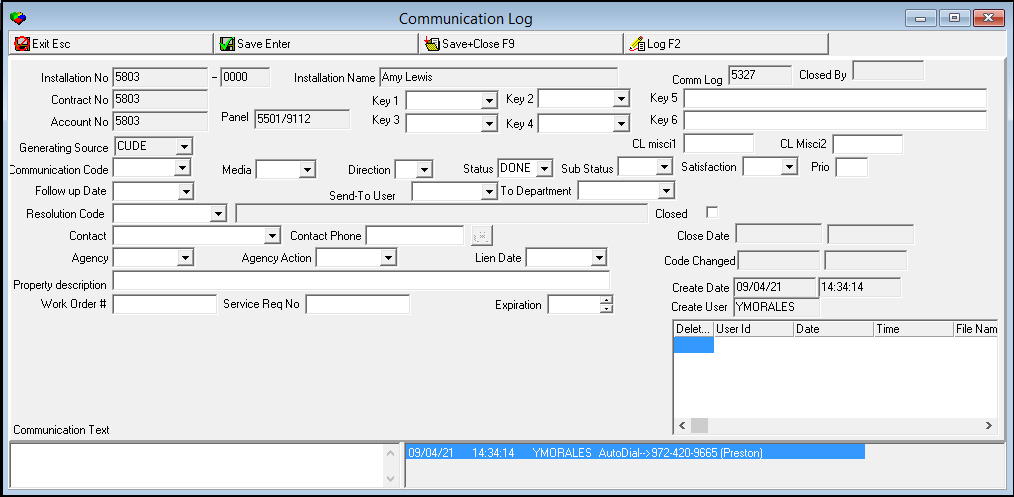
When you open, change, or create an entry in the Communication Log, SBN takes you to the Communication Log Details window.
Note: When option bl212 is on and your local hard drive contains the necessary DLL and certificate files, SBN creates tokens for credit card numbers entered in the conditional Pay Mean Number field in this window. The Pay Mean Number field appears in this window if defined for a selection in the Key 1 - Key 4 fields in program #1519. (Contact IBS to obtain the credit card tokenization files and installation instructions.)
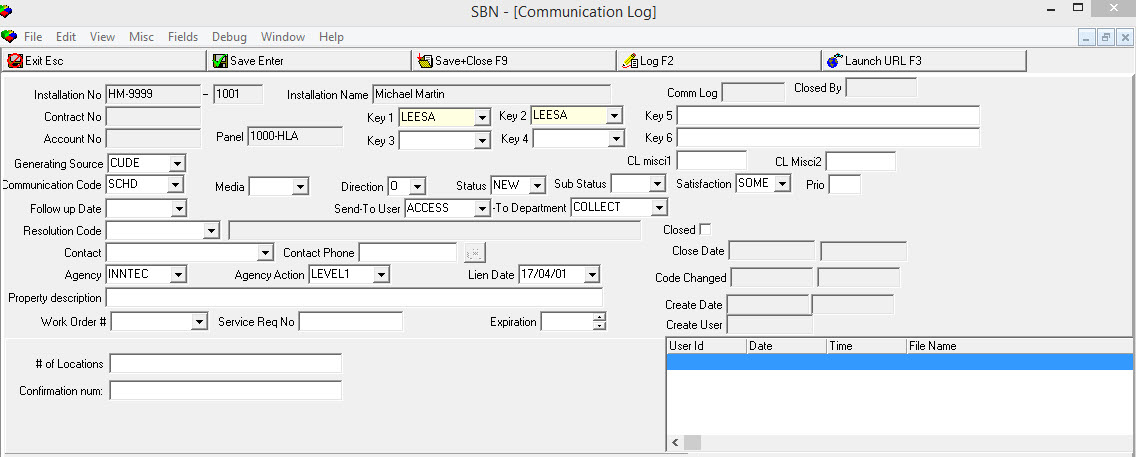
The following graphic shows the Communication Log Details window with information displayed.
Use the Autodialer button  to dial the contact number located directly to the left of the button.
This button is inactive in New or Change mode.
to dial the contact number located directly to the left of the button.
This button is inactive in New or Change mode.
Field/Column Descriptions
The following table describes the fields and columns used in Communication Log Details.
Field/Column |
Description |
Installation No |
Installation number associated with this entry in the Communication Log. |
Dealer (No label) |
ID of the dealer associated with this installation. |
Installation Name |
Name on the installation. |
Comm Log |
Communication Log ID number assigned to the entry in the Communication Log. |
Closed By |
ID of the User who resolved and closed the entry in the Communication Log (if the entry is closed). |
Contract No |
Contract number associated with this entry in the Communication Log. |
Key 1 |
Company defined variable used for defining reports and searches. (This menu originates from program #1519.) O This menu appears in the user’s language. |
Key 2 |
Company defined variable used for defining reports and searches. (This menu originates from program #1519.) O This menu appears in the user’s language. O If option ba234 is on, this key is indexed. Note: The drop-down menu selections in this field are limited by the selection in Key 1. |
Key 5 |
Company defined variable used for defining reports and searches; text may be entered. |
Account No |
Account number associated with this entry in the Communication Log. |
Panel |
Panel ID attached to the first CID of the installation. |
Key 3 |
Company defined variable used for defining reports and searches. (This menu originates from program #1519.) O This menu appears in the user’s language. Note: The drop-down menu selections in this field are limited by the selection in Key 2. |
Key 4 |
Company defined variable used for defining reports and searches. (This menu originates from program #1519.) O This menu appears in the user’s language. Note: The drop-down menu selections in this field are limited by the selection in Key 3. |
Key 6 |
Company defined variable used for defining reports and searches; text may be entered. |
Generating Source |
Code that tells which program this Communication Log entry originated from. (This menu originates from program #1518.) Note: If you have a generating source defined for your action profile and you jump to the Communication Log from no specific program, this field defaults to that code. |
CL Misci1 |
SBN enters the call duration in this field when you answer a phone call using the Answer button in Data Entry (program #559). (This field is client-specific for Company 106.) |
CL Misci2 |
SBN enters the work time in this field when you answer a phone call using the Answer button in Data Entry (program #559). (This field is client-specific for Company 106.) |
Communication Code |
Communication code that explains the type of entry in the Communication Log. (This menu originates from program #1517.) O This menu appears in the user’s language. |
Media |
Codes to define type of media used to communicate with the customer. (This menu originates from program #1520.) |
Direction |
Indicates if the communication was initiated by the customer (I=Incoming) or by the company (O=Outgoing). |
Status |
Status of the entry in the Communication Log. (This menu originates from program #1721.) |
Sub Status |
Substatus of the entry in the Communication Log. (This menu originates from the Details sub-tab of program #1721.) |
Satisfaction |
Customer satisfaction level of the entry in the Communication Log. (This menu originates from program #1627/01.) |
Prio |
Priority level of the entry in the Communication Log. |
Follow Up Date |
Date by which a user must follow-up on the entry. |
Send-To User |
User ID of the person the entry in the Communication Log was sent to for further action, if any. |
Send-To Department |
Department the entry in the Communication Log was sent to for further action, if any. (This menu originates from program #1590/28.) |
Resolution Code |
Resolution code of this entry in the Communication Log. (This menu originates from program #1877.) O This menu appears in the user’s language. |
Resolution Description (No label) |
Description of the resolution code. O This description appears in the user’s language. |
Closed |
A check mark in the box indicates the entry in the Communication Log is closed and resolved. |
| Contact List | |
Contact |
Field for entering or selecting the contact. (This menu originates from the Action Plans tab for the listed installation.) |
Name |
Name of Contact. (This menu originates from the Action Plans tab for the listed installation.) |
Phone |
Phone Number associated with Contact. (This menu originates from the Action Plans tab for the listed installation.) |
Action Plan |
"X" in this field indicates contact came from Action Plan. (This menu originates from the Action Plans tab for the listed installation.) |
Billing Account |
"X" in this field indicates contact came from Billing Account. (This field originates from the Billing Account for the listed installation.) |
Contact Phone |
Phone number of the contact. If the contact was selected from the list, the phone number will auto-fill. |
Close Date |
Date the log entry was closed. |
Close Time (No label) |
Time the log entry was closed. |
Agency |
Collection agency associated with the entry in the Communication Log. (This menu originates from program #1758.) Note: The Vendor Type assigned to the selected Vendor ID in program #1758 must match the value of option collagen to appear in this menu. |
Agency Action |
Action taken by the collection agency associated with the log entry. (This field originates from program #1825.) |
Lien Date |
Lien date attached to the account, if applicable. |
Code Changed |
Date the communication code for the log entry last changed. |
Time of Code Change (No label) |
Time the communication code for the log entry last changed. |
Property Description |
Additional description of the Resolution may be typed here. |
Create Date |
Date the log entry was created. |
Create Time (No label) |
Time the log entry was created. |
Expiration |
Number of hours and minutes until follow-up time expires for the user to follow up on an entry. (This field accepts values between 00:00 and 23:59.) If you enter data in both this field and the Follow-up Date/Time fields, SBN uses only the data in this field. |
Create User |
ID of the User who created the log entry. |
Document Link Grid Note: You may link documents to Communication Log entries by entering a document file path in the File Name column of this grid in New or Change mode. If the file path you enter exists on your network, (and begins with the \\ characters), SBN makes the file path you enter an active hyperlink. You may also save document files to a location defined by dynamic value option attpath, then send the file names to SBN using an external software application. SBN then automatically creates an entry in the Communication Log with a hyperlink to a document file if the file name matches an Input File Mask entered in Attachment Rules (program #1646). |
|
Delete |
Place an X in this column to delete the file link in the selected row. (This column only appears when you open the Communication Log Details window in New or Change mode.) |
User ID |
ID of the user who added the file link in the selected row. |
Date |
Date the file link was added to the Communication Log entry. |
Time |
Time the file link was added to the Communication Log entry. |
File Name |
File path of a file linked to the Communication Log entry. You may edit this field in New or Change mode. |
Communication Text |
Area for typing new communication text. |
Communication
Text |
Text that was typed into Communication Text. |
Work Order Pick List
The work order pick list will display a list of work orders that are closed. The list will consist of work orders that are closed within the months indicated by the user in (Program #1887).
The following graphic displays the Work Order pick list within the months indicated in (Program #1887).
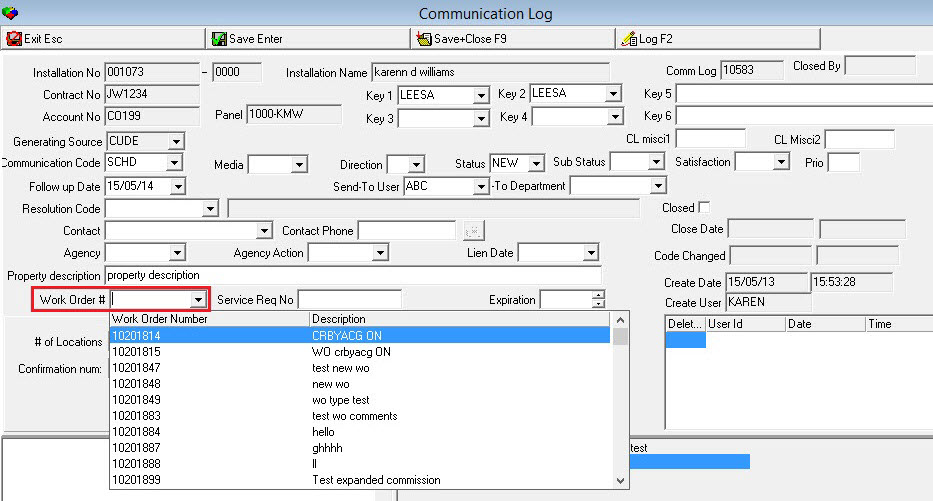
The following graphic displays the value in (Program #1887) that indicates the number of months the work order will go back from the closed date, when loading the pick list.. The work orders within those months will display in the Work Order pick list.

Viewing the Change Log
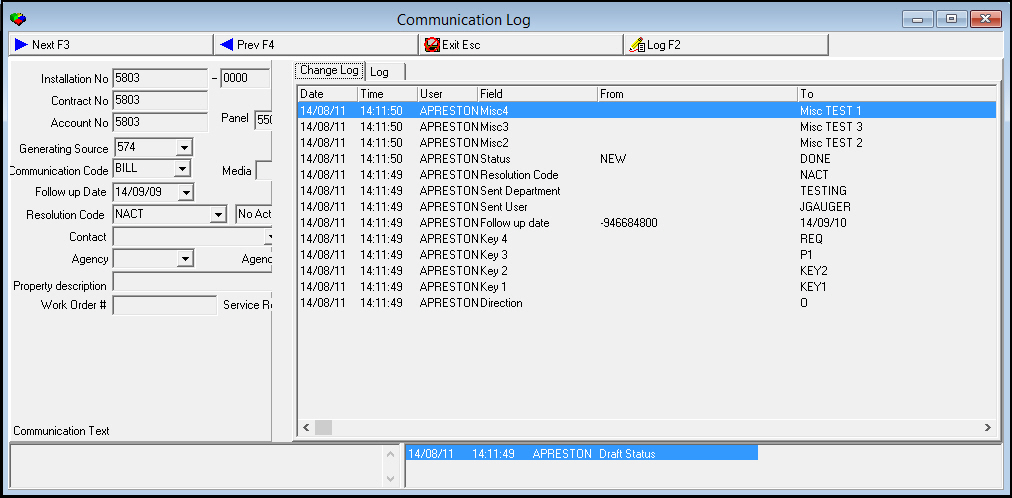
When you open, change, or create an entry in the Communication Log, you may view a list of changes that have been made to the selected entry in the Communication Log Details window. Choose Log and the Change Log tab opens.
The following graphic shows the Communication Log Details window with the Change Log displayed.
Viewing the Owner Time Log
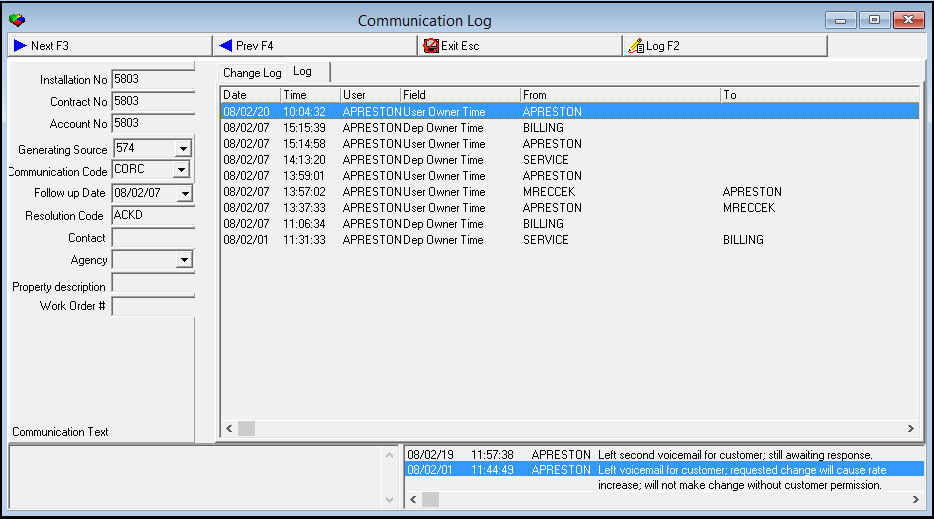
When you open, change, or create an entry in the Communication Log, you may view a list of users and departments that have been assigned to the selected entry and how long the entry was assigned to them in the Communication Log Details window. Choose Log and the Change Log tab opens. Choose the Log tab to view the Owner Time Log.
The following graphic shows the Communication Log Details window with the Owner Time Log displayed.
Note: When the Owner Time Log shows no owner assigned, the entry was closed at that time. An owner must be assigned to open entries; an owner cannot be assigned to closed entries.
Searching Log Entries
If the Communication Log displays a large number of entries, use Search to narrow the display.
Note: Six company-specific variables exist for report and search purposes, Key 1 through Key 6. Options for these variables originate from program #1519:
l If option ba234 is on, the Key 2 field is indexed.
Use the following steps to search for entries in the Communication Log:
1. Choose Search.
w The Search dialog box opens.
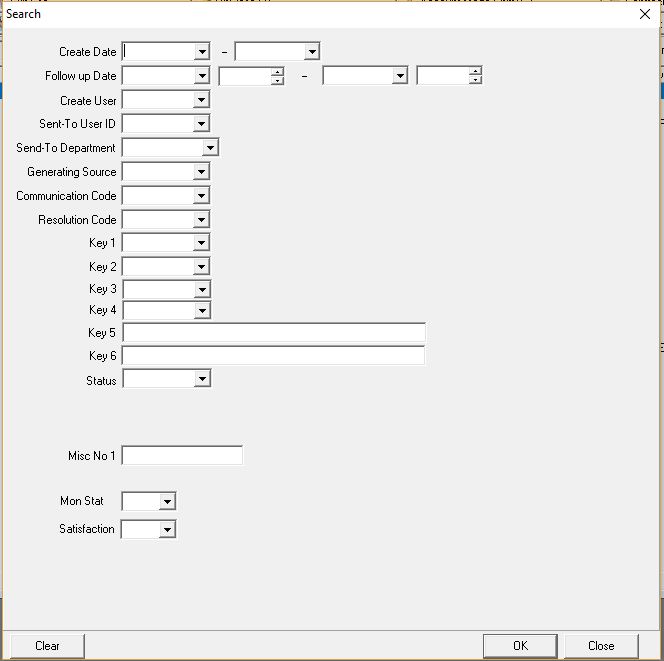
2. Complete the following fields, as needed, to narrow the search:
l In Create Date — select a date range
l In Follow up Date — select a date range
l In Create User — select a user name
l In Sent-To User ID — select a user name
l In Sent-To Department — select a department
l In Generating Source — select a code for a module
l In Communication Code — select a communication code for a log entry
l In Resolution Code — select a resolution code for a log entry
l In Key 1 — select a variable to narrow the report
l In Key 2 — select a variable to narrow the report
l In Key 3 — select a variable to narrow the report
l In Key 4 — select a variable to narrow the report
l In Key 5 — enter text to narrow the report
l In Key 6 — enter text to narrow the report
l In Status — select a status code for a log entry
l Search Archive checkbox to search archive data, the comm log entry must be closed and resolved to receive archive data
l Mon Stat — select a monitoring status for a log entry
Note: You cannot use wildcard characters in this dialog box. Not all fields need to be completed to perform a search, but the more information entered will result in a more specific result output.
Satisfaction --- select a Satisfaction rating to narrow the report
3. Choose OK to perform search or Clear to clear search parameters.
Reading an Entry in the Communication Log
You can view the details of any Communication Log entry.
Use the following steps to read an entry:
1. Highlight the entry that you want to read.
2. Choose Get Record.
w SBN displays the Details window.
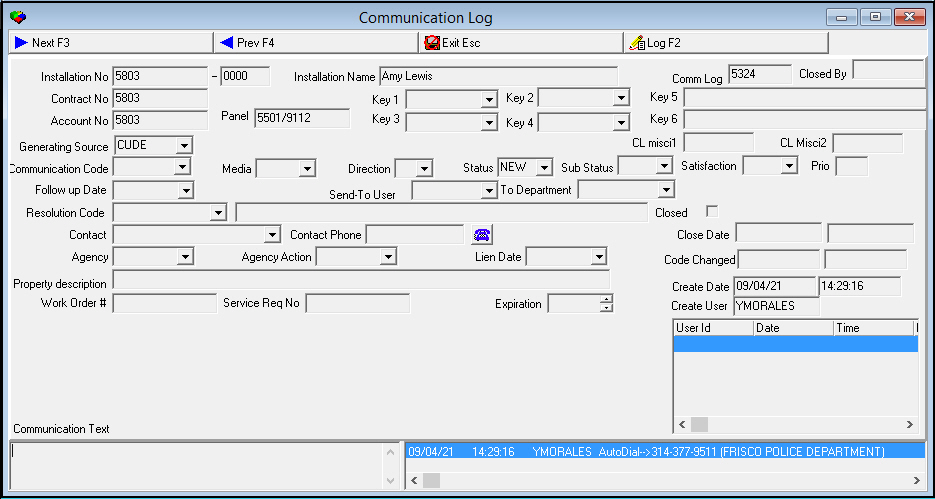
3. After SBN displays the entry in the Details window, you may choose Next Record or Previous Record to scroll through other entries listed in that mode.
Changing an Entry in the Communication Log
You may change the details of — or add information to — an entry in the Communication Log.
Use the following steps to change an entry:
1. Select the entry you want to change.
2. Choose Change Record.
w SBN opens the Details window and displays the details of the entry. Some fields open for changes.
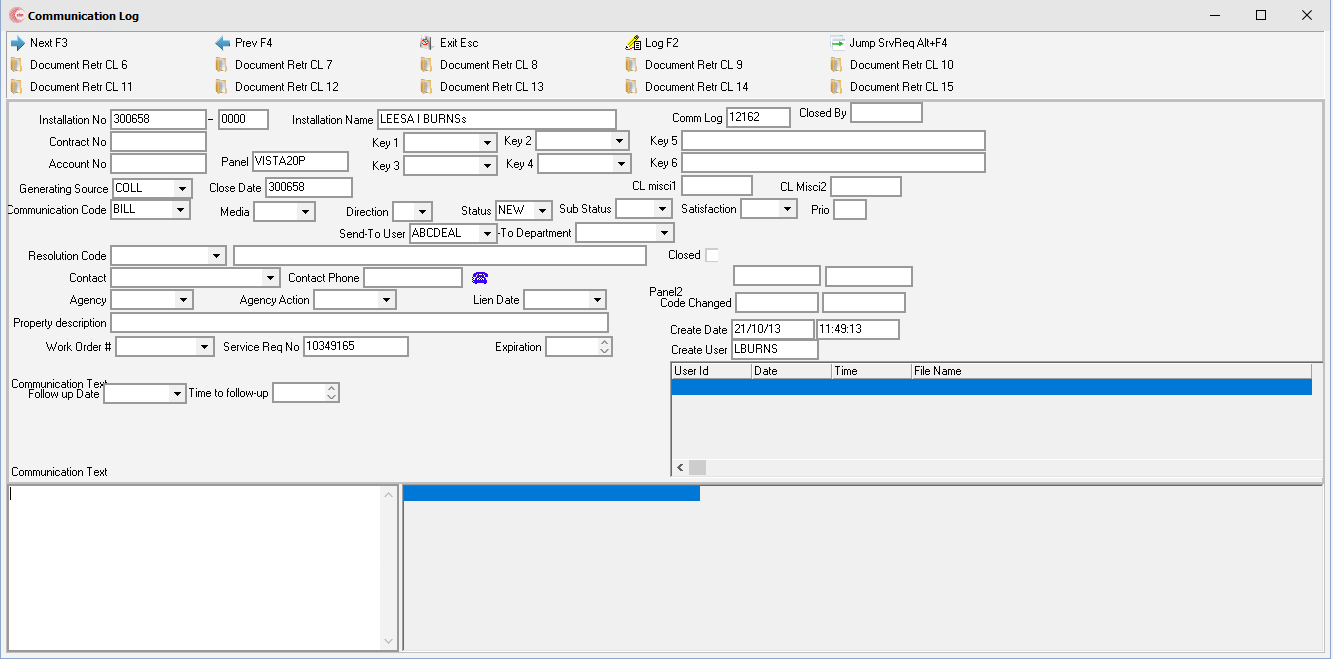
3. Change the details, as needed.
Note: If you select a Resolution Code, SBN clears the Send to User, Send to Department, and Follow Up Date fields.
4. In Communication Text — type additional information.
5. Choose Save to leave the entry open for follow up or Save and Close if the entry has been resolved.
w SBN changes the details. If you typed text in Communication Text, when you view the entry again, SBN displays the history of the text in reverse chronological order — most recent first. When you close the log entry, the system logs the date and user.

Copy and Paste in the Communication Text Window
Users can copy and paste text from the Communication Text window.
1. Open an existing installation in Program 559
2. Go to the Communication Log (Ctrl + W)
3. Double click on a log in the list
4. In the bottom right corner is the Communication Log Text
5. Double click in the Communication Text window and a pop up box will display with the Date, Time Stamp, and Text from the text window.
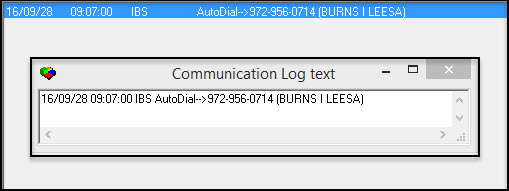
6. Highlight the text in the box, right click on the text to copy and paste it into a document.
Creating an Entry in the Communication Log
Although you may access the Communication Log from anywhere in SBN by choosing [CTRL+W], you may only create new entries in the Communication Log under the following conditions:
You must have an account, installation or contract open when you access the Communication Log
You must use one of the following modes:
q Account
q Contract
q Installation
Note: New Record is not available in the User or Department modes.
Use the following steps to create a new entry in the Communication Log:
1. With an account, contract, or installation open, choose [Ctrl+W].
‰ The Communication Log opens.
2. Choose New Record.
‰ The Details window opens with some fields open for selecting and typing information.
Note: The Launch URL button appears in this window if action 559/704 is enabled in your user action profile. This button opens a URL in your Internet browser defined by option clogweb and passes parameters defined by the option to the URL from the Communication Log entry.
Note: When option temp106 is on, the cursor focus is on the Communication Text field when you choose the New button.
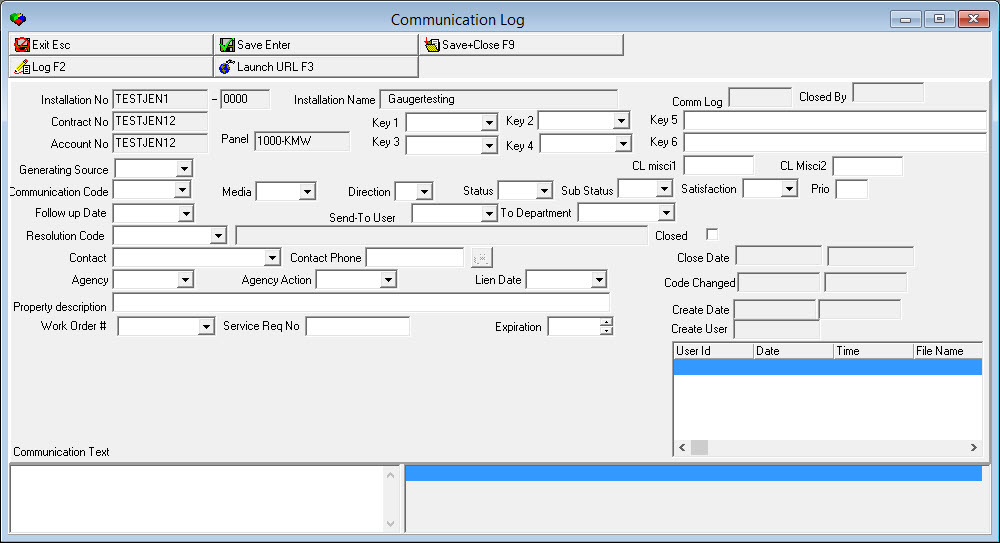
3. Complete the following fields, as needed:
Note: Required fields are indicated. Non-required fields may be entered as the user desires.
l In Key1, Key2, Key3, and Key4 — you may select a company-defined code for reporting and sorting purposes (This menu originates from program #1519.)
Note: If option ba416 is on, Key 1-4 fields display no drop-down items if the selected Generating Source or Communication Code does not have drop-down items defined in Keys (program #1519).
If option ba416 is off, all drop-down items display in Key 1-4 menus regardless of Generating Source or Communication Code designation.
l In Key5 and Key6 — you may enter text used for reporting and sorting purposes.
q When creating a communication log entry on a particular installation, if the generating source code and Communication log both have Key #2 defined, and Key #5 has a valid e-mail address typed in it than an e-mail will be sent to the e-mail address listed in Key #5. The information contained in the e-mail is set in program 1766 – Report Messages. It may include from the installation: @customer_name@', '@customer_email@', '@address@', '@state@', '@country@', '@ins_no@'.
l In Generating Source — select the code of the program from which you accessed the Communication Log
Note: This field defaults with the code of the program from which you accessed the Communication Log, but you may override the default. If option ba441 is on, this field defaults with the code entered in the Generating Source field of Actions (program #1502) for the user's action profile.
l In Communication Code — Required -- select code for type of communication (reason for the call). (This menu originates from program #1517.)
l In Media — you may select a media type (means of communication). (This menu originates from program #1520.)
l In Direction — select one of the following:
q Incoming if log entry originated from the customer
q Outgoing if the log entry originated from the company
l In Status — select status of the entry. (This menu originates from program #1721.)
Note: Automatically fills in New for a new entry.
l In Sub Status — select substatus of the entry
l In Satisfaction — select satisfaction level of the customer
l In Prio — enter a number indicating the priority level of the entry
l In Follow Up Date — select reminder date for follow-up
l In Send-To User — Required if the entry is open and not sent to a Department -- select a User to send the entry to for follow up
Note: User may automatically fill in depending on which Communication Code is entered.
l In Send-To Department — Required if the entry is open and not sent to a User -- select a Department to send the entry to for follow up
Note: You can only select one of the Send-To fields, either the Send-To User or the Send-To Department field. You cannot select both fields.
Note: Department may automatically fill in depending on which Communication Code is entered.
l In Resolution Code — Required if the entry is closed -- select code for the resolution of the entry.
Note: If you select a Resolution Code, SBN clears the Send to User, Send to Department, and Follow Up Date fields.
Note: Entering a Resolution Code automatically puts the Communication Log entry into closed status by checking the Closed box.
l In Closed — check this box if the entry has been resolved and does not require follow up
Note: When dynamic option ba443 is on, new communication logs will default to closed with today's date. The closed date and User ID will automatically populate. If off, Communication Log works as normal and the communication log will be open when created.
l In Contact — select a Contact for the entry
l In Contact Phone — enter a phone number for the selected Contact, or use the phone number that automatically fills in for the selected Contact
l In Agency — select a Collection Agency if the entry is for a Collections issue
l In Agency Action — select an Action taken by the Collection Agency
l In Lien Date — Select a lien date attached to the entry, if applicable
l In Property Description — Type an additional description of the Resolution, if desired
l In Communication Text — type text that describes the communication and actions taken
Note: SBN saves this text on the applicable work order in Work Order Text, replacing the default work order text.
4. Choose Save to leave the entry open for follow up or Save and Close if the entry has been resolved.
Helpful Hint: User Defined Keys
Keys 1 through 4, and free text fields Keys 5 and 6 are user defined fields for defining reports and searches. A user may set up these fields for any purpose, such as to further explain selections made in other fields. (These fields originate from program #1519.)
Example: Keys 1 and 2 may be used to expand on the Communication Code selected. If a customer calls complaining that his/her statement has been delayed due to his/her address being incorrect, the user would select the Communication Code "Billing Question". To further define the entry, the Key 1 drop-down menu could include "Statement Issue", Key 2 could include "Address", and the user could type in Key 5 free text "employee did not include apartment number" to explain the reason the address was incorrect on the statement.
Conditional Fields:
You may set up the Key 1 through Key 4 fields to prompt additional fields to open below the Property Description field when a particular item is selected from the drop-down menus.
Example: Key 3 may be set up to further expand on the Resolution Code. In the example situation above, the resolution for the entry may be to give the customer a coupon for a future discount. The user would select the Resolution Code "Discount", and in the Key 3 field, choose "Coupon". This selection in Key 3 could prompt a new field to open below the Property Description field with a drop down menu listing types of coupons you may give customers.
Note: Turn on option ba337 to create Resolution Time and Create Time indexes and generate Communication Log reports more efficiently.
Sending Entries to Another User
Assign a user to an entry in the communication log in order to ensure an issue is resolved. Sent entries then appear in the recipients User mode of the Communication Log.
To have an entry appear in your User mode, send the entry to yourself. If option ba363 is on, SBN automatically acknowledges an entry you send to yourself and removes the * from the Not Read column for the selected entry. If this option is off, you must acknowledge an entry you send to yourself. SBN displays an * in the Not Read column of the selected entry until you acknowledge it.
Note: Action 559/352 controls your ability to send entries to other users. If your action profile contains this action, you may send entries to any other user. If your action profile does not include this action, you may only send entries created by or sent to you. If you attempt to send an entry to a user other than yourself, SBN displays the following message:
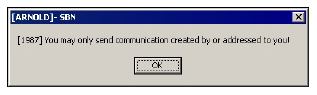
Use the following steps to send entries to another user:
1. Highlight the entry that you want to send to another user.
2. Choose Send to another user.
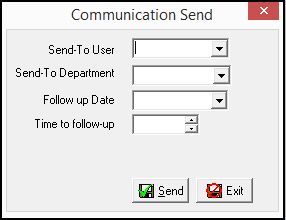
‰ The Communication Send window appears.
3. Complete the following fields:
l In Send To User — you must select the ID of the user to whom you want to send the entry
l In Send-To Department — you must select the department associated with the selected User.
l In Follow up Date — you may select a deadline for the user to follow up on the entry
4. Choose Send to send the communication or choose Exit to abandon the process.
‰ SBN alerts the user to unread communications and displays the sent entries in the User mode of the selected user. If the entry sent to another user has an overdue follow-up date, the entry appears in both the original user’s and the new user’s User modes.
Note: To alert the user of unread communication, SBN displays the flashing Communication Log logo in the user’s Status Bar. For more information on indicators in the SBN Status Bar, see the SBN Status Bar document. Also, SBN displays the following message when the user logs into SBN.
Note: If you are already logged into SBN when you receive the flashing Communication Log logo, you must exit SBN and re-login. After logging in, the Confirm dialog displays.
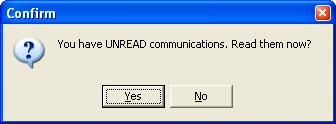
If there are no communications assigned to you but there are communications assigned to your department, the Confirm dialog reads, "Your department has UNREAD communications. Read them now?"
Note: The Create Date column displays the original Communication Log creation date, not the date that the user sent the transaction.
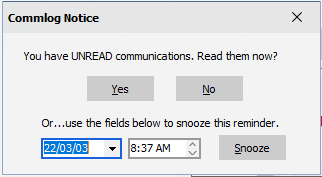
Note: Snoozing Unread Communication Messages - If Action 1888/1 is enabled for user profile, user will have the ability to select a date/time to 'snooze' the 'unread' communication reminder. This defaults to 24 hours but may be set for shorter or longer.
Selecting Resolution Codes
Resolution Codes allow users to determine at a glance how an entry was resolved. Show Resolution allows a user to enter a Resolution Code and simultaneously close the entry, removing it from the user's workflow (User and Department modes). The menu of available Resolution Codes will vary according to the Communication Code selected when the entry in the Communication Log was created.
Note: Resolution codes originate from program #1877, but are attached to communication codes in the sublevel of program #1517.
Use the following steps to select a communication resolution:
1. Highlight the entry ready for a resolution code.
2. Choose Show Resolution.
w The Communication Resolution dialog box opens.
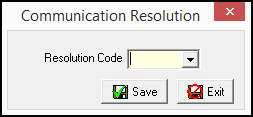
3. In Resolution Code — select a code that corresponds to the resolution of the communication.
Note: Resolution codes appear in the user’s default language.
4. Choose Save.
w SBN moves the entry out of the display in your User or Department mode and displays the selected resolution code and the date closed in the entry in other applicable modes.
Note: Use option ba399 to set up a default resolution code that will automatically be assigned to closed entries.
Note: When option logdial is On, a user may press on a phone number while in the communication log and an additional log will be created showing that a call was made and it will save any comment entered in the extension.
Unclosing a Log Entry
When saving a log entry you can choose to Save and Close. The close logs the user, Resolution Code, and date when the log entry is closed. The log entry is then prevented from any changes. To update a closed log entry, you must Unclose the entry.
Use the following steps to Unclose an entry to the Communication Log:
1. In Account, Contract, or Installation Mode, highlight the closed entry you want to reopen.
2. Choose UnClose.
w SBN opens the Details window and displays the details of the entry with the Resolution Code field blank and the Closed box unchecked. Other fields open for changes as well.
4. Change the details, as needed.
5. Choose Save to save changes and leave the entry open or Save and Close to save changes and close it again.
Related Programs
The following table lists programs related to the Communication Log.
Program |
Number |
Document Link |
Description |
Codes |
1517 |
Create Communication Codes used in the Communication Log to describe the type of communication for an entry. |
|
Sources |
1518 |
Create Generating Source codes used in the Communication Log to show in what program an entry originated. |
|
Keys |
1519 |
Create and define codes and descriptions that appear in the Communication Log as Key 1, Key 2, Key 3, and Key 4. |
|
Media |
1520 |
Create Media Codes used in the Communication Log to describe the type of communication media for an entry. |
|
Resolution Codes |
1877 |
Create Resolution Codes used in the Communication Log to describe the resolution for an entry. |
|
Status Codes |
1721 |
Create Status Codes used in the Communication Log to describe the status of an entry. |
|
Misc Communication Fields |
1627 |
Create Miscellaneous Codes used in the Communication Log to describe the substatus, satisfaction level, or priority of an entry. |
|
Communication Log Queue |
535 |
Research closed Communication Log entries. |
Button Functions
The following table displays the buttons, describes the shortcut keys, actions and functionality.
Button |
Name |
Shortcut Key |
Action |
Description |
|
Search |
f5 |
559/347 |
Search for Communication Log entries. |
|
Get Record |
alt+f1 |
559/341 |
View details of selected entry. |
|
Change Record |
f2 |
559/344 |
Change details of selected entry. |
|
New Record |
f3 |
559/345 |
Create new entry. |
|
Send to another user |
f4 |
559/346 |
Send entry to another user for follow-up. |
|
Toggle Comm Log Mode |
f6 |
559/348 |
Change Communication Log mode. |
|
Toggle Comm Log Layout |
f7 |
559/349 |
Change Communication Log layout. |
|
UnClose |
f9 |
559/353 |
Restore closed entry to open status. |
|
Account Mode |
shift+f2 |
559/355 |
View Communication Log in Account Mode. |
|
Contract Mode |
shift+f3 |
559/356 |
View Communication Log in Contract Mode. |
|
Installation Mode |
shift+f4 |
559/357 |
View Communication Log in Installation Mode. |
|
User Mode |
shift+f5 |
559/358 |
View Communication Log in User Mode. |
|
Department Mode |
shift+f6 |
559/359 |
View Communication Log in Department Mode. |
|
Show Resolution |
f8 |
559/350 |
Enter Resolution Code for selected entry and put in closed status. |
|
Jump to Data Entry/Cust Serv |
shift+f9 |
559/351 |
Open the program in which the selected Communication Log entry was created: Service/Data Entry, Marketing, or Contract Master. |
|
Document Retrieval Communication Log 1-5 |
5 URL Document Retrieval buttons. Parameters are defined by Options docc1-doccl5. |
||
New Record Window |
||||
|
Log |
f2 |
Access Change Log and Owner Time Log. |
|
|
Launch URL |
f3 |
559/704 |
Open a URL in your Internet browser defined by option clogweb and pass parameters defined by the option to the URL from the Communication Log entry. |
Get Record Window |
||||
|
Next Record |
f3 |
559/342 |
Go to next record. |
|
Previous Record |
f4 |
559/343 |
Go to previous record. |
|
Exit without saving |
esc |
Exit without saving changes to selected record. |
|
|
Save Existing Record |
enter |
Save changes to selected record. |
|
|
Log |
F2 |
Displays the Log/Change Log screen on the right-hand side of SBN in the Change window. |
|
|
Jump Service Request |
Alt+F4 |
Jump to Service Request screen. |
|
|
Document Retrieval CL 6-15 |
559/945-954 |
These buttons can display the various parameters in a URL. Each button is defined by Options doccl6 - doccl15. For additional information on the parameters, please see Whats New Release 93 - Reference section. |
|

























Modifications and Updates to the Communication Log
The following table lists modifications and updates to the Communication Log document.
Mod Number |
Date |
Description |
n/a |
02/22/08 |
complete document rewrite |
08.03.06366 |
01/20/09 |
Jump to Data Entry functions in both User Mode and Department Mode |
07.02.18190, 08.03.06588 |
03/26/09 |
Generating Source may default from action profile |
08.03.06693 |
04/20/09 |
SBN clears the Send to User, Send to Department, and Follow Up Date fields when you choose a Resolution Code. |
08.03.06925 |
07/07/09 |
Added Records Found field. |
08.03.07058 |
09/14/09 |
Updated Jump to Data Entry button function; accesses the Alarm Log when you select an entry with generating source MON (Monitoring). |
07.02.19067, 08.03.07104 |
10/14/09 |
Communications for all departments assigned to your user ID in program #1811 are visible in Department mode. New message appears when you log on to SBN and there are communications assigned to your department. |
07.02.19293, 08.03.07230 |
12/30/09 |
Created option ba441 to use the default Generating Source from the user's action profile in program #1502 on new Communication Log entries. |
07.02.19715, 08.03.07530 |
06/09/10 |
SBN produces entries in the Communication Log for each transaction on an account when a user posts a payment batch with a transaction code that has a Generating Source defined in program #1586. The transaction amount appears in the Text field for these entries. |
07.02.20488 |
12/30/10 |
Added Key 3 and Key 4 columns to Details Layout. |
07.02.21640, 08.03.08693 |
04/14/12 |
Added Launch URL button and option clogweb. |
08.78.09005, 07.78.22235 |
03/19/13 |
All times for each entry correspond to the user's time zone. |
07.78.22238, 08.78.09010 |
03/24/13 |
Added option bl212 and credit card tokenization. |
07.79.23067, 08.79.09471 |
11/25/13 |
Added CL Misci1 and CL Misci2 fields to Communication Log Details. |
n/a |
08/28/14 |
Images updated. |
| 08.88.11348, 07.88.25812, 07.88.25809, 08.88.11345, 08.89.11444, 07.89.25931, 07.89.25933, 08.89.11449 | 05/18/18 |
Added Satisfaction dropdown within Search window. |
| 08.89.11388, 07.89.25875, 08.89.11372, 07.89.25860 | 06/08/18 |
Updated communication log entries on “New� and “Change�. Upon creating a new communication record for an installation, a user will no longer see the system communication codes in the dropdown – These are available in change mode. |
| 08.89.11373, 08.89.11386 | 06/12/18 |
Option logdial added as a note under Communication Log image. When On, a user can press on a phone number while in the communication log and an additional log will be created showing that a call was made and it will save any comment entered in the extension. |
| 08.89.11417, 07.89.25901, 08.89.11391, 07.89.25877 | 06/26/18 |
When Option ba538 (default source code for Collections communication log), Option ba539 (default communication code for Collections communication log) and Option ba540 (Collection communication log resolution code on close when acct balance = 0) are set, the communication log entry will be closed when the account balance is zero. |
| 08.89.11395, 07.89.25882 | 06/26/18 |
Options ba171-ba174 have been changed to dynamic and are now dealer based. |
| 07.89.25929, 07.89.25932 | 07/17/18 |
Added 2 new columns to the Contact field drop down grid that indicates to the user from where the Contact name is retrieved. The columns represent ‘from action plan’ or ‘from billing account’. An ‘X’ appears in the relevant column. |
| 07.90.26113 | 02/13/19 |
Inquiry Name column added to the Detail Layout Grid. |
| 07.90.26107, 08.90.11627, 07.90.26108, 08.90.11628 | 02/21/19 |
5 new Document Retrieval buttons added. Image updated. |
| 07.92.26587, 07.92.26590 | 05/04/21 |
Added 1 new column to the Contact field drop down grid of Communication Log (#1888) that indicates to the user from where the Contact name is retrieved. The column represents ‘from Telemarketing account’ under the field name "Contact Text". An ‘X’ appears in the relevant column. |
| 07.93.26841, 08.93.12135 | 03/02/22 |
Added new note under 'Unread Communication Message" for ability to now Snooze this message. Images updated. |
| 08.93.12151, 07.93.26880, 08.93.12150, 07.93.26878 | 03/11/22 |
Ten New URL buttons added into Communication Log (#1888) when in 'Change' mode. Image updated. |