
Work Orders
Module: Account Generation
Overview
Work Orders drive the billing process in SBN. A work order contains item codes, pricing, and descriptions to use when systems are installed. When the work is complete, you can close the work order. SBN generates invoices based on closed work orders. Use Work Orders to enter job costs and work-in-progress information from several areas of SBN.
You can use Work Orders for tracking proposals, pulling stock from inventory, tracking job costs, and invoicing customers.
The Work Order tab and the Work Order window combine to give you comprehensive information and control over work orders. The Work Order tab displays information about existing, closed, and invoiced work orders. Use the Work Order window to manage details of specific work orders.
This document covers the following topics:
Work Order Costing and Commission Tabs
Adjusting Totals of a Work Order
Viewing Commission Calculation in Work Orders
Closing Items in the Work Order
Approving/Unapproving a Work Order
Approving Work Order with More Than One Contract
Sending Work Order Information to an External Program
Navigating to Work Orders
You can enter work orders from:
Marketing (program #562)
Customer Service/Data Entry (program #559)
Contract Master (program #548)
Use the following steps to access the Work Orders tab:
1. From the main SBN toolbar, select Menu.
2. From the drop-down menu, select Go To.
3. In the Go To Program dialog box, type in "548," "559," or "562" and press Enter.
w The selected program opens.
4. Choose the Work Orders tab in the lower pane of the program window.
Work Order Options
You can manipulate the Work Order window and tab functionality through the use of a number of options. The settings of these options control many aspects of work orders and how they relate to other programs. The following list contains options related to the Work Order program. For detailed information on an option and its default setting, see SBN Options.
Options adjwotp and adj_prc - These options cause a work order to automatically generate when an account adjustment is made.
Option ba107 - When on, the Contract Number menu in the Work Order window displays only those contracts associated with the contract branch in your branch access profile, and the Account Number menu displays only those accounts associated with the branch in your branch access profile.
Option ba148 - When on, setting the Finance flag in one item of the Work Order Details tab causes SBN to set Finance flags on all items in the tab.
Option ba154 - When on, the user who creates a work order cannot close it; a different user must close the work order.
Option ba156 - This option defines the minimum one-time value of a work order before SBN enforces option ba154.
Option ba157 - This option defines the minimum cycle value of a work order before SBN enforces option ba154.
Option ba158 - When on, work order line item commission calculations appear in the Commission tab.
Option ba212 - The Message ID field in the Work Order window is only available when this option is on.
Option ba235 - When on, the resource distribution percentage in the Work Order Resources tab must equal 100% for each resource type.
Option ba245 - When on, SBN displays a Labor item in all work orders. When you define a Difficulty Level, the Labor quantity changes. The total labor charge equals the Standard Labor multiplied by the Difficulty Level for all items on the work order. If you do not set a level, SBN saves the work order with a Labor quantity of zero. This option also provides access to the Total Labor and Variance Labor fields in the Work Order Details tab.
Option ba258 - When on, identifies the Credit Reason required for work orders with a negative total.
Option ba271 - When on, SBN automatically selects the Print check box on all new work orders.
Option ba272 - When on, the default installer and salesperson from Data Entry (program #559) and the telemarketer from Marketing (program #562) automatically appear in associated work orders.
Option ba281 - When on, the Satellite Warehouse field in the Work Order window fills with a default satellite warehouse based on the technician scheduled in the schedule board.
Option ba304 - When on and defined with either a + or x, the Line Roll Up field in the Work Order window defaults to that value.
Option ba322 - When on, you may attach a hold reason to a closed work order.
Option ba324 - When on, work order types can limit the Price List Group menu.
Option ba325 - When on, you must select an account number from the drop-down menu on a work order or leave the Account Number field blank. You cannot enter an account number that does not appear in the menu. When off, you may enter any account number on a work order.
Option ba328 - When on, SBN automatically selects the Tax Included check box in the Work Order Prebill tab.
Option ba334 - When on, the Price List Group menu in the Work Order window displays only price lists in program #1742 associated with the panel type for the installation.
Option ba335 - When on, this option expands Work Order WIP tab functionality in many ways, including allowing the user to authorize payments in the tab. This option also makes the following WIP tab columns functional: Units, Rate, Comment, Authorized, Authorized By, Authorized Date, Authorized Time, Invoice Number, Reference Number, and Transaction Date.
Option ba336 - When on and you choose the Copy button, the new work order inherits the price list from the original work order. If the installation number of the original work order and the installation number of the new work order are different, SBN resets the Contract and Account numbers of the new work order to 0 (zero).
Option ba339 - When on, the Item Quantity in the Pick/Return window of Branch Inventory defaults to 0 instead of the negative value on the work order. If option ba339 is off, the Item Quantity in the Pick/Return window in Branch Inventory displays the negative count from the work order.
Option ba341 - When on and you choose the Convert Zones button, the work order lists all items including those for global zones based on zone ID.
Option ba345 - When on and defined for the selected dealer, SBN automatically selects the Include First Cycle check box on all new work orders for the dealer.
Option ba348 - When on, the first Code column in the Work Order Commission tab is required for Installers and Sales Persons, and the sixth Code column defaults to the first code associated with Code 6 in Commission/Payroll Codes (program #1854) for Installers and Sales Persons.
Option ba349 - When on and an employee has an hourly pay rate defined in Personnel (program #1811), that rate defaults into the Amount column of the Work Order WIP tab.
Option ba365 - When on and you select an abbreviation from the One Time Abbreviation menu in the Work Order Details tab, you must also select an exchange item from the Exchange Item menu in the same tab.
Option ba368 - When on, SBN automatically selects the Invoice Immediately check box in the Work Order Finance tab.
Options ba385 and is_bill - When these options are on, SBN does not allow work orders to be modified and prevents background tasks from running against the wrong Billing or Monitoring system.
Option ba403 - When on, tax is included in financing work order payment calculations. When off, tax is not included in the total financed amount. (Option ba148 must be on to use this option.)
Option ba406 - When on, changes are allowed to the Reference Number (Misc6) field of a closed and approved Work Order before invoicing. When off, no changes are allowed to the Misc6 field.
Option ba408 - When on, a work order assigned a hold reason that has the Hold check box selected in program #1896 cannot be closed.
Option ba421 - When on, there must be at least one package item in the Details tab for a user defined with a Sales ID in Personnel (program #1811) to save the work order. If the Details tab is blank, an error message appears, and the Sales person cannot save the work order.
Option ba423 - This option defines an item that SBN automatically inserts on the initial work order of a rental contract when you make a selection in the Contract Type field. This item represents the rental fee for the contract. Create the Rental Item to insert on initial rental contract work orders in Items (program #1535) and link it to any Price Lists used for rental contracts. Select the No Count check box and define the price as $1. You cannot edit this Rental Item on the work order. If this option is blank, this feature is not active.
Option ba426 - This option defines an item that SBN automatically inserts on a rental contract work order when you select the Re-Rental check box and indicate a contract or installation number to reassign the rental to. This item represents the rental value from the previous contract. Create the Re-Rental Item to insert on re-rental contract work orders in Items (program #1535) and link it to any Price Lists used for rental contracts. Select the No Count check box and define the price as $1. On a work order, users cannot edit this Re-Rental Item. If this option is blank, this feature is not active.
Option ba430 - When on, a dialog box opens prompting you to enter a close date when you close a work order from the Work Orders tab. When off, the close date dialog box does not open when you close a work order.
Option ba432 - When on, company 150's alternate work order commission calculation is active. (Company-specific.)
Option ba433 - When on, company 150's alternate work order commission calculation is active. (Company-specific.)
Option ba435 - This option defines an item that SBN automatically inserts on a rental contract work order when you select the Deduct check box in the Rental tab. Enter the amount to deduct from the contract as the Count of the item in the Details tab of the work order. Create the deduct item to insert on rental contract deduction work orders in Items (program #1535) and link it to any Price Lists used for rental contracts. Select the No Count check box and define the price as $0.
Option ba448 - This option defines the text SBN uses in the first line of the Comment box in the credit work order that SBN creates when you cancel a work order. SBN includes the canceled work order number at the end of this text. For canceled work orders associated with invoices that have external invoice numbers, SBN includes the external invoice number in the Comment box instead of the canceled work order number. If a work order has more than one external invoice, SBN uses the first external invoice number.
Option ba454 - When on, SBN does not allow a user to close a work order if all items are not in the selected price list group.
Option ba457 - When on, if a user attempts to close a work order for an installation with a non-monitored Monitoring Status, a message appears, ('Work order cannot be closed. Monitoring status incorrect,') and SBN does not allow the user to close the work order. (A non-monitored Monitoring Status has an X or L in the Type field of program #1540.)
Option ba465 - When on, if you create a Credit Work Order, SBN searches the Installed Components tab of the installation for the items on the work order and populates the Credit Item column of the work order with the line number for the item from Installed Components. If the items do not exist in the Installed Components tab or if there is more than one of an item in the Installed Components tab, SBN displays the following error message: 'Credit item cannot be auto-selected.' SBN will not allow you to save the work order until you select a Credit Item from the drop-down menu. When off, SBN does not require you to make a selection in the Credit Item column of a Credit Work Order.
Option ba475 - When on, the following message appears when a user attempts to close a work order with a transaction date that is beyond the range of days from today defined by option wotrwa: 'Transaction Date is outside range. Proceed?' When off, the warning message does not appear when a user closes a work order.
Option ba489 - When on, SBN uses the Email 1 address on the installation in program #559 on new work orders.
Option ba490 - When on, the Contact and Email fields can be edited on approved work orders.
Option bl034 - When on, Work Order Details tab line items within a package that display $0 and $0 adjustment do not print on the related invoice.
Option bl036 - When on, the Transaction Date field in the Work Order window defaults to the date when the selected work order was closed.
Option bl146 - When on, a warning appears when you attempt to save a work order with a price list group associated with a GL type different than the default GL type assigned to the contract.
Option bl148 - When on, the invoice calculation procedure uses the Retention Profile selected in the Work Order window. This retention profile overrides any other profiles defined at either the contract or billing account level.
Option bl154 - When on, work order items with $0 cycle fees display on customer invoices as items free of charge. When off, items with $0 cycle fees do not appear on customer invoices.
Option bl212 - When on and your local hard drive contains the necessary DLL and certificate files, SBN creates tokens for credit card numbers entered in the Work Order window. (Contact IBS for these files and installation instructions.)
Option comaappr - This option determines whether commission calculation takes place when a work order is approved.
Option comaclos - This option determines whether commission calculation takes place when a work order is closed.
Option comprof - This option determines the types of personnel resources available for commission calculation in Work Orders.
Option comsave - This option determines whether commission calculation takes place when a work order is saved.
Option in006 - When on, SBN creates a new work order against the destination branch and the information in the Reference Number (Misc6), Name, and Inst Branch fields appears in the comments section of the new work order.
Option sv089 - Use to ensure that the service request Schedule Date is the default WO Transaction Date when selecting Zoom WO in the Service Log tab in Customer Data (#559).
Option tax06 - When on, several columns used for client-specific tax calculation appear in the Details tab: Taxable Cost, an unlabeled column, Standard Cost, Standard Labor, and Cost Ratio.
Option tax07 - When on, Work Orders and invoice programs support Taxware International’s Taxware Sales/Use Tax System.
Option tax07wt - When on, this option controls the default work order type to be used when an invoice has no work order type designated. The work order type differentiates between item sales and repairs or installations for calculation in the Taxware system. (Option tax07 must be on in order to use this option.)
Options wodipg, wodiit, woditp, and wodide - When these options are set to handle deferred income, SBN automatically generates work orders when a contract is cancelled.
Option wofilvnd - When on, the Vendor ID drop-down menu in the Work Order WIP tab is filtered according to the value defined in option wovndcd.
Option wohook - This option defines the functionality of the Work Order Application Hook button.
Option wosvdiff - When on, the Difficulty Level field in the Work Order window defaults from the service request.
Option wosvpgc - When on, the Price List Group field defaults with the price list group defined in the contract for the selected installation. If the price list group is not defined in the contract, SBN reverts back to option wosvpgc.
Option wosvsatp - When on, the Sales Type field in the Work Order window defaults from the service request.
Option wosvstat - When on, the Abbreviation (Status) field in the Work Order window defaults from the service request.
Option wotrwa - If the transaction date of the selected work order is outside the date range set for this option and the work order has not been approved, SBN displays a warning message when you save changes.
Option wovndcd - This option defines which Code 1 value of vendor types is used to filter the Vendor ID drop-down menu in the Work Order WIP tab.
The Work Orders Tab
The Work Orders tab displays the customer information. If option ba107 is on, the Work Order tab displays only:
Work orders not attached to a contract.
Work orders associated with the same contract branch in your branch access profile.
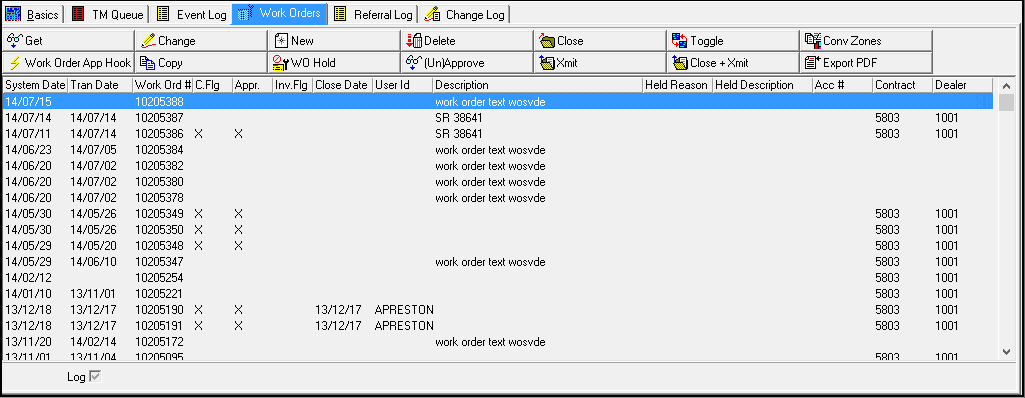
Column Descriptions - Work Order Tab
The following table describes the columns used in the Work Order tab.
Column |
Description |
Work Order # |
Unique number assigned to each work order. |
System Date |
Date work order was created. |
Transaction Date |
Transaction date for work order that controls billing. |
Close Flag |
If this column displays an x, the work order is closed. |
Approved |
If this column displays an x, the work order has been approved. |
Invoice Flag |
If this column displays an x, the work order has been invoiced. |
Close Date |
Date work order was closed. |
User ID |
ID of the user who entered the work order. |
Description |
Text description of the work order. |
Held Reason |
Hold reason abbreviation. (This menu originates from program #1896.) |
Held Description |
Hold reason text description. (This menu originates from program #1896.) |
Acc# |
Account number associated with the selected work order. |
Contract |
Contract number associated with the selected work order. |
Dealer |
ID of the dealer associated with the contract number. |
The Work Order Window
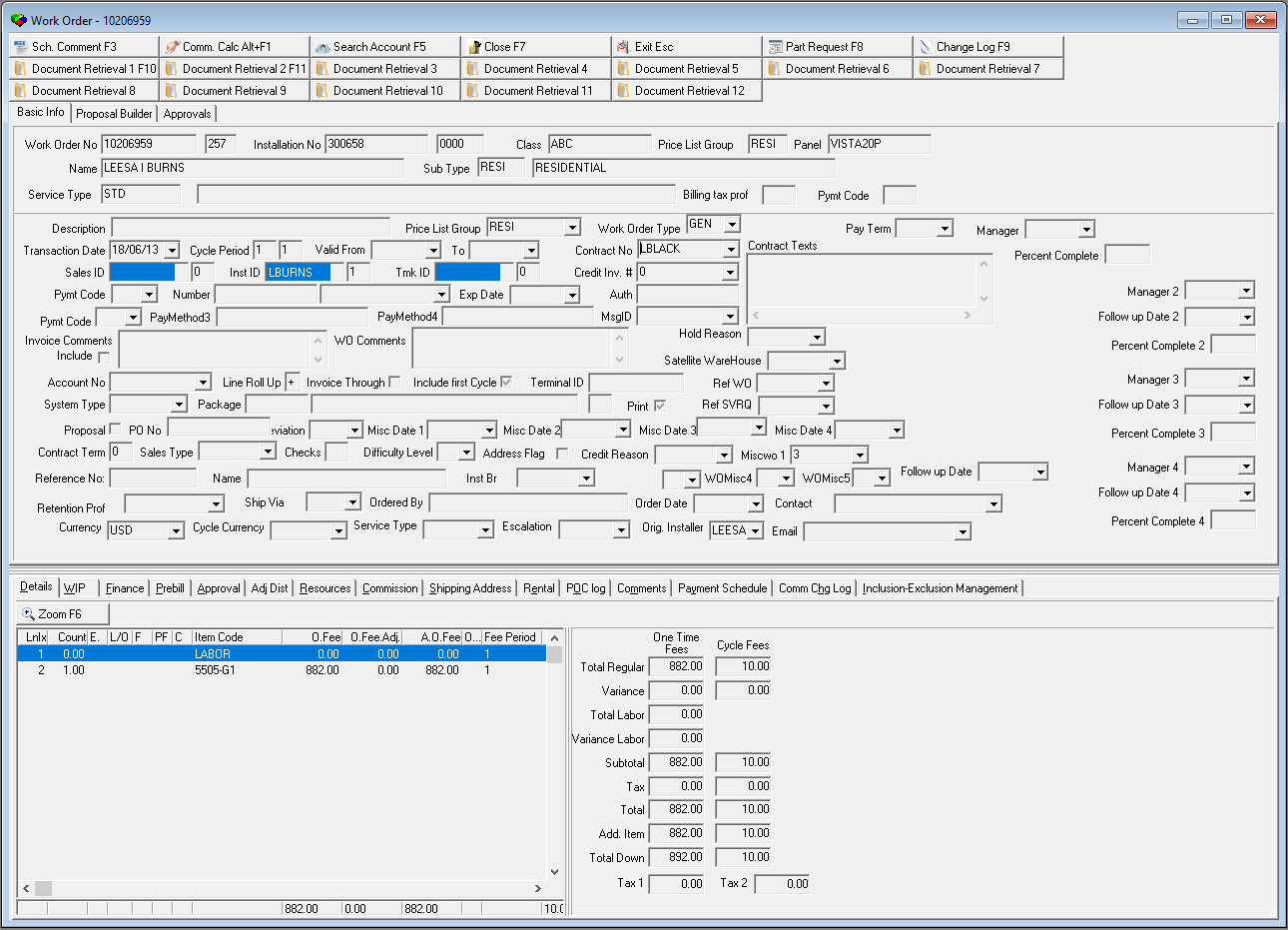
The Work Order window contains three specific panes:
Work Order Details - the upper pane contains specific work order information once the work order has been saved
Work Order Information - the middle pane contains fields and menus for specifying how to process the work order and other account related information
Work Order Costing & Commission Tabs - the lower pane contains tabs for selecting and entering products for the work order, and for figuring discounts, finance charges, commission percentages, and rental contract details.
You may only view the details of one selected work order at a time.
The following graphic shows the Work Order window with customer information displayed.
Work Order Details
The following graphic shows the Work Order Details pane with information displayed.

Field Descriptions - Work Order Details
The following table describes the fields available in the Work Order Details pane.
Field |
Description |
Work Order No. |
SBN-generated number that appears after you save the work order. |
Work Order Sequence Number (No label) |
Sequence number of the work order associated with the installation. As users add work orders to the installation, the sequence number increases. |
Installation Number |
Installation number from the account. |
Dealer ID |
Dealer ID number from the installation. |
Class |
Contains tracking codes or other customer-specific information. (This menu originates from program #1555.) |
Price List Group |
This field defaults to the price list group selected in Contract Details. This is a read-only field. Note: The text of the price list group may appear in color. You can define the RGB color of this text in program #1771. |
Panel |
Identifies the customer’s panel. Note: If the customer has more than one panel, this field displays only the first panel. |
Name |
Complete name for the installation. |
Sub Type |
Subscriber type defined in Data Entry Master (program #559). |
Subscriber Type Description (No label) |
Text description of subscriber type. |
Service Type |
Identifies the service type selected in the Data Entry Basics tab for the selected installation. |
Service Type Description |
Text description of the service type. |
Billing Tax Proof |
Identifies the selected tax profile. |
Payment Code |
Code that identifies the payment method. (This menu originates from program #1528.) If you select a payment method that requires validation, you must enter valid numbers in the Pymt Code fields. |
Work Order Account Information
The following graphic shows the Work Order Account Information pane with information displayed.
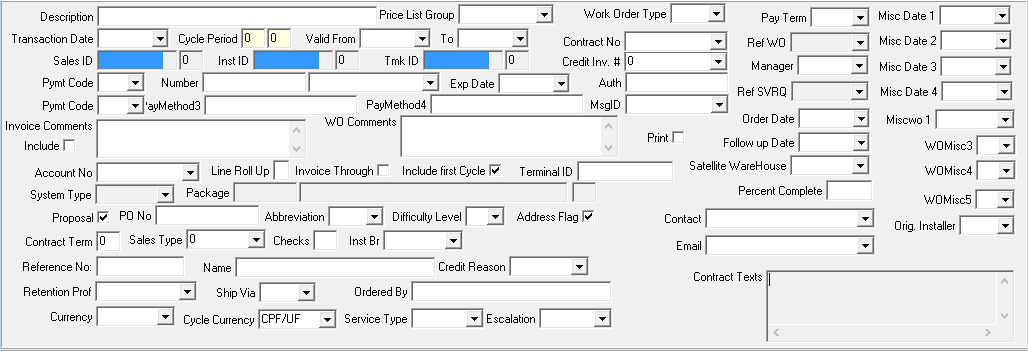
Field Descriptions - Work Order Account Information
The following table describes the fields available in the Work Order Account Information pane.
Field |
Description |
Description |
Free-form text field of up to 60 characters for a work order description. |
Price List Group |
Menu that displays defined price list groups. (This menu originates from program #1771.) This menu displays only price list groups associated with the installation's dealer ID and subscriber type or price list groups that have no associated dealer ID and subscriber type. Note: If option wosvpgc is on, this field defaults with the price list group defined in the contract for the selected installation. If the price list group is not defined in the contract, SBN reverts back to option wosvpgc. Note: The text of the price list group may appear in color. You can define the RGB color of this text in program #1771. Note: If option bl146 is on, a warning appears when attempting to save a work order with a price list group associated with a GL Type different than the default GL Type assigned to the contract. Note: You cannot close the work order if this field is blank. Note: The price list you select for the work order must have the same currency and cycle currency defined in program #1533 as are defined for the work order in the Currency and Cycle Currency fields, or SBN will not allow you to save the work order. |
Work Order Type |
Menu that displays work order types. (This menu originates from program #1796.) Note: If option ba324 is on, work order types limit price list groups. Note: If the selected work order type displays a check mark in the Total > 0 Warning box of program #1796, when a user saves the work order, the following warning message appears: �Total does not match requirements for selected work order type. Continue?� Note: This menu displays the following work order types: l Those associated with the contract type attached to the selected work order l Those not associated with any contract type Note: If you leave this field blank, SBN ignores any association between the work order and the associated contract type. Also, you cannot close the work order if this field is blank. Note: If you select a work order type that has the Credit Inv # Required check box selected in Work Order Types (program #1796), the Credit Inv # field for this work order becomes required. |
Pay Term |
Select a pay term for the work order invoice for one-time fees and for the permanent due date for the cycle fee. This overrides the default Pay Term defined in the contract. (This menu originates from program #1529.) |
Transaction Date |
Defaults to the date when the work order was created. (This date affects the billing of the work order.) Note: If option bl036 is on, this field defaults to the date a user closed the work order. |
Cycle Period |
Displays the frequency, in months, to bill the work order: l 1 = monthly l 3 = quarterly l 12 = yearly |
Cycle
Day |
Day of the month cycle billing for the work order occurs. |
Valid From / To Dates |
Dates determine the start and end dates for cycle billing. Note: Only fill the end date if the work order has a definite start or end date. |
Contract Number |
Contract number used to bill cycle fees. Note: If multiple contracts exist for the installation, active contracts appear first in the list followed by cancelled contracts. Note: If only one contract exists, this field defaults to that contract number when you save the work order. Note: If option ba107 is on, this menu displays only those contracts associated with the same contract branch that is in the user’s branch access profile. Note: When a user changes the contract number from the picklist, this will automatically change the Cycle Period to match the contract number. |
Contract Texts |
Text from the Contract Texts tab of the contract associated with the work order. Note: When in New or Change mode, SBN refreshes this field with the relevant contract texts whenever a user selects a contract number. |
Sales ID |
Sales ID associated with the work order. Note: If option ba272 is on, this field fills with the default sales person ID. |
# of Sales People (No label) |
The number of sales people attached to the work order. |
Installer ID |
Installer ID associated with the work order. Note: If option ba272 is on, this field fills with the default installer ID. |
# of
Installers |
The number of installers attached to the work order. |
Tmk ID |
Telemarketer ID associated with the work order. If option ba272 is on, this field fills with the default telemarketer ID. |
# of Telemarketers (No label) |
The number of telemarketers attached to the work order. |
Credit Invoice # |
Menu containing invoice numbers for the associated billing account. If you select a Credit Invoice Number, SBN applies the credit, when billed, directly against the original invoice number and also ages the credit along with the original invoice number. Note: If you attempt to save a work order in which the total of the work order exceeds the total of the invoice balance associated with the selected credit invoice number, SBN displays an error message. Note: If you attempt to save an outstanding work order with a credit invoice number that already exists for another work order, SBN displays an error message. Note: When you create a manual credit work order for a specific credit invoice number and generate credit invoices, SBN disregards any account number selected in the manual credit work order and applies the credit directly against the account number from the original work order. Note: If you select a work order type that has the Credit Inv # Required check box selected in Work Order Types (program #1796), this field is required.
|
Pymt Code (1) |
Menu containing payment methods for any one-time fees contained on the work order. (This menu originates from program #1528.) |
Number |
Bank routing and transit number information. Note: Only use this field if you draft the customer’s bank account. |
Account
Number |
Type credit card or bank account number for specific payment codes. Enter this information when the selected payment code requires a credit card or bank account number. Note: When option bl212 is on and your local hard drive contains the necessary DLL and certificate files, SBN creates tokens for credit card numbers entered in this field. (Contact IBS for these files and installation instructions.) |
Exp Date |
Credit card expiration date. |
Auth |
Payment authorization code. |
Pymt Code (2) |
Menu containing payment methods for any one-time fees contained on the work order. (This menu originates from program #1528.) |
Pay Method 3 |
Additional payment information, such as the verification code on the back of a credit card. Note: If you select a credit card or bank account number defined for the associated contract in Contract Master (program #548) with Pay Method 3 information attached, SBN automatically populates this field. |
Pay Method 4 |
Additional payment information, such as the verification code on the back of a credit card. Note: If you select a credit card or bank account number defined for the associated contract in Contract Master (program #548) with Pay Method 4 information attached, SBN automatically populates this field. |
Invoice Comments/ Include Checkbox |
Comments entered in this field will display on the customer's invoice, if the check box is checked. When the checkbox is unchecked no comment in this field will display on the customer's invoice. |
WO Comments |
Comments entered in this field are work order comment that will not display on the customer invoice |
Comment |
Free-form text for comments. You can use an unlimited number of lines. A new line appears below the line containing the inserted text. This comment appears on Work Order Report #2002. Note: This field defaults from the comment from Credit Invoice when a user credits an invoice for the selected work order and flags the Include Comment field in Credit Invoice. |
MsgID |
Menu of standard messages. When you choose a message ID, the message appears in the Installation Instructions section of the Work Order Report (Report #2002). (This menu originates from program #1766.) Note: This menu is only available when option ba212 is on. Note: Any change to the value in the MsgID field is recorded in the Change Log of program #559. |
Satellite Warehouse |
Menu containing satellite warehouses to associate with resources. (This menu originates from program #1605.) Note: When option ba281 is on, this field fills with a default satellite warehouse based on the technician scheduled in the schedule board. |
Account Number |
Menu of billing account number(s) to use for one-time charges, if different from the contract number. Note: If option ba107 is on, this menu displays only those accounts associated with the same branch that is in the user’s branch access profile. If option ba325 is on, you cannot enter an account number that does not appear in the drop-down menu. |
Line Roll Up |
Used to layout on standard export. l Type a + to cause SBN to export the revenue group description, instead of each line item. l Type an x to indicate a single total for all lines, along with a list of all of the items without including pricing for each line item. l When option ba304 is on and defined with either a + or x, this field defaults to that value. |
Invoice Through |
If you select this check box, the work order cancels a contract and you bill through the end of the contract period. |
Include First Cycle |
If you select this check box, SBN prorates the initial cycle fee and handles it as a one-time fee. Note: If option ba345 is on and defined for the selected dealer, SBN automatically selects this check box on all new work orders for the dealer. |
Terminal ID |
Accepts ASCII characters, which are used in the following exports: l 77 (invoice) l 78 (payment) l 79 (direct debit) |
Ref WO |
Menu containing other work orders for the selected installation. Note: Only available when the Work Order Type used has the check box Allow Ref WO selected. (Work Order Types originate from program #1796.) Note: When you create a credit work order in Invoice Status and the invoice credited is the only invoice associated with the original work order, the Ref WO from the original work order defaults into the credit work order. |
System Type |
Code that identifies the system selected in the Details tab in the lower pane of the work order window. |
Package |
Code that identifies the package selected in the Details tab in the lower pane of the work order window. |
Package Description (No label) |
Description of the package selected in the Details tab in the lower pane of the work order window. |
Discount |
Displays the maximum amount of discount allowed for the package selected. |
Print flag for informational purposes only; used for custom exports. Note: If option ba271 is on, SBN sets the print flag in new work orders. |
|
Ref Svrq |
Menu for the selected installation that displays the service request number to which you want to attach the work order. Note: Only available when the Work Order Type used has the check box Allow Ref SVRQ selected. (Work Order Types originate from program #1796.) |
Proposal |
Information-only flag; indicates that the work order is for proposal purposes. |
PO No |
Information-only field; stores the customer’s PO number. This field holds a maximum of 60 characters. Note: If you typed a PO number on the associated service ticket, when that service ticket is outdated, SBN fills this field with that PO number. |
Abbreviation (Status) |
Work Order status. (This menu originates from program #1704/43.) Note: If option wosvstat is on, this field defaults from the service request. |
Misc Date 1 - 4 |
Dates used for customer functionality. Dates have no function in SBN. |
Contract Term |
Information-only field to store contract length. |
Sales Type |
Company-defined sales type. (This menu originates from program #1704/47.) Note: If option wosvsatp is on, this field defaults from the service request. |
Checks |
Information-only field. |
Difficulty Level |
Work Order difficulty level. (This menu originates from program #1599.) Note: If option wosvdiff is on, this field defaults from the service request. |
Address Flag |
Information-only flag. No functionality in SBN. |
Credit Reason |
If option ba258 is on, identifies the Credit Reason required for work orders with a negative total. (This menu originates from program #1704/30.) |
Miscwo 1 |
Company-defined field. (This menu originates from program #1704/49). |
Misc6 (Reference No) |
Client-specific field. Reference number for the items being sent to the destination center. This information appears inside the Pick Work Order window. Note: When option in006 is on, SBN creates a new work order against the destination branch, and the information in this field appears in the comments section of the new work order. Note: When option ba406 is on, changes are allowed to the Misc6 field of a closed and approved Work Order before invoicing. When off, no changes are allowed to Misc6 field. |
Name |
Reference name for the items being sent to the destination center. Note: When option in006 is on, SBN creates a new work order against the destination branch, and the information in this field appears in the comments section of the new work order. |
Inst Branch |
Receiving branch for the items being sent to the destination center. Note: When option in006 is on, SBN creates a new work order against the destination branch, and the information in this field appears in the comments section of the new work order. This drop-down menu also displays a list of generic branches. |
WOMisc3 |
Customer-defined miscellaneous field. (This menu originates from program #1704/21.) |
WOMisc4 |
Customer-defined miscellaneous field. (This menu originates from program #1704/22.) |
WOMisc5 |
Customer-defined miscellaneous field. (This menu originates from program #1704/23.) |
Retention Profile |
Retention profile used during the invoice calculation procedure when option bl148 is on. This retention profile overrides any other profiles defined in either the contract or billing account level. (This menu originates from program #1624.) |
Ship Via |
Identifies the shipping method for the order. (This menu originates from program #1764/01 Carriers.) Note: Enter the Ship To Address in the Address tab. |
Ordered By |
Name of the user who placed the order. This field holds up to 255 characters. |
Order Date |
Date that vendor should place the order. |
Contact |
Name of the customer to contact about this work order. (This menu originates from the contacts listed in the Action Plans tab for this installation. You may also type in a contact name; SBN does not validate this field.) |
Currency |
Primary currency that SBN uses when calculating the work order total. If the cycle currency is a different currency type, SBN converts the cycle fees on the work order to the primary currency when calculating the total work order cost. The price list group for the work order must match the work order currency and cycle currency, or SBN will not allow you to save the work order. Note: When you create a new work order, this field defaults to the currency defined for the billing account associated with the work order. If there is no currency defined for the account, this field defaults to the currency defined by option currdef. When you create a credit work order, be sure that both the Currency and Cycle Currency fields contain the primary currency type of the billing account. This is the only way SBN will allow you to create a credit invoice in program #1557. If you do not assign a contract or billing account to a work order, the Currency field defaults to the currency defined in the Currency field of program #1533 for the sale price list of the work order's Price List Group (defined in program #1771). If the sale price list has no primary currency defined, then the Cycle Currency field of the work order is blank, and the work order Currency field defaults to the currency defined in the user's profile in Personnel (program #1811). |
Cycle Currency |
Currency type for the work order cycle fees. If this is a different type from the primary currency (in the Currency field), SBN converts the cycle fees on the work order to the primary currency when calculating the total work order cost. The price list group for the work order must match the work order currency and cycle currency, or SBN will not allow you to save the work order. Note: When you create a new work order, this field defaults to the cycle currency defined for the billing account associated with the work order. If there is no cycle currency defined for the account, this field defaults to the currency defined by option currdef2. When you create a credit work order, be sure that both the Currency and Cycle Currency fields contain the primary currency type of the billing account. This is the only way SBN will allow you to create a credit invoice in program #1557. If you do not assign a contract or billing account to a work order, the Cycle Currency field defaults to the currency defined in the Secondary Currency field of program #1533 for the sale price list of the work order's Price List Group (defined in program #1771). If the sale price list has no primary currency defined, then the Cycle Currency field of the work order is blank, and the work order Currency field defaults to the currency defined in the user's profile in Personnel (program #1811). |
Service Type |
Type of service included in the contract. |
Escalation |
Fixed percentage at which the contract rate increases annually. (This menu originates from program #1636.) |
Original Installer |
Identifies the original installer. (This menu originates from program #1811.) Note: This menu displays only those resources l Associated with the same dealer ID as the work order l Not associated with any dealer ID The telemarketer ID Picklist will display instead of the Installer ID picklist when Option temp105 is ON. |
Email address of the customer to contact about this work order. (This menu originates from the Email 1 and fields of the marketing inquiry associated with the work order in program #562, the Email 1 and fields of program #559 for this installation, and the contacts listed in the Action Plans tab for this installation. You may also type in an email address; SBN does not validate this field.) Note: When option ba489 is on, SBN automatically populates this field with the Email 1 address on the installation in program #559 on new work orders. |
|
Follow Up Date |
"Follow Up Date" field allows the user to add a follow up date. When selected, user can view the follow up date within program #574. |
Manager |
Dropdown list shows a list of manager's user can choose from. |
Percent Complete |
The perceived percentage that a manager believes has been completed on a particular work order. |
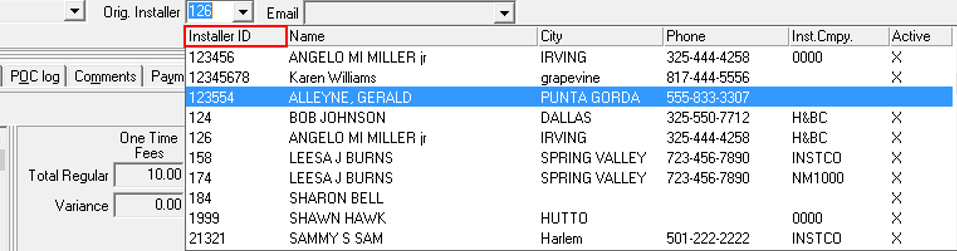
Original Installer Picklist
The Original Installer Picklist displays the Installer ID's, the picklist can be switched to the Telemarketer Picklist to display the Telemarketer ID's. This is option drive and when option TEMP105 is turned ON the Telemarketer ID's will populate in the picklist.

When option TEMP105 is turned off the Original Installer ID's will populate in the picklist.
Work Order Costing and Commission Tabs
Use the tabs in the lower pane of the work order window to enter items, finance, commission, and rental contract details. Some tabs are only available in Get mode. The costing and commission tabs are:
The Details Tab
Use the Details tab to manage the items included in a work order. The work order may contain items in one or more of the following configurations:
Individual items
Systems
Packages
You may only enter items associated with the selected price list group. Also, when you add packages or systems, SBN does not add items that are not on the price list. (Item definitions and prices originate from program #1535.)
Note: Items on a work order that have been picked in Branch Inventory (program #1757) are locked in the Details tab and cannot be edited.
As you enter items into the Details tab, you can insert items among those already listed in the tab by choosing one of two buttons:
Add - When you choose this method, SBN moves the focused field to a blank line below the last item on the list.
Insert Record - When you choose this method, SBN inserts a blank line above the current position of the focused field and moves the focus to that blank line.
Note: Actions 250/21 and 250/22 control the display of the Add and Insert buttons.
If you enter a package that is associated with a panel in Packages (program #1777), save the work order and then later jump to Data Entry, the Panel field of the CID grid defaults with the panel associated with that package.
When option ba421 is on and you are defined with a Sales ID in Personnel (program #1811), there must be at least one package item in the Details tab if you want to create or change a work order. If the Details tab is blank, or if you assign items that are not part of a package, an error message appears, and you cannot save the work order.
When option ba245 is on, SBN displays a Labor item in all work orders. When you define a Difficulty Level the Labor quantity changes. The total labor charge equals the Standard Labor multiplied by the Difficulty Level for all items on the work order. (Standard Labor X Difficulty Level = Total Labor Charge.) If you do not set a level, SBN saves the work order with a Labor item with a quantity of zero.
The following graphic shows the Details tab with information displayed.
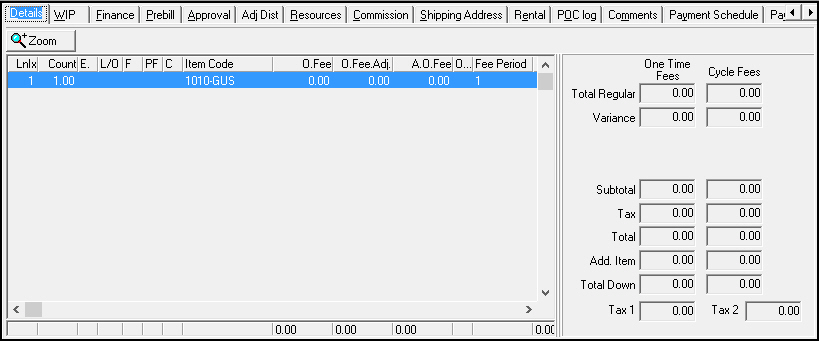
Field/Column Descriptions - Details Tab
The following table describes the fields and columns used in the Details tab.
Field/Column |
Description |
Line Index |
Line index number for the line. |
Count |
Quantity of the item. Count defaults to 1.00. Note: You may type a negative count and close the work order without picking. If option ba339 is on, the Quantity in the Pick/Return window of Branch Inventory defaults to 0 instead of the negative value on the work order. If option ba339 is off, the Quantity in the Pick/Return window in Branch Inventory displays the negative count from the work order. If an item has the Negative or Positive flag selected in Items (program #1535), the count you enter for the item in the Work Order Details tab is always negative or positive. |
Exchange Flag |
If this column displays an X, the item can be exchanged at no charge and zeroes out the price for the item. Note: If you mark a package with an exchange flag, the revenue types of all items included in the package remain the same even if the price is 0. |
Lease / Owned |
If this column displays an X, the item is leased, which causes SBN to base the pricing on the leased price list for the price list group selected. A blank field indicates a regular sale for the item. |
Finance Flag |
If this column displays an X, the item is financed. Note: When option ba148 is on, setting this flag in one item causes SBN to set flags on all lines. |
Package Flag |
SBN lists all items contained in the package separately, without price information. l A - in this column indicates that the list does NOT include cycle fees. l A + indicates that the list includes cycle fees, as defined in the Packages program #1777. l An X in this column indicates the main item of the package. |
Commission Flag |
If this column displays an X, SBN requires an additional commission adjustment for this item to distribute commission to multiple personnel. |
Item Code |
Menu that displays choices for items; based on the price list group selected and the lease/own flag. (This menu originates from program #1535.) Note: SBN does not allow you to save a work order with an item count greater than zero without entering an item code in this field. |
Exchange Item |
If the Exchange Flag column displays an X, select the exchange item; this menu displays all valid items from the selected price list. Note: Use this column to track exchange items with a fixed commission, revenue type, etc. Note: If option ba365 is on and you select an abbreviation from the One Time Abbreviation menu, you must also select an exchange item from this menu. |
One Time Fee |
One-time fee; based on the item price from the price list and the quantity. |
One Time Fee Adjustment |
Field for typing any line item adjustments to the one-time fee. You can type adjustments as both positive and negative numbers. Note: Action 250/18 controls access to this field. |
Adjusted One Time Fee |
Displays the net one-time fee for the line based on the one-time fee and one-time fee adjustment. |
One
Time Fee |
If this column displays an X, the tax is included for the one time fee on this item. |
Fee Period |
Number of months covered by the cycle fees; defaults from the price list. |
Cycle Fee |
Cycle fee for the item on the selected price list. Note: The cycle fee amount depends on your selection in the work order Cycle Currency field. If the cycle currency type is the same as the primary currency type (in the Currency field), SBN uses the primary cycle fee for the item in Price Lists (program #1533). If the cycle currency type matches the secondary currency type entered for the price list in program #1533, SBN uses the price list secondary cycle fee for the item. |
Cycle Fee Adjustment |
Field for typing any line item adjustments to the cycle fee. You can type adjustments as both positive and negative numbers. Note: Action 250/17 controls access to this field. |
Adjusted Cycle Fee |
Displays the net cycle fee for the line. |
Cycle Fee Tax Included |
If this column displays an X, the tax is included for the cycle fee on this item. |
Description |
Text description of the item. |
Location |
Physical location where item is installed or a description for miscellaneous items. |
Adjustment Reason |
Reason for manual price adjustment. |
Close Flag |
If this column displays an X, the item is closed. |
Valid From |
Specific date to begin charging cycle fees. Note: You may select either a Valid From date or a Valid From Offset. If you define both, SBN displays an error message. |
Valid From Offset |
Instead of selecting a specific date, you may type a positive or negative number of days, from the invoice date, to begin charging cycle fees. |
Valid To |
Specific date to stop charging cycle fees. (You must selected a Valid To date if the To Date Required check box is selected for the item in program #1535.) Note: You may select either a Valid To date or a Valid To Offset. If you define both, SBN displays an error message. |
Valid To Offset |
Instead of a specific date, you may type a positive or negative number of days, from the final invoice date, to stop charging cycle fees. |
Cover From |
Start date for revenue recognition of the one time fees charged. |
Cover To |
End date for revenue recognition of the one time fees charged. |
One Time Abbreviation |
Abbreviation for defined text to print on work order instead of the item code. (This menu originates from program #1544.) Note: If option ba365 is on and you select an abbreviation from this menu, you must also select an exchange item from the Exchange Item menu. |
One Time Text |
Select an identifying abbreviation to display the text associated with the abbreviation. If you do not select an abbreviation, you can type free-form text to display when the invoice prints. |
Cycle Abbreviation |
Abbreviation for defined text to print on work order. (This menu originates from program #1544.) |
Cycle Text |
Select an identifying abbreviation to display the text associated with the abbreviation. If you do not select an abbreviation, you can type free-form text to display when the invoice prints. |
Discount Included |
When you select this check box, the price on the invoice is the net price after adjustment. The original price appears on the printed invoice. |
Cycle Revenue Type |
Revenue type associated with the cycle fee for this item; defined in the Items detail tab for each item price list. (See Items for more information.) |
One Time Revenue Type |
Revenue type associated with the one time fee for this item; defined in the Items detail tab for each item price list. (See Items for more information.) |
Taxable Cost |
Columns used for Bay tax calculation. These columns appear only when option tax06 is on.
|
No Label |
|
Standard Cost |
|
Standard Labor |
|
Cost Ratio |
|
Item Code 2 |
Additional item identifier. (This field originates from program #1535.) |
Item Code 3 |
Additional item identifier. (This field originates from program #1535.) |
Order Index |
You can order the items differently from the Line Index. Type the order in which you want the items to appear, and double-click the column header to sort all items by the Order Index. |
Print Flag |
Company-defined flag. Default set to flag all items. |
Explode Flag |
Company-defined flag. Default set to blank. |
Level |
Work order difficulty level. You can change the level for each item. (This menu originates from program #1599.) Note: This selection overrides the Difficulty Level selected in the Information pane. |
Cycle Period |
Frequency, in months, to invoice the cycle fee for an item. The cycle period you enter in this column applies only to the selected item. If this column is blank, the work order cycle period (defined in the Work Order Account Information pane) applies to all items on the work order. |
Credit Item |
On a Credit Work Order, this is an item from the Installed Components tab for which to credit the customer. When you enter a negative quantity in the Count column, SBN displays a drop-down menu in this column with all the items in the Installed Components tab for which the customer has not been credited. SBN updates the Item Code and Count columns according to your menu selection. Note: When option ba465 is on, if you create a Credit Work Order, SBN searches the Installed Components tab of the installation for the items on the work order and populates the Credit Item column with the line number for the item from Installed Components. If the items do not exist in the Installed Components tab or if there is more than one of an item in the Installed Components tab, SBN displays the following error message: 'Credit item cannot be auto-selected.' SBN will not allow you to save the work order until you select a Credit Item from the drop-down menu. When option ba465 is off, SBN does not require you to make a selection in the Credit Item column of a Credit Work Order. |
Tax Rate |
Value of 0 through 9 that indicates the type of tax calculation used for the item. The tax rate is determined by the Rate field in Items (program #1535). Note: The Tax Inc check boxes in the Item Price List tab of program #1535 must be blank for this column to contain data for an item. |
Tax 1 |
Tax amount 1 for the item. SBN populates this field only if option bl208 or option taxca is turned on. Note: The Tax Inc check boxes in the Item Price List tab of program #1535 must be blank for this column to contain data for an item. |
Tax 2 |
Tax amount 2 for the item. SBN populates this field only if option taxca is turned on. Note: The Tax Inc check boxes in the Item Price List tab of program #1535 must be blank for this column to contain data for an item. |
Needed By Date |
Dropdown window of a Calendar. User can pick a future date for when they need a Work Order by. |
Self Install |
An “X� will appear here if the item in (#1535) has a checkbox in the “Self Installed� box. |
Total Fields |
|
Total Regular |
Total amount of all regular items; displayed for both one-time fees and cycle fees. |
Variance |
Total amount of all adjustments; displayed for both one-time fees and cycle fees. |
Total Labor |
Total cost of the labor of all item; only available when option ba245 is on; displayed for both one-time fees and cycle fees. |
Variance Labor |
Adjustments made to labor costs; only available when option ba245 is on; displayed for one-time fees only. |
Subtotal |
Total combined amounts of the all lines above Subtotal; displayed for both one-time fees and cycle fees. |
Tax |
Calculated tax, if applicable; displayed for one-time fees only. |
Total |
Total of Subtotal + Tax; displayed for both one-time fees and cycle fees. Note: If you save a work order in which the total of the work order exceeds the total of the invoice balance associated with the selected credit invoice number, SBN displays an error message. |
Add. Item |
Total of additional items added outside the package or system; displayed for both one-time fees and cycle fees. |
Total Down |
Total down payment: the Total One Time Fees plus one month of Cycle Fees; displayed for both one-time fees and cycle fees. |
Tax 1 |
Total amount in the Tax 1 column for all items on the work order. SBN populates this field only if option bl208 or taxca is turned on. Note: The Tax Inc check boxes in the Item Price List tab of program #1535 must be blank for this field to contain data. |
Tax 2 |
Total amount in the Tax 2 column for all items on the work order. SBN populates this field only if option taxca is turned on. Note: The Tax Inc check boxes in the Item Price List tab of program #1535 must be blank for this field to contain data. |
Note: When option tax07 is on, Work Orders and invoice programs support Taxware International’s Taxware Sales/Use Tax System.
When option tax07wt is on, it controls the default work order type to be used when an invoice has no work order type designated. The work order type differentiates between item sales and repairs or installations for calculation in the Taxware system. (Option tax07 must be on to use this option.)
When Option bl154 is on, it affects Work Order items and whether or not the customer invoice displays item fees.
Lease Calculator
A Lease
Calculator can be used to determine the monthly payment or the effective
interest rate on a lease.
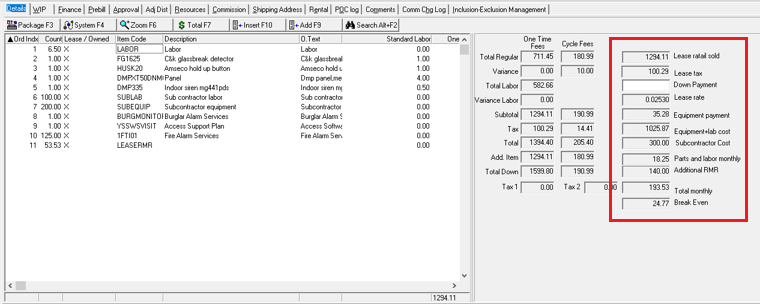
Field/Column Descriptions - Lease Calculator
The following table describes the fields used in the Lease Calculator.
Field/Column |
Description |
Lease Retail Sold |
To be Determined. |
Lease Tax |
To be Determined. |
Down Payment |
To be Determined. |
Lease Rate |
To be Determined. |
Equipment Payment |
To be Determined. |
Equipment + lab cost |
To be Determined. |
Subcontractor Cost |
To be Determined. |
Parts and Labor Monthly |
To be Determined. |
Additional RMR |
To be Determined. |
Total Monthly |
To be Determined. |
Break Even |
To be Determined. |
Using Systems
In a new work order, use the System button or press F4 to group certain items and packages together and to define the quantities you want for the work order. Once you select a system, a window appears that displays product groups that make up that system. You can select Packages from inside systems and all items of the package appear in the Details tab.
The following graphic shows a system window with information displayed.
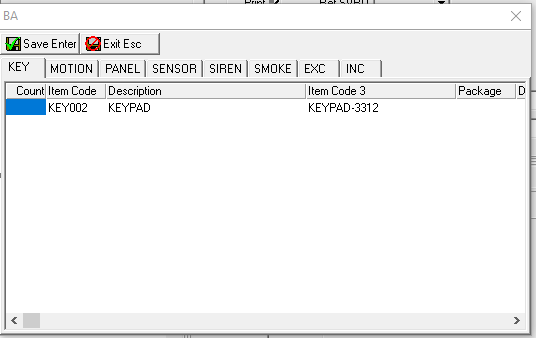
Each group displays in a separate tab. You can select any of the items listed in each tab and type the appropriate quantities. Even if you do not select items from a tab, you must view each group tab before you can save the system. This guarantees that you choose all the items needed for that system. (The menu of system definitions originates from program #1883.)
SBN inserts the items of the system below the line where the cursor was positioned in the Details tab.
Using Packages
Use Packages to select a predefined package that has defined items with quantities and prices. The package types available depend on the price list group selected in the Work Order Account Information. When you select a package from the list, all of the items and quantities then appear inside the Details tab. The package item has an X in the PF column. All items that include cycle fees have a + (plus) in the PF column. All items that do not include cycle fees have a - (minus) in the PF column. (The list of available packages originates from program #1777.)
To delete or change quantities in a package, you must change the quantity of the main package line. (This line displays an X in the Package Flag column.) Changing the quantity updates all items attached to the package, and a zero quantity deletes all items.
If you mark a package with an exchange flag, the revenue types of all items included in the package remain the same even if the price is 0.
If option bl034 is on, the line items - within a package - that have $0 and $0 adjustment do not print on the related invoice.
Note: If a marketing inquiry has a program assigned in the Program field of Marketing (program #562) that is not linked to any packages in Packages (program #1777), the Packages menu on a work order for that marketing inquiry includes all available packages.
The following graphic shows the Details tab with package information shown.
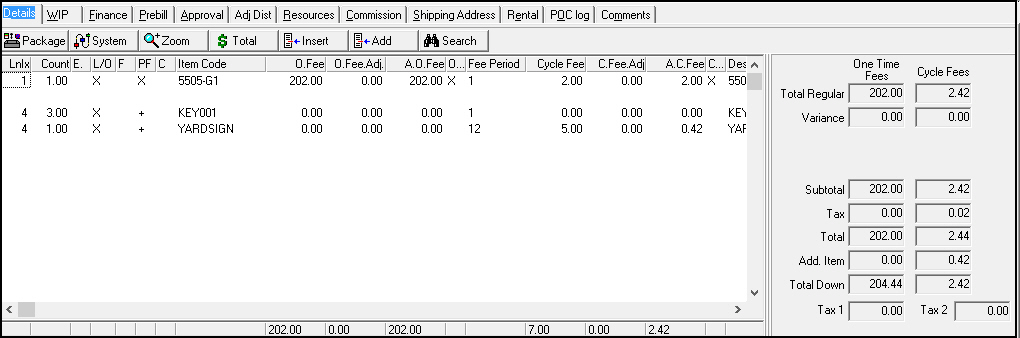
Deleting Items from the Details Tab
You may only delete items from a work order that is open, unapproved, and does not have picked items. When you try to delete items from a work order that has picked items and then choose Save, SBN warns you that you cannot delete the items.
Use the following steps to delete items that are not included in a package, system, or kit.
Use the following steps to delete items from a work order:
1. In Work Orders, select the work order from which you want to delete items.
2. Choose Change Record.
w The Work Order opens for changes.
3. In the Details tab, select the line of the items you want to delete.
4. In the Count column, change the number to 0.
5. Tab through the line.
6. Choose Save.
w SBN saves the work order.
Note: Deleting the number in the Count column removes the item completely from the work order. When an item is deleted in this way, it does not appear in the Pick/Return window of program #1757.
The WIP Tab
Use the Work In Process tab to track work in process and job cost information of a work order through completion. Action 250/31 controls the read-only mode of the WIP tab.
The WIP tab consists of three panes:
Line Item List contains components that have already been entered and saved on the work order.
Installer / Vendor List contains installers and vendors that have been entered and attached to the work order.
Totals displays various totals for the work order.
Use the Toggle Currency button to change the view back and forth between:
Work Order Currency Mode - Displays the Standard Cost amounts in the work order currency
Personnel Currency Mode - Displays the Standard Cost amounts in the currency of the resource assigned to the work order
Note: If a work order contains an item kit (defined in Items - program #1535), SBN saves the item kit contents when you approve the work order. The WIP tab displays item kit contents as they were when the work order was approved. If you change the item kit in program #1535 after approving the work order, your changes will not appear in the WIP tab.
The following graphic shows the WIP tab with information displayed.
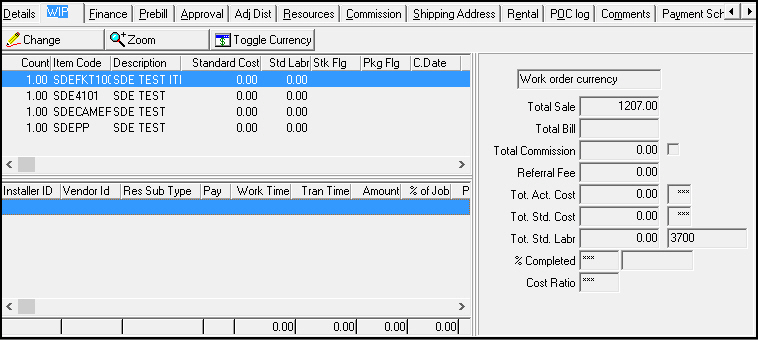
Note: You must view the work order in Get mode to access the buttons in this tab.
Column Descriptions - Line Item List
The following table describes the fields and columns used in the Line Item List of the WIP tab.
Column |
Description |
Count |
Quantity of the item. |
Item Code |
Item identifier used in the details tab. |
Description |
Text description of the item. |
Standard Cost |
Total standard cost of the line; based on (standard cost) x (quantity). |
Standard Labor |
Total estimated labor units for this line; based on (standard labor) x (quantity). Note: You must have an installation branch associated with the contract to view standard labor units. Note: If the Alternate WIP Calc check box is selected in program #1533 for the price list associated with the work order, SBN uses the Standard Labor field in Items (program #1535) to calculate labor for all items. SBN also displays this Labor calculation in the Estimated Labor column of Completed Job Analysis (report #2043) and Completed Job Summary (report #2045). |
Stock Flag |
If this column displays an X, the work order has been picked from inventory. Picking a work order also updates the total standard cost with the material removed from inventory. |
Package Flag |
If this column displays an X, the item belongs to a package. (Packages originate from program #1777.) |
Close Date |
Work order close date. |
QP - Picked Quantity |
Quantity picked from inventory. |
Exchange Flag |
If this column displays an X, the item was flagged as an exchange in the last pick/return transaction for that item. |
Comment |
Displays comments typed in the last pick/return transaction for the selected item. |
Complete Flag |
Indicates that the selected item has been flagged as completely picked. |
Total Standard Cost |
If the item is not flagged as Labor in Items (program #1535) this column displays (branch standard labor) + (standard cost of the item). If the item is not flagged as Labor in Items (program #1535) this column displays standard cost of the item. Note: Use Standard Labor Rates (program #1795) to define standard labor. |
Item Code 2 |
Additional identifier for the selected item. (This menu originates from program #1535.) |
Resource Currency |
Currency type entered for the standard cost of the selected item in program #1535. |
Labor Cost |
Displays cost of labor that is inputted into Installation Classes Pos #50. |
Travel Cost |
Displays cost of travel that is inputted into Installation Classes Pos #51. |
Column Descriptions - Installer/Vendor List
The following table describes the columns used in the Installer/Vendor List.
Column |
Description |
Installer ID |
In Change mode, you may select the installer to associate with the work order. (This menu originates from program #1543.) This menu displays only those resources: l Associated with the same dealer ID as the work order l Not associated with any dealer ID |
Vendor ID |
In Change mode, you may select the vendor to associate with the installer. (This menu originates from program #1758.) The following options can limit this drop-down menu:
|
Pay |
Pay type. If you selected a vendor, the pay type defaults to V. If you selected an installer, you may select l H = hourly l F = flat rate Note: This menu originates from program #1764, index 15. |
Work Time |
In Change mode, type the total work time in hours for the installer. |
Transport Time |
In Change mode, type the total transit time in hours for the installer. |
Amount |
In Change mode, type the amount to pay the vendor. Note: This field can fill with a default when you create an AP voucher and link it to the work order. Note: If option ba349 is on and an employee has an hourly pay rate defined in Personnel (program #1811) that rate defaults into this field. |
% of Job |
Percent of job applicable to the installer attached the work order. Note: You can type the percentage while in Change mode, or use the Resources tab. |
Percent |
Percent credit of commission assigned to the installer in the Resources tab when work order was created. |
Adjustment |
Manual commission adjustment. |
AP Voucher Flag |
If this column displays an X, an AP voucher created this entry. |
Units |
These columns are functional when option ba335 is on. Note: Use action 250/33 to control updates in the Authorized field. |
Rate |
|
Comment |
|
Authorized |
|
Authorized By |
|
Authorized Date |
|
Authorized Time |
|
Invoice Number |
|
Reference No. |
|
Transaction Date |
Field Descriptions - WIP Totals
The following table describes the fields used in the Totals pane of the WIP tab.
Field |
Description |
Currency View (No label) |
Displays the mode in which standard cost currency is currently displayed. (Use the Toggle Currency button to change the mode.) |
Total Sale |
Net one-time fees for the work order; the list price minus any adjustments. |
Total Bill |
Total one-time fees invoiced for this work order. |
Total Commission |
In Change mode, type the percentage amount of commission that applies to this work order. |
Commission
Manual Adj |
If this box displays a check mark, the commission was manually adjusted. |
Referral Fee |
SBN-calculated referral fee; appears when you attach a work order to a marketing record with a referral lead entered. After the account has been installed, when you accept a payment or issue a credit, SBN automatically updates this field. |
Total Actual Cost |
Updates as inventory is picked or you make changes to vendor, installer, or commission. |
Months (No label) |
Number of months needed to break even; based on the actual cost. |
Total Standard Cost |
Total standard cost of the work order; based on (Item Quantity * Standard Cost + Item Quantity * Standard Labor Units * Standard Branch Labor Rate + Commission.) |
Months (No label) |
Number of months needed to break even; based on standard cost (Standard Cost/Monthly Cycle Fee.) |
Total Standard Labor |
Labor units. Note: If an item in the work order is flagged as a labor item in Items (program #1535), SBN uses the standard cost and standard labor units defined for that item as the Total Standard Labor and Labor Rate for the work order. |
Labor Rate |
Labor rate, in cents. Note: If an item in the work order is flagged as a labor item in Items (program #1535), SBN uses the standard cost and standard labor units defined for that item as the Total Standard Labor and Labor Rate for the work order. |
% Completed |
Estimated percentage complete of the work order. |
Close Date (No label) |
Work order close date. |
Cost Ratio |
Cost ratio of the work order; based on (Actual Cost / Total Sale.) |
Adding or Changing Details in the Installer/Vendor List in the WIP
You can add or change details about a specific item in the Installer/Vendor List.
Use the following steps to add details:
1. In the WIP tab, select the item to which you want to add details.
2. Choose Change Record.
w The fields in the Installer/Vendor list open.
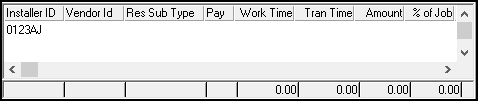
3. Select or type information into the columns, as needed.
4. Choose Save.
Viewing the Pick History in the WIP
If your action profile includes action 250/32, you can view the pick history of the selected item.
Use the following steps to view the pick history:
1. In the WIP tab, select the item for which you want to view the pick history.
2. Choose Zoom in/out of Sublevel.
w The Work Order Pick History window opens.
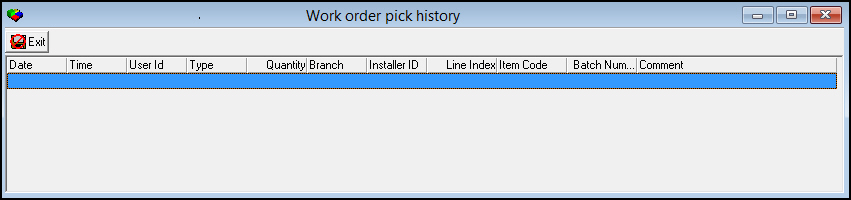
Option ba335
If option ba335 is on, the WIP tab contains expanded functionality. In the Installer/Vendor list, users may:
Type the cost of labor for each work order.
Authorize payments, including cash advances.
Column Descriptions - Installer/Vendor List
The following table describes the functionality of the columns in the Installer/Vendor List when option ba335 is on.
Column |
Description |
Installer ID |
Select the installer associated with the work order. (This menu originates from program #1543.) |
Vendor ID |
Default vendor associated with the selected installer ID. (Associate the installer with a vendor in program #1811/Installer tab.) Note: If you select a vendor ID before you select an installer ID, SBN limits the menu of installer IDs to those associated with the selected vendor ID. |
Pay Type |
Pay type. Vendor pay types are defined in the sublevel of Vendor Pay Types (index 15) of Misc. Inventory Fields (program #1764.)
Note: To add a cash advance line item A or D, you must first have an equivalent labor pay type for the same installer/vendor. |
Work Time |
When option ba335 is on, this column is not functional. |
Transport Time |
When option ba335 is on, this column is not functional. |
Amount |
Displays amount to pay vendor based on (# of units) * (rate) for all pay types. The parameters for changing the amount are based on pay type:
Note: The amount of a cash advance cannot be greater than the total amount payable for the installer/vendor. |
% of Job |
When option ba335 is on, these columns are not functional. |
Percent |
|
Adjustment |
|
AP Voucher Flag |
|
Units |
Number of times the sub-contractor is paid at the selected rate. SBN fills this field based on the selected pay type:
Note: You may change only the number of units for pay type K (mileage). |
Rate |
Rate at which the sub-contractor is paid. SBN fills this field based on the selected pay type:
Note: You may change only the rate for pay type K (mileage). |
Comment |
You may type a comment about the payable line item. If the amount does not equal (# of units) * (rate), you must type a comment before saving the change. Note: Once a payment has been authorized, you may not change the comment. |
Authorized |
Identifies the status of authorization:
Note: Double-click in the left of this field to add a check mark that identifies this line item as authorized. Note: You may only authorize line items on an approved work order. If the work order changes to unapproved, SBN clears the authorized flag on all line items that have not been transferred to accounts payable including Cash Advance. Note: You must change a line item to 'Not Authorized' in order to edit that line item. |
Authorized By |
Name of the user who authorized the line item. |
Authorized Date |
Date the user authorized the line item. |
Authorized Time |
Time the user authorized the line item. |
Invoice Number |
Displays invoice number associated with line item. You may only add an invoice number to unauthorized line items. |
Reference No. |
SBN-generated reference number associated with the line item. This number is read-only. Note: When you create the line item, SBN generates this number. Note: If you change the authorization of a line item from Authorized to Not Authorized, SBN clears the reference number. When you save changes to the line item, SBN generates a new reference number for that line item. |
Transaction Date |
Displays the date the line item was posted to Navision. |
Viewing Totals
The following table describes the changed functionality of the totals columns when option ba335 is on.
Total |
Result |
Total Actual Cost |
As you add line items in the Installer/Vendor list, the Total Actual Cost fields adjust to include the additions. |
Total Standard Labor |
As you authorize line items, the Total Standard Labor fields adjust to include the authorized line items. Note: However, neither the Total Actual Cost nor the Total Standard Labor include the amount of a cash advance. Total Standard Labor does not include exchange items. |
WIP Screen and the Miscellaneous Log Data
In the Work Order screen SBN will update data into the lower section of the WIP screen, when the Miscellaneous Log is updated, if the follow two conditions are present:
In the Work Order Type the drop down list displays a list of abbreviations and its description. SBN will look at the forth character of the abbreviations to end with a 'T'.

SBN will look to see if option temp192 is turned on.
If these two conditions are present, SBN will update the data in both the Miscellaneous Log and the lower section of WIP screen.
The following graphic displays the Work Order Type with the abbreviation ending with a 'T', and the Miscellaneous data imported into the lower level of the WIP screen.

The Finance Tab
The Finance tab displays any items from the work order that have been flagged as financed in the Detail tab. Action 250/41 controls the read-only mode of the Finance tab.
To enter finance information and change finance terms, you must first save the work order, and then reopen the work order in Get mode.
Note: When option ba403 is on, tax is included in financing work order payment calculations. When off, tax is not included in the total financed amount. Option ba148 must be on if option ba403 is on.
The Finance tab consists of four panes:
Finance Total - enter or make changes to these fields:
q Down Payment
q Fee
q Months
q Monthly Interest
q Round To
q Payments
Finance Information - enter or make changes to these fields:
q Finance type
q Debit
q Credit
q Invoice Immediately check box
Amortization Table - displays breakdown of each scheduled payment by:
q Payment number
q Principal amount
q Interest amount
q Total payment amount
q Balance remaining
Finance Items List - for each item, displays:
q Quantity
q Item code
q One-time fee
q Text description
The following graphic shows the Finance tab with information displayed.
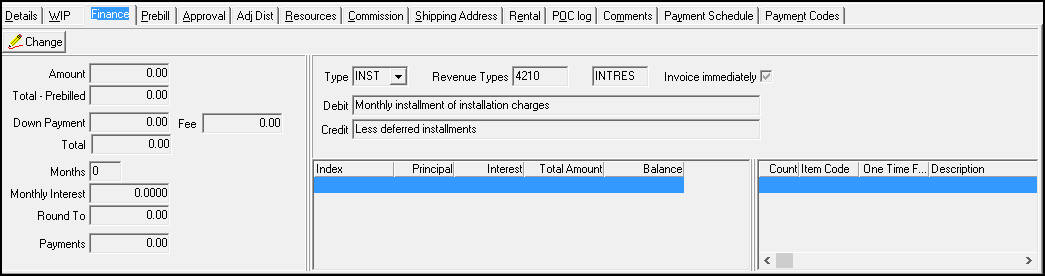
Field/Column Descriptions - Finance Totals
The following table describes the fields and columns used in the Finance Total pane.
Field |
Descriptions |
Amount |
Amount of one-time fees for all items on the work order flagged as financed. |
Total Pre-Billed |
Total of all pre-billings for this work order. SBN updates this field as you define additional pre-billings in the pre-billing window. |
Down Payment |
Displays any down payment amount not financed. Note: Changes made to this field automatically update all other fields accordingly. |
Fee |
Fixed fee amount to include on each invoice. The fee appears as a line item of the revenue type "Interest" on invoices. |
Total |
SBN-calculated total to finance; based on [(Amount - Total pre-billed) - Down Payment]. |
Months |
Number of months for the length of finance term. Note: Changes made to this field automatically update all other fields accordingly. |
Monthly Interest |
Monthly interest rate. Note: Monthly Interest allows up to four decimal places. |
Round To |
Amount to used for the nearest rounding. |
Payments |
SBN-calculated standard monthly payment; based on [(Total + Interest) / Months + Round To] |
Field Descriptions - Finance Information
The following table describes the fields used in the Finance Information pane.
Field |
Description |
Type |
In Change mode, menu that displays type of financing to use when invoicing the work order. (This menu originates from program #1822.) |
Revenue Types |
Default revenue type for installment billing; based on the finance type selected. |
Interest
Type |
Default revenue type for the interest portion of the installment billing; based on the finance type selected. |
Invoice Immediately |
Select this check box to immediately invoice the first installment of the work order when closed. Note: When option ba368 is on, SBN automatically selects this box. |
Debit |
Text to included in the installment invoice; based on the finance type selected. |
Credit |
Text to include on the final work order invoice to define previously billed amounts; based on the finance type selected. |
Column Descriptions - Amortization Table
The following table describes the columns used in the Amortization Table.
Column |
Description |
Index |
Number of each scheduled payment. |
Principal |
Amount of each scheduled payment that will go to pay the principal. |
Interest |
Amount of each scheduled payment that will go to pay interest. |
Total Amount |
Total amount of each scheduled payment. |
Balance |
Unpaid balance remaining after each scheduled payment. |
Column Descriptions - Finance Items
The following table describes the columns used in the Finance Items list.
Column |
Description |
Count |
Quantity of items for the line. |
Item Code |
Item code for the line. |
Amount |
Displays the one-time fee. |
Description |
Text description of the item. |
The Prebill Tab
Use the Prebill tab to view or enter specific dollar amounts or a percentage of the work order to bill in advance. Action 250/51 controls read-only mode of the Prebill tab.
You can create multiple pre- or process billings against the same work order. SBN does not tie pre-billing to a specific line of the work order, but applies it to the total. When you close the work order, the pre-billed amount displays as a credit on the invoice and SBN redistributes the revenue to the correct revenue type for each of the lines. To enter prebill information and change prebill terms, you must first save the work order, and then reopen the work order in Get mode.
The following graphic shows the Prebill tab with information displayed.
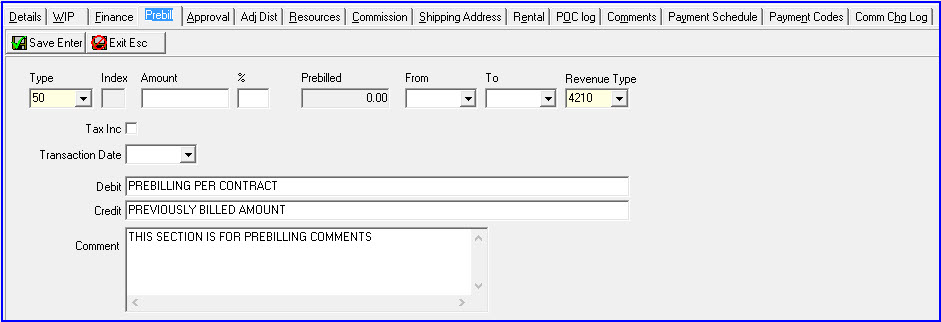
If action 250/124 is turned off, you cannot delete a work order that has a prebill already assigned.
The system prevents you from saving a prebill on a closed work order.
Field Descriptions - Prebill Tab
The following table describes the fields used in the Prebill tab.
Field |
Description |
Type |
Menu of prebilling types. (This menu originates from program #1801, and includes only prebilling types associated with the selected work order type.) |
Prebill Index |
SBN-assigned sequence number for the prebilling. |
Amount |
Amount to prebill. |
Percent |
Percentage of the work order to prebill. |
Prebilled |
Total amount of all previous prebillings for this work order. |
Prebill Date Range |
|
From |
You may select a range of dates that the prebill covers; select the beginning date of the range. Note: If you leave this field blank, SBN uses the work order creation date. Use this field only if you want the prebill period to span multiple fiscal periods. |
To |
You may select a range of dates that the prebill covers; select the ending date of the range. Note: If you leave this field blank, SBN uses the work order creation date. Use this field only if you want the prebill period to span multiple fiscal periods. |
Revenue Types |
Menu that displays revenue types for prebilling. Note: When you close the work order, the prebilled amount displays as a credit on the final invoice, and SBN redistributes the revenue to the correct revenue type for each of the lines. (This menu originates from program #1512.) |
Tax Included |
If you select this check box, the prebilling amount includes tax. Note: When final billing for the work order occurs, SBN credits any pre-billed tax and recalculates the tax for the entire work order. Note: If option ba328 is on, SBN automatically selects this box. |
Transaction Date |
Transaction date for prebilling. If you leave this field blank, SBN uses the current date. Note: If the transaction date of the work order is outside of the date range set for option wotrwa, SBN displays a warning message when you save changes. |
Debit |
Text that appears on prebilling invoice; defaults based on the selected prebill type, but you can override the default. |
Credit |
Text that appears in the final work order invoice to define previously billed amounts; defaults based on the selected prebill type. You can override the default. |
Comment |
Comments allows the user to copy and paste comments that can be added per invoice. These comments will be appear in the invoice file, when exporting invoices in Program #1557. |
The Approval Tab
You may approve or unapprove a work order from the main work order tab by selecting the work order and then choosing (Un/Approve) or you may use the Approval tab.
Note: Action 250/61 controls the read-only mode of the Approval tab. Action 250/94 must be active in order to unapprove work orders with items that have been picked in Branch Inventory (program #1757).
Note: If a work order is for an installation that has more than one contract associated with it, SBN does not allow you to approve the work order if a contract number is not selected. SBN displays an error message that prompts you to select a contract number for the work order. If there is only one contract number for the installation, SBN automatically assigns that contract to the work order when you approve the work order.
If a work order contains an item kit (defined in Items - program #1535), SBN saves the item kit contents and costs when you approve the work order. The Approval tab displays item kit costs as they were when the work order was approved. If you change the item kit in program #1535 after approving the work order, your changes will not appear in the Approval tab.
Use the following steps to approve/unapprove a work order from the Approval tab:
1. In Work Orders, you must first save the work order.
Note: Before you can approve a work order, you must attach it to a contract.
2. Open the work order details by choosing Get Record.
The following graphic shows the Approval tab with information displayed.
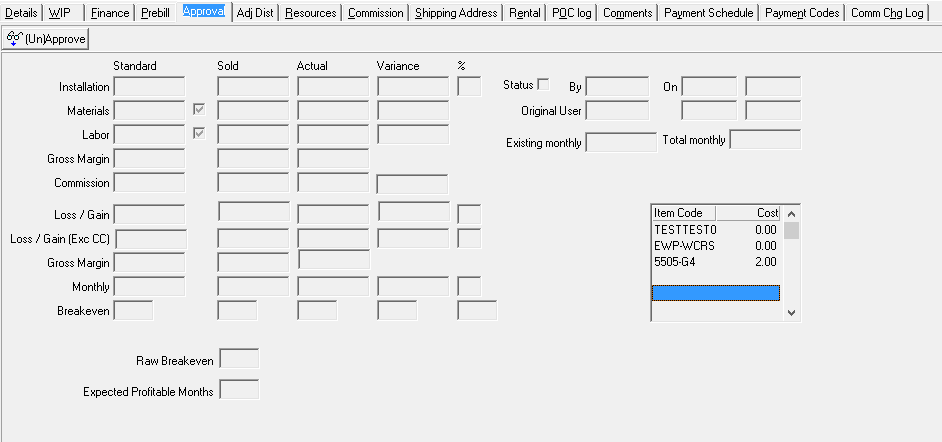
Field Descriptions - Approval Tab
The following table describes the fields used in the Approval tab.
Field |
Description |
Installation |
|
Standard Price |
Total one-time fees based on the price list selected. |
Sold |
Total one-time fees after adjustments. |
Actual Price |
Total one-time fees after adjustments. |
Variance |
SBN-calculated difference between the sold and actual price. |
Variance as Percentage |
Installation variance as a percentage of the sold price. |
Materials |
|
Standard |
Total cost of the components on the work order, based on standard cost of the items. Note: This cost does not change after approval, unless the work order is unapproved, changed, and approved again. |
(No label) |
A check mark indicates that the materials cost was locked when the work order was approved. |
Sold |
Total cost of the components on the work order, based on standard cost of the items. |
Actual |
Total standard cost for all items picked. |
Variance |
SBN-calculated difference between the sold and actual price. |
Labor |
|
Standard |
Total cost of labor for installing all components of the work order. Labor cost based on the quantity of each item multiplied by the standard branch labor rate and difficulty level. Note: If an item in the work order is flagged as a labor item in Items (program #1535), SBN calculates this amount based on the standard cost and standard labor units defined for that item. |
(No label) |
A check mark indicates that the labor cost was locked when the work order was approved. |
Sold |
Total cost of labor for installing all components of the work order. Labor cost based on the quantity of each item multiplied by the standard branch labor rate and difficulty level. |
Actual |
Total labor expected based on the labor units for picked items. |
Variance |
SBN-calculated difference between the sold and actual labor price. |
Gross Margin |
|
Standard |
SBN-calculated margin before commission based on the formula: Installation - Materials - Labor / Installation. |
Sold |
SBN-calculated margin before commission based on the formula: Installation - Materials - Labor / Installation. |
Actual |
SBN-calculated margin before commission based on the formula: Installation - Materials - Labor / Installation. |
Commission |
|
Standard |
Total commission calculated for telemarketers, sales persons, and installers for the work order before adjustments. Note: Option comprof determines the types of resources available for commission. Note: The following options determine the timing of commission calculation for each of the resource types:
|
Sold |
Total commission sold. |
Actual |
Total commission sold. |
Variance |
SBN-calculated difference between the sold and actual commission price. |
Loss/Gain |
|
Standard Price |
Loss or gain compared to the list price; based on the formula: Standard (Installation - Materials - Labor - Commission). |
Sold Price |
Loss or gain compared to the sold price; based on the formula: Sold (Installation - Materials - Labor - Commission). |
Actual Price |
Loss or gain compared to the actual price; based on the formula: Actual (Installation - Materials - Labor - Commission). |
Variance |
Loss or gain difference between standard price and actual price. |
Variance as Percentage |
Monthly variance as a percentage of the standard monthly cost. |
Loss/Gain (Exc CC) |
|
Standard |
Loss or gain compared to the list price without considering the cycle commission. |
Sold |
Loss or gain compared to the sold price without considering the cycle commission. |
Actual |
Loss or gain compared to the actual price without considering the cycle commission. |
Variance |
Loss or gain difference between the standard and actual price without considering the cycle commission. |
Variance as Percentage |
Monthly variance as a percentage of the standard price without considering the cycle commission. |
Gross Margin |
|
Standard |
SBN-calculated margin after commission based on the formula: Installation - Materials - Labor / Installation. |
Sold |
SBN-calculated margin after commission based on the formula: Installation - Materials - Labor / Installation. |
Actual |
SBN-calculated margin after commission based on the formula: Installation - Materials - Labor / Installation. |
Monthly |
|
Standard Price |
Total standard amount of monthly fees for all items. |
Sold |
Total sold amount of monthly fees for all items. |
Actual Price |
Total amount of monthly fees for all items after adjustments. |
Variance |
Difference in the standard and actual monthly fees. |
Variance as Percentage |
Monthly variance as a percentage of the standard monthly fees and the actual monthly fees. |
Breakeven |
|
Standard |
Number of months of standard cycle fees needed to break even on the installation; based on the formula: Standard Loss Gain / Monthly Standard. |
Sold |
Number of months of sold cycle fees needed to break even on the installation; based on the formula: Sold Loss Gain / Monthly Sold. |
Actual |
Number of months of actual cycle fees needed to break even on the installation; based on the formula: Actual Loss Gain / Monthly Actual. |
Variance |
Difference in months between standard break even and actual breakeven. |
Variance as Percentage |
Break-even variance as a percentage of the standard breakeven. |
Status |
If this check box is selected, the work order is approved. Note: The Approve button toggles this status and check mark between approved and unapproved. |
By |
User ID of the last person who approved/unapproved the work order. |
On |
Date the work order was last approved/unapproved. |
Time |
Time the work order was last approved/unapproved. |
Original User |
ID of the user who originally approved the work order. |
Original User Date |
Date the work order was originally approved/unapproved. |
Original User Time |
Time the work order was originally approved/unapproved. |
Existing Monthly |
Sum of all cycle fees for this contract or installation. |
Total Monthly |
Sum of existing monthly fees plus the actual monthly fees from this work order. |
Raw Breakeven |
Difference of the amounts in the Installation Sold, Materials Sold, and Labor Sold fields. |
Expected Profitable Months |
Raw Breakeven amount divided by the Monthly Sold amount added to the total months in the contract length. |
Approval Tab Grid |
Grid which appears when any field is clicked in the Approval Tab (even if empty). If detail data is available, it will be displayed within field listing all items that make up the value user selected. |
The Adjustment Distribution Tab
Use the Adjustment Distribution tab to allocate the adjustment total to one or more adjustment codes. Once you have entered the Adjustment Distribution tab, you cannot save the work order until you have assigned all adjustments and they are equal to the total amount of adjustments for the work order.
The following graphic shows the Adjustment Distribution tab with information displayed.

Field/Column Descriptions - Adjustment Distribution Tab
The following table describes the fields and columns used in the Adjustment Distribution tab.
Field/Column |
Description |
Total Adjustment |
Total one-time fee adjustment amount from the Details tab. |
Running Total (No label) |
SBN-calculated tally of the total amount assigned to adjustment codes. The total in this field must match the amount in the Total Adjustment field before you can save the work order. |
Adjustment Balance |
Outstanding amount that remains to allocate to an adjustment code. |
Code |
Menu of adjustment codes. (This menu originates from program #1783.) |
Amount |
Amount assigned to the adjustment code. |
The Resources Tab
The Resources tab contains three side tabs for attaching Installers, Sales People, and Telemarketers to the work order. You may attach multiple personnel and resource types to a work order. Use the buttons on this tab to attach the
Default installer
Default sales person
Default telemarketer
The buttons in this tab are only available in New or Change mode.
Note: When option ba235 is on, the resource distribution percentage must equal 100% for each resource type. When option ba272 is on, the default installer and salesperson from data entry and the telemarketer from marketing automatically appear in the work order.
The following graphic shows the Resources tab with information displayed.
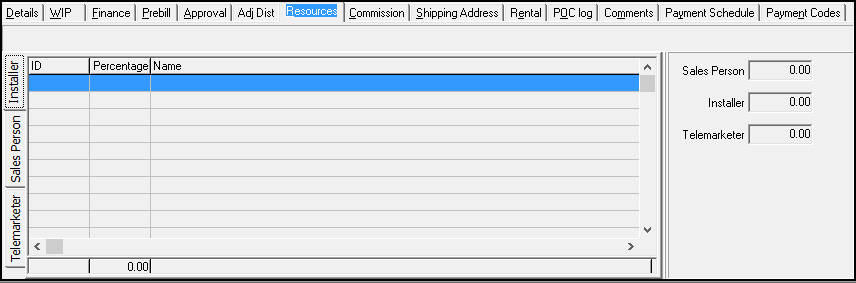
Field/Column Descriptions - Resources Tab
The following table describes the fields and columns used in the Resources tab.
Field/Column |
Description |
ID |
Menu containing Installer ID, Sales Person ID, or Telemarketer ID depending on the tab selected. These menus originate from the following programs: l Installers (program #1543) l Sales People (program #1539) l Telemarketers (program #1750) This menu displays only those resources l Associated with the same dealer ID as the work order l Not associated with any dealer ID |
Percentage |
Percentage of work order that applies to the resource ID selected. Note: If option ba276 is on, when you tab to this field from ID, the field defaults with value of 100%. |
Name |
Name of the installer, sales person, or telemarketer for the ID selected. |
Sales Person |
Total percentage allocated to all sales persons attached to the work order. |
Installer |
Total percentage allocated to all installers attached to the work order. |
Telemarketer |
Total percentage allocated to all telemarketers attached to the work order. |
The Commission Tab
Use the Commission tab to change the commission calculated for each resource type. The tabs on the side of the Commission tab switch between resource types.
You can enter personnel IDs, commission amounts, and commission codes. You can also adjust the amount of one-time and cycle fees to take into the total amount in the commission calculation. These adjustments are for commission calculation only.
Use the Toggle Currency button to change the view back and forth between
Work Order Currency Mode - Displays amounts in the work order currency
Personnel Currency Mode - Displays amounts in the selected resource's currency
Note: You must view the work order details in Get mode to access the buttons in this tab.
The following graphic shows the Commission tab with information displayed.
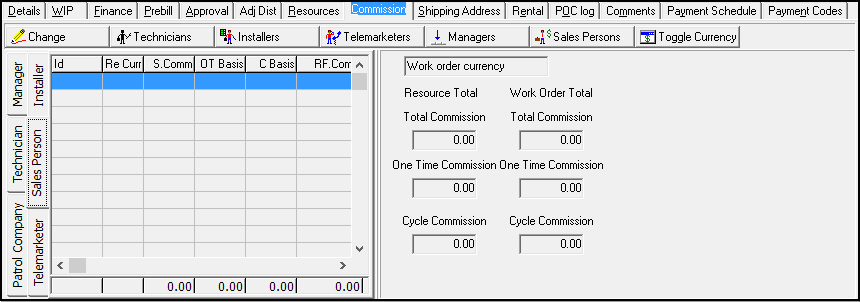
Field/Column Descriptions - Commission Tab
The following table describes the fields and columns used in the Commission tab.
Field/Column |
Description |
ID |
Menu of personnel IDs for each resource type (Installers, Sales Person, Technician, etc.). This menu displays only those resources l Associated with the same dealer ID as the work order l Not associated with any dealer ID |
Resource Currency |
Currency type of the selected resource. (Assign currency types to resources in program #1811.) |
Standard Commission |
Standard commission for items on the work order. |
One Time Basis |
One time fees for the commission items on the work order. |
Cycle Basis |
Cycle fees for the commission items on the work order. |
Previous Commission Adjustment |
Amount of previous commission adjustments. |
Previous One Time Adjustment |
Amount of one-time fee adjustments. |
Previous Cycle Adjustment |
Amount of cycle fee adjustments. |
Commission Adjustment |
Field for typing commission adjustment amounts. You can type either negative or positive numbers. |
One Time Fee Adjustment |
Field for typing one-time fee adjustment used for commission calculation. You can type either negative or positive numbers. |
Cycle Fee Adjustment |
Field for typing cycle fee adjustments used for commission calculation. You can type either negative or positive numbers. |
Code (1-6) |
Menu of commission codes. (This menu originates from program #1854.) Note: If option ba348 is on: l The first Code column is required for Installers and Sales Persons l The
sixth Code column defaults to the first code associated
- in the sublevel - with Code
6 in Commission/Payroll |
Comment |
Text field for entering comments. |
Currency View |
Mode in which commission currency is currently displayed. (Use the Toggle Currency button to change the mode.) |
Resource Total: |
|
Total Commission |
Total Commission amount for the resource type selected for the current resource tab. |
One Time Commission |
Total one-time fees adjustments made in the commission tab for commission calculation for the current resource tab. |
Cycle Commission |
Total cycle fee adjustments made in the commission tab for commission calculation for the current resource tab. |
Work Order Total: |
|
Total Commission |
Total commission for the work order for all resource tabs. |
One Time Commission |
Total one-time fee adjustments made in the commission tab for commission calculation for all resource tabs. |
Cycle Commission |
Total cycle fee adjustments made in the commission tab for commission calculation for all resource tabs. |
The Shipping Address Tab
Use the Shipping Address tab to enter a shipping address specific for the work order.
The following graphic shows the Shipping Address tab.
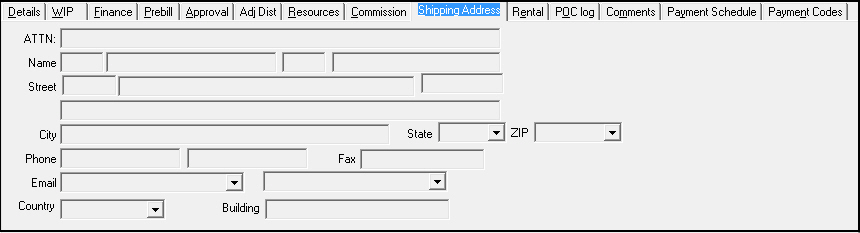
Field Descriptions - Shipping Address Tab
The following table describes the fields used in the Shipping Address tab.
Field |
Description |
ATTN |
Name of the user who placed the order. |
Name |
Name for the contact at the shipping address. |
Street |
Street number, street name, and apartment/suite number for the shipping address. |
Street 2 (No label) |
Additional line for street information. |
City |
City for the shipping address. |
State |
State for the shipping address. |
ZIP |
Zip code for the shipping address. Note: The City and State fields may auto-fill based on the zip code selection. |
Phone |
Primary phone number for the contact at the shipping destination. |
Phone 2 (No label) |
Secondary phone number for the contact at the shipping destination. |
Fax |
Fax number for the shipping destination. |
Primary email address for the contact at the shipping address. |
|
Email 2 (No label) |
Secondary email address for the contact at the shipping address. |
Country |
Country in which the shipping destination is located. |
Building |
Building name for the shipping address. |
The Rental Tab
Use the Rental tab to enter details that appear in the read-only rental contract fields of Contract Master (program #548), which SBN populates when you invoice the initial work order for a rental contract. You may enter information in these fields only on the initial work order for a rental contract. To set up a rental contract, first create the contract in Contract Master, then create the initial work order in the Work Orders tab to define equipment installation and service specifications, as well as financing details that SBN uses to calculate rental payments.
The following graphic shows the Rental tab with details displayed.
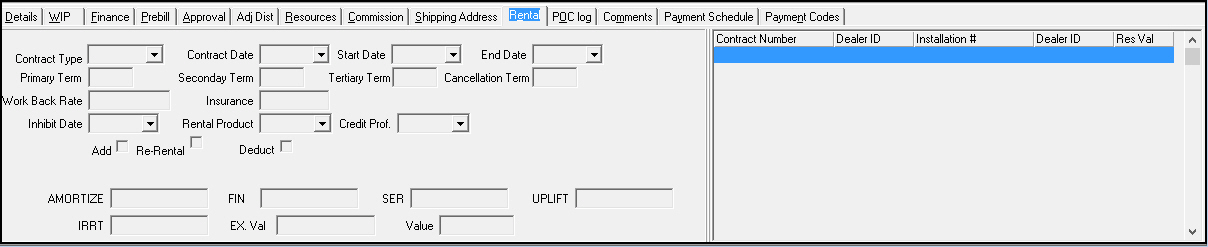
Field Descriptions - Rental Tab
The following table describes the fields used in the Rental tab.
Field |
Description |
Contract Type |
Rental contract type. (This menu originates from program #1638.) Selection in this field automatically populates the Escalation, Credit Profile, Primary Term, Secondary Term, Tertiary Term, and Cancellation Term fields. An entry in this field makes the Escalation, Credit Profile, Work Back Rate, Insurance, Service Type, and Rental Product fields required. Note: Use option ba423 to define an item that SBN automatically inserts on the initial work order of a rental contract when you select a rental contract type. This item represents the rental fee for the contract. Create the Rental Item to insert on initial rental contract work orders in Items (program #1535) and link it to any Price Lists used for rental contracts. Select the No Count check box and define the price as $1. You cannot edit this Rental Item on the work order. If this option is blank, this feature is not active. |
Contract Date |
Date the contract was signed. |
Start Date |
Date the contract became effective. SBN bases financial calculations on this date. |
End Date |
Date the contract is no longer effective. An entry in this field indicates this is a fixed-term contract, and SBN does not permit a secondary or tertiary term. If you do not complete the Primary Term field, you must complete this field. |
Primary Term |
Number of months in the initial contract period. If you do not complete the End Date field, you must complete this field. |
Secondary Term |
Number of months in the secondary contract period. If this field is blank or contains a 0 (zero), the contract immediately rolls into a tertiary period. |
Tertiary Term |
Number of months in the tertiary contract period. This field accepts any value up to the value entered in the Primary Term field. |
Cancellation Term |
Number of months prior notice required from the customer to cancel the contract at the end of a future term (primary, secondary, or tertiary) without a penalty. |
Work Back Rate |
Percentage SBN uses to calculate rental payments in conjunction with the initial contract value. |
Insurance |
Percentage of the monthly rental payments designated for insurance of the rented equipment. |
Inhibit Date |
Date until which the rental payments will not increase through the price escalation process. |
Rental Product |
Equipment included in the rental contract. |
Credit Profile |
Customer's credit rating, which SBN uses to calculate the cost of financing the contract. (This menu originates from program #1637.) |
Add |
Select this check box to indicate that you are adding rental items to the contract. Note: For a work order that adds items to a rental contract, SBN uses the transaction date rather than the current date to calculate financing costs. |
Re-Rental |
Select this check box to indicate that you are assigning the rental contract to a new customer. Note: Use option ba426 to define an item that SBN automatically inserts on a rental contract work order when you select this check box and indicate a contract or installation number to reassign the rental to. This item represents the rental value from the previous contract. Create the Re-Rental Item to insert on re-rental contract work orders in Items (program #1535) and link it to any Price Lists used for rental contracts. Select the No Count check box and define the price as $1. On a work order, users cannot edit this Re-Rental Item. If this option is blank, this feature is not active. |
Deduct |
Select this check box to indicate that you are deducting rental items from the contract. (You must select a rental contract in the Contract No field of the work order to select this check box.) Note: Use option ba435 to define an item that SBN automatically inserts in the Details tab of the Work Order when you select this check box. Users can enter the amount to deduct from the rental contract as the Count for the item in the Details tab. Create the rental deduction item to insert on deduction rental contract work orders in Items (program #1535) and link it to any Price Lists used for rental contracts. Select the No Count check box and define the price as $0. For a work order that deducts items from a rental contract, SBN uses the transaction date rather than the current date to calculate financing costs. |
Contract Number |
Contract number to which you are reassigning the rental contract. |
Contract Dealer |
Dealer ID associated with the contract to which you are reassigning the rental contract. |
Installation Number |
Installation number to which you are reassigning the rental contract. |
Installation Dealer |
Dealer ID associated with the installation to which you are reassigning the rental contract. |
The POC Log Tab
The POC Log tab displays Percent of Completion calculations for the selected work order.
Note: This feature is client specific for Company 105. The POC Log tab appears if your user profile includes action 250/150.
The following graphic shows the POC Log tab.

Field/Column Descriptions - POC Log Tab
The following table describes the field and columns used in the POC Log tab.
Field/Column |
Description |
Total |
Percent of Completion total for the work order. |
Date |
Date of Percent of Completion calculation. |
Time |
Time of Percent of Completion calculation. |
Fiscal Date |
Fiscal date of Percent of Completion calculation. |
User ID |
User who entered Percent of Completion calculation. |
Amount |
Currency amount used in Percent of Completion calculation. |
Revenue Type |
Revenue type SBN used for Percent of Completion calculation (defined by option bl180). |
Action |
A in this column indicates the line item was deleted. A indicates the line item was added. |
Percent |
Percent recognized in Percent of Completion calculation. |
The Comments Tab
Use the Comments tab to view and enter comment text on existing work orders; (you cannot enter comments on new work orders). This tab displays previous comments with the date, time, and user ID that entered them.
Choose the New button to enter a new comment. You may enter comments in this tab regardless of whether the work order has been approved, closed, or invoiced.
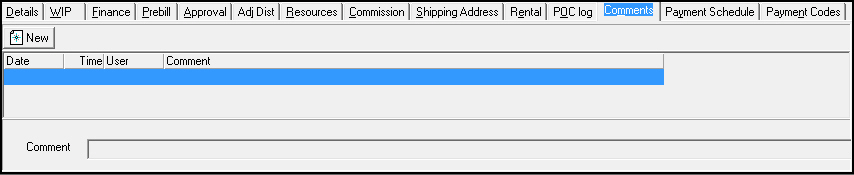
Field/Column Descriptions - Comments Tab
The following table describes the field and columns used in the Comments tab.
Field/Column |
Description |
Date |
Date that each comment was entered. |
Time |
Time that each comment was entered. |
User |
User ID that entered each comment. |
Comment |
Free-form comment text. This field accepts up to 255 characters. |
The Inclusion-Exclusion Management Tab
The Inclusion-Exclusion Management tab is used to hold the Inclusion-Exclusion text. This Work Order tab is controlled by action 250/172 within Action Profile program #1502.
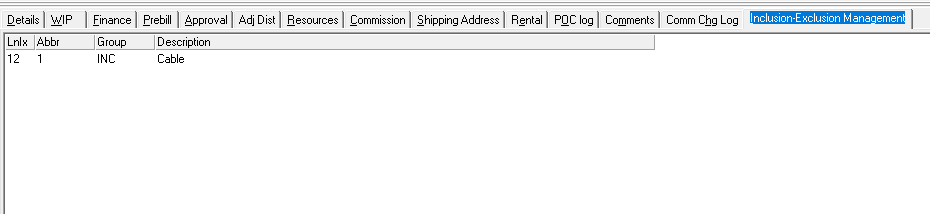
Field/Column Descriptions - Comments Tab
The following table describes the field and columns used in the Inclusion-Exclusion Management tab.
Field/Column |
Description |
LnIx |
Line Index number for the line. |
Abbr |
Abbreviation (Defined in program #2503) |
Group |
Inclusion or Exclusion (Defined in program #1764) |
Description |
Description associated with the Group. |
Editing Fields within the Inclusion-Exclusion Tab.
When saving the Work Order, all data in the grid is deleted and then added back in. Only rows with text in the Description column will be added back. To remove a row, click in the Description field and delete it. If there is text in the Description column then there must be a valid (non-blank) entry in the Group column.
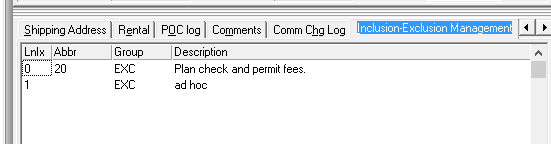
The Abbr column can be used to pick a text from all of the existing Inclusion-Exclusion records. (Note: Selecting a row from the list will automatically populate the Group and Description fields. This is a copy of the data and is not linked back to the Inclusion-Exclusion groups.
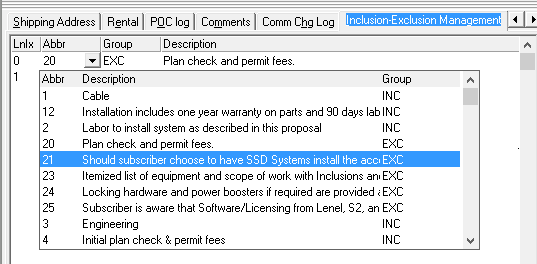
A multi-line block of text can not be seen in a grid row. For easier viewing of the Description column, double-click it. This will open the Description field in a new form. A user can click Save to push the text back into the grid, or click Cancel (or X in top right corner) to make no changes to the grid text. (Note: Use Ctrl-Enter to add new lines to the text.)
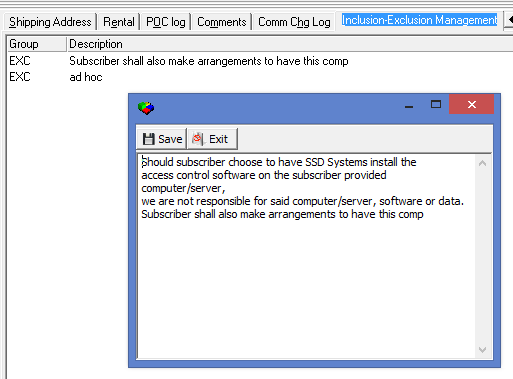
If a user attempts to save text without a valid Group, they will get the following error below. Correct the errors and Save the Work Order again.
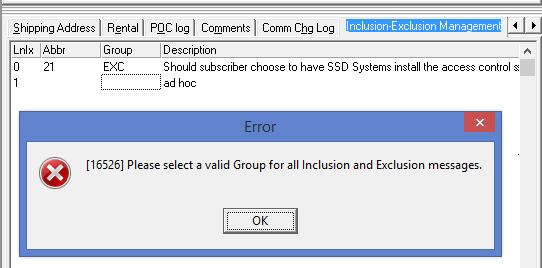
Work Order Change Log
The Work Order Change Log displays all changes made to the selected work order. (The Log, Commission Change Log, and WIP Change Log tabs have been removed and replaced with this Change Log.)
When you choose the Change Log button in the Work Order Details window, the Change Log window opens. This window contains five check boxes:
All
Item Change Log
WIP Change Log
Commission Change Log
Prebill
The following graphic shows the Change Log window. The All check box is selected by default, which displays all the Change Log entries, but you can filter the log entries by selecting one of the other four check boxes.

Working in Work Orders
You can perform many different actions within the Work Order tab and the Work Order window.
From the Work Order tab you can:
Create work orders
Change work orders
Copy work orders
Delete work orders
Close work orders
Reopen work orders
Approve/Unapprove work orders
In the Work Order window you can:
Enter information into the work order
Make adjustments
Create a manual credit
Calculate finance charges and payments
Enter prebill information
Note: When you try to save a manual credit that exceeds the amount of the invoice for which you are creating the credit work order, SBN displays a message. If your user profile includes action 250/63, you may override the credit invoice amount.
The following sections contain detailed step-by-step information on completing these processes.
Creating Work Orders
Some programs automatically generate work orders when system administrators define certain options or conditions. Work orders generate from the following sources:
Service Requests - when flagged chargeable.
Dispatch - when a patrol ticket generates with chargeable information. (Create work orders from patrol tickets in the Call Out Log (program #705).)
Cancel Contract - when options wodipg, wodiit, woditp, and wodide are set to handle deferred income.
Account Adjustment - when options adjwotp and adj_prc are set, a work order automatically generates with the adjustment.
Issue Credit - in Invoice Status, you can select a work order for which you want to create a credit and SBN creates a work order with negative amounts.
Note: When you create a credit work order, both the Currency and Cycle Currency fields of the work order must contain must contain the primary currency type of the billing account. This is the only way SBN will allow you to create a credit invoice in program #1557.
Convert Zones - in the Work Order tab, Conv Zones creates a work order for all of the items for each zone. When option ba341 is on, the work order lists all items including those for global zones based on zone ID.
You can also create work orders directly from the Work Orders tab.
Note: The Currency and Cycle Currency fields default to the currency types defined for the billing account associated with the work order. If there are no currencies defined for the account, the Currency and Cycle Currency fields default to the currencies defined by options currdef and currdef2. The price list you select for the work order must have the same currency and cycle currency defined in program #1533 as are defined for the work order, or SBN will not allow you to save the work order.
If you do not assign a contract or billing account to a work order, the Currency and Cycle Currency fields default to the currencies defined in the Currency and Secondary Currency fields of program #1533 for the sale price list of the work order's Price List Group (defined in program #1771). If the sale price list has no primary currency defined, then the Cycle Currency field of the work order is blank, and the work order Currency field defaults to the currency defined in the user's profile in Personnel (program #1811).
Use the following steps to create a work order:
1. In the Work Orders tab, choose New Record.
2. Enter information in the Work Order Information pane. (For more information on specific fields see Field Descriptions - Work Order Account Information.)
3. Enter Items in the Details Tab. You can enter items three ways:
One at a time, using the quantity and item code fields.
Note: When you enter items individually, you can edit all columns in the details tab including the flags, one time text and cycle text. (For more information on the Details tab see The Details Tab.)
4. Enter all information necessary into the Costing and Commission tabs. (For more information on specific tabs see Work Order Costing and Commission Tabs.)
5. Choose Save New Record.
w If a message is attached to the dealer ID for the installation that the work order applies to, a message appears.
6. Read the message.
7. Choose X to close the message or press [ESC].
w If your action profile includes action 250/62 and you have permission to approve work orders, SBN asks if you want to approve.
8. Choose Yes to proceed to the approval tab. Choose No to save the work order without approving.
9. You can also choose Save Existing Record and View in Get Mode.
Note: When you choose Save Existing Record and View in Get Mode, the work order remains in Get mode so that you can make changes in selected tabs and close or approve the work order.
Note: If options ba385 and is_bill are off, then SBN enters 1 by default as the value in the Cycle Period and Cycle Day fields of new work orders.
Note: If you of accidentally mis-entering a Contract Number, the number may be changed in a saved work order, if the work order is unapproved
Adjusting Totals of a Work Order
You can adjust the total amounts of one-time, monthly, cycle, and labor fees. You can also adjust by percent for one-time, cycle, and labor fees. You can make adjustments while in New or Change mode.
Note: If a work order contains items with the Exclude From Rebalance check box selected in Items (program #1535), SBN does not include those items in the work order total adjustment calculation. If all items on the work order have the Exclude From Rebalance check box selected, SBN does not allow you to save the work order after adjusting the totals.
Use the following steps to adjust amounts for a work order:
1. In the Work Order window in Change mode, select the Details tab.
2. Choose Adjust Total on Work Order.
w The Adjustment dialog box appears.
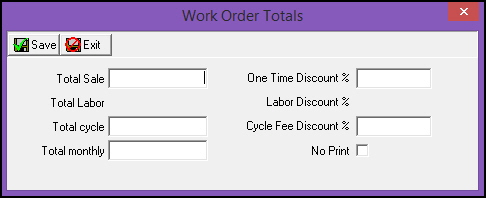
3. Enter an adjustment in one or more of the following fields:
l In Total Sale type the total amount you want to charge for all items on the work order.
l In Total Labor type the total labor costs you want to charge for all items on the work order.
l In Total Cycle type the total cycle fee amount you want to charge for all items on the work order.
l In Total Monthly type the total monthly fee you want to charge for all items on the work order. (This amount is multiplied by the number of months in the cycle and adjust the total cycle fee accordingly.)
l In One Time Discount % type a percentage to discount the total one-time fees.
l In Labor Discount % type a percentage to discount the total labor fees.
l In Cycle Fee Discount % type a percentage to discount the total labor fees.
4. Select the No Print check box if you want only the final adjusted prices to print without the discount or variance to appear.
5. Choose Save.
Changing Work Orders
Use Change Record to make most changes. You must choose Get Record before making changes in the following tabs:
WIP
Finance
Prebill
Approval
Commission
If the base price of an item on the work order has changed in Price Lists (program #1533) since the work order was last saved, SBN informs you of that change when you open the work order.
Use the following steps to change a work order:
1. In the Work Order tab, select the line of the work order you want to change.
2. Choose Change Record.
Note: The status of the Work Order determines which fields you may change. For more information on the fields available by status, see
l Changing an Unapproved Work Order
l Changing an Approved Work Order
l Changing a Closed Work Order
3. Enter all changes in the Work Order Information pane and in all tabs.
Note: Items on a work order that have been picked in Branch Inventory (program #1757) are locked in the Details tab and cannot be edited.
Note: In the case of a work order that handles more than one contract, you will have to select a single Contract Number before the work order can be closed or saved. If you attempt to close the work order without selecting one, you will receive a prompt asking you to pick one.
4. Choose Save.
w If a message is attached to the dealer ID for the installation that the work order applies to, a message appears.
5. Read the message.
6. Choose X to close the message.
Changing an Unapproved Work Order
If a work order is not yet approved, you may change most of the fields.
The following graphic shows an unapproved work order in Change mode.
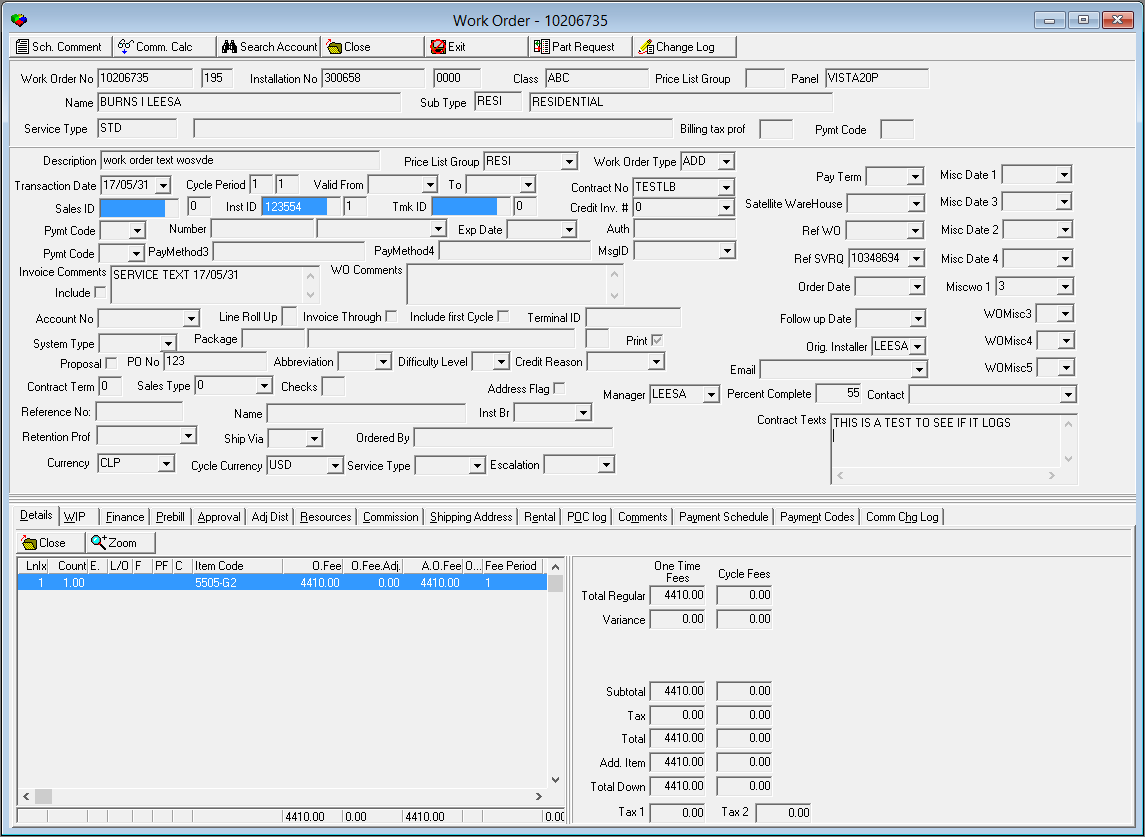
Changing an Approved Work Order
Once a work order has been approved, you may change information in the following fields only:
Transaction Date
Valid From/To
Pay Term
Comment
Message ID
Satellite Warehouse
Abbreviation
Misc Dates 1-4
Sales Type
Credit Reason
WOMisc3-5
Note: When option ba490 is on, the Contact and Email fields can also be changed on approved work orders.
Note: A work order must be switched to "unapproved" in order to change the Contract Number.
The following graphic shows an approved work order in Change mode.
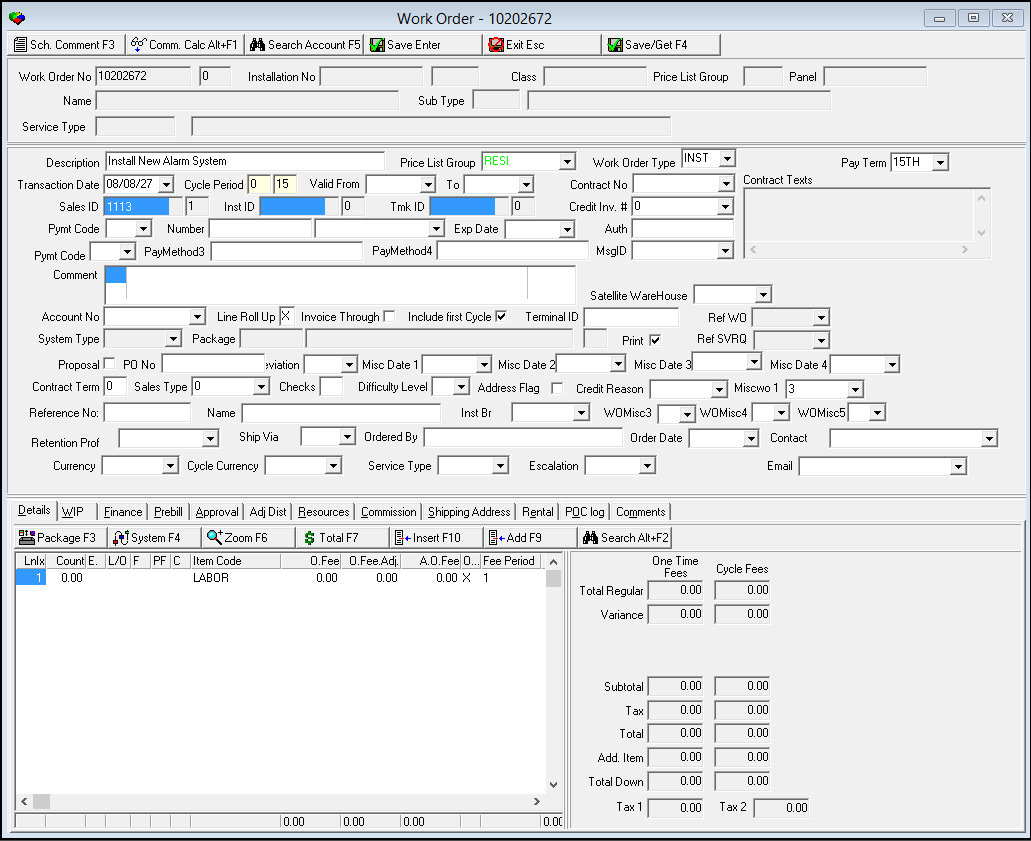
Changing a Closed Work Order
Once a work order has been closed, you may change information in the following fields only:
Pay Term
Comment
Message ID
Satellite Warehouse
Abbreviation
Misc Dates 1-4
Sales Type
Credit Reason
The following graphic shows a closed work order in Change mode.
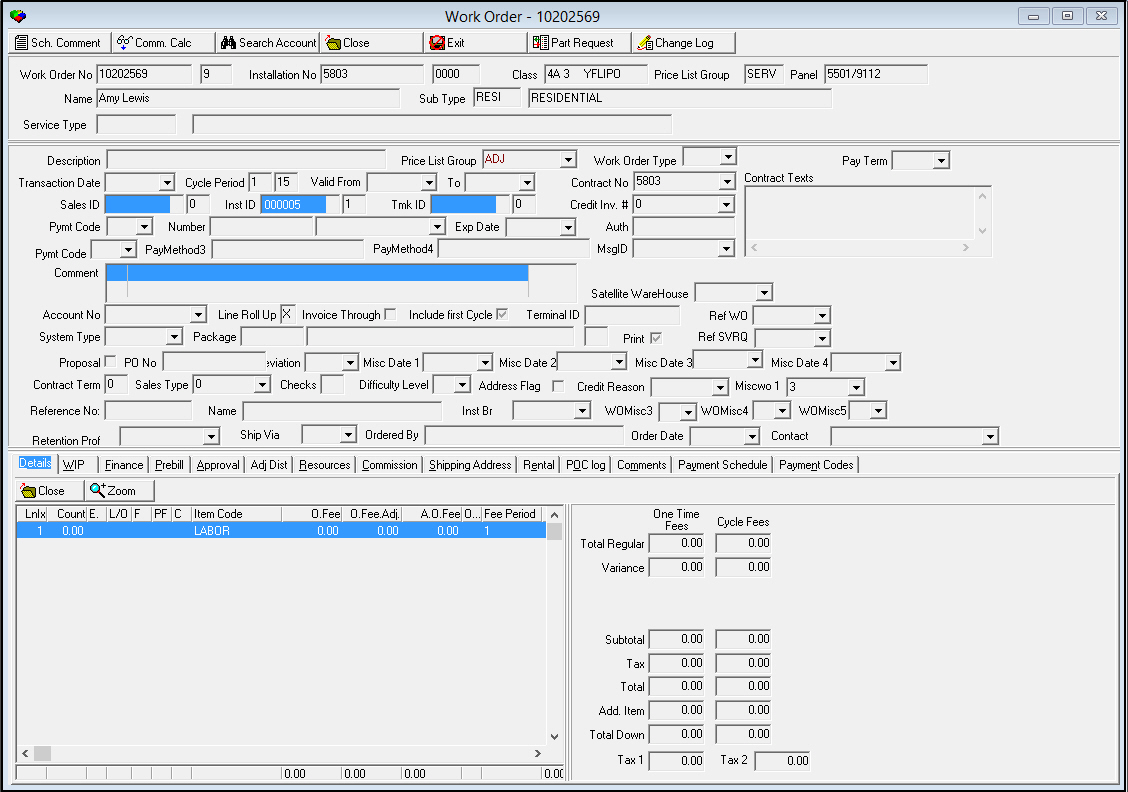
Copying Work Orders
You can make identical copies of work orders you created. Users can copy any previously existing work order.
Note: If both the original work order and the copied work order have the same installation number, the copied work order inherits the Reference WO number from the original work order. However, if the original work order and copied work order have different installation numbers, SBN sets the Reference WO number in the copied work order to 0 (zero).
Note: If option ba336 is on:
l The new work order inherits the price list from the original work order
l If the installation number of the original work order and the installation number of the new work order are different, SBN resets the Contract and Amount of the new work order to zero.
Use the following steps to copy a work order:
1. In the Work Order tab, choose Copy Current Record.
w The Copy Work Order dialog box appears.
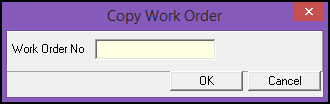
2. Type a work order number.
3. Choose OK.
w SBN then creates a copy and opens it in New mode with the information already displayed from the work order you chose to copy.
4. You must finish the work order and choose Save.
Deleting Open Work Orders
Use the following steps to delete work orders. You may delete work orders that are open, unapproved, and do not have picked items.
Use the following steps to delete an open work order:
1. In Work Orders, select the work order to delete.
2. Choose Delete Record.
w SBN asks you to confirm your selection.
3. Choose Yes.
w SBN deletes the selected work order.
Viewing Commission Calculation in Work Orders
Use the Work Order window to view specific information about the commission calculation.
To view the commission calculation, select Show Commission Calculation in Get or Change mode.
Note: The window defaults to the view for Display for All Users.
The following graphic shows the Commission Calculation window with information displayed.
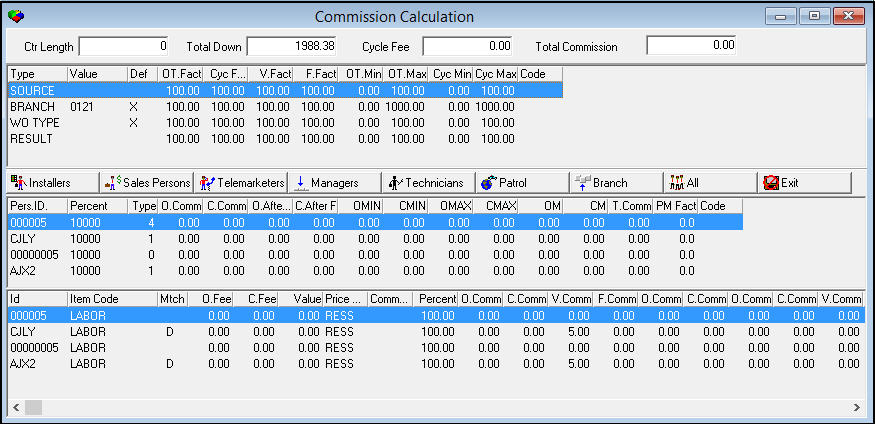
For more detailed information on each column in this window and how SBN calculates commission, see Commission Calculation.
Note: Options ba432 and ba433 activate an alternate commission calculation formula for company 150.
Viewing Calculated Commission by Personnel Type
Use the following buttons or hot keys to view the calculated commission for the selected work order by:
Installers [F2]
Sales Persons [F3]
Telemarketers [F4]
Managers [F5]
Technicians [F6]
Patrol [F7]
Branch [F8]
Display for All Users [F9]
Exiting Commission Calculation
Use one of the following methods to exit the commission calculation window and return to the work order:
Choose X in the upper right corner of the window.
Press ESC.
Closing Items in the Work Order
In the Details tab of the Work Order window, you can close individual non-financed items.
Use the following steps to close items in the work order:
1. In the Work Order tab, select the work order that has items you want to close.
2. Double-click your selection or choose Get Record.
3. In the Details tab, select the line item you want to close.
4. Choose Close/Reopen.
5. Choose Close/Reopen again or choose [Enter].
w The Close column now displays an X.
Approving/Unapproving a Work Order
You can approve/unapprove a work order from the Work Order tab or from the Approval tab.
Note: If a work order is for an installation that has more than one contract associated with it, SBN does not allow you to approve the work order if a contract number is not selected. SBN displays an error message that prompts you to select a contract number for the work order. If there is only one contract number for the installation, SBN automatically assigns that contract to the work order when you approve the work order.
Warning: This button is NOT compatible with Protectron’s approval process.
Note: Action 250/94 must be active in order to unapprove work orders with items that have been picked in Branch Inventory (program #1757).
Use the following steps to approve/unapprove a work order from the Work Order tab:
1. From the Work Order tab, select the work order you want to approve/unapprove.
2. Choose Approve or Unapprove Data.
w SBN approves or unapproves the selected work order.
Note: At the time of approval, SBN compares the value of the work order to the Credit Profile, if defined. If an account or contract is not specified, SBN uses the credit profile on the primary account on the first contract listed for the installation. If the account balance exceeds the limit set by the credit profile, an error appears. Some users may have an action defined that allows the override of this feature.
If a work order contains an item kit (defined in Items - program #1535), SBN saves the item kit contents when you approve the work order. The Work Order Details tab and the Pick/Return Work Order window in Branch Inventory (program #1757) display item kit contents as they were when the work order was approved. If you change the item kit in program #1535 after approving the work order, your changes will not appear in the Work Order Details tab or the Pick/Return Work Order window of program #1757.
Note: For more information on using the Approval tab to approve/unapprove a work order, see The Approval Tab.
Approving Work Order with More Than One Contract.
When you try to approve a work order from the Work Order tab, and the customer has more than one contact number and the contract column is black, SBN sends an error message prompting you to pick a contract number from the drop down list.
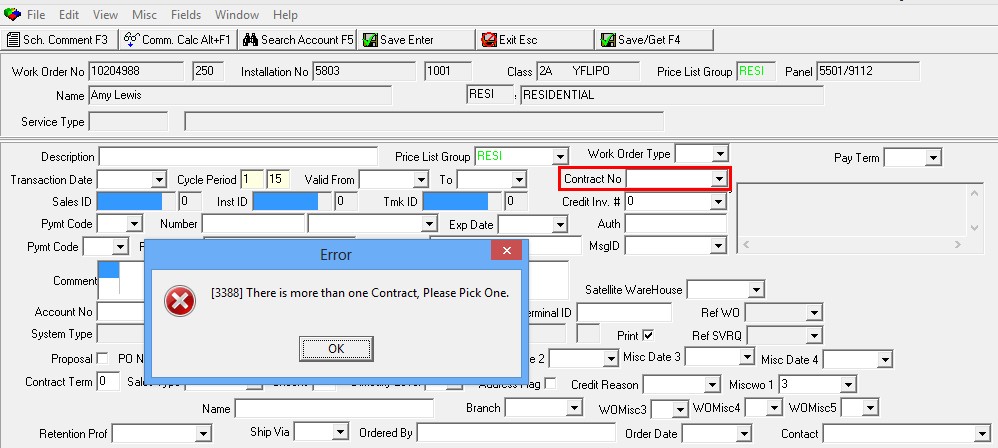
Open a Purchase Order on an Approved Work Order.
A user can open a purchase order for a work order that has been approved.
Use the following steps to open a purchase order on a work order that has been approved:
From the Work Order tab, highlight the work order that you want to apply the purchase order.
Click the Change button.
Enter a PO number in the PO No. field and click Save.
HAVE A NICE DAY displays, click the X
When prompted to (un)approve, click Yes
The PO number is now saved.
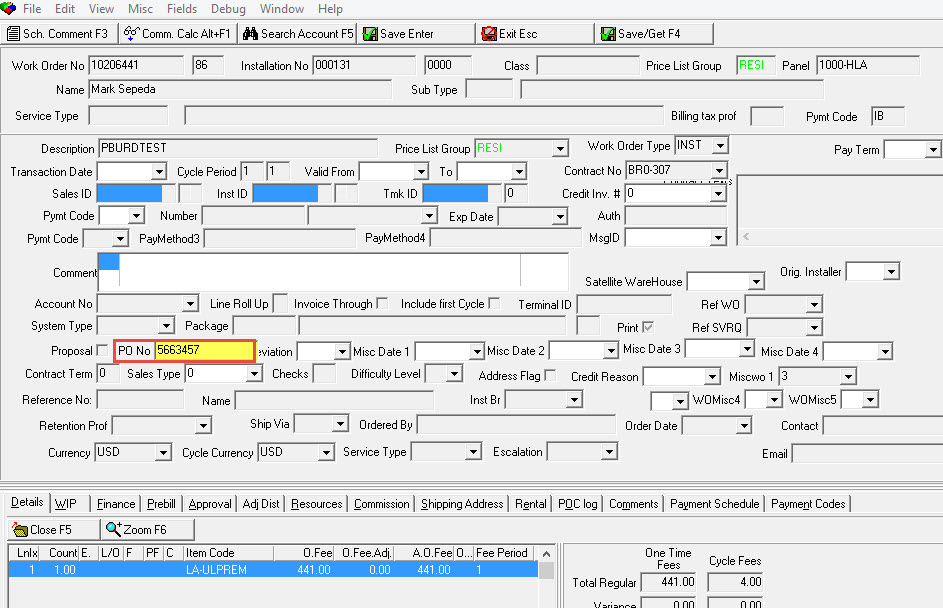
Closing a Work Order
You can access the Close button from both the Work Order tab and the Work Order window. Before you close a work order:
You must approve the work order.
If a work order is attached to a Service Request, the request must be outdated to close the work order.
You must attach the work order to a contract. If you attach only one contract to the installation, SBN automatically designates that as the billing contract. If you attach multiple contracts and only one of them is active, SBN automatically designates the active contract to use for billing. If you attach more than one active contract to the installation, you must indicate which contract to use in the Work Order window.
Note: The Xmit button submits a work order when moving it to the Billing System. This function pertains only to Bill/Mon split systems.
Note: You cannot close a work order if either the Work Order Type or Price List Group fields are blank.
Action 250/5 controls access to the Close Work Order function. Several options define the closing of work orders:
ba154 - defines who can close a work order
ba156 - defines the minimum one-time value of a work order before SBN enforces option ba154
ba157 - defines the minimum cycle value of a work order before SBN enforces option ba154
ba408 - when on, you cannot close a work order with a hold reason that has the Hold check box selected in program #1896
ba454 - when on, you cannot close a work order if all items are not in the selected price list group
ba457 - when on, SBN does not allow you to close a work order for an installation with a non-monitored Monitoring Status. (A non-monitored Monitoring Status has an X or L in the Type field of program #1540.)
Messages
If you attempt to close a work order for which the contract is cancelled, SBN displays a message.
If you attempt to close a work order of a Work Order Type with the Match Contract PL Group check box selected in program #1796 and the Work Order Price List Group does not match the Contract Price List Group, SBN displays a message.
If you attempt to close a work order of a Work Order Type with the Package Required check box selected in program #1796 and the work order does not include a package, SBN displays a message.
If option ba475 is on and you attempt to close a work order with a transaction date that is beyond the range of days defined by option wotrwa, SBN displays a message.
If you attempt to close a work order of a Work Order Type with the Warn on Close If Unpicked check box selected in program #1796, and the work order has items that have not been picked in Branch Inventory (program #1757), SBN displays a message. SBN also displays the warning message if a work order contains a kit with items that have not been picked in Branch Inventory.
Closing a Work Order from the Work Order Tab
Use the following steps to close a work order from the Work Order tab:
1. In the Work Order tab, select the line of the work order you want to close.
2. Choose Close/Reopen.
w The Transaction Date field appears in the lower pane of the tab.
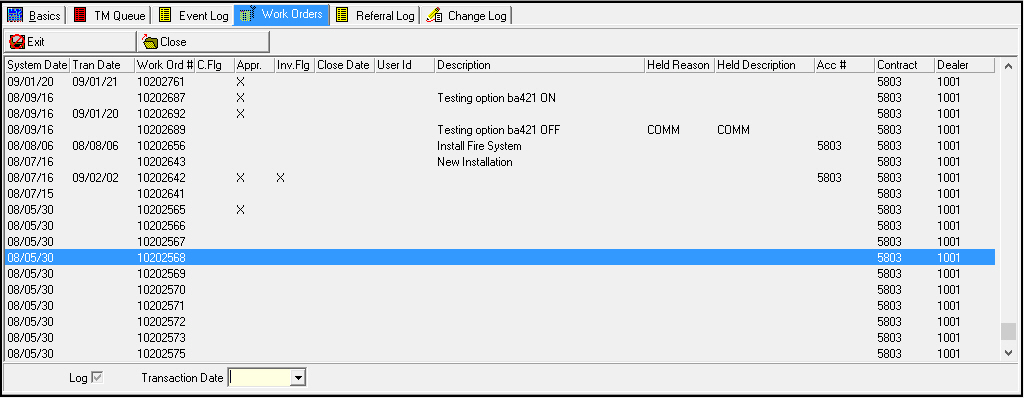
3. In Transaction Date select the transaction date.
4. When you close a work order created from Service, you can type an Invoice Ref number, if necessary. SBN updates the Invoice Ref field in the Service Ticket.
5. Choose Close/Reopen to complete the close process.
Note: When option ba430 is on, a dialog box opens prompting you to enter a close date; the default entry is the work order transaction date. The close date dialog box opens whether you use Close/Reopen or Close + Xmit to close a work order. When option ba430 is off, the close date dialog box does not appear.
Closing a Work Order from the Work Order Window
Use the following steps to close a work order from the Work Order window:
1. In the Work Order tab, select the work order you want to close.
2. Double-click your selection or choose Get Record.
w The Work Order window opens.
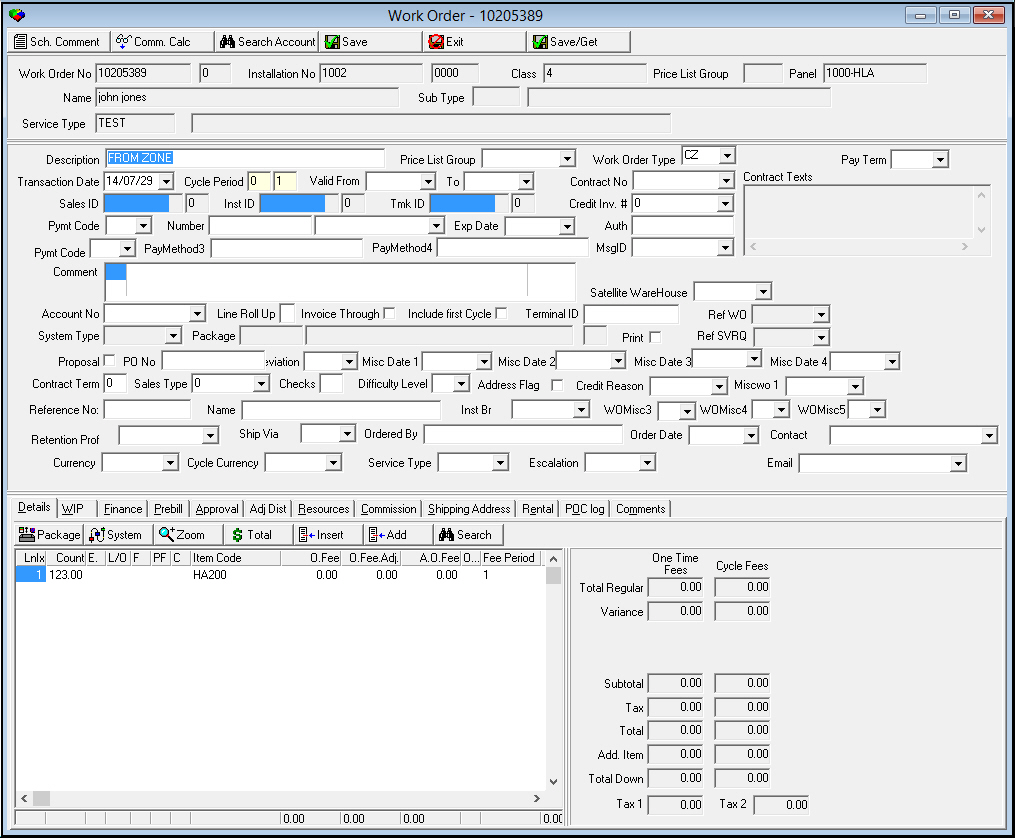
3. Choose Close/Reopen.
w SBN asks you to confirm your selection.
4. Click Yes.
w SBN confirms that the work order was successfully closed.
5. Choose OK.
w SBN enters the current date as the close date.
Note: At the time of close, SBN compares the value of the work order to the Credit Profile, if defined. If an account or contract is not specified, SBN uses the credit profile on the primary account on the first contract listed for the installation. If the account balance exceeds the limit set by the credit profile, an error appears. Some users may have an action defined that allows the override of this feature.
Sending Work Order Information to an External Program
In the Work Order tab you can choose Work Order App Hook to send work order information to a company-defined external program. Option wohook defines the functionality of the button.
Holding a Work Order
Use Hold Work Order to apply a hold reason to an open work order. You may only attach a hold reason to a closed work order if option ba322 is on.
Use the following steps to apply a hold reason to a work order:
1. Select the work order to which you want to apply a hold reason.
2. Choose Hold Work Order.
w The Hold Work Order dialog box appears.
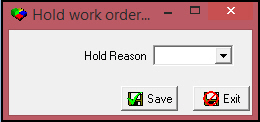
3. In Hold Reason select the hold reason you want to apply.
Note: This menu originates from program #1896.
4. Choose Save.
w SBN applies the hold reason to the selected work order. The changes to the hold status appear in both the Marketing Event Log and the Data Entry Change Log.
Note: When the Confirm all parts returned check box is selected for a hold reason in Work Order Held Reasons (program #1896), SBN will not allow you to select and save that hold reason when the selected work order has picked items that have not been returned.
5. Choose Save.
Searching Items
The Search Items button appears in the Details tab when in New or Change mode. The following graphic shows the Items search screen.
Note: Action 250/23 controls access to the Search Items button.
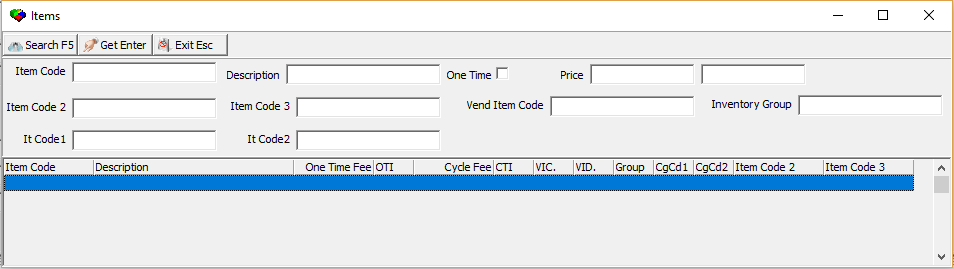
Field Descriptions - Searching Items
The following table describes the fields used when Searching Items.
Field |
Description |
Item Code |
Item identifier used throughout SBN . |
Description |
Text description of the item. |
One Time |
One time fee item. |
Price |
Price of the Item. |
Item Code 2 |
Additional Item Code. |
Item Code 3 |
Additional Item Code. |
Vend Item Code |
Specific vendor item code to limit the search to items with that vendor item code. |
Inventory Group |
Inventory group associated with Items. |
It Code1 |
Additional Item Code. |
It Code2 |
Additional Item Code. |
Note: Use a percent sign to represent any number of characters for the above fields when searching.
Canceling a Work Order
Use Cancel Work Order to cancel an invoiced work order. SBN automatically creates a credit work order which has the same items as the canceled work order with negative amounts.
This button appears in the Invoiced Work Orders view.
Use the following steps to cancel a work order:
1. Choose Toggle Between Invoiced/Uninvoiced Work Orders so that you are in the Invoiced Work Orders view.
2. Select the work order you want to cancel, and choose Cancel WO.
w The Cancel Work Order dialog box appears.
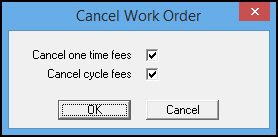
3. Select the check box(es) for the fees you want to cancel.
Note: You must select at least one check box.
4. Choose OK.
w SBN creates a credit work order and cancels the fees you specified.
Note: On the credit work order, SBN uses the Credit Work Order Type defined for the work order type of the canceled work order in program #1796.
Option ba446 defines the text that appears in the description field inside a cancelled Work Order.
Option ba447 defines the credit reason for a new Work Order that appears inside a cancelled work order. The credit reasons are assigned and pulled from program 1704 > section 30 (credit reason).
Use option ba448 to define the text SBN uses in the first line of the Comment box in the credit work order. SBN includes the canceled work order number at the end of this text. For canceled work orders associated with invoices that have external invoice numbers, SBN includes the external invoice number in the Comment box instead of the canceled work order number. If a work order has more than one external invoice, SBN uses the first external invoice number.
Exporting Cognito Report PDFs
To export a Cognito report, complete the following steps:
1. Choose the Export PDF button.
w A dialog box appears.
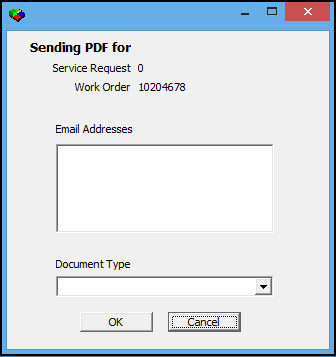
2. Type one or more email addresses in the Email Addresses field, separated by commas.
3. Select a document type from the Document Type drop-down menu, and then click OK.
w SBN adds the entry to the Cognito report queue.
Related Programs
The following table lists programs related to Work Orders.
Program |
Number |
Document Link |
Description |
Marketing |
562 |
One of the programs you can access the Work Orders tab from. Access marketing inquiries associated with a work order. |
|
Data Entry Master and Basics |
559 |
One of the programs you can access the Work Orders tab from. Access customer records associated with a work order. |
|
Contract Master |
548 |
One of the programs you can access the Work Orders tab from. Access contract and installation records associated with a work order. |
|
Personnel |
1811 |
Define personnel profiles of resources to associate with work orders. |
|
Work Order Types |
1796 |
Create and define work order types that appear in the Type menu of the Work Order window. |
|
Scheduling |
563 |
Access scheduled jobs associated with work orders. |
Button Functions
The following table displays the buttons, describes the shortcut keys, actions, and functionality.
Button |
Name |
Shortcut Key |
Action |
Description |
|
Get Record |
alt+f1 |
250/ 1 |
View details of selected work order. |
|
Change Record |
f2 |
250/ 2 |
Change selected work order. |
|
New Record |
f3 |
250/ 3 |
Create new work order. |
|
Delete Record |
shift+f10 |
250/ 4 |
Delete selected open work order. |
|
Close/Reopen |
f4 |
250/ 5 |
Close or reopen selected work order. |
|
Toggle between invoiced/ uninvoiced work orders |
f5 |
250/ 6 |
View invoiced or uninvoiced work orders. |
|
Convert Zones |
f8 |
250/ 7 |
Create a work order for all items for each zone. |
|
Work Order App Hook |
f7 |
250/120 |
Send work order information to company-defined external program. |
|
Copy |
shift+f3 |
250/ 9 |
Copy selected work order. |
|
Hold Work Order |
f10 |
250/ 8 |
Apply hold reason to open work order. |
|
Approve or Unapprove Data |
Alt+f2 |
250/60 |
Approve or unapprove selected work order. |
|
Xmit |
shift+f9 |
250/125 |
Submits a work order to be moved to the Billing system. |
|
Close + Xmit |
Shift+F11 |
250/126 |
Closes a work order and submits it to the Billing system. Note: This button is only used for a Bill/Mon split environment. |
|
Export PDF |
F11 |
250/128 |
Opens a window in which you can select a report for the selected work order to be inserted into the Cognito report queue. |
|
Select Package |
f3 |
250/11 |
View details of selected package. |
|
Select System |
f4 |
250/12 |
View details of selected system. |
|
Zoom in on event |
f6 |
250/90 |
View details of selected event. |
|
Adjust total on work order |
f7 |
250/17 |
Adjust fee amounts for selected work order. |
|
Insert Record |
f10 |
250/21 |
Insert a blank line above the current position of the selected field and move the selected field to that blank line. |
|
Add |
f9 |
250/22 |
Move selected field to a blank line below the current position of the selected field. |
|
Search |
alt+f2 |
250/23 |
Search for items. |
|
Cancel WO |
shift+f12 |
250/127 |
Cancel a closed work order; SBN automatically creates a new work order with the same items with negative amounts. Choose whether to cancel Cycle Fees, One Time Fees, or both. Note: This button appears in the Invoiced Work Orders view. |
|
Change Log |
F9 |
|
Displays the Change Log window. |
|
Document Retrieval 1 |
F10, |
250/95 |
Opens the URL set within Option "docwo1" as well displays the Work Order number, the Installation Number, and the Marketing Number associated with corresponding Work Order. (Note: Button is not visible unless account has access to Actions 250/95.) |
|
Document Retrieval 2 |
F11 |
250/96 |
Opens the URL set within Option "docwo2" as well displays the Work Order number, the Installation Number, and the Marketing Number associated with corresponding Work Order. (Note: Button is not visible unless account has access to Actions 250/96.) |
|
Document Retrieval 3-12 |
|
|
Opens the URL set within each specific Option "docom1-10" as well displays the Work Order number, the Installation Number, and the Marketing Number associated with corresponding Work Order. (Note: Buttons are not visible unless account has access to appropriate Actions.) |




















Changing Contract and Billing on an Approved Work Order
You can change the contract number and billing account on an approved work order, restoring behavior from earlier versions. Work-order and invoice comments containing quotes and other special characters save without error.
Closing a Work-Order Line
Closing a line on a work order works as expected.
Modifications and Updates to Work Orders
The following table lists modifications and updates to the Work Orders document.
Mod Number |
Date |
Description |
n/a |
09/25/08 |
Document rewritten. |
07.02.17649, 08.03.06270 |
01/14/09 |
Work Order Type indicates whether user must enter a Credit Inv # for a work order. |
08.03.06339, 07.02.17782 |
01/16/09 |
Added Item Code 2 column in the Details tab grid |
07.02.17804 |
02/17/09 |
Work Order Closing |
07.02.18229 |
04/29/09 |
Alternate WIP Calculation for Standard Labor |
08.03.06876, 07.02.18642 07.02.18416 |
06/12/09 |
Added Item Code 2 column in the WIP tab grid |
07.02.18239, 08.03.06643 |
07/10/09 |
Added the Address tab and Ship Via, Ordered By, and Order Date fields. |
07.02.18694, 08.03.06898 |
07/24/09 |
Added Currency and Cycle Currency fields. |
07.02.18924, 08.03.07026 |
09/08/09 |
Moved Rental Contract fields to separate Rental tab. |
07.02.19041, 08.03.07095 |
10/21/09 |
Added Toggle Currency button to Commission tab. Added 3 currency conversion columns to Commission Change Log tab. |
07.02.19069, 08.03.07110 |
10/25/09 |
Added Toggle Currency button to WIP tab. |
07.02.19276, 08.03.07220 |
12/11/09 |
Added Cycle Period column to the Details tab. |
07.02.19700, 07.02.19709 |
06/08/10 |
When option ba454 is on, SBN does not allow users to close a work order if an item is not in the selected price list group. |
07.02.19708, 08.03.07522 |
06/09/10 |
For certain Work Order Types, warning messages may appear when trying to close work orders if the Work Order Price List Group does not match the Contract Price List Group, or if a work order does not include a package. |
07.02.19910, 08.03.07682 |
07/08/10 |
Added a Cancel One Time Fees/Cycle Fees dialog box to Cancel WO button. |
07.02.19956 |
07/20/10 |
Added option ba457. |
07.02.19993 |
08/24/10 |
Currency and cycle currency of work orders with no contract or account default from program #1533. |
07.02.20248 |
12/17/10 |
Added action 250/94 for unapproval of work orders with picked items. |
07.02.20427, 08.03.08024 |
12/20/10 |
Added Contact and Email fields to the Account Information pane. |
07.02.20566, 08.03.08116 |
02/07/11 |
Details, Approval, and WIP tabs display kit items and costs at time of work order approval. |
07.02.20446, 08.03.08180 |
03/04/11 |
Added option ba475. |
07.02.20927, 08.03.08320, 07.02.21108 |
06/06/11 |
SBN displays a warning if you attempt to close a work order of a Work Order Type with the Warn on Close If Unpicked check box selected in program #1796, and the work order has items that have not been picked in program #1757. |
07.02.21601, 08.03.08665 |
03/21/12 |
Added action 250/39 for the WIP Change Log tab. |
07.02.21598, 08.03.08659 |
03/26/12 |
Added restriction of prebill type by work order type defined in program #1801. |
08.03.08733, 07.02.21709 |
06/08/12 |
Added Comments tab. |
08.03.08800, 07.02.21852 |
10/12/12 |
Added option ba489. |
07.02.21978, 08.03.08865, 07.02.21991 |
10/27/12 |
Added Pymt Code (2) field. |
07.02.22019, 08.03.08890 |
10/30/12 |
Added option ba490. |
07.78.22238, 08.78.09010 |
03/24/13 |
Added option bl212 and credit card tokenization. |
08.78.09182, 07.78.22470 |
05/02/13 |
Added Change Log button and window. |
08.80.09282, 07.79.22746 |
07/03/13 |
Added Confirm all parts returned check box to program #1896. |
07.79.22698, 07.79.22659 |
07/16/13 |
Work orders on marketing inquiries with programs that are not linked to any packages now display all packages in the Packages menu. |
08.79.09194, 07.78.22536 08.79.09192, 07.78.22534 |
07/18/13 |
Updated the functionality of the Export PDF button. |
07.79.22835, 08.79.09324 08.79.09312, 07.79.22805 |
08/01/13 |
Added Tax Rate, Tax 1 and Tax 2 columns and Tax 1 and Tax 2 fields to the Work Order Details tab. |
08.79.09347, 08.79.09338 |
08/12/13 |
SBN prompts you select a contract when you approve a work order. |
07.79.22969, 07.79.22944 |
10/08/13 |
Changes to the value of the MsgID field are recorded in the Change Log of program #559. |
07.79.23096, 08.79.09483 07.79.23085, 08.79.09479 |
03/24/14 |
Added option sv089. |
n/a |
07/16/14 |
Images updated. |
08.81.09737, 07.81.23513, 08.81.09736 |
09/19/14 |
Included updates on changing a contract number on a work order and about the prompt requiring a single contract number needing to be selected. |
n/a |
06/30/17 |
Updated Work Order window and Account Information window. |
07.87.25330, 08.87.11019 |
06/30/17 |
Follow Up Date field added within Work Order Queue. |
08.87.11020, 07.87.25332 |
06/30/17 |
Added Travel Cost and Labor cost Columns within WIP tab which displays the input from Installation classes Pos #50 (Labor Cost) and Pos #51 (Travel Cost) under program #1555. |
n/a |
07/10/17 |
Image updated for Approval tab within program #559. |
n/a |
07/10/17 |
Image updated to display new "Manager" dropdown list and "Percent Complete" field. |
07.87.25342, 08.87.11025 |
07/10/17 |
Added updates on new "Manager" dropdown list, and "Percent Complete" field. |
07.88.25693, 08.88.11288, 07.88.25702, 08.88.11291 |
03/01/17 |
New Items Search Parameters: Item Code 2, Item Code 3, Vend Item Code, Inventory Group, It Code 1, It Code 2. Image updated as well to reflect new fields. |
08.88.11314, 07.88.25752, 08.88.11309, 07.88.25744 |
04/02/18 |
Two new buttons, Document Retrieval 1 and Document Retrieval 2, as well as updated image to show new buttons. |
08.88.11314, 07.88.25752, 08.88.11309, 07.88.25744 |
04/26/18 |
9 additional Manager fields in the Work Order and also in the Work Order Queue grid: Manager 2, Follow Up Date 2, Percent Complete 2, Manager 3, Follow Up Date 3, Percent Complete 3, Manager 4, Follow Up Date 4, and Percent Complete 4. GUI Messages Field Headers 16542-16550 and 16551-16559 Grid Column Headers were added within program #1606 for corresponding Manager fields. |
08.88.11325, 07.88.25770, 08.88.11322, 07.88.25761 |
05/16/18 |
New Inclusion-Exclusion Management tab and images updated. |
07.88.25672, 08.88.11259 |
05/16/18 |
New Lease Calculator added. |
08.89.11363, 07.89.25833 |
05/29/18 |
Needed by Date field added within Work Order Details tab. |
07.90.26098, 08.90.11614, 07.90.26099, 08.90.11615 |
02/19/19 |
10 additional Document Retrieval buttons added within Work Order screen. Images updated. |
07.91.26349, 08.91.11802, 08.91.11803, 07.91.26350, 07.91.26351, 08.91.11804, 08.91.11805, 07.91.26352, 07.91.26355, 08.91.11809 |
01/27/20 |
New Self Install column added within Details tab grid. |