
Line Types
Line Types
Line Types
Module: Utilities
Overview
The Line Types program handles CID requirements accessed from Data Entry Master and Basics (Program # 559). This program allows a more visible space to the CID grid itself.
The Line Types Window
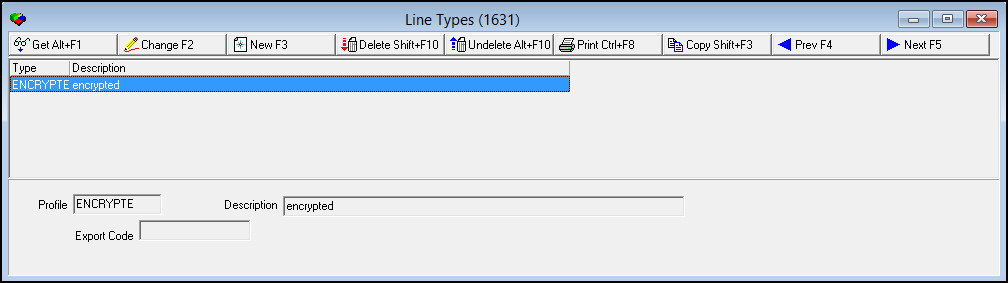
The following graphic shows the main window of Line Types.
Field/Column Descriptions
The following table describes the fields and columns used in Line Types.
Field/Column |
Description |
Type/Profile |
Code to define the line type. |
Description |
Text description of the line type. |
Export Code |
Export code for the selected line type. This code appears on exported certificates attached to CIDs with the selected line type in the Certificates tab of program #559. It also appears on certificates attached to CIDs with the selected line type when printed using Format G of report #2193. |
Viewing the Information of a Line Type
Line Types are developed in the Line Types program to affect CID statuses which populate the dropdown column in the CID grid. The CID grid is accessed from Data Entry Master and Basics (Program # 559).
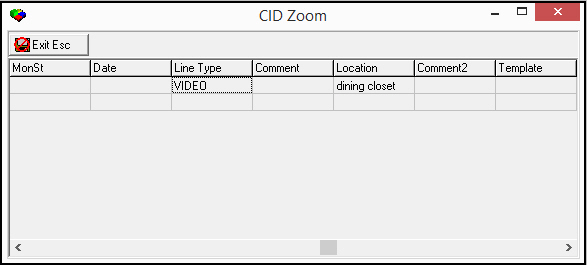
This selection, if active, overrides the Monitoring Status function. After selecting the new line type from the drop-down, it displays as a new parameter on the Data Entry Master and Basics upper left selection pane.
Changing a Line Type
Use the following steps to change information about a line type:
1. In Line Types, select the line type you want to change.
2. Choose Change Record.
3. Update the profile number and its corresponding description in the lower pane of the Line Types main window.
4. Choose Save Existing Record.
Creating a New Line Type
Use the following steps to create a line type:
1. In Line Types, select the line type you want to create.
2. Choose New Record.
3. Enter the new profile number and its corresponding description in the lower pane of the Line Types main window.
4. Choose Save Existing Record.
Deleting a Line Type
Use the following steps to delete a line type:
1. In Line Types, select the line type you want to delete.
2. Choose Delete Record. The following dialog box displays:
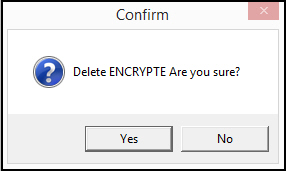
3. Choose Yes to delete the selected line type or choose No to abandon the deletion process.
Button Functions
The following table displays the buttons, describes the short-cut keys, actions and functionality.
Button |
Name |
Short Cut Key |
Action |
Description |
|
Get Record |
alt+f1 |
1631/ 1 |
View details of selected type. |
|
Change Record |
f2 |
1631/ 2 |
Change details of selected type. |
|
New Record |
f3 |
1631/ 3 |
Create new type. |
|
Delete Record |
shift+f10 |
1631/ 4 |
Delete selected type. |
|
Undelete Record |
ALT+F10 |
1631/ 5 |
Recover/undelete selected type. |
|
Print Record |
CTRL+F8 |
1631/ 6 |
Print selected type. |
|
Copy Record |
SHIFT+F3 |
1631/ 999 |
Copy selected type. |
|
Previous Record |
F4 |
1631/ 999 |
Go to next type. |
|
Next Record |
F5 |
1631/ 999 |
Go to previous type. |
|
Exit without saving |
ESC |
1631/ 999 |
Exit without saving changes to selected record. |
|
Save Existing Record |
ENTER |
1631/ 999 |
Save changes to selected record. |











Modifications and Updates to Line Types
The following table lists modifications and updates to the Line Types document.
Mod Number |
Date |
Description |
08.03.05790, 07.02.16835 |
04/28/08 |
Program and document created. |
07.02.21547, 08.03.08635 |
02/23/12 |
Added Export Code field. |
n/a |
09/02/14 |
Images updated. |