
Installation Data
Installation Data
Installation Data
Module: Accounting
Overview
Use the Installation Data tab to view installed items for a selected contract. When a work order for a contract is invoiced, the items on that work order appear in the Installation Data tab for the selected contract.
To access this program, select Contract Master (program #548) from the main menu of SBN and choose the Installation Data tab.
The Installation Data Tab
The following graphic shows the Installation Data tab.
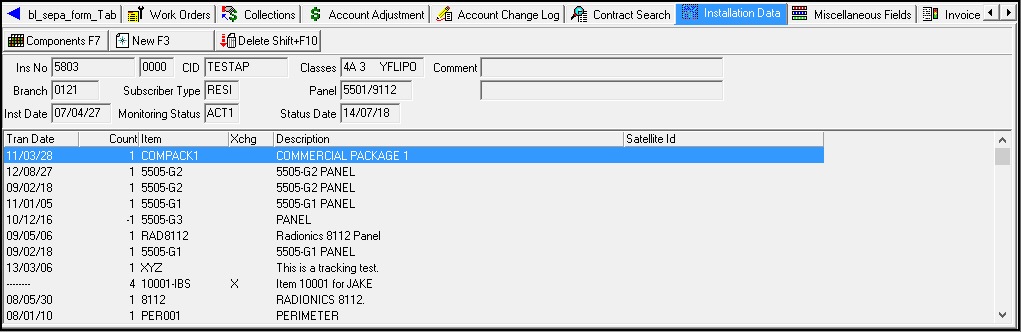
Field/Column Descriptions
The following table describes the fields and columns in this tab.
|
Field/Column |
Description |
|
Upper Pane - Installation Details Note: The data in these fields originates from the selected installation record in Data Entry (program #559). |
|
|
Installation No |
ID of the selected installation. |
|
Dealer ID (No label) |
Dealer associated with the selected installation. |
|
CID |
Customer ID associated with the selected installation. |
|
Classes |
Class codes associated with the selected installation for tracking services provided or other customer-specific information. |
|
Comment |
Comment text about the selected installation. |
|
Branch |
Branch associated with the selected installation. |
|
Subscriber Type |
Type of customer, such as residential or commercial, for the selected installation. |
|
Panel |
Panel type of the selected installation. |
|
Installation Date |
Date on which equipment was originally installed at the selected installation. |
|
Monitoring Status |
Current monitoring status of the selected installation. |
|
Status Date |
Date on which the monitoring status of the selected installation was last changed. |
|
Lower Pane - Installed Items |
|
|
Transaction Date |
Date on which the work order for the selected item was created. |
|
Count |
Count of the selected item that is installed at the selected installation. |
|
Item |
Item installed at the selected installation. |
|
Exchange |
An X in this column indicates that an item was added to the Installation Data tab manually rather than from a work order. |
|
Description |
Description of the item installed at the selected installation. |
|
Satellite |
Satellite warehouse from the work order for the selected item. |
Viewing the Components Log
Choose Components to view the Components Log, which lists only the items installed for the selected contract.
Use the following steps to view the Components Log:
1. Choose Components.
w The tab displays the Components Log.
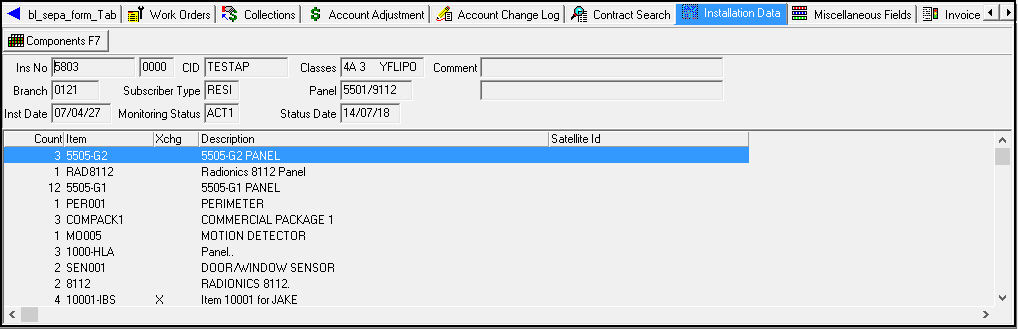
2. Choose Components again to toggle back to the default view of the Installation Data tab.
Adding an Item to the Installation Data Tab
SBN adds items to the Installation Data tab whenever a work order for the selected contract is invoiced. You may also add items to the Installation Data tab manually.
Use the following steps to add items to the Installation Data tab:
1. Choose New.
w Item Code and Number/Amount fields appear below the Installation Details pane.
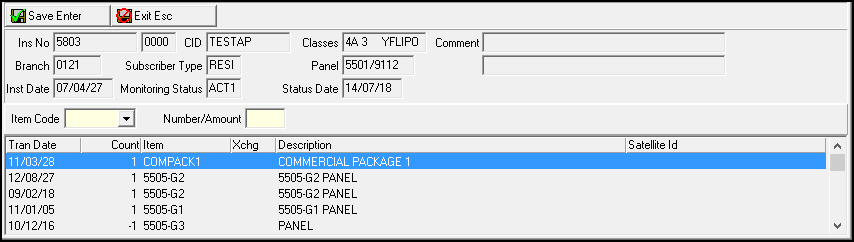
2. Select an item and enter an amount.
w SBN adds the new item to the tab with an X in the Exchange column, indicating the item was added manually.
Deleting an Item From the Installation Data Tab
You may remove items from the Installation Data tab.
Use the following steps to delete items from the Installation Data tab:
1. Select the item in the lower pane that you want to delete.
2. Choose Delete.
w A confirm dialog box appears.
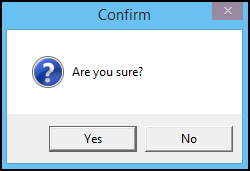
3. Choose Yes.
w SBN removes the item from the Installation Data tab.
Button Functions
The following table displays the buttons, describes the shortcut keys, actions, and functionality.
|
Button |
Name |
Shortcut Key |
Action |
Description |
|
|
Components |
F7 |
548/71 |
Toggle between the Components Log view and the standard Installation Data view. |
|
|
New Record |
f3 |
548/71 |
Add a new item to the Installation Data tab. |
|
|
Delete Record |
SHIFT+F10 |
548/71 |
Delete an item from the Installation Data tab. |



Modifications and Updates to Installation Data
The following table lists modifications and updates to the Installation Data document.
|
Mod Number |
Date |
Description |
|
n/a |
8/04/14 |
Images updated. |