
Panel Rules
Panel Rules
Panel Rules
Program #: 1603
Module: Utilities
Overview
Use Panel Rules (program #1603) to define panel rules for passcard generation in the Action Plans tab of program #559. Assign panel rules to panel types in the Rule field of program #1742.
Create passcards for contacts in the Action Plans tab of Data Entry Master (program #559). The rule assigned to the primary installation panel determines passcard length and other passcard generation requirements for the installation. (The CID with the Primary check box selected in program #559 determines the primary installation panel. If no CID on an installation has the Primary check box selected, SBN considers the first CID in the CID grid the primary panel.)
You may assign a panel rule number to a panel type in the Rule field of program #1742. Assign a panel to a CID in Data Entry Master (program #559), then create an action plan for the installation in the Action Plans tab, where the panel rule determines the passcard format requirements. The line index you enter for an action plan contact determines the details of the required passcard format (such as the prefix). Create open/close schedules in the Open/Close Schedule tab, then assign a schedule and action plan to each zone for the installation in the Zones tab.
Passcard generation follows the rules defined for panels if the passcard is to be downloaded. Passcards that may be downloaded are indicated by an X in the Downloadable column of the Action Plan Details grid. If the passcard is not to be downloaded, no rules apply. Rule 0 is the default.
The following table describes the rules for passcard generation.
Rule |
Panel |
Cards |
Length |
Lines |
Description |
1 |
5505-G1, 8112-G1 |
13 |
5 or 6 digits |
1 - 5 6 - 8 10 - 14 |
91nnnn through 95nnnn 6nnnn through 8nnnn 1nnnn through 5nnnn Last digit can not be a 9 0 is not valid in any position |
2 |
5503 6112 |
7 |
2-5 digits |
1 - 7 |
1nnnn through 7nnnn |
3 |
4112 5501 |
5 |
2-5 digits |
1 - 5 |
1nnnn through 5nnnn |
5 |
5505-G2 8112-G2 |
70 |
6 digits |
1 - 5 601 - 608 701 - 708 801 - 808 B01 - B08 C01 - C08 D01 - D08 E01 - E08 F01 - F08 |
91nnnn through 95nnnn 61nnnn through 68nnnn 71nnnn through 78nnnn 81nnnn through 88nnnn 11nnnn through 18nnnn 21nnnn through 28nnnn 31nnnn through 38nnnn 41nnnn through 48nnnn 51nnnn through 58nnnn Last digit can not be a 9 0 is not valid in any position |
6 |
7707 |
32 |
2-6 digits |
0 - 31 |
Line 0 is duress code Last 4 digits must be unique A or L in All Inclusive field |
7 |
5700 |
25 |
3-6 digits |
1 - 25 |
A passcard CANNOT be within 2 of another passcard on the same premise unit. |
8 |
5800 |
25 |
3-6 digits |
1 - 25 |
See Rule 7. |
9 |
5800+ |
76 |
3-6 digits |
1 - 76 |
See Rule 7. |
10 |
5900 |
70 |
3-6 digits |
1 - 70 |
See Rule 7. |
11 |
5900+ |
99 |
3-6 digits |
1 - 99 |
See Rule 7. |
12 |
5600 2200 |
8 |
6 digits |
1 - 8 |
|
13 |
48 |
4 digits |
2 - 49 |
Passcard generator should generate four digit passcards only for each line number. Passcard number and duress code cannot be the same number. |
|
14 |
74 |
4 digits |
2 - 75 |
Passcard generator should generate four digit passcards only for each line number. Passcard number and duress code cannot be the same number. |
|
15 |
99 |
4 digits |
2 - 100 |
Passcard generator should generate four digit passcards only for each line number. Passcard number and duress code cannot be the same number. |
|
45 |
4 digits |
1 - 99 |
Passcard number must contain exactly four digits and a line index between 1 - 99. Must select the Downloadable check box in the Action Plan Details grid for rule to apply. |
||
46 |
4 digits |
600 - 720 722 - 800 |
Passcard number must contain exactly four digits and a line index between 600 - 800 (excluding 721). Must select the Downloadable check box in the Action Plan Details grid for rule to apply. |
Navigating to Panel Rules
Use the following steps to access the Panel Rules program:
1. From the main SBN toolbar, select Menu.
2. From the drop-down menu, select Go To.
3. In the Go To Program dialog box, type in "1603" and press ENTER.
w The Panel Rules window opens.
The Panel Rules Window
The following graphic shows Panel Rules as the program opens.
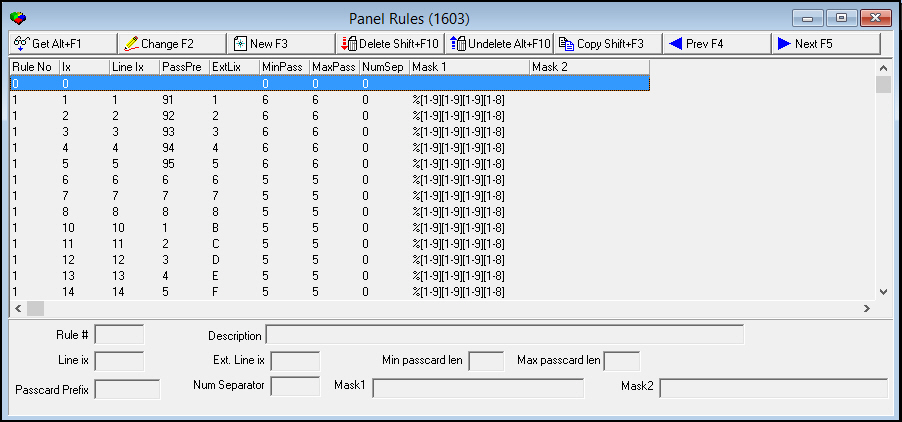
Field/Column Descriptions
The following table describes the fields and columns used in Panel Rules.
Field/Column |
Description |
Rule Number |
Panel rule number. |
Ix |
Panel rule index. |
Line Ix |
Line index that can be entered for a contact in the Action Plans tab of program #559. The line index determines the details that are required for the passcard format. |
Passcard Prefix |
Prefix (first digits) that SBN uses for passcards that are generated in Action Plans with the selected panel rule. |
Description |
Description of the panel rule. |
Ext Line Ix |
Passcard extension that SBN uses for passcards that are generated in Action Plans with the selected panel rule. |
Min Passcard Length |
Minimum number of digits for the passcard length. |
Max Passcard Length |
Maximum number of digits for the passcard length. |
Num Separator |
Numerical separation that SBN puts between passcard numbers. |
Mask 1 |
Mask that defines the passcard numbers that can be generated for the selected panel rule. For example, a mask of %[1-9][1-9][1-9][1-8] indicates that four digits will follow the prefix and each digit will be between 1 and 9, except the last digit, which will be between 1 and 8. |
Mask 2 |
Alternative mask that defines the passcard numbers that can be generated for the selected panel rule. |
Viewing Details of a Panel Rule
Use the following steps to view Panel Rule details:
1. Select the Panel Rule you want to view.
2. Choose Get Record.
w The Panel Rule details appear in the fields in the lower pane.
Creating a Panel Rule
Use the following steps to create a new Panel Rule:
1. Choose New Record.
w The fields in the lower pane open for changes.
2. Enter details for the panel rule.
3. Choose Save.
w The new panel rule appears in the list in the upper pane.
Changing a Panel Rule
Use the following steps to change a Panel Rule:
1. From the upper pane, select the panel rule you want to change by double-clicking or choosing Get Record.
w The panel rule details appear in the lower pane.
2. Choose Change Record.
w The fields in the lower pane open for changes.
3. Change panel rule details as necessary.
4. Choose Save.
Deleting a Panel Rule
Use the following steps to delete a Panel Rule:
1. From the upper pane, select the panel rule you want to delete by double-clicking or choosing Get Record.
w The panel rule details appear in the lower pane.
2. Choose Delete Record.
w A confirm dialog box opens: "Are you sure?"
3. Choose Yes.
4. SBN removes the panel rule from the list in the upper pane.
Restoring a Deleted Panel Rule
Use the following steps to restore deleted Panel Rules:
1. Choose Select Record to Undelete.
w The Undelete window appears.
2. In the Undelete window, find the panel rule you want to restore and double-click it, or choose [ENTER].
w SBN restores the panel rule to the list in the upper pane.
Button Functions
The following table displays the buttons, describes the shortcut keys, actions and functionality.
Button |
Name |
Shortcut Key |
Action |
Description |
|
Get Record |
alt+f1 |
1603/ 1 |
View details of selected panel rule. |
|
Change Record |
f2 |
1603/ 2 |
Change details of selected panel rule. |
|
New Record |
f3 |
1603/ 3 |
Create new panel rule. |
|
Delete Record |
shift+f10 |
1603/ 4 |
Delete selected panel rule. |
|
Undelete |
alt+f10 |
1603/ 5 |
Restore deleted panel rules. |
|
Copy Current Record |
SHIFT+f3 |
1603/ 6 |
Copy selected panel rule details to create new panel rule. |
|
Previous Record |
f4 |
1603/ 1 |
Go to previous panel rule. |
|
Next Record |
f5 |
1603/ 1 |
Go to next panel rule. |








Modifications and Updates to Panel Rules
The following table lists modifications and updates to the Panel Rules document.
Mod Number |
Date |
Description |
08.79.09411, 07.79.22964 |
11/06/13 |
Created document |
n/a |
09/02/14 |
Images updated. |