
Passcard Search
Program #: 558
Module: Account Management
Overview
Use Passcard Search (program #558) to search for passcards generated or manually entered in the Action Plans tab of Data Entry (program #559). You can search by:
-
Passcard numbers
-
Names
-
Phone numbers
After you complete a search, the program returns a list of installations associated with the passcard. You can jump directly from Passcard Search to Data Entry Master and Basics (program #559) for more information on the selected installation. You can also replace passcard holders for all installations that they appear in with other passcard holders.
This document covers the following topics:
Jumping to Data Entry Master and Basics
Navigating to Passcard Search
Use the following steps to navigate to Passcard Search:
1. From the main SBN toolbar, select Menu.
2. From the drop-down menu, select Go To.
3. In the Go To Program dialog box, type in "558" and press Enter.
w Passcard Search opens.
The Passcard Search Window
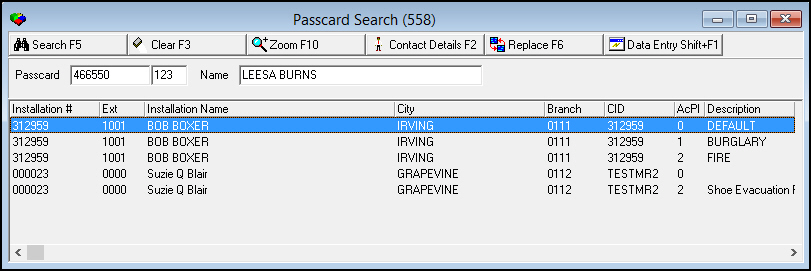
The following graphic shows the Passcard Search window after a search has been performed.
Field/Column Descriptions
The following table describes the fields and columns used in the Passcard Search window.
|
Field/Column |
Description |
|
Search Parameter Fields |
|
|
Passcard |
Passcard number of the passcard holder. |
|
Extension (No label) |
Passcard extension, if applicable, of the passcard holder. |
|
Name |
The name of the passcard holder. |
|
Search Result Columns |
|
|
Installation Number |
Installation number of the account containing the passcard. |
|
Extension |
Dealer ID of the account containing the passcard. |
|
Installation Name |
Name of the account holder on the installation. |
|
City |
City of the installation containing the passcard. |
|
Branch |
Installation branch number. |
|
CID |
Customer ID from the installation containing the passcard. |
|
Action Plan |
Number of the action plan that contains the passcard holder as a contact. |
|
Description |
Text description of the action plan that contains the passcard holder as a contact. |
Searching for Passcards
You can search for passcard holders by passcard number in the main window, or by name or phone number in the sublevel tab.
Use the following steps to search by passcard number:
1. Type the entire passcard number and extension, if available, in the Passcard search parameter fields.
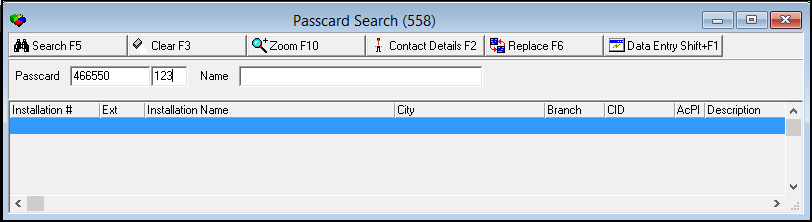
2. Choose Search.
w SBN displays the results in the search result columns.
Note: If you type a passcard number without an extension and SBN finds a match, then SBN enters the extension and name in the search parameter fields and returns the correct results. If more than one passcard number exists with different extensions, then SBN returns no results. Use the Name Search to look for the passcard holder.
Use the following steps to search by name or phone number:
1. Choose Zoom In/Out of Sublevel.
w The Name Search tab appears below the main window.
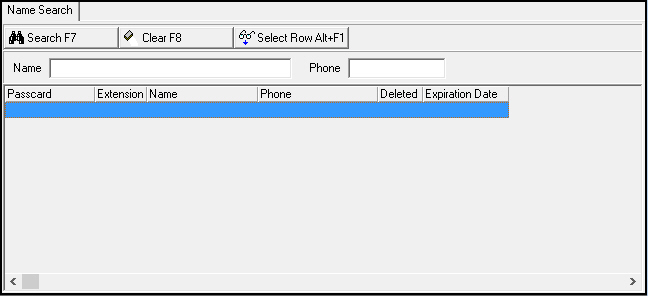
2. Type the passcard holder's name or phone number. Names are case sensitive.
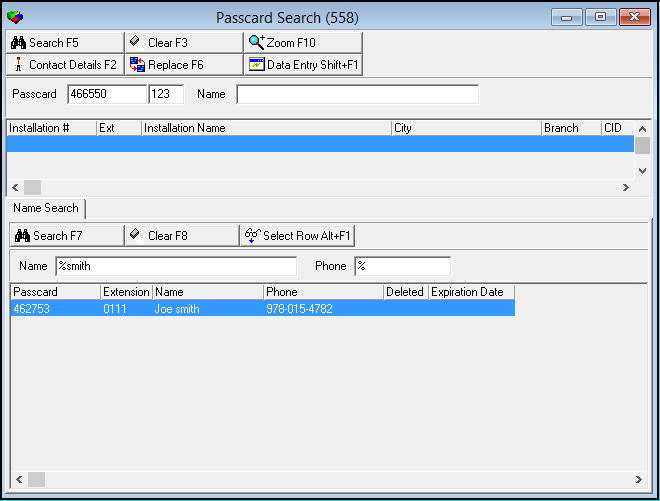
3. Choose Search.
w The lower pane displays results that match your search parameters.
4. Choose Select Row to complete the search.
w The main window shows all installations associated with the selected passcard.
Displaying Passcard Details
You can display the details from the action plan for a selected passcard holder. Use the Contact Details window to make changes to the passcard holder information.
Note: These fields correspond with the fields in the Contact Details Window - Basics tab in the Action Plans tab of Data Entry (program #559).
The following graphic shows the Contact Details window with information displayed.
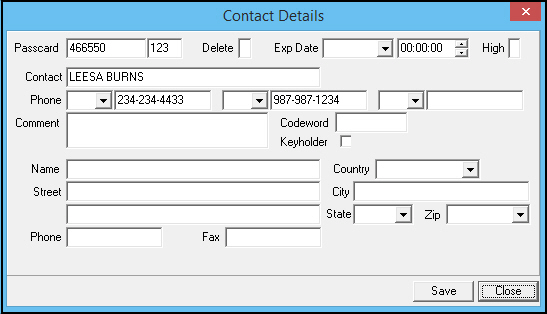
Field Descriptions - Contact Details
The following table describes the fields used in the Contact Details window.
|
Field/Column |
Description |
|
Passcard |
Passcard number of the passcard holder. |
|
Extension (No label) |
Passcard extension, if applicable, of the passcard holder. |
|
Delete |
Enter the following for deleting this passcard from all installations and action plans:
|
|
Expiration Date/Time |
Date and time for SBN to delete the passcard from the system and from all action plans. |
|
High |
Customer-defined field; no functionality in SBN. |
|
Contact |
Contact's name. |
|
Phone Type |
Select a phone type from the drop-down menu. (This menu originates from program #1840.) |
|
Phone Number |
Phone number for the contact. |
|
Phone Type |
Select a phone type from the drop-down menu. (This menu originates from program #1840.) |
|
Phone Number |
Second phone number for the contact. |
|
Phone Type |
Select a phone type from the drop-down menu. (This menu originates from program #1840.) |
|
Phone Number |
Additional phone number for the contact. |
|
Comment |
Free-form text displaying any information about the passcard holder. |
|
Codeword |
Codeword specific to this contact. |
|
Keyholder |
Select this check box to specify if the contact possesses keys to the installation. |
|
Name |
Contact's full name. |
|
Country |
Country in which the contact lives. |
|
Street |
Contact's street address. |
|
City |
City in which the contact lives. |
|
State |
Select the state the contact is in from the drop-down menu. (This field holds a maximum of 60 characters.) |
|
ZIP |
Select the contact's zip code from the drop-down menu. |
|
Phone |
Phone number for authenticating password. |
|
Fax |
Contact's fax number. |
Use the following steps to display passcard details:
1. Select the passcard holder for which you want to view details.
2. Choose Contact Details.
w The Contact Details window appears.
3. Enter any changes to the contact information.
4. Choose Save.
w SBN saves the contact details.
5. Choose Close to exit the Contact Details window.
Replacing Passcard Holders
You can replace a contact with another passcard holder for all action plans that it appears in SBN. To replace a passcard holder, the contact must have both a passcard number and passcard extension. If you attempt to replace a contact that does not have both a passcard number and extension, an error message appears.
You can also replace a contact with a new passcard holder that you create in Passcard Search (program #558).
Replacing a Contact with an Existing Passcard
Use the following steps to replace a passcard holder with another passcard holder:
1. Perform a search for a passcard holder. (See Searching for Passcards.)
2. Select the passcard holder you want to replace.
3. Choose Globally Replace Passcard Holder.
w The Replacement Passcard fields appear.
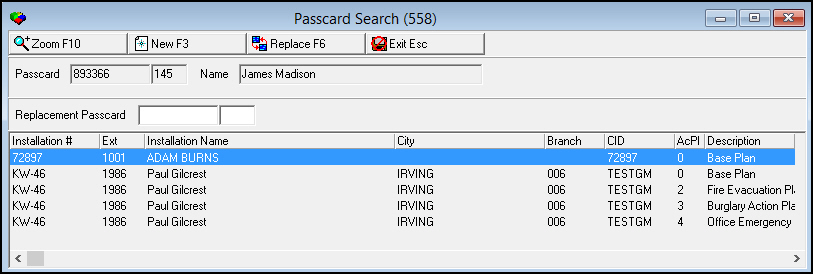
4. Type the passcard number and extension for the contact you want to use as a replacement.
5. Choose Globally Replace Passcard Holder.
w SBN replaces the passcard holder with the passcard you entered in the Replacement Passcard fields.
w SBN displays all the installations this passcard holder is associated with.
Replacing a Contact with a New Passcard
Use the following steps to replace a passcard holder with a new passcard:
1. Perform a search for a passcard holder. (See Searching for Passcards.)
2. Select the passcard holder you want to replace.
3. Choose Globally Replace Passcard Holder.
w The Replacement Passcard fields and the New button appear.
4. Choose New.
w The blank Contact window appears.
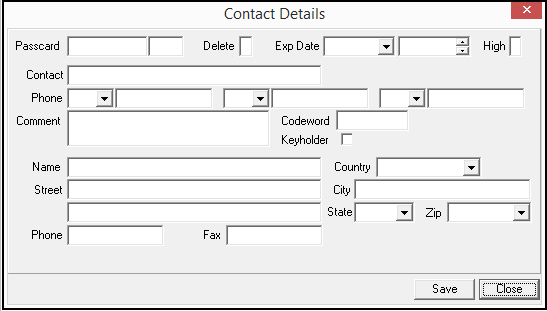
5. Complete the fields to create a new passcard holder.
6. Choose Save.
w The Contact Details window closes.
7. Type the passcard number and extension for the contact just created in the Replacement Passcard fields.
8. Choose Globally Replace Passcard Holder.
w SBN replaces the passcard holder with the passcard you created.
w SBN displays all the installations this passcard holder is associated with.
Jumping to Data Entry Master and Basics
You can display the installation information in Data Entry (program #559) for any record.
Use the following steps to jump to Data Entry:
1. Select the record for which you want to view installation information.
2. Choose Open Data Entry.
w Data Entry (program #559) opens with the selected installation displayed.
Related Programs
The following table lists programs related to the Passcard Search.
|
Program |
Number |
Document Link |
Description |
|
Action Plans Tab |
N/A |
Set up action plans and define passcard holders (contacts) for each action plan. |
|
|
Phone Types |
1840 |
Set up phone types to assign to the phone numbers in the Contact Details window. |
|
|
Data Entry Master and Basics |
559 |
The program from which you can access the Action Plans tab. View installation information for selected passcard holders. |
Button Functions
The following table displays the buttons, describes the shortcut keys, actions, and functionality.
|
Button |
Name |
Shortcut Key |
Action |
Description |
|
Passcard Search Window |
||||
|
|
Search |
F5 |
558/4 |
Display search results. |
|
|
Clear Search Screen |
F3 |
558/3 |
Clear screen to begin new search. |
|
|
Zoom in/out of sublevel |
F10 |
558/1 |
Display sublevel details or remove the sublevel from display. |
|
|
Contact Details |
F2 |
558/2 |
Display passcard details (contact information from the action plan). |
|
|
Globally replace passcard holder |
F6 |
558/5 |
Replace passcard holders with another passcard for all records in SBN. Note: Action 558/8 controls globally replacing passcard holders. |
|
|
New |
F3 |
558/7 |
Create a new passcard holder to use as a replacement. |
|
|
Open Data Entry |
shift+F1 |
558/6 |
Display installation information in the Data Entry (program #559) for selected record. |
|
Name Search Tab |
558/10 |
|||
|
|
Search |
f7 |
558/12 |
Display search results. |
|
|
Clear Search Screen |
f8 |
558/11 |
Clear screen to begin new search. |
|
|
Select Row |
alt+f1 |
558/13 |
Display all installations associated with the selected passcard holder. |
|
|
Exit |
Esc |
558 |
Exit without saving. |











Passcard Verification Lookup Order
Passcard verification looks up by sub-dealer before falling back to the dealer.
Modifications and Updates to Passcard Search
The following table lists modifications and updates to the Passcard Search document.
|
Mod Number |
Date |
Description |
|
n/a |
05/05/09 |
document rewritten |
|
n/a |
7/29/14 |
Images updated. |