
Archive Alarmlog OC Data
Archive Alarmlog OC Data
Archive Alarmlog/OC Data
Program #: 1891
Module: System Administration
Overview
Use Archive Alarmlog/OC Data (program #1891) to move data from ma_alarmlog and oc_toclog into flag files on the local PC (not to the UNIX or NT machine). SBN generates the file names in the following format, where X equals the start date and Y equals the end date:
-
ALOG_XX/XX/XX-YY/YY/YY.dat
-
OCLOG_XX/XX/XX-YY/YY/YY.dat
You can also use Archive Alarmlog/OC Data to restore data back into the archive tables from the operating system. On the restored data, you can run only Report #2126.
To access this program, select Archive Alarmlog/OC Data (program #1891) from the main menu of SBN.
The Archive Alarmlog/OC Data Window
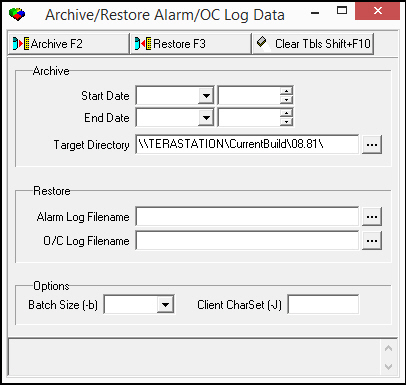
The following graphic shows Archive Alarmlog/OC Data as the program opens.
Field Descriptions
The following table describes the fields used in Archive Alarmlog/OC Data.
|
Field |
Description |
|
Archive Start Date |
Select the beginning date of a range of dates for which you want to archive data. |
|
Time (No label) |
Select the beginning time of a range of times for which you want to archive data. |
|
Archive End Date |
Select an ending date of a range of dates for which you want to archive data. |
|
Time (No label) |
Select an ending time of a range of times for which you want to archive data. |
|
Target Directory |
Type the name of the path to which you want send the archived data or choose |
|
Restore Alarm Log Filename |
Type the filename of the archived data that you want to restore or choose |
|
O/C Log Filename |
Type the filename of the archived data that you want to restore or choose |
|
Batch Size (-b) |
Select the size of batch. O SBN defaults the batch size to 1000. |
|
Client CharSet (-J) |
Type -J in this field if your company uses a character set that is different from the standard SBN character set. |
 .
.Archiving Data
Use the following steps to archive data:
1. In Archive Alarmlog/OC data (program #1891), select an Archive start date/time, end date/time, and target directory.
Note: For more information on the fields, see Field Descriptions.
2. In Options, you may select a size for the archive batch from the menu.
Note: Smaller batches run better.
Note: SBN defaults the batch size to 1000.
3. If your company uses a character set that is different from the standard SBN character set, in Options, type -J in the Client CharSet field.
4. Choose Begin Archive Process.
‰ SBN displays the process in the results pane.
Selecting Target Directories
Use the following steps to select a target directory that differs from the default directory:
1. To the right of the Target Directory field, choose Browse.
‰ The Select Directory dialog box opens.
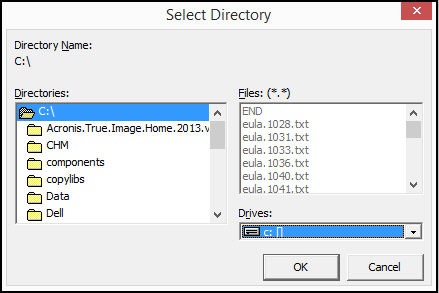
2. Complete the following fields:
l In Drives - select the drive on which your target directory is located.
l In Directories - select the folder in which your target directory is located.
l In Files - select the name of the file to which you want to archive data.
3. Choose OK.
Restoring Archived Data
Use the following steps to restore previously archived data:
1. In Archive Alarmlog/OC data, type a Restore Alarm Log filename, or O/C Log filename.
Note: For more information on the fields, see Field Descriptions.
2. In Options, you may select a size for the restored archive batch from the menu.
Note: SBN defaults the batch size to 1000.
3. If your company uses a character set that is different from the standard SBN character set, in Options, type -J in the Client CharSet field.
4. Choose Begin Restore Process.
‰ SBN displays the process in the results panel.
Browsing for Filenames to Restore
If you do not know the filename you want to restore, you can browse for it.
Use the following steps to browse for an Alarm Log or O/C Log file to restore:
1. To the right of the Alarm Log Filename field or the O/C Log Filename field, choose Browse.
‰ The Open File dialog box opens.
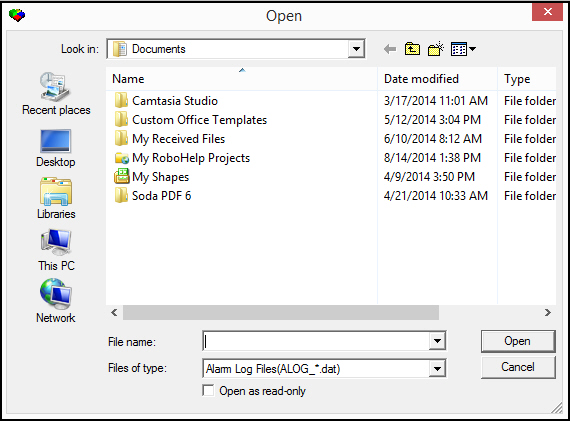
2. Complete the following fields:
l In Look In - select the device on which the file you want to restore is located.
l In Files of Type - select the type of file you want to restore.
l In File Name - type the name of the file you want to restore.
3. Choose Open.
Clearing Restored Data
Use the following steps to clear previously restored data from tables:
1. Choose Clear Reporting Tables.
‰ A pop-up warning appears.
2. Choose Yes.
Button Functions
The following table displays the buttons, describes the shortcut keys, actions, and functionality.
|
Button |
Name |
Shortcut Key |
Action |
Description |
|
|
Archive |
F2 |
1891/ 1 |
Displays archived information in the Results window. |
|
|
Restore |
F3 |
1891/ 2 |
Displayed restored information in the Results window. |
|
|
Clear Tbls |
SHIFT+F10 |
1891/ 3 |
Truncates archive reporting tables. |



Modifications and Updates to Archive Alarmlog/OC Data
The following table lists modifications and updates to the Archive Alarmlog/OC Data document.
|
Mod Number |
Date |
Description |
|
n/a |
8/14/14 |
Images updated. |