
Revenue Types
Revenue Types
Revenue Types
Module: System Administration
Overview
Use Revenue Types (program #1512) to define the revenue types used in Price Lists (program #1533) and Items (program #1535) by:
GL account number
Revenue group
Description
Also, use the sublevel of Revenue Types to enter additional information for a revenue type:
GL subscriber type
Inventory usage account
Navigating to Revenue Types
Use the following steps to navigate to Revenue Types:
1. From the main SBN toolbar, select Menu.
2. From the drop-down menu, select Go To.
3. In the Go To Program dialog box, type in "1512" and press Enter.
w The Revenue Types program opens.
The Revenue Types Window
The following graphic shows the Revenue Types window. The window displays previously defined revenue types.
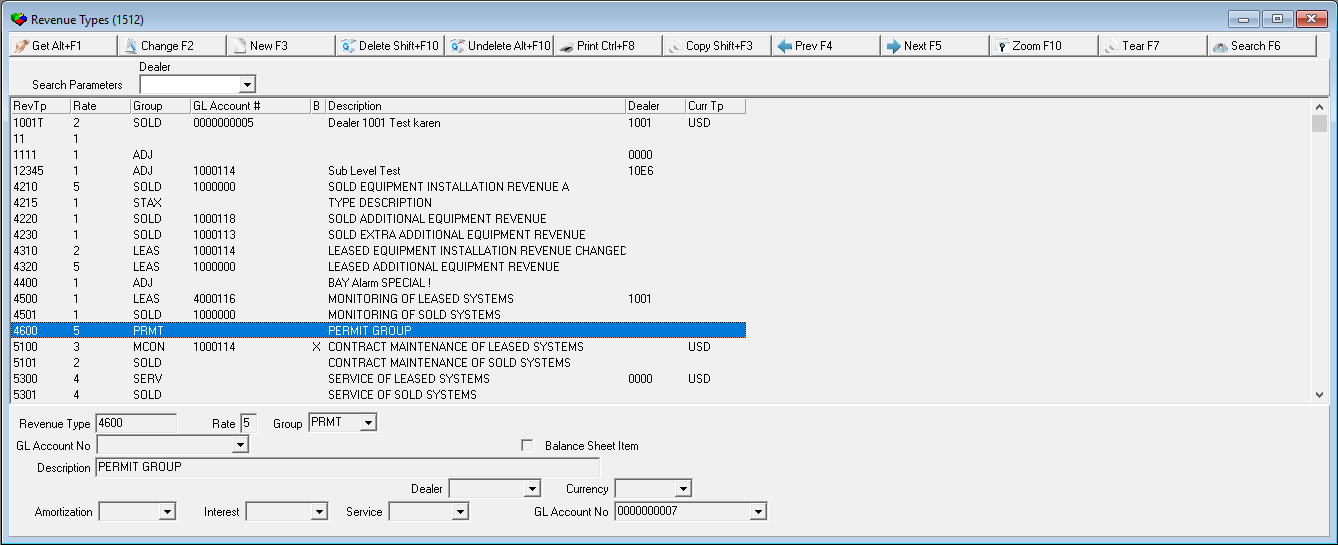
Field/Column Descriptions
The following table describes the fields and columns used in the Revenue Types window.
Field/Column |
Description |
Dealer |
You may select a specific dealer ID to search for revenue types associated with that dealer. (This menu originates from program #1537.) |
Revenue Type |
Revenue type identifier. |
Rate |
Tax rate field (1-9) that corresponds to the type of service defined in program #1514. |
Group |
Revenue group. (This menu originates from program #1513.) O This menu displays only those revenue groups l Associated with the selected dealer (associate revenue groups with dealers in program #1513) l Not associated with any dealer |
Account |
General ledger account number the revenue type applies to. O When option bl058 is off, a menu appears for selecting a valid GL number from the Chart of Accounts (program #1835.) |
Balance Sheet Item Flag |
If this box displays an X the revenue type is a Balance Sheet Item, rather than true revenue, such as taxes. Select this check box to restrict data on the Month End Revenue (program #1172) and Deferred Revenue (program #1903) reports. |
Description |
Text description of the revenue type. |
Dealer |
Identifies the dealer associated with the selected revenue type, if applicable. |
Currency |
Currency type associated with the selected revenue type. (This menu originates from program #1635.) |
Amortization |
Revenue type that indicates to which general ledger the amortized portion of a rental contract payment goes. |
Interest |
Revenue type that indicates to which general ledger the interest from a rental contract payment goes. |
Service |
Revenue type that indicates to which general ledger the service fee from a rental contract payment goes. |
GL Account Number |
General ledger account number the revenue type applies to. |
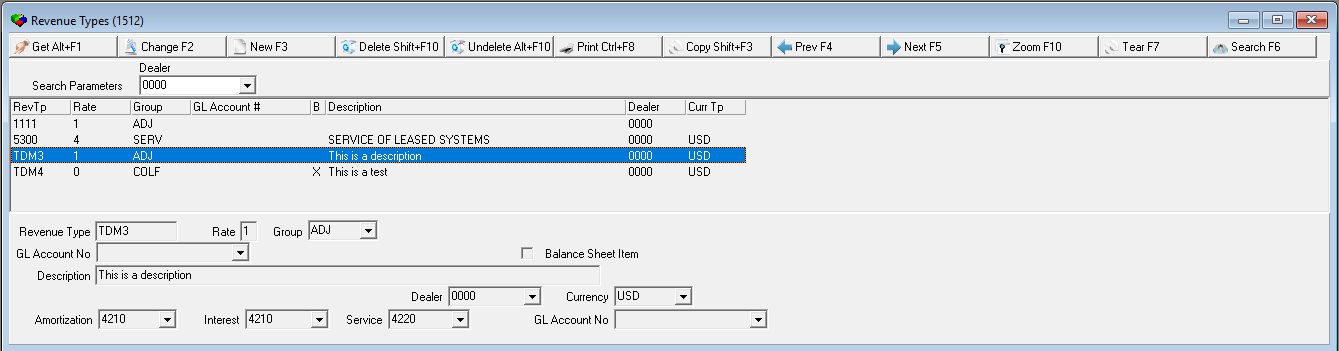
Searching for Revenue Types by Dealer ID
Use the following steps to search for revenue types by Dealer ID:
1. In Revenue Types, select the ID of the dealer for whom you want to find associated revenue groups.
2. Choose Search.
w SBN displays the search results.
Using Common Functions
See the reference document Common Functions in SBN for more information.
Zooming into the Sublevel
Revenue Types contains a sublevel with three tabs:
Revenue Types Details - in which you may associate a GL account number and GL subscriber type with a selected revenue type.
Translations - in which you may translate the descriptions of revenue types into other languages.
Price Lists - in which you can view all the price lists available for the selected revenue type.
The Revenue Types Details Tab
The following graphic shows the Revenue Types Details tab. The tab displays GL account numbers and GL subscriber types previously associated with the selected revenue type.
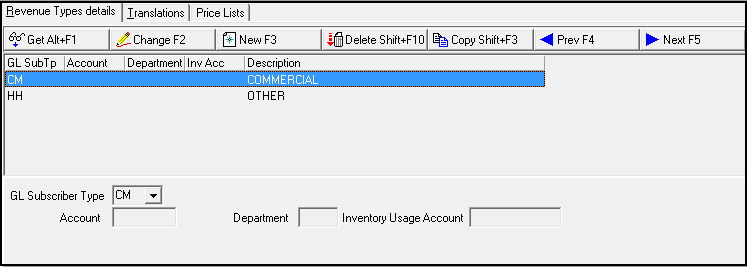
Field/Column Descriptions
The following table describes the fields and columns used in the Revenue Types Details tab.
Field/Column |
Description |
GL Subscriber Type |
General ledger subscriber type. This field redirects the revenue to a different GL account number than the one associated with the revenue type. (This menu originates from program #1578.) |
Account |
GL account number to use for the revenue for the subscriber type. O When option bl058 is off, a menu appears for selecting a valid GL number from the Chart of Accounts (program #1835). |
Department |
Four-digit information-only field for typing a department for the revenue type. |
Inventory Usage Account |
Information-only field for typing an account number associated with the inventory account used with this revenue type. |
The Translations Tab
The following graphic shows the Translations tab. The tab displays previously defined translations of the selected revenue type.
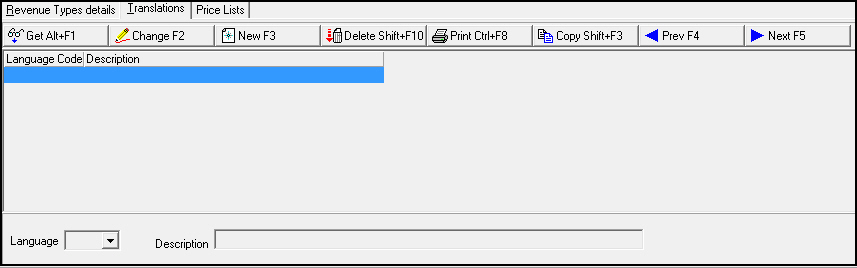
Field/Column Descriptions
The following table describes the fields and columns used in the Translations tab.
Field/Column |
Description |
Language Code |
Code that identifies the language of the associated translation. |
Description |
Text description, in the associated language, of the selected revenue type. |
The Price Lists Tab
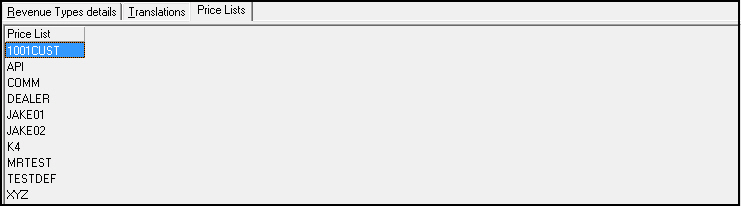
The Price Lists tab displays all the price lists available for the selected revenue type. When you double-click on a price list in this tab, Price Lists (program #1533) opens with the selected price list highlighted.
Note: The Price Lists tab appears when action 1512/30 is enabled in your action profile.
The following graphic shows the Price Lists tab.
Viewing Price List Items
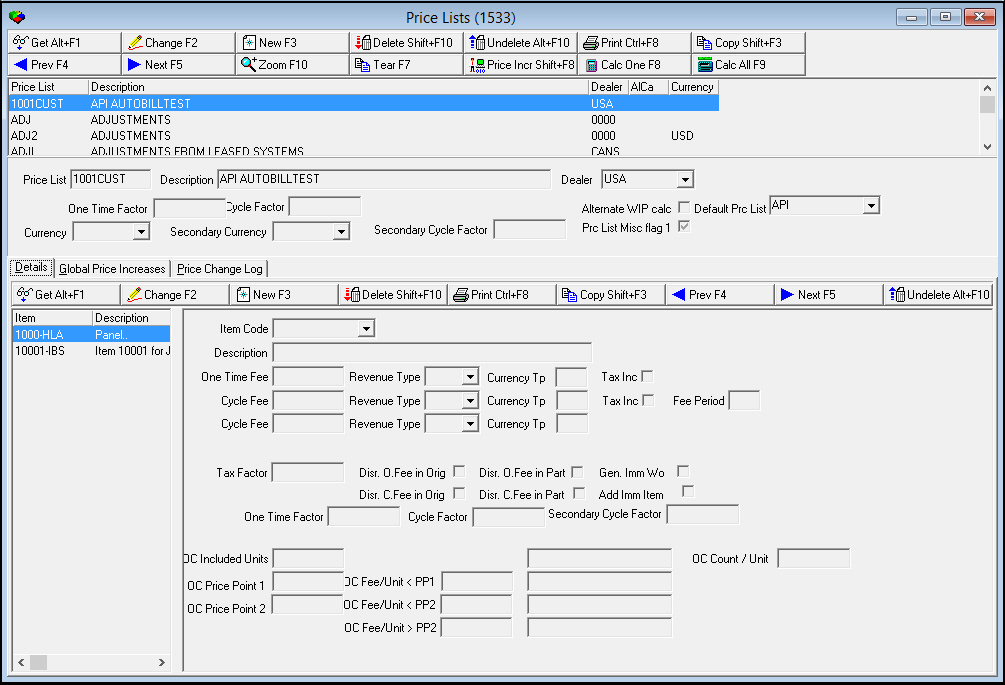
Use the following steps to view items for the selected price list:
1. In the Price Lists tab, select the price list for which you want to view items.
2. Double-click your selection.
w Price Lists opens with the Details tab of the sublevel displayed.
Button Functions
The following table displays the buttons, describes the shortcut keys, actions, and functionality.
Button |
Name |
Shortcut Key |
Action |
Description |
|
Get |
ALT+F1 |
1512/ 1 |
Get record. |
|
Change |
F2 |
1512/ 2 |
Change selected record. |
|
New |
F3 |
1512/ 3 |
Create new record. |
|
Delete |
SHIFT+F10 |
1512/ 4 |
Delete selected record. |
|
Undelete |
ALT+F10 |
1512/ 5 |
Restore deleted record. |
|
CTRL+F8 |
1512/ 6 |
Print selected records. |
|
|
Search |
F6 |
1512/ 7 |
Search for existing records. |
|
Copy |
SHIFT+F3 |
1512/ 999 |
Copy selected record. |
|
Zoom |
F10 |
1512/ 999 |
Zoom in/out of sublevel. |
|
Tear |
F7 |
1512/ 999 |
Lists details of selected field. |
|
Previous |
F4 |
1512/ 999 |
Select last record. |
|
Next |
F5 |
1512/ 999 |
Select next record. |












Modifications and Updates to Revenue Types
The following table lists modifications and updates to the Revenue Types document.
Mod Number |
Date |
Description |
n/a |
8/25/14 |
Images updated. |
07.89.26061, 08.89.11565, 08.89.11567 |
2/15/19 |
Additional General Ledger Account Number field added. Images updated. |