
Searches
Module: Reference
Overview
Access
In each of these programs, you can choose Search to access the Search window:
Marketing (program #562)
Data Entry Master and Basics (program #559)
Monitoring (program #537)
Contract Master (program #548)
Note: You cannot be in New or Change mode when you perform a record search.
Branch Restrictions
SBN restricts the display of accounts to those associated with the branch in your user profile. SBN searches for a matching branch in the following fields of Data Entry (program #559).
Inst Br (Installation Branch)
Mon Br (Monitoring Branch)
Serv Br (Service Branch)
Acc Br (Access Branch)
Search Types
You can perform three kinds of searches. The Basic tab search requires that you search with specific information, such as a phone number or passcard. The Advanced search tab allows you to search with partial information and wildcards. The Check Search tab allows you to search with a wildcard for check number. Additionally, you can search by a range of payment dates or by a range of payment amounts.
Note: If option ba001 is on, SBN clears previous data from the search dialog boxes each time you access them. If option ba134 is on, SBN keeps passcard search parameters in the fields from the last search.
This document covers the following topics:
Searches Options
You can manipulate the Searches window and functionality through the use of a number of options. The settings of the following options control different aspects of action plans and how they relate to other tabs and programs. For detailed information on an option and its default setting, see SBN Options.
Option ba001 - When this option is on, SBN clears data entered in the Search dialog box when you exit and re-enter the dialog box. When this option is off, SBN retains data entered in the Search dialog box when you exit and re-enter the dialog box.
Option ba121 - When this option is on, Passcard search also searches Codewords for a match. When this option is off, SBN searches only Passcards.
Option ba134 - When this option is on, SBN does not clear Passcard search parameters after a user exits and reenters the Search parameters dialog box. (Option ba001 must be on to use this option.)
Option ba144 - When this option is on, SBN indexes the City and AKA fields for name/address search. This option makes searching faster for larger databases.
Option ba146 - When this option is on, SBN indexes the Zip Code field for name/address search. This option makes searching faster for larger databases.
Option ba204 - When this option is on, SBN supports the Search capability for the Phone # 2 field in Data Entry (program #559). Also, SBN checks the phone number entered into a new inquiry in Marketing against the Phone 2 in existing inquiries and displays a warning if it finds duplicates. SBN searches for exact matches. For example, if a user enters the number 972-518-2250 in a new inquiry, the search will not match that number with an inquiry that contains the phone number 9725182250.
Option ba205 - When this option is on, SBN supports the Search capability for Contact Phone # 1, , and . When this option is off, SBN supports the search capability for only the Phone # 1 field.
Option ba286 - When this option is on, SBN creates an index on the Member Number in the Installation pane of Contract Basics. This makes searches faster. This option works with option ba201 and option ba343.
Option ba317 - When this option is on users may search by email address in the Basic search tab. Also, SBN checks the email address entered into a new inquiry in Marketing against existing inquires and displays a warning message if it finds duplicates.
Option ba343 - When this option is on, SBN creates indexes on Member in the Billing Account and Contract Basics panes in Contract Master. This option works with ba286 for searches on Member.
Option ba357 - When on, SBN includes the customer's fax number entered in Data Entry (program #559) when you search by phone number in the Basic Search tab.
Option ba472 - This option defines the period, in hours, that SBN looks back in the Alarm Log when you perform a search with the Log check box selected in the Advanced Search tab.
Option ba478 - When on, SBN includes the first Panel Phone in the CID grid of Data Entry (program #559) when you search by phone number in the Basic Search tab.
Option bl109 - When this option is on, SBN creates an index on extinv and makes external invoice numbers searchable from the Basic search tab.
Option cmsepos - Use this option to define the default cursor position in Contract Master (program #548) when you choose the Search tab.
Option desepos - Use this option to define the default cursor position for Data Entry (program #559) Search tab.
Option maxnas - Use this option to define the maximum number of rows displayed when you perform a name/address Search.
Option moncol - When this option is on, the result grid for the Basic search tab and the Advanced search tab in Data Entry (program #559) is color-coded based on the monitoring status of each installation. Active installations appear green. Inactive installations appear red. In the Advanced search tab, you must choose the Installation radio button for color coding to appear.
Option sys003 - When this option is on, SBN activates Accounts Receivable.
Option temp106 - Specific to Company 106. When this option is on, the Basic Search tab includes the Misc40 field in Data Entry Basics (program #559) when a search by email address is performed. The entire Misc40 field is indexed, so the search parameters entered in the Basic Search tab must be an exact match. The data in Misc40 does not appear in the results of a wildcard search.
Option tminpos - Use this option to define the default cursor position in Marketing/Basics (program #562) after you enter information in the New Record dialog box.
The Basic Search Tab
Use the Basic search tab when you have specific information to search with, such as a phone number or passcard.
The following graphic shows the Basic search tab.
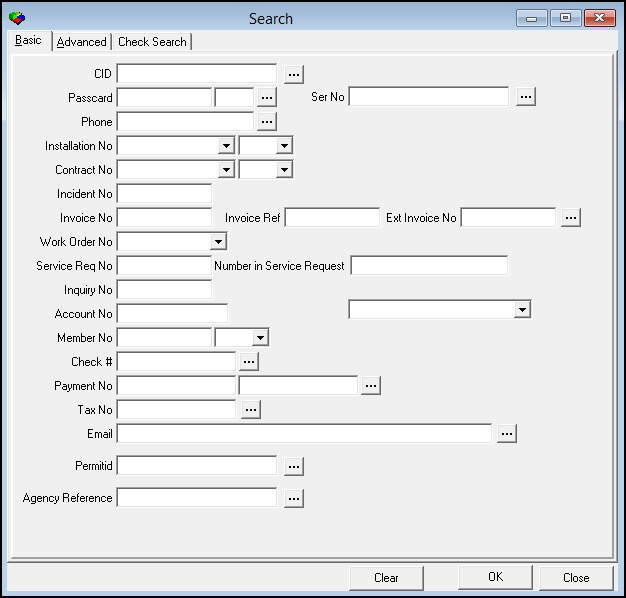
Field Descriptions - Basic Tab
The following table describes the fields in the Basic search tab.
Field |
Description |
CID |
Number that identifies the customer. You can type a % wildcard with a partial CID for searching. Note: The results displayed matching this wildcard search are limited by Dealer/Branch profile restrictions. Note: Use option moncol to color code the search results based on the monitoring status of each installation. When this option is on, active installations appear green, and inactive installations appear red. |
Passcard |
A unique entry number assigned to an individual. If you access the Basic search tab from Insert Test or Open/Close Status and type a passcard and extension, the passcard and extension will default into Insert Test or Open/Close Status. While passcards are unique, there may be codewords (account or contact) that are the same. If option ba121 is turned on, the search includes these codewords in the search. If more than one result matches your search term, the results include AKA names. Note: You can enter wildcards to search for a codeword in the Codeword drop-down field. Note: You can enter a wildcard codeword in the Passcard field. After entering the information, you can press Enter or select the drop-down to retrieve a list of matching codewords. |
Passcard Extension (No label) |
Extension associated with a passcard. |
Serial Number |
Serial number associated with a specific installed component of an installation. You can type a % wildcard with a partial serial number for which to search. Note: The Installed Components tab of program #559 opens when SBN finds an exact serial number match. If more than one result matches your parameters, SBN displays a list of search results for you to choose from. If you search for a serial number that has been deleted from an installation, SBN displays the Log view of the Installed Components tab. SBN disregards any spaces you enter in this field. |
Phone |
Phone number. If option ba204 is on, SBN includes the customer’s second phone number in the search. If option ba205 is on, SBN includes the customer’s second and third phone numbers in the search. If option ba357 is on, SBN includes the customer's fax number in the search. If option ba478
is on, SBN includes the customer's first Panel Phone in the
CID grid of Data Entry (program #559) in the search. |
Installation No. |
Number that identifies the installation. |
Dealer (No label) |
ID of the dealer associated with an installation. |
Contract No. |
Number that identifies the contract. |
Dealer (No label) |
ID of the dealer associated with a contract. |
Incident No. |
Unique number created by SBN to identify each treated alarm. |
Invoice No. |
Invoice number. |
Invoice Ref. |
User-defined reference number for a service invoice. When you search with this criterion, SBN will open the account linked to a service request by the selected invoice reference number. |
Ext Invoice No |
External invoice number; used for Partner invoicing. To search by external invoice number, option bl109 must be on. Now accepts alphanumeric and a maximum of 20 characters. |
Work Order No. |
Work order number. |
Service Req. No. |
Service request number. |
PO Number in Service Request |
Purchase order number on a service request. Note: If more than one installation has a service request with the same purchase order number, the first installation that SBN finds with the purchase order number on a service request opens in program #559. |
Inquiry No. |
Marketing inquiry number entered in program #562. |
Account No. |
Billing account number entered in program #548. To search by account number, option sys003 must be on. |
Member No. |
Member number of company with which your company has a marketing alliance; searches by Inquiry. SBN converts text in this field to uppercase. If option ba286 is on, you may search for Member by Installation. If option ba343 is on, you may search for Member by
If the search locates the Member in more than one area, a selection dialog box opens. Branch and Dealer restrictions apply. |
Dealer (No label) |
Displays the Dealer ID, Monitoring Status, and Name associated with a member number. |
Check # |
Specific check number. |
Payment No. |
The credit card or bank account number. Note: You can type a % wildcard with a partial credit card or bank account number. A window pops up displaying the search results. |
Routing No. |
Bank routing number. |
Tax No. |
Tax ID. Basic Search for the Tax No displays a list of all contracts associated with an account that has the tax number, and that if the tax number is entered at the contract level, only that contract appears in the search results grid. |
Email address. Type the email address in uppercase. To search by email address, option ba317 must be on. SBN saves all email addresses in uppercase. |
|
Permit ID |
Permit ID associated with the customer. |
Customer Type |
Type of customer (residential or commercial). (This menu originates from program #1534.) |
Agency Reference |
Agency reference number associated with the installation. (Agency reference numbers for alarm incidents are visible in the Compressed view of the Alarm Log.) |
Performing a Basic Search
When you search for a record using the Basic tab, you can only fill one field. You cannot use wildcard characters except in the CID field and the Serial Number field. If the results locate the single record you are seeking, it automatically appears in the program from which you began the search. If multiple records match your parameters, the dialog box displays a list from which you can choose the correct record.
Use the following steps to perform a basic search:
1. In a program that offers the search feature, choose Search.
w The Basic search tab appears.
2. Select one field to complete.
3. Press Enter to perform the search.
w One of the following occurs:
If one result matches your search parameters, SBN opens the program from which you accessed the search and displays the account information.
If more than one result matches your parameters, SBN displays a list of search results.
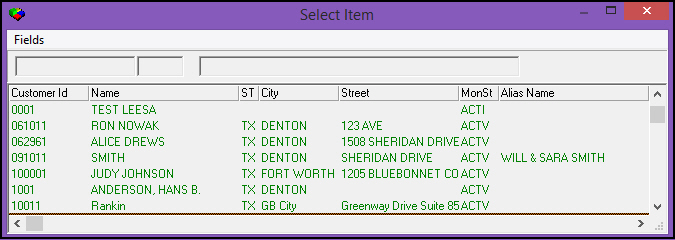
Note: You can use the Fields menu in this dialog box to make and save changes to the layout of this dialog box. The lower portion of the screen contains additional search information.
4. Select the correct account from the list.
w SBN opens the program from which you accessed the search and displays the account information.
5. To perform another search, choose Clear.
The Advanced Search Tab
Use the Advanced search tab to perform a search for which you have only partial information. This tab defaults with % wildcard in all fields.
Note: You must have actions 45 and 48 in your user profile to access this feature from Contract Master.
The following graphic shows the Advanced search tab after a search.
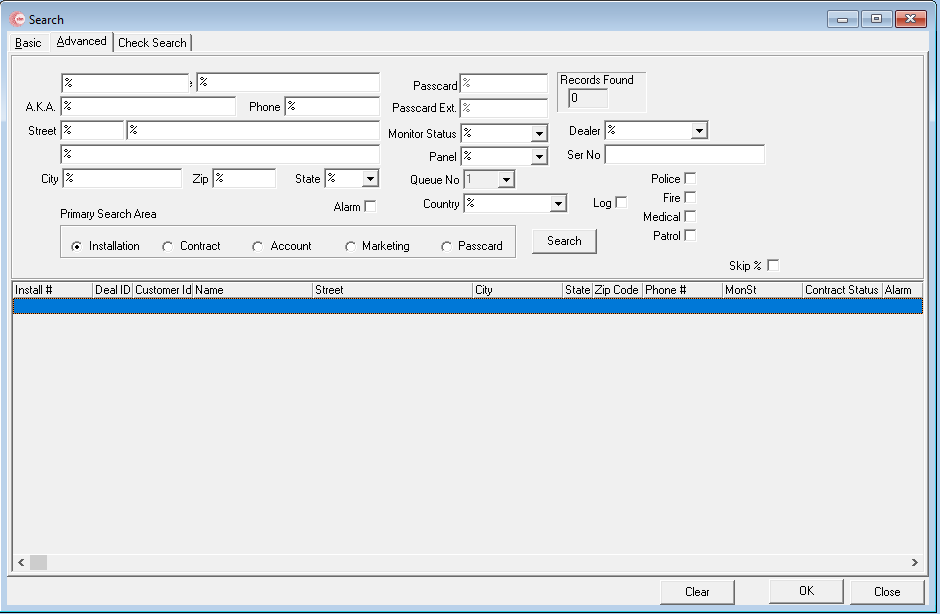
Note: The Monitor Status and Panel drop-down menus are only available if you select the Installation radio button. The Queue No. drop-down is available only when you select the Alarm check box.
Field Descriptions - Advanced Tab
The following table describes the fields used in the Advanced search tab.
Field |
Description |
Search Parameters |
|
Name - First |
First name. Note: Search results will display only those names associated with the dealer ID included in the user’s profile. |
Name
- Last |
Last name. Note: Search results will display only those names associated with the dealer ID included in the user’s profile. |
AKA |
Also Known As; alternate name for the customer, such as a nickname. Note: This field appears if option ba144 is on. |
Phone |
Phone number. |
Street - Number |
Part of the customer’s address. |
Street
- Name |
Part of the customer’s address. |
Additional Street Information (No label) |
Part of the customer’s address, if applicable. |
City |
Part of the customer’s address. Note: This field appears if option ba144 is on. |
Zip |
Part of the customer’s address. Note: The field appears if option ba146 is on. |
State |
Part of the customer’s address. |
Alarm |
Select this check box to search the Alarm Queue. If Alarm check box is selected, the Alarm output field will display an X. |
Passcard |
Displays the unique entry devices assigned to an individual. |
Passcard Ext. |
Displays the extension associated with a passcard. |
Monitor Status |
This drop-down contains all possible installation statuses. Note: If the Exclude from Search checkbox in the Monitoring Status program (program #1540) is selected, then the checked status will not appear in an Advanced Search. |
Panel |
This drop-down contains all available panels. |
Queue No |
This drop-down contains all available alarm queues. (This field is protected unless you select the Alarm check box.) |
Country |
Part of the customer's address. If you leave this field blank, the search returns all records that match your parameters that do not have a country assigned. |
Records Found |
Number of records that match the search parameters. Note: Option maxnas determines the maximum number of results that SBN displays; typically the first 120 records found. |
Dealer |
Dealer ID and any associated Sub-Dealer ID's assigned to the customer account. (This menu originates from program #1537.) |
Log |
Select this check box to search the Alarm Log for alarm incidents on installations that match your parameters. You may select the Police, Fire, Medical, and/or Patrol check boxes to limit the search results to installations with those events on alarm incidents. Note: The Log, Police, Fire, Medical, and Patrol check boxes only appear when action 559/723 is on. These check boxes are protected unless you perform a search by Installation. The value of option ba472 defines the period, in hours, that SBN looks back in the Alarm Log. |
Police |
Select this check box along with the Log check box to limit the search results to installations with Police events on alarm incidents. Note: The Log, Police, Fire, Medical, and Patrol check boxes only appear when action 559/723 is on. These check boxes are protected unless you perform a search by Installation. The value of option ba472 defines the period, in hours, that SBN looks back in the Alarm Log. |
Fire |
Select this check box along with the Log check box to limit the search results to installations with Fire events on alarm incidents. Note: The Log, Police, Fire, Medical, and Patrol check boxes only appear when action 559/723 is on. These check boxes are protected unless you perform a search by Installation. The value of option ba472 defines the period, in hours, that SBN looks back in the Alarm Log. |
Medical |
Select this check box along with the Log check box to limit the search results to installations with Medical events on alarm incidents. Note: The Log, Police, Fire, Medical, and Patrol check boxes only appear when action 559/723 is on. These check boxes are protected unless you perform a search by Installation. The value of option ba472 defines the period, in hours, that SBN looks back in the Alarm Log. |
Patrol |
Select this check box along with the Log check box to limit the search results to installations with Patrol events on alarm incidents. Note: The Log, Police, Fire, Medical, and Patrol check boxes only appear when action 559/723 is on. These check boxes are protected unless you perform a search by Installation. The value of option ba472 defines the period, in hours, that SBN looks back in the Alarm Log. |
Skip % |
When checked, all % wildcard is removed.(Checked by default). |
Primary Search Area |
|
Installation |
Select this field to sort results by installation number. Note: Use option moncol to color code the search results based on the monitoring status of each installation. When this option is on, active installations appear green, and inactive installations appear red. Color coding only appears if you choose the Installation radio button. |
Contract |
Select this field to sort results by contract number. |
Account |
Select this field to sort results by account number. |
Marketing |
Select this field to sort results by inquiry number from marketing. |
Passcard |
Select this field to sort results by assigned passcard. |
Column Descriptions - Advanced Tab
The following table describes the columns used in the Advanced search tab.
Column |
Description |
Install # |
Installation number associated with the selected customer. |
Dealer ID |
ID of the Sub-Dealer associated with the selected customer. |
Customer ID |
CID of the selected customer. |
Name |
Name of the selected customer. |
Alias Name |
AKA name or nickname. |
Street |
Street address of the selected customer. |
City |
City (part of the address of the selected customer). |
State |
State (part of the address of the selected customer). |
Zip Code |
Zip code (part of the address of the selected customer). |
Phone # |
Primary phone number of the selected customer. |
MonSt |
When you enter the search dialog box from Account Management and perform a search, this field displays the Monitoring Status of the installations that match your search parameters. |
Branch |
Branch associated with the selected customer. |
Contract Status |
When you enter the search dialog box from Contract Master and perform a search, this field displays the contract status of the contracts that match your search parameters. |
Alarm |
This installation has an active alarm. |
Balance |
When performing a search for a contract or account, this column displays the balances of the contracts or accounts that match your search parameters. The balances originate from the Invoice Status tab of Contract Master (program #548). |
Group 1 |
When performing a search for an installation or an account, this column displays the Group 1 data defined in the Billing Accounts window in Contract Master (program #548). |
Group 2 |
When performing a search for an installation or an account, this column displays the Group 2 data defined in the Billing Accounts window in Contract Master (program #548). |
Dealer ID |
Dealer ID of the assigned to the customer account/sub-dealer. |
Using Wildcard Characters
Wildcards allow you to type partial information to search for specific data. The following table describes the wildcard characters available to use in SBN.
Wildcard |
Use |
% |
Use a percent sign to represent any number of characters. Examples: l To search for all phone numbers beginning with â€972," type 972%. Results will include numbers such as 972-555-1212 and 972-1234. l To search for all names ending with â€sen," type %sen. Results will include names such as Jacobsen, Dobsen, and Williamsen. |
_ |
Use an underscore character to include any single character. Example: l To search for all results for Sheryl or Cheryl, type _heryl. |
[ ] |
Use brackets to include a specific range of characters, such as [a-f] or [1473-1500]. Example: l To find an address on a specific block, type [800-900] Main Street. Results will include addresses such as 800 Main Street, 819 Main Street, and 900 Main Street. |
[^] |
Use a caret to exclude a range of results. Example: l To find addresses on a street, excluding a specific block, type %[^800-900] Main Street. Results will include addresses such as 518 Main Street and 10015 Main Street. |
Tips for Performing an Advanced Search
When you perform an advanced search, remember the following:
Depending on what you are searching for, you can type as much or as little information in the fields, as needed. As you type information in fields, you limit the search results to those records that meet your parameters. The less information you enter, the longer the search may take and the results may be extensive. If you leave all fields blank, SBN searches all records. Therefore, we recommend you narrow your search as much as possible.
If you do not find the correct account with the information you have entered, try again with less information. For example, if you searched with the known information of ANGELA SMITH and the search did not find the account, you might try ANGELA%. You may have misspelled the last name.
SBN can search the following fields more quickly than other fields:
First Name
Last Name
Telephone
Street Name/Number
When searching by passcard, enter the contact name you want to search by (first and/or last name) in the Last Name field. There is only one Name field for passcards in the Action Plans tab of program #559, so the First Name field is not recognized in passcard searches.
Type known information in the first part of a field and then type the % wildcard. This speeds the search because SBN searches alphabetically. For example, to find a customer named Hanson or Hansen, you might type Hans% as the search parameters in the name field.
The fastest method for searching by address is to type the house number (in Street 1) followed by % (for any street name).
If the Exclude from Search checkbox in the Monitoring Status program (program #1540) is selected, then the checked status will not appear in an Advanced Search.
Performing an Advanced Search
Use the following steps to perform an advanced search:
1. From a program that offers the search feature, choose Search.
w The SBN Search dialog box appears.
2. Select the Advanced search tab.
3. Narrow the search by completing one or more fields.
4. Choose Search.
w One of the following occurs:
If one result matches your parameters, SBN opens the program from which you accessed the search and displays the account information.
If more than one result matches your parameters, SBN displays a list of search results.
5. Select the correct account from the list.
w SBN opens the program from which you accessed the search and displays the account information.
6. To perform another search, choose Clear.
The Check Search Tab
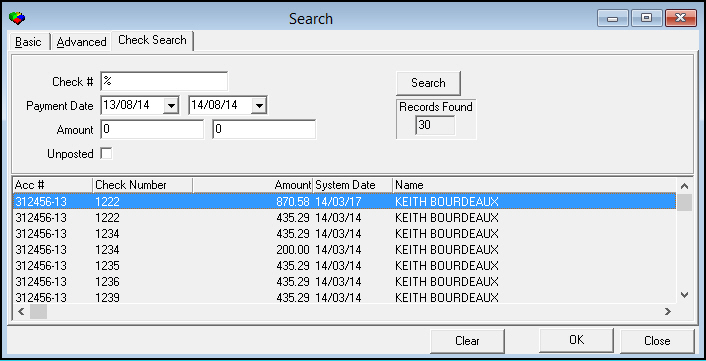
The following graphic shows the Check Search tab.
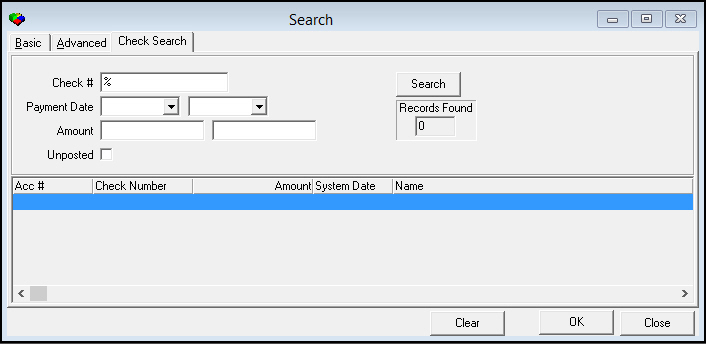
Field Descriptions - Check Tab
The following table describes the fields used in the Check Search tab.
Field/Column |
Description |
Check # |
Check number. Note: You can use the % wildcard to search for a partial check number. Note: You must either type a check number or select a range of payment dates. |
Payment Date Range |
|
Payment Date - From |
You may select a range of payment dates to search for checks paid within that range; select the beginning date of the range. Note: You must either type a check number or select a range of payment dates. |
Payment
Date - To |
You may select a range of payment dates to search for checks paid within that range; select the ending date of the range. Note: You must either type a check number or select a range of payment dates. |
Amount Range |
|
Amount - From |
You may type a range of payment amounts to search for all checks within that range. Type the beginning payment amount of the range. |
Amount
- To |
You may type a range of payment amounts to search for all checks within that range. Type the ending payment amount of the range. |
Records Found |
The number of records that match the search parameters. |
Unposted |
Enter a check mark in this field to include unposted checks in the search. |
Column Descriptions - Check Tab
The following table describes the columns used in the Check Search tab.
Column |
Description |
Acc# |
The account number associated with the selected check. |
Check Number |
The check number of the selected check. |
Amount |
The payment amount of the selected check. |
System Date |
Date the check was posted. |
Name |
Name of customer associated with the selected check. |
Performing a Check Search
When you search for a record using the Check Search tab, you must type a range of check numbers or select a range of payment dates.
Use the following steps to perform a check search:
1. From a program that offers the search feature, choose Search.
w The SBN Search dialog box appears.
2. Select the Check tab.
3. Complete as many fields as needed for your search.
4. Choose Search.
w SBN displays the results below the search parameters.
5. Select the correct check from the list.
w SBN opens the program from which you accessed the search and displays the account information.
6. To clear the data for a new search, choose Clear.
Printing Search Results
Use the following steps to print search results:
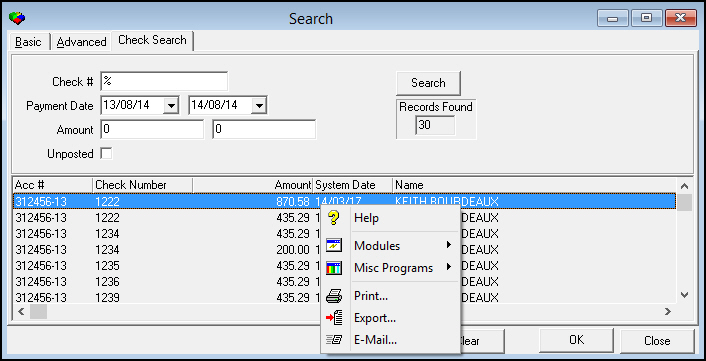
1. To print the search results, right-click inside the results list.
2. Choose Print from the menu.
Modifications and Updates to Searches
The following table lists modifications and updates to the Searches document.
Mod Number |
Date |
Description |
n/a |
01/19/09 |
document rewritten |
07.02.18108 |
04/17/09 |
Added Monitoring Status column to Dealer drop-down menu |
08.03.06869 |
06/24/09 |
Added Country field to Advanced search tab |
07.02.18482, 08.03.06914 |
07/20/09 |
Added Serial Number field to Basic search tab |
07.02.20526, 08.03.08090 |
01/10/11 |
Added Log, Police, Fire, Medical, and Patrol check boxes to Advanced search tab |
07.02.20758 |
04/06/11 |
Updated option ba357 and added option ba478 |
07.02.21380, 08.03.08546 |
01/23/12 |
Added Balance column to Basic search results window for searches by Check #, Payment No., Tax No., and Email. |
07.02.21785, 08.03.08775 |
06/14/12 |
Added Agency Reference field to Basic search tab |
07.78.22247, 08.78.09015 |
04/05/13 |
Added PO Number in Service Request field to Basic search tab |
07.80.23151, 08.80.09519, 08.80.09511, 07.80.23143 |
3/19/14 |
Added notices to Advanced Search table and Tips For Performing An Advanced Search section about the Exclude From Search checkbox in program #1540 affecting Advanced Search results. |
n/a |
08/14/14 |
Images updated. |
07.93.26829, 08.93.12124 |
03/17/22 |
Sub-Dealers has been added within Dealer Dropdown. A new column displaying sub-dealers has been added, and regular Dealer ID column has been added to the right in the results pane. |
08.93.12180, 07.93.26941 |
06/15/22 |
Skip% checkbox added in Advance Search screen. Images updated. |
Advanced Search Enhancements
Advanced search shows the correct Group 1 value, and an Inspection Authority column and search were added.