
Start Here
SBN Tunnel is an SSH-based connectivity layer that lets SBN, Concentrator, and BackupHostImport reach their database servers without a VPN on the workstation. A small helper alongside the product opens a secure SSH connection to a tunnel server the license authorizes, and every byte of traffic to the destination server flows over that encrypted path.
The tunnel is additive to a traditional VPN: VPN and direct connections remain fully supported, and the tunnel is used only when a valid license key is configured. Tunnel servers run as a redundant set, so a workstation connects through whichever member is reachable and fastest and moves to another member when that one goes away. Administration is from the browser console — see Dashboard.
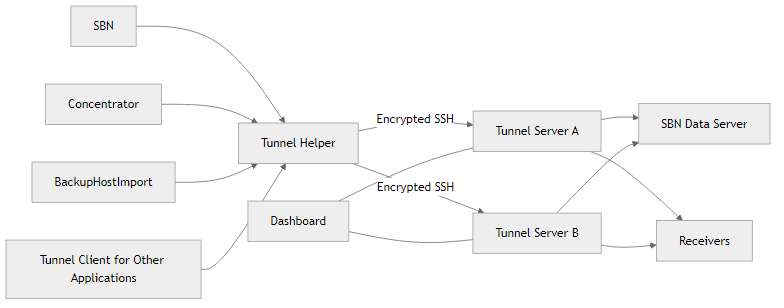
What's Required
How It Works
When the tunnel is enabled, the SBN product connects the same way it always has -- nothing about your day-to-day use changes. Behind the scenes, a small helper (sbn-tunnel-helper.exe) opens a secure SSH connection to a tunnel server your license authorizes, and every byte of traffic to the destination server flows over that encrypted path.
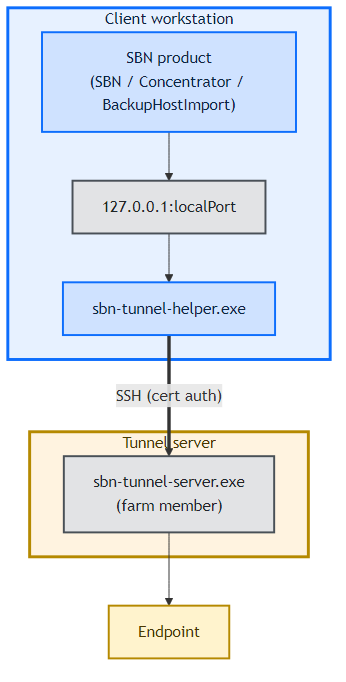
The same license key value works across every SBN product on the workstation, though each product (SBN, Concentrator, BackupHostImport) is activated independently the first time it is used on that box. Once activated, the tunnel server is chosen automatically for you based on which farm members are reachable and fastest at the moment.
The server name you type in the login dialog must match one of the tunnel destinations your license is authorized for. If, for example, you enter SBNA, then SBNA must be on the list of destinations your license allows. Any other name is refused by the tunnel and the login will fail. To see which names are valid for your license, open the License menu -- each farm shows the destinations it can reach.
Note: some destinations are IP addresses rather than names. If so, use the matching IP address exactly as shown.
License
You can test tunnels you are authorized to use from the Check License menu in SRM.
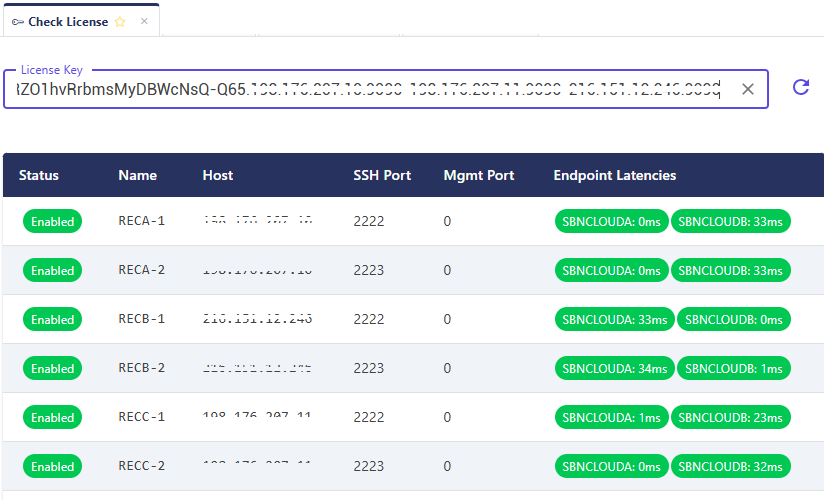
If an expected tunnel is missing from the list, contact your administrator -- tunnel and license assignments are managed centrally and are not user-configurable.
Tunnel Maintenance
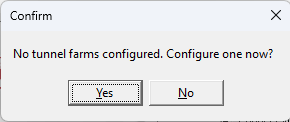
This prompt appears the first time you open the Tunnel option on a workstation where no tunnel has been configured yet. Click Yes to open the Tunnel Farm Configuration dialog and load your license key.
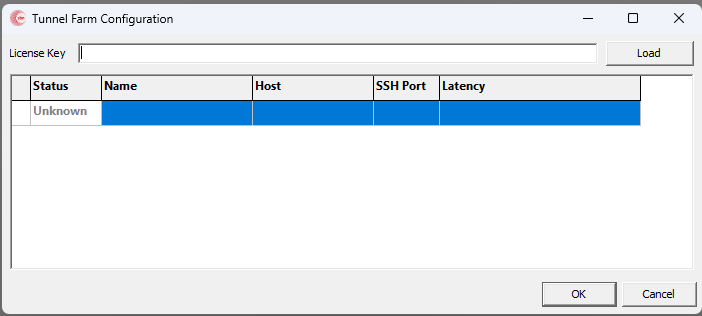
The Tunnel Farm Configuration dialog opens with no farms listed. Paste your SBN Tunnel license key into the License Key field and click Load.
SBN validates the key and fills the grid with every tunnel farm the key is authorized to reach, showing each farm's current status and latency. Click OK to save -- subsequent logins use this configuration automatically.
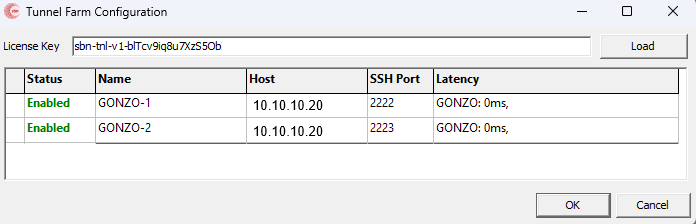
Once a valid key is loaded, the grid lists every tunnel farm the license can reach. Each row shows the farm Name, its Host and SSH Port, and current round-trip Latency. A green Enabled status means the farm is reachable right now. If you expect a farm to appear here and it does not, your license is not authorized for it -- contact your administrator.
When the Tunnel Cannot Connect
SBN Tunnel is optional. If no license key is configured, the SBN product connects directly to the server you entered, exactly as it did before the tunnel existed. Clearing the license on a workstation returns that workstation to VPN-only or direct operation -- no other steps needed.
When the tunnel server you were using becomes unreachable, SBN automatically switches to another farm member your license is authorized for. In most cases the failover is invisible: you may see a single in-flight query fail with a transient error, and the next query succeeds over the new path.
If the administrator takes a tunnel server offline for maintenance, it tells your workstation which other tunnel servers are healthy so the next connection goes straight to one that works. If every farm server is unreachable, SBN tries each member once from its cached farm list, refreshes the list from the dashboard, and tries each member again - then reports failure. A 30-second watchdog gates the whole attempt so a stalled connect never sits silent. The user clicks Connect to try again. If the tunnel can't be established, login fails rather than silently falling back to a direct or VPN connection. Individual queries that hang on a dead tunnel are cut off at 60 seconds so SBN stays responsive.
Running Multiple SBN Versions on One Workstation
A workstation can have multiple versions of SBN installed side-by-side, and SBN, Concentrator, and BackupHostImport on the same box keep their tunnel state separately under %LOCALAPPDATA%\IBS\<product>\. The same license key value works in all of them, but each product has to be activated independently the first time you use it on a workstation -- paste the key into that product's Tunnel dialog and click Load. Once activated, that product remembers the license across launches, and the tunnel can be enabled or disabled per product / per version without affecting the others.
Use the links below for specifics on using SBN Tunnel with each product:
Diagnosing Problems -- the Diagnostics Window
SBN 8.92.77+ / 8.96.1+ ships a built-in diagnostic window that runs every reachability check this page describes, in one place, against the loaded license's farm list. Open it from View > Tunnel Farm Maintenance > Diagnostics, click Run, and copy the output to send to your IT team. The window emits the license key as the first line, the workstation's network configuration (ipconfig /all, netsh winhttp show proxy), and a per-farm-member READY / NOT READY verdict with a one-line reason if blocked. Each farm member is probed at four layers - DNS resolution, TCP to the SSH port, an SSH-protocol handshake reachability check (catches DPI / IDS interference that passes TCP but strips SSH protocol bytes), TCP to the dashboard port, and an HTTPS GET /tunnels. The summary at the end lists exactly which IPs and ports IT must allow outbound.
Diagnosing Problems -- the ./log/ Directory
Every SBN product writes diagnostic logs next to its exe, in a log\ subdirectory. When a user reports a tunnel problem, these logs contain everything needed to determine a root cause without server-side access.
One pid_<pid>.log is written per product instance. Match the file to the run by its modified time or by reading the top few lines, which record the startup time, user, and server name. The driver-level Sybase error text (login failures, command timeouts, disconnects) is folded into pid_<pid>.log alongside everything else - there is no separate Sybase log file.
Start with pid_<pid>.log for the flow-level story, then drop into the helper log for the specific SSH phase that failed. The table below maps common symptoms to the log and entries you want.
The failure is almost always at the transition between phases. Find the last phase that succeeded, read the first entry of the next phase, and the error message there names the root cause.
Troubleshooting
Most tunnel failures the user sees are caused by something on the workstation, not on the tunnel server. The failure dialog includes a message number (18419 through 18426) - that number, plus the workstation's log\ directory, is almost always enough to identify the root cause without server-side access. The sections below cover the most common causes in roughly the order to check them.
What the Workstation Needs Reachable
The workstation only initiates outbound connections - the tunnel does not accept new inbound connections from the internet. Most stateful firewalls automatically permit return traffic for these outbound flows. On strict stateless firewalls or per-process host firewalls (uncommon but seen on locked-down enterprise gear), allow established/related traffic back from the tunnel server IPs to the ports below; allow-list SBN.exe and sbn-tunnel-helper.exe if the host firewall is per-process. There are three outbound destinations the workstation must be able to reach:
Destination | Protocol / Port | Where the value comes from | Used for |
|---|---|---|---|
Each dashboard URL embedded in the license key | HTTPS, port shown in the key | The license key itself - format | License activation and farm discovery. SBN GETs |
Each tunnel server SSH host for the farm(s) the user will connect through | TCP, the SSH port shown in the Tunnel Farm Configuration grid. Carries both HTTP and SSH. | Tunnel Farm Configuration dialog, Host + SSH Port columns - one row per farm member. | HTTP first, to verify the server and obtain the connection certificate, then SSH for the encrypted tunnel, both on the same port. Allow all TCP traffic on this port: a rule that permits only the SSH application, or that inspects HTTP traffic, blocks the HTTP step and the login fails with msg 18424. One outbound TCP connection per active SBN/Concentrator/BackupHostImport instance. |
Loopback ( | TCP, ephemeral local port | Internal - the helper picks a free local port and the Sybase driver connects to it. | The Sybase driver connecting to the local end of the tunnel. Normally not blocked, but aggressive endpoint-security products occasionally interfere. |
If any tunnel destination in your license is configured as a hostname rather than an IP, the workstation also needs DNS resolution for that name. The Tunnel Farm Configuration grid shows the configured value as-is.
Allow outbound to every farm member, not just one. The workstation can complete an initial login as long as any dashboard URL and any one SSH host are reachable. However, on every tunnel-server drain or maintenance event, SBN walks the cached farm list in order and waits for each unreachable host to time out before settling on one it can reach. A reconnect that should finish in 1-2 seconds turns into a 60-180 second stall, and during that window the SBN UI may appear unresponsive. Allow outbound TCP to every SSH host and every dashboard URL listed in the license.
Verifying Reachability from the Workstation
The two checks below will tell you in seconds which leg is blocked. Run them from a PowerShell window on the affected workstation - not from a server, not from a different machine on the same network. Replace <dashboard-host>, <dashboard-port>, <tunnel-host>, and <ssh-port> with the values from the user's license / Tunnel Farm Configuration dialog.
1. Dashboard reachability (replaces the activation step):
Expected: a 200 response with a small JSON body listing farms. -SkipCertificateCheck is required because the dashboard uses a self-signed certificate by design - the connection is authenticated by the tunnel server's SSH host key, not the dashboard cert.
Common failures:
- Timeout / "Unable to connect" - outbound to that port is blocked, or the dashboard host is down. This is what produces msg 18419.
- "Could not establish trust relationship for the SSL/TLS secure channel" when omitting
-SkipCertificateCheck- confirms the request is reaching the dashboard. Not a real error for SBN; the SBN client doesn't validate the dashboard cert chain. - HTML login page or proxy banner returned instead of JSON - the workstation's outbound HTTPS is being intercepted by a corporate MITM proxy. See the TLS / Proxy Interception section below.
2. SSH-port reachability (the actual tunnel):
Expected: TcpTestSucceeded : True. Run it once per farm member - if even one row in the Tunnel Farm Configuration grid is unreachable, log in will use one of the others, but every blocked row reduces failover capacity.
Common failures:
- TcpTestSucceeded : False, no banner - outbound TCP to the SSH port is blocked. Most common cause: the workstation is behind a corporate firewall that only allows outbound 80/443. This is what produces msg 18423 or msg 18426.
- TcpTestSucceeded : True, but login still fails - reachability is fine; the failure is at SSH/license/SQL level. Read the dialog message number and consult the table below.
3. HTTP on the SSH port (verification and connection certificate):
Expected: a 200 response with a JSON body. Run it once per farm member.
Common failures:
- Timeout or connection reset while test 2 succeeds - the firewall allows SSH on this port but blocks HTTP. Typical of application-aware firewalls with a rule that permits only the SSH application. This is what produces msg 18424.
- HTML login page or proxy banner instead of JSON - HTTP on this port is being intercepted by a proxy. See the TLS / Proxy Interception section below.
Symptom and Fix - Login Failure Messages
The exact text the user sees on a failed login pinpoints the layer that failed. Have the user read the dialog text aloud, or copy/paste it from the screenshot. The message number (and most of the time, the verbatim text) is what to match in the table below.
Msg | Default text shown to the user | Most likely workstation-side cause | Where to verify |
|---|---|---|---|
18419 | "Cannot reach the tunnel servers - outbound HTTPS to | Workstation cannot reach any dashboard URL embedded in the license. Outbound HTTPS to the dashboard port is blocked at the workstation firewall, perimeter firewall, or proxy. | Run check #1 above against each dashboard host listed in |
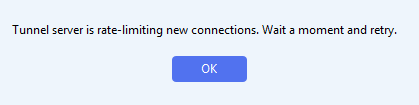
18420 | "Tunnel server is rate-limiting new connections. Wait a moment and retry." | Too many connect attempts in a short window from this workstation's IP (looped login script, repeated launch attempts). Also shown when the tunnel server's sign-in rate limit is hit: more than 5 sign-in requests per minute from one public IP, for example many workstations behind one NAT. | Wait a minute, retry. If persistent, ask the dashboard admin to check the Security tab for the workstation's public IP under "Tracked / Blocked". |
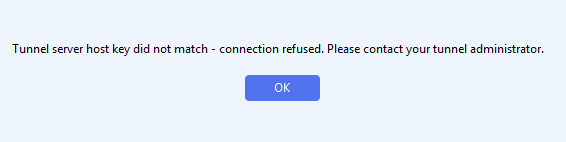
18421 | "Tunnel server host key did not match - connection refused. Please contact your tunnel administrator." | The cached SSH host-key pin on the workstation no longer matches what the server presents. Almost always the result of the tunnel server being reinstalled / rekeyed, or a MITM intercepting SSH (rare but possible on corporate networks). | Confirm with the tunnel administrator whether the server was rekeyed. If yes, delete the matching |
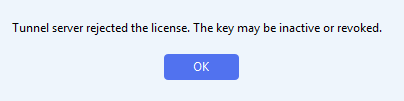
18422 | "Tunnel server rejected the license. The key may be inactive or revoked." | The license key was suspended or deleted at the dashboard, or the key on the workstation is from a different farm than the one being connected to. | Have the dashboard admin check the Licenses tab for the key's Status column. |
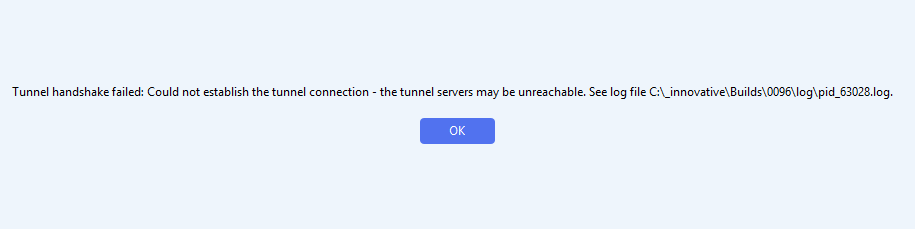
18423 | "Tunnel handshake failed: | Generic failure that did not classify into 18420-18422. Most common in the wild: outbound TCP to the tunnel server port is blocked, or the port number on the workstation does not match what the server listens on. Also shown when every tunnel server is draining for maintenance. |
|
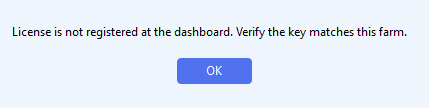
18424 | "License is not registered at the dashboard. Verify the key matches this farm." | Shown only for a license the farm does not recognise (a key from another farm, or one deleted from the dashboard but still stored on the workstation) or a license that is suspended at sign-in. Current builds show 18518 when the workstation firewall blocks HTTP on the tunnel server port; on older builds, when the same key works from another network, see test 3 under Verifying Reachability from the Workstation. | Open the Tunnel Farm Configuration dialog, click Load - if the key is still valid the grid repopulates. If it stays empty, request a fresh key. |
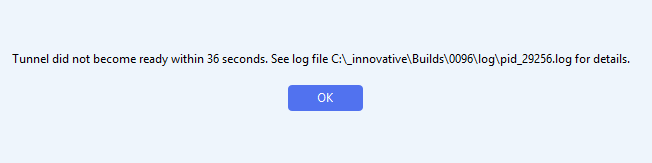
18426 | "Tunnel did not become ready within | The watchdog tripped without any phase producing a categorized failure. Either a TCP connection succeeded but the SSH data is stalled or dropped (a perimeter firewall with deep packet inspection or IDS), or every tunnel server is slow to respond. |
|
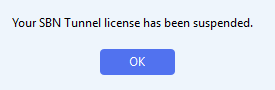
18485 | "Your SBN Tunnel license has been suspended." | The license was suspended at the dashboard while the session was running. Followed by message 18486. | Have the dashboard admin check the Licenses tab for the key's Status column. |
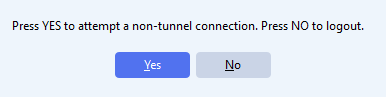
18486 | "Press YES to attempt a non-tunnel connection. Press NO to logout." | Second prompt after 18485. YES tries a direct connection without the tunnel; NO logs out. | Same as 18485. |
18487 | "This license is not authorized to endpoint | The license's allowed endpoints exclude the server being logged into. | The tunnel administrator adds the endpoint to the license. |
18488 | "The Server | The server name typed at login is not in the server list. | Check the spelling of the server name, or press Yes to add it. |
18518 | "Cannot reach tunnel server | The firewall allows SSH on the tunnel port but blocks HTTP on it (an application-aware firewall that allows only the SSH application, or a proxy). | Allow all TCP to that host and port. The Diagnostics output shows "HTTP blocked on port N". |
18419 - Cannot reach the tunnel servers
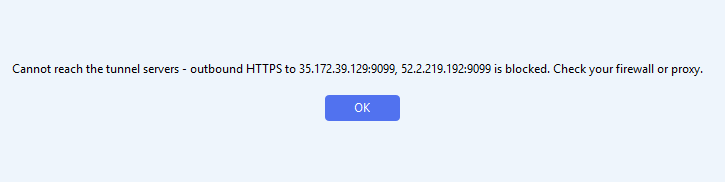
18420 - Rate limited
18421 - Host key mismatch
18422 - License rejected
18423 - Tunnel handshake failed
18424 - License not registered
18426 - Tunnel not ready
18485 - License suspended
18486 - Direct connection prompt
18487 - Endpoint not authorized
The message reads: "This license is not authorized to endpoint <endpoint>." The tunnel administrator adds the endpoint to the license.
18488 - Server not defined

18518 - Cannot reach tunnel server
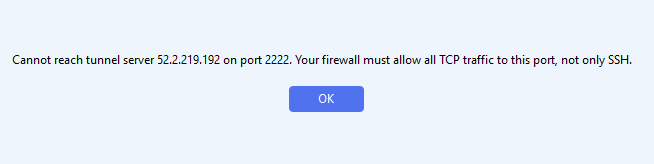
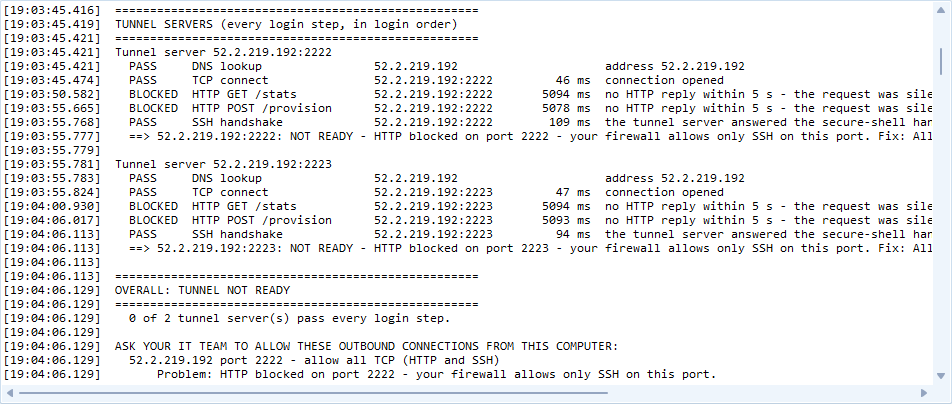
Diagnostics names the blocked host and port.
Slow Reconnects / Long 'wait Ns' Retries
Symptom. SBN works, but the Debug pane (or pid_<pid>.log) is full of lines like:
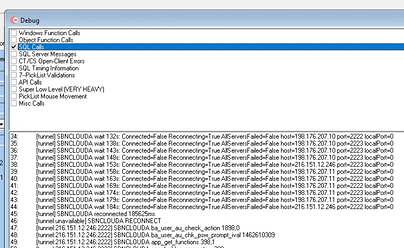
Above: the SBN Debug pane on a workstation whose firewall allows outbound to only one farm member. Each wait Ns line is SBN trying an unreachable host and waiting for the TCP connect to time out before moving to the next. In this capture the cycle ran for more than 100 seconds (wait 132s through wait 178s) before SBNCLOUDA RECONNECT finally succeeded against the one reachable host. If you see this pattern during a reconnect, the workstation's outbound firewall rules are incomplete - allow outbound TCP to every farm member listed in the license, not just one.
Root cause. The workstation's firewall (or perimeter firewall, or proxy) is letting outbound traffic through to only one farm member. (Aggressive antivirus / endpoint-security on-access scanning of the tunnel files and processes can produce a similar slow-login feel even when every farm member is reachable -- see Antivirus and Endpoint Security below if reachability checks pass but logins still feel slow.) Every reconnect cycle then has to time out attempts to each unreachable host before SBN lands on the one that works. A reconnect that should complete in 1-2 seconds takes minutes, and the SBN UI may appear unresponsive during the wait. The tunnel does eventually recover, which is why this looks like "it works, but slowly" rather than a hard failure.
How to confirm. Open View > Tunnel Farm Maintenance > Diagnostics (added in SBN 8.92.77+ / 8.96.1+). The Diagnostics window walks every farm member through DNS, TCP/SSH, SSH-protocol handshake (catches DPI / IDS), TCP/dashboard, and HTTPS/dashboard probes and prints a per-farm verdict. Any farm member showing NOT READY or BLOCKED is the one IT has to whitelist. The window also dumps ipconfig /all and netsh winhttp show proxy so the IT team has every detail they need.
Fix. Have IT allow outbound TCP from the affected workstation to every farm member's SSH port and dashboard port. The host:port pairs after the licenseId in the license key (tnl-v2.<name>.<id>.<host1>:<port1>-<host2>:<port2>-<host3>:<port3>) are the dashboard URLs; the SSH ports are listed in the Tunnel Farm Configuration grid. The tunnel never accepts inbound connections - this is purely about outbound reachability from the workstation.
TLS / Proxy Interception
Corporate networks often run a web proxy that intercepts outbound HTTPS, terminates TLS at the proxy, and re-encrypts to the destination with the proxy's own certificate. This breaks SBN Tunnel two ways:
- Dashboard
/tunnelscalls return the proxy's HTML login page or block notice instead of JSON. The activation step fails with msg 18419 even though the dashboard host is technically "reachable". - SSH on a non-standard port is dropped or rewritten by proxies that only understand HTTP/HTTPS. The TCP connection may even succeed but the SSH handshake bytes are stripped.
Fix: ask the network team to add a bypass for the dashboard hosts and the tunnel SSH hosts listed in the user's license. The bypass needs to cover the HTTPS dashboard port and the SSH port, which carries HTTP as well as SSH. The tunnel was designed with the expectation that this traffic is not intercepted.
Antivirus and Endpoint Security
Symptom: slow login or noticeable lag every time SBN launches or reconnects, even though the connection eventually works and no firewall block is visible. Aggressive on-access scanning of the tunnel's files and processes is the most common cause when reachability checks all pass but the workstation still feels slow.
The tunnel adds two long-running processes the workstation did not have before, plus a write-heavy log directory. Some endpoint-security products treat one or more of these as suspicious:
- Process allow-list -
sbn-tunnel-helper.exeopens a long-lived outbound TCP connection on a non-standard port. Behavior-based AV occasionally flags this. Add the helper exe (and the parent SBN/Concentrator/BackupHostImport exe) to the AV's process allow-list. - File system access - the helper writes to
log\sbn-tunnel-helper_<pid>.lognext to the exe. If the install directory is underC:\Program Filesor another protected location, the AV may block the log writes silently. Symptoms: tunnel works, butlog\only contains the mainpid_<pid>.log. - %LOCALAPPDATA%\IBS\<product>\ - each product has its own AppData folder that holds
tunnels.json(license + farms):IBS\SBN\,IBS\Concentrator\, andIBS\BackupHost\. The host-key pin map and SSH cert live in%LOCALAPPDATA%\IBS\SBN\tunnel_certs\, which is genuinely shared by all three products. If on-access scanning of these folders is aggressive, the workstation may show a transient delay on every login as the files are scanned. Add the folders to the AV's exclusion list.
VPN and SBN Tunnel on the Same Workstation
SBN Tunnel and a traditional VPN can coexist - they are not mutually exclusive. The behavior depends on what the workstation's routing table looks like when SBN starts:
- Tunnel enabled and license valid: SBN uses the tunnel regardless of whether the VPN is up. Traffic to Sybase flows through the SSH tunnel, not through the VPN.
- Tunnel enabled but no farm reachable: SBN does not automatically fall back to a direct/VPN connection mid-session. After the configured retry window, the login fails with msg 18419 / 18423 / 18426. To force VPN-only operation, clear the license key from the Tunnel Farm Configuration dialog (or run with the tunnel checkbox unchecked, where applicable).
- Tunnel disabled: SBN connects directly to the server in the login dialog, exactly as it did before the tunnel feature existed. The VPN provides reachability.
If a workstation is reaching Sybase fine on VPN but SBN Tunnel is failing, that is a sign the tunnel-side path (dashboards or SSH port) is blocked - the VPN does not help SBN reach the tunnel servers, because the tunnel servers live on the public internet, not inside the customer's VPN.
Resetting the Workstation's Tunnel State
When workstation-side state has drifted (stale license, host-key pin, partial migration from an older version), the cleanest reset is to delete the local state and reload the license:
This is safe - tunnels.json is rebuilt from the license key on the next Load, and the cert and host-key pins are refetched from the tunnel server on the next connect. No SR or admin involvement is required.
Workstation Clock Skew
SSH client certificates issued by /provision are short-lived. If the workstation's clock is more than a few minutes off, the cert will be rejected as either not-yet-valid or already-expired. Symptom: msg 18422 ("Tunnel server rejected the license") on a workstation where the license is known-good.
Fix: synchronize the workstation clock against a reliable time source (the domain controller, time.windows.com, or any NTP server the network allows). The tunnel does not require nanosecond precision - within ~2 minutes is sufficient.
Daylight Saving Time does NOT cause this. DST shifts the displayed wall-clock by one hour, but Windows tracks time internally as UTC and the cert is validated against UTC. The twice-yearly DST transitions are invisible to the tunnel. Real msg 18422 clock-skew failures are caused by actual UTC drift - typically a dead CMOS battery, NTP blocked at the firewall for an extended period, or someone manually changing the workstation clock.
What to Capture Before Escalating
If the steps above have not identified the cause, gather the following from the affected workstation and attach them to the support request. With these in hand, the tunnel team can almost always identify the problem without remote access:
- The exact text and message number from the login-failure dialog (screenshot is fine).
<install dir>\log\pid_<pid>.logfrom the failed run.<install dir>\log\sbn-tunnel-helper_<pid>.logfrom the failed run, if present.- Output of the two PowerShell verification commands above (dashboard
Invoke-WebRequestand SSH-portTest-NetConnection). - The license key the workstation is using, or the license Name shown in the Tunnel Farm Configuration dialog.
- The version of SBN, Concentrator, or BackupHostImport in use (Help > About).