
Signal Reset
Signal Reset
Signal Reset
Program #: 704
Module: System Administration
Overview
Use Signal Reset (program #704) to reset signal counters based on either customer or agency type parameters.
To access this program, select Signal Reset (program #704) from the main menu of SBN.
The Signal Reset Window
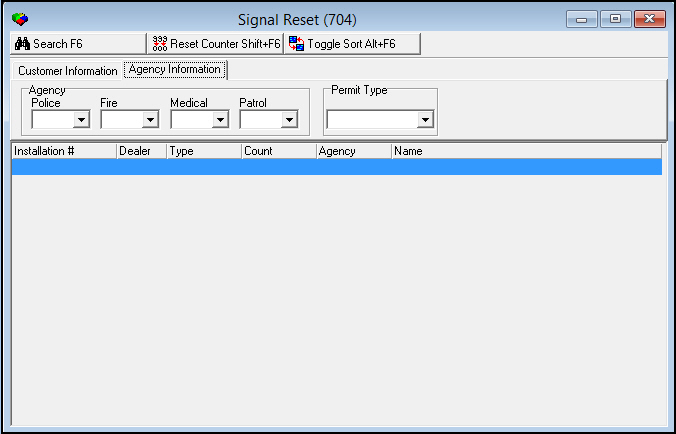
The following graphic shows Signal Reset as the program opens. Signal Reset contains two tabs that you use to search for signals to reset
-
By customer information
-
By agency information
Note: Only installations associated with your dealer will be visible.
All fields remain blank until you perform a search for signals to reset.
The Customer Information Tab
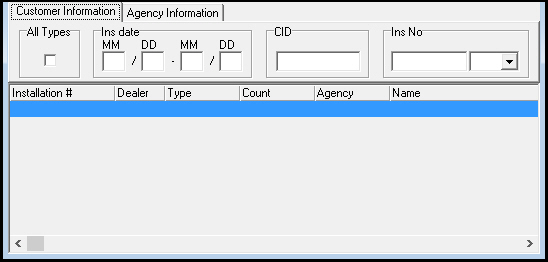
SBN opens Signal Reset with the Customer Information tab as the default. You may search for signals to reset by customer information.
The Customer Information tab contains two panes. The upper pane of the window contains fields for selecting search parameters. The lower pane of the window displays results that match the selected search parameters.
Field/Column Descriptions
The following table describes the fields and columns used in the Customer Information tab of Signal Reset.
|
Field/Column |
Description |
|
All Types |
Enter a check mark in this field to search for all signal types, including police, fire, medical, and patrol. O If you leave this field blank, SBN locates only the counters for signals, exceptions, false, and chargeable false. |
|
Ins Date MM (From) |
You can select a beginning month of a range of months to search for signals that occurred during that range. |
|
Ins Date DD (From) |
You can select a beginning date of a range of dates to search for signals that occurred during that range. |
|
Ins Date MM (To) |
You can select an ending month of a range of months to search for signals that occurred during that range. |
|
Ins Date DD |
You can select an ending date of a range of dates to search for signals that occurred during that range. |
|
CID |
You can type a specific CID to search for signals associated with that CID. |
|
Ins No |
You can type a specific installation number to search for signals associated with that number. |
|
Dealer |
You can select a specific dealer to search for signals from installations associated with that dealer. (This menu originates from program #1537.) |
|
Alarm ID |
Identifies the CID for the selected signal. |
|
Type |
Identifies the type of signal. |
|
Count |
Number of signals for the selected line. |
|
Agency |
Abbreviation that identifies the agency. |
|
Name |
Name of the agency. |
Searching for Signals to Reset by Customer Information
Use the following steps to search for signals by customer information:
1. In Signal Reset, in the Customer Information tab, select search parameters.
2. Choose Search.
‰ The lower pane of the window displays results that match the search parameters.
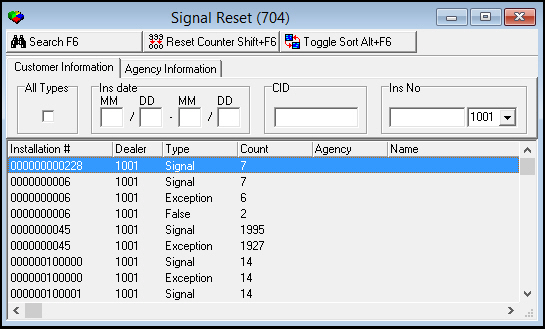
3. To change the view of the display, choose Toggle Sort.
‰ The view of the display changes.
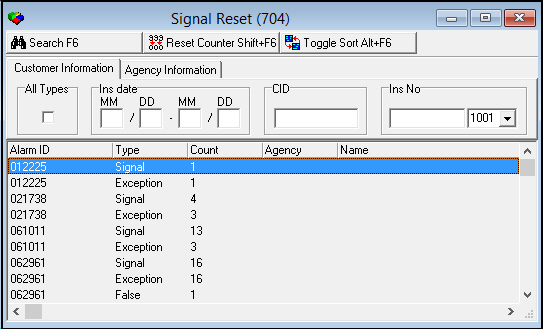
Note: Only installations associated with your dealer will be visible.
The Agency Information Tab
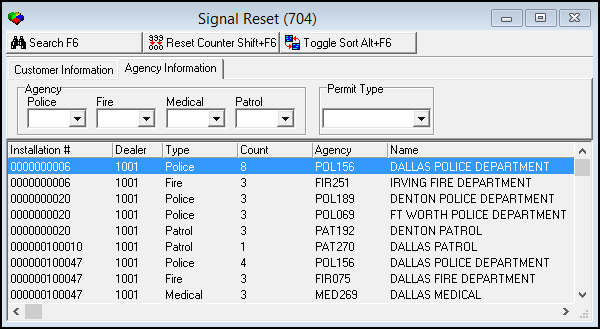
To search for signals to reset by agency information, select the Agency Information tab. The Agency Information tab contains two panes. The upper pane of the tab contains fields for selecting search parameters. The lower pane of the tab displays results that match the selected search parameters.
The following graphic shows the Agency Information tab. All fields remain blank until you perform a search for signals to reset.
Note: Only installations associated with your dealer will be visible.
Field/Column Descriptions
The following table describes the fields and columns used in the Agency Information tab of Signal Reset.
|
Field/Column |
Description |
|
Police |
You can select a specific police agency to search for signals associated with that agency. (This menu originates from program #1546.) |
|
Fire |
You can select a specific fire agency to search for signals associated with that agency. (This menu originates from program #1547.) |
|
Medical |
You can select a specific medical agency to search for signals associated with that agency. (This menu originates from program #1552.) |
|
Patrol |
You can select a specific patrol agency to search for signals associated with that agency. (This menu originates from program #1717.) |
|
Permit Type |
You can select a specific permit type to search for signals associated with that type. (This menu originates from program #1576.) |
|
Alarm ID |
Identifies the CID. |
|
Type |
Identifies the type of signal. |
|
Count |
The number of signals for the selected line. |
|
Agency |
Abbreviation that identifies the agency associated with the selected signal. |
|
Name |
Name of the agency. |
Searching for Signals to Reset by Agency Information
Use the following steps to search for signals by agency information:
1. In Signal Reset, in the Agency Information tab, select search parameters.
Note: You can search for only one agency type at a time.
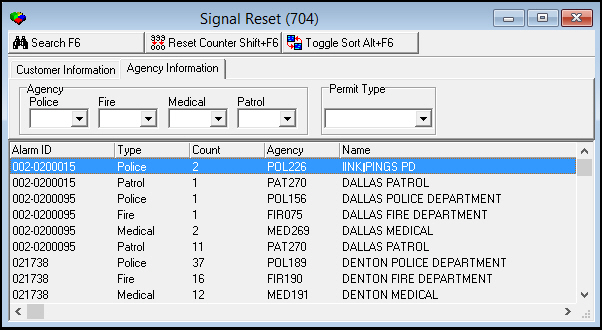
2. Choose Search.
‰ The lower pane of the tab displays results that match the search parameters.
Note: Only installations associated with your dealer will be visible.
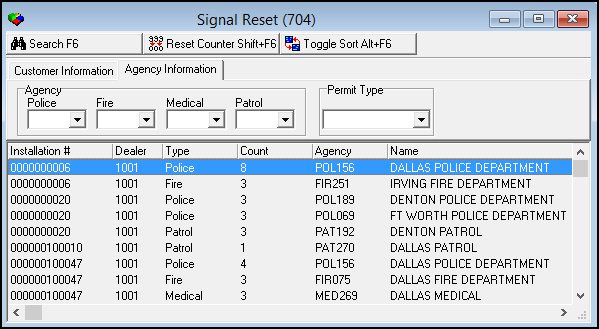
3. To change the view of the display, choose Toggle Sort.
‰ The view of the display changes.
Resetting Signals
After you perform a search for signals to reset, reset the signals.
Use the following steps to reset signals:
1. In Signal Reset, in the lower pane of the Customer Information or Agency Information tab, select the signal you want to reset.
2. Choose Reset Counter.
‰ SBN asks you to confirm your selection.
3. Choose Yes.
Button Functions
The following table displays the buttons, describes the shortcut keys, actions, and functionality.
|
Button |
Name |
Shortcut Key |
Action |
Description |
|
|
Search |
F6 |
704/ 1 |
Search for signals based upon search parameters. |
|
|
Reset Counter |
SHIFT+F6 |
704/ 2 |
Reset signal. |
|
|
Toggle Sort |
ALT+F6 |
704/ 3 |
Change display view. |



Modifications and Updates to Signal Reset
The following table lists modifications and updates to the Signal Reset document.
|
Mod Number |
Date |
Description |
|
n/a |
8/25/14 |
Images updated. |
|
08.81.09847, 07.81.23676, 08.81.09846, 07.81.23675, 08.81.09838, 07.81.23642 |
10/24/14 |
Added note about only installations associated with your dealer will be visible. |