
Contract Master Data Control
Contract Master Data Control
Contract Master Data Control
Module: Accounting
Overview
Use Contract Master Data Control to create a report of contract parameters for data control purposes.
To access this report, select Contract Master Data Control (report #2164) from the main menu of SBN.
The Contract Master Data Control Window
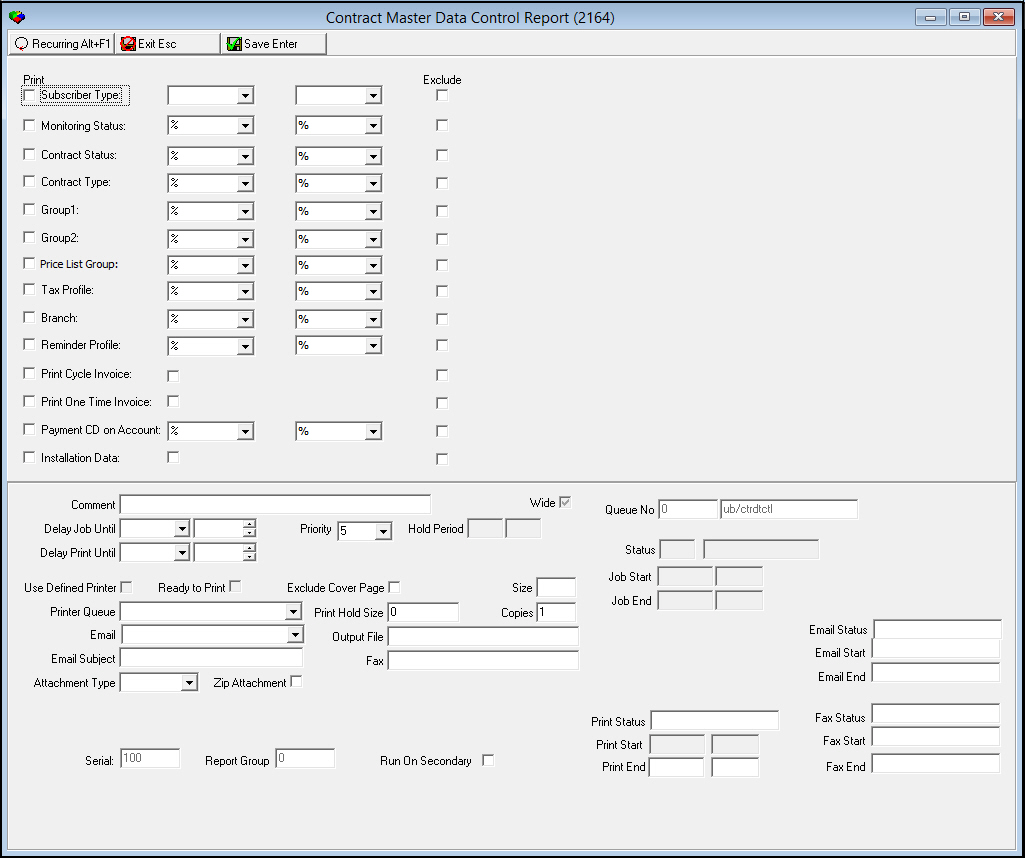
This window contains two panes: use the upper pane to define the content of the report; use the lower pane to define the job output - how, when, and where you want to print the report.
Note: See Report Parameters Pane for information on the fields in the lower pane, which are the same in every report.
Field Descriptions
The following table describes the fields used in the upper pane of this report.
Note: You can use wildcard characters in selected fields. For more information about using wildcards, see Searches.
Field |
Wildcards Allowed |
Description |
Subscriber Type |
No |
Enter a check mark in the Print box to the left to print this field heading on the report. O You may enter check marks in multiple boxes. |
Range (From - To) (No label) |
No |
You may enter a range of subscriber types to limit the report to subscriber types within that range. (This menu originates from program #1534.) |
Exclude |
No |
You may exclude a range of, or all, subscriber types by selecting range parameters and then entering a check mark in this box. |
Monitoring Status |
No |
Enter a check mark in the Print box to the left to print this field heading on the report. O You may enter check marks in multiple boxes. |
Range (From - To)(No label) |
Yes |
You may either select a range of monitoring statuses to limit the report to monitoring statuses within that range, or use the % wildcards to include all monitoring statuses. (This menu originates from program #1540.) |
Exclude |
No |
You may exclude a range of, or all, monitoring statuses by selecting range parameters and then entering a check mark in this box. |
Contract Status |
No |
Enter a check mark in the Print box to the left to print this field heading on the report. O You may enter check marks in multiple boxes. |
Range (From - To)(No label) |
Yes |
You may either select a range of contract statuses to limit the report to contract statuses within that range, or use the % wildcards to include all contract statuses. (This menu originates from program #1532.) |
Exclude |
No |
You may exclude a range of, or all, contract statuses by selecting range parameters and then entering a check mark in this box. |
Contract Type |
No |
Enter a check mark in the Print box to the left to print this field heading on the report. O You may enter check marks in multiple boxes. |
Range (From - To)(No label) |
Yes |
You may either type a range of contract types to limit the report to contract types within that range, or use the % wildcards to include all contract types. (This menu originates from program #1531.) |
Exclude |
No |
You may exclude a range of, or all, contract types by selecting range parameters and then entering a check mark in this box. |
Group1 |
No |
Enter a check mark in the Print box to the left to print this field heading on the report. O You may enter check marks in multiple boxes. |
Range (From - To)(No label) |
Yes |
You may either select a range of Group1 financial groups to limit the report to Group1 financial groups within that range, or use the % wildcards to include all Group1 financial groups. (This menu originates from program #1868.) |
Exclude |
No |
You may exclude a range of, or all, Group1 financial groups by selecting range parameters and then entering a check mark in this box. |
Group2 |
No |
Enter a check mark in the Print box to the left to print this field heading on the report. O You may enter check marks in multiple boxes. |
Range (From - To)(No label) |
Yes |
You may either select a range of Group2 financial groups to limit the report to Group2 financial groups within that range, or use the % wildcards to include all Group2 financial groups. (This menu originates from program #1868.) |
Exclude |
No |
You may exclude a range of, or all, Group2 financial groups by selecting range parameters and then entering a check mark in this box. |
Price List Group |
No |
Enter a check mark in the Print box to the left to print this field heading on the report. O You may enter check marks in multiple boxes. |
Range (From - To)(No label) |
Yes |
You may either select a range of price list groups to limit the report to price list groups within that range, or use the % wildcards to include all price list groups. (This menu originates from program #1771.) |
Exclude |
No |
You may exclude a range of, or all, price list groups by selecting range parameters and then entering a check mark in this box. |
Tax Profiles |
No |
Enter a check mark in the Print box to the left to print this field heading on the report. O You may enter check marks in multiple boxes. |
Range (From - To)(No label) |
Yes |
You may either select a range of tax profiles to limit the report to tax profiles within that range, or use the % wildcards to include all tax profiles. (This menu originates from program #1514.) |
Exclude |
No |
You may exclude a range of, or all, tax profiles by selecting range parameters and then entering a check mark in this box. |
Branch |
No |
Enter a check mark in the Print box to the left to print this field heading on the report. O You may enter check marks in multiple boxes. |
Range (From - To)(No label) |
Yes |
You may either select a range of branch IDs to limit the report to branch IDs within that range, or use the % wildcards to include all branch IDs. (This menu originates from program #1530.) |
Exclude |
No |
You may exclude a range of, or all, installer IDs by selecting range parameters and then entering a check mark in this box. |
Reminder Profile |
No |
Enter a check mark in the Print box to the left to print this field heading on the report. O You may enter check marks in multiple boxes. |
Range (From - To)(No label) |
Yes |
You may either select a range of reminder profiles to limit the report to reminder profiles within that range, or use the % wildcards to include all reminder profiles. (This menu originates from program #1562.) |
Exclude |
No |
You may exclude a range of, or all, reminder profiles by selecting range parameters and then entering a check mark in this box. |
Print Cycle Invoice |
No |
Enter a check mark in the Print box to the left to print this field heading on the report. O You may enter check marks in multiple boxes. |
Flag |
No |
You may enter a check mark in this box to limit the report to those contracts flagged for printing cycle invoices. |
Exclude |
No |
You may exclude those contracts flagged to print cycle invoices from the report by entering a check mark in the flag box and then entering a check mark in this box. |
Print One Time Invoice |
No |
Enter a check mark in the Print box to the left to print this field heading on the report. O You may enter check marks in multiple boxes. |
Flag |
No |
You may enter a check mark in this box to limit the report to those contracts flagged for printing one-time invoices. |
Exclude |
No |
You may exclude those contracts flagged to print one-time invoices from the report by entering a check mark in the flag box and then entering a check mark in this box. |
Payment CD on Account |
No |
Enter a check mark in the Print box to the left to print this field heading on the report. O You may enter check marks in multiple boxes. |
Range (From - To)(No label) |
Yes |
You may either select a range of payment methods to limit the report to payment methods within that range, or use the % wildcards to include all payment methods. (This menu originates from program #1528.) |
Exclude |
No |
You may exclude a range of, or all payment codes by selecting range parameters and then entering a check mark in this box. |
Installation Information |
No |
Enter a check mark in the Print box to the left to print this field heading on the report. O You may enter check marks in multiple boxes. |
Flag |
No |
You may enter a check mark in this box to limit the report to those contracts that have data in the Installation Information tab of Contract Master |
Exclude |
No |
You may exclude those contracts that have data in the Installation Information tab of Contract Master from the report by entering a check mark in the flag and then entering a check mark in this box. |
Running and Viewing a Report
For information on running and viewing a report, see Common Functions in SBN.
Report Example
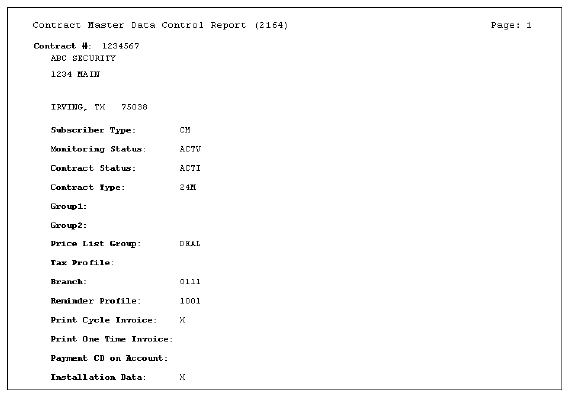
The following graphic shows an example of the output of the Contract Master Data Control report.
Field Descriptions
The following table describes the fields used in the output of the report.
Field |
Description |
Contract No |
Displays the contract number. |
Address
Block |
Displays: l Customer name l Installation street address 1 l Installation street address 2 l Installation city, state, zip |
Subscriber Type |
If you selected this Print flag, the report displays this heading and the subscriber type for the selected contract, if available and not excluded. |
Monitoring Status |
If you selected this Print flag, the report displays this heading and the monitoring status of the installation associated with the selected contract, if available and not excluded. |
Contract Status |
If you selected this Print flag, the report displays this heading and the status of the selected contract, if available and not excluded. |
Contract Type |
If you selected this Print flag, the report displays this heading and the type of the selected contract, if available and not excluded. |
Group1 |
If you selected this Print flag, the report displays this heading and the Group1 financial group associated with the selected contract, if available and not excluded. |
Group2 |
If you selected this Print flag, the report displays this heading and the Group2 financial group associated with the selected contract, if available and not excluded. |
Price List Group |
If you selected this Print flag, the report displays this heading and the price list group associated with the selected contract, if available and not excluded. |
Tax Profile |
If you selected this Print flag, the report displays this heading and the tax profile associated with the selected contract, if available and not excluded. |
Branch |
If you selected this Print flag, the report displays this heading and the branch associated with the selected contract, if available and not excluded. |
Reminder Profile |
If you selected this Print flag, the report displays this heading and the reminder profile associated with the selected contract, if available and not excluded. |
Print Cycle Invoice |
If you selected this Print flag, the report displays this heading. If the selected contract is flagged to print cycle invoices, this field displays an X. |
Print One Time Invoice |
If you selected this Print flag, the report displays this heading. If the selected contract is flagged to print one-time invoices, this field displays an X. |
Payment CD on Account |
If you selected this Print flag, the report displays this heading and the payment method associated with the selected contract, if available and not excluded. |
Installation Data |
If you selected this Print flag, the report displays this heading. If the selected contract contains any data in the Installation Data tab of the Contract Master, this field displays an X. |
Button Functions
The following table displays the buttons, describes the shortcut keys, actions, and functionality.
Button |
Name |
Shortcut Key |
Action |
Description |
|
Open fields for recurring/template reports |
alt+f1 |
Open fields for recurring/template reports. |
|
|
Exit without saving |
esc |
Exit without saving changes to selected record. |
|
|
Save Existing Record |
enter |
Save changes to selected record. |



Modifications and Updates to Contract Master Data Control
The following table lists modifications and updates to the Contract Master Data Control document.
Mod Number |
Date |
Description |
n/a |
8/1/14 |
Images updated. |