
Pay Profiles
Pay Profiles
Pay Profiles
Module: System Administration
Overview
Use Pay Profiles (program #1809) to define and track the payroll information for all resources by type and by branch. This information works in conjunction with other commission programs to determine the amount of commission paid to employees. You can also keep track of your payroll budget for commission and bonuses in Pay Profiles.
The main window in Pay Profiles displays the available branches in SBN. To view and enter details on specific resources you must search for a resource type. You can narrow your search by branch and resource type to view only the resources with which you want to work.
Note: The branch profile assigned to your user ID in program #1501 prevents you from accessing branches you are not authorized to view when you search for resources by branch in Pay Profiles.
Use Zoom In/Out of Sublevel [F10] to display all details in Pay Profiles. The sublevel displays the details tabs in which you
-
Enter your budget and hours
-
View the following logs
q Pay Log
q Hours Change Log
q Commission Change Log
q Miscellaneous Change Log
This document includes the following sections:
Viewing the Budget of Pay Profiles/Branch
Adjusting the Budget of Pay Profiles for a Branch
Searching for a Pay Profile for a Resource
Zooming into the Sublevel of Pay Profiles
Pay Profiles Options
Options control several settings in the Pay Profiles program. The following list describes the options related to Pay Profiles. For detailed information on each option and its default setting, see SBN Options.
-
Option ba159 - Use this option to define the number of months in the Actual Cycle Fees field in the Budget window of Pay Profiles: 1 - one month, 12 - annual.
-
Option ba164 - When this option is on, SBN calculates and displays branch sales numbers from the Budget window of Pay Profiles in the Commission Calculation window. When this option is off, SBN calculates the branch sales numbers as a roll up of personnel attached to the branch.
The Pay Profiles Window
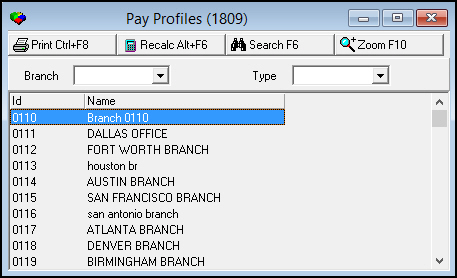
The following graphic shows Pay Profiles as the program opens. The lower pane displays available branches for each pay profile.
Field/Column Descriptions - Main Window
The following table describes the fields and columns used in the main window of Pay Profiles.
|
Field/Column |
Description |
|
Branch |
Branch in which you want to search for pay profiles. (This menu originates from program #1530.) |
|
Type |
Employee type for whose pay profiles you want to search within a selected branch. |
|
ID |
Identification number assigned to this branch. |
|
Name |
Name of this branch. |
Viewing the Budget of Pay Profiles / Branch
From the main window of Pay Profiles you may access the budget of pay profiles of a selected branch. Use the Budget tab to enter monthly quotas or budgets for the selected branch.
Use the following steps to view the budget of pay profiles:
1. In Pay Profiles, select the branch for which you want to view the budget of pay profiles.
2. Choose Zoom in/out of Sublevel.
‰ The Budget tab appears below the main window and displays the budget of pay profiles - by month - of the current year.
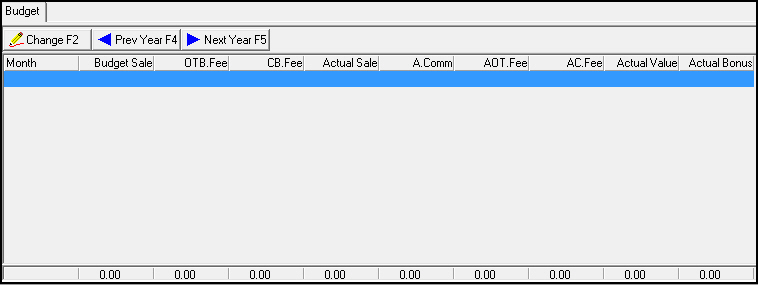
3. Choose Previous Year or Next Year to view past or projected budgets of the selected branch.
Column Descriptions - Budget Tab
The following table describes the columns used in the Budget tab.
|
Column |
Description |
|
Month |
First day of the month of the budget period. |
|
Budget Sale |
Total single quota for the month. |
|
One Time Budget Fee |
Total budgeted amount for one-time fees. |
|
Cycle Budget Fee |
Total budgeted amount for cycle fees. |
|
Actual Sale |
Total of all one-time fees plus one cycle period for the work orders approved in this period. |
|
Actual Commission |
Total commission earned for the period. |
|
Actual One Time Fee |
Total of all one-time fees for the period. This figure includes any manual adjustments made. |
|
Actual Cycle Fee |
Total of all cycle fees for the period. This figure includes any manual adjustments made. |
|
Actual Value |
Total amount of the monthly value of the cycle fees multiplied by the contract term. |
|
Actual Bonus |
Total bonus earned for the period. SBN calculates this information from data entered in Bonus Profiles (program #1821) when you choose Recalculate. |
|
Totals Line |
Displays the totals for each column at the bottom of each column. |
Adjusting the Budget of Pay Profiles for a Branch
You may adjust amounts in the following columns of a budget of a pay profile:
-
Budget Sale
-
One-Time Budget Fee
-
Cycle Budget Fee
Use the following steps to adjust the budget of a pay profile:
1. In the Budget tab, display the year’s budget of pay profiles that you want to adjust.
2. Choose Change Record.
‰ The grid of the budget opens. You may only adjust amounts in the first three columns.
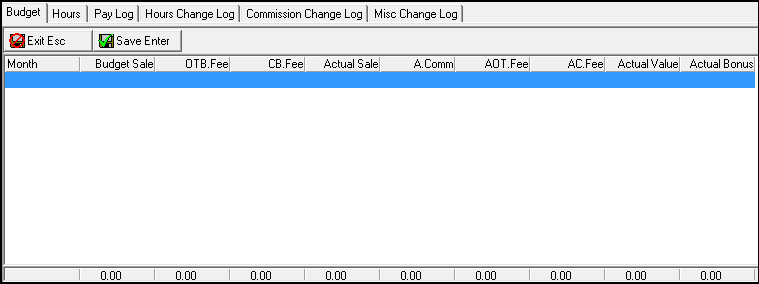
3. Double-click in the cell of the grid that you want to change.
4. Enter changes, as needed.
5. Choose Save.
Searching for a Pay Profile for a Resource
To access the pay profile of a resource, you must search for pay profiles by branch and resource type.
Note: The branch profile assigned to your user ID in program #1501 prevents you from accessing branches you are not authorized to view when you search for resources. Define branch user access profiles in program #1740, then assign branch profiles to specific users in program #1501.
Use the following steps to search for a pay profile for a resource:
1. In Pay Profiles, select the branch and type of resource for which you want to search for pay profiles.
2. Choose Search.
‰ SBN displays the resources that match the Branch and Type parameters and displays detail fields in the middle pane of the window.
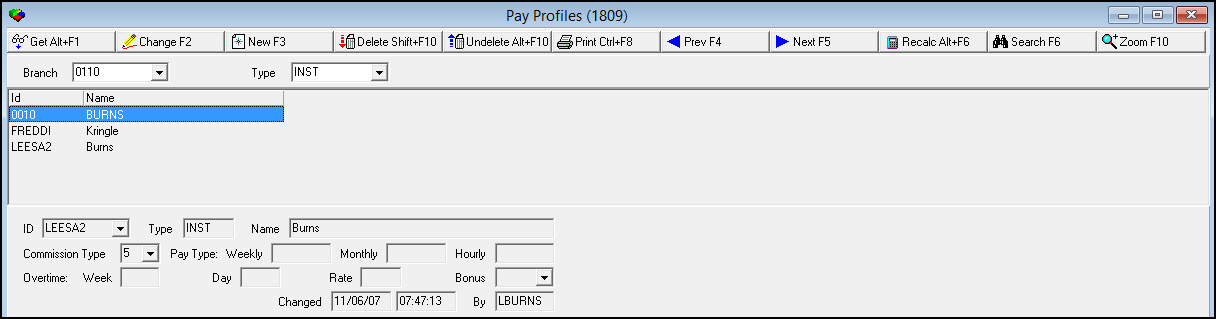
Field/Column Descriptions - Pay Profiles Details
The following table describes the fields and columns used in the middle and lower panes of the main window of Pay Profiles Details.
|
Field/Column |
Description |
|
ID |
Personnel ID for the resource type selected. |
|
Name |
Last name of the employee. |
|
Type |
Resource type of the employee. |
|
Commission Type |
The resource basic commission type. (This menu originates from program #1805.) |
|
Pay Type: |
|
|
Weekly |
Salary by week. |
|
Monthly |
Salary by month. |
|
Hourly |
Salary by hour. |
|
Overtime: |
|
|
Week |
Minimum number of hours worked in a week before the employee is eligible for overtime. |
|
Day |
Minimum number of hours worked in a day before the employee is eligible for overtime. |
|
Rate |
Overtime percentage to pay when employee works over the minimum hours. |
|
Bonus |
Select the bonus profile. (This menu originates from program #1821.) |
|
Changed |
Date and time the record was last changed. |
|
By |
User ID of the person who recorded the last change. |
Using Common Functions
See the reference document Common Functions in SBN for more information.
Zooming into the Sublevel of Pay Profiles
The sublevel of Pay Profiles contains six tabs that display additional detailed information on each resource:
When you initially access the sublevel of Pay Profiles, only the Budget tab appears by default. To access the other details tabs:
1. In Pay Profiles, select an entry in the Type field. You may select an entry in the Branch field as well, but a Type must be selected.
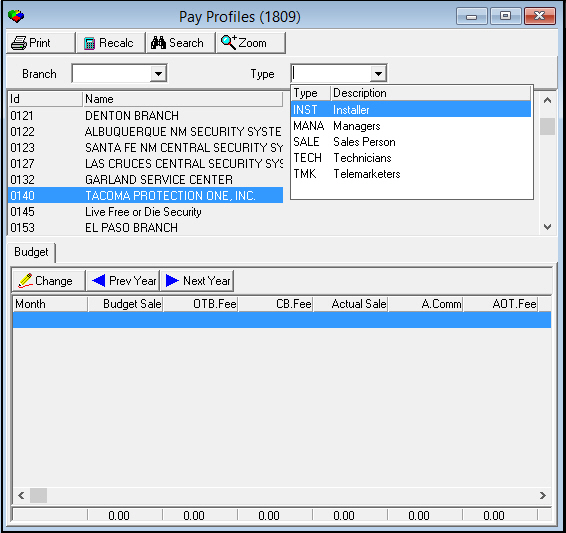
2. Choose the Search button. In addition to the Budget tab, the other sublevel tabs are now visible.
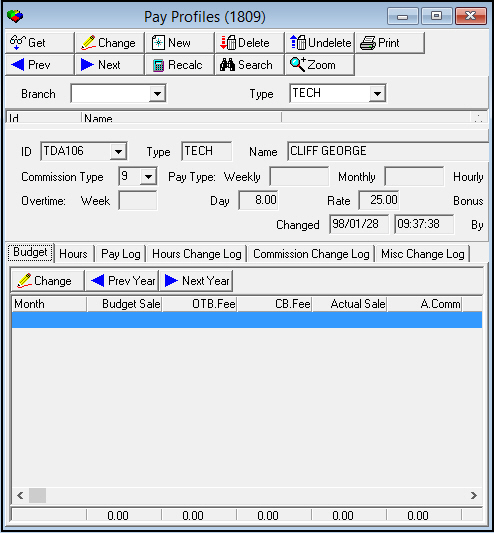
3. To remove the other sublevel tabs from the Pay Profiles window, clear the Type field and choose Search again. The other tabs no longer appear, leaving only the Budget tab.
The Budget Tab
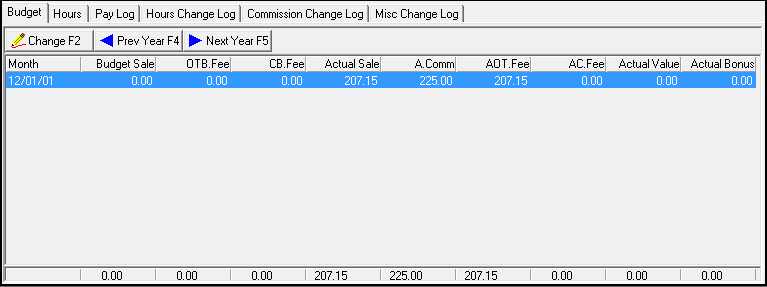
Use the Budget tab to enter budget information for a specific resource. See Column Descriptions - Budget Tab for definitions of the columns in this tab. See Adjusting the Budget of Pay Profiles for a Branch for information on adjusting budget amounts.
The following graphic shows the Budget tab with information displayed.
The Hours Tab
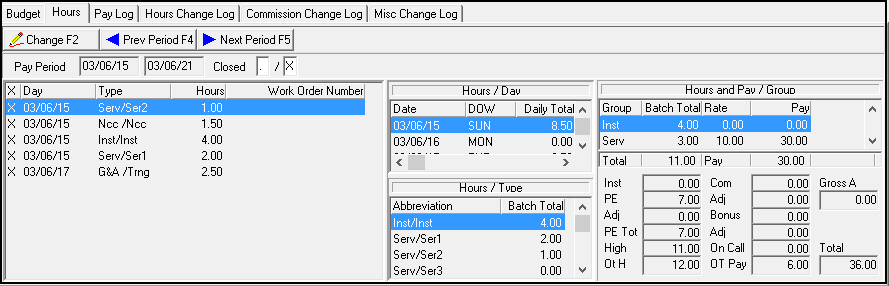
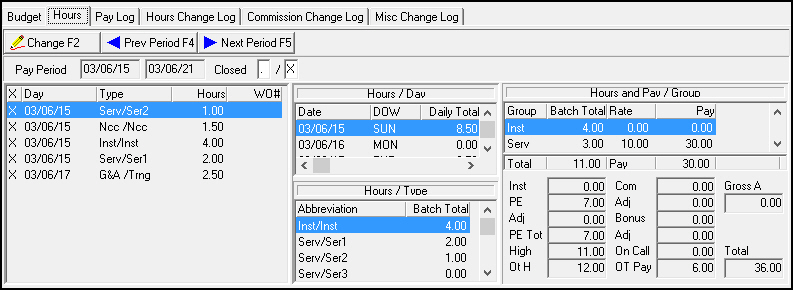
Use the Hours tab to enter payroll hours and to view totals for periods defined in the Payroll Periods program (program #1849). Once you save a record in the Hours tab, you cannot delete it. You must create an additional entry to correct any mistakes to prior entries.
The following graphic shows the Hours tab with information displayed.
Field/Column Descriptions - Hours Tab
The Hours tab contains four panes of information. The following table describes the fields and columns used in the Hours tab from left to right, top to bottom.
|
Field/Column |
Description |
|
Pay Period |
Beginning and ending date of the current pay period for the selected employee. |
|
Closed/Open |
Pay period status for the office. O When the closed status equals - or x, you cannot make entries for the current pay period. O When the open status equals x, you cannot make entries for the current pay period. |
|
X |
If this column displays an X the field is protected. If an incorrect entry exists, re-type the information in an unprotected field, using a negative number to reverse the hours. Once you have made the correction, type the new entry with the correct information. |
|
Day |
Day of the week that applies to the hours. |
|
Type |
Work type for the hours. (This menu originates from program #1850.) |
|
Hours |
Number of hours that apply to the selected work type for this day. |
|
Work Order Number |
Work order number associated with this entry. This work order number appears in the hours change log as the reference number. |
|
Hours Day Pane |
|
|
Date |
Date the hours apply. |
|
Day of Week |
Day of the week the hours apply. |
|
Daily Total |
Total hours entered for this date and person. |
|
Hours/Type Pane |
|
|
Abbreviation |
Work types that apply for the pay period. |
|
Batch Total |
Total number of hours that apply to the work type. |
|
Hours and Pay Group Pane |
|
|
Group |
Pay Group code. (This menu originates from program #1850.) |
|
Batch Total |
Total hours for all work types attached to this group. |
|
Rate |
Displays the group rate. |
|
Pay |
Total group pay based on (group hours * group rate). |
|
Total |
Total hours for the pay period. |
|
Pay |
Total pay based on the total of all group pay. |
|
Inst |
Number of installations based on the background counter. |
|
Com |
Total amount of commission calculated by SBN. |
|
PE |
Piece rate earnings. |
|
Adj |
Commission adjustments. |
|
Gross A |
Gross adjustments. |
|
Adj |
Piece rate adjustments. |
|
Bonus |
Total amount of bonus pay. |
|
PE Tot |
Net of piece earnings and piece adjustments. SBN calculates this number and includes it in the final total. |
|
Adj |
Bonus adjustments. |
|
High |
Highest rate. |
|
On Call |
The on call amount. |
|
Ot H |
Number of overtime hours. |
|
OT Pay |
Amount of overtime pay. |
|
Total |
Net total pay. Calculation: Total = (Piece rate summary + Gross Adjustment + On Call + Group Total + Commission + Adjustments + Bonus + Adjustments) |
Working in the Hours Tab
Use the following steps to enter or change information in the Hours tab:
1. In Pay Profiles, in the Hours details tab, choose Change Record.
‰ Four fields open in the lower left corner for adding a new entry into the Hours tab.
Note: You cannot change existing entries in the Hours tab. You must type a reverse entry to correct mistakes.
2. Fill in the following fields:
l In Day - select the day of the pay period in which you want to create an entry.
l In Type - select the work type for the new entry.
l In Hours - type the number of hours for the day and type selected.
Note: You can type negative hours to create a reverse entry.
l In WO# - type a work order number to associate to the entry.
3. Choose Save.
The Pay Log Tab
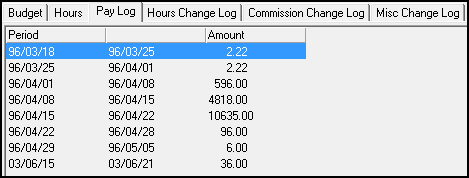
The Pay Log tab displays the total pay for the selected person for each completed pay period. The following graphic shows the pay log tab with information displayed.
Column Descriptions - Pay Log Tab
The following table describes the columns used in the Pay Log tab.
|
Column |
Description |
|
Period |
Beginning date of the current open pay period for the selected employee. |
|
Ending Date (No label) |
Displays the ending date of the current open pay period for the selected employee. |
|
Amount |
Net total pay for the selected pay period. |
The Hours Change Log Tab
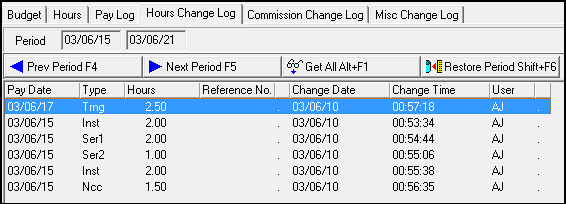
The Hours Change Log tab displays all change to payroll hours for the selected employee. The following graphic shows the Hours Change Log tab with information displayed.
Field/Column Descriptions - Hours Change Log Tab
The following table describes the field and columns used in the Hours Change Log tab.
|
Field/Column |
Description |
|
Period |
Beginning and ending date of the current pay period. |
|
Pay Date |
Date the entry applies. |
|
Type |
Work type for the entry. (This menu originates from program #1850.) |
|
Hours |
Number of hours that apply to the corresponding date and work type. |
|
Reference No. |
A reference number for the payroll hours entry or adjustment; usually the work order number entered with the hours. |
|
Reference Code |
Displays l x - the reference number comes from the work order number l . - no reference number exists. |
|
Change Date |
Displays the date of the payroll entry or adjustment. |
|
Change Time |
Displays the time of the payroll entry or adjustment. |
|
User |
User ID of the person who made the payroll hours entry or adjustment. |
|
Adjustment Code |
Code to determine where the entry or adjustment was initiated. l . - the entry or change comes from the payroll hours entry dialog box |
The Commission Change Log Tab
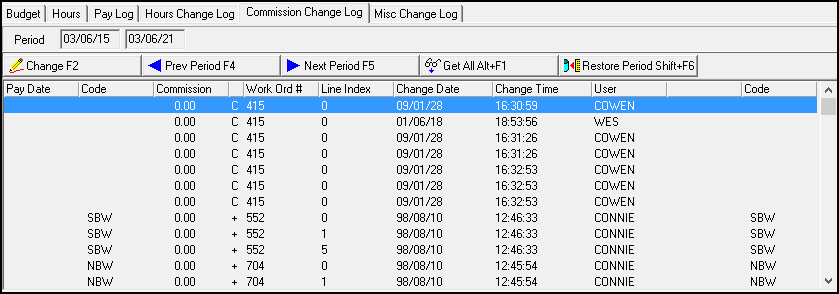
The Commission Change Log tab displays commission adjustments for the selected employee and current pay period. The following graphic shows the Commission Change Log tab with information displayed.
Field/Column Descriptions - Commission Change Log Tab
The following table describes the fields and columns used in the Commission Change Log tab.
|
Field/Column |
Description |
|
Period |
Beginning and ending date of the current pay period. |
|
Pay Date |
Pay date associated with the commission adjustment. |
|
Code |
Commission code, if applicable, associated with the adjustment. |
|
Commission |
Amount of commission added or subtracted with this adjustment. |
|
Adjustment Code |
Code that indicates the type of change made: l M = Manual l - = SBN-generated l + = SBN-generated |
|
Work Order Number |
Work order number associated with the commission adjustment. |
|
Line Index |
Line index number of the item in the work order associated with the commission adjustment. |
|
Change Date |
Date the commission adjustment was entered. |
|
Change Time |
Time the commission adjustment was entered. |
|
User |
User ID of person entering the commission adjustment. |
|
Comments |
Comments associated with the commission adjustment. |
|
Code |
Commission code entered with the commission adjustment. |
Working in the Commission Change Log Tab
Use the following steps to enter changes to the Commission Change Log tab:
1. In Pay Profiles, in the Commission Change Log details tab, choose Change Record.
‰ Fields open in the lower pane of the tab for creating a new entry in the Change Log.
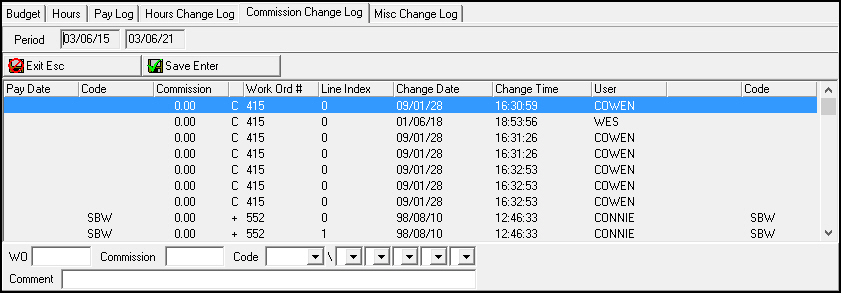
2. Complete the fields, as needed:
l In WO - type the work order number to associate with this entry.
l In Commission - type the amount of commission for this entry.
l In Code - select the commission codes to associate with this entry.
l In Comment - type any comments to associate with this entry.
3. Choose Save.
The Miscellaneous Change Log Tab
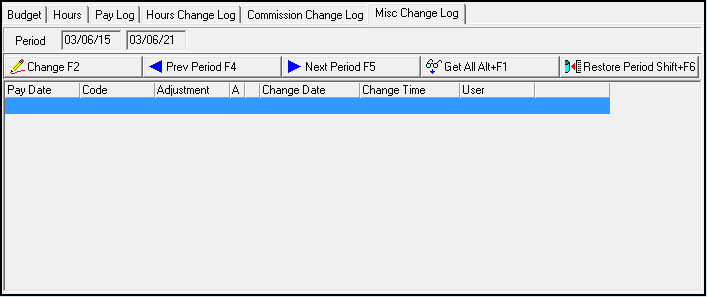
The Miscellaneous Change Log tab displays all bonus, master, and piece earnings adjustments made for the selected pay period and employee. The following graphic shows the Miscellaneous Change Log tab.
Field/Column Descriptions
The following table describes the fields and column used in the Miscellaneous Change Log tab.
|
Field/Column |
Description |
|
Period |
Beginning and ending date of the current pay period. |
|
Code |
Code associated with the adjustment. |
|
Adjustment |
Amount of the adjustment. |
|
Adjustment Type |
Indicates if the adjustment applies to a bonus, master, piece earnings, or on-call account adjustment. |
|
Adjustment Code |
Identifies the adjustment: l M - manual l -,+ - SBN-generated |
|
Change Date |
Date of the adjustment. |
|
Change Time |
Time of the adjustment. |
|
User |
User ID of the person who entered the adjustment. |
|
Comment |
All comments associated with the adjustment. |
Working in the Miscellaneous Change Log Tab
Use the following steps to enter changes to the Miscellaneous Change Log tab:
1. In Pay Profiles, in the Miscellaneous Change Log details tab, choose Change Record.
‰ Fields open in the lower pane of the tab for creating a new entry in the Change Log.
2. Complete the fields, as needed:
l In Adj - type the adjustment amount.
l In Code - select the adjustment codes to associate with this entry.
l In Bonus - type an x to designate this entry as reflecting a Bonus adjustment.
l In Master - type an x to designate this entry as reflecting a Master adjustment.
l In PE - type an x to designate this entry as reflecting a Piece Rate adjustment.
l In On Call - type an x to designate this entry as reflecting an On-Call adjustment.
l In Comment - type any comments to associate with this entry.
3. Choose Save.
Button Functions
The following table displays the buttons, describes the shortcut keys, actions, and functionality.
|
Button |
Name |
Shortcut Key |
Action |
Description |
|
|
Get |
ALT+F1 |
1809/ 1 |
Get record. |
|
|
Change |
F2 |
1809/ 2 |
Change selected record. |
|
|
New |
F3 |
1809/ 3 |
Create new record. |
|
|
Delete |
SHIFT+F10 |
1809/ 4 |
Delete selected record. |
|
|
Undelete |
ALT+F10 |
1809/ 5 |
Restore deleted record. |
|
|
|
CTRL+F8 |
1809/ 6 |
Print selected records. |
|
|
Search |
F6 |
1809/ 7 |
Search for existing records. |
|
|
Previous Year |
F4 |
1809/ 13 |
Select last year. |
|
|
Next Year |
F5 |
1809/ 14 |
Select next year. |
|
|
Previous Period |
F4 |
1809/ 23 |
Select last period. |
|
|
Next Period |
F5 |
1809/ 24 |
Select next period. |
|
|
Get All |
ALT+F1 |
1809/ 65 |
Get all records. |
|
|
Restore Period |
SHIFT+F6 |
1809/ 46 |
Reset the date. |
|
|
Recalculate |
ALT+F6 |
1809/ 999 |
Calculates total bonus earned for that period. |
|
|
Zoom |
F10 |
1809/ 999 |
Zoom in/out of sublevel. |
|
|
Previous |
F4 |
1809/ 999 |
Select last record. |
|
|
Next |
F5 |
1809/ 999 |
Select next record. |

















Modifications and Updates to Pay Profiles
The following table lists modifications and updates to the Pay Profiles document.
|
Mod Number |
Date |
Description |
|
n/a |
8/21/14 |
Images updated. |