
Purchase Order Report Generic
Purchase Order Report Generic
Purchase Order Report (Generic)
Report #: 2135
Module: Account Generation
Overview
Use the Purchase Order Report (Generic) to print header and detail information for purchase orders.
If option ub001 is on, SBN defaults the Email Subject to
PO# xxxx (where xxxx is the number of the purchase order for which the report was run)
PO# xxxx - xxxx (where xxxx - xxxx is the range of purchase orders for which the report was run)
Note: The default overrides any other text entered in the Email Subject field.
To access this report, select Purchase Order Report (Generic) (report #2135), from the main menu of SBN.
The Purchase Order Report (Generic)
This window contains two panes: use the upper pane to define the contents of the report; use the lower pane to define the job output — how, when, and where you want to print the report.
Note: See Report Parameters Pane for information on the fields in the lower pane, which are the same in every report.
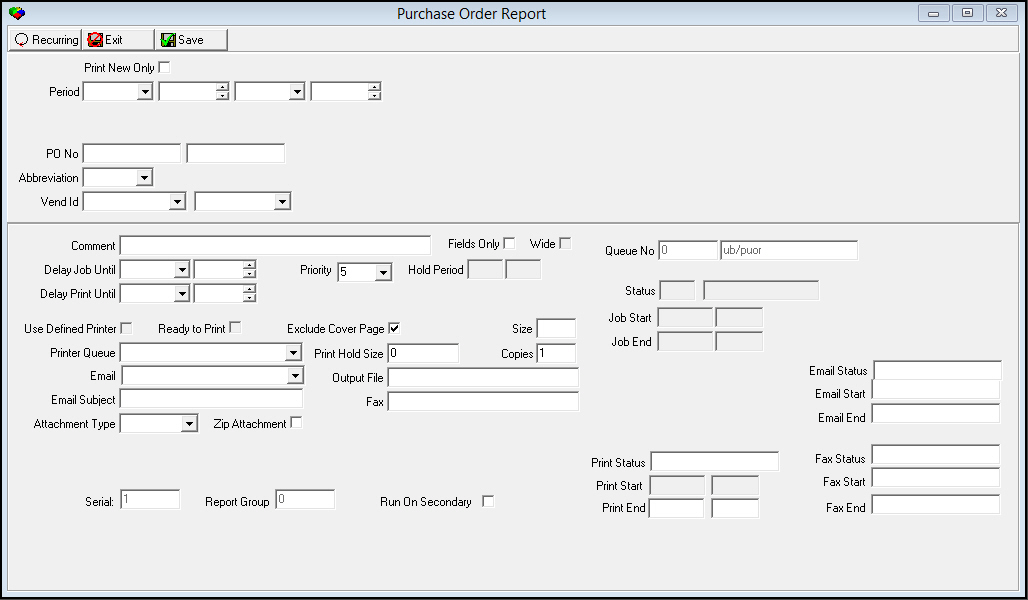
Field Descriptions
The following table describes the fields used in the upper pane of this report.
Field |
Description |
Print New Only |
Enter a check mark in this box to print only those purchase orders with a blank last print date. |
Period |
|
Date
— From |
You may select a range of dates to limit the report to purchase orders changed within that range. Select the beginning date of the range. |
Time
— From |
You may select a range of time to limit the report to purchase orders changed within that range. Select the beginning time of the range. |
Date
— To |
You may select a range of dates to limit the report to purchase orders changed within that range. Select the ending date of the range. |
Time
— To |
You may select a range of time to limit the report to purchase orders changed within that range. Select the ending time of the range. |
Purchase Order Number Range |
|
PO
# — From |
You may type a range of purchase orders to print. Type the beginning purchase order number of the range. O If you leave these fields blank, the report includes all purchase orders that match the other report parameters. |
PO
# — To |
You may type a range of purchase orders to print. Type the ending purchase order number of the range. O If you leave these fields blank, the report includes all purchase orders that match the other report parameters. |
Abbreviation |
You may select an abbreviation for a status code to limit the report to purchase orders with that status code. O If you leave this field blank, the report includes all purchase orders that match the other report parameters. |
Vendor ID Range |
|
Vend
ID — From |
You may select a range of vendor IDs to limit the report to purchase orders associated with vendors within that range. Select the beginning vendor ID of the range. (This menu originates from program #1758.) O If you leave these fields blank, the report includes all vendors. O If the selected vendor has an email address entered in Vendor Master (program #1758), the Email field in the lower pane of the report parameters fills with that email address. |
Vend
ID — To |
You may select a range of vendor IDs to limit the report to purchase orders associated with vendors within that range. Select the ending vendor ID of the range. (This menu originates from program #1758.) O If you leave these fields blank, the report includes all vendors. O If the selected vendor has an email address entered in Vendor Master (program #1758), the Email field in the lower pane of the report parameters fills with that email address. |
Adding an Electronic Signature
Use the following steps to add an electronic signature to the output of this report:
1. Create a .gif file of the signature of the user who runs this report.
2. Name the .gif file with the SBN user name of the user. For example, if the SBN user name is JOHNDOE, name the .gif file JOHNDOE.gif.
3. Add the .gif file to SBN Service Directory.
4. Run the Purchase Order report with your selected parameters.
‰ SBN searches the SBN Service Directory for a .gif file that matches the user name of the user running the report. When SBN finds a matching .gif file, it inserts the .gif file in the Authorized Signature field.
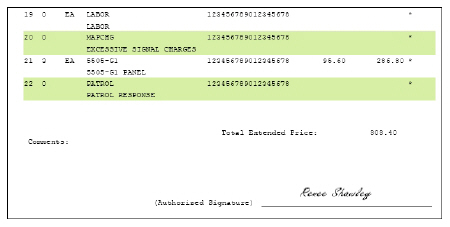
Note: If SBN does not find a matching .gif file, the Authorized Signature field remains blank.
Running and Viewing a Report
For information on running and viewing a report, see Common Functions in SBN.
Report Example
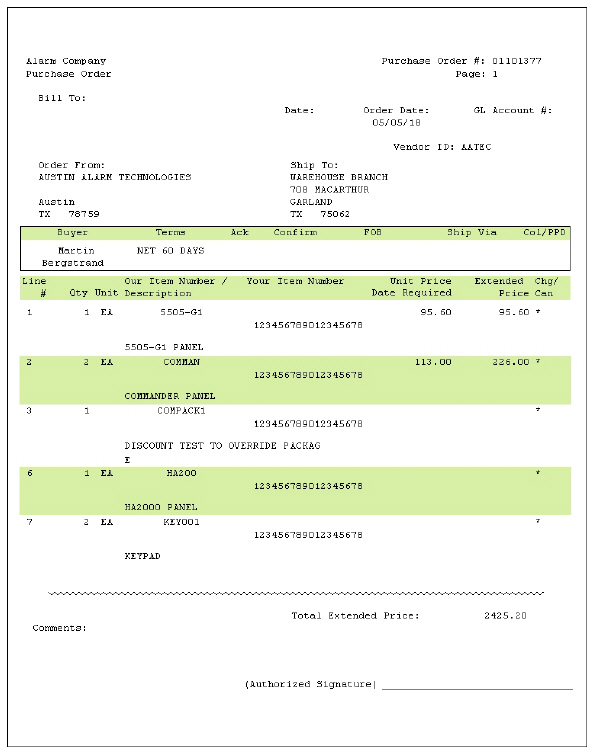
The following graphic shows an example of the output of the Purchase Order Report (Generic).
Column Descriptions
The following table describes the columns used in the report output.
Column |
Description |
Header Information |
|
(No label) |
Blank space at the top of the purchase order to display your company logo, name, and address. |
Purchase Order # |
Purchase order number. |
Page |
Page number of the report. |
Bill To |
Name and address of the branch to bill for the purchase. |
Date |
Date this purchase order was printed. |
Order Date |
Date that this purchase order was last changed. |
GL Account # |
GL account number for the purchase, if applicable. |
Vendor ID |
ID of the vendor associated with this purchase. |
Order From |
Name and address of the vendor from whom you are purchasing. |
Ship To |
Name and address of the branch, dealer, or personnel that receives the shipment. |
Ship To--Phone |
Phone number of the branch, dealer, or personnel that receives the shipment. |
Purchasing Information |
|
Buyer |
Name of the buyer. |
Terms |
Terms of payment. |
Ack |
If this column displays an X, an acknowledgement is required from the vendor. |
Confirm |
Not currently used. |
FOB |
FOB point for the shipment. |
Ship Via |
Carrier that delivers the shipment. |
Col / PPD |
Freight terms for the shipment. |
Item Information |
|
Line # |
Line number of the selected item. |
Qty |
Quantity of the selected item ordered. |
Unit |
Unit of measure of the selected item |
Our Item Number |
Item code of the selected item. |
Description |
Text description of the selected item. |
Your Item Number |
Vendor’s item code. |
Unit Price |
Unit price of the selected item. |
Date Required |
Scheduled ship date. |
Extended Price |
Extended price; based on (unit price) * (quantity). |
Chg / Can |
l If this field displays an *, the selected item line has changed since the last report. l If this field displays an X, the selected item line is cancelled. |
Total Extended Price |
Total cost of the purchase order. |
Comments |
Comment. This field may include a delivery address if selected in program #571 when option ba463 is on. |
(Authorized Signature) |
Line for authorized signature. You may add an electronic signature to this report. See Adding an Electronic Signature. |
Button Functions
The following table displays the buttons, describes the shortcut keys, actions, and functionality.
Button |
Name |
Shortcut Key |
Action |
Description |
|
Open fields for recurring/template reports |
alt+f1 |
Open fields for recurring/template reports. |
|
|
Exit without saving |
esc |
Exit without saving changes to selected record. |
|
|
Save Existing Record |
enter |
Save changes to selected record. |



Modifications and Updates to Purchase Order Report Generic
The following table lists modifications and updates to the Purchase Order Report Generic document.
Mod Number |
Date |
Description |
n/a |
07/14/14 |
Images updated. |