
UL Security Grades
UL Security Grades
UL/Security Grades
Program #: 1732
Module: System Administration
Overview
Use UL/Security Grades (program #1732) to define and maintain security grades for SBN to use in the monitoring system for open/close schedules. A menu of UL/Security Grades appears in the Zone Schedule screen in Data Entry (program #559).
To access this program, choose UL/Security Grades (program #1732) from the main menu of SBN.
The UL/Security Grades Screen
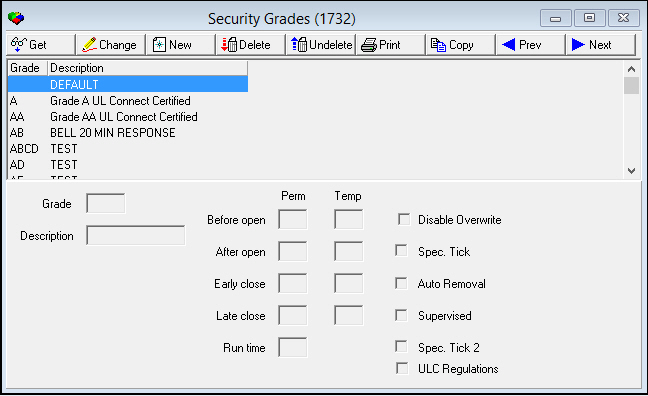
The following graphic shows the UL/Security Grades screen as the program opens. The screen displays previously defined UL/Security Grades.
Field/Column Descriptions
The following table describes the fields and columns used in the UL/Security Grades screen.
Note: Double-clicking on a column header in SBN reorganizes the list by that header. Double-click the column header again to display the information in the selected column in ascending or descending order.
|
Field/Column |
Description |
|
Grade |
Abbreviation that identifies the selected UL/security grade. |
|
Descriptor |
Text description of the selected UL/security grade. |
|
Before Open Perm |
Number of minutes an open signal can occur before a permanently scheduled open time, without generating an alarm. |
|
Before Open Temp |
Number of minutes an open signal can occur before a temporarily scheduled open time, without generating an alarm. |
|
Disable Overwrite |
Enter a check mark in this field to prevent changes to Open/Close window sizes from the O/C Schedule Change window in Data Entry. |
|
After Open Perm |
Number of minutes an open signal can occur after a permanently scheduled open time, without generating an alarm. |
|
After Open Temp |
Number of minutes an open signal can occur after a temporarily scheduled open time, without generating an alarm. |
|
Spec. Tick |
Select this check box to require that UL Rule 1 requirements be met before an alarm on a zone of the selected UL Security Grade can be disposed of. UL Rule 1 requires that an operator call two of the following Action Plan contacts before disposing of an alarm event in Dispatch (program #537): a police agency, patrol agency, or an Action Plan contact (or contacts) flagged as Investigator(s). |
|
Early Close Perm |
Number of minutes a close signal can occur before a permanently scheduled early close time, without generating an alarm. |
|
Early Close Temp |
Number of minutes a close signal can occur before a temporarily scheduled early close time, without generating an alarm. |
|
Auto Removal |
Enter a check mark in this field to have SBN auto-remove missing Open/Close signals for the selected UL/security grade when option mo110 is on. O SBN can do this if no operator has handled the signal and only one signal is missing. SBN will enter a SYS REMO event in the log. |
|
Late Close Perm |
Number of minutes a close can occur after a permanently scheduled late close time, without generating an alarm. |
|
Late Close Temp |
Number of minutes a close can occur after a temporarily scheduled late close time, without generating an alarm. |
|
Supervised |
Field added to meed requirements of UL 827. |
|
Run Time |
Field added to meed requirements of UL 827. Used to calculate the date and time of requested service when an operator uses the �C� command in Monitoring. O Calculation is the greater of creation time OR closing time from the O/C schedule + runtime + one hour. O If you leave this field blank, SBN will use the creation time. |
|
Spec. Tick 2 |
Select this check box to require that UL Rule 2 requirements be met before an alarm on a zone of the selected UL Security Grade can be disposed of. UL Rule 2 requires that an operator call either a police agency, patrol agency, or an Action Plan contact flagged as Investigator before disposing of an alarm event in Dispatch (program #537). |
|
ULC Regulations |
If this checkbox and the "ULC Regulations" checkbox in Misc User Access (program #1745) are selected, then the operator will be able to access incidents of this security grade in Dispatch (program #559). If this checkbox is selected but the Misc User Access checkbox is not, the operator will be unable to acknowledge incidents of this security grade, and will receive an Error Message window whenever this is attempted.. |
Viewing Details of a UL/Security Grade
You can view details of a UL/security grade.
Use the following steps to view details of a selected UL/Security Grade:
1. In UL/Security Grades, select the security grade for which you want to view details.
2. Double-click your selection or choose Get Record.
‰ The fields in the lower section of the screen fill with the details of the selected UL/security grade.
Changing the Definition of a UL/Security Grade
You can change the definition of a UL/security grade.
Use the following steps to change the definition of a UL/security grade:
1. In UL/Security Grades, select the security grade you want to change.
2. Choose Change Record.
‰ The fields in the lower section of the screen open.
3. Enter changes in the fields.
4. Choose Save.
Adding a UL/Security Grade
You can add a UL/security grade to SBN.
Use the following steps to add a UL/security grade:
1. In UL/Security Grades, choose New Record.
‰ The fields in the lower section of the tab open.
2. Enter new details in the fields.
3. Choose Save.
Deleting a UL/Security Grade
You can delete any UL/security grade defined in this program. You can later restore any deleted UL/security grade. For more information, see Restoring a UL/Security Grade.
Use the following steps to delete a UL/security grade:
1. In UL/Security Grades, select the security grade you want to delete.
2. Choose Delete Record.
‰ SBN asks you to confirm your selection.
3. Choose Yes.
Restoring a UL/Security Grade
After a UL/security grade has been deleted, you can restore that UL/security grade back into SBN by using the Undelete function.
Use the following steps to restore a UL/Security Grade:
1. In UL/Security Grades, choose Undelete.
‰ The Undelete window appears.
2. In the Undelete window, find the security grade you want to restore.
3. Double-click the selection, or choose.
‰ SBN restores the security grade to the active list in program #1732.
Using a Template to Create a New UL/Security Grade
You can use one UL/security grade as a template for another UL/security grade.
Use the following steps to create a new UL/security grade from a template:
1. In UL/Security Grades, select the security grade you want to use as a template.
2. Choose Copy Current Record.
‰ The fields in the lower section of the screen fill with the details of the selected security grade, but remain open for changes.
3. Change any information needed for the new security grade.
4. Choose Save.
‰ SBN adds the new security grade to the list of defined security grades.
Button Functions
The following table displays the buttons, describes the shortcut keys, actions, and functionality.
|
Button |
Name |
Shortcut Key |
Action |
Description |
|
|
Get |
ALT+F1 |
1732/ 1 |
Get record. |
|
|
Change |
F2 |
1732/ 2 |
Change selected record. |
|
|
New |
F3 |
1732/ 3 |
Create new record. |
|
|
Delete |
SHIFT+F10 |
1732/ 4 |
Delete selected record. |
|
|
Undelete |
ALT+F10 |
1732/ 5 |
Restore deleted record. |
|
|
|
CTRL+F8 |
1732/ 6 |
Print selected records. |
|
|
Copy |
SHIFT+F3 |
1732/ 999 |
Copy selected field. |
|
|
Previous |
F4 |
1732/ 999 |
Select last record. |
|
|
Next |
F5 |
1732/ 999 |
Select next record. |









Modifications and Updates to UL Security Grades
The following table lists modifications and updates to the UL Security Grades document.
|
Mod Number |
Date |
Description |
|
07.80.23284, 08.80.09594 |
04/08/14 |
Added new ULC Regulations checkbox. |
|
n/a |
09/19/14 |
Images updated. |
F1 Help
| Delphi Forms | ubsecuritygradeform |
| Program Numbers | 1732 |