
Subscriber Types
Subscriber Types
Subscriber Types
Module: System Administration
Overview
Use Subscriber Types (program #1534) to define subscriber types. A menu of Subscriber Types appears in Marketing (program #562), Data Entry Master (program #559), and Contract Master (program #548).
Navigating to Subscriber Types
Use the following steps to navigate to Subscriber Types:
1. From the main SBN toolbar, select Menu.
2. From the drop-down menu, select Go To.
3. In the Go To Program dialog box, type in "1534" and press Enter.
w The Subscriber Types program opens.
Subscriber Types Options
Option fe046 - When turned on, file ./fe/pro_fe_sms_find_recipients.sql must be recompiled. Turning this option on allows SBN records to be added to the SMS queue. When the option is turned off SMS records will never be added to the SMS queue.
The Subscriber Types Window
The following graphic shows Subscriber Types as the program opens. The upper pane displays previously defined subscriber types.
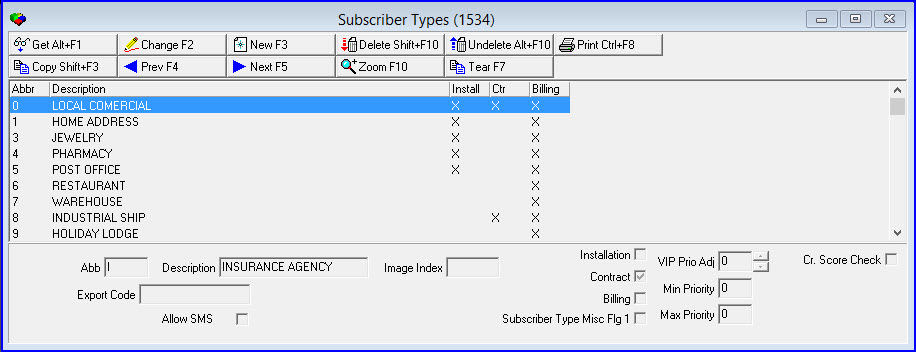
Field/Column Descriptions
The following table describes the fields and columns used in Subscriber Types.
Field/Column |
Description |
Abbreviation |
Abbreviation that identifies the subscriber type. |
Description |
Text description of the subscriber type. |
Image Index |
Index number of the graphic to use in the Contract Master tree view, when displaying by Subscriber Type icons. |
Installation |
Select this check box if you want the selected subscriber type to appear in the Subscriber Type drop-down menu on the installation screen in Data Entry (program #559). Note: If no check boxes are selected for a given subscriber type, the subscriber type appears in all Subscriber Type drop-down menus throughout SBN. |
Export Code |
Export code for the selected subscriber type. This code appears on exported certificates for installations with the selected subscriber type in the Certificates tab of program #559. |
Contract |
Select this check box if you want the selected subscriber type to appear in the Subscriber Type drop-down menu on the Contract screen in Contract Master (program #548). Note: If no check boxes are selected for a given subscriber type, the subscriber type appears in all Subscriber Type drop-down menus throughout SBN. |
Allow SMS |
SBN allows a user to select a subscriber type and check the Allow SMS checkbox that enables SMS. When a signal is received SBN will search for a qualifying match. |
Billing |
Select this check box if you want the selected subscriber type to appear in the Subscriber Type drop-down menu on the Billing Accounts screen in Contract Master (program #548). Note: If no check boxes are selected for a given subscriber type, the subscriber type appears in all Subscriber Type drop-down menus throughout SBN. |
Subscriber Type Misc Flg 1 |
This check box is for client-specific functions. For Company 105, installations associated with subscriber types that have this check box selected are national accounts. |
VIP Prio Adj |
Amount by which to increase or decrease the priority of alarm incidents on installations with the selected subscriber type. (This field accepts values between -10 and 10.) |
Min Priority |
Enter a range of alarm incident priorities that SBN adjusts on installations with the selected subscriber type. Enter the minimum priority to adjust. (This field accepts values between 0 and 99.) For example, if you enter a priority range of 5 to 10 and a VIP Priority Adjustment of 2, if an alarm comes in with a priority of 6 on an installation with the selected subscriber type, SBN adjusts the alarm priority to 8 in the Alarm Queue. |
Max Priority |
Enter a range of alarm incident priorities that SBN adjusts on installations with the selected subscriber type. Enter the maximum priority to adjust. (This field accepts values between 0 and 99.) For example, if you enter a priority range of 5 to 10 and a VIP Priority Adjustment of 2, if an alarm comes in with a priority of 6 on an installation with the selected subscriber type, SBN adjusts the alarm priority to 8 in the Alarm Queue. |
Using Common Functions
See the reference document Common Functions in SBN for more information.
Zooming into the Sublevel
Subscriber Types contains a sublevel tab in which you may translate the descriptions of subscriber types into other languages, and another in which you may segment subscriber types into subgroups that can be modified to your needs.
The Translations Tab
The following graphic shows the Translations tab.
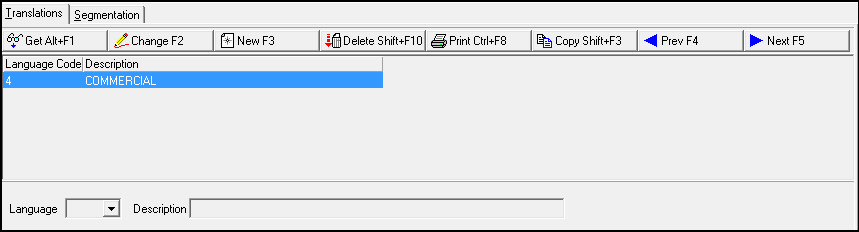
Field/Column Descriptions
The following table describes the fields and columns used in the Translations tab.
Field/Column |
Description |
Language Code |
Code that identifies the language of the associated translation. Note: Contact IBS before using language codes 11-17. |
Description |
Description that appears in the drop-down menus of the Sub Type field in Data Entry (program #559) and the Customer Type field in Marketing (program #562) for users with the language selected for their user profiles in Personnel (program #1811). |
The Segmentation Tab
The following graphic shows the Segmentation Tab.
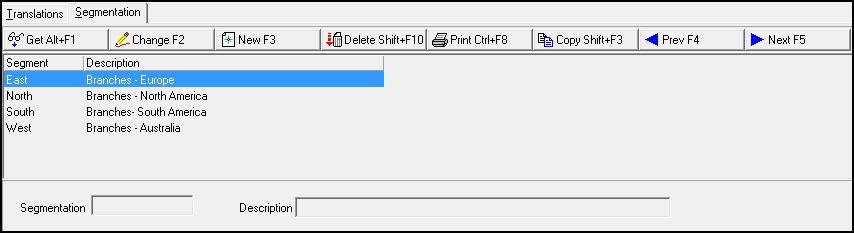
The Segmentation tab is used to create subscriber subgroups, or segments, that can be listed and modified based on individual needs. Segments selected and assigned to a customer may then be seen via the Segmentation dropdown menu in the Marketing program (program #562).
Field/Column Descriptions
The following table describes the fields and columns used in the Segmentation tab.
Field/Column |
Description |
Segment |
Code that identifies the segment being used. This appears in the drop-down menus of the Segmentation field in Marketing (program #562). |
Description |
Description of the segment. |
Segmentation |
This field is used to create a new segment name, or to edit the name of an existing segment. |
Description |
This field is used to create a more elaborate description than the segment name for new segments, or to edit the description of an existing segment. |
To create or modify a segment:
Choose a subscriber from the upper pane of the Subscriber Types window.
Click the Get button at the top of the window. This will display any segments previously assigned to the subscriber.
Select a segment and click the Change button in the Segmentation tab to change its name or description, and click Save to save any changes.
Click New to create a new segment name and description.
Button Functions
The following table displays the buttons, describes the shortcut keys, actions, and functionality.
Button |
Name |
Shortcut Key |
Action |
Description |
|
Get |
ALT+F1 |
1534/ 1 |
Get record. |
|
Change |
F2 |
1534/ 2 |
Change selected record. |
|
New |
F3 |
1534/ 3 |
Create new record. |
|
Delete |
SHIFT+F10 |
1534/ 4 |
Delete selected record. |
|
Undelete |
ALT+F10 |
1534/ 5 |
Restore deleted record. |
|
CTRL+F8 |
1534/ 6 |
Print selected records. |
|
|
Copy |
SHIFT+F3 |
1534/999 |
Copy selected record. |
|
Previous |
F4 |
1534 |
Select last record. |
|
Next |
F5 |
1534 |
Select next record. |
|
Zoom In/Out of Sublevel |
f10 |
1534/10 |
Access sublevel Translations tab. |
|
Tear Away Selected Tab |
f7 |
1534/999 |
View selected tab in separate window. |











Modifications and Updates to Subscriber Types
The following table lists modifications and updates to the Subscriber Types document.
Mod Number |
Date |
Description |
07.79.23076, 08.79.09474, 07.79.23062, 08.79.09469 |
3/20/14 |
Added Segmentation Tab |
n/a |
8/26/14 |
Images updated. |