
Marketing Change Log
Marketing Change Log
Marketing Change Log
Module: Account Generation
Overview
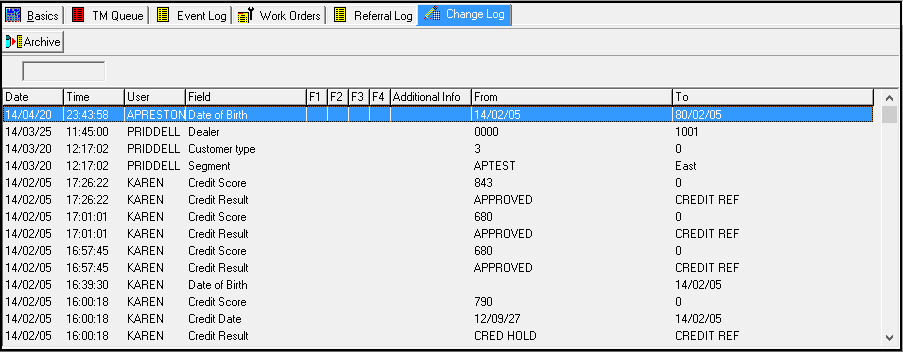
Use the Marketing Change Log to display all changes that users have made to a marketing inquiry record. The log lists the changes in order, beginning with the most recent. The Change Log displays the data users changed both in its original and new forms and uses abbreviations to indicate which fields users changed.
Navigating to the Marketing Change Log
Use the following steps to access the Marketing Change Log:
1. From the main SBN toolbar, select Menu.
2. From the drop-down menu, select Go To.
3. In the Go To Program dialog box, type in "562" and press Enter.
w Marketing and Marketing Basics opens.
4. Choose the Change Log tab in the lower pane of Marketing.
The Marketing Change Log Tab
The following graphic shows the Change Log tab with marketing inquiry changes displayed.
Column Descriptions
The following table describes the columns used in the Marketing Change Log tab.
|
Column |
Description |
|
Change Log Type (no label) |
Type of Change Log you are currently viewing.
Note: Option ba418 must be on in order for SBN to archive the Change Log. |
|
Date |
Date a user changed the data. |
|
Time |
Time a user changed the data. |
|
User |
ID of the user who made the change. |
|
Field |
Log abbreviation of the field where a user made the change. |
|
Field Ext 1 |
Field extension where a user made the change. |
|
Field Ext 2 |
Field extension where a user made the change. |
|
Field Ext 3 |
Field extension where a user made the change. |
|
Field Ext 4 |
Field extension where a user made the change. |
|
Additional Info |
Additional information about the change. This may be a general description of the change. |
|
From |
Original data, before a user changed it. Note: Deleted Marketing inquiries appear in the Change Log only in the From column. The To column is blank. |
|
To |
New data after the change. Note: New Marketing inquiries appear in the Change Log only in the To column. The From column is blank. |
Viewing the Change Log Archive
You can toggle the Change Log view to display recent Marketing changes or an archive of past Marketing changes.
Note: Option ba418 must be on in order for SBN to archive the Change Log.
Use the following steps to toggle the Change Log view:
1. Choose Archive.
w SBN displays archived Change Log entries. The unlabeled Change Log Type field indicates that you are viewing the archive.
2. To return to the normal Change Log view, choose Archive again.
w SBN displays recent Marketing changes.
Related Programs
The following table lists programs related to the Marketing Change Log.
|
Program |
Number |
Document Link |
Description |
|
Marketing |
562 |
Create and maintain marketing inquiry records to track sales leads. SBN records changes in the Marketing Change Log. |
|
|
Background Tasks |
1712 |
Set up background job #57 to archive the Marketing Change Log at defined intervals. |
Button Functions
The following table displays the button and describes the shortcut key and button functionality.
|
Button |
Name |
Shortcut Key |
Description |
|
|
Archive |
f12 |
Toggle between the normal Change Log and Archive views. |

Modifications and Updates to the Marketing Change Log
The following table lists modifications and updates to the Marketing Change Log document.
|
Mod Number |
Date |
Description |
|
07.02.19955, 08.03.07702 |
08/05/10 |
Document created. |
|
n/a |
07/14/14 |
Images updated. |