
Mark-of-the-Web Login Failure
Mark-of-the-Web (MOTW) Login Failure
If SBN's login screen blanks out the Password field with no error message and no popup the moment you click Login, this page is for you. The most common cause is a Windows security tag called the Mark-of-the-Web that gets attached to files downloaded from the internet. SBN cannot load the database files when this tag is present, and the way it currently fails is silent -- there is no on-screen message telling you what went wrong.
This page explains how to recognize the problem, how to confirm it from the log file, and how to fix it in under a minute.
Before You Reach Login: The SmartScreen Warning
The first thing most users see after downloading an SBN build is not the login screen at all -- it's a blue dialog from Windows. When you double-click SBN.exe for the first time on a fresh workstation, Microsoft Defender SmartScreen interrupts the launch with the Windows protected your PC dialog:
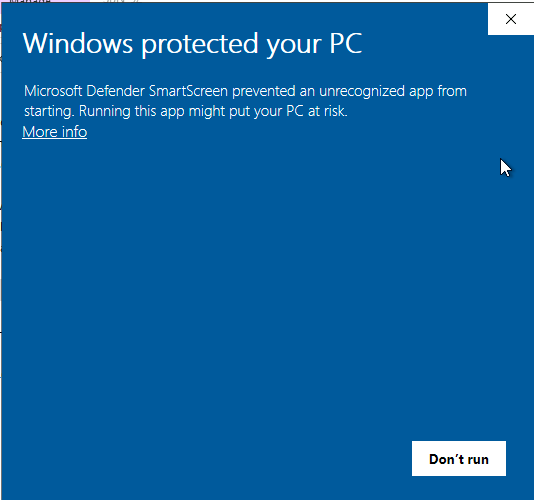
By default this dialog only shows a Don't run button. There is no obvious way to proceed, which makes it look like Windows is refusing to run SBN outright. It isn't -- the option to continue is hidden behind the More info link.
Click "More info" to Reveal "Run anyway"
Click the More info link in the top half of the dialog. The dialog expands to show the file's App name and Publisher, and a Run anyway button appears next to Don't run:
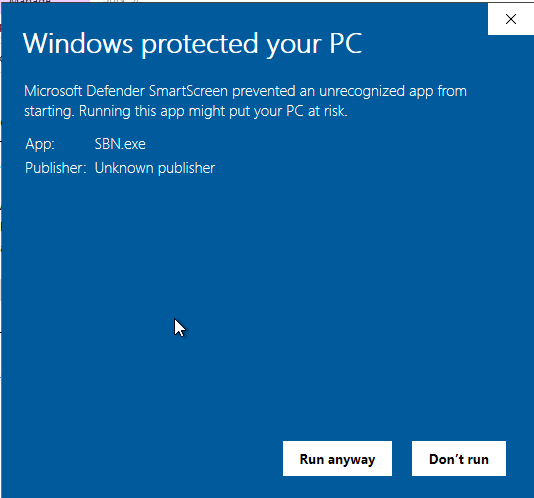
Click Run anyway. SBN will launch normally and you can proceed to the login screen. Windows remembers this choice for that specific copy of SBN.exe, so the dialog will not reappear on subsequent launches of the same file.
"Unknown publisher" Is Expected
The expanded dialog labels the publisher as Unknown publisher. This is expected for SBN builds and is not a sign that the download is corrupt or tampered with. SBN executables are not currently signed with an Extended Validation (EV) code-signing certificate -- the kind of certificate that builds reputation with SmartScreen over time -- so SmartScreen has no record of the publisher and shows the warning on every fresh download.
If you downloaded the build directly from support.innovative247.com (or another Innovative-controlled location), Run anyway is the correct action. You initiated the download, the file is legitimate, and the warning is purely a reputation gap, not a malware signal.
The Same Dialog Appears for Zips
The SmartScreen dialog also appears the first time you launch SBN.exe from a folder that was extracted out of a downloaded .zip. The Mark-of-the-Web tag on the original zip is inherited by every file inside it (see Why It Happens below), and that same tag is what SmartScreen reads to decide whether to show the warning. Clicking Run anyway gets past SmartScreen, but the inherited tag is also what causes the silent login failure described on the rest of this page -- so don't stop here. Continue with the unblock or extract-from-unblocked-zip steps under Self-Correct or your login will still fail with no error message.
What You're Seeing
You launch SBN.exe, type your username and password, and click Login. Instead of opening the main menu:
- The Password field clears itself.
- No error message appears anywhere on screen.
- No popup, no status bar message, no red text.
- It looks like SBN simply ignored you.
This is a known cosmetic gap -- SBN currently has no way to surface the underlying error to the user. The login did fail; it just didn't tell you. The reason is almost always the Mark-of-the-Web.
Why It Happens
When you download SBN as a .zip from a website, an email attachment, or a chat message, Windows attaches a hidden flag called Mark-of-the-Web to the zip. When you extract that zip, every file inside inherits the same flag -- including the two database client files SBN needs to connect:
Ibs.AseClient.dllAdoNetCore.AseClient.dll
For security reasons, Windows refuses to let SBN load these tagged files. SBN's database client never starts, the login fails, and the field clears.
This only affects copies of SBN that came down through a browser or email. A copy installed from your company's network share or a USB drive is not affected.
Confirm It from the Log
You don't have to guess. SBN writes a detailed log file every time it runs, and the Mark-of-the-Web failure leaves a very specific signature in it.
Steps to open the log:
- Open the folder where
SBN.exelives. (If you don't know, right-click your SBN shortcut and choose Open file location.) - Inside that folder, open the sub-folder named
log. - Sort the files by Date modified, newest first.
- Open the most recent file. Its name looks like
pid_12345.log.
Scroll to the bottom of the file. If your problem is the Mark-of-the-Web, the last few lines will look like this:
The number to look for is 0x80131515. That is Windows' standard refusal code for a downloaded file. If you see it, you have the Mark-of-the-Web problem and the fix below will resolve it.
If you see anything else (a different error number, a connection-refused message, a login-rejected message), the problem is something else and this page does not apply. Try the Connectivity Without the Sybase Client page or the SBN Tunnel page instead.
Self-Correct
Recent SBN builds detect the Mark-of-the-Web at startup and remove it from their own folder automatically.
If you do encounter this issue you can follow the below steps to self-correct.
Unblock Zip
The cleanest fix is to clear the Mark-of-the-Web on the original zip before extracting, so every file inside comes out clean.
- Find the original SBN zip file. It's usually in your Downloads folder, or wherever you saved it before extracting.
- Right-click the zip file and choose Properties.
- At the very bottom of the General tab, you'll see a checkbox or button labeled Unblock. Check it.
- Click OK.
- Delete the SBN folder you extracted before -- it's still tagged and won't work.
- Right-click the zip again and choose Extract All.... Pick a fresh folder.
- Run
SBN.exefrom the new folder. Login should succeed.
If you don't see an "Unblock" checkbox, the zip is already clean -- the problem is somewhere else, and this fix won't help. Check the log signature again.
If the Original Zip Is Gone
If you've already deleted the zip and only have the extracted SBN folder, you can clear the tag on the two files SBN needs directly.
- Open your SBN folder.
- Right-click
Ibs.AseClient.dlland choose Properties. - At the bottom of the General tab, check Unblock.
- Click OK.
- Repeat for
AdoNetCore.AseClient.dllin the same folder. - (Recommended) Repeat for any other
.dllnext toSBN.exe. It takes a minute and saves you another round-trip if a different file is also tagged. - Run
SBN.exe. Login should succeed.
Why You Aren't Seeing an Error Message
SBN's login flow currently does not display the underlying database error to the user -- it simply clears the password field and waits for another attempt. We know this is unhelpful, and a future build will surface a clear error message on the login screen so you don't have to read the log file to diagnose it.
Until that lands, the log file is the source of truth. The five-line block above is what to look for, and 0x80131515 is the smoking gun.