
CS Basics
CS Basics
Customer Service Basics
Module: Account Management
Overview
Use the Customer Service Basics tab of Data Entry (program #559) to view and enter additional information for an installation record.
This document includes the following topics:
Navigating to Customer Service Basics
The Customer Service Basics Tab
Navigating to Customer Service Basics
Access Data Entry from the SBN main menu or from Marketing (program #562) by choosing the Jump to Data Entry/Cust Serv button. When working with a new inquiry and installation in Marketing, use Jump to Data Entry/Cust Serv to access Data Entry. If you want to make changes to an existing installation record, choose Customer Data (program #559) from the main menu of SBN.
Use the following steps to access the Customer Service Basics tab from the main menu:
1. From the main SBN toolbar, select Menu.
2. From the drop-down menu, select Go To.
3. In the Go To Program dialog box, type in "559" and press [Enter].
w Data Entry Master and Basics opens.
4. Click the CS Basics tab to open it.
The Customer Service Basics Tab
The following graphic shows the CS Basics tab.
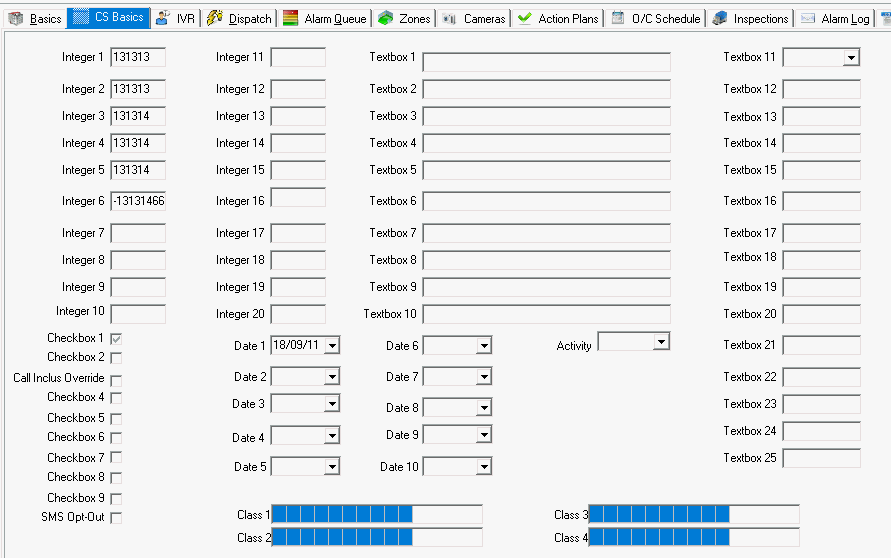
Field Descriptions - CS Basics
The following table describes the fields in the CS Basics tab.
Field |
Description |
Integer 1 |
This field has no SBN functionality. |
Integer 2 |
This field has no SBN functionality. |
Integer 3 |
This field has no SBN functionality. |
Integer 4 |
This field has no SBN functionality. |
Integer 5 |
This field has no SBN functionality. |
Integer 6 |
This field has no SBN functionality. |
Integer 7 |
This field has no SBN functionality. |
Integer 8 |
This field has no SBN functionality. |
Integer 9 |
This field has no SBN functionality. |
Integer 10 |
This field has no SBN functionality. |
Checkbox 1 |
Selecting this check box will place a check in Checkbox 1 in the main Service/Data Entry pane. Selecting or unselecting Checkbox 1 in the main Service/Data Entry pane will produce the same action in this field. Note: When option temp105 is on and you select this check box, the Communication Log (program #1888) automatically opens and SBN creates a new entry in the Communication Log. The value of option ba511 determines the Generating Source Code that SBN uses for the Communication Log entries it creates when you select this check box, (when option temp105 is on). |
Checkbox 2 |
Selecting this check box will place a check in Checkbox 2 in the main Service/Data Entry pane. Selecting or unselecting Checkbox 2 in the main Service/Data Entry pane will produce the same action in this field. Note: When option temp105 is on, SBN records the user ID that last made changes along with the date and time that changes were last made to this check box in the Textbox 24 field. |
Checkbox 3 |
If this check box is selected the installation will be excluded from Call Inclusion functionality. |
Checkbox 4 |
This field has no SBN functionality. |
Checkbox 5 |
This field has no SBN functionality. |
Checkbox 6 |
This field has no SBN functionality. |
Checkbox 7 |
This field has no SBN functionality. |
Checkbox 8 |
This field has no SBN functionality. |
Checkbox 9 |
This field has no SBN functionality. |
SMS Opt-Out |
The user must check the checkbox to Opt-Out of the SMS process. The default for this field is Off/Unchecked meaning every installation is automatically enrolled in SMS. |
Checkbox 10 |
This field has no SBN functionality. |
Integer 11 |
This field has no SBN functionality. |
Integer 12 |
This field has no SBN functionality. |
Integer 13 |
This field has no SBN functionality. |
Integer 14 |
This field has no SBN functionality. |
Integer 15 |
This field has no SBN functionality. |
Integer 15 |
This field has no SBN functionality. |
Integer 16 |
This field has no SBN functionality. |
Integer 17 |
This field has no SBN functionality. |
Integer 18 |
This field has no SBN functionality. |
Integer 19 |
This field has no SBN functionality. |
Integer 20 |
This field has no SBN functionality. |
Date 1 |
When enabled, this drop-down menu displays a monthly calendar. Clicking on the arrow will set the field to the current date. |
Date 2 |
When enabled, this drop-down menu displays a monthly calendar. Clicking on the arrow will set the field to the current date. |
Date 3 |
When enabled, this drop-down menu displays a monthly calendar. Clicking on the arrow will set the field to the current date. |
Date 4 |
When enabled, this drop-down menu displays a monthly calendar. Clicking on the arrow will set the field to the current date. |
Date 5 |
When enabled, this drop-down menu displays a monthly calendar. Clicking on the arrow will set the field to the current date. |
Textbox 1 |
This field has no SBN functionality. |
Textbox 2 |
This field has no SBN functionality. |
Textbox 3 |
This field has no SBN functionality. |
Textbox 4 |
This field has no SBN functionality. |
Textbox 5 |
This field has no SBN functionality. |
Textbox 6 |
This field has no SBN functionality. |
Textbox 7 |
This field has no SBN functionality. |
Textbox 8 |
This field has no SBN functionality. |
Textbox 9 |
This field has no SBN functionality. |
Textbox 10 |
This field has no SBN functionality. |
Date 6 |
When enabled, this drop-down menu displays a monthly calendar. Clicking on the arrow will set the field to the current date. |
Date 7 |
When enabled, this drop-down menu displays a monthly calendar. Clicking on the arrow will set the field to the current date. |
Date 8 |
When enabled, this drop-down menu displays a monthly calendar. Clicking on the arrow will set the field to the current date. |
Date 9 |
When enabled, this drop-down menu displays a monthly calendar. Clicking on the arrow will set the field to the current date. |
Date 10 |
When enabled, this drop-down menu displays a monthly calendar. Clicking on the arrow will set the field to the current date. |
Activity |
This field has no SBN functionality. |
Textbox 11 |
Selecting an item in this drop-down menu will display the same entry in the Textbox 11 field in the main Service/Data Entry pane. (This menu originates from program #1590/122.) Note: When option temp105 is on, SBN records the user ID that last made changes along with the date and time that changes were last made to this field in the Textbox 25 field. |
Textbox 12 |
This field has no SBN functionality. |
Textbox 13 |
This field has no SBN functionality. |
Textbox 14 |
This field has no SBN functionality. |
Textbox 15 |
This field has no SBN functionality. |
Textbox 16 |
This field has no SBN functionality. |
Textbox 17 |
This field has no SBN functionality. |
Textbox 18 |
This field has no SBN functionality. |
Textbox 19 |
This field has no SBN functionality. |
Textbox 20 |
This field has no SBN functionality. |
Textbox 21 |
This field has no SBN functionality. |
Textbox 22 |
This field has no SBN functionality. |
Textbox 23 |
This field has no SBN functionality. |
Textbox 24 |
This field has no SBN functionality unless option temp105 is on. When option temp105 is on, SBN records the user ID in this field that last made changes along with the date and time that changes were last made to Checkbox 2. |
Textbox 25 |
This field has no SBN functionality unless option temp105 is on. When option temp105 is on, SBN records the user ID in this field that last made changes along with the date and time that changes were last made to the Textbox 11 field. |
Class 1 |
You may select up to 10 codes from the drop-down menus for tracking services provided or other customer-specific information. |
Class 2 |
You may select up to 10 codes from the drop-down menus for tracking services provided or other customer-specific information. |
Class 3 |
You may select up to 10 codes from the drop-down menus for tracking services provided or other customer-specific information. |
Class 4 |
You may select up to 10 codes from the drop-down menus for tracking services provided or other customer-specific information. |
Modifications and Updates to Customer Service Basics
The following table lists modifications and updates to the Customer Service Basics document.
Mod Number |
Date |
Description |
08.80.09563, 07.80.23233, 07.80.23226, 08.80.09558 |
4/01/14 |
Created document |
07.93.27142, 07.93.27141 |
03/03/23 |
Call inclusion override by Installation if check box 3 is selected. |