
AP Check Register
AP Check Register
AP Check Register
Program #: 1836
Module: Accounting
Overview
Use AP Check Register (program #1836) to view, print, void, and reconcile checks that have been created from AP Open Vouchers (program #1837). To view checks, you must first perform a search in which you select specific parameters to narrow your results.
The Check Register
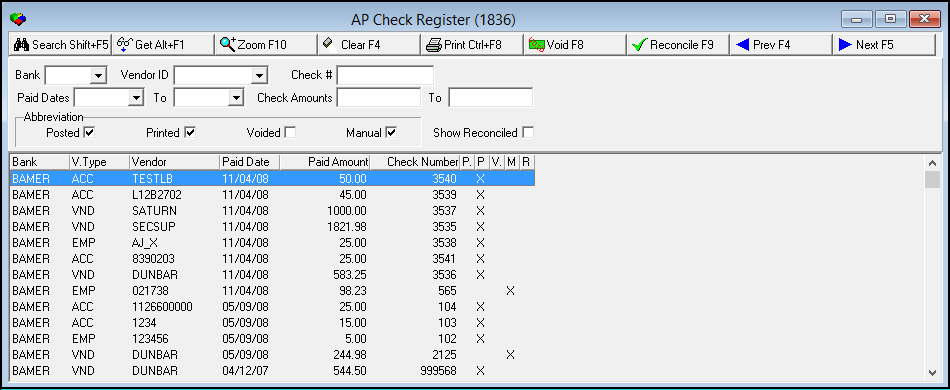
The following graphic shows the Check Register with information displayed.
Field Descriptions
The following table describes the fields used in the search parameters pane of the Check Register.
Field |
Description |
Bank |
You may search for checks by bank. (This menu originates from program #1736.) |
Vendor ID |
You may search for check by vendor ID. (This menu originates from program #1758.) |
Check # |
You may search for a specific check number. |
Paid Dates |
|
Date
- From |
You may search for checks within a range of pay dates; select the beginning pay date of the range. |
Date
- To |
You may search for checks within a range of pay dates; select the ending pay date of the range. |
Check Amounts |
|
Amount
- From |
You may search for checks that have a range of dollar amounts; type the beginning dollar amount of the range. |
Amount
- To |
You may search for checks that have a range of dollar amounts; type the ending dollar amount of the range. |
Status: |
|
Posted |
Enter a check mark in this box to include in the search all checks with a status of Posted. |
Printed |
Enter a check mark in this box to include in the search all checks that have been printed. |
Voided |
Enter check mark in this box to include in the search all checks that have been voided. |
Manual |
Enter a check mark in this box to include in the search all checks that have been entered manually. |
Show Reconciled |
Enter a check mark in this box to include in the search all reconciled checks. |
Column Descriptions
The following table describes the columns used in the results pane of the Check Register.
Column |
Description |
Bank |
Identifies the bank associated with the selected check. |
Vendor Type |
Identifies the type of vendor associated with the selected check. |
Vendor |
Identifies the vendor associated with the selected check. |
Paid Date |
The date the selected check was paid. |
Paid Amount |
The amount of the selected check. |
Check Number |
The number of the selected check. |
Posted |
If this column displays an X, the selected check has posted. |
Printed |
If this column displays an X, the selected check has been printed. |
Voided |
If this column displays an X, the selected check has been voided. |
Manual |
If this column displays an X, the selected check has been entered manually. |
Reconciled |
If this column displays an X, the selected check has been reconciled. |
Searching for Checks
Use the following steps to search for checks:
1. In AP Check Register, select your search parameters.
2. Choose Search.
w SBN displays the search results in the lower pane of the window.
Using Common Functions
See the reference document Common Functions in SBN for more information.
Zooming into the Sublevel
The sublevel of the AP Check Register window contains three tabs that display additional information about each check:
The Check Details Tab
The Vouchers Tab
The AP Closed Voucher Details Tab
The Check Details Tab
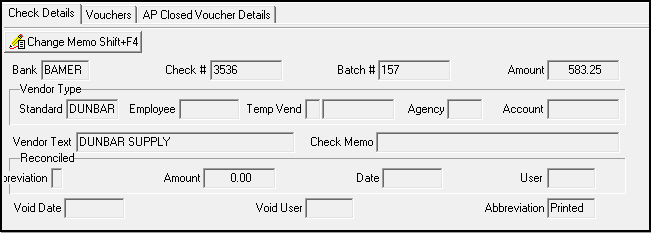
Use the Check Details tab to view specific information on the selected check. You can change or add a check memo from this tab.
The following graphic shows the Check Details tab with information displayed.
Field Descriptions - Check Details
The following table describes the fields used in the Check Details tab.
Field |
Description |
Bank |
ID of the bank on which the check was drawn. |
Check # |
Check number. |
Batch # |
The number of the batch that contained this check. |
Amount |
Total dollar amount of the check. |
Standard |
Standard vendor ID, if the check is issued to a vendor. |
Employee |
Employee ID, if the check is issued to an employee. |
Temp Vend |
Flag to identify the vendor as Temporary. and SBN-assigned ID for that vendor. |
Temp Vendor
ID |
SBN-assigned ID for the temporary vendor. |
Agency |
Agency ID, if the check is issued to an agency. |
Account |
Billing account number, if the check is issued to a customer. |
Vendor Text |
Name in which the check was issued. |
Check Memo |
Text information about the check. |
Reconciled |
|
Abbreviation |
Code that indicates if the check was reconciled: l X - the amount reconciled was the same as the amount issued l + - the amount reconciled was greater than the amount issued l - - the amount reconciled was less than the amount issued |
Amount |
Amount reported by the bank on the statement. |
Date |
Date check was reconciled. |
User |
ID of the user who reconciled this check. |
Void Date |
Date the check was voided. |
Void User |
ID of the user who voided the check. |
Abbreviation |
Current status of the check. |
Changing the Check Memo
In this tab you may only change text in the Check Memo field. Choose Change Check Memo to open this field for changes.
The Vouchers Tab
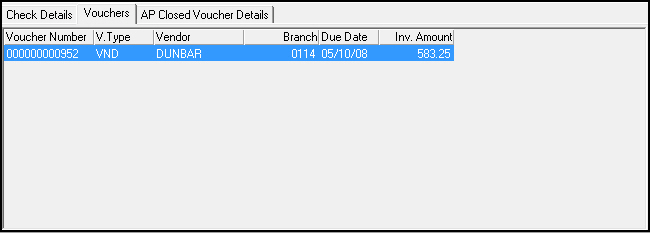
Use the Vouchers tab to view any vouchers attached to the check. If the tab displays multiple vouchers, you can double-click the lines for which you want to view details and then select the AP Closed Voucher Details tab. The following graphic shows the Vouchers tab with information displayed.
Column Descriptions - Vouchers
The following table describes the columns used in the Vouchers tab.
Column |
Description |
Voucher Number |
SBN-assigned voucher number created in AP Open Vouchers (program #1837). |
Vendor Type |
Vendor type for this check. Types can be displayed as l VND - vendor l EMP - employee l TMP - temporary vendor l ACC - billing account l AGN - agency |
Vendor |
Vendor ID. Can be l Standard Vendor ID l Temporary Vendor ID l Customer ID l Employee ID l Agency ID |
Branch |
Branch charged with the expense. |
Due Date |
Date the voucher was due. |
Invoice Amount |
Total amount of the voucher. |
The AP Closed Voucher Details Tab
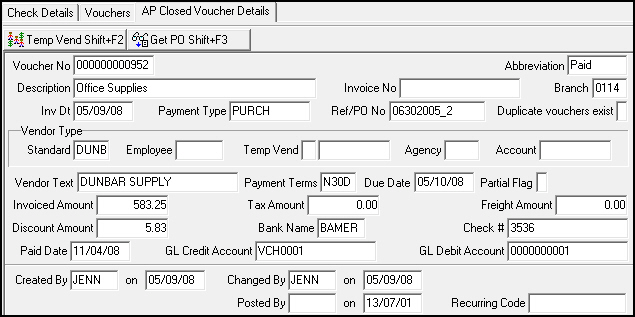
The AP Closed Voucher Details tab displays all information from the voucher used to create the check. The following graphic shows the AP Closed Voucher Details tab with information displayed.
Field Descriptions - AP Closed Voucher Details
The following table describes the fields used in the AP Closed Voucher Details tab.
Field |
Description |
Voucher Number |
SBN-assigned number for the selected voucher. |
Abbreviation |
Current status of the selected voucher. |
Description |
Text description of the selected voucher. |
Invoice No. |
Vendor invoice number for the selected voucher. |
Branch |
Branch responsible for the expense of the selected voucher. |
Inv Date |
Invoice date of the vendor invoice attached to the selected voucher. |
Payment Type |
Payment type used for this voucher. |
Ref/PO No |
The reference or purchase order number attached to the selected voucher. |
Duplicate Vouchers Exist |
An X indicates that is another voucher for the same reference or purchase order number. |
Standard |
Vendor number for a standard vendor, if a standard vendor is attached to the voucher. |
Employee |
Employee number for the voucher if an employee is attached to the voucher. |
Temp Vend |
SBN-assigned temporary vendor number if a temporary vendor is attached to the voucher. |
Agency |
Agency number for the voucher if attached to the voucher. |
Account |
Customer billing account number if attached to the voucher. |
Vendor Text |
Name of the selected vendor. |
Payment Terms |
Payment terms for the selected voucher. |
Due Date |
Date the voucher is due. |
Partial Flag |
A check mark indicates that the selected voucher only covers a portion of the total amount due. |
Invoiced Amount |
Amount invoiced on the vendor invoice. |
Tax Amount |
Tax amount from the vendor invoice. |
Freight Amount |
Freight amount from the vendor invoice. |
Discount Amount |
Discount taken on the selected invoice, if applicable. |
Bank Name |
Bank ID for the bank where the voucher was paid from. |
Check # |
Check number that paid the selected voucher. |
Paid Date |
Date of the check that paid the selected voucher. |
GL Credit Account |
GL credit account number for the selected voucher, if applicable. |
GL Debit Account |
GL debit account number for the selected voucher, if applicable. |
Created BY |
ID of the user who created the AP voucher. |
on |
Date the voucher was created. |
Changed By |
ID of the user who last changed the AP voucher. |
on |
Date the voucher was last changed. |
Posted By |
ID of the user who posted the AP voucher. |
on |
Date the voucher was posted. |
Recurring Code |
Recurring code used to create the voucher, if applicable. |
Jumping to the Purchase Order
From this tab you can jump to the associated purchase order. Choose Get Purchase Order.
Accessing AP Print Checks
From this program you may choose Print to access AP Print Checks (report #2111) to print a selected check or a range of checks. When you choose Print, the AP Print Checks report defaults with the selected check information.
Voiding Checks
Use the following steps to void a check:
1. In AP Check Register, search for checks.
2. From the search results, select the check you want to void.
3. Choose Void Check.
w SBN asks you to confirm that you want to void the check.
4. Choose Yes.
Reconciling Checks
You can reconcile checks with the bank statement from the AP Check Register.
Use the following steps to reconcile checks:
1. In AP Check Register, search for checks.
2. From the search results, select the check you want to reconcile.
3. Choose Reconcile Check.
w The Reconcile Check dialog box opens.
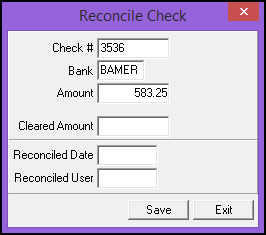
4. Type the amount cleared on the statement, and choose Save.
w SBN enters the date and user ID.
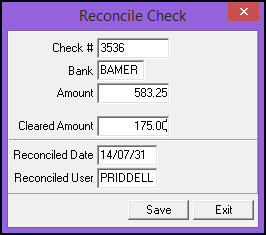
5. Choose Save.
Button Functions
The following table displays the buttons, describes the shortcut keys, actions, and functionality.
Button |
Name |
Shortcut Key |
Action |
Description |
|
Search |
shift+f5 |
1836/ 2 |
Search for checks. |
|
Get Record |
alt+f1 |
1836/ 1 |
View details of selected record. |
|
Zoom in/out of sublevel |
f10 |
1836/10 |
Access Check Details, Vouchers, and AP Closed Voucher Details tabs. |
|
Clear Search Screen |
f4 |
1836/ 3 |
Clear search screen. |
|
Print Check |
ctrl+f8 |
1836/ 4 |
Access AP Print Checks (report #2111) to print a selected check or a range of checks. |
|
Void Check |
f8 |
1836/ 5 |
Void a check. |
|
Reconcile Check |
f9 |
1836/ 6 |
Reconcile checks with bank statement. |
|
Previous Record |
f4 |
Go to previous record. |
|
|
Next Record |
f5 |
Go to next record. |
|
|
Change Check Memo |
shift+f4 |
1836/12 |
Change check memo. |
|
Temporary Vendor |
shift+f2 |
1836/30 |
View temporary vendor information. |
|
Get Purchase Order |
shift+f3 |
1836/31 |
Jump to associated purchase order. |












Modifications and Updates to AP Check Register
The following table lists modifications and updates to the AP Check Register document.
Mod Number |
Date |
Description |
n/a |
7/31/14 |
Images updated. |