Service Manager
Applies to v95 and earlier. The current line (versions 1.x) replaced Service Manager with the browser-based SBN Services Dashboard — see From Service Manager to the Dashboard.
The SBN Services install from a downloaded package and run in the background on the host. On Windows they run as Windows services; the current .NET 8 releases also run on Linux as systemd services. Once installed, you manage the services either from the web-based SBN Services Dashboard in a browser, or, on Windows, from the desktop Service Manager described on this page.
The SBN Services Dashboard is the browser-based console: it lists every service with its live state and lets you install, start, stop, and uninstall each one, edit a service's settings, watch its log live, download its log files, and create additional numbered instances. Because it runs in a browser it works from any machine that can reach the host, on Windows or Linux.
Prerequisites
Before installing the SBN Services, make sure the host machine meets the following requirements:
- .NET runtime - the correct runtime must be installed for your release:
- SBN Services v95 and earlier require the Microsoft .NET Framework 4.8 runtime (included with modern Windows).
- SBN Services v96 and later require the .NET 8 runtime -- the ASP.NET Core 8 Runtime, which includes the base .NET 8 runtime the services need. The .NET 8 Desktop Runtime is not required. See .NET 8 Runtime Dependencies for the exact runtimes and official download links.
- This page covers the v95-and-earlier line, which uses the .NET Framework 4.8 runtime. Install the runtime that matches the release of the services you downloaded.
- SBN data server connectivity - a reachable SBN data server, along with the matching SBN client/connectivity software, must be available from the host so the services can connect.
- Crystal Reports runtime (Report and Email Reports services only) - the Reports and Email Reports services additionally require the Crystal Reports runtime. See Crystal Reports Runtime for installation details.
Download and Extract
- Log into the Innovative Support site.
- In the Downloads section, navigate to /Releases/SBN_Services.
- Download the latest full build (ending in 0001) of the services that matches your release.
- Extract the downloaded .zip file into a new folder.
The SBN Service Manager allows you full control over each SBN Service.
Navigate to the directory where the SBN Services were installed and double-click file SBNServicesManager.exe to start the Service Manager.
Note: You may want to make a shortcut of this file on your desktop or Windows Start Menu.
The following graphic shows the Service Manager Console. The groups shown below may look different from your installation.
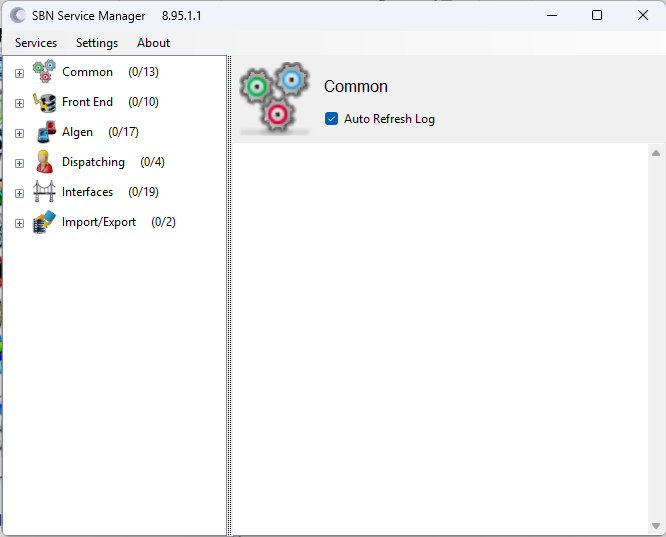
The left pane lists all the services available. The text to the right of each service icon indicates the current state of the service.
Which Services to Install
You do not install every service - install only the services this site actually needs. The Service Manager groups the available services by category (for example, Common, Dispatching, Interfaces, Cameras). Each service has its own help page describing its purpose and its properties. Install and configure each required service individually from the Service Manager as described below.
SBN Service Manager Field Descriptions
The following table describes the buttons/fields on the main page of SBN Service Manager.
Field | Description |
Services | Stop All Running Services or Start All Stopped Services. |
Settings | Open Setting Folder. |
About | Show Versions (of all services) This information displays in the main screen. |
Auto Refresh Log | When checked, automatically refreshes the log of the selected service. |
Service States
A service may be in one of four states:
- Uninstalled - There is no service state to the right of the service name. When a service is uninstalled it may only be installed.
- Installed - When a service is installed you will see status of either Stopped or Running.
- Stopped - A stopped service implicitly identifies that a service is installed but not running. The text Stopped is displayed to the right of the service name. When a service is stopped it may be started or uninstalled.
- Running - A running service implicitly identifies that a service is installed. The text Running is displayed to the right of the service name. When a service is running it may only be stopped.
The currently selected service appears in the upper pane. This text updates automatically to reflect the current status and displays the version of the specific service. The Service Manager does not need to be the same version as the services, nor do all services need to be the same version.
Changing the Status of a Service
To change a service status, right-click on the service you want to change, and select the desired status from the drop-down menu.
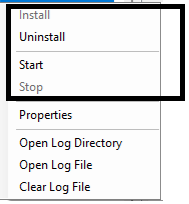
When a service status is changed, the text to the right of the service icon automatically updates.
Installing a Service
When you install a service, the Service Manager prompts you to enter credentials. Leave the credentials blank and the Local System account will be used to run the service.
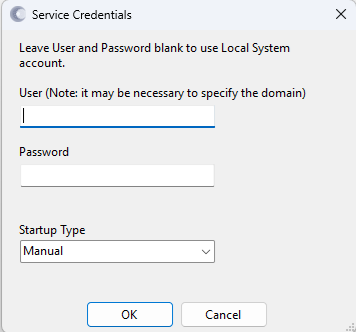
Verifying a Service
After you install a service and start it, confirm it is healthy before moving on:
- In the Service Manager, verify the service shows Running to the right of its name.
- Select the service and click Open Log Folder, then review the current log file for a clean start with no startup errors.
If the service does not reach Running, or the log shows connection or startup errors, recheck the prerequisites above (runtime version, data server connectivity, and - for Report/Email Reports - the Crystal Reports runtime) and the service's properties.
Service Logs
The Auto Refresh Log check box at the top of the right pane controls whether or not the log file associated with the currently selected service is automatically loaded in the right pane. The value in the Refresh (In Seconds) field controls how often to automatically refresh the log file. This is only active if the Auto Refresh Log check box is selected.
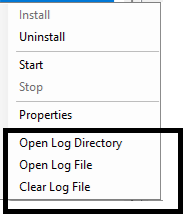
You can click the Open Log Folder button to view all the log files for all services. When you select a service, the Service Manager displays only the 200 most recent log files. While log files are stored indefinitely, you can only view the current day's log file. You can clear the current log file (usually only done in debugging situations) by right-clicking on a specific service and selecting Clear Log from the drop-down menu. The Service Manager produces a new log text file in the SBN Services log folder when there is activity on the service after midnight each day.
Service Properties
You can update the properties for any service listed in the Service Manager by right-clicking on the specific service and clicking Properties in the drop-down menu.
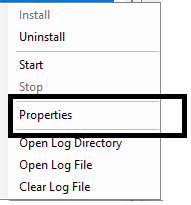
There are a common set of properties used in most services (for example, a data server connection). Refer to Common Properties for these common settings.
Service-specific settings are detailed in each service help page.
Setting File Location
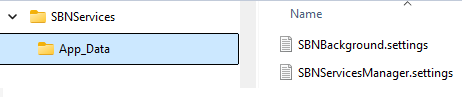
Each service is accompanied by a settings file in subdirectory App_Data. Settings files are in JSON format with encrypted values.