
Notify Account
Notify Account
Notify Account
Module: Account Management
Overview
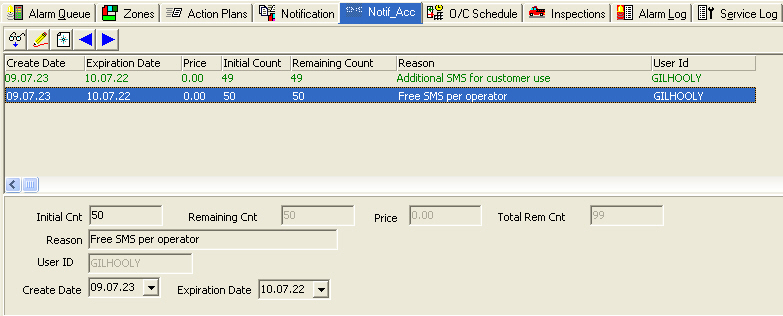
The Notify Account tab allows an operator to add free SMS to any installation. The total number of SMS entered by the operator expires one year from the entry date. If a user enters more than one record, all of the non-expired entries represent the total number of available SMS for the installation.
Option sdi002 must be on to use this feature. If this option is off when actions are complied, the actions that control this tab are not available in Action Profiles (program #1502).
Note: This feature is currently for Company 120.
This document covers the following topics:
Navigating to Notify Account
Use the following steps to navigate to the Action Plans tab:
1. From the main SBN toolbar, select Menu.
2. From the drop-down menu, select Go To.
3. In the Go To Program dialog box, type in "559" and press Enter.
w Data Entry Master and Basics opens.
4. Choose the Notify Account tab in the lower pane of Data Entry.
The Notify Account Tab
The following graphic shows the Notify Account tab with SMS entries displayed.
Field/Column Descriptions
The following table describes the fields and columns used in the Notify Account tab.
Field/Column |
Description |
Initial Count |
The number of free SMS the operator initially assigned to the installation for the selected entry. |
Remaining Count |
The remaining number of SMS on the installation for the selected entry. |
Price |
Price per SMS, if any, customer is charged. |
Total Remaining Count |
Total remaining number of SMS for the installation. This number includes the Remaining Count for all entries. |
Reason |
Reason operator assigned free SMS to the installation. |
User ID |
ID of the user who entered the SMS entry. This field is read-only. |
Create Date |
Date the user entered the SMS entry for the installation. This field is read-only. |
Expiration Date |
Date the free SMS expire. This field defaults to one year after the operator created the entry. |
Viewing SMS Entries
You can view the details of an SMS entry in the fields in the bottom pane.
Use the following steps to view the details of an entry:
1. Select the entry for which you want to view details.
2. Double-click your selection or choose Get.
w The fields in the bottom pane display the details of the selected entry.
Adding SMS Entries
Use the following steps to add a new entry:
1. Choose New.
w The fields in the bottom pane open for changes.
2. Complete the Initial Count and Reason fields. Complete the remaining fields, as desired.
3. Choose Save.
w SBN adds the entry to the list of defined SMS entries.
Changing SMS Entries
Use the following steps to change the details of an entry:
1. Select the entry you want to change.
2. Choose Change.
w The fields that can be changed open for changes in the bottom pane.
3. Enter changes, as needed.
4. Choose Save.
Related Programs
The following table lists programs related to the Notify Account tab.
Program |
Number |
Document Link |
Description |
Data Entry Master and Basics |
559 |
The program from which you can access the Notify Account tab. |
|
Button Functions
The following table displays the buttons, describes the shortcut keys, actions, and functionality.
Button |
Name |
Shortcut Key |
Action |
Description |
|
Get Record |
alt+F1 |
559/671 |
View the details of the SMS entry. |
|
Change Record |
F2 |
559/672 |
Change the SMS entry. |
|
New Record |
F3 |
559/673 |
Create a new SMS entry. |
|
Previous Record |
F4 |
559/674 |
Select last record. |
|
Next Record |
F5 |
559/675 |
Select next record. |
|
Exit |
Esc |
559 |
Exit without saving. |
|
Save |
Enter |
559 |
Save existing record. |







Modifications and Updates to Notify Account
The following table lists modifications and updates to the Notify Account document.
Mod Number |
Date |
Description |
n/a |
07/23/09 |
Document created |