
_Getting Started_
First time using ElasticSearch
Overview
This document covers the SBN to ElasticSearch integration. This enhancement allows for faster searches through SBN installation data.
This enhancement assumes ElasticSearch is already installed in your environment. Innovative247 does not assume any responsibility for, or support, your ElasticSearch environment.
This first part of this document, ‘Install ElasticSerach’ are notes taken as we installed ElasticSearch in order to fulfill this enhancement, and is provided only as a reference.
Prerequisites
APIEngine 08.93.0005.0005+
SBNServices 08.93.0004.0005+
SBN.exe 08.93.0003.0001+
ElasticSearch 08.15.1+
Install ElasticSearch
https://www.elastic.co/downloads/elasticsearch
Extract file
Memory Management
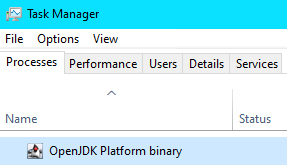
By default ElasticSearch will use as much memory as possible. You can track this by looking for OpenJDK Platform binary in the Windows Task Manager.
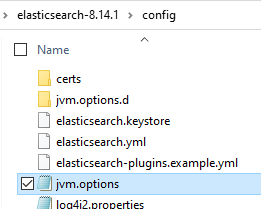
Refer to instructions within file jvm.options.
In short, at the time of writing this document, you can override the memory usage by placing a file called ‘heap.options’ in subdirectory ./jvm.options.d
This example shows the memory being restricted to 200megs.
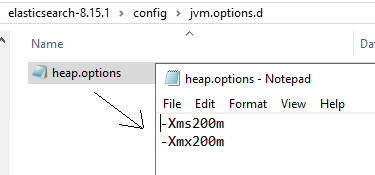
Here is the file contents in text so you can copy/paste:
-Xms200m
-Xmx200m
Save Elastic Credentials
Open Powershell
Move into the .\elasticsearch folder
Run bin\elasticsearch.bat
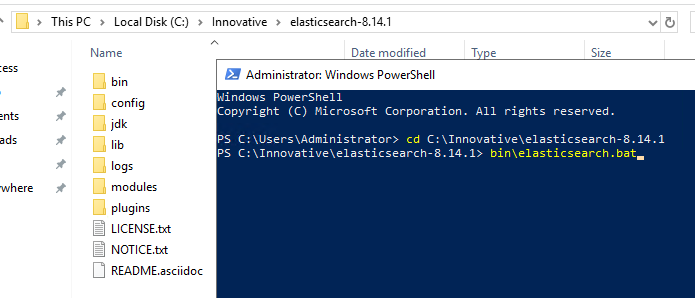
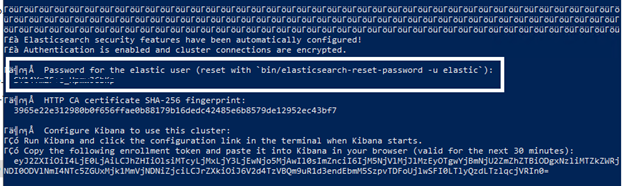
The installation process will automatically assign a password for user ‘elastic’. Be sure to capture this password! You will need these credentials to create an API Key.
Testing
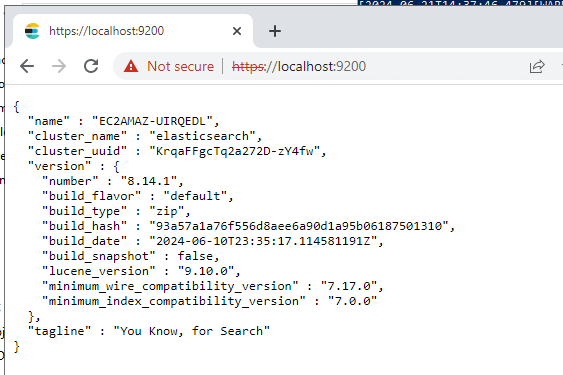
Test locally with https://localhost:9200
Use credentials for user elastic.
Run as a Service
Now that you know Elasticsearch works you should run it as a Windows service.
NOTE: If you are running ElasticSearch in PowerShell then stop that process.
To install Elasticsearch as a Windows service:
Open a new PowerShell window as an administrator.
Navigate to your Elasticsearch installation directory.
Run the following command to install Elasticsearch as a service:
.\bin\elasticsearch-service.bat install
Start this service:
.\bin\elasticsearch-service.bat start
You can also use the following commands in a PowerShell window to start and stop the service:
net stop elasticsearch-service-x64
net start elasticsearch-service-x64
Generate ElasticSearch API Key
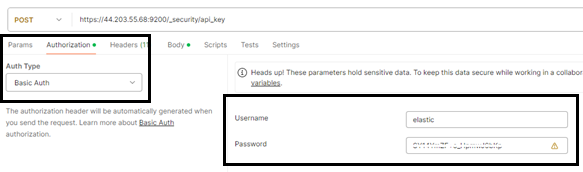
You need to generate an API key to access your index. You can use whatever tool you like.
Postman
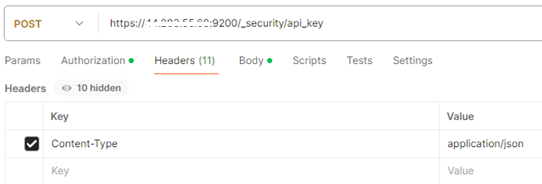
Here is what the call looks like in Postman.
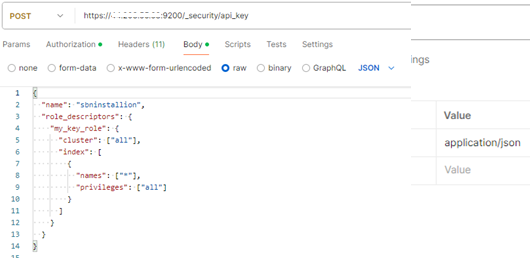
Here is the body of the call as text so you can copy/paste
{
"name": "sbninstallion",
"role_descriptors": {
"my_key_role": {
"cluster": ["all"],
"index": [
{
"names": ["*"],
"privileges": ["all"]
}
]
}
}
}
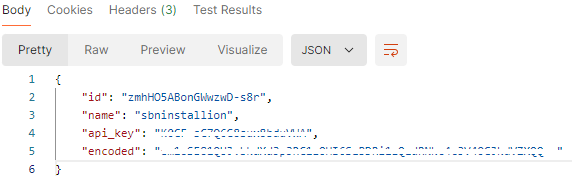
Result is the following. You want the encoded value.
PowerShell Script
The following is a PowerShell script to generate the API Key. This is provided as-is and may or may not work within your environment. This is not supported by Innovative247, so please do not open an SR regarding this script.
Replace the values of $ElasticSearchUrl, $Username, and $Password with your actual Elasticsearch URL, username, and password.
# Set your Elasticsearch details
$ElasticSearchUrl = "http://localhost:9200" # Change to your actual Elasticsearch URL
$Username = "your-username"
$Password = "your-password"
# API request endpoint
$Url = "$ElasticSearchUrl/_security/api_key"
# Authentication header (Basic Auth)
$authInfo = [Convert]::ToBase64String([Text.Encoding]::ASCII.GetBytes("$Username:$Password"))
$headers = @{
Authorization = "Basic $authInfo"
}
# API key request body (optional, adjust expiration and role if needed)
$body = @{
name = "my_api_key"
expiration = "1d" # API key expiration (optional)
}.ConvertTo-Json
# Send the request to generate an API key
$response = Invoke-RestMethod -Uri $Url -Method Post -Headers $headers -Body $body -ContentType "application/json"
# Output the result (API key and ID)
$response
SBN Integration
Options

es_srch
This is a static on/off option. When off the SBN ElasticSearch feature does not appear in 559’s Search, nor will the associated Windows Service run. There are many triggers and procedures that need to be recompiled when this option is changed.
es_url - URL
This is the ElasticSearch URL you tested in a previous section. This can be the same URL for multiple environments (as long as each environment uses a different index name).
es_key1 - API Key
This is the encrypted key you generated in a previous section. As with the URL, this can be shared across many indexes.
es_ind1 - Index
You need to pick an index name. You can use one install of ElasticSearch to host many indexes, so it is best you pick a name that suits the purpose (Development, Staging, Production, etc.). The default is ‘sbninstallation’, but you may want something like ‘sbninstallation-dev’, or ‘sbninstallation-prod’.
This document calls the index sbninstallation. You will need to plug your index name into an SBN option later in this document.
The URL plus the Index makes this unique for each SBN environment.
APIEngine
APIEngine is the middleware between all SBN endpoints and ElasticSearch.
Refresh Options
APIEngine uses the SBN options specified earlier in this document, therefore it is essential that APIEngine refreshes it’s cached options. The best way to refresh options is to run Diagnostics from the APIEngine URL.

Routes
All routes require a valid User-Token.
Index Create
NOTE: Do not use this route. Let the Windows Service create the index.
PUT: /api/v1/search/sbn/installation/index
{
"settings": {
"number_of_shards": 1,
"number_of_replicas": 1
},
"mappings": {
"properties": {
"InstallationNumber": {
"type": "text",
"index": false
},
"Description": {
"type": "text",
"index": false
},
"DealId": {
"type": "keyword",
"copy_to": "All"
},
"Installation": {
"type": "wildcard",
"copy_to": "All"
},
"Contact": {
"type": "wildcard",
"copy_to": "All"
},
"Alarmid": {
"type": "wildcard",
"copy_to": "All"
},
"Workorder": {
"type": "wildcard",
"copy_to": "All"
},
"Serviceticket": {
"type": "wildcard",
"copy_to": "All"
},
"All": {
"type": "wildcard"
}
}
}
}
Index Drop
DELETE: /api/v1/search/sbn/installation/index
Index View
GET: /api/v1/search/sbn/installation/index
Index Count Documents
GET: /api/v1/sbn/search/count
Search 1
GET: /api/v1/sbn/search?maxRows=50&all=jaketest
SBN Windows Service
Use Windows Service ‘Search Index’ to:
Create the specified index
Build the index after it is created
Periodically check for installations to update within the index
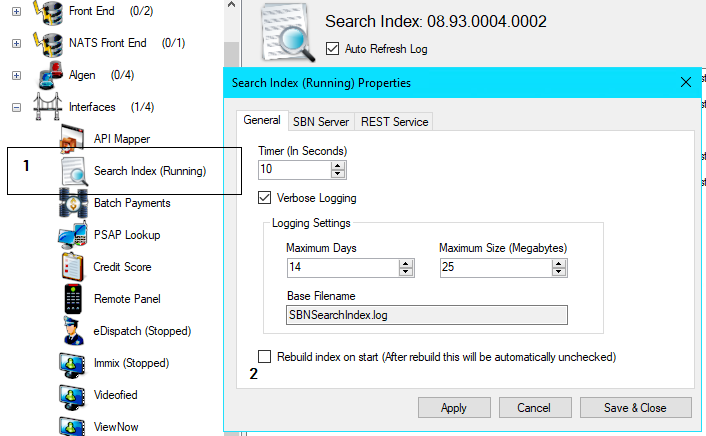
NOTE: If you check the checkbox at the bottom of the General tab, then restart the service, the entire index will be rebuilt. After the index is rebuilt this checkbox will be automatically unchecked.
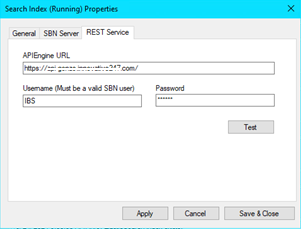
Searching in SBN
Navigate to the Search screen in 559, then cilck tab ‘Elastic Search’.
Search with each keyword separated by a space.
Double-click a row to load the associated installation in 559.
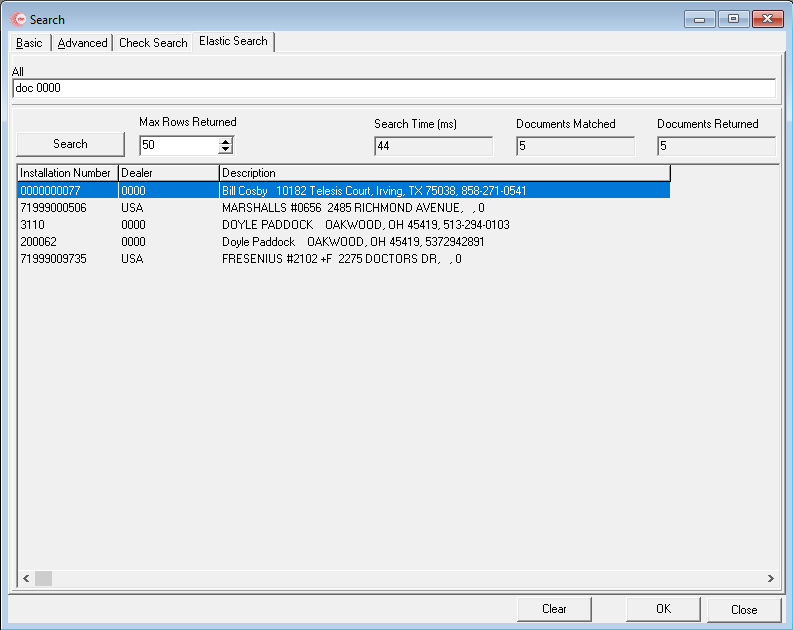
At the time of writing this document you may search on the following:
Installation
External Number
Dealer & Sub Dealer
Monitoring Status
Address
Mailing Address
Phone Numbers
Subscriber Type Code
CID
External Number
Panel Type
Address
Phone 1, 2, 3
Action Plans
Action Plan Contacts
Action Plan Agency (including full address)
Work Order Number
Service Ticket Number
Troubleshooting
IIS Issue with PUT & DELETE
When running the Windows Service be on the lookout for the following errors.
9/25/2024 11:18:38 AM: Info: ElasticSearch index is missing...building index.
9/25/2024 11:18:38 AM: Info: PUT: https://api.sbncloud.com/api/v1/search/sbn/installation/index
9/25/2024 11:18:38 AM: Err: The remote server returned an error: (405) Method Not Allowed.
System: at System.Net.HttpWebRequest.GetResponse()
at Ibs.ApiEngineWrapper.MakeRequest[T](String UrlPostfix, JsonCallType CallType, Object RequestPackage)
9/25/2024 11:18:38 AM: Err: The remote server returned an error: (405) Method Not Allowed.
System: at System.Net.HttpWebRequest.GetResponse()
at Ibs.ApiEngineWrapper.MakeRequest[T](String UrlPostfix, JsonCallType CallType, Object RequestPackage)
at SBNSearchIndex.svcSBNSearchIndex.<ProcessMain>d__13.MoveNext()
This is not an issue within either the Windows Service or APIEngine. This is an issue with your IIS configuration. We found the issue to always be with IIS module WebDEV. The solution, for us, is to completely remove WebDEV.
Options
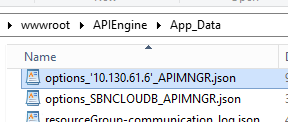
When running APIEngine with SmartSBN = ON you may run into issues with the options file updating. Of the Options file does not contain the ElasticSearch URL, Index, and API Key then all ElasticSearch calls will fail with ‘Unauthorized’.
To fix the issue navigate to the App_data folder of APIEngine and delete the options files. Then rerun the APIEngine Diagnostics.
Unauthorized when creating the index
If the Search Index Service log shows the following sequence:
PUT: <APIEngine URL>/api/v1/search/sbn/installation/index
Failed to create index. Status code: Unauthorized
Failed to create index and it doesn’t exist. Stopping service.
Most common cause: APIEngine and SBNServices on mismatched releases
The route shape and authorization handling for the ElasticSearch endpoints under /api/v1/search/… has changed across SBN releases. When the Search Index Service (part of SBNServices) is built for a newer release but the APIEngine it calls has not been upgraded to the matching release, the call lands on an older route handler that no longer accepts the request the same way — and the failure surfaces as Unauthorized rather than as a clean version-mismatch error.
A frequent symptom is “ElasticSearch worked for several hours after install, then suddenly stopped”. That pattern matches APIEngine recycling under IIS and re-loading its options against a database that was just upgraded to a newer schema, while APIEngine itself is still on the old release.
Compare the three version numbers first:
- SBNServices — Service Manager → Search Index → File Version shown at the top of the service log.
- APIEngine — browse to <APIEngine URL>/api/diagnostic/version (or open the APIEngine root page).
- SBN.exe — Help → About in SBN.
All three should be at or above the prerequisites listed at the top of this page, and all three should belong to the same major release (for example all on 08.95.x — not 08.95.x SBNServices mixed with 08.93.x APIEngine).
Fix: upgrade APIEngine so its release matches SBNServices, then restart the Search Index Service. A successful start logs Index created successfully. followed by Rebuilding all ElasticSearch index documents.
If APIEngine and SBNServices versions already match
If you have verified all three components are on the same release and you still see Status code: Unauthorized, then ElasticSearch itself is rejecting the API Key currently in SBN option es_key1. This can happen when:
- The key was generated with an expiration field and the expiration has elapsed.
- The key was rotated or revoked on the ElasticSearch side.
- The key was never written into es_key1, or has been blanked out.
- The key was generated for a role that does not have permission to create indices.
Deleting the APIEngine options.settings file alone will not resolve this, because the key is reloaded from the database where it remains stale.
Run the following checks from the APIEngine machine so the network path matches the failing call. Each step pinpoints which sub-cause you are facing.
1. Confirm the values SBN is using. Run this on the SBN database:
select option_id, value from co_options
where option_id in ('es_srch','es_url','es_key1','es_ind1');
es_srch should be X (on). es_url should end with a trailing slash. es_key1 and es_ind1 should both be non-empty. If es_key1 is empty, skip directly to Fix below.
2. Confirm ElasticSearch is reachable.
curl -k <es_url>
You should receive a 200 response with JSON containing cluster_name and version. If you get a timeout or connection refused, ElasticSearch is down or es_url is wrong — no other step will succeed until that is corrected.
3. Confirm the API Key authenticates. This is the definitive test for the “Unauthorized” symptom when versions are aligned.
curl -k -H "Authorization: ApiKey <paste-es_key1-value>" <es_url>_security/_authenticate
A 200 response with JSON showing a username means the key is valid. A 401 response confirms the key is invalid, expired, or revoked — proceed to Fix.
4. Confirm the API Key has permission to create the index. Only run this if step 3 returned 200.
curl -k -X PUT -H "Authorization: ApiKey <paste-es_key1-value>" -H "Content-Type: application/json" <es_url><es_ind1-value>_probe -d "{}"
Then clean up:
curl -k -X DELETE -H "Authorization: ApiKey <paste-es_key1-value>" <es_url><es_ind1-value>_probe
If both return 200, the key has the correct privileges and the failure lies elsewhere — open an SR with the full Search Index Service log. If you get a 401 or 403 here while step 3 succeeded, the key authenticates but lacks the necessary index privileges; regenerate it using the role descriptor shown in Generate ElasticSearch API Key above.
Fix
When step 1, 3, or 4 indicates the key itself is the problem:
- Generate a new API Key using one of the methods in Generate ElasticSearch API Key above. Do not include an expiration field in the request body, or your key will go stale again. The supplied PowerShell sample sets expiration = "1d" as an example only — remove that line for a non-expiring key.
- Paste the new encoded value into SBN option es_key1.
- Delete options.settings from App_Data on both the APIEngine box and the Search Index Service box.
- Restart the Search Index Service.