
Add User Wizard
Add User Wizard
Add User Wizard
Module: System Administration
Overview
This is a new program. This is a new procedure.
Add User Login (program #1844) simplifies adding new logins to the SBN user table in Personnel (program #1811). To access this program, select Add User Wizard (program #1844) from the SBN main menu.
The Add User Login Window
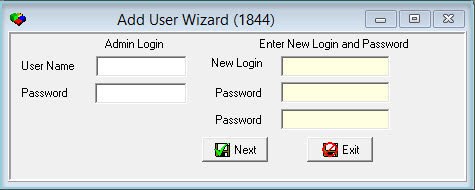
The following graphic displays the Add User Login window.
Field Descriptions
The following table describes the fields in the Add User Login pane.
Field |
Description |
User Name |
User name for the system administrator. |
Password |
The system administrator's password. |
New Login |
User name for the new user login. User IDs in SBN are limited to 8 characters. |
Password |
Type the new user's new password. |
Password |
Retype the new user's password. |
The following table describes the fields in the Enter Personnel Information pane.
Field |
Description |
New Login |
The new user's login name. |
Action |
The new user's action profile. |
Branch |
Branch ID code to identify the branch throughout SBN. |
Emp ID |
The new user's employee ID number. |
Dealer |
The new user's assigned dealer. |
Misc |
The new user's miscellaneous user profile, if required. |
Name |
The new user's first name, middle initial,. and last name. |
User Defined Role Set Up
A System Administrator can assign a user the "User Defined Role". This role will allow a user the right to add a New Login and Password for an employees without the assigned user needing to enter a User Name and Password in the Admin Login field. The Systems Administrator would need to assign a user the ISSO - User Define Role in Sybase. The System Administrator can contact IBS for role set up requirements.
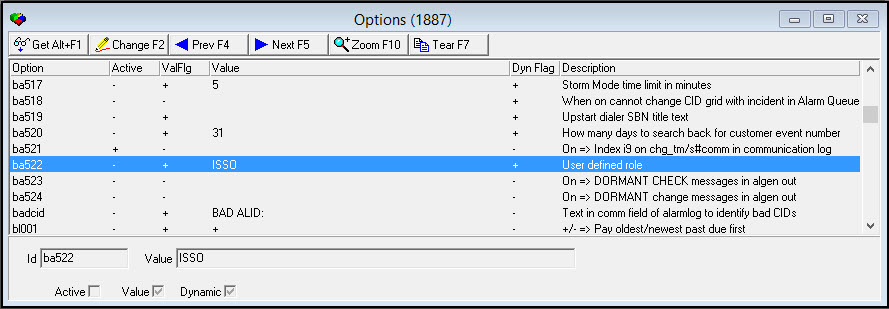
In Options (Program #1887), option ba522 (User defined role), the name in the Value field must match the user assigned role name. If the Value field is left blank the User Define Rule functionality will not work.
The graphic below displays Options (Program #1887) screen with option ba522 and the Value field.
Adding a User Login
System Administrators can use this program to add new users to the SBN user's table in Personnel.
Use the following steps to add a user login:
In Add User Wizard (program #1844), complete the following fields in Admin Login
In User Name - type the your user name, or the user name of the database administrator.
In Password - type the password provided by your database administrator.
Note: The user name and password are those for the SQL database, not for SBN. If you are not given Admin privileges by your database administrator, your user name and password will not allow access.
Note: If a System Administrator sets up a user with the User Defined Role, then the assigned user can leave the Admin Login field blank. If the role is not assigned follow step 1.
Use the following steps to Enter a New Login and Password:
In User Name - type the user name of the new user.
In Password - type the password you provide to the new user. This password must be at least six digits long.
In Password - re-type the password you provide to the new user.
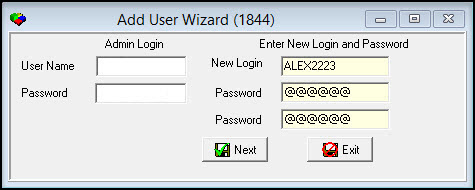
Click Next - the "Do you need to add this login to an existing Personnel ID?" screen displays.
Check the Existing Personnel ID box, if you want to link the new login ID to an existing employee ID.
Check New Personnel ID to set up a new personnel ID (See step 7).
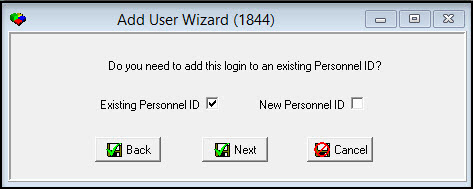
Click Next, the Enter Personnel Information screen displays.
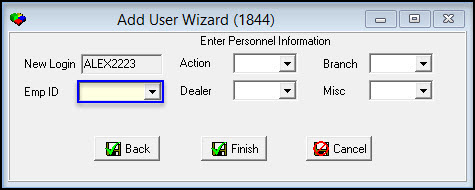
Click the Emp ID drop down and select an exiting login ID.
Enter any additional information or click Finish to complete.
The "Process Complete. Please choose next action" screen displays.
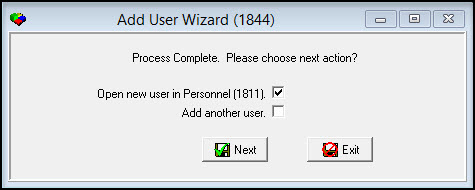
Check "Open new in Personnel (1811)" or "Add another user" box.
If the user checks "Open new user in Personnel" and then clicks Next
The "Personnel (1811)" screen displays to enter personnel information.(See Personnel Program #1811 for field descriptions)
If the user checks ":Add another user" SBN will return to Step 1.
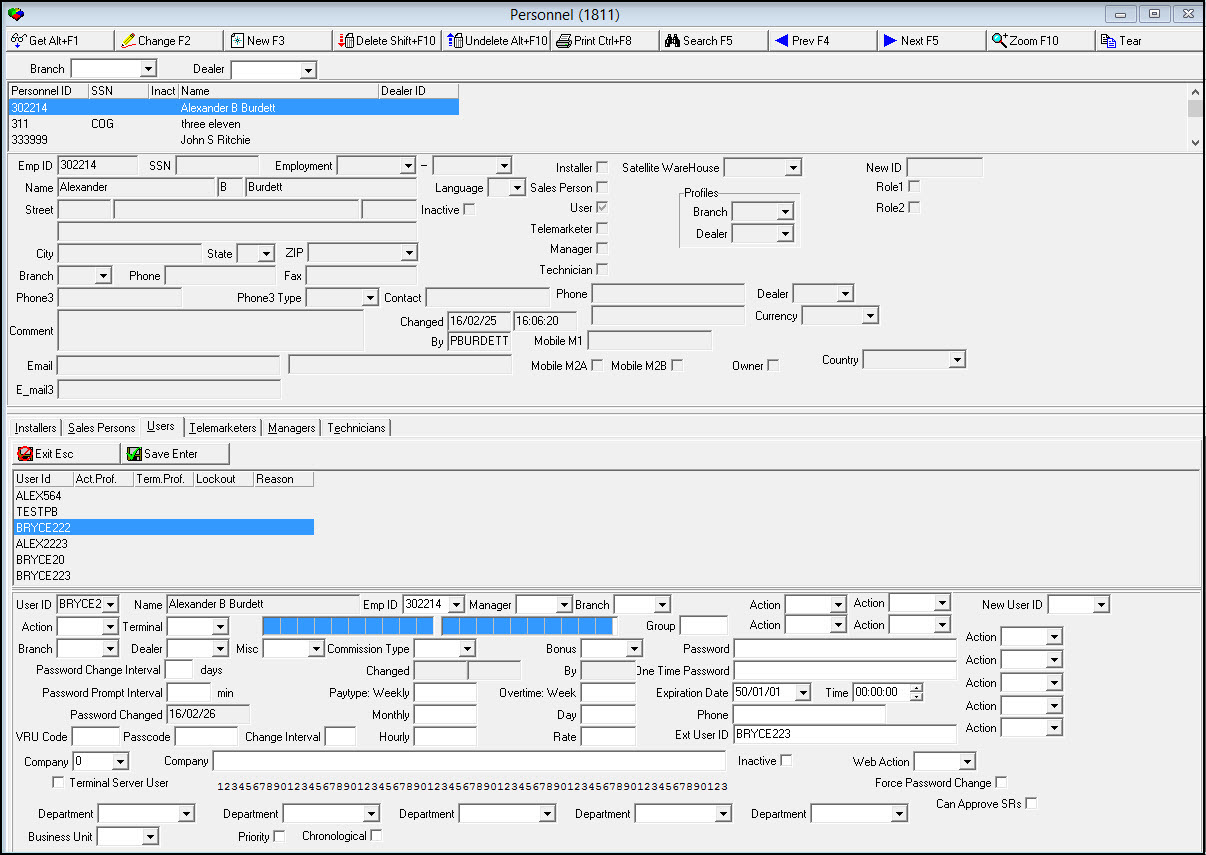
Once the data is updated, click Save Enter button.
Then click the X in the top right corner of the screen.
If the user checks "Add another user" in step 5 the "Enter Personnel Information" screen displays.
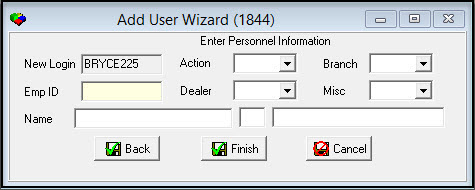
Enter a new user ID in the Emp ID field and any additional information.
Click Finished, the "Process Complete. Please choose next action?" screen displays.
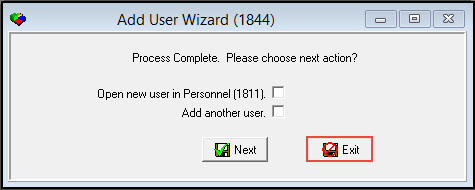
Click Exit to end process or check a box to repeat a step.
Note: Go to Personnel (program #1811) to revise or update any of the user's personnel information..
Button Functions
The following table displays the buttons, describes the shortcut keys, actions, and functionality.
Button |
Name |
Shortcut Key |
Action |
Description |
|
Exit |
ESC |
0564/ 999 |
Exit without saving changes. |
Next |
ENTER |
0564/ 999 |
Save and advance to next session |
|
|
Back |
0564/ 999 |
Go back to last session |
|
|
Finished |
0564/ 999 |
Complete entire process |
|
|
Cancel |
ESC |
0564/ 999 |
Exit without saving |


Modifications and Updates to Add User Login
The following table lists modifications and updates to the Add User Login document.
Mod Number |
Date |
Description |
07.81.23562, 08.81.09767 |
02/02/15 |
Page created. |
07.81.23562, 08.81.09767 |
04/14/15 |
Updated window pictures based on changes to interface. |
08.84.10451, 07.84.24611, 07.84.24610, 08.84.10247, 07.84.24315, 07.83.24118, 08.83.10119 |
02/25/16 |
Change and added buttons, allow Admin. user to create Personnel ID without using Admin login. |